
If you want to AirPlay from your iPhone, iPad, or Mac to a Fire TV device, things can feel a bit confusing mainly because AirPlay support isn't consistent across different Fire TV models. Some of Amazon's newer smart TVs, such as the Fire TV Omni Series, now come with built-in Apple AirPlay. However, the Fire TV Stick lineup, including the Fire TV Stick 4K, 4K Mac, Lite, and HD, still does not support AirPlay natively.
This means most Firestick users won't be able to mirror or cast from their Apple devices without a workaround. The good news is that you can still enable full AirPlay functionality by installing a reliable AirPlay app. These apps act as a bridge between your Apple device and your Firestick, allowing you to mirror your screen, stream videos, or cast photos just as you would with AirPlay on an Apple TV. Which is the best AirPlay app for Fire TV? Here are 5 free and premium options.
What Makes the Best AirPlay App for Fire TV
A great Fire TV AirPlay app should deliver stable connections, minimal delay, and smooth video playback. Users expect consistent mirroring during movies, slideshows, games, or work presentations, so connection quality is essential for a reliable AirPlay experience.
Video quality is another major factor. A good AirPlay app should maintain clarity without compression issues. It must also operate safely, which means it should not upload your content to cloud servers, scan your network, or collect unnecessary personal information. The best AirPlay app is also easy to use, with a straightforward setup that works for everyone from first-time to advanced streamers.
So, what's the best free AirPlay app for Firestick? In the next section, I'll walk you through the leading choices and explain which one offers the strongest balance of performance, safety, and ease of use.
5 Best AirPlay Apps for Fire TV Stick
Below are the five apps reviewed in a consistent, easy-to-compare format. Each one is selected for a different type of Fire TV user, whether you need the most stable mirroring, the strongest privacy protections, extra features, or a simple setup suitable for beginners.
#1: PigeonCast
PigeonCast stands out as the best AirPlay app for Firestick if you want stable mirroring with simple setup and no extra costs.

PigeonCast is designed for users who need dependable wireless mirroring at home or in classrooms. It is known for smooth video playback, quick connection times, and broad compatibility with iPhone, iPad, and Mac. Since it is completely free, it also earns a top spot as the best free AirPlay app for Fire TV. Beyond Apple devices, it can also help you cast phone to Fire TV from Android or other mobile devices on the same Wi-Fi network.
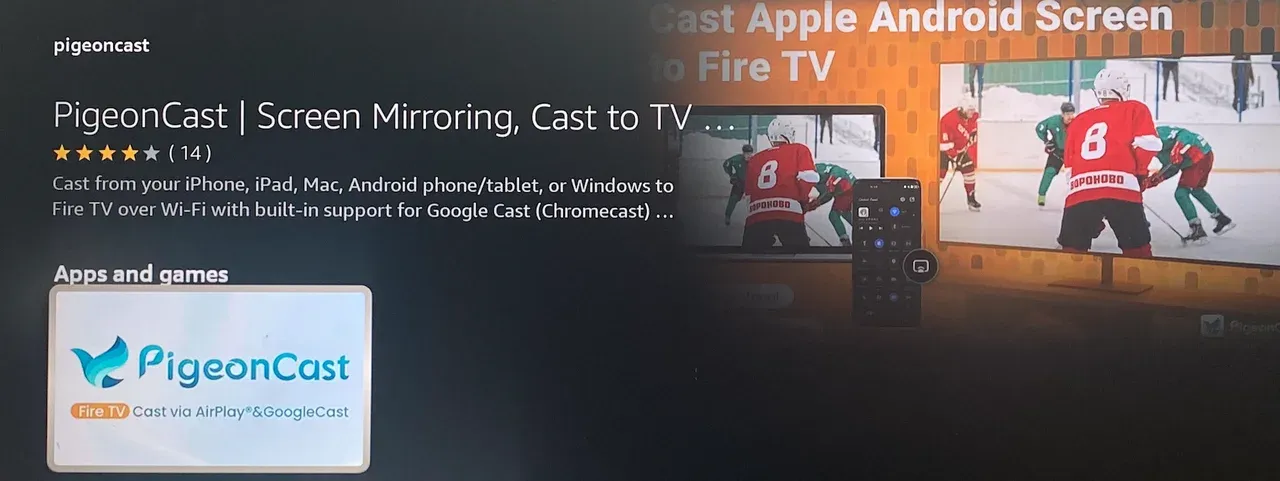
PigeonCast uses local mirroring, meaning all content stays within your home network. Nothing is uploaded or stored online. It does not require an account or login, and it avoids data collection. Users experience low latency during movies, slideshows, and real-time interactions.
Key features:
- Instant mirroring from iPhone, iPad, Mac, Android, and Windows PC
- Local-only streaming for privacy
- Low latency for videos and presentations
- Free to use with no ads or watermarks
How to use PigeonCast to AirPlay to Fire TV:
Step 1. On your Fire TV or Firestick, install PigeonCast for Fire TV from the Amazon Appstore and launch it.
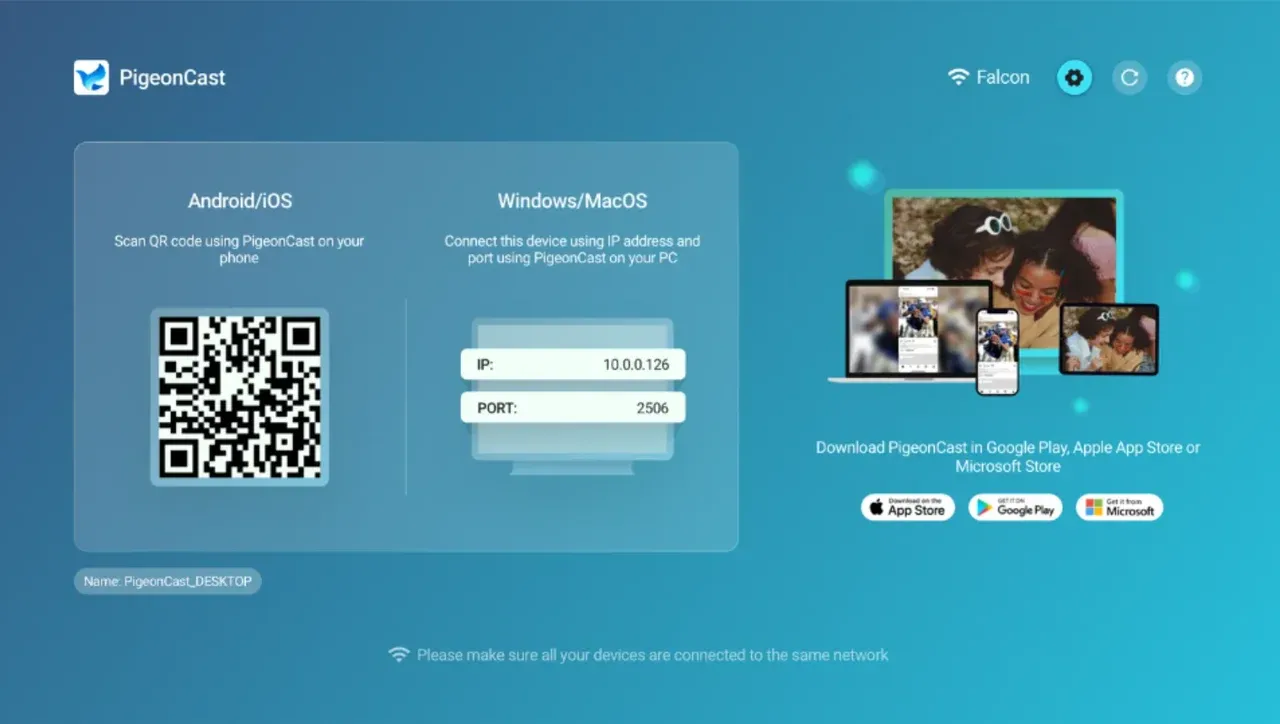
Step 2. (Optional) Install the PigeonCast app on your iPhone, iPad, Mac, Android, or Windows PC.
Tip: Installing PigeonCast on both devices ensures a smoother, more stable screen mirroring experience every time. Just launch it, choose your Fire TV, and start screen mirroring.


Overall Rating:



Step 3. Connect your Fire TV and Apple device to the same WiFi.
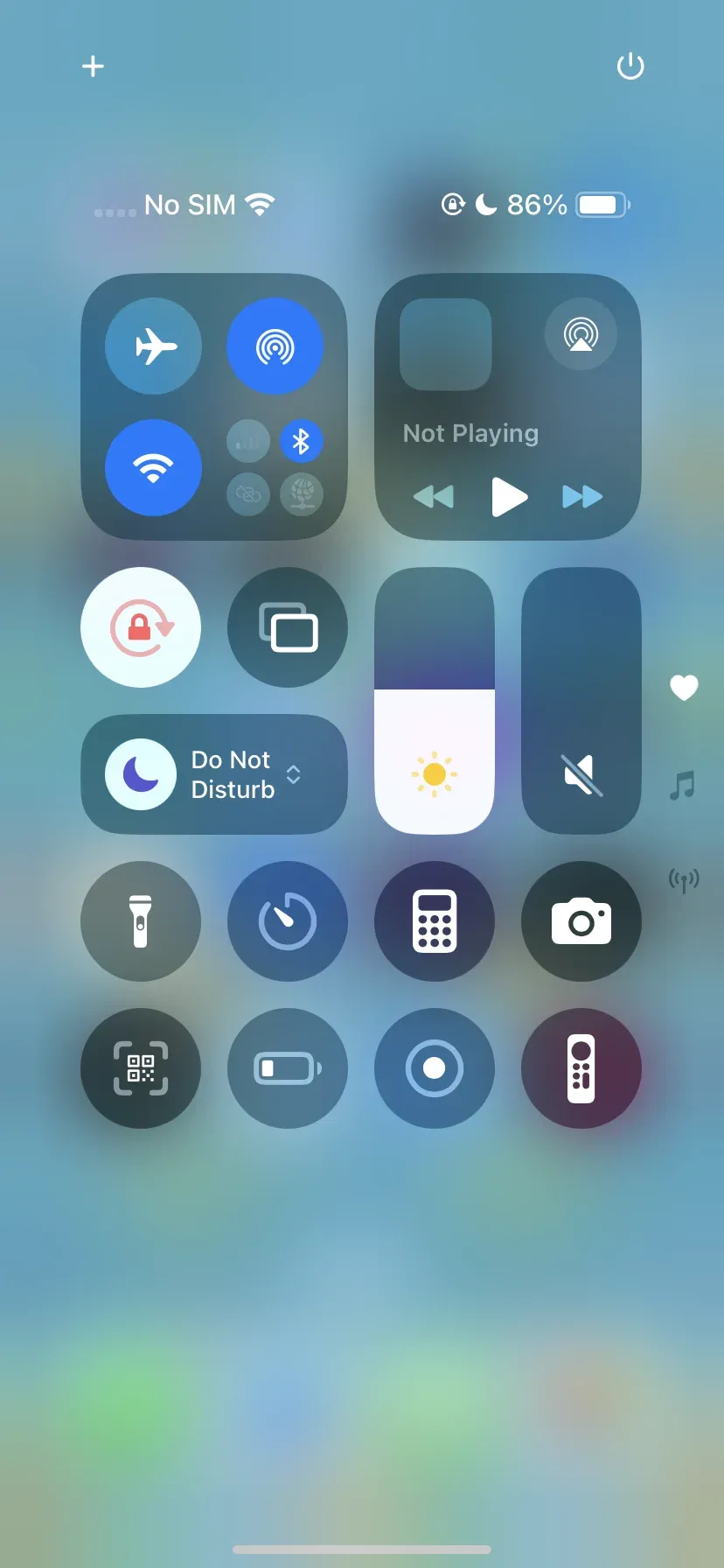
Step 4. Enable AirPlay (Screen Mirroring) from the Control Center on your Apple device.
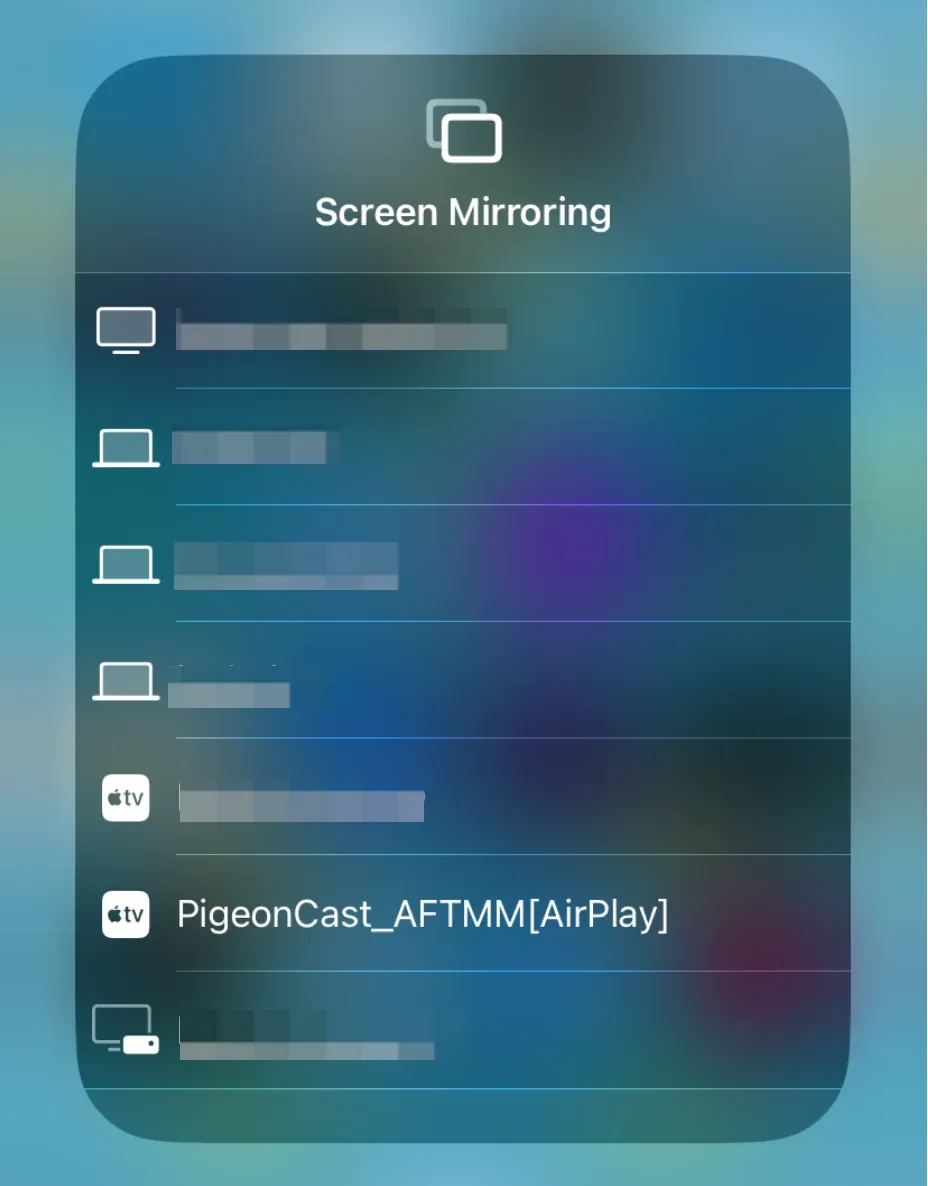
Step 5. Choose PigeonCast-powered Fire TV from the device list and allow the connection.
 Step 6. Once connected, you can view your Apple device screen on your TV.
#2: DoCast
DoCast is a solid AirPlay app for Firestick if you want more control over media playback and simple tools for photos and videos.
DoCast focuses on an easy user interface with options for local video casting, photo viewing, and screen mirroring. It is beginner-friendly and offers useful features for streaming stored media or quick demonstrations.
The AirPlay app for Fire TV Stick focuses on an easy user interface with options for local video casting, photo viewing, and screen mirroring. It is beginner-friendly and offers useful features for streaming stored media or quick demonstrations.
Key features:
- Cast videos, photos, and music
- Supports basic screen mirroring
- Simple interface for new users
- Optional premium upgrades
How to use DoCast:
Step 1. Download DoCast from the App Store and install it on your iPhone or iPad.
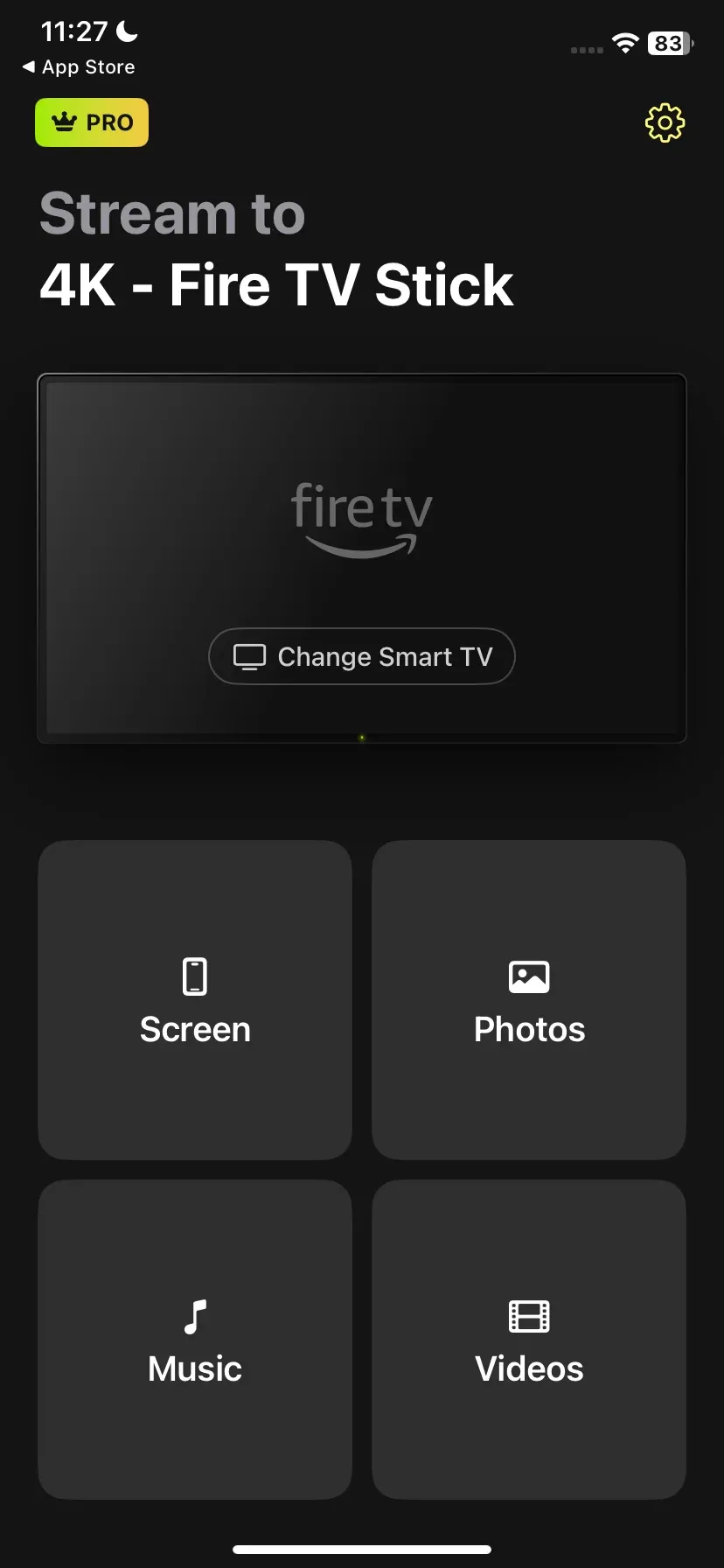
Step 2. Ensure both devices share the same WiFi network.
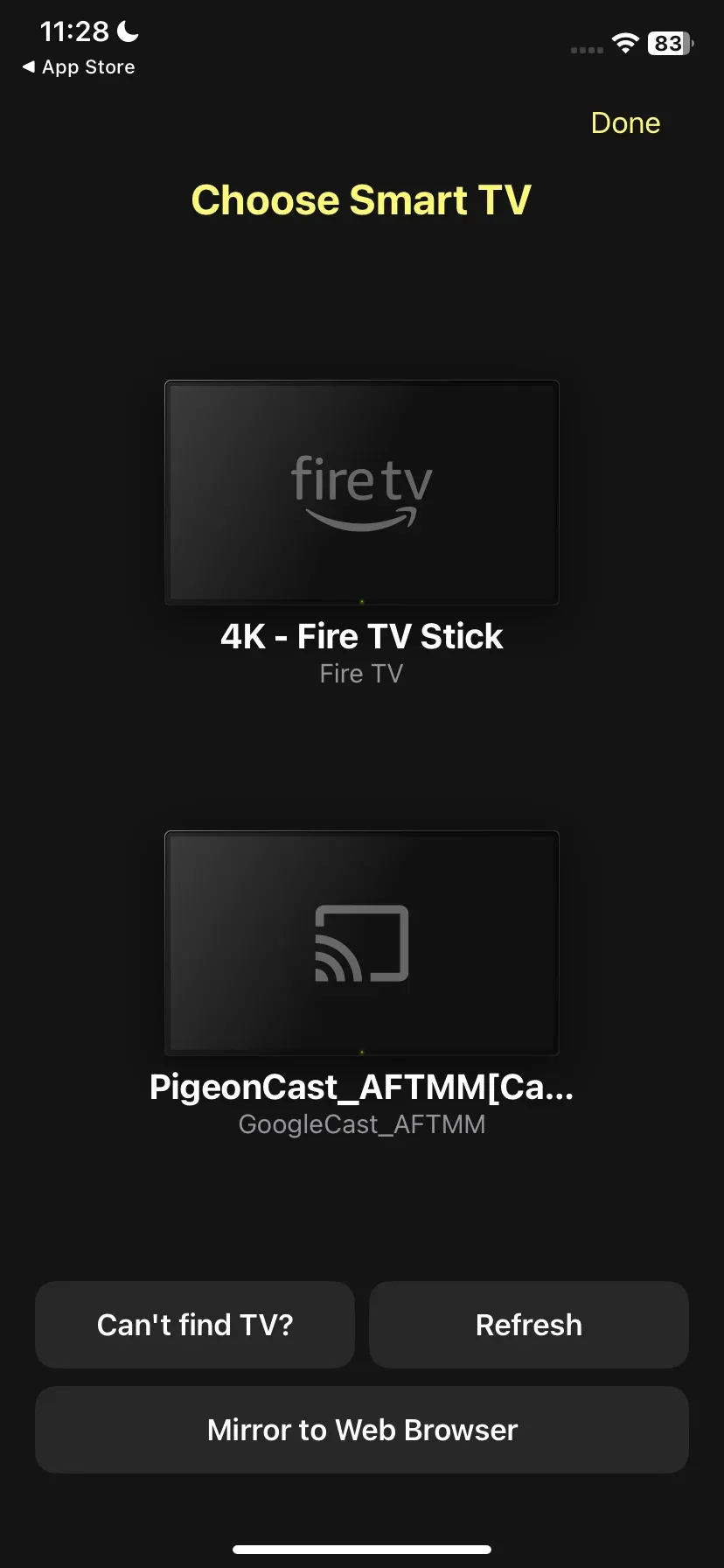
Step 3. Open the app and choose your Fire TV.
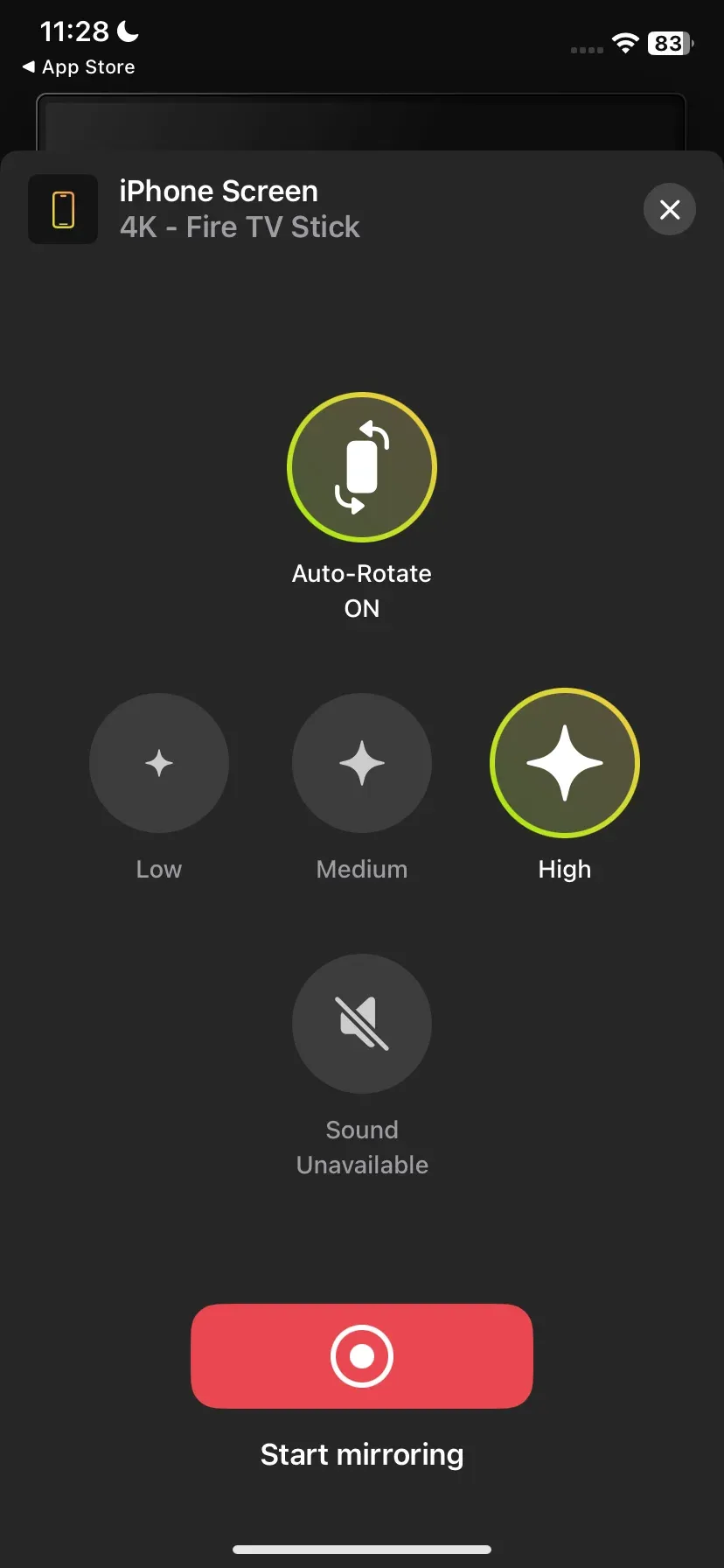
Step 4. Tap Screen and start screen mirroring iPhone to Fire TV.
#3: AirPlay Cast
AirPlay Cast, designed by BoostVision, is one of the best AirPlay apps for Firestick if you need presentation-friendly controls and versatile viewing modes.
This app is ideal for classrooms, meetings, and productivity sessions. It lets you display documents, photos, and videos on Fire TV with stable performance. The app supports landscape and portrait modes, remote pause control, and a smooth AirPlay connection for Apple devices.
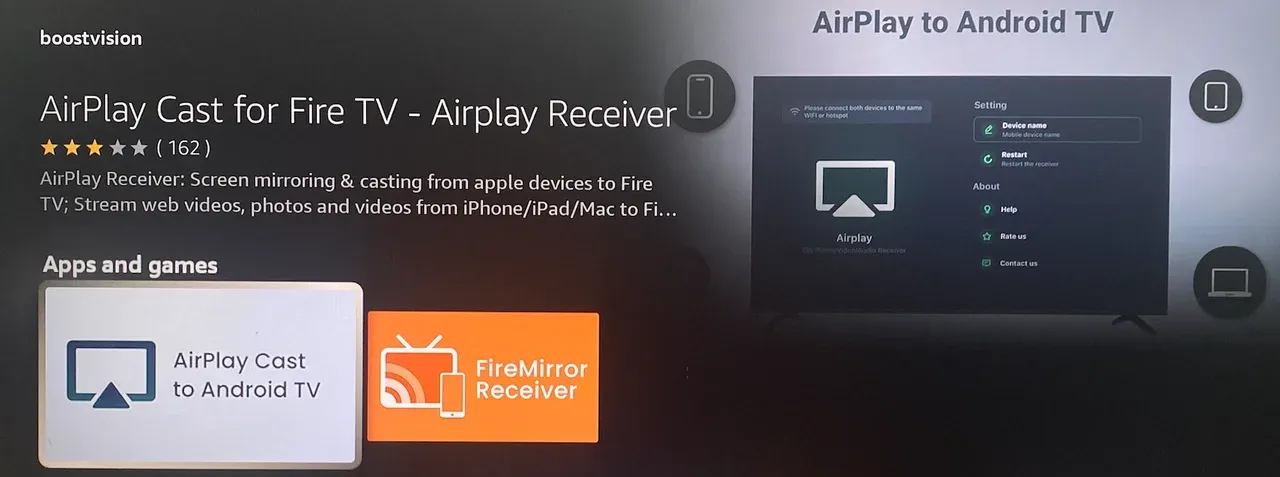
AirPlay Cast focuses on local streaming. There is no mandatory login, and your media is not uploaded to the cloud. It maintains good stability for work sessions and offers dependable playback for both entertainment and professional use.
Key features:
- Supports portrait and landscape
- Remote play and pause from Fire TV
- Simple setup for classrooms and meetings
- Smooth mirroring for documents and videos
How to use AirPlay for Fire TV app:
Step 1. Download AirPlay Cast on your Fire TV.
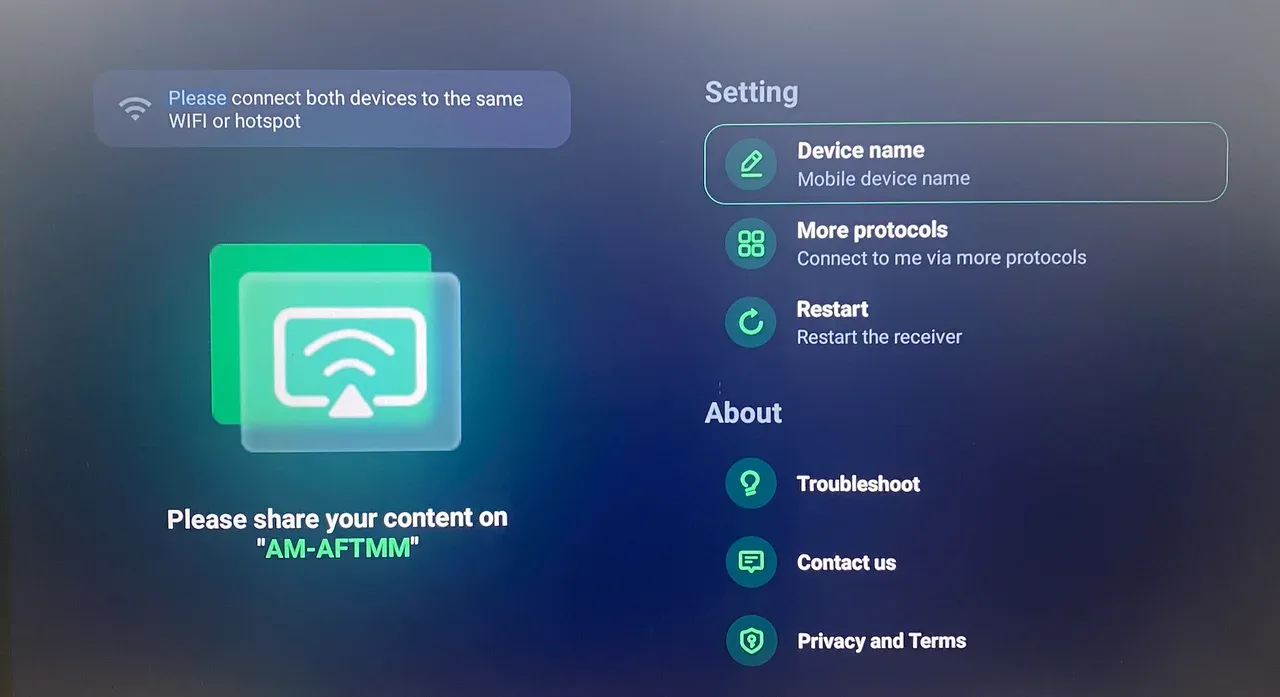
Step 2. Connect your Apple device and Fire TV to the same WiFi.
Step 3. Open AirPlay Cast to reveal your Fire TV name.
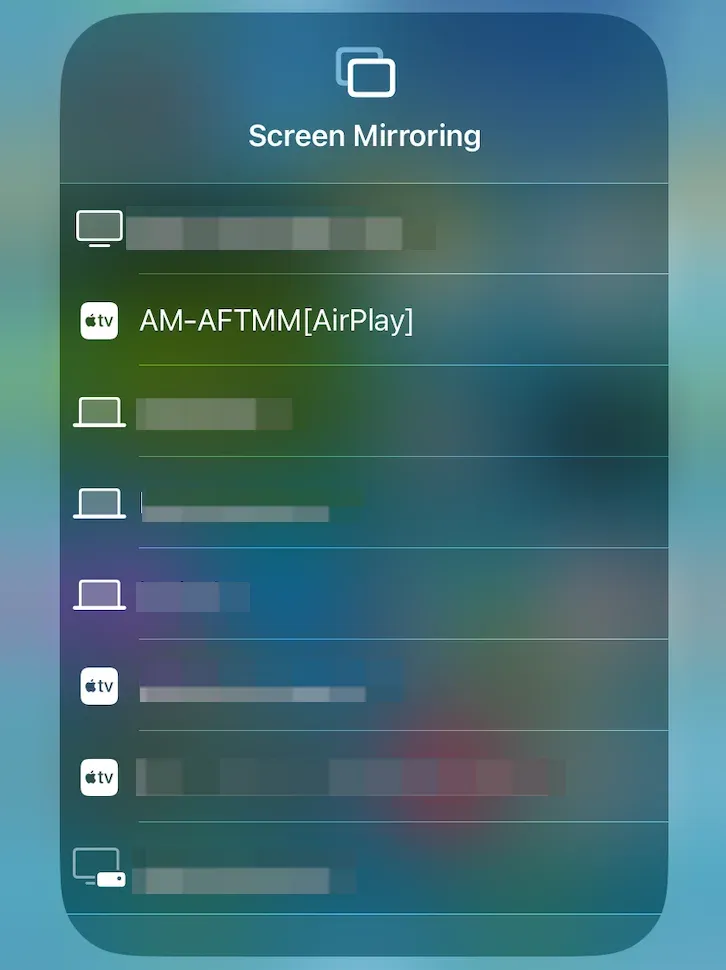
Step 4. Select Screen Mirroring on your Apple device and choose your Fire TV.
#4: Replica
Replica is a reliable Firestick AirPlay app suited for users who want quick connections and straightforward mirroring.
Replica is known for simplicity. It loads quickly and supports major AirPlay functions without complicated menus. It is commonly used for watching videos, browsing photos, and sharing apps on a larger screen.
The app handles mirroring locally but offers extra features through in-app upgrades. It maintains decent stability, although some advanced tools require a subscription.
Key features:
- Easy setup for beginners
- Works well for casual entertainment
- Clean and simple interface
How to use Replica**:**
Step 1. Download Replica on both your iPhone and Fire TV.
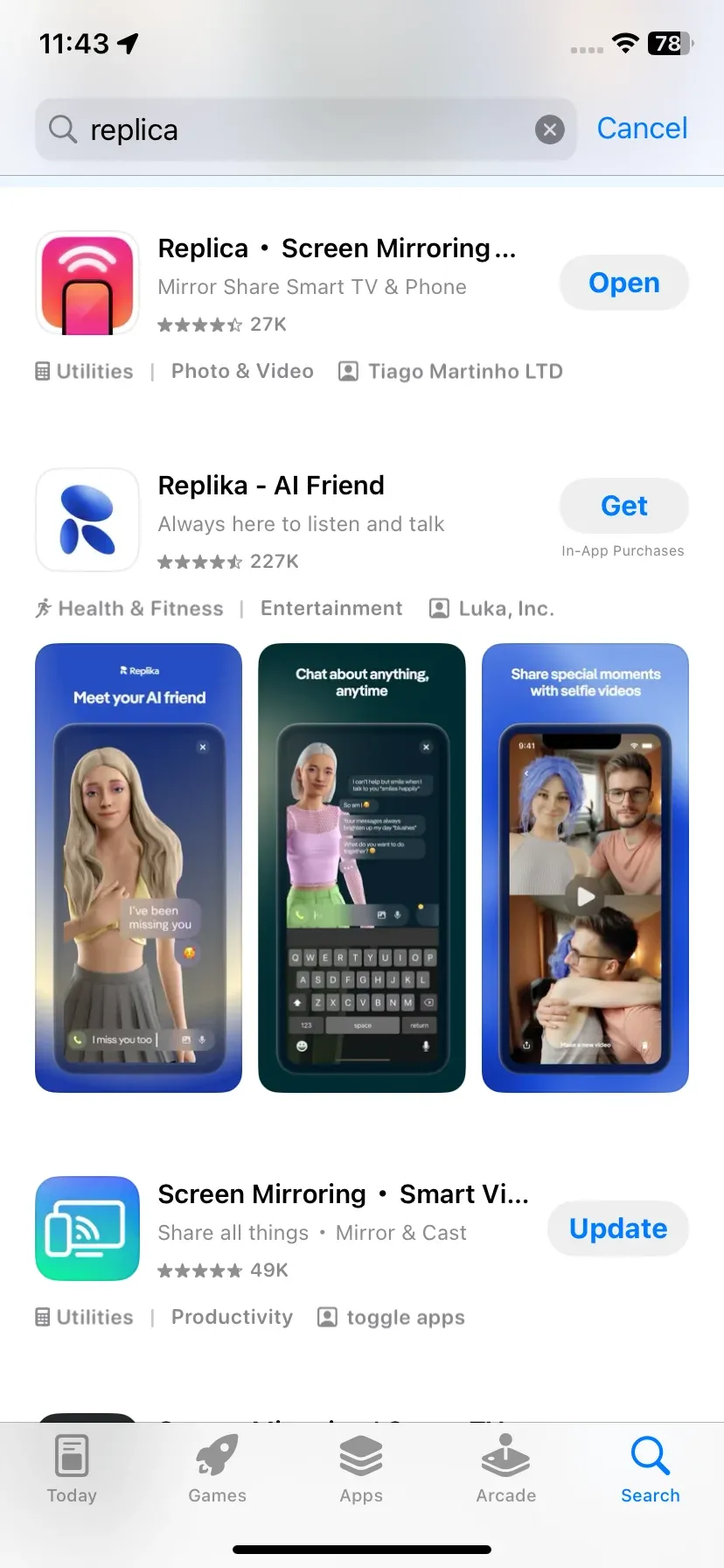
Step 2. Launch the app on your iPhone and tap your Fire TV.
Step 3. Tap Screen Mirroring and start mirroring to your Fire TV from your iPhone.
#5: AirScreen
AirScreen is an all-in-one AirPlay app with support for AirPlay, Cast, DLNA, and Miracast.
It is useful for mixed device environments or users who want one app that handles multiple streaming protocols. AirScreen supports video playback, photos, music, and full-screen mirroring.
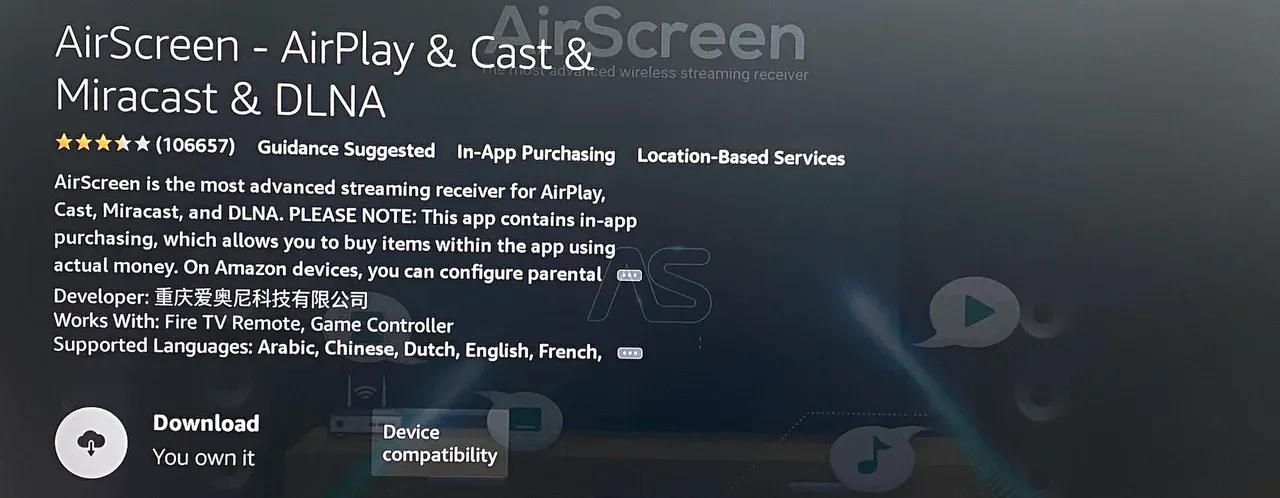
AirScreen is safe when downloaded from official channels. Non-official APK sources should be avoided. The app uses local streaming, but it includes optional analytics that can be disabled.
Key features:
- Multi-protocol support
- Works with Apple, Android, and Windows devices
- Good for households with many device types
How to use AirScreen:
Step 1. Install AirScreen on your Fire TV and launch it.
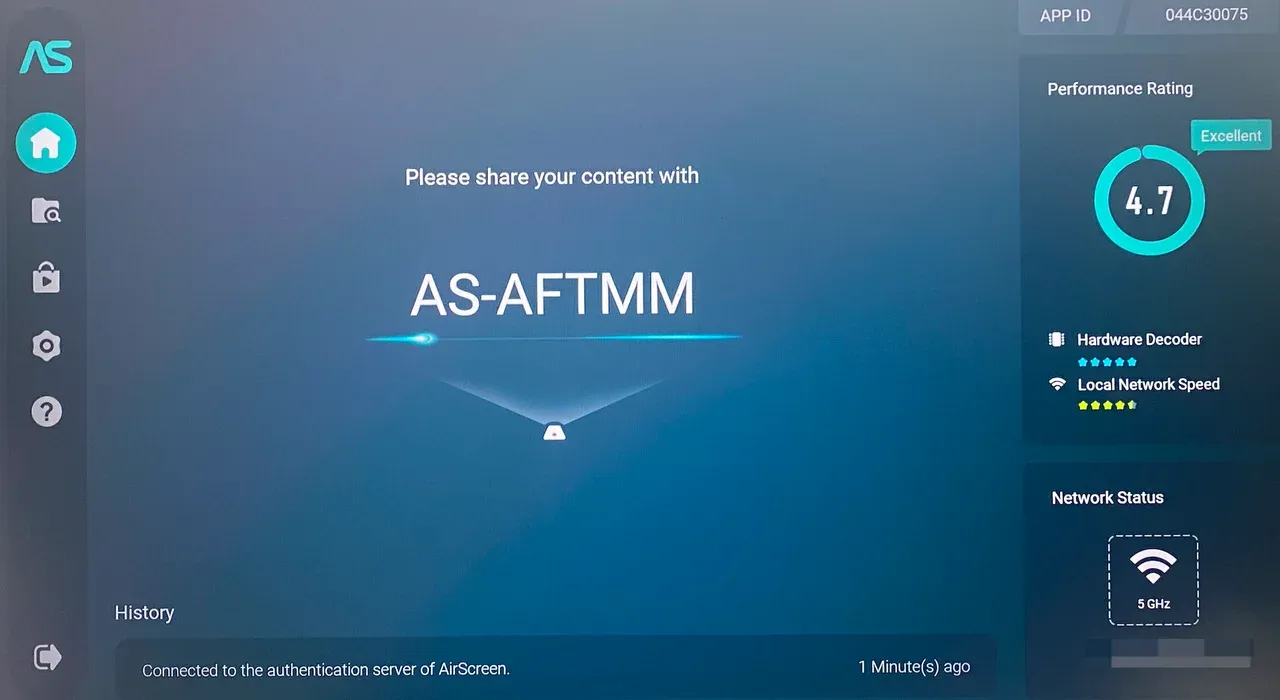
Step 2. Connect both devices to the same network.
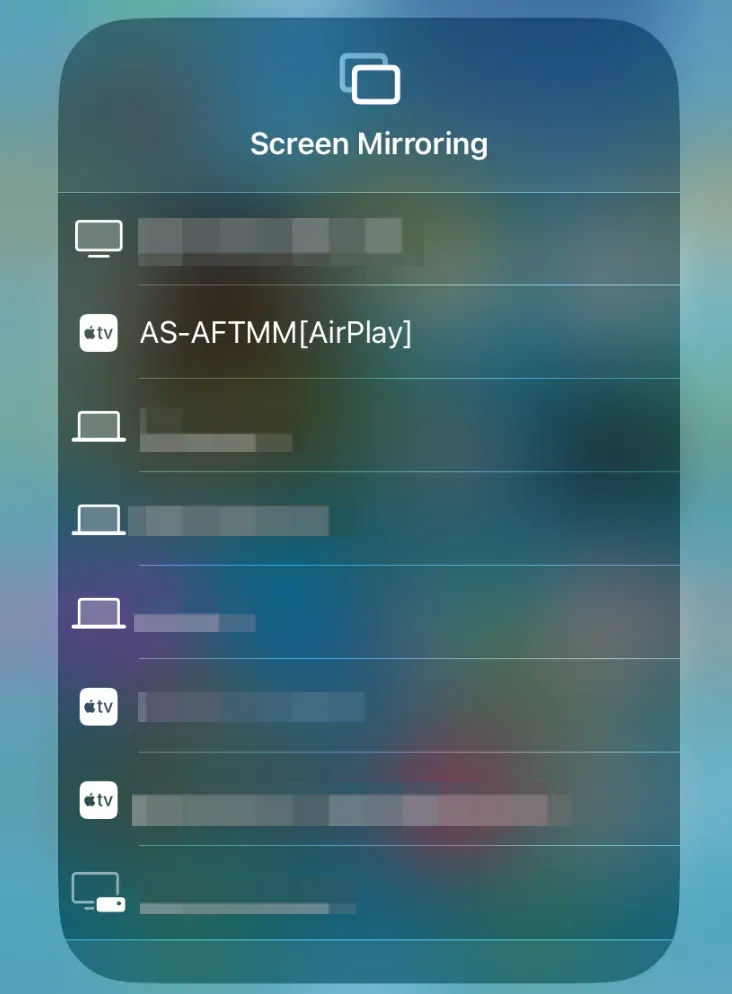
Step 3. Open Control Center on iPhone and tap Screen Mirroring.
Step 4. Choose your Fire TV in the device list and wait for the screen mirroring to start.
Which Is the Best AirPlay App for Fire TV
Choosing the best AirPlay app for Fire TV depends on what you value most, whether it's lower latency, stronger privacy protection, or a completely free solution. The table below gives you a quick side-by-side look at how each app performs in the areas users care about most, helping you pick the option that fits your needs.
| Firestick AirPlay App | Free to Use | Latency | Security | Ease of Use | Recommendation |
|---|---|---|---|---|---|
| PigeonCast | Yes (no ads) | Very low | Local only streaming | Very easy | ⭐⭐⭐⭐⭐ |
| DoCast | Partially | Medium | Mostly local | Easy | ⭐⭐⭐⭐ |
| AirPlay Cast | Paid | Low | Local streaming | Easy | ⭐⭐⭐⭐ |
| Replica | Partially | Medium | Local with upgrades | Easy | ⭐⭐⭐ |
| AirScreen | Partially | Medium | Depends on source | Moderate | ⭐⭐⭐ |
Your ideal app depends on how and where you plan to mirror. For home entertainment, you may want an AirPlay app that focuses on stable streaming and low delay. For teaching or workplace presentations, features such as landscape control or remote playback management can make a big difference.
If privacy is your top concern, look for apps that keep all content on your local network. Users with older Fire TV devices may prefer lightweight apps that launch quickly, while those who use both Apple and non-Apple devices might benefit from apps that support multiple streaming protocols or work on many different platforms.
Final Words
Choosing the best AirPlay app for Fire TV depends on your needs, whether you prefer simple mirroring, advanced tools for presentations, or multi-protocol support. Apps vary in pricing, stability, and security, so consider what matters most to you before installing one.
For most users, PigeonCast remains the best balance of performance, privacy, and simplicity. It connects fast, mirrors smoothly, and works completely free, making it a dependable choice for everyday streaming, teaching, or entertainment.
Best AirPlay App for Fire TV FAQs
Does Firestick support AirPlay natively?
Firestick does not natively support AirPlay. However, you can use third-party apps like PigeonCast or AirScreen to enable AirPlay functionality on your Fire TV.
How do I mirror my iPhone to Firestick?
To mirror your iPhone to Firestick, download an AirPlay-enabled app such as PigeonCast or AirScreen, connect both devices to the same WiFi network, and start casting your screen.
What is the safest AirPlay app for Firestick?
PigeonCast is considered one of the safest AirPlay apps for Firestick as it uses local streaming, ensuring that your content stays private and does not upload to cloud servers.
Why does AirPlay lag on Fire TV?
AirPlay lag on Fire TV can be caused by poor WiFi connection, high network traffic, or outdated Fire TV firmware. Ensure your devices are connected to a stable and fast WiFi network for smooth streaming.
Do I need WiFi for AirPlay to Fire TV?
Yes, both your Fire TV and Apple device must be connected to the same WiFi network for AirPlay to work.
Why is Apple AirPlay not working on Fire TV?
If Apple AirPlay is not working on Fire TV, check that both devices are connected to the same WiFi network, the AirPlay app is properly set up, and both devices have the latest software updates installed.
Mia Clarke is a technology editor specializing in screen mirroring and casting solutions across multiple platforms. Mia provides clear, practical guides and in-depth insights to help users seamlessly connect their devices. Passionate about enhancing digital experiences, Mia is dedicated to keeping readers updated on the latest trends and tools in cross-platform screen sharing. Whether you’re looking to mirror your smartphone, laptop, or smart TV, Mia’s content delivers reliable, user-friendly advice to simplify your tech setup.