
If you've ever attempted to stream content from your iPhone, iPad, or Mac to Fire TV and found Fire TV AirPlay not working, you're definitely not alone. Many users run into the frustrating scenario where the AirPlay icon never appears, the TV refuses to pair, or streaming simply fails altogether. In this article, we dig into why this happens, what you can do about it, and how to ensure that if native support fails, you still have a reliable workaround.
Why Is Fire TV AirPlay Not Working
When you encounter AirPlay not working on Fire TV, there are several typical culprits:
- AirPlay compatibility: Not all Fire TV devices support Apple's AirPlay or HomeKit. Some models don't include the native AirPlay feature at all.
- Outdated firmware/software: If either the Fire TV or your Apple device is running old software, the AirPlay function may break.
- Network issues: AirPlay relies on both devices being on the same Wi-Fi network and discoverable via Apple's Bonjour/mDNS service.
- Interferences or settings: VPNs, Bluetooth connections, or third-party AirPlay-receiver apps can interfere. Also, if AirPlay is disabled in Fire TV settings, you won't get anywhere.
- Mis-configured AirPlay settings: On compatible Fire TV models, there is a specific menu ("AirPlay & HomeKit") that must be turned on.
All of these can contribute to scenarios such as "Apple AirPlay and HomeKit not working on Fire TV" or "Apple AirPlay not working on Fire TV".
Is Your Fire TV Compatible with AirPlay
Before troubleshooting AirPlay issues on Fire TV any further, check if your device is one of the models that support AirPlay. According to Apple's list of supported devices, many "Fire TV Edition" smart TVs (Toshiba, Insignia, etc.) from around 2018 onwards are included. That said, many Fire TV Sticks and older models do not support native AirPlay.
If your model lacks "Settings > Display & Sounds > AirPlay & HomeKit" menu, then native AirPlay probably isn't supported, and you'll need a workaround.
How to Fix Fire TV AirPlay Not Working
Now that we've covered why Apple AirPlay not working on Fire TV is such a common issue, it's time to move from diagnosis to action. The good news is that most AirPlay problems (for example, it's missing icons, failed connections, or video not loading) can be fixed with a few simple adjustments.
Before diving in, make sure both your Apple device and Fire TV are turned on, connected to the same Wi-Fi network, and running their latest software versions. Once that's confirmed, follow the steps below to get AirPlay working again.
Solution 1: Enable AirPlay on Fire TV
To AirPlay to Fire TV, make sure AirPlay is actually turned on the target device, which is surprisingly easy to overlook. If your Fire TV model supports AirPlay, follow the steps:
Step 1. On your Fire TV, go to Settings > Display & Sounds > AirPlay & HomeKit.
Step 2. Toggle AirPlay to the On position.
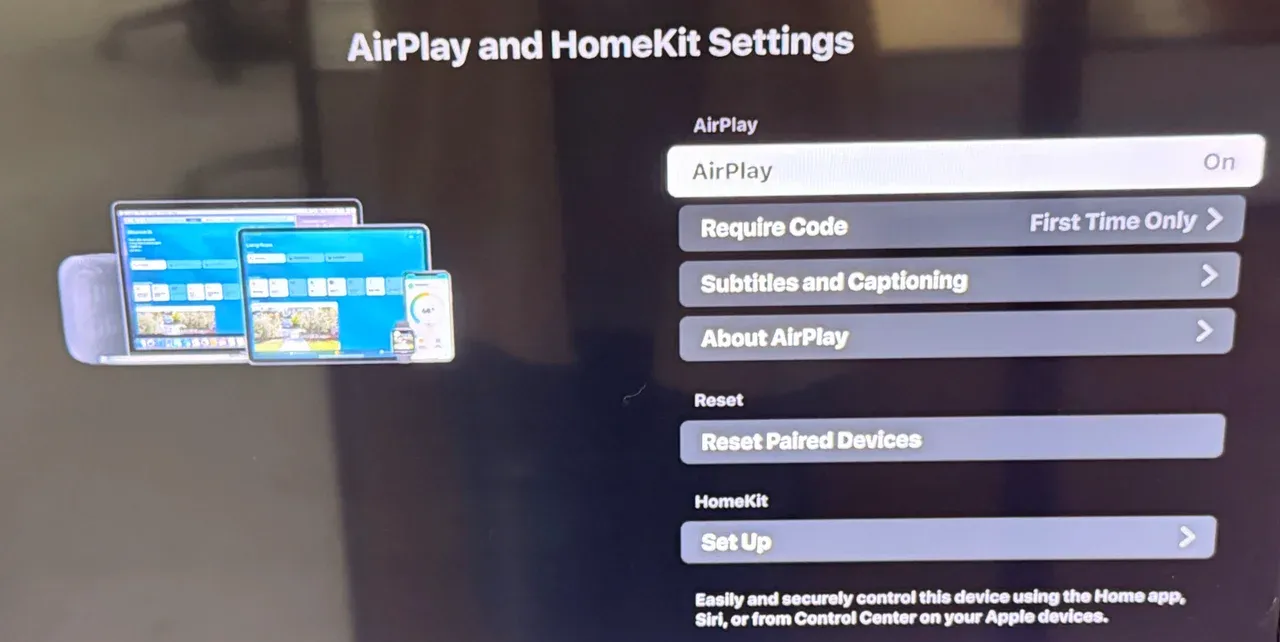 Step 3. If your TV shows an activation code, enter it on your Apple device.
Taking this step ensures that your Fire TV is ready to receive AirPlay connections. Many users find that once they re-enable AirPlay manually, the "Apple AirPlay not working on Fire TV" issue disappears instantly.
Solution 2: Restart Devices
If AirPlay is still not working even after enabling it, don't panic; sometimes all your devices need is a quick refresh. Temporary glitches in system memory or background processes can interrupt wireless connections.
Start by restarting both your Fire TV and Apple device:
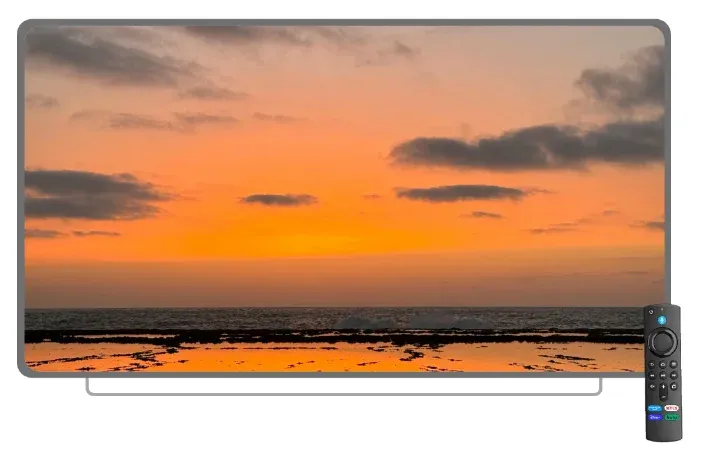
- On Fire TV: Hold the Select and Play/Pause buttons on your remote for five seconds, or simply unplug the power cable for a few moments.
- On iPhone or iPad: Press and hold the Power and Volume Down buttons together, then slide to power off.
Once both devices restart, try connecting again. In many cases, this simple step clears temporary bugs that block AirPlay from discovering or connecting to your Fire TV.
Solution 3: Update the Software
If restarting doesn't solve the problem, outdated software might be the hidden cause. AirPlay relies on compatible network protocols and codecs that can break when one device runs an older firmware version.
To check for updates:
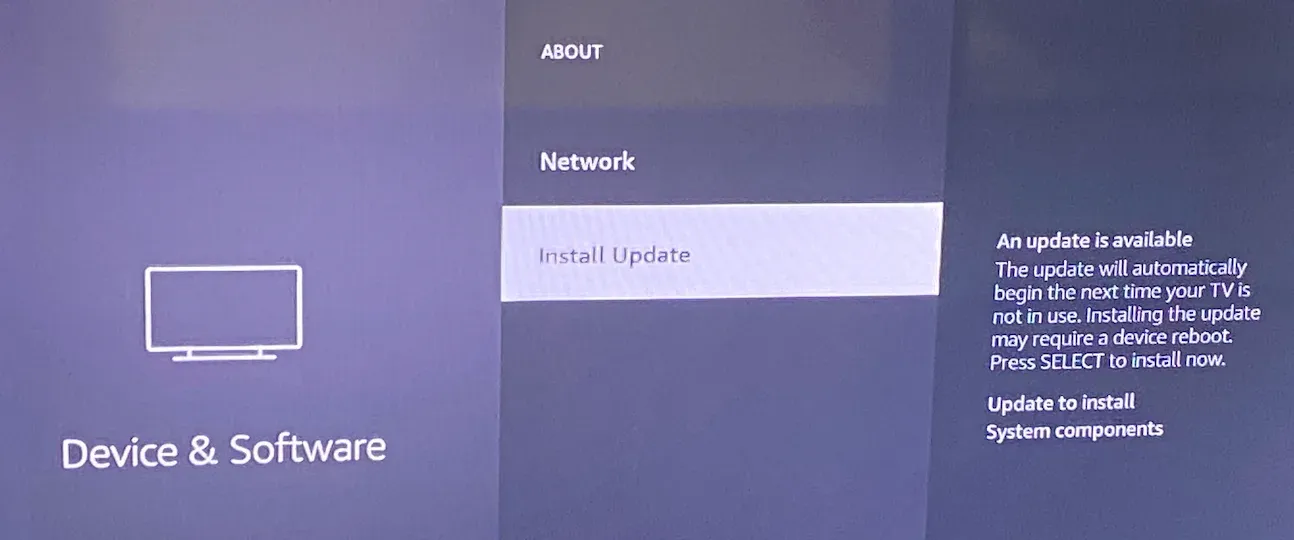
- On Fire TV: Go to Settings > My Fire TV > About > Check for Updates.
- On iPhone/iPad/Mac: Open Settings > General > Software Update, then install the latest version available.
After updating, reconnect your devices to the same Wi-Fi network and test AirPlay again. New firmware often improves connection stability and resolves issues where Apple AirPlay not working on Fire TV results from version mismatches or outdated security certificates.
Solution 4: Check Your Wi-Fi Connection
Once your software is fully updated, the next thing to verify is your Wi-Fi setup. AirPlay depends on a stable wireless network to maintain video and audio transmission, and even minor network mismatches can prevent your devices from seeing each other.
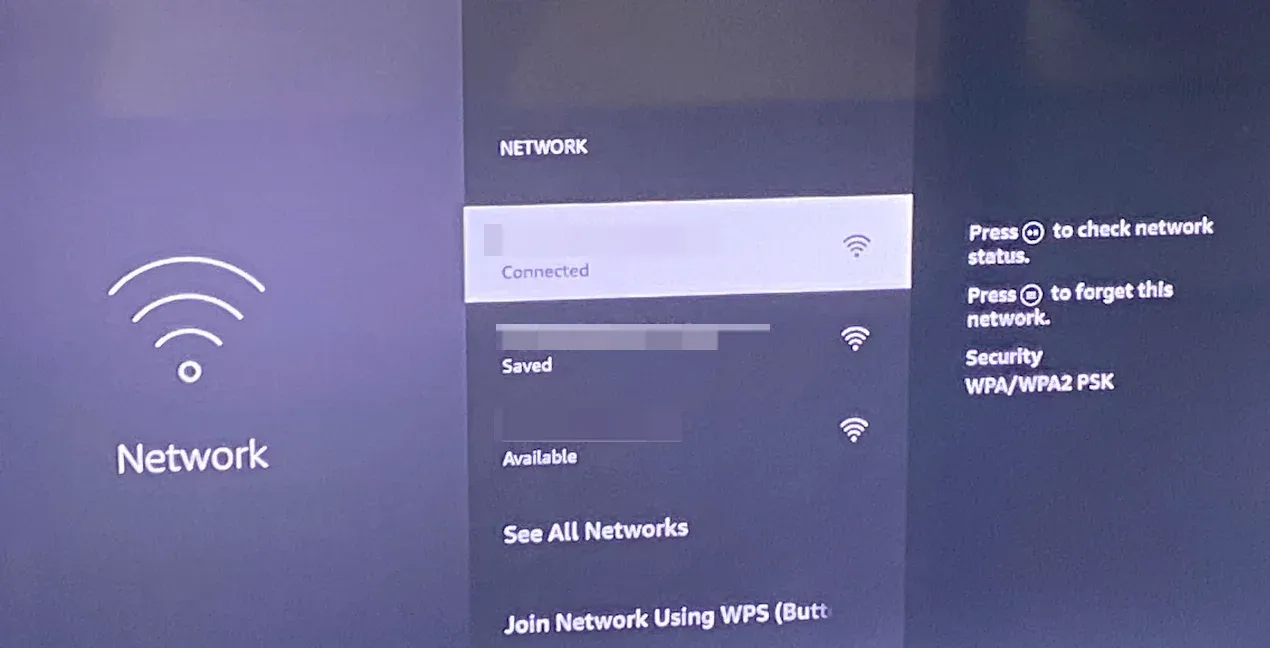
Ensure that both your Fire TV and Apple device are connected to the same Wi-Fi network. If your router has dual-band options (2.4 GHz and 5 GHz), try placing both devices on the same band. It's also a good idea to restart your router if the connection seems unstable.
This simple check often resolves the "AirPlay not working Fire TV" problem, especially when users have recently changed their router settings or network name.
Solution 5: Turn Off VPNs
If your Wi-Fi looks fine but AirPlay is still not appearing, network interference may be the issue. VPNs, proxy servers, or strict firewall configurations can block AirPlay's device-discovery traffic.
Temporarily disable any VPN apps or firewall software on your Apple device. If you're using a work or school network, switch to a personal connection instead. Also, try turning off Bluetooth on your Apple device while connecting, as some Bluetooth pairings can disrupt the AirPlay handshake process.
After disabling these potential obstacles, reopen the AirPlay menu on your Apple device and check if your Fire TV finally shows up.
Solution 6: Clear App Cache on Fire TV
If AirPlay still fails to connect or randomly stops working mid-session, a corrupted app cache might be interfering with playback. Over time, streaming apps store temporary data that can conflict with AirPlay connections.
To fix this:
Step 1. Open Settings > Applications > Manage Installed Applications on your Fire TV.
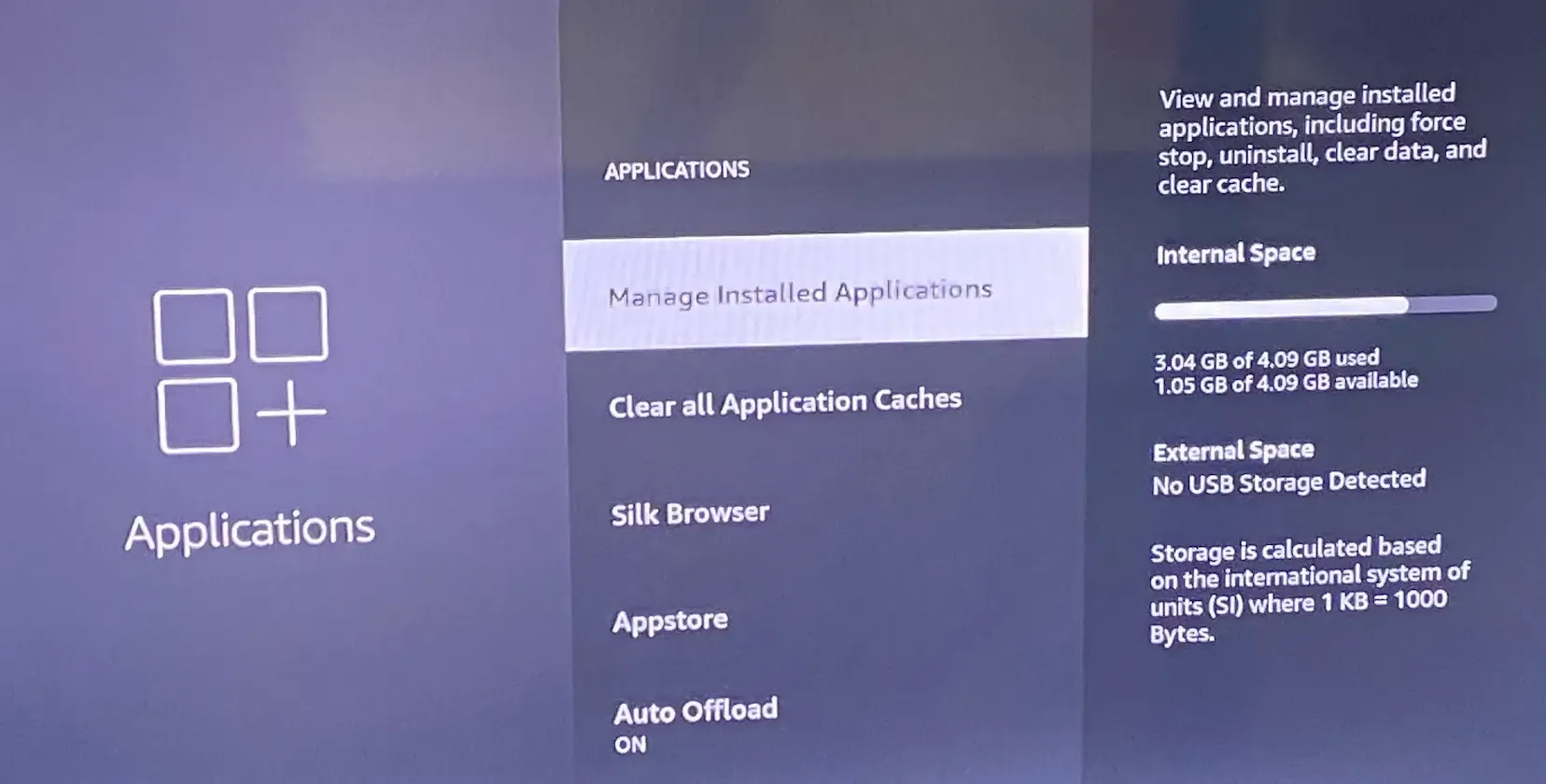
Step 2. Select the app you often mirror (such as YouTube, Prime Video, or VLC).
Step 3. Choose Clear Cache and Clear Data.
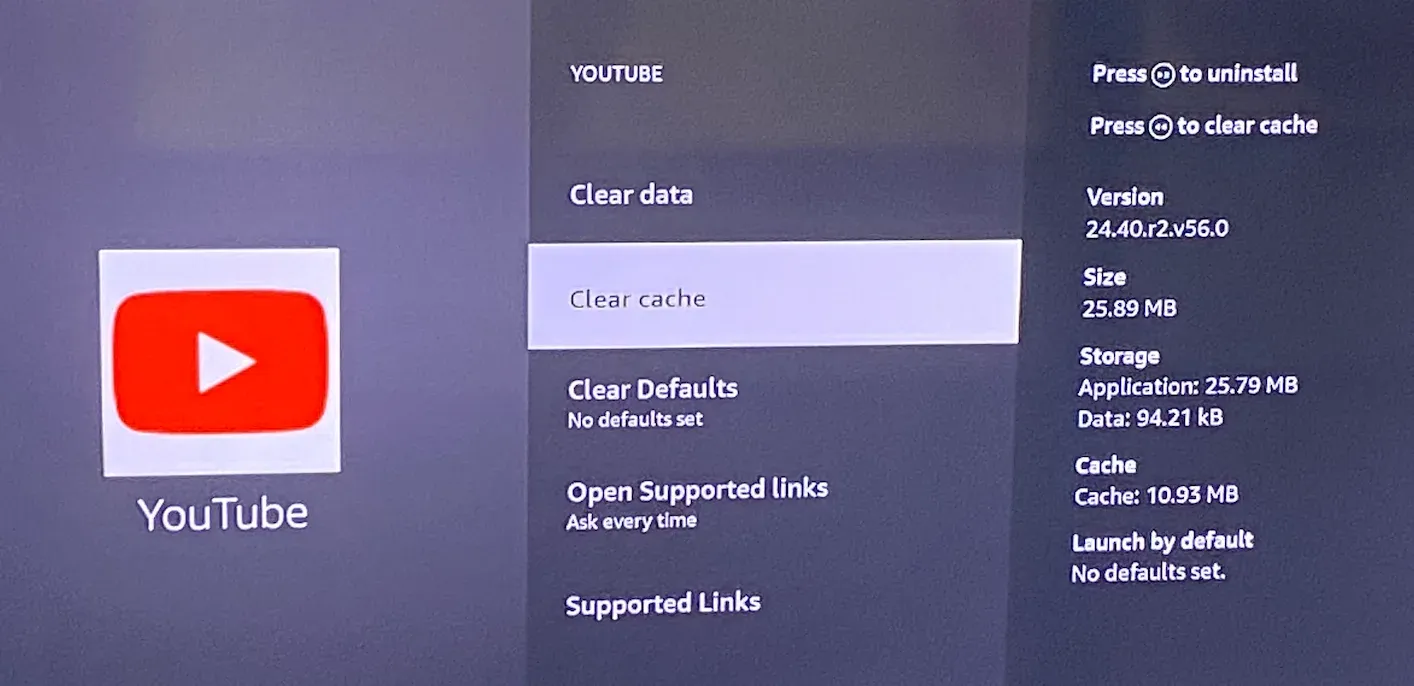
Once cleared, restart your Fire TV and test AirPlay again. Many users report that this step alone resolves the issue where "AirPlay not working Fire TV" causes lag or sudden disconnections.
Solution 7: Unpair Old AirPlay Devices
If your Fire TV has previously been connected to multiple iPhones, iPads, or Macs, outdated pairing information might be preventing new devices from linking properly. In that case, resetting the AirPlay pairing list can help:
Step 1. Navigate to Settings > Display & Sounds > AirPlay & HomeKit > Reset Paired Devices.
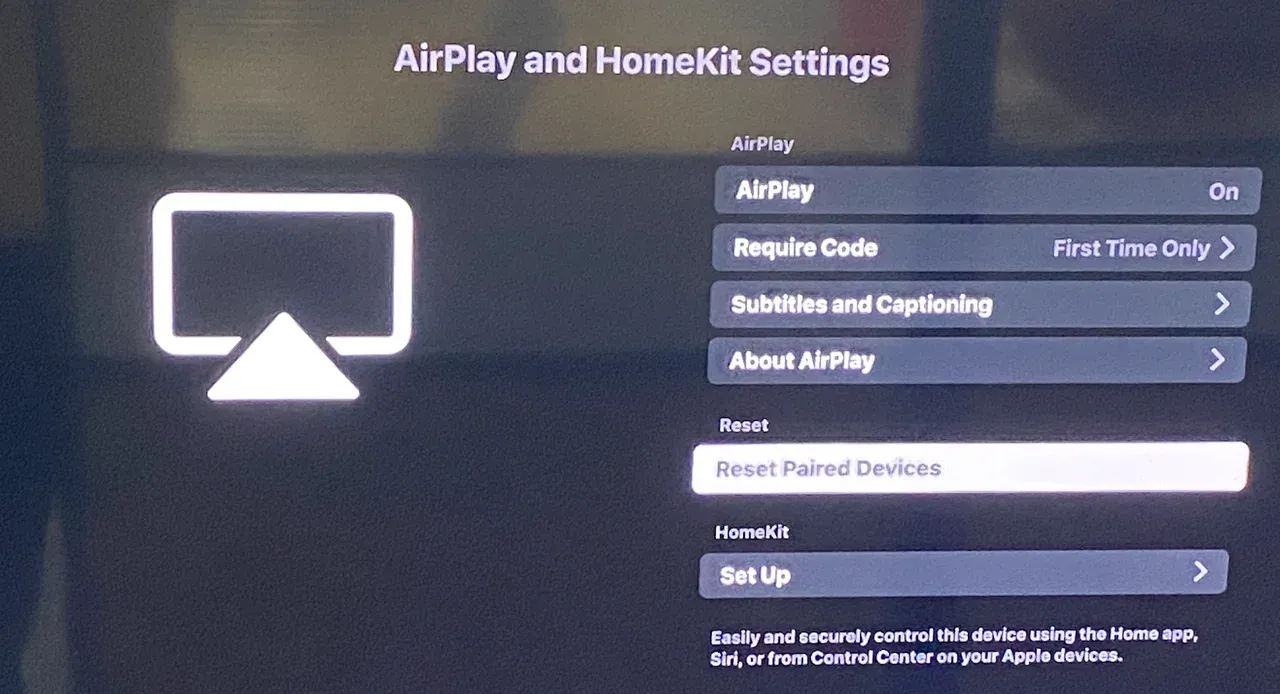
Step 2. Confirm by selecting Unpair Devices.
Afterward, try reconnecting your Apple device again. This will initiate a fresh pairing session, which often fixes persistent "Apple AirPlay and HomeKit not working on Fire TV" problems.
Try Fire TV AirPlay Alternative: PigeonCast
If your Fire TV either doesn't support native AirPlay or the above steps still don't work reliably, PigeonCast can turn it into a wireless screen mirroring receiver for your phone, tablet, or computer. It supports iPhone, Android, Windows, and Mac, so you can still cast phone to Fire TV without cables or the built-in AirPlay setting.
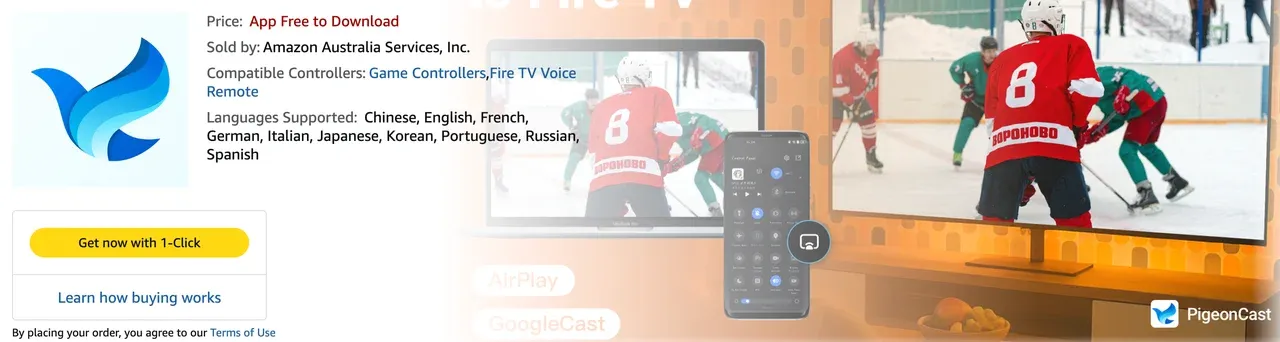 How to use PigeonCast for Fire TV screen mirroring:
Step 1. Install PigeonCast on your Fire TV and Apple device.

PigeonCast Screen Mirroring

Official Download


Step 2. Ensure the same Wi-Fi connection on your Apple device and Fire TV.
Step 3. Launch PigeonCast on both devices and follow the onscreen instructions to connect your Apple device to your TV.
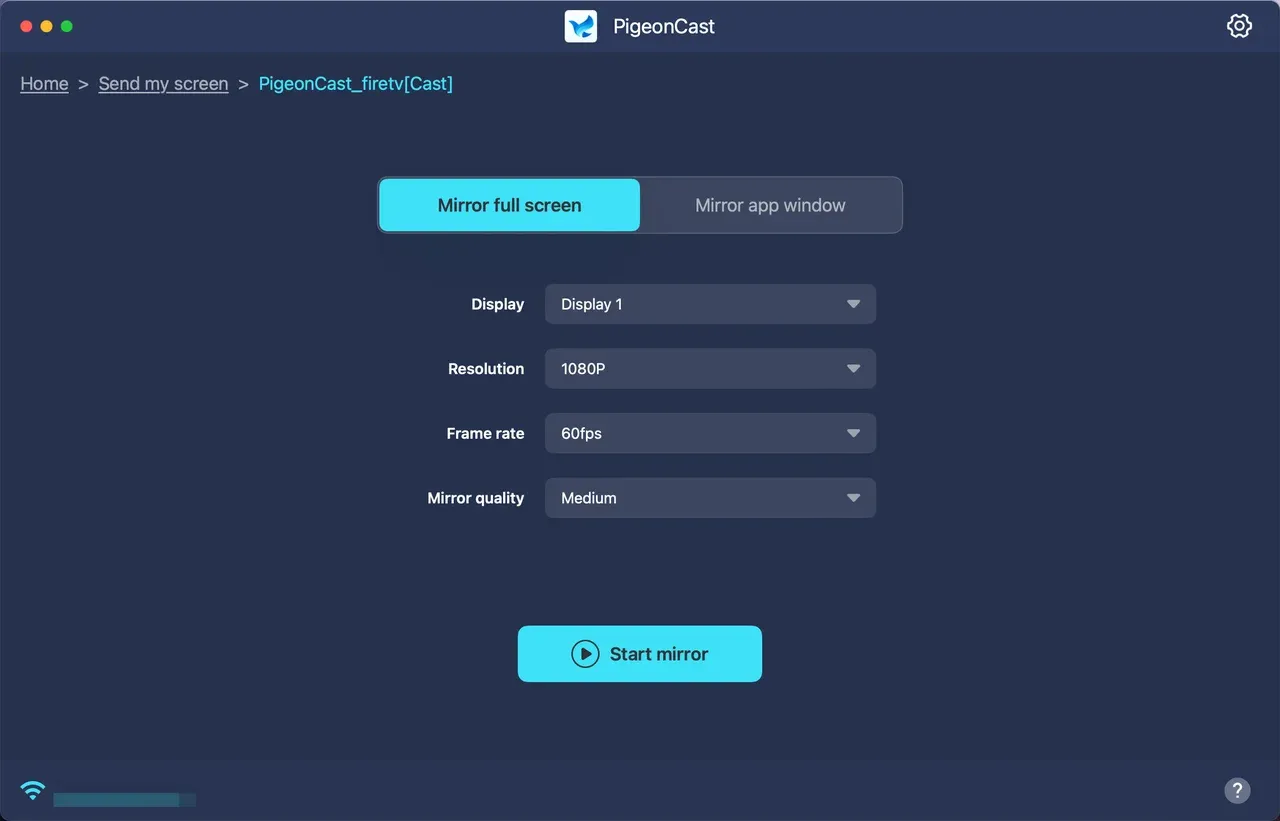
Step 4. Cast from your Apple device to Fire TV.
Why use PigeonCast for Fire TV screen mirroring:
- Works on devices lacking native AirPlay support.
- Offers fine-tuned control over resolution, latency, and window selection.
- Often receives updates independent of the Fire TV firmware.
- If you keep struggling with "Fire TV AirPlay not working", this can be the easiest solution to ensure smooth mirroring.
Final Words
When AirPlay not working on Fire TV, the problem usually comes down to one of four areas: disabled AirPlay settings, network conflicts, outdated firmware, or cached app data. Start with the basics—restart your devices, check your Wi-Fi, and enable AirPlay in your Fire TV settings. For persistent issues, clear app cache or reset paired devices to stabilize your connection.
And if all else fails, PigeonCast offers a reliable alternative that works beyond Apple's protocol limitations. Whether you're streaming videos, sharing photos, or mirroring your Mac screen, PigeonCast ensures smooth playback every time.
Fire TV AirPlay Not Working FAQs
Why is AirPlay suddenly not working?
AirPlay can stop working due to software glitches, outdated firmware, or network interference. Restart both devices, ensure they're on the same Wi-Fi network, and check for updates on your device OS.
Did Fire TV remove AirPlay?
No. Amazon continues to support Apple AirPlay and HomeKit on compatible Fire TV models. However, older devices or outdated firmware may not include AirPlay support by default.
Can you AirPlay with Amazon Fire TV?
Yes. Many Fire TV devices, including the Fire TV Stick 4K (2021/2023), Fire TV Cube, and Fire TV Omni Series, fully support AirPlay. You can mirror videos, apps, and even your entire iPhone or Mac screen.
Why is my Fire TV not showing on AirPlay?
This typically happens when the TV and Apple device aren't on the same Wi-Fi network, or when AirPlay is turned off in your Fire TV settings. Go to Settings > Display & Sounds > AirPlay & HomeKit to enable it.
How do I mirror my iPhone to Fire TV?
If your Fire TV has AirPlay support, swipe down on your iPhone to open Control Center, tap Screen Mirroring, and select your Fire TV from the list. Make sure AirPlay is enabled on your Fire TV and both devices share the same Wi-Fi. Alternatively, you can install apps like PigeonCast on your Fire OS device to make it AirPlay-compatible.
Does Amazon Fire TV allow screen mirroring?
Yes. In addition to AirPlay, Fire TV also supports native screen mirroring for Android and Windows devices through Miracast. You can enable it from Settings > Display & Sounds > Enable Display Mirroring.
What is the free AirPlay app for Fire TV?
The built-in AirPlay & HomeKit feature handles most Apple device connections. However, if i's not working smoothly, try third-party apps like PigeonCast, which offers broader compatibility and more stable mirroring performance.
Mia Clarke is a technology editor specializing in screen mirroring and casting solutions across multiple platforms. Mia provides clear, practical guides and in-depth insights to help users seamlessly connect their devices. Passionate about enhancing digital experiences, Mia is dedicated to keeping readers updated on the latest trends and tools in cross-platform screen sharing. Whether you’re looking to mirror your smartphone, laptop, or smart TV, Mia’s content delivers reliable, user-friendly advice to simplify your tech setup.