
If you've ever wanted to screen mirror MacBook to Firestick, you might have encountered the question "Can you mirror MacBook to Firestick?" The answer is yes, but not as easily as with some other devices. While Firestick doesn't natively support AirPlay, you can still cast Mac to Firestick using third-party apps. In this guide, we will walk you through how to screen mirror Mac to Firestick using reliable solutions, so you can enjoy streaming, presentations, or other content on your big screen.
Can You Screen Mirror MacBook to Firestick
To clarify, Firestick itself does not support AirPlay, Apple's built-in protocol for screen mirroring. This means that out of the box, Firestick cannot directly mirror your MacBook screen. However, this limitation only applies to Firestick devices. Some Fire TV models, particularly the Fire TV Edition and Fire TV 4K, do support AirPlay, but Firestick does not.
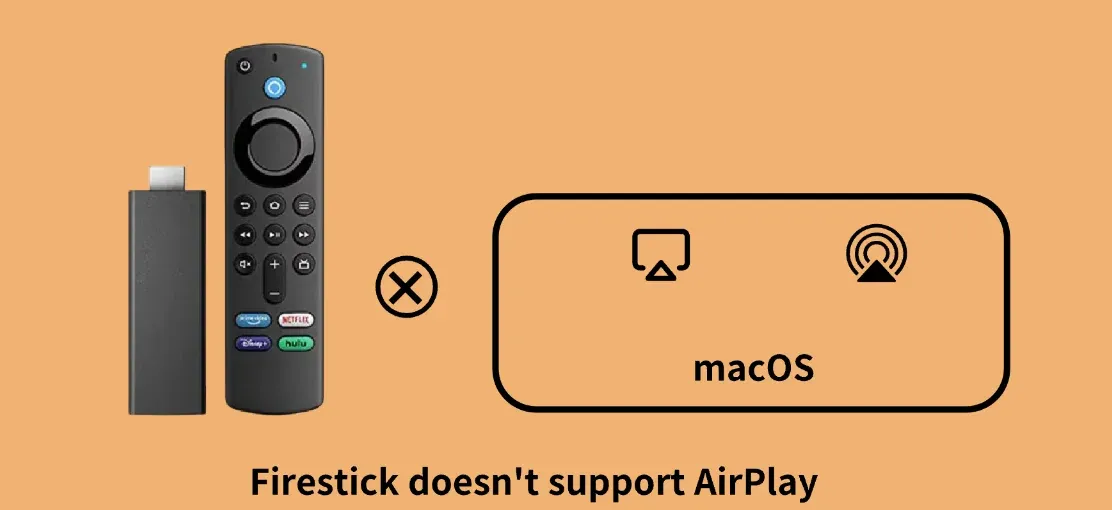
The absence of AirPlay on Firestick might seem like a roadblock, but don't worry; there are alternative ways to mirror MacBook to Firestik without needing AirPlay. By using third-party apps like free PigeonCast or AirScreen, you can easily cast to Firestick from Mac and enjoy wireless screen mirroring.
How to Screen Mirror MacBook to Firestick
To connect MacBook to Firestick, you'll need to use third-party software that bridges the gap between Mac's AirPlay and Firestick's capabilities. PigeonCast is one of the most effective solutions available, and here's how to screen mirror from MacBook to Firestick with free PigeonCast.
Step 1. Install PigeonCast on your Firestick.
- Go to the Amazon App Store on your Firestick and search for PigeonCast.
- Download and install the app.
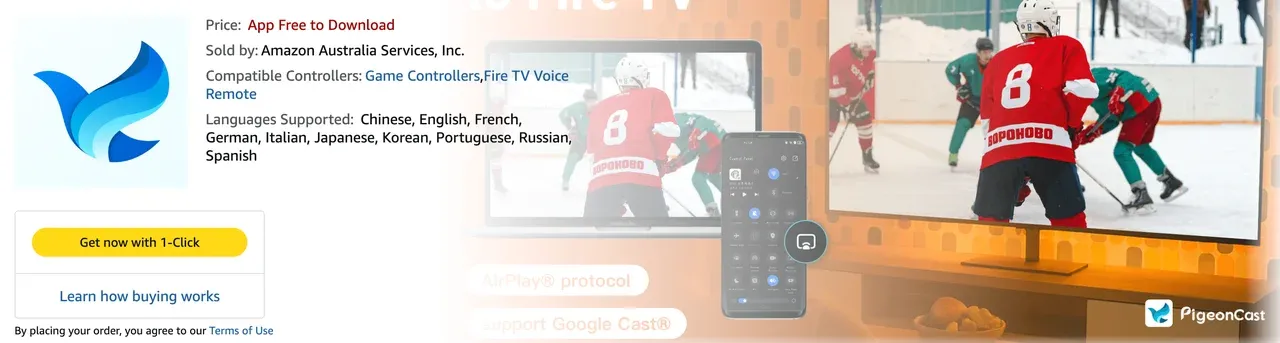
Step 2. Install PigeonCast on your MacBook from the App Store.

PigeonCast Screen Mirroring

Official Download


Tip: You can install PigeonCast directly on your Firestick, which integrates AirPlay and turns it into an AirPlay 2 receiver. For the best streaming experience, however, it's recommended to install PigeonCast on both your Firestick and MacBook.
Step 3. Ensure both devices are on the same Wi-Fi network.
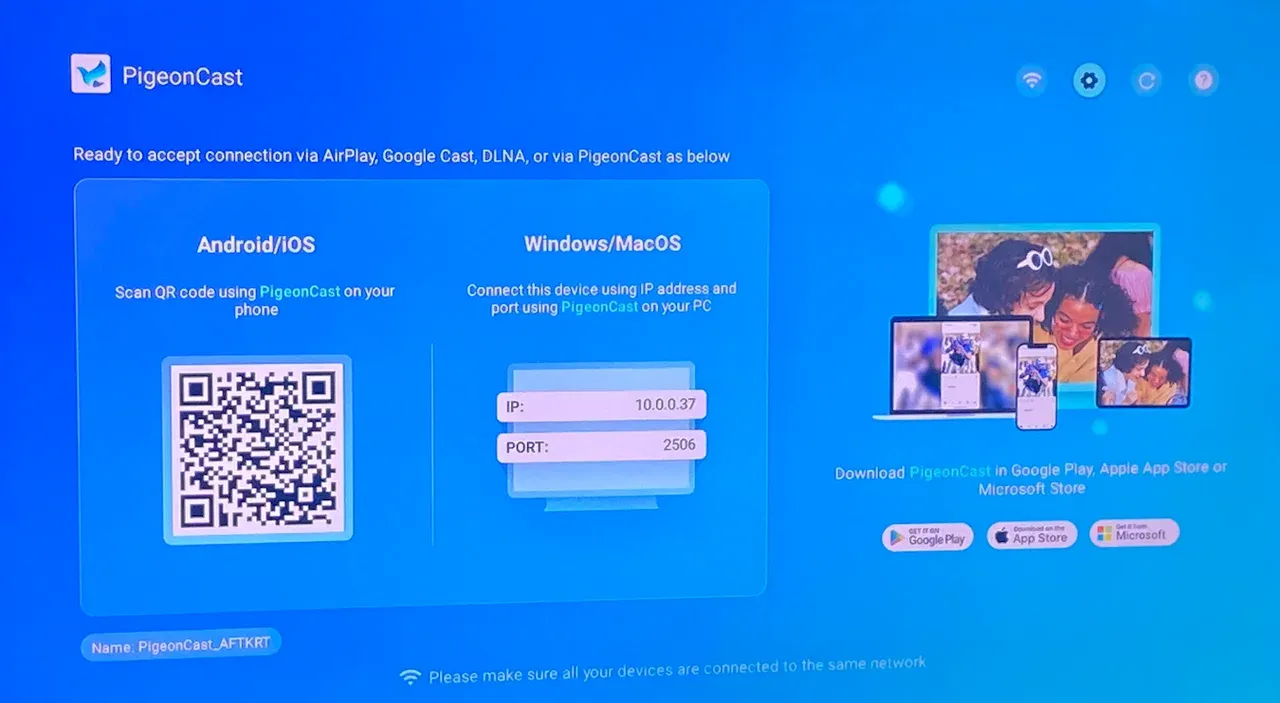
Step 4. Open PigeonCast on both devices.
Step 5. On your MacBook, click Send my device.
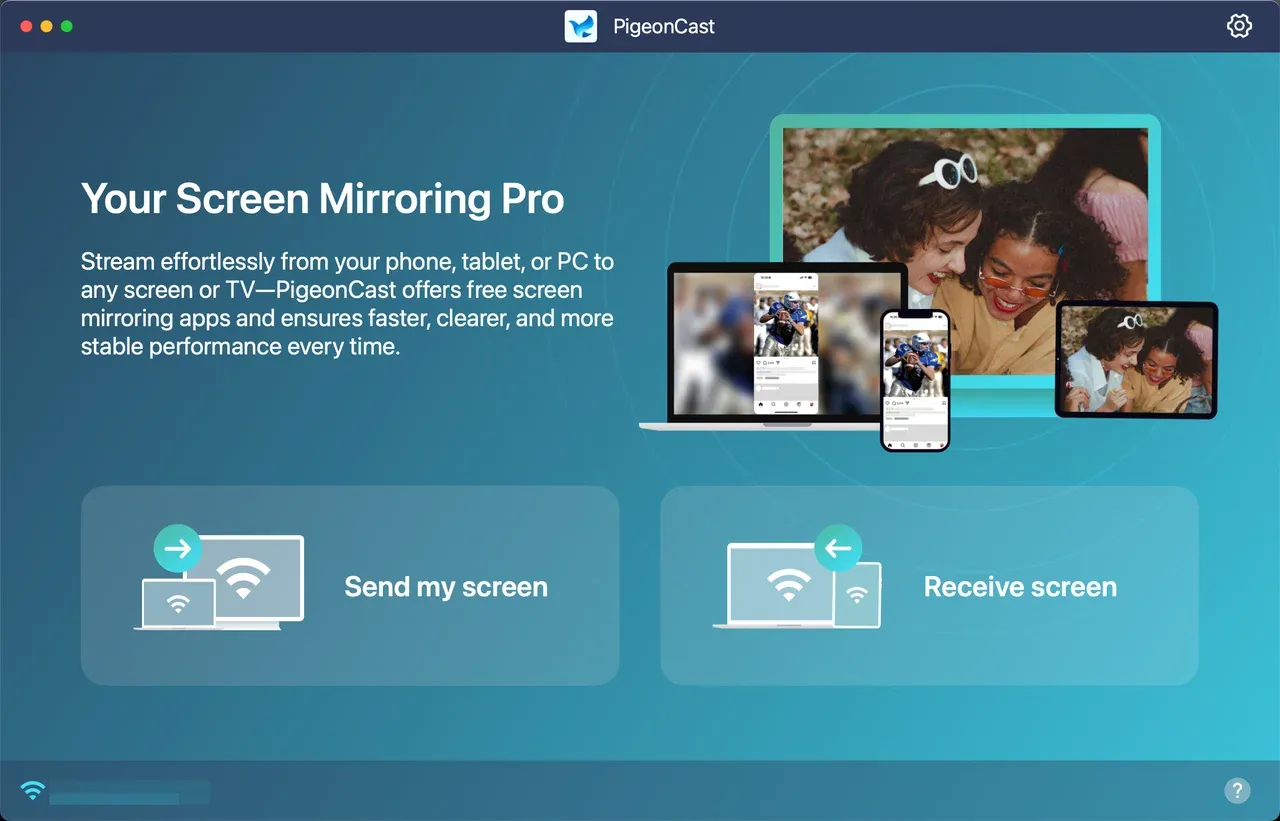
Step 6. Choose your Firestick in the list of available devices.
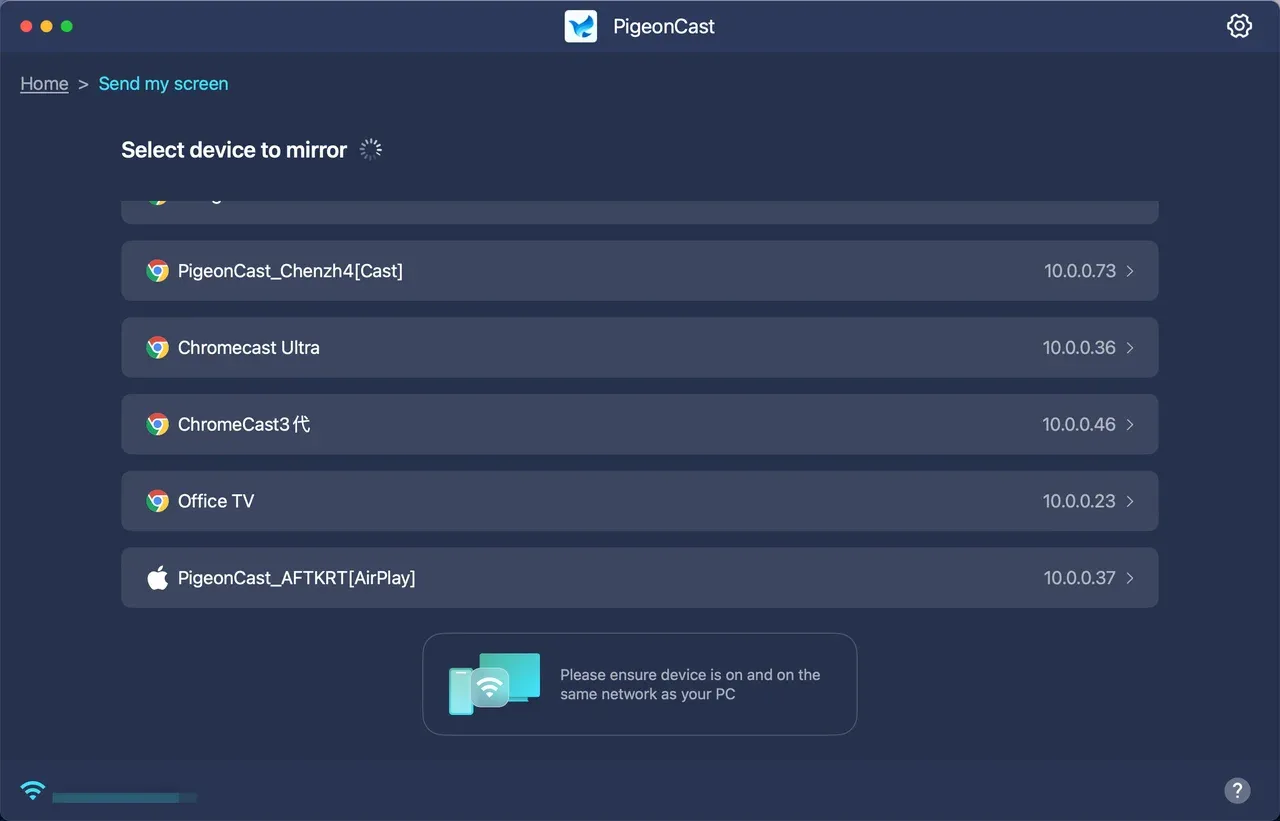
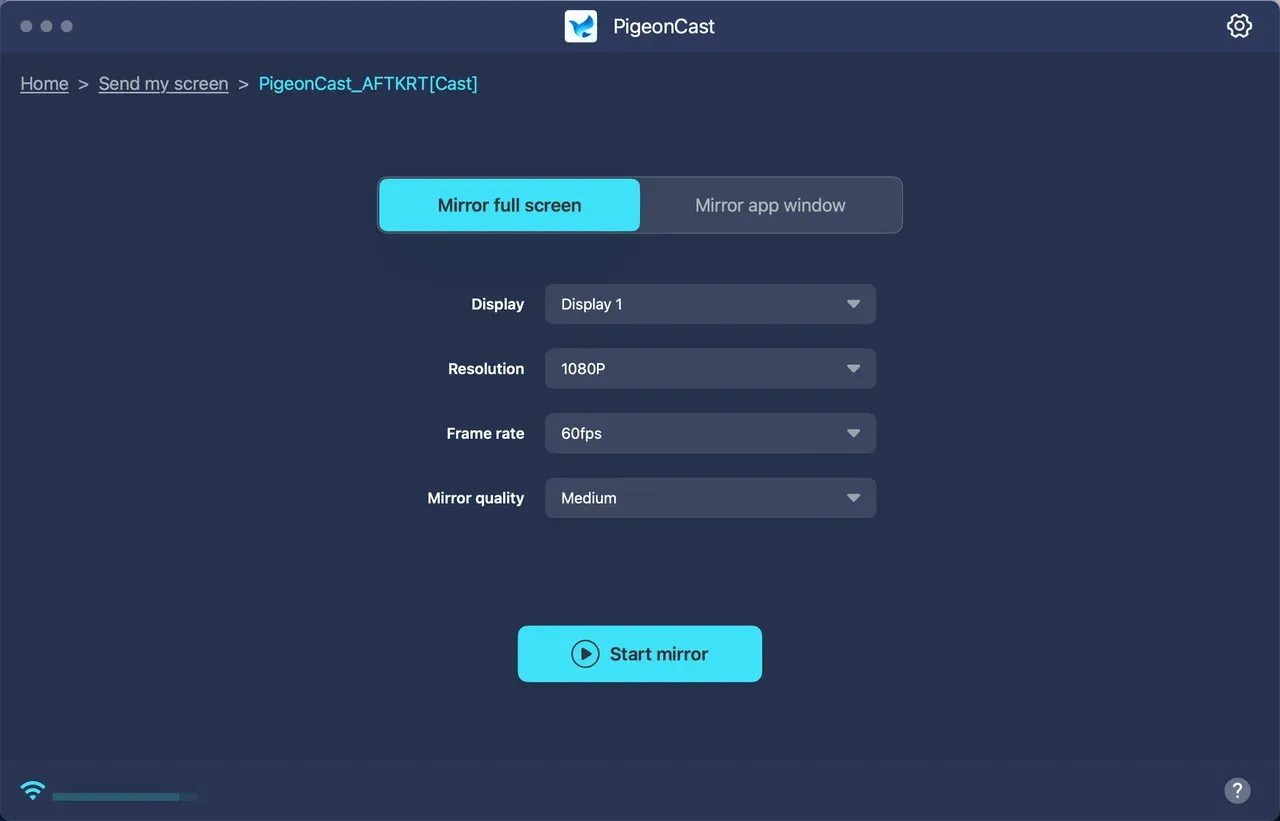
Step 7. Choose to mirror your Mac's screen or an app window and click Start mirror.
Why use PigeonCast: PigeonCast is a free, cross-platform tool that works seamlessly for screen mirroring MacBook to Firestick. It supports multiple devices, including iOS, Android, MacBook, Windows PCs, and even Fire TV. The app is easy to install, and once set up, it offers a smooth and lag-free screen mirroring experience.
Alternatively, you can use AirScreen, which is another third-party app that allows you to mirror your MacBook screen to Firestick using AirPlay.
Conclusion
While Firestick doesn't natively support AirPlay, you can still screen mirror MacBook to Firestick easily by using third-party apps like PigeonCast or AirScreen. These solutions allow you to wirelessly cast Mac to Firestick without the need for complicated setups or additional hardware.
Whether you're using your MacBook for streaming, presentations, or browsing, you can now enjoy the content on a bigger screen with minimal effort.
Screen Mirror MacBook to Firestick FAQs
Can I AirPlay to Firestick?
No, Firestick doesn't natively support AirPlay. However, you can use third-party apps like AirScreen or PigeonCast to enable AirPlay functionality on your Firestick.
How to screen mirror to a Firestick?
You can screen mirror to your Firestick using the built-in Miracast feature for Android devices and Windows PCs. However, for a wider range of devices, including iPhone and MacBook, you can use third-party apps like PigeonCast. With PigeonCast setup, you can seamlessly screen mirror to your Firestick from various platforms.
Why can't I cast to my Amazon Fire TV?
If you're having trouble casting to your Fire TV, first ensure that both your device (phone, tablet, PC, etc.) and Fire TV are connected to the same Wi-Fi network. Next, check that your Fire TV has screen mirroring enabled in its settings. Additionally, verify that both devices are compatible and up to date with the latest software versions. If issues persist, try restarting both the Fire TV and the casting device, as this can resolve many connectivity issues. For some apps, you might need to use third-party solutions like PigeonCast or AirScreen to enable casting, particularly if AirPlay or Miracast isn't working as expected.
How to connect laptop to Fire TV?
To connect your laptop to Fire TV, use third-party apps like PigeonCast or AirScreen. These apps let you wirelessly cast MacBook or Windows PC to your Fire TV.
Can I mirror iPhone to Fire TV?
Yes, newer Fire TV models support AirPlay, allowing you to directly mirror your iPhone. If your Fire TV device doesn't support AirPlay, you can use third-party apps like PigeonCast to enable this functionality and seamlessly mirror your iPhone to your Fire TV.
Mia Clarke is a technology editor specializing in screen mirroring and casting solutions across multiple platforms. Mia provides clear, practical guides and in-depth insights to help users seamlessly connect their devices. Passionate about enhancing digital experiences, Mia is dedicated to keeping readers updated on the latest trends and tools in cross-platform screen sharing. Whether you’re looking to mirror your smartphone, laptop, or smart TV, Mia’s content delivers reliable, user-friendly advice to simplify your tech setup.