
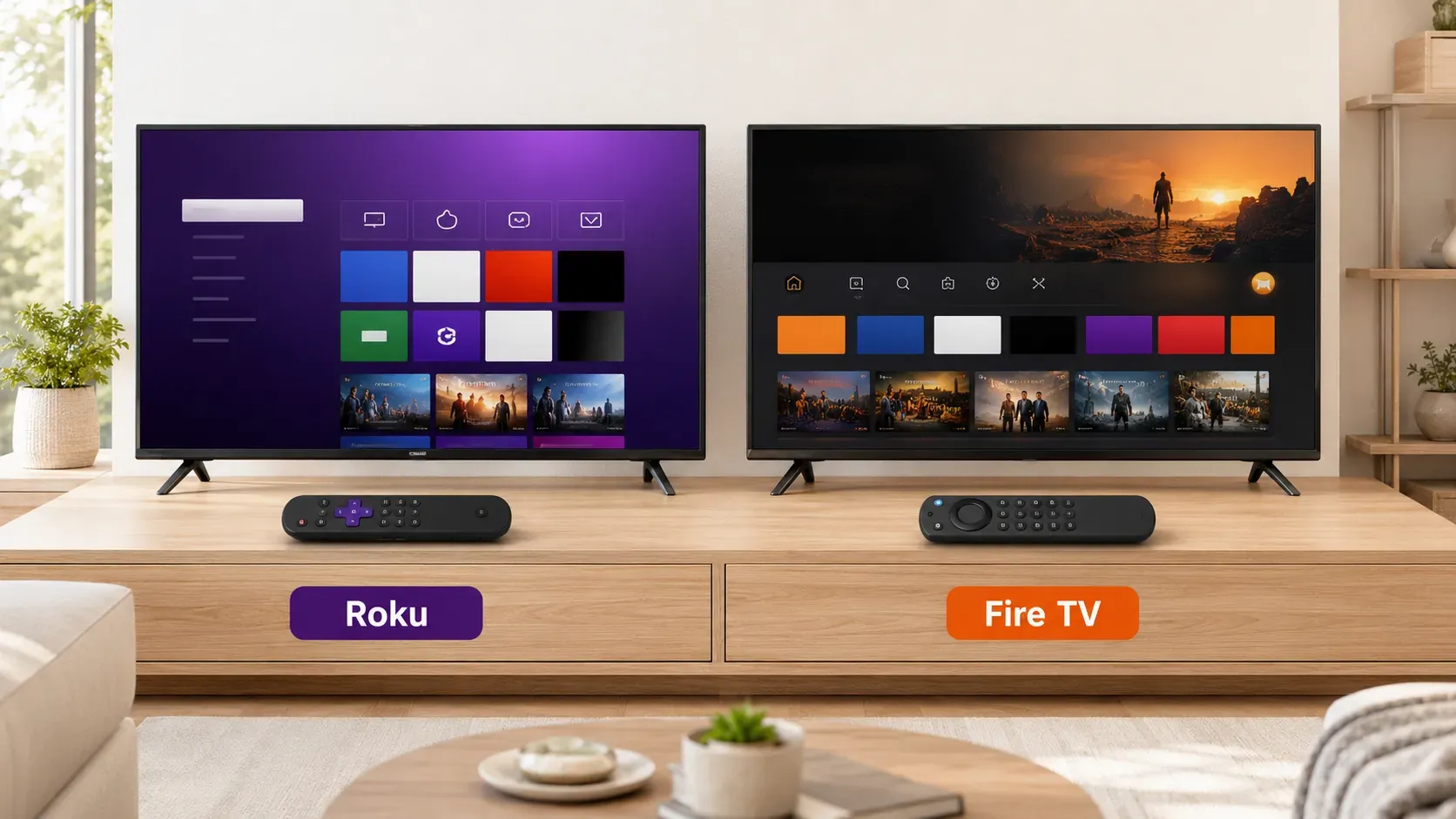
Roku and Fire TV may look similar when you are choosing a streaming device, but they handle screen mirroring in different ways. One may connect more easily with your iPhone or Mac, while the other may work better with an Android phone or Windows PC. This Roku vs Fire TV comparison covers AirPlay, Miracast, device compatibility, setup, and common limits so you can choose the option that fits the devices you already own.
Roku vs Fire TV: Quick Comparison
If screen mirroring is your main concern, start with the phone or computer you plan to connect. Roku and Fire TV support different receiving methods, and a Cast or Screen Mirroring button on your device does not guarantee that both platforms will appear.
| Comparison | Roku | Fire TV |
|---|---|---|
| iPhone and iPad | Supports AirPlay on compatible models | Native AirPlay is limited to selected Fire TV smart TVs |
| Android | Supports full-screen mirroring from Miracast-enabled devices | Supports Miracast on compatible Fire TV models |
| Windows | Connects through Miracast with Windows + K | Connects through Miracast when Display Mirroring is available |
| Mac | Supports AirPlay on compatible models | Usually requires a Fire TV smart TV with AirPlay or an additional receiver app |
| Google Cast | Not natively supported | Not a native Google Cast receiver |
| Receiver apps | More limited | More options available through the Amazon Appstore |
| Best for | Apple users who want a direct AirPlay connection | Android or Windows users who do not mind checking models or installing apps |
The main difference is Apple compatibility: compatible Roku models offer AirPlay directly, while Fire TV Stick users usually need an additional receiver method to mirror an iPhone or Mac on Fire TV. Android and Windows users should check Miracast support on both the sending device and the exact Roku or Fire TV model before deciding.
Roku vs Fire TV for Screen Mirroring and Casting
Roku and Fire TV do not use one universal connection method. The available option depends on the receiver model, the sending device, and whether you want to mirror the full screen or send content from a supported app.
How Screen Mirroring Works on Roku
Compatible Roku devices offer separate connection methods for Apple devices and Miracast-enabled devices.
- For iPhone, iPad, and Mac:
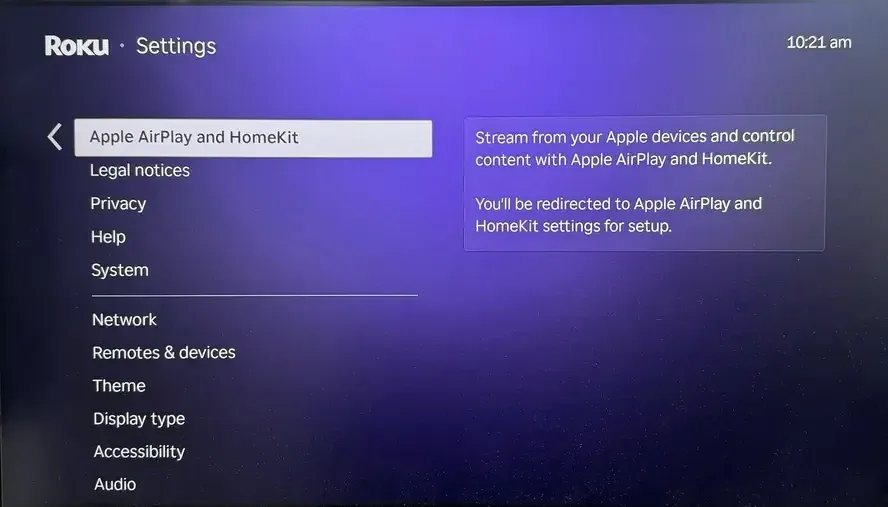
- Connect the Apple device and Roku to the same Wi-Fi network.
- Open Settings > Apple AirPlay and HomeKit on Roku. Set AirPlay to On.
- Open Screen Mirroring from Control Center on the Apple device and select the Roku.
- For Android and Windows:
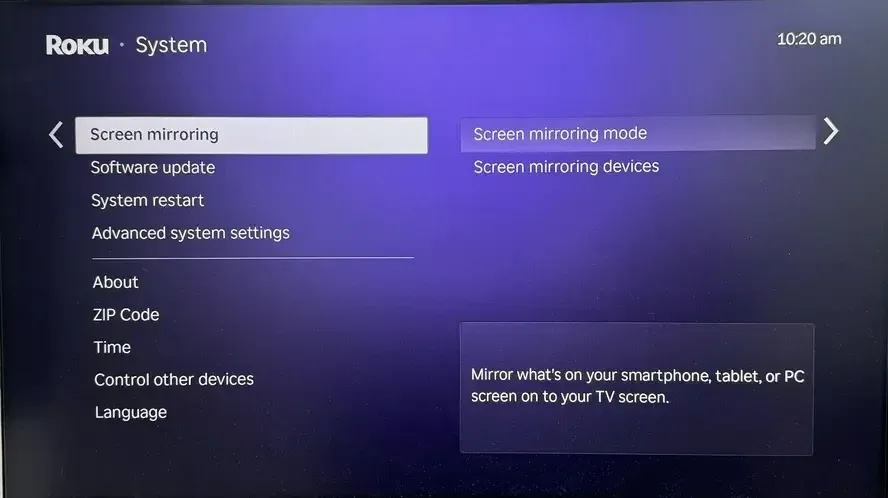
- Go to Settings > System > Screen mirroring > Screen mirroring mode on Roku. Select Prompt or Always allow.
- Open the wireless display feature on your Android device or press Windows + K on a Windows PC.
- Select the Roku and approve the connection if prompted.
How Screen Mirroring Works on Fire TV
Compatible Fire TV devices receive full-screen connections from Android phones and Windows PCs through Miracast.
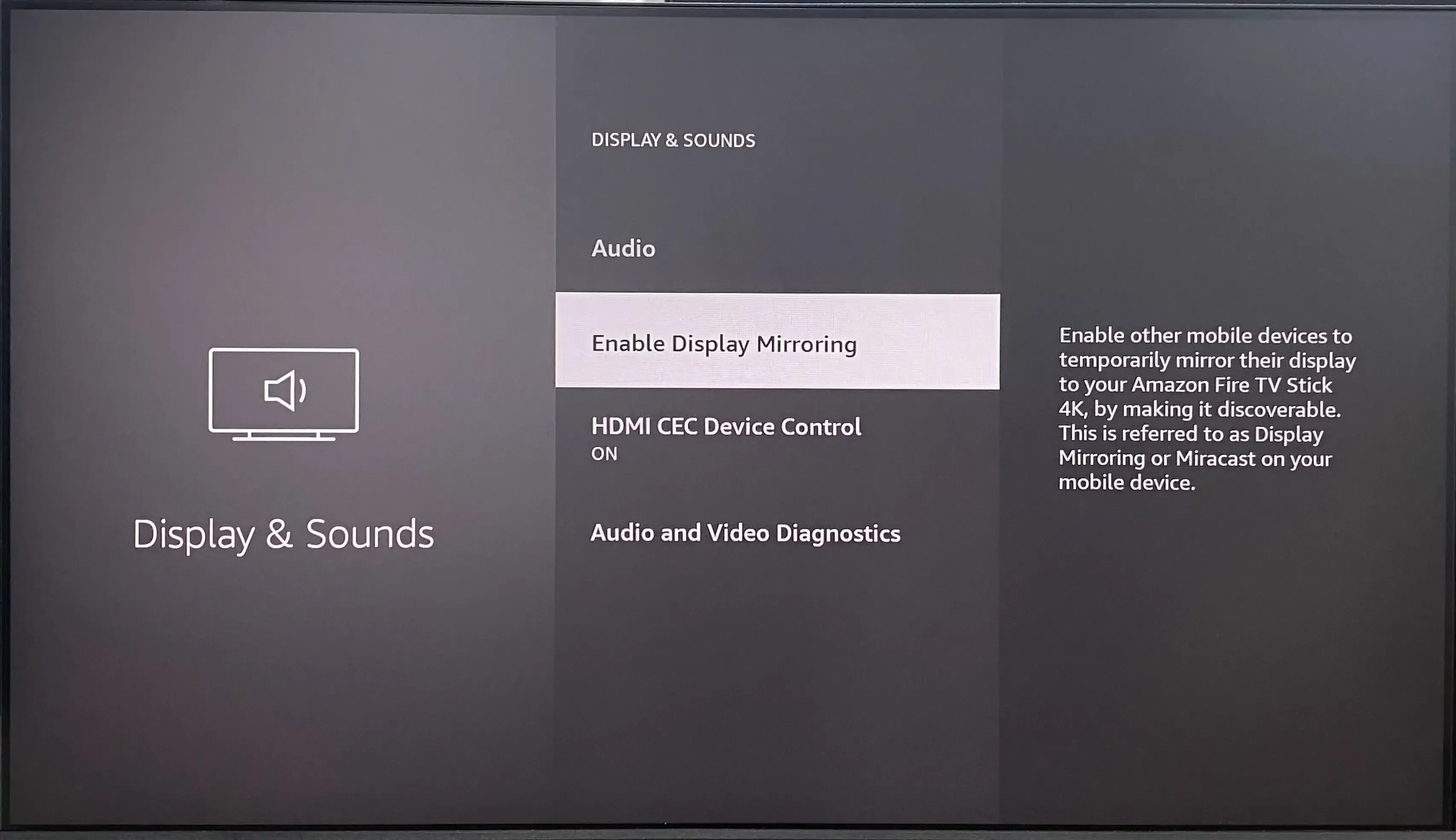
- Connect the Fire TV and your Android phone or Windows PC to the same Wi-Fi network.
- Open Settings > Display & Sounds on Fire TV. Select Enable Display Mirroring.
- Open the wireless display feature on the Android phone or press Windows + K on a Windows PC.
- Select the Fire TV from the available devices.
Some models also let you hold the Home button on the Fire TV remote and select Mirroring. If neither option appears, the Fire TV model does not provide native display mirroring.
Casting vs Full-Screen Mirroring
Roku and Fire TV may both appear to support “casting”, but app casting and full-screen mirroring produce different results.
| Method | What Appears on the TV | What You Can Do on the Sending Device |
|---|---|---|
| App casting | A video, song, or photo from a supported app | Use the device as a controller or open another app |
| Full-screen mirroring | The complete phone or computer screen | Every compatible action remains visible on the TV |
App casting is suitable for supported streaming services, while full-screen mirroring is more useful for browser pages, presentations, photos, and apps without a built-in casting option. Neither Roku nor Fire TV works as a native Google Cast receiver.
Which Works Better with Your Devices
The better receiver depends less on whether your device is a phone or computer and more on the wireless standard it supports. The table below shows the most practical option for each device type.
| Your Device | Roku | Fire TV | Better Choice |
|---|---|---|---|
| iPhone or iPad | Connects through AirPlay on compatible models | Direct AirPlay is limited to selected Fire TV smart TVs | Roku |
| Android with Miracast | Uses Roku screen mirroring | Uses Display Mirroring on supported models | Either, after checking compatibility |
| Google Pixel | Does not accept its native Google Cast connection | Does not work as a native Google Cast receiver | Neither for direct full-screen mirroring |
| Windows PC | Connects through Miracast with Windows + K | Connects through Miracast when Display Mirroring is available | Either, depending on the model |
| Mac | Connects through AirPlay on compatible models | Requires a Fire TV smart TV with AirPlay or an additional receiver app | Roku |
Use PigeonCast Across Different Platforms
Roku works well with AirPlay, while Fire TV mainly relies on Miracast for native full-screen mirroring. Neither is a native Google Cast receiver. If you already have an Android TV, Google TV, Apple TV, Windows PC, or Mac, PigeonCast lets you use that device as a wireless receiver instead of buying a streaming device only for screen mirroring.
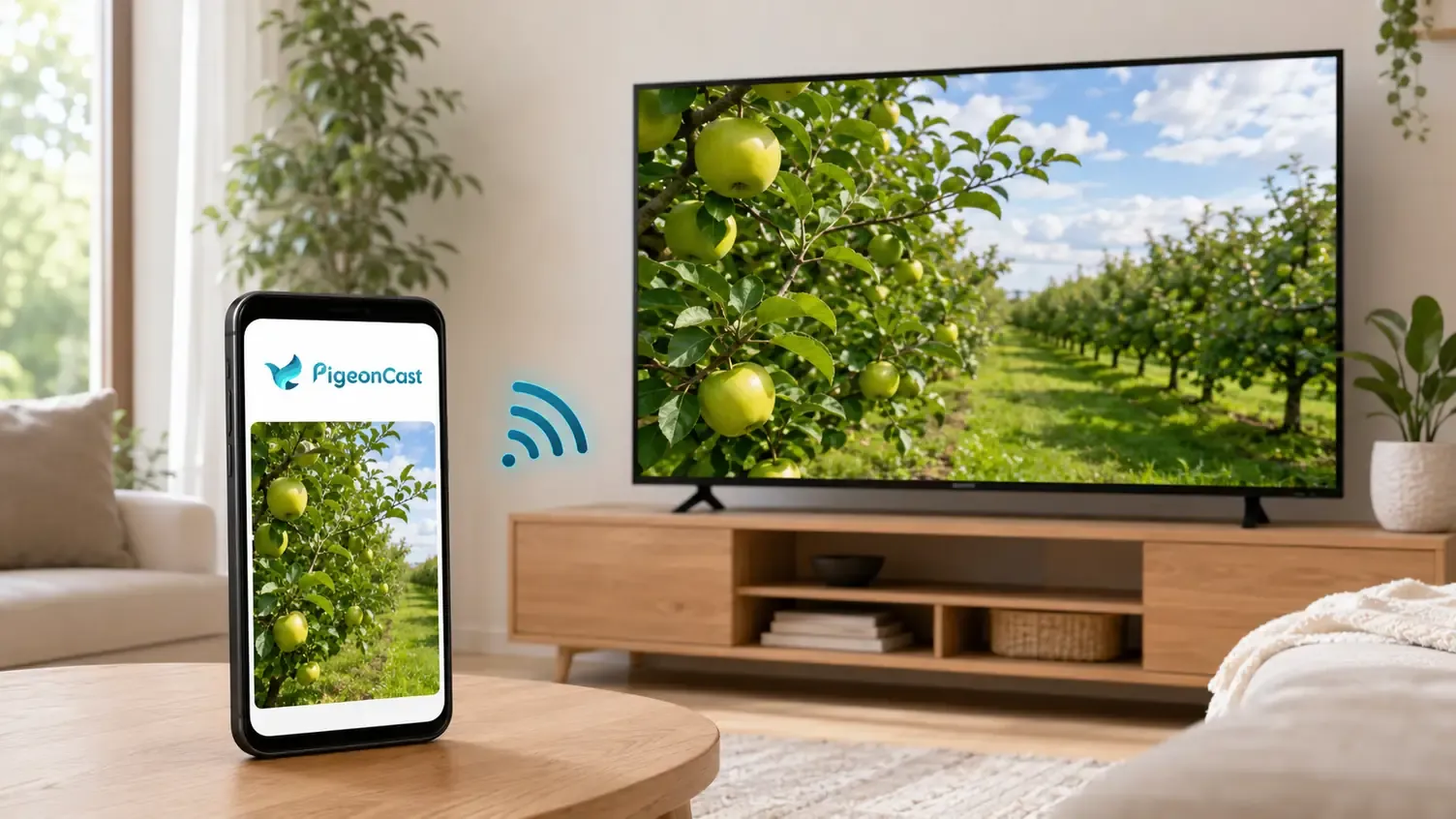
PigeonCast brings AirPlay, Google Cast, and DLNA support into one app. You can mirror an iPhone, iPad, Android device, Windows PC, or Mac, as well as cast videos, photos, music, browser content, apps, and presentations. Windows can work as either the sending or receiving screen, and you can share the full desktop or a selected app window when you do not want everything on the computer to appear.


Overall Rating:



Bottom Line
Before choosing either device mainly for screen mirroring, check the exact model for the feature you need: Apple AirPlay and HomeKit for Apple devices or Screen Mirroring/Display Mirroring for Miracast connections. If the relevant setting is missing, the Roku or Fire TV name alone does not guarantee compatibility, and you may still need an additional receiver app or a different receiving platform.
Roku vs Fire TV FAQ
Can Roku or Fire TV mirror without internet?
Miracast can transmit the screen through a direct Wi-Fi connection, so locally stored photos, videos, and presentations may still mirror without internet access. AirPlay and receiver apps generally need both devices on the same local network. Streaming services still require internet access to load or verify protected content.
Can Roku or Fire TV mirror multiple devices at the same time?
No. Native AirPlay or Miracast mirroring accepts one active sender at a time. For a presentation or shared viewing session, stop mirroring on the first device before connecting the next one; otherwise, the new request may be rejected or replace the current session.
Which has less screen mirroring lag, Roku or Fire TV?
Neither platform is consistently faster across every model. Delay depends on the receiver hardware, wireless interference, distance, video resolution, and the sending device. A nearby 5 GHz Wi-Fi connection can improve AirPlay performance, while a clean Miracast connection can reduce delay for Android and Windows; HDMI remains more suitable for timing-sensitive games.
Can you connect Roku and Fire TV to the same television?
Yes. Connect each device to a separate HDMI port, provide power to both, and switch inputs with the television remote. HDMI-CEC may automatically change the input when one device wakes, but Roku and Fire TV remain separate systems and cannot share one mirroring session.
Does screen mirroring use Bluetooth on Roku or Fire TV?
No. Bluetooth can connect the remote, headphones, speakers, or game controllers, but it does not have enough bandwidth to transmit a mirrored screen. Keep Wi-Fi enabled on both devices; changing Bluetooth settings will not normally fix a missing Roku or Fire TV in the mirroring list.
Why does a video show a black screen while mirroring?
A black video area with visible menus or working audio usually indicates DRM protection rather than a failed connection. The service may block mirrored playback to prevent unauthorized copying. Open its official Roku or Fire TV app and play the content there; repeatedly reconnecting the phone will not remove the restriction.
Clara Rossi is an experienced technology editor and a seasoned expert in screen mirroring and casting technologies. With a keen eye for detail and a deep understanding of how to seamlessly connect devices, Clara excels at optimizing user experiences for effortless sharing and streaming. Whether you're seeking quick fixes or advanced tips, her expertise and responsiveness ensure that every query is met with a well-informed and efficient solution.