
Your smartphone is a powerhouse of entertainment, from photos and videos to streaming apps and music. What if you could easily share that content on your Roku TV? Whether it's streaming a show, sharing vacation photos, or mirroring a presentation, learning how to connect phone to Roku TV makes it simple. This guide will walk you through the various methods, whether you're connecting wirelessly or without Wi-Fi.
How to Connect Phone to Roku TV Wirelessly
If you want to stream content from your phone to your Roku TV without dealing with cables, Roku has several wireless options that make it easy to share your favorite photos, videos, or even mirror your entire phone screen. Read on to learn about how to cast phones to Roku TV.
Use the Built-in Screen Mirroring
How to connect my phone to my Roku TV? If you have an Android device, this is typically called "Smart View", "Cast", or "Screen Mirroring" in your Quick Settings Panel. For iPhone, the process is equally straightforward thanks to AirPlay 2 support on most modern Roku TVs. Roku does not work as a native Google Cast receiver, so if you want to Chromecast to Roku TV, you usually need an external Chromecast device. Here are the steps on how to connect to Roku TV with phone:
Step 1. Make sure your mobile phone and Roku TV are connected to the same Wi-Fi network.
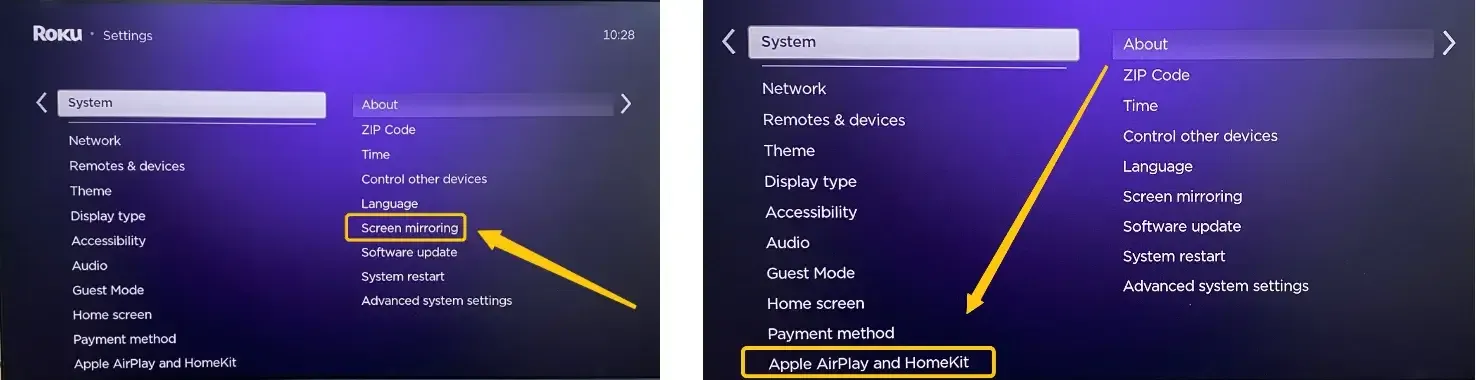
Step 2. Enable the mirroring feature on the Roku TV from Settings > System > Screen Mirroring. To enable AirPlay, go back to the Settings menu, select Apple AirPlay and HomeKit > AirPlay.
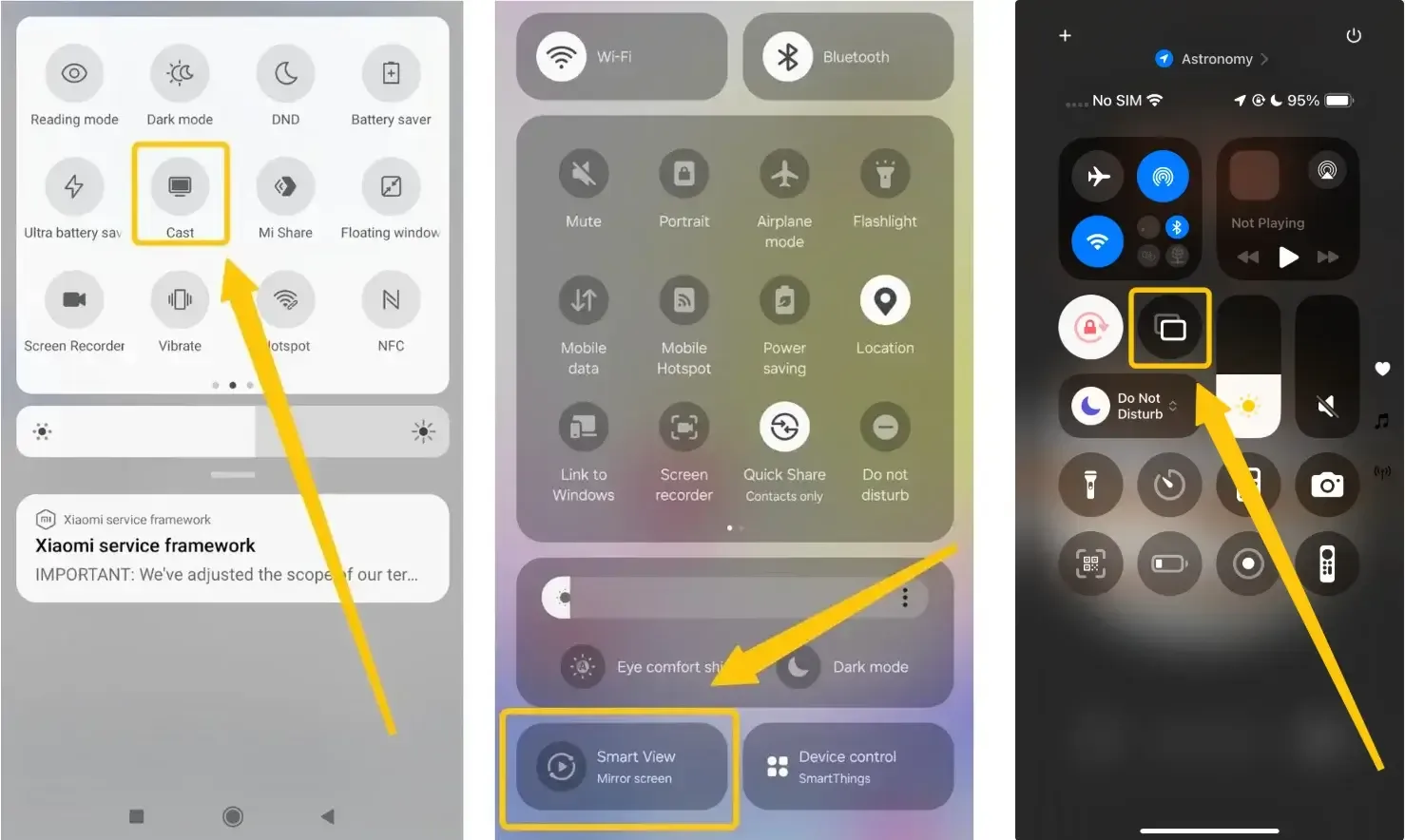
Step 3. On your Android phone, find and tap the Cast, Smart View or Screen Mirroring option in the Quick panel menu (this varies depending on your phone brand). On the iPhone, tap Screen Mirroring in the Control Center.
Step 4. Choose your Roku TV from the available list to connect.
Step 5. If prompted, enter the onscreen code to finish the pairing process, and your phone's screen should immediately begin displaying on your TV.
Use Free PigeonCast
If you run into problems during pairing or can't find the screen mirroring option on your phone, PigeonCast offers another way to connect to your Roku TV. It supports AirPlay, Google Cast, and DLNA, making it easy to mirror videos, photos, and other content from your phone to a bigger screen.
PigeonCast also works across Android, iOS, Windows, and Mac, so you can use the same app with different devices. If you later want to cast your laptop to Roku, the setup is just as straightforward.
Here's how to mirror your phone to a Roku TV with PigeonCast:

Step 1. Ensure your phone and Roku TV are under the same wireless network.


Overall Rating:



Step 2. Install PigeonCast on your mobile phone from the App Store or Google Play.
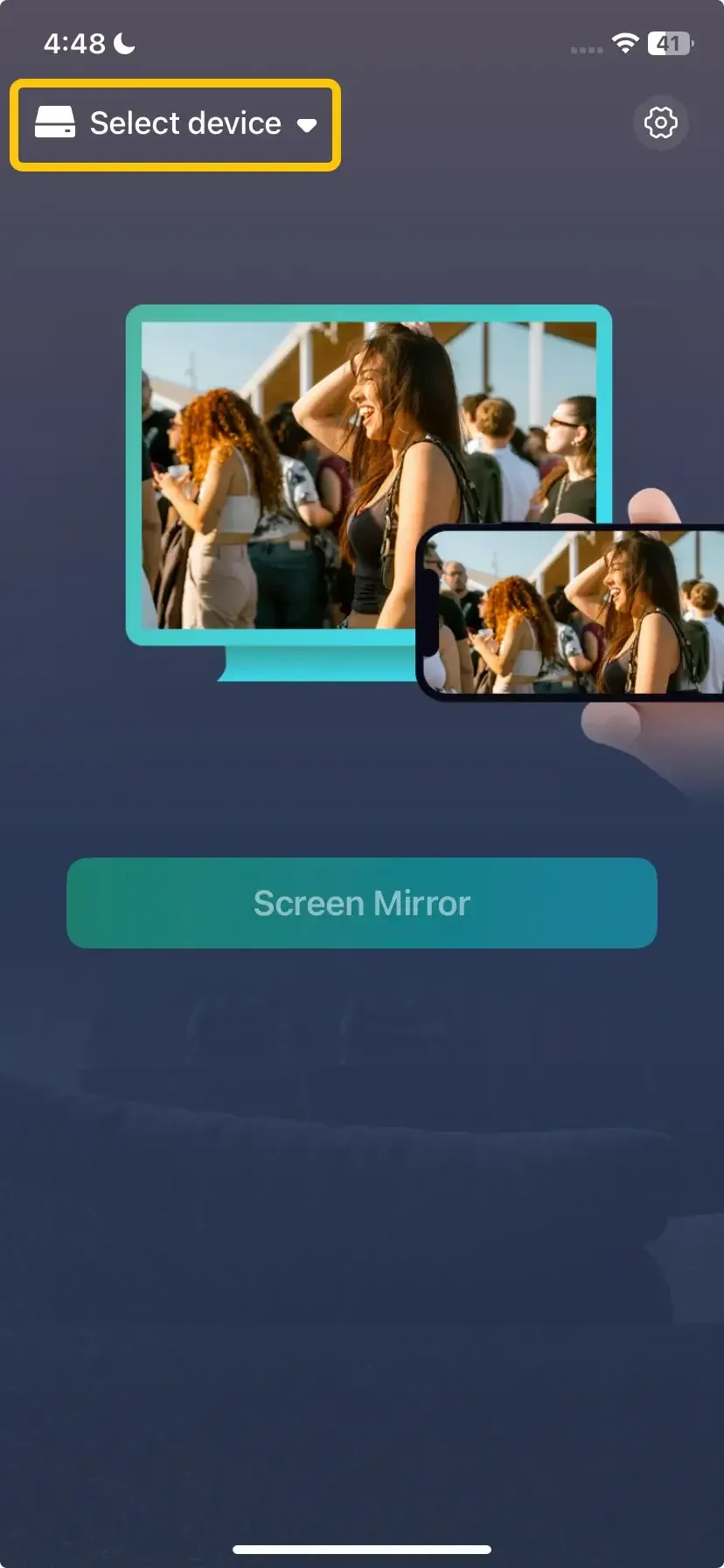
Step 3. Open the app, tap Select device to choose your Roku TV from the available list.
Step 4. Enter the onscreen code to finish the pairing process.
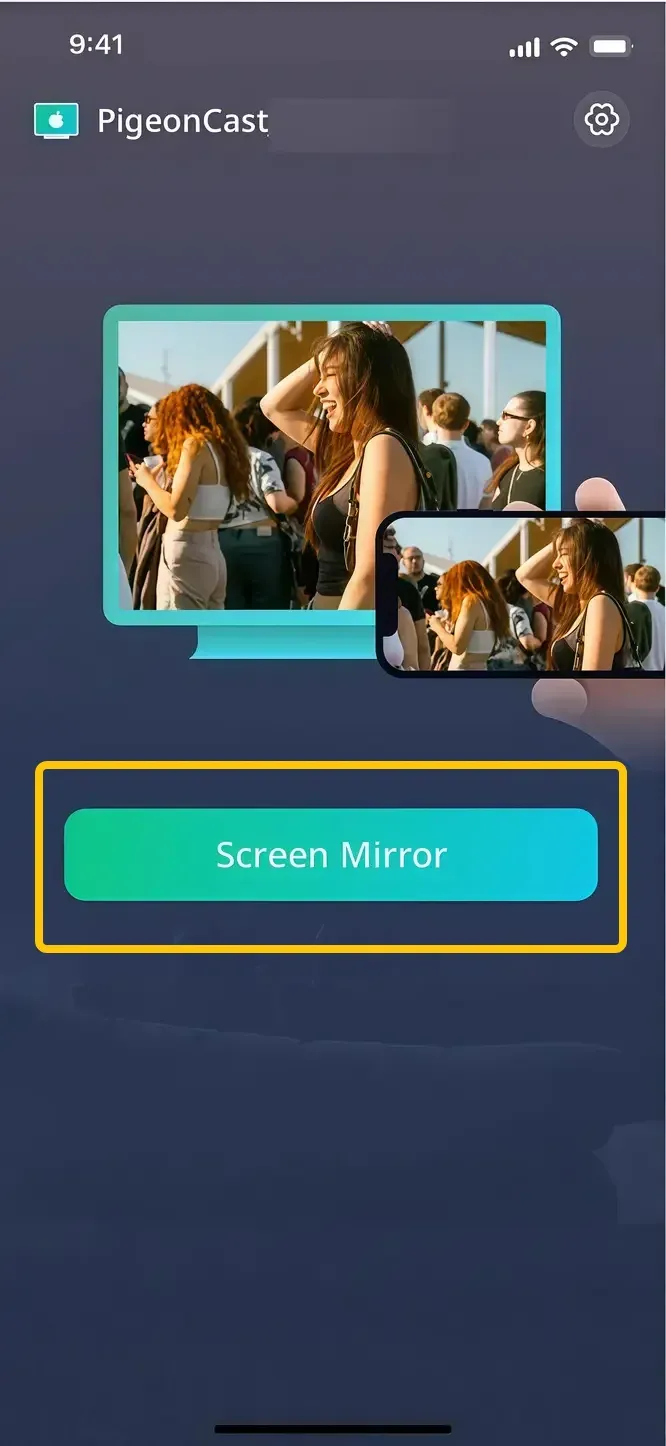
Step 5. Once the connection succeeds, tap Screen Mirror to begin your mirroring activities on Roku from your mobile device.
How to Connect Phone to Roku TV Without WiFi
While WiFi is the most common connection method, there are situations where a network isn't available, is unstable, or you simply want a more direct link. Fortunately, you have alternative options to mirror your iPhone to your Roku TV without WiFi network.
Way 1. Use a Mobile Hotspot
This method creates a personal network, allowing you to connect your devices to your Roku TV. However, keep in mind that using a mobile hotspot will consume your mobile data and could lead to additional fees, depending on your data plan. Let's see how to stream phone to roku via Hotspot:
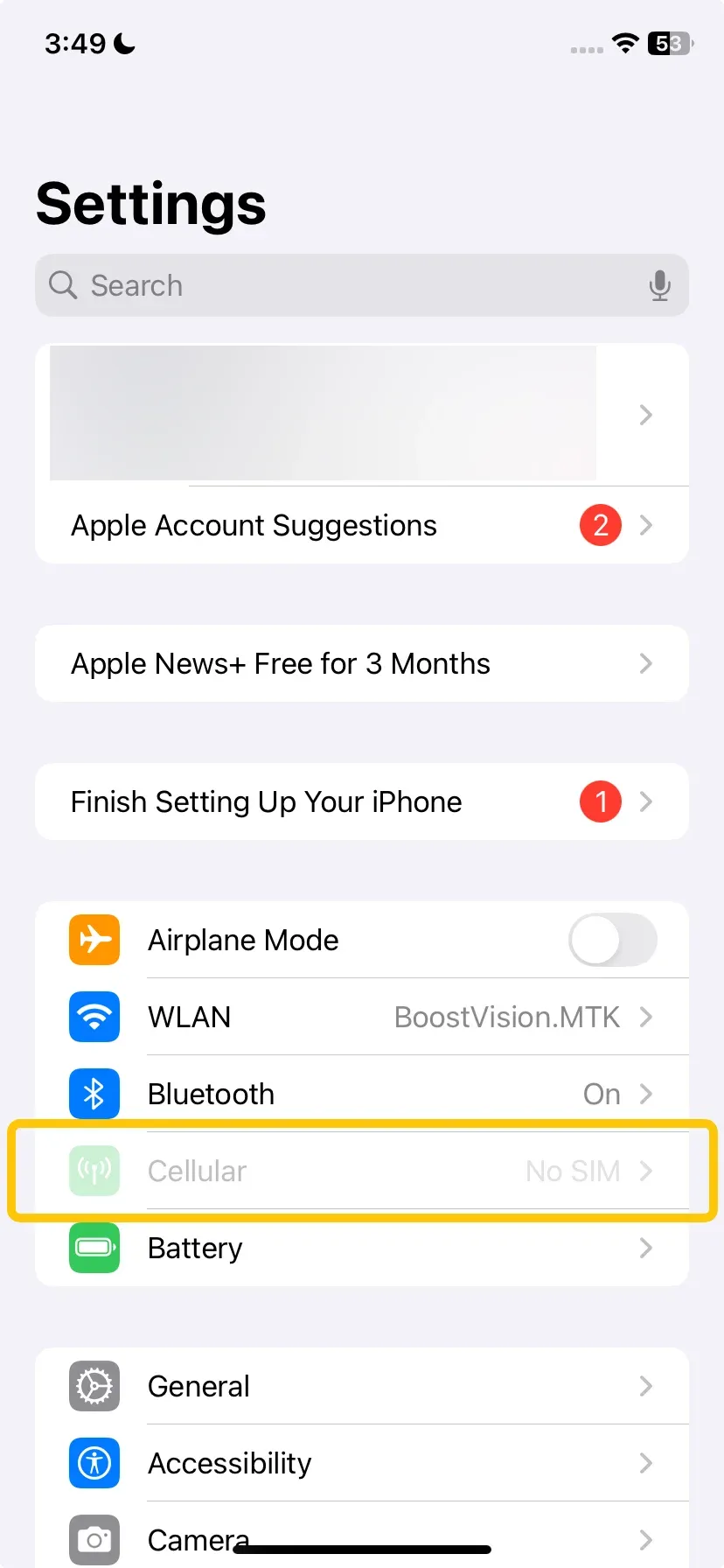
Step 1. On your smartphone, enable the Mobile Hotspot or Personal Hotspot feature in settings.
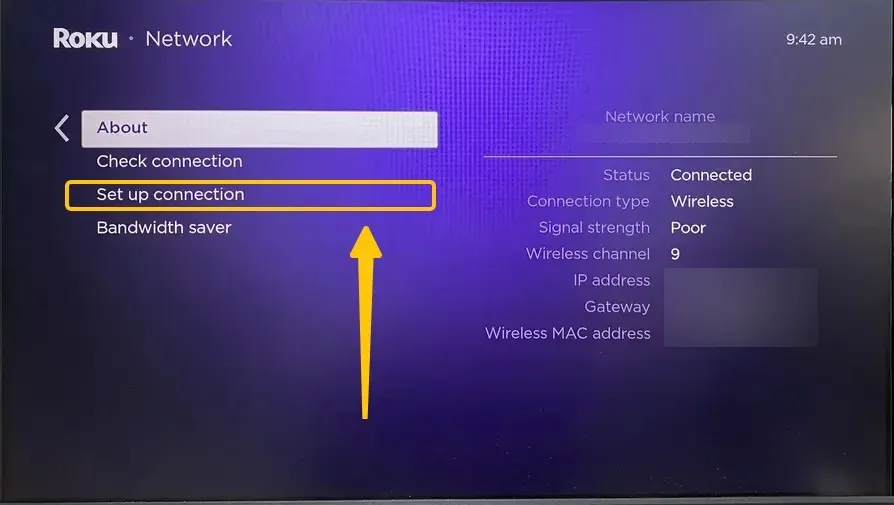
Step 2. On your Roku TV, go to Settings > Network > Set up connection, and connect to the hotspot network your phone is broadcasting, using the password provided.
Step 3. Once both devices are on the same hotspot network, you can use the standard screen mirroring or casting features described in the wireless section.
Way 2. Use a Direct HDMI Connection
For the best quality and most reliable connection, especially when streaming videos, using an HDMI cable is the way to go. Depending on your device, you'll need the right adapter. Here's the step-by-step process on how to connect your phone to your Roku TV:
Step 1. Connect the adapter to your phone, plug in a standard HDMI cable, and connect the other end to an open HDMI port on your Roku TV.
- iPhones:
- If you have an older iPhone with a Lightning port, you'll need a Lightning to HDMI adapter.
- For newer iPhones with USB-C, you'll require a USB-C to HDMI adapter.
- Android phones:
- Most newer Android phones use a USB-C port, so you'll need a USB-C to HDMI adapter.
- For older models with Micro-USB ports, you'll need a Micro-USB to HDMI adapter.
Step 2. Switch your TV's input to that HDMI source, and your phone's screen will instantly be displayed.
If you encounter any issues during the steps above, please visit Top 8 Ways to Fix HDMI Port Not Working in 2026 for additional information and troubleshooting solutions.
Closing Words
How to cast my phone to my Roku TV? Whether you choose to connect wirelessly through built-in screen mirroring options or prefer a more direct connection without Wi-Fi, there are multiple ways to achieve seamless streaming.
If native Roku mirroring doesn't work as expected, issues such as device compatibility or connection problems may prevent a successful connection. In these cases, Roku screen mirroring not working can help identify common causes, while PigeonCast provides an alternative solution with support for AirPlay, Google Cast, and DLNA.
How to Connect Phone to Roku TV FAQ
Can I connect my phone to my Roku TV?
Yes, you can connect your phone to your Roku TV. You can do this wirelessly using features like screen mirroring, Smart View, AirPlay, or PigeonCast, depending on your device. Alternatively, you can connect via a mobile hotspot or use a direct HDMI cable for a stable connection. If you're looking for an easy way to stream content from your phone to Roku, you can also use third-party apps like PigeonCast for added flexibility.
How to connect phone to Roku TV without Internet?
To connect your phone to a Roku TV without using the internet, you can use the following methods:
- Use a Mobile Hotspot
- Enable the Mobile Hotspot feature on your phone.
- On your Roku TV, go to Settings > Network > Set up connection and connect to the hotspot network your phone is broadcasting.
- Once both devices are connected to the same hotspot, use screen mirroring or casting features to display content from your phone to your Roku TV.
- Use a Direct HDMI Connection
- Connect a compatible adapter to your phone's charging port (USB-C, Lightning, or Micro-USB, depending on your phone model).
- Plug a standard HDMI cable into the adapter and connect the other end to your Roku TV's HDMI port.
- Switch your TV's input to the HDMI port, and your phone's screen will be mirrored to the TV.
How to cast phone to Roku TV with USB?
You can't directly mirror your phone's screen or play content through a USB connection on a Roku TV, as the USB port is designed for media players, not screen mirroring. Instead, to connect your phone to a Roku TV, you can use a USB-C to HDMI adapter (with DisplayPort Alt Mode for video) to connect your phone to an HDMI port.
Clara Rossi is an experienced technology editor and a seasoned expert in screen mirroring and casting technologies. With a keen eye for detail and a deep understanding of how to seamlessly connect devices, Clara excels at optimizing user experiences for effortless sharing and streaming. Whether you're seeking quick fixes or advanced tips, her expertise and responsiveness ensure that every query is met with a well-informed and efficient solution.