
Trying how to Chromecast to Roku TV and still not seeing your TV or getting random disconnects? You are usually one settings mismatch away from a stable setup, and this guide gives you a fast, step-by-step path to choose the right casting method, connect reliably, and fix common casting issues without wasting time on trial and error.
Can You Cast to Roku via Chromecast
Yes, you can cast to Roku through Chromecast-style casting paths from your phone or computer, but if you are still unsure whether Roku has Chromecast built in, compatibility will depend on the sender app and receiver path. Roku supports alternatives such as DIAL for compatible apps plus Miracast and AirPlay for mirroring, so use this quick check to keep connection behavior stable.
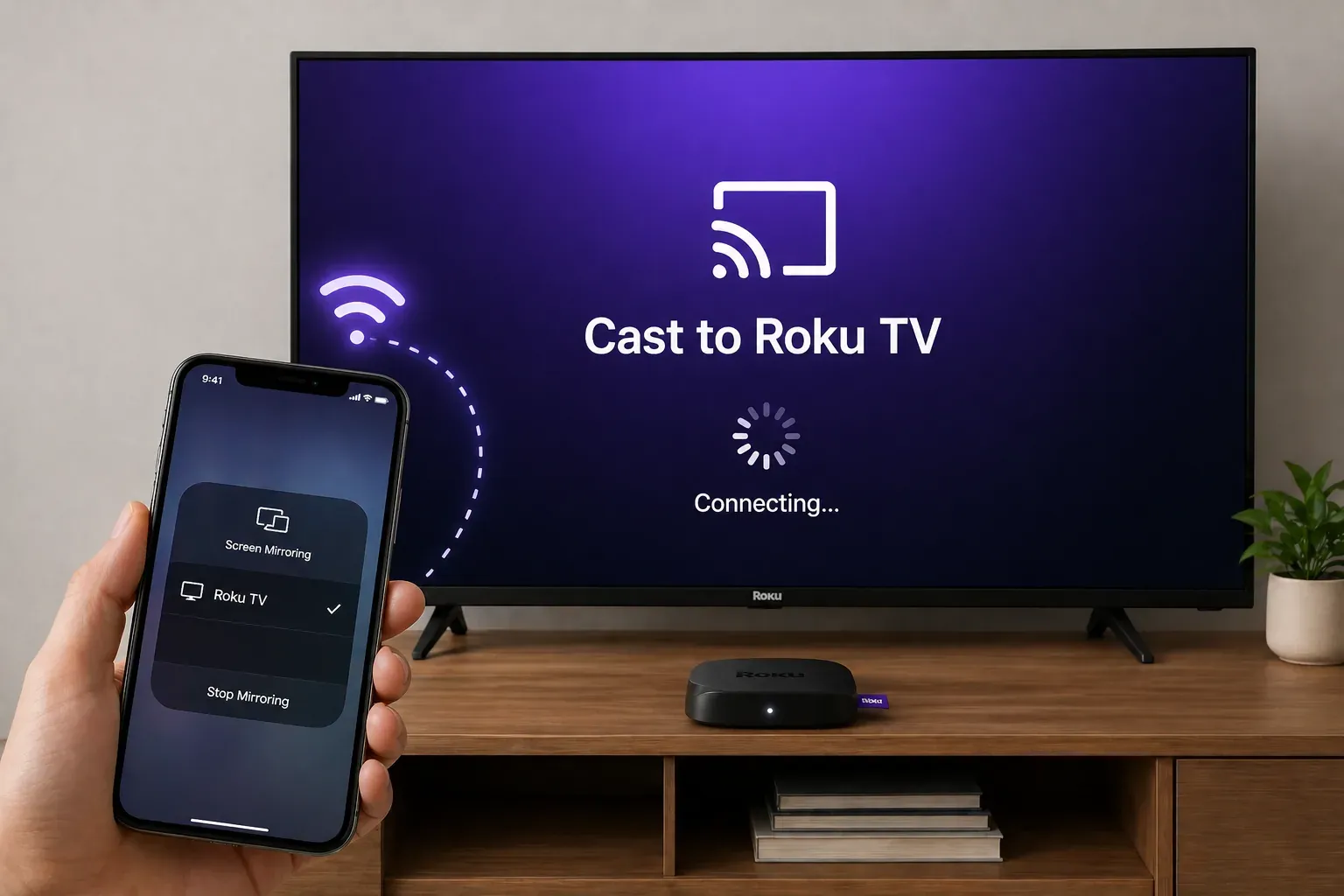
Step 1. Ensure Roku TV is powered on and stays on the home screen.
Step 2. Connect both your sender device and Roku TV to the same Wi-Fi network.
Step 3. Navigate to settings > system > screen mirroring (or apple airplay) and set it to prompt or always allow.
Step 4. Check router settings and disable guest mode and ap/client isolation, which can block device communication.
Step 5. Open a compatible app and look for the cast icon, or use your device's screen mirroring feature to start the test.
How to Chromecast to Roku TV
To cast content effectively, you need to align your devices on the same network and select the correct protocol. Although Roku and Chromecast use different receiver paths, you can achieve the same casting outcome using the steps below.
Tip: If manual setup fails or your devices will not sync, PigeonCast simplifies the process. It automatically bridges AirPlay, Google Cast, and DLNA protocols into one stable workflow, bypassing common Roku discovery issues.


Overall Rating:



Step 1. Enable receiving mode on Roku TV:
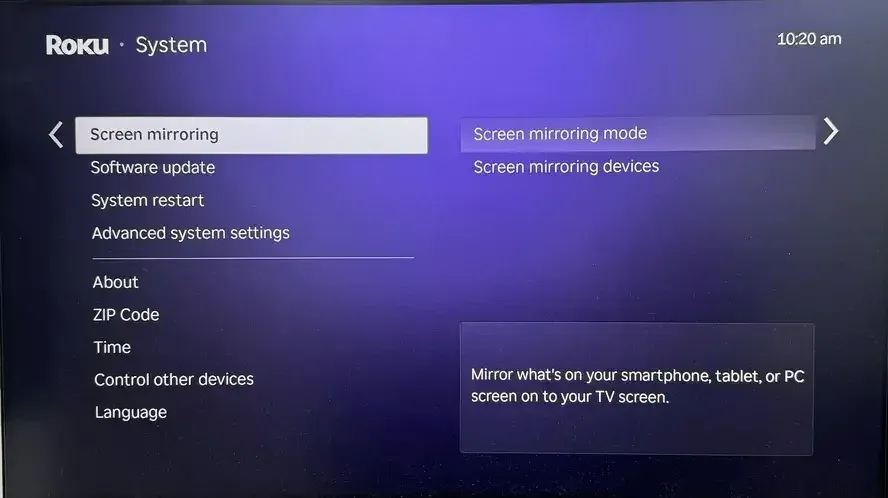
- Go to Settings > System > Screen mirroring and set Screen mirroring mode to Prompt or Always allow.
- Note for Apple users: Go to Settings > Apple AirPlay and HomeKit and ensure AirPlay is On.
- Keep your Roku TV on the home screen during discovery to ensure it remains visible to other devices.
Step 2. Align both devices on the same Wi-Fi:
- Go to Settings > Network > About on Roku to verify the exact SSID (Wi-Fi name).
- Ensure your phone or computer is on the same SSID.
- Pro tip: If your router has 2.4 GHz and 5 GHz bands, try putting both devices on the 5 GHz band for better bandwidth and less interference.
Step 3. Start the cast or mirror session:
- From an app: Open a compatible app, tap the cast icon, and select your Roku TV.
- From a phone or PC: Open your device's Screen Mirroring menu and select Roku.
- Approve the connection on your TV screen if prompted.
Step 4. Verify playback quality:
- Play a 30-second clip to check audio and video sync.
- If audio lags, stop the stream, wait 5 seconds, and reconnect.
- Ensure your router is not placed behind the TV or inside a metal cabinet, as this can weaken signal stability during longer clips.
Troubleshooting Chromecast and Casting to Roku TV
When Roku casting still fails after basic setup, diagnose by symptom rather than repeating full setup steps, because discovery, stability, and playback issues usually come from different causes and need different fixes.
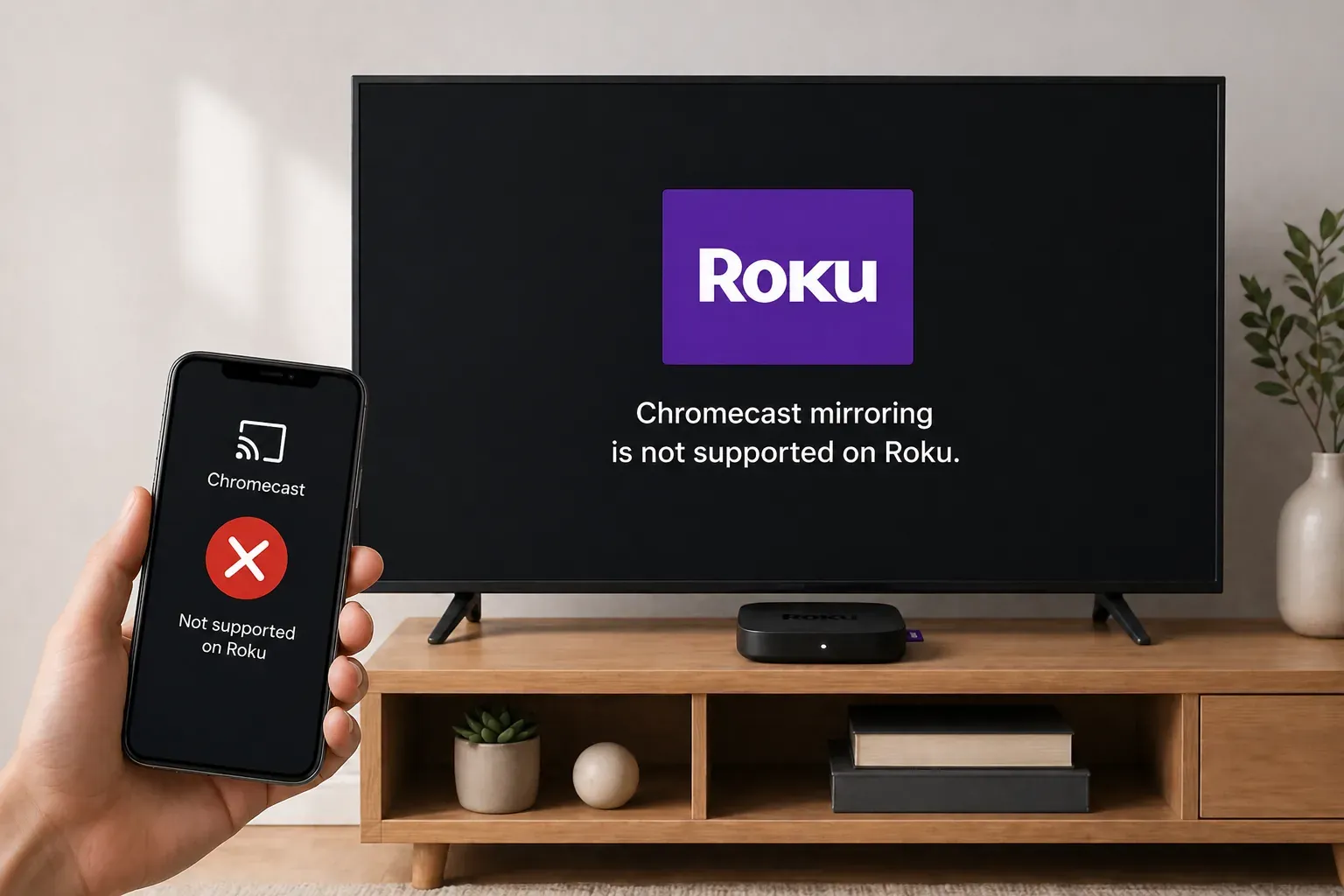
If Roku TV Is Missing from the List
When your device cannot find Roku TV, the issue is usually network discovery, so focus on these network-level fixes first.
- Switch connection paths: If a specific app's cast button fails, try system-level Screen Mirroring instead.
- The power cycle: Restart your router, Roku TV, and sender device to clear local network cache and refresh device IP addresses.
- Disable network isolation: Open router settings and turn off AP/client isolation and guest mode, because these settings block device-to-device communication.
If the Connection Drops or Lagging Occurs
Short sessions, stutter, or frequent drops are usually caused by interference or congestion on your Wi-Fi network.
- Proximity to router: Move your sender device closer to the router to improve session stability during handshake.
- Manage bandwidth: Pause heavy background tasks such as high-resolution downloads, gaming, or cloud sync on other devices.
- Stay awake: Prevent your phone or computer from sleeping or auto-locking during the initial connection phase.
If You See a Black Screen or Have No Audio
If connection succeeds but media does not play correctly, the problem is usually transport behavior or app compatibility.
- Reset the session: Fully stop the current cast, wait a few seconds, and start a brand-new session instead of retrying.
- Cross-app testing: Test another media source to rule out app-specific content protection or compatibility behavior.
- System restart: Use the Roku menu to run a system restart and clear stuck video or audio decoders.
Bottom Line
Success in Chromecast to Roku TV comes down to choosing the right protocol and ensuring network harmony. By following this staged troubleshooting path, you can eliminate discovery errors and enjoy a fast, consistent connection for every future session.
How to Chromecast to Roku TV FAQ
Why can't I cast onto my Roku TV?
- Some apps rely on a cast handshake path that may not map cleanly to Roku's receiver flow, which can break direct negotiation.
- Devices can be online but still separated at the local-network level, which blocks peer discovery.
- Router isolation behavior can suppress discovery traffic required for casting protocols.
- Sender-device VPN, security policies, or power management can interrupt local discovery and handshake timing.
- App-specific compatibility and temporary OS service-state faults can cause intermittent visibility or cast failure.
Is Chromecast to Roku TV the same as screen mirroring?
Not exactly: direct casting sends media to the TV receiver, while screen mirroring replicates your full device screen in real time, so mirroring is generally the fallback when direct casting is not available.
Do I need extra hardware to Chromecast to Roku TV?
Usually no for basic casting, but extra hardware becomes worthwhile when you need consistent cross-app compatibility, lower reconnection frequency, or stable performance on congested home networks.
How to cast to Roku TV from Google Pixel?
- Connect your Google Pixel and Roku TV to the same Wi-Fi network.
- On Roku TV, enable screen-mirroring permissions before starting discovery.
- Open the Pixel cast menu, select Roku TV, and start casting.
- If it fails repeatedly, treat it as a protocol-compatibility issue rather than a basic internet issue.
How to cast Chromebook to Roku TV without Chromecast?
- Connect your Chromebook and Roku TV to the same Wi-Fi network.
- On Roku TV, enable screen mirroring permissions in Settings > System > Screen mirroring.
- On Chromebook, open settings > device > displays, then choose the wireless display or cast option and select Roku TV.
- If Roku TV does not appear, verify local-network visibility and use screen mirroring as the primary path instead of app-level direct cast.
Why does Roku TV show up but fail to connect?
- The TV is discoverable, but permission handoff can fail if the receiver prompt times out.
- Session negotiation can break when local network latency spikes during connection setup.
- App-level protocol behavior may detect Roku TV but fail at media-session initialization.
- Temporary Roku OS or sender-side cast service state issues can interrupt handshake completion.
Clara Rossi is an experienced technology editor and a seasoned expert in screen mirroring and casting technologies. With a keen eye for detail and a deep understanding of how to seamlessly connect devices, Clara excels at optimizing user experiences for effortless sharing and streaming. Whether you're seeking quick fixes or advanced tips, her expertise and responsiveness ensure that every query is met with a well-informed and efficient solution.