
Many users wonder does Roku have Chromecast, especially when switching between streaming devices or trying new casting devices. The short answer is that Roku does not have built-in Chromecast, although it offers its own casting and screen mirroring system. Understanding how these protocols differ can help you choose the right method for streaming from your phone, tablet, or computer. This guide explains everything you need to know about Roku casting and the alternatives that deliver a true Chromecast experience.
Does Roku TV Support Chromecast
Roku TVs do not include native Chromecast support. Instead, Roku uses its own technology that relies on app casting and Miracast screen mirroring. This means you cannot open the Google Home app and cast directly to Roku as you would with a Chromecast.
However, you can still stream to Roku in several ways. Many apps on Android and iPhone have a built-in Roku Cast SDK. Roku TVs also support Miracast for devices that allow wireless display connections. Understanding these options helps you find the closest equivalent to Chromecast on Roku without needing the actual Google hardware.
How to Cast to Roku from Your Phone or Laptop
Although Roku doesn't have native Chromecast support, there are still several ways to Chromecast to Roku using different methods. Whether you're wondering how to Chromecast to Roku from your phone, tablet, or computer, the following will help you explore the best options for achieving a seamless streaming experience.
Method 1: Use Native App Casting to Roku
Many popular streaming services, such as YouTube and Netflix, still allow you to cast videos to Roku, offering the closest experience to Chromecast to Roku. This works because these apps use Roku's own casting system and the DIAL protocol instead of Google Cast.
DIAL, developed by Netflix and YouTube, allows your phone to tell your Roku device to launch the matching app and begin playing the video directly on the TV. You are not mirroring your phone. Instead, the app on Roku streams the video itself. This is why casting from these apps feels very fast, stable, and similar to using Chromecast.
Here's how to cast to Roku using YouTube or Netflix:
Step 1. Connect your Roku and Android phone to the same WiFi network.
Step 2. Open a supported app such as YouTube or Netflix.
Step 3. Tap the casting icon that appears inside the app.
Step 4. Select your Roku TV or Roku streaming stick from the list.
Step 5. Play the content and control it from your phone.
This method is smooth and fast but depends entirely on whether the app you use supports Roku casting.
Method 2: Mirror Your Screen to Roku Using Miracast
If you want to share the entire display instead of casting an individual video, Miracast works well for many Windows and Android devices.
Many users who search for Roku Chromecast alternatives often turn to Miracast because it works on a wide range of Windows laptops and Android phones. Miracast creates a direct wireless link between your device and the Roku TV, which means the connection does not depend on individual app support.
Step 1. Make sure both devices are on the same WiFi network.
Step 2. On Roku, open Settings, then choose System and Screen Mirroring.
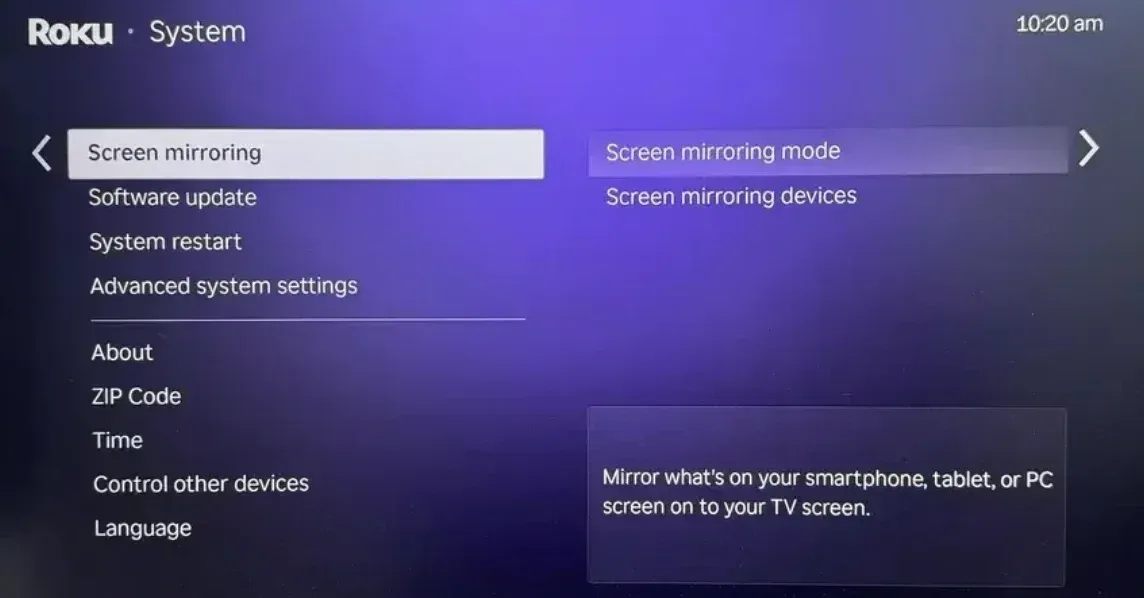
Step 3. Set Screen Mirroring Mode to Prompt or Always Allow.
Step 4. On Android, open the wireless display or smart view feature.
Step 5. Select your Roku from the list and approve the connection on your TV.
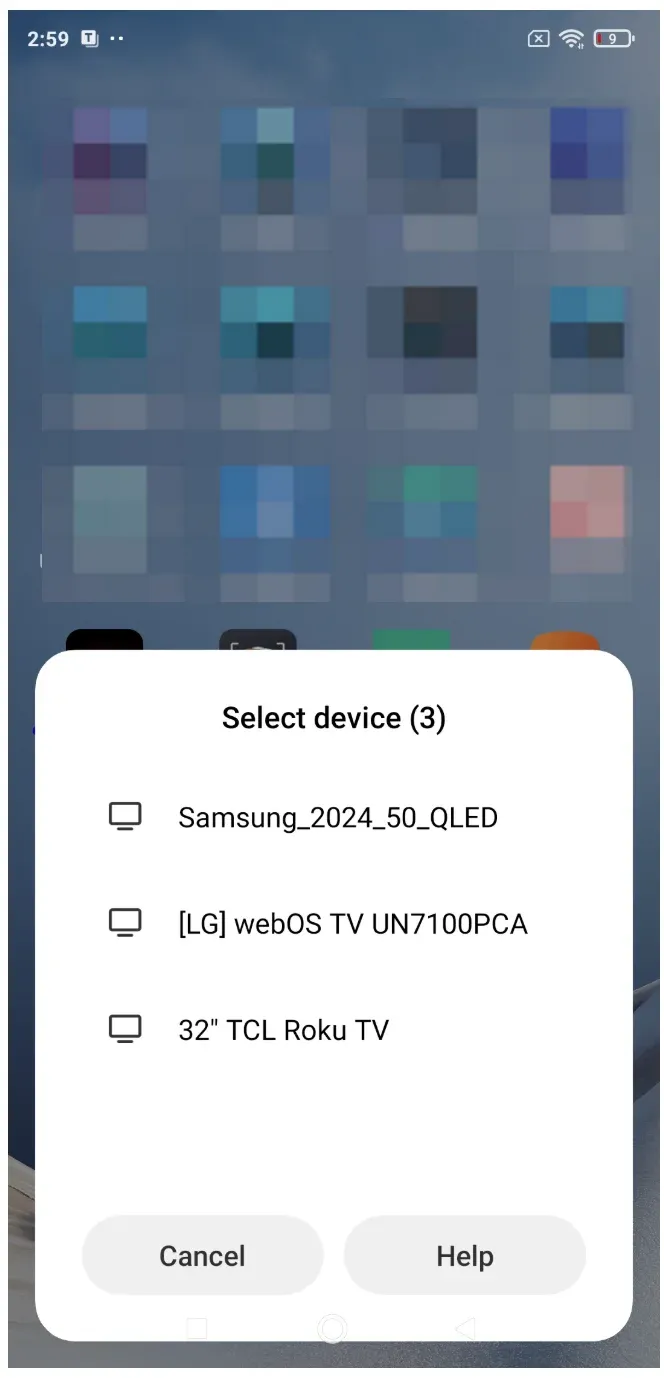
While Miracast does not behave exactly like Chromecast with Roku, this option is helpful when casting apps that do not support Roku natively, although performance depends on your network quality.
Method 3: Connect Android/PC to Roku Using PigeonCast
If you want a straightforward alternative to Chromecast to Roku from Android, PigeonCast offers a flexible option that works with both Android phones and Windows PCs.
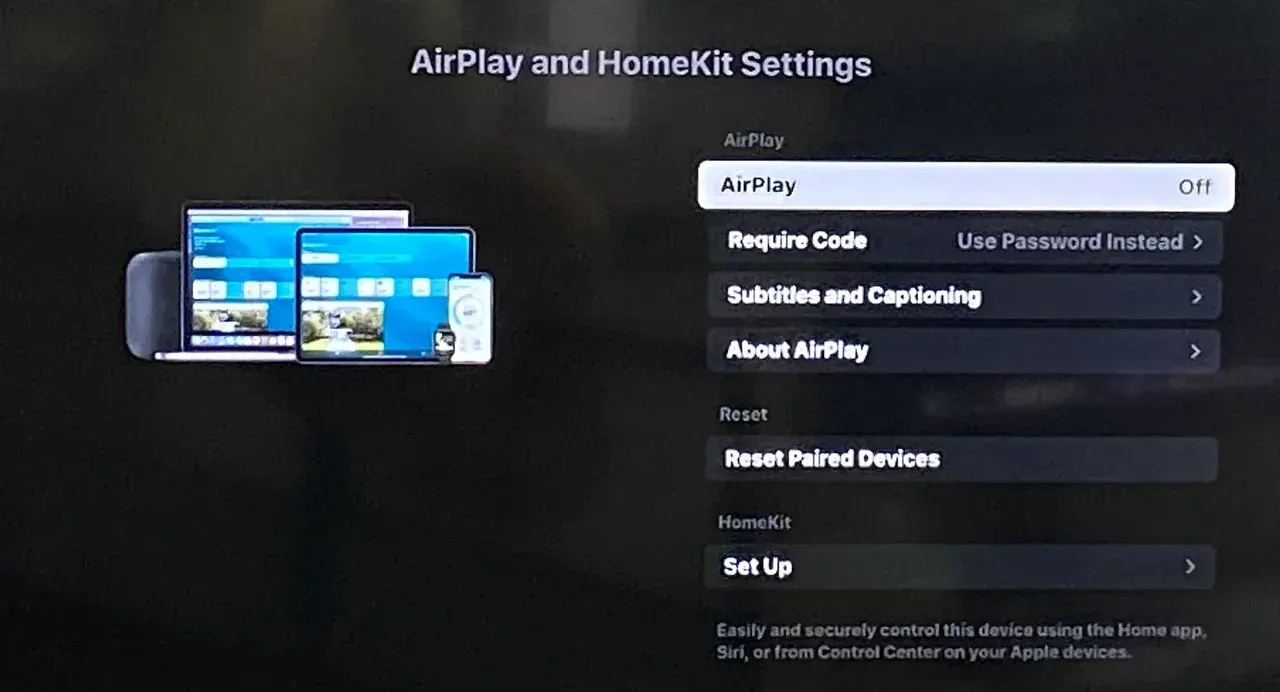
Instead of relying on Miracast or Google Cast, PigeonCast sends your screen to Roku through the TV's built-in AirPlay support. Many Roku models already include AirPlay, which means your Roku treats the incoming signal as a standard AirPlay stream.
Step 1. On your Roku TV, go to Settings and check whether AirPlay is available. If available, enable it.
Step 2. Install PigeonCast on your Android phone or Windows computer.


Overall Rating:



Step 3. Connect your Roku and your device to the same Wi-Fi network.
Step 4. Open PigeonCast and select your Roku TV from the list.
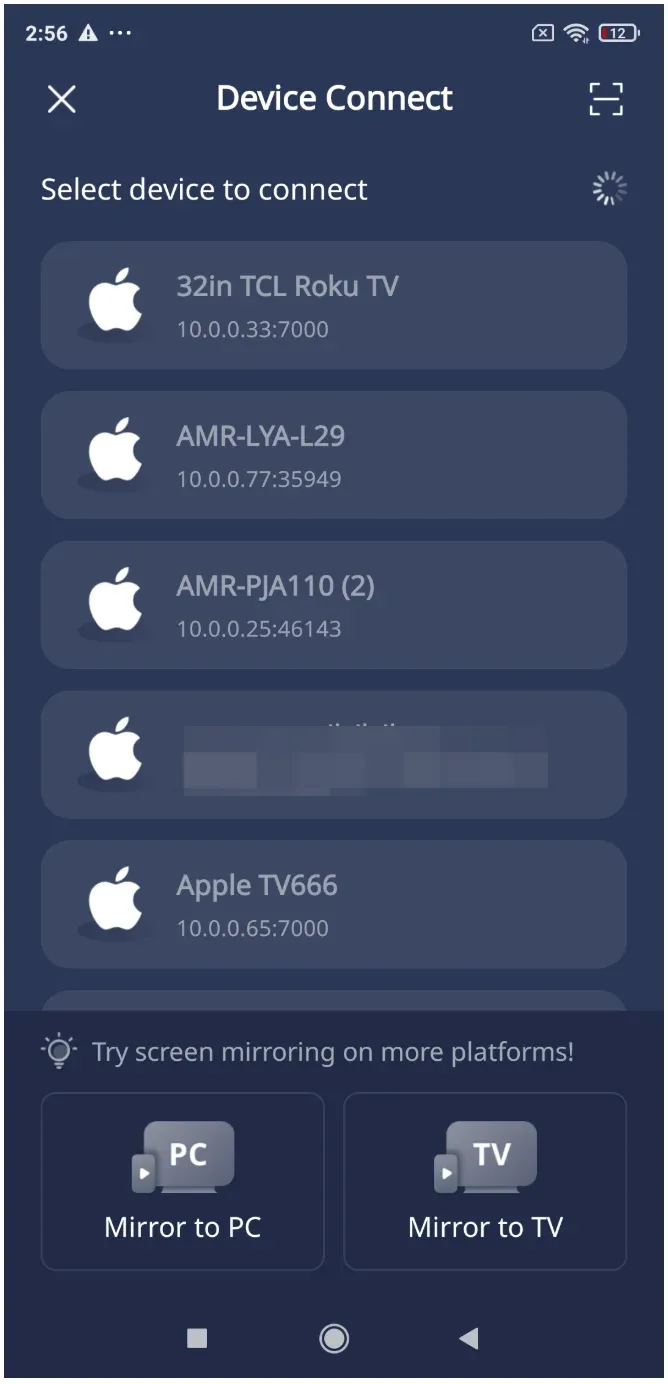
Step 5. Start mirroring to display apps, videos, documents, or anything else that appears on your screen.
AirPlay is more stable than Miracast on many networks, and the connection often feels smoother and works well with apps that normally cannot cast to Roku. So, PigeonCast is a practical choice if you need full-screen mirroring, want a stable connection, or prefer a casting option that works across different platforms without relying on native Roku casting features.
Method 4: Connect Chromecast to Roku TV
If you want the full Chromecast experience on a Roku TV, the most reliable approach is adding an external Chromecast device. This gives you complete compatibility with the Google Home app, allowing you to cast videos, apps, and browser tabs exactly as you would on any Chromecast-enabled television. Once the device is connected, you can Chromecast to Roku TV from your phone, browser, or computer.
Does Roku have Chromecast? Since it does not, this method delivers the closest and most accurate alternative. Once connected, the Chromecast behaves as a separate HDMI source, so your Roku TV simply displays the video while the Chromecast handles all the casting logic. This setup is ideal for users who want consistent support across Android, iPhone, and Chrome browser without relying on Roku's native system.
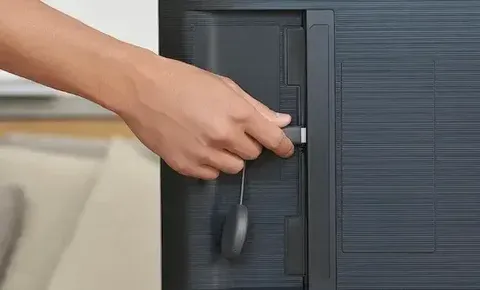
Step 1. Plug the Chromecast into an HDMI port on your Roku TV.
Step 2. Switch the TV input to the correct HDMI channel.
Step 3. Use the Google Home app on your phone to set up the Chromecast.
Step 4. Begin casting normally using the cast icon on your Android or Chrome browser.
This approach is the only method that provides a true Chromecast with Roku experience. It is stable, fast, and perfect for users who want Google's ecosystem without changing their television.
Final Thoughts
Understanding how Roku handles casting makes it much easier to pick the right method for your setup. Although Roku does not include native Chromecast features, you still have several practical options depending on the device you use, whether you prefer app casting, Miracast screen mirroring, or a full Chromecast with Roku experience through an external device.
If your goal is to mirror apps that Roku does not support or you simply want smoother performance than standard Miracast, PigeonCast offers a reliable way to bridge the gap. It gives you a stable connection across Android and Windows while working seamlessly on Roku models with AirPlay. This makes it a helpful choice for users who want more flexibility than the default Roku Chromecast alternatives.
No matter which approach you choose, each method solves a different need. App casting is ideal for supported streaming services, Miracast works for complete screen sharing, PigeonCast brings consistency across platforms, and a stand-alone Chromecast provides the full Google experience. With these options, you can always find a setup that fits your viewing habits and your devices.
Does Roku Have Chromecast FAQs
Does Roku do screen casting?
Yes. Roku supports casting from apps that include the Roku Cast SDK and also allows screen mirroring through Miracast on many models. This gives you multiple ways to share content even though Roku does not include native Chromecast support.
How to cast Chrome on Roku TV?
You cannot cast directly from the Chrome browser using Google Cast. Instead, you can mirror your entire screen using Miracast on Windows or use a tool like PigeonCast if your Roku TV supports AirPlay. Both options let you display Chrome tabs on your Roku TV.
Does Roku do the same thing as Chromecast?
Roku and Chromecast offer similar outcomes but work differently. Chromecast relies on Google Cast, while Roku uses app-level casting and Miracast. Roku can replicate many Chromecast features, but it is not a full replacement unless you connect a physical Chromecast device.
What devices have Chromecast?
Google Chromecast is built into many Android TVs, Google TV devices, Nest Hub displays, and Chromecast dongles. If your TV does not have Google Cast, you can plug in an external Chromecast to add full casting support.
Can my TV be too old for Chromecast?
Any TV with an HDMI port can use an external Chromecast. Very old TVs without HDMI may require an adapter, but the Chromecast device itself works regardless of the TV’s age.
Mia Clarke is a technology editor specializing in screen mirroring and casting solutions across multiple platforms. Mia provides clear, practical guides and in-depth insights to help users seamlessly connect their devices. Passionate about enhancing digital experiences, Mia is dedicated to keeping readers updated on the latest trends and tools in cross-platform screen sharing. Whether you’re looking to mirror your smartphone, laptop, or smart TV, Mia’s content delivers reliable, user-friendly advice to simplify your tech setup.