
You can AirPlay to Roku device easily if your Roku device supports Apple's wireless streaming feature. Most newer Roku players and Roku TVs running the latest software already include this compatibility. With AirPlay enabled, you can stream videos, mirror apps, or share your entire iPhone, iPad, or Mac screen directly to Roku, just like using Apple TV. Follow the guide to connect your Apple device to a Roku device smoothly.
Which Roku Models Support AirPlay
AirPlay support is built into most Roku devices that run Roku OS 9.4 or newer. However, not every model includes it, so checking your version before setup is essential.
| Roku Device | AirPlay Compatibility |
|---|---|
| Roku Ultra (2019 or later) | Yes |
| Roku Streaming Stick+ | Yes |
| Roku Premiere and Premiere+ | Yes |
| Roku Smart Soundbar | Yes |
| Roku TV (select brands like TCL, Sharp, Hisense) | Yes |
| Roku Express and Express+ | Partial or No support (depends on model) |
How to check your Roku version:
Step 1. Open Settings > System > About on your Roku.
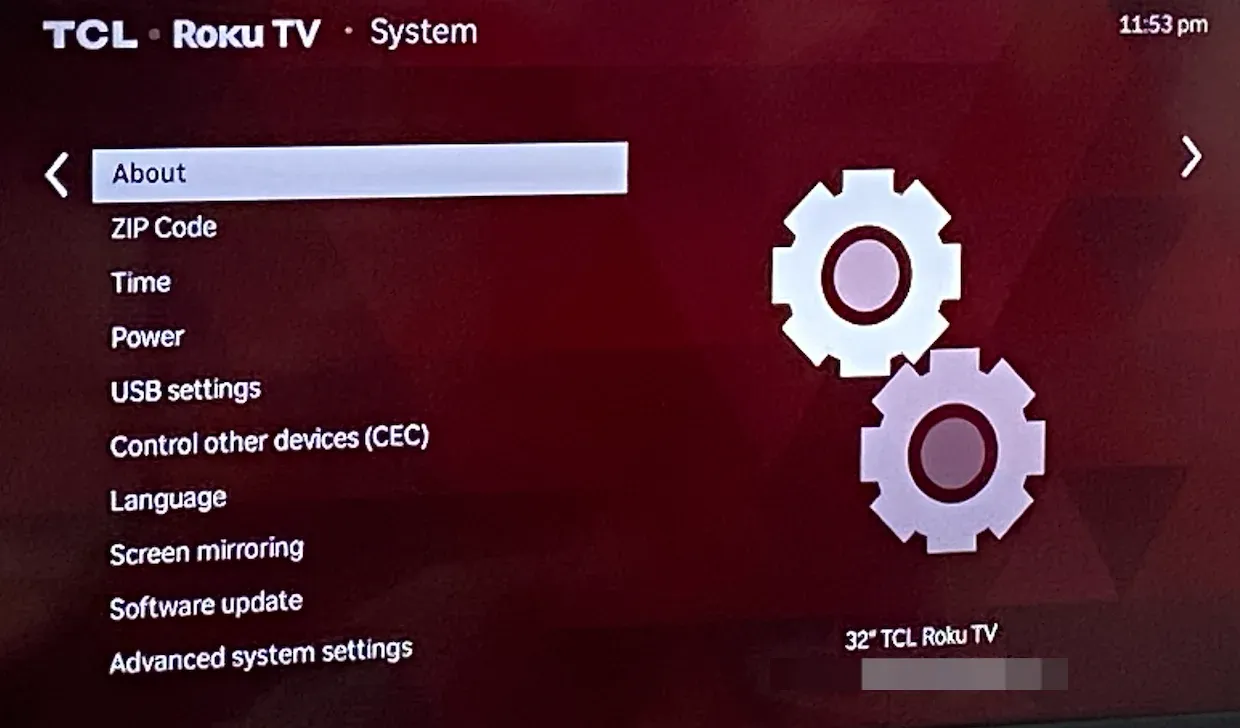
Step 2. If your Roku runs OS 9.4 or higher, go back to Settings and look for Apple AirPlay and HomeKit.
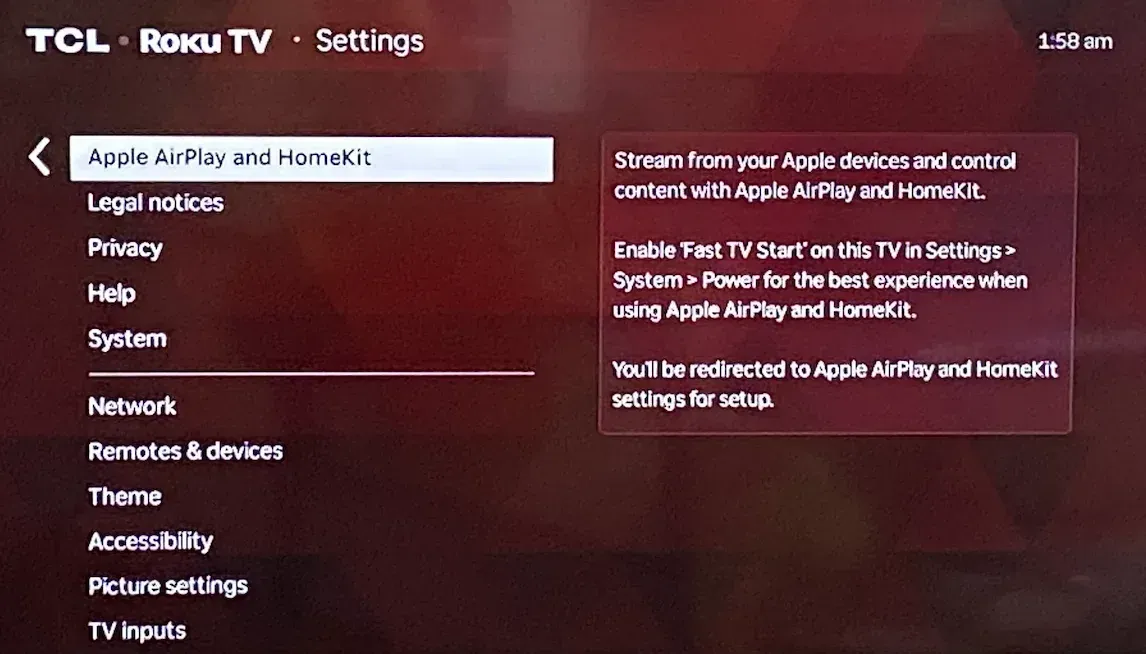
Step 3. If that option appears, your Roku player or Roku TV does support AirPlay.
How to AirPlay to Roku
AirPlay to Roku works best when both devices share the same Wi-Fi, AirPlay is enabled on the Roku, and all systems are up to date. These simple connections ensure smooth wireless streaming without lag or pairing issues. Now, follow the guides on how to connect AirPlay to Roku:
AirPlay to Roku from iPhone or iPad
Using AirPlay from your iPhone or iPad takes just a few taps. Here's how to AirPlay iPhone to Roku TV:
Step 1. Make sure both your Roku and iPhone or iPad are connected to the same Wi-Fi network.
Step 2. On your Roku, go to Settings > Apple AirPlay & HomeKit and turn AirPlay on.
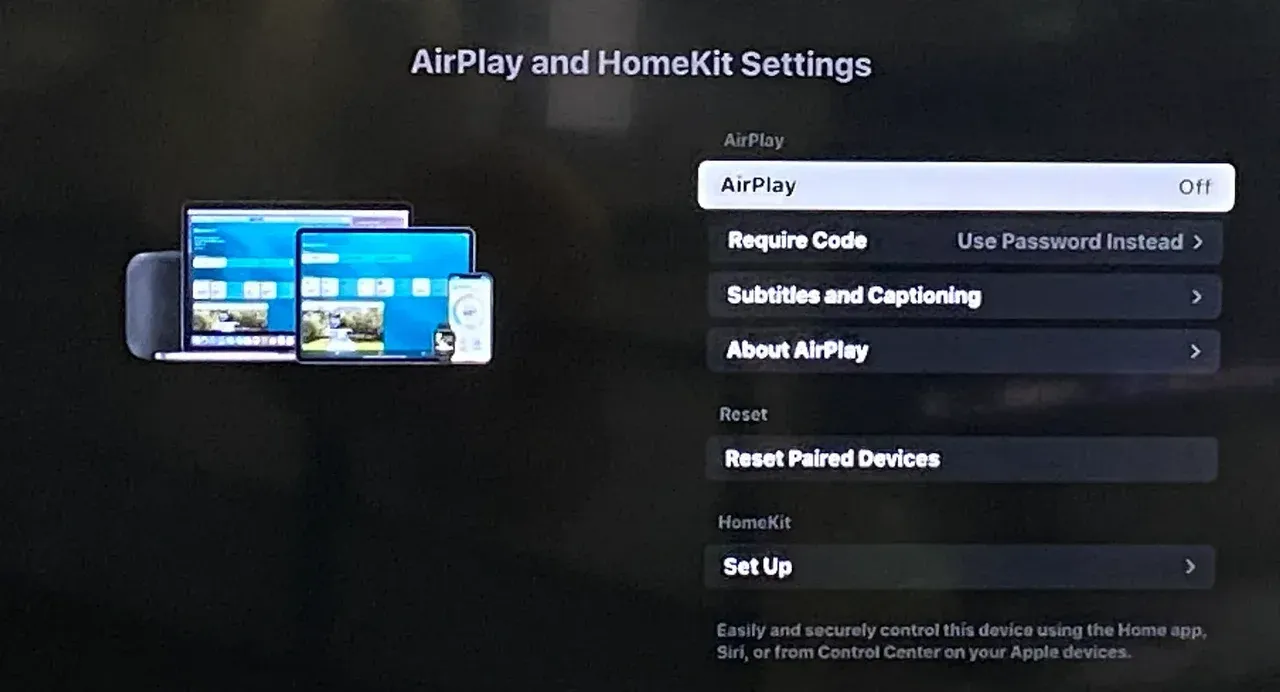
Step 3. Swipe down on your iPhone or iPad to open the Control Center.
Step 4. Tap Screen Mirroring or the AirPlay icon within a video app like YouTube or Photos.
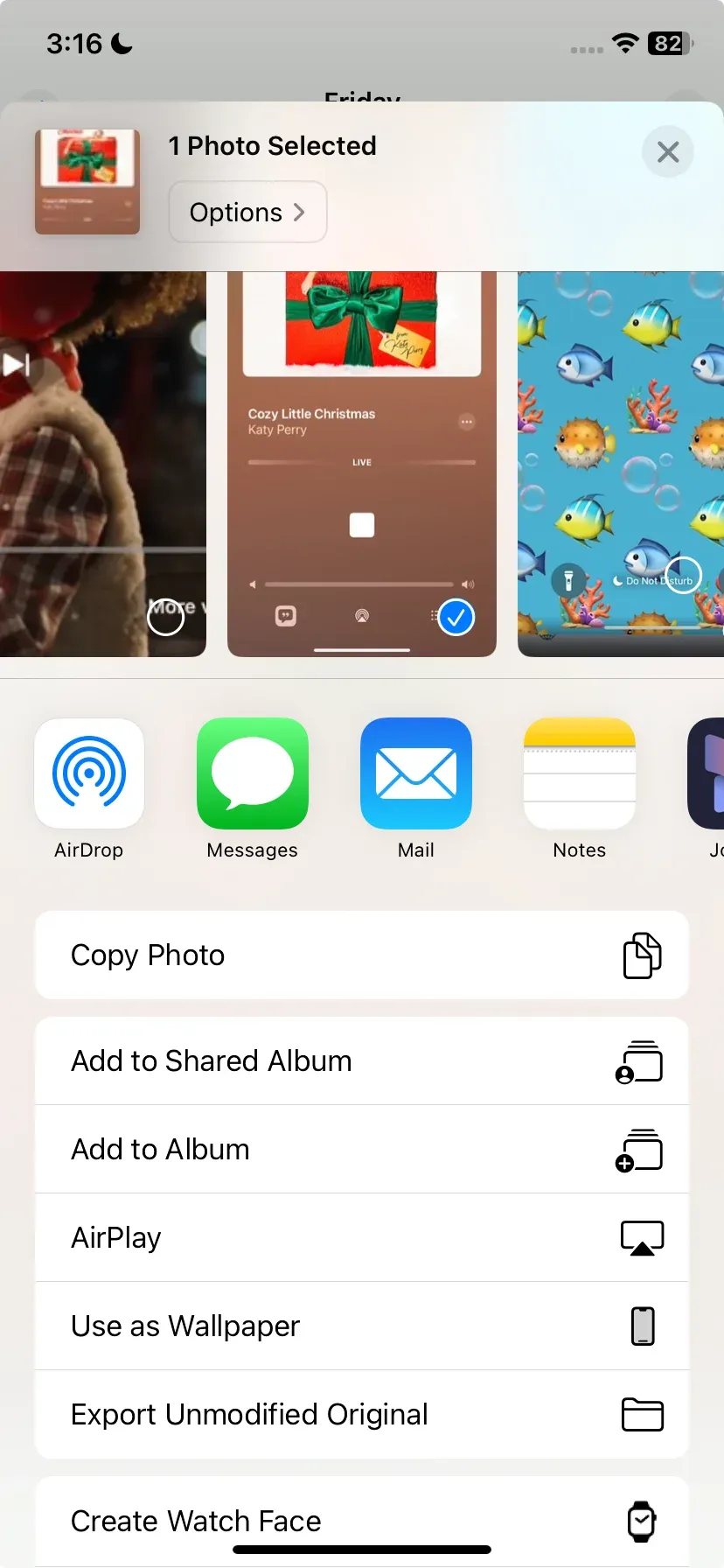
Step 5. Select your Roku from the list and enter the on-screen code if prompted.
Tip: If your Roku doesn't show up, restart both devices and check that they're using the same Wi-Fi band (2.4Ghz or 2.5Ghz).
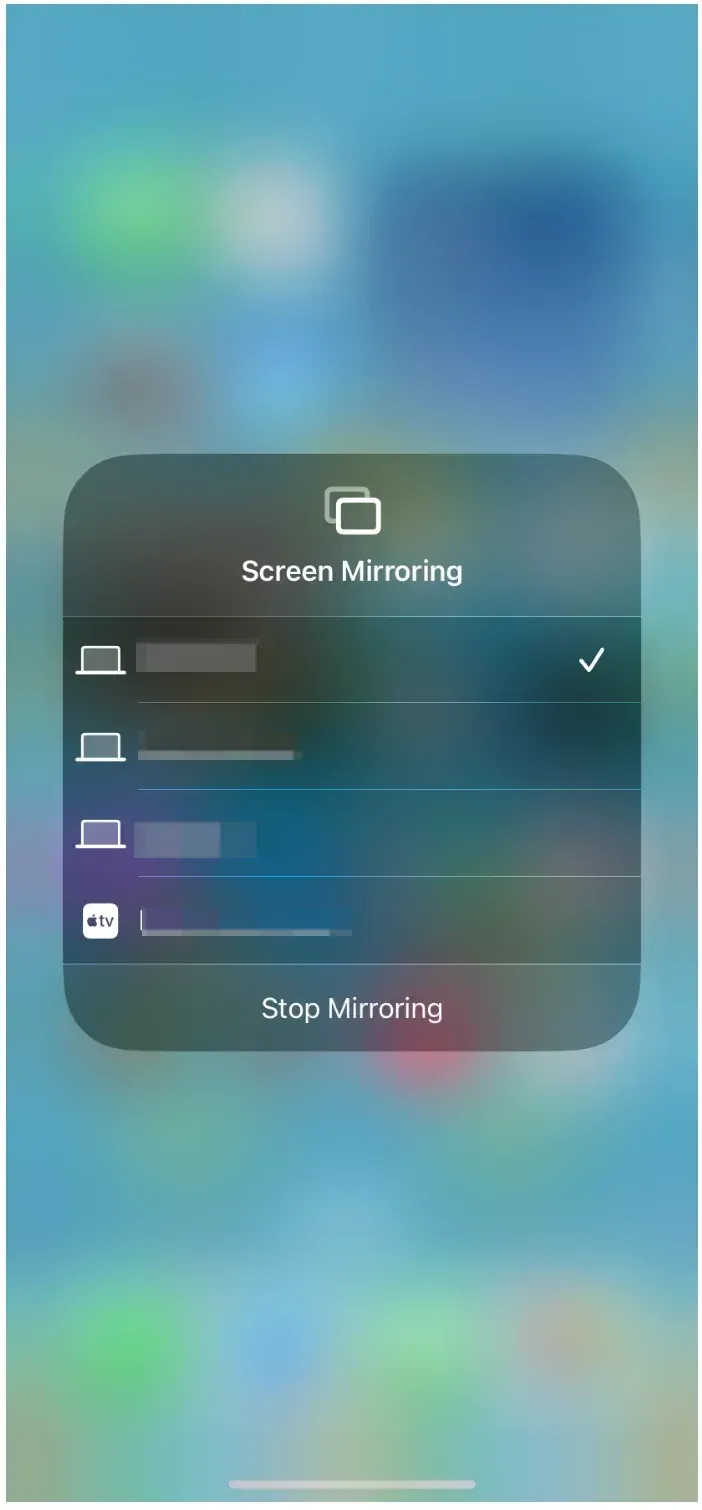
Once connected, your iPhone or iPad screen will appear on your TV through Roku. You can stream videos, display presentations, or even play games.
AirPlay to Roku from MacBook
Mirroring or extending your Mac screen to Roku is also possible through AirPlay. Here's how to AirPlay to Roku TV or Roku player:
Step 1. Make sure your Mac and Roku are connected to the same Wi-Fi network.
Step 2. On Roku, enable AirPlay under Settings > Apple AirPlay and HomeKit.
Step 3. On your Mac, click the Control Center icon from the top menu bar.
Step 4. Choose Screen Mirroring, then select your Roku device.
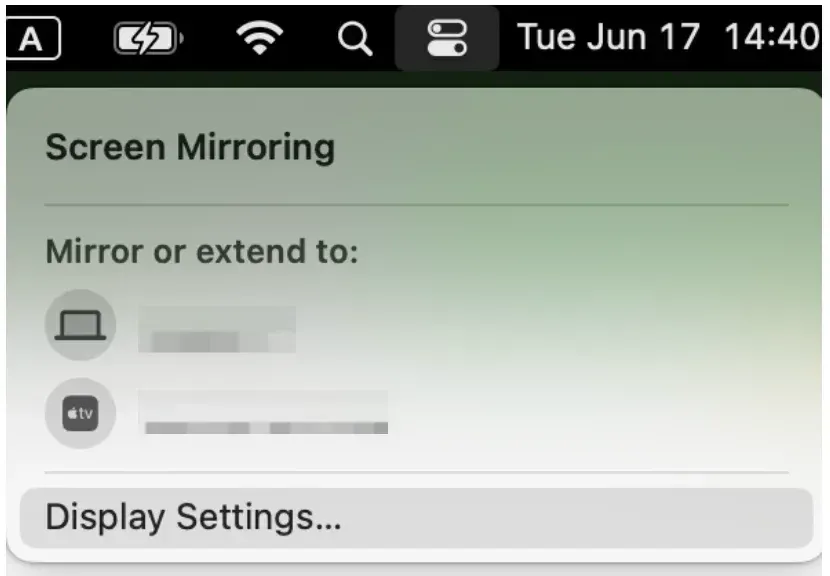
Step 5. When the code appears on your TV, enter it on your Mac.
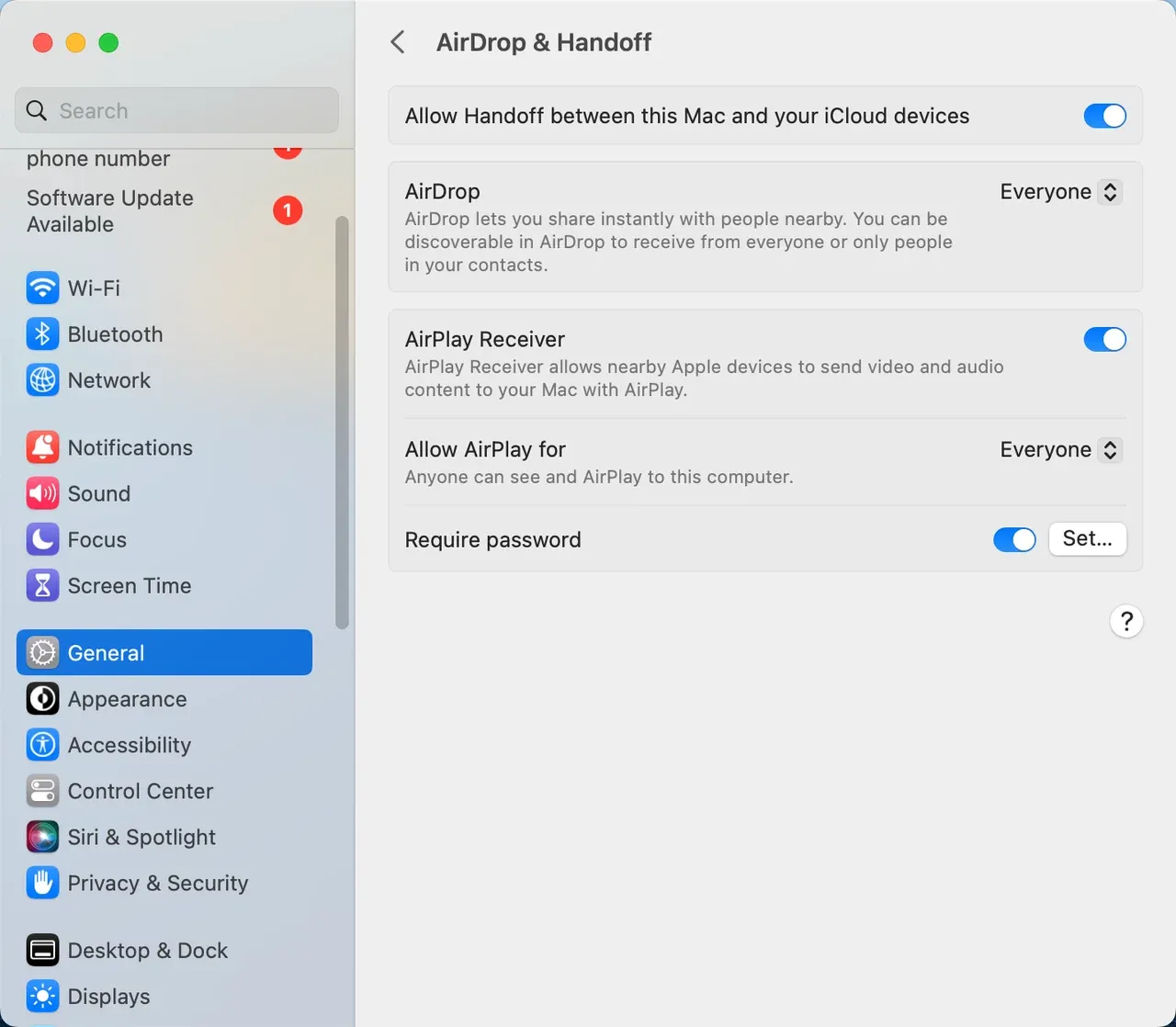
You can AirPlay Mac to Roku TV for desktop screen mirroring, browser tab sharing, or using the Roku device as a second display. If AirPlay doesn't appear in the menu, go to System Settings > General > AirPlay & Handoff and enable AirPlay Receiver, then restart both devices.
AirPlay to Roku from Android or Windows Device
By default, Android phones and Windows PCs do not support AirPlay, as Apple's protocol is designed for its own ecosystem. However, you can AirPlay to Roku TV from your Android or Windows device using a free third-party tool like PigeonCast.

PigeonCast supports AirPlay and works seamlessly across Android, iPhone, Windows PC, MacBook, and most smart TVs, enabling you to share your screen even when native mirroring options fail.

PigeonCast Screen Mirroring

Official Download



Step 1. Install PigeonCast on your Android phone or Windows PC and launch the app.
Step 2. Ensure your Android or Windows device and Roku device share the same Wi-Fi network.
Step 3. AirPlay to Roku with PigeonCast:
- On Android device, tap Select a device, choose your Roku device, and choose screen mirroring or media/browser casting.
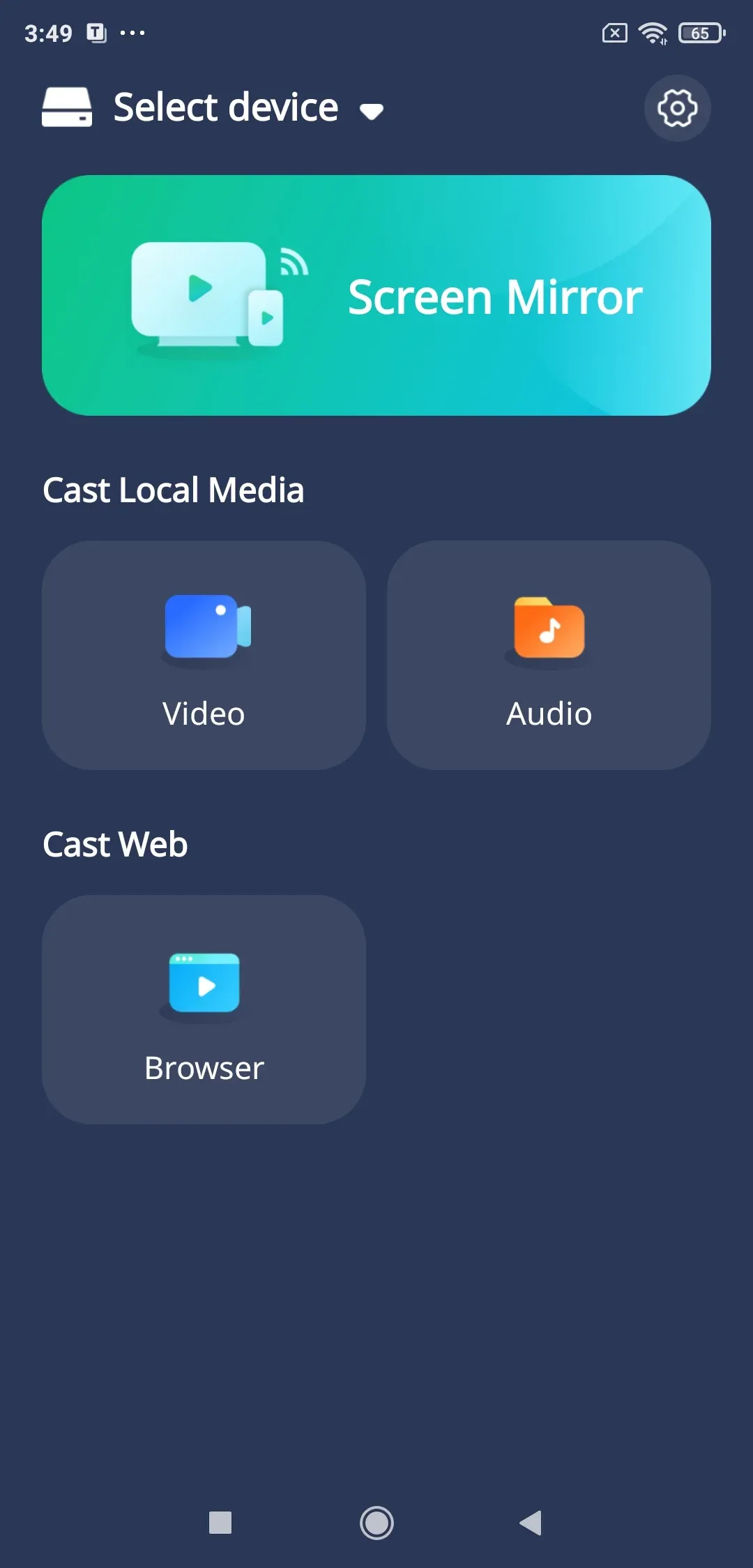
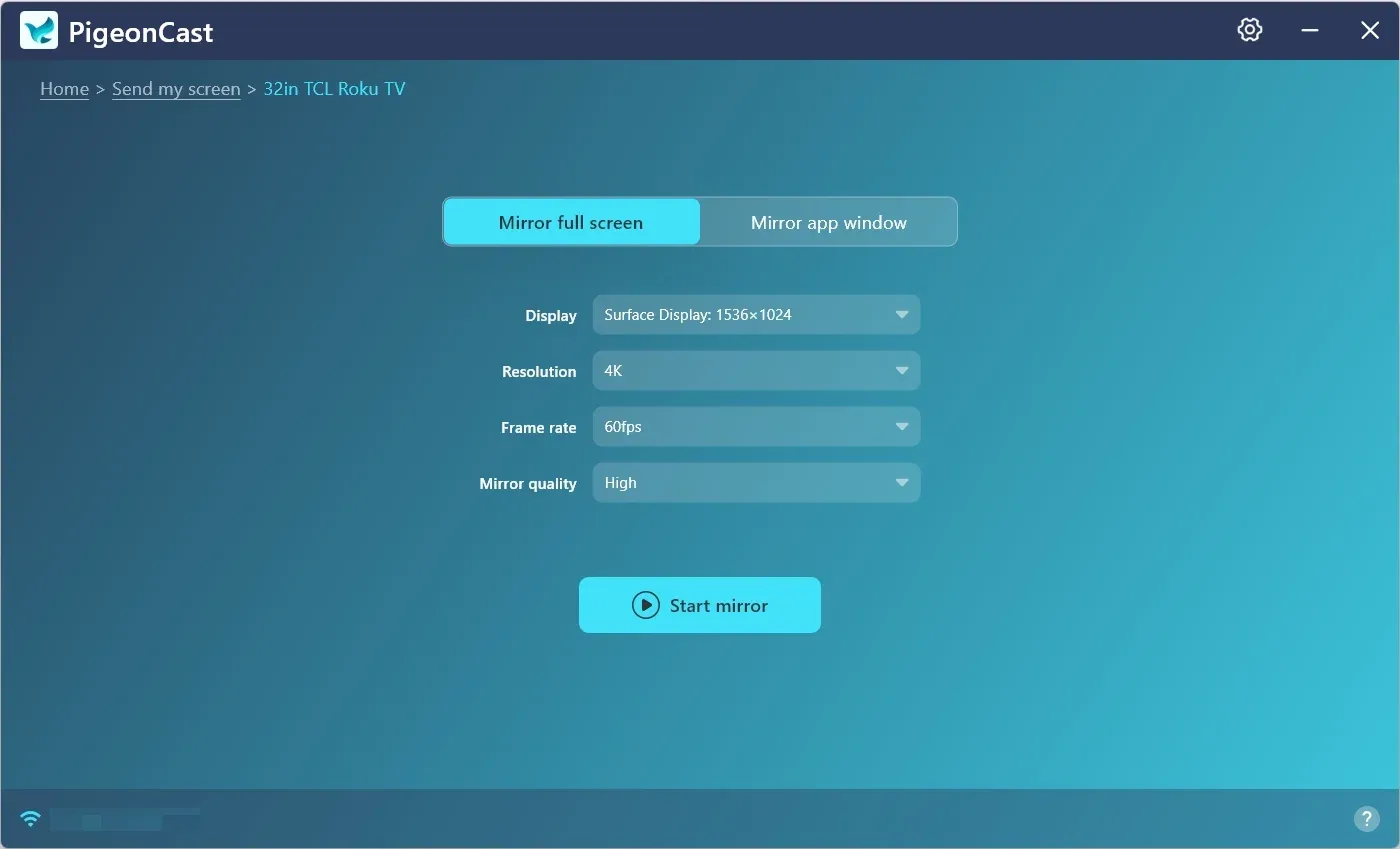
- On Windows PC, tap Send my screen, choose your Roku device, select to mirror the desktop screen or an app window, and start mirroring.
Quick comparison: AirPlay vs PigeonCast:
| Feature | AirPlay | PigeonCast |
|---|---|---|
| Works with Apple devices | Yes | Yes |
| Works with Android/Windows | No | Yes |
| Internet required | Same Wi-Fi network | Same Wi-Fi network |
| Best for | Apple users | Cross-platform users |
If you use only Apple products, AirPlay is ideal. But if your household mixes Android phones, Windows laptops, and Roku TVs, PigeonCast provides the most flexible and free way to mirror screens.
Wrapping Up
AirPlay to Roku is simple once your device supports it and both are on the same network. Roku models with OS 9.4 or higher include AirPlay support, allowing iPhone, iPad, and Mac users to share content wirelessly. For Android and Windows users, PigeonCast offers similar functionality.
Whether you're watching movies, giving a presentation, or showing photos to friends, Roku's AirPlay and screen mirroring options make the process smooth and wireless.
AirPlay to Roku FAQs
How do I cast from my iPhone to my Roku?
Connect both devices to the same Wi-Fi, enable AirPlay on Roku, open Control Center on your iPhone, and tap Screen Mirroring. Choose your Roku device and enter the pairing code if required.
Why is AirPlay not showing up on Roku TV?
If AirPlay isn't visible, your Roku may not support it, or the software might be outdated. Update to Roku OS 9.4 or later and enable AirPlay under Settings > Apple AirPlay and HomeKit.
Why won't my phone screen mirror to my Roku TV?
The issue usually involves network mismatches, outdated firmware, or disabled screen mirroring. Restart both devices, verify Wi-Fi settings, and try again.
What AirPlay version does Roku support?
Most compatible Roku models running OS 9.4 or higher support AirPlay 2, enabling streaming and smart home integration with Apple HomeKit.
How to screen mirror iPad to Roku?
Swipe down to open Control Center on your iPad, tap Screen Mirroring, and select your Roku device. Enter the on-screen code to connect.
Mia Clarke is a technology editor specializing in screen mirroring and casting solutions across multiple platforms. Mia provides clear, practical guides and in-depth insights to help users seamlessly connect their devices. Passionate about enhancing digital experiences, Mia is dedicated to keeping readers updated on the latest trends and tools in cross-platform screen sharing. Whether you’re looking to mirror your smartphone, laptop, or smart TV, Mia’s content delivers reliable, user-friendly advice to simplify your tech setup.