
If you're wondering how to cast Google Pixel to Roku TV, you're in the right place. Whether you're using the latest Pixel 9 or an older model like the Pixel 6, casting or screen mirroring your phone to a Roku device can instantly turn your living room into a bigger, smarter entertainment zone. In this guide, you'll learn everything about Pixel cast and Pixel mirror options — from Miracast to third-party apps — all explained simply and clearly.
Can You Cast Google Pixel to Roku TV?
Yes, you can cast or screen mirror Pixel to Roku, but it depends on which protocol you use. So, can Pixel cast to Roku? The short answer: partially, yes.
Google Pixel phones mainly use Google Cast (Chromecast protocol), while Roku TVs support Miracast and Roku's native screen mirroring. These two systems aren't natively compatible, but you can still connect them through several workarounds such as Miracast, Chromecast, or apps like PigeonCast.
Here's a quick comparison:
| Protocol | Supported on Google Pixel | Supported on Roku (TV, Stick, Express) | Compatibility | Remarks |
|---|---|---|---|---|
| Google Cast(Chromecast) | ✅ Yes (built-in on all Pixel models) | ❌ No | ❌ Not directly compatible | Roku doesn't support Google Cast natively. |
| Miracast | ✅ (available on old models) | ✅ Yes | ⚠️ Partially compatible via third-party apps | Works for specific models |
| AirPlay | ❌ No | ✅ Yes (newer Roku models) | ❌ Not compatible | Apple-only protocol, not for Android. |
| DLNA | ⚠️ Limited (via apps) | ✅ Yes | ⚠️ Partial | Works for local media casting, not full mirroring. |
How to Cast Google Pixel to Roku TV?
Google Pixel cast to Roku can be done in several ways, whether you prefer using native protocols, third-party apps, or built-in casting tools. Each casting option offers a slightly different experience — from full screen mirroring to simple media casting. The table below gives you a quick overview so you can pick the method that best fits your setup and needs.
| Method | Compatibility | Best For | Extra App Needed |
|---|---|---|---|
| Miracast | Moderate | Older Pixel models or users who prefer wireless screen mirroring without Chromecast | Sometimes |
| Chromecast | High | Pixel users who have a Chromecast or Google TV device connected to Roku | No |
| PigeonCast | High | Cross-platform mirroring or casting across all Pixel and Roku models | No |
| Roku App | High | Casting photos, videos, and music directly from your Pixel | Yes |
| YouTube/Netflix Apps | High | Streaming videos from supported apps with built-in Cast icons | No (The app should be installed on both Pixel and Roku) |
How to cast Pixel to Roku? Before you start, make sure both devices are connected to the same Wi-Fi network and your Roku system is up to date.
Method 1: Mirror Google Pixel to Roku Using Miracast
If you're looking for Pixel Miracast or Pixel screen mirroring without Chromecast, this method helps you mirror your screen wirelessly using Miracast-compatible tools. Generally, Pixel phones can't cast directly to Roku TV because they no longer support Miracast natively.
However, a few models — such as the Google Pixel 5 — still retain partial Miracast functionality, allowing you to cast from Pixel to Roku more easily. For other models, third-party apps can re-enable or simulate Miracast to achieve the same result.
How to screen mirror Google Pixel to Roku? Here are the steps:
Step 1. On your Roku TV, go to Settings > System > Screen Mirroring and set the mode to Prompt or Always Allow.
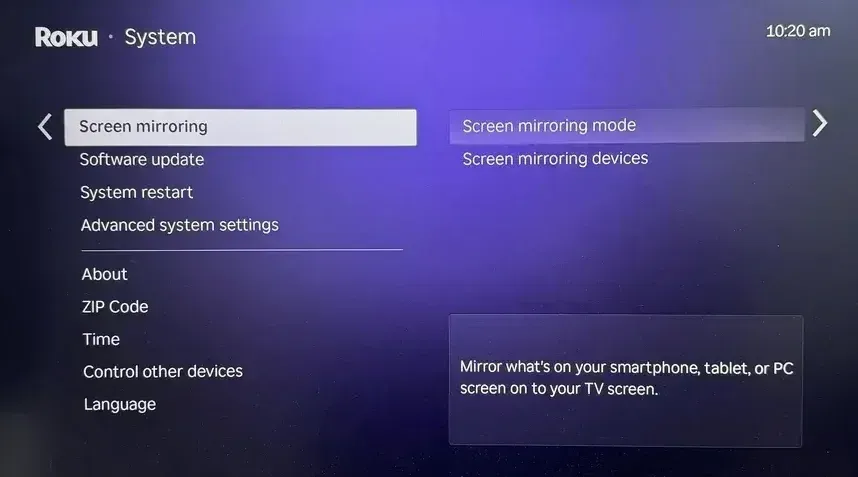
Step 2. On your Pixel, open Settings > Connected Devices > Connection Preferences > Cast.
Step 3. Wait for your Roku TV to appear on the list, then select.
Once connected, your Pixel screen will appear on the TV, letting you enjoy videos, apps, and games on a larger display.
Method 2: Cast Google Pixel to Roku via Chromecast Device
If your Roku TV has a Chromecast dongle connected or runs on Google TV, you can easily cast or mirror your Google Pixel screen to it. Since Chromecast uses the same Google Cast protocol built into Pixel phones, this is one of the smoothest and most reliable ways to connect your phone to Roku TV.
You can either cast individual apps (like YouTube or Netflix) or mirror your entire Pixel screen. Here's how both work:
- How to cast to Roku TV from Google Pixel
Step 1. Plug your Chromecast device into one of your Roku TV's HDMI ports.
Step 2. Open a Chromecast-enabled app on your Pixel (such as YouTube, Netflix, or Spotify).
Step 3. Tap the Cast icon that appears in the corner of the app.
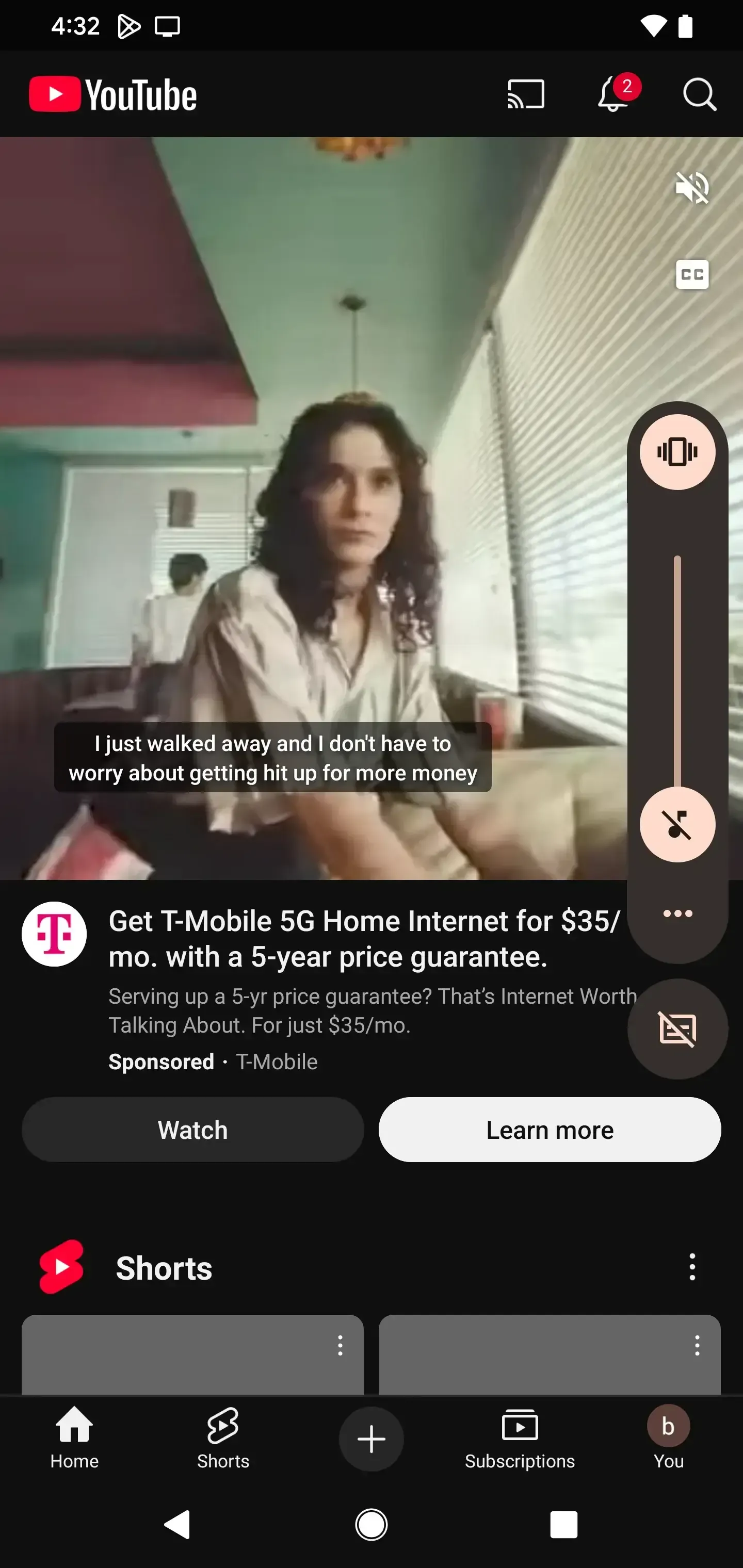
Step 4. Select your Roku TV (via Chromecast) from the list.
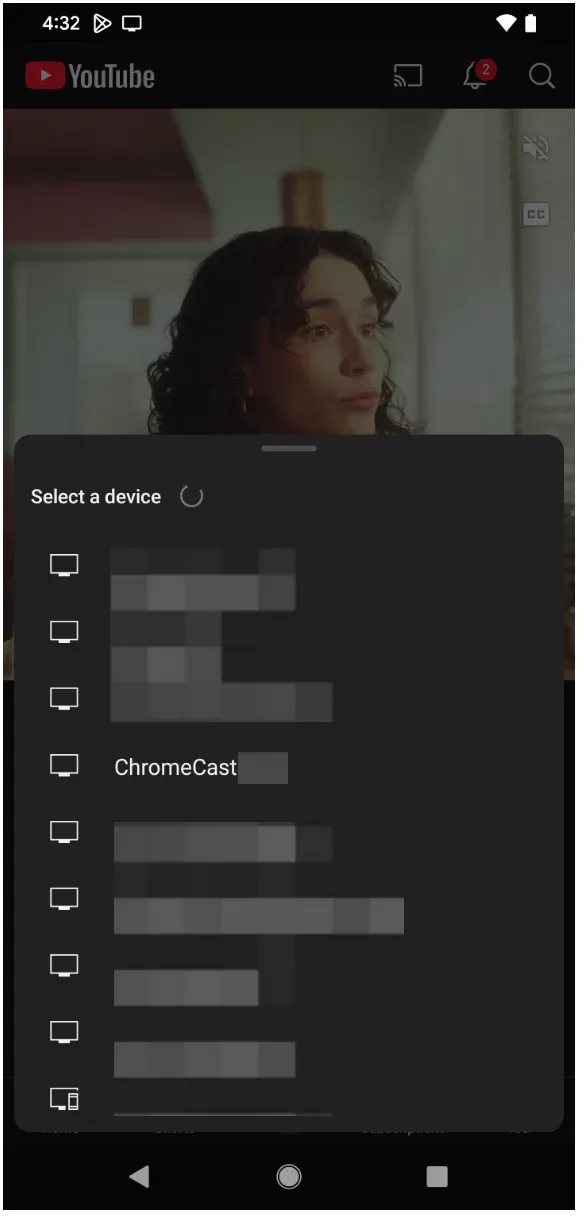
Step 5. The video or music will play instantly on your TV, and you can control playback from your Pixel.
- How to mirror Google Pixel to Roku TV
Step 1. On your Pixel, swipe down from the top of the screen to open Quick Settings.
Step 2. Find and tap the Screen Cast or Cast Screen option.
Step 3. Wait for your Chromecast device (connected to your Roku TV) to appear.
Step 4. Tap your Chromecast to start screen mirroring Pixel to Roku.
Step 5. Confirm the connection, and your entire Pixel display will appear on your TV.
This approach works seamlessly on newer models like the Google Pixel 9, making it one of the best ways to enjoy Google Pixel screen mirroring on Roku without compatibility issues.
Method 3: Mirror Google Pixel to Roku with PigeonCast App
If your Roku TV supports AirPlay, PigeonCast offers the perfect workaround. This versatile app supports multiple streaming protocols, including AirPlay. By using AirPlay mode, the third-party tool allows your Google Pixel to communicate with Roku through a shared connection, making Pixel cast to Roku simple and smooth.
 Step 1. Install PigeonCast on your Android phone, like Google Pixel.

PigeonCast Screen Mirroring

Official Download


Step 2. Launch PigeonCast on your phone and connect it to your Roku TV.
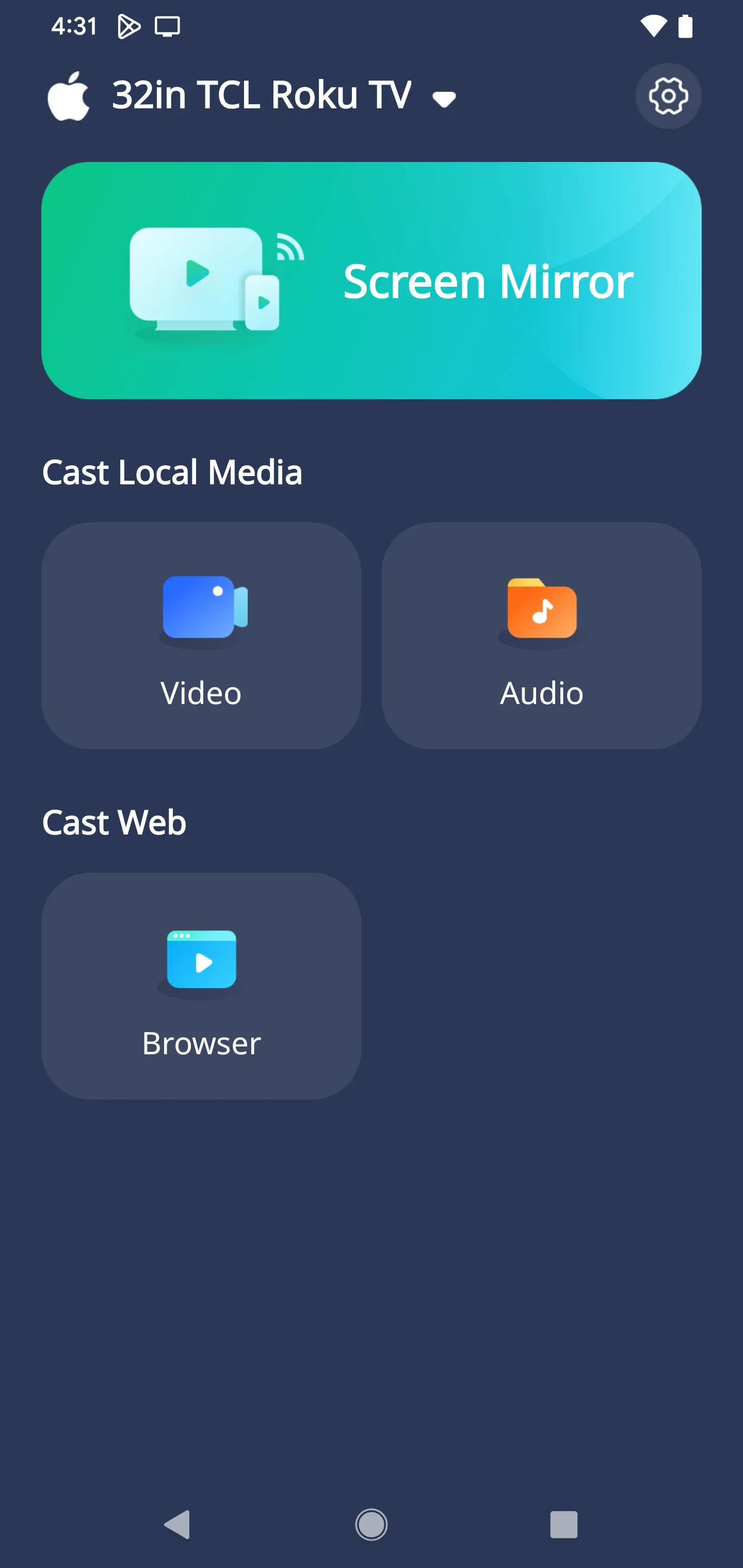
Step 3. Once connected, tap one feature on the app interface depending on your demands.
- Screen Mirror: mirror your entire screen to your Roku TV.
- Video/Photo/Audio: cast your local media to your Roku TV.
- Browser: cast content from Chrome, YouTube, Vimeo, Twitch, etc. to Roku TV.
Step 4. Follow the onscreen instructions to cast or screen mirror from Pixel.
Within seconds, your Pixel's screen or a video or photo will appear on the TV. Whether you're watching videos, showing photos, or sharing apps, PigeonCast delivers stable, high-quality Pixel screen mirroring across all AirPlay-enabled TV models.
Method 4: Cast Photos and Videos from Pixel Using the Roku Mobile App
If you prefer an official and straightforward option, the Roku Mobile App is a great choice. While it doesn't support full Pixel screen mirroring, it allows you to cast local media (such as photos, videos, and music) from your Google Pixel directly to your Roku TV. It's simple, free, and doesn't require any additional hardware or setup.
This method is perfect if you just want to share memories, home videos, or favorite songs on the big screen without enabling full device mirroring.
Here's how to cast Google Pixel 9 to Roku TV:
Step 1. Download and install the Roku Mobile App from the Google Play Store on your Pixel.
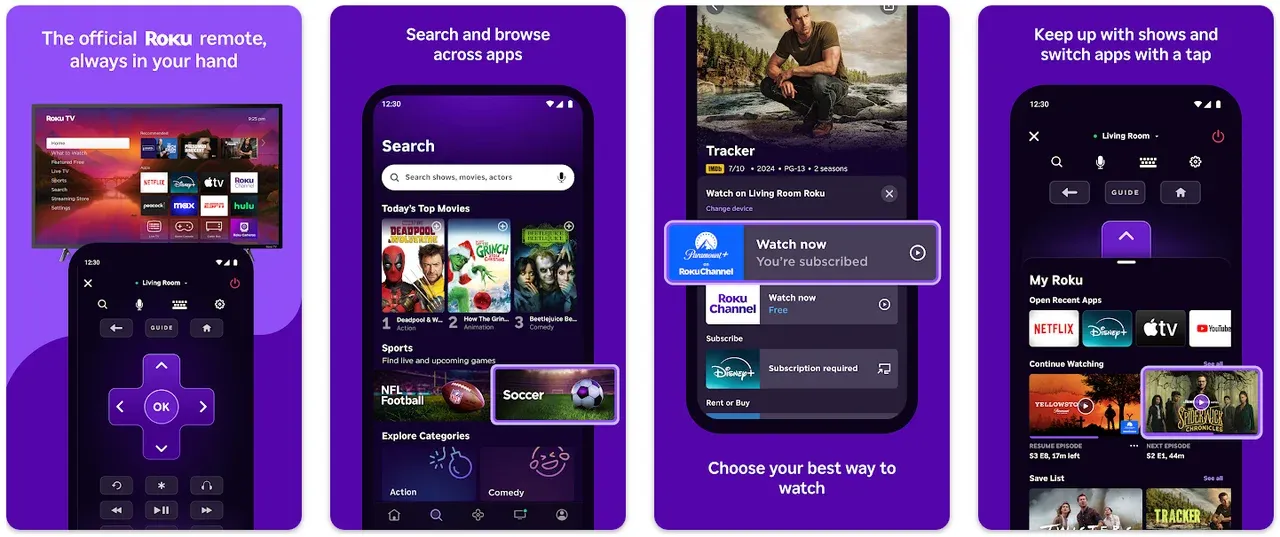
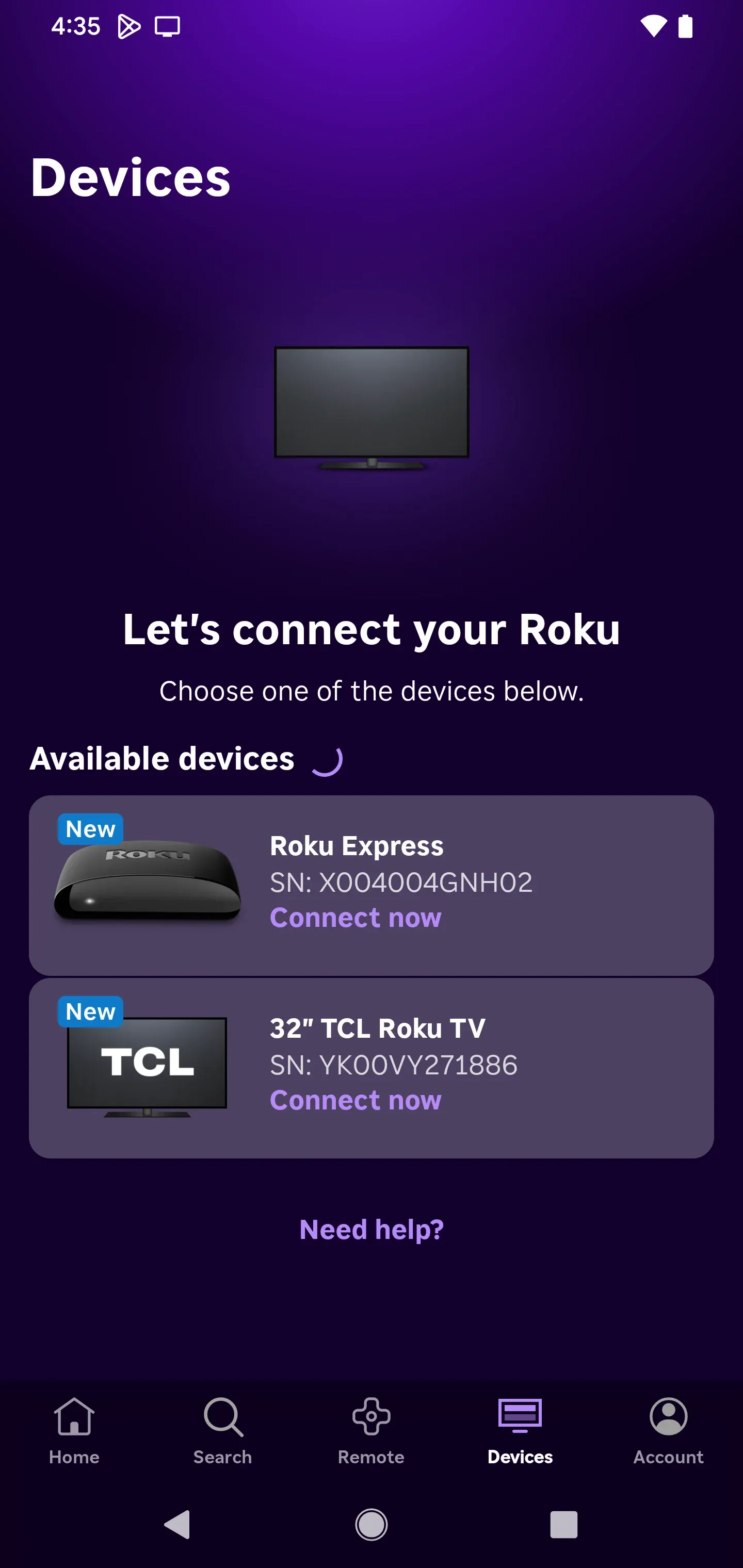
Step 2. Open the Roku app and tap Devices at the bottom of the screen.
Step 3. Once your Roku TV appears, tap Connect Now.
Step 4. Tap Media and select Photos, Videos, or Music.
Step 5. Choose the file you want to share and tap Play on Roku to start casting.
You can control playback directly from your Pixel. It's a great lightweight alternative to full Pixel screen mirroring when you just want to stream local content easily.
Method 5: Cast to Roku from Pixel Using Built-in App Cast Options
Many popular streaming platforms (such as YouTube, Netflix, and Spotify) include built-in casting options that make it easy to cast Google Pixel to Roku TV. This method doesn't mirror your entire screen, but it's perfect for streaming videos or music directly from supported apps.
To make this work, ensure the same app is installed on both your Google Pixel and your Roku TV. This allows the devices to detect each other automatically through the shared Wi-Fi network.
Here are the steps to cast Pixel to Roku:
Step 1. Install the desired app (like YouTube or Netflix) on both your Pixel phone and your Roku TV.
Step 2. Open the app on your Pixel and start playing a video or song.
Step 3. Tap the Cast icon (usually at the top of the screen).
Step 4. Choose your Roku TV from the list of available devices.
Step 5. Your video or music will begin playing on the TV, and you can use your Pixel as a remote to control playback.
This method is simple, reliable, and ideal for streaming, though it doesn't support screen mirroring Google Pixel. If you want to mirror everything on your device, tools like PigeonCast are a better fit.
Conclusion
Casting your Pixel to Roku TV doesn't have to be complicated. Whether you use Miracast, Chromecast, PigeonCast, or built-in streaming apps, there's always a way to enjoy your favorite content on a bigger screen. The best option depends on your device model and what you want to do — from full screen mirroring Pixel to Roku to casting specific videos.
If your goal is a smooth, cross-platform experience, PigeonCast stands out. It bridges the gap between Android and Roku by supporting AirPlay, which works on many Roku models. Now that you know exactly how to cast Google Pixel to Roku TV, grab your phone, choose your method, and start streaming your world on the big screen.
How to Cast Google Pixel to Roku TV FAQs
Does Pixel support Miracast?
No. Google removed native Miracast support after the Pixel 5 series. However, you can still enable screen mirroring using third-party tools like PigeonCast or Miracast-enabled adapters.
What's the best app for screen mirroring Pixel to Roku?
PigeonCast is one of the best options for screen mirroring Google Pixel to Roku. It supports AirPlay, DLNA, and Google Cast, offering smooth, cross-platform performance.
Can I cast Pixel 6 to Roku without Chromecast?
Yes. While the Pixel 6 doesn't natively support Miracast, you can use PigeonCast or the Roku app to mirror or cast your screen without needing Chromecast.
Does Roku support Google Cast?
Most Roku TVs don't natively support Google Cast, but they do work with Miracast and AirPlay. You can still cast from Pixel using apps that bridge these protocols.
Why can't I see my Roku TV when trying to cast?
This issue often occurs due to network or compatibility problems. Ensure your Pixel and Roku TV are on the same Wi-Fi network, your Roku system is up to date, and screen mirroring mode is enabled in the Roku settings.
How to connect Google Pixel to TV with HDMI?
You can connect your Google Pixel to a TV using a USB-C to HDMI adapter. Just plug the adapter into your phone, connect the HDMI cable to the TV, and switch to the correct input source.
Mia Clarke is a technology editor specializing in screen mirroring and casting solutions across multiple platforms. Mia provides clear, practical guides and in-depth insights to help users seamlessly connect their devices. Passionate about enhancing digital experiences, Mia is dedicated to keeping readers updated on the latest trends and tools in cross-platform screen sharing. Whether you’re looking to mirror your smartphone, laptop, or smart TV, Mia’s content delivers reliable, user-friendly advice to simplify your tech setup.