
Screen mirroring has become a must-have feature for sharing content from mobile devices to larger screens. Roku is a popular choice for streaming, but you may be curious whether it can mirror your phone's screen directly to the Roku mobile app. In this guide, we'll break down what's possible, highlight the best tools to use, and answer all your questions about the mirror screen to Roku apps.
3 Best Screen Mirroring App for Roku Free
If Roku screen mirroring is not working or your device can't screen mirror to Roku TV, you can try a dedicated screen mirroring app as an alternative solution. These Roku mirror apps allow you to connect your phone or tablet to Roku devices over Wi-Fi, providing a more flexible way to share your screen when native mirroring is unavailable.
1. PigeonCast
PigeonCast is a free screen mirroring app for Roku that makes it easy to cast content to your Roku, including movies, videos, photos, and presentations.
It works across Android, iOS, Windows, and Mac, so you can mirror from your phone or cast your laptop to Roku without extra cables or adapters. With minimal latency and support for up to 4K resolution, PigeonCast gives you a simple way to enjoy content that may not be available directly on Roku.
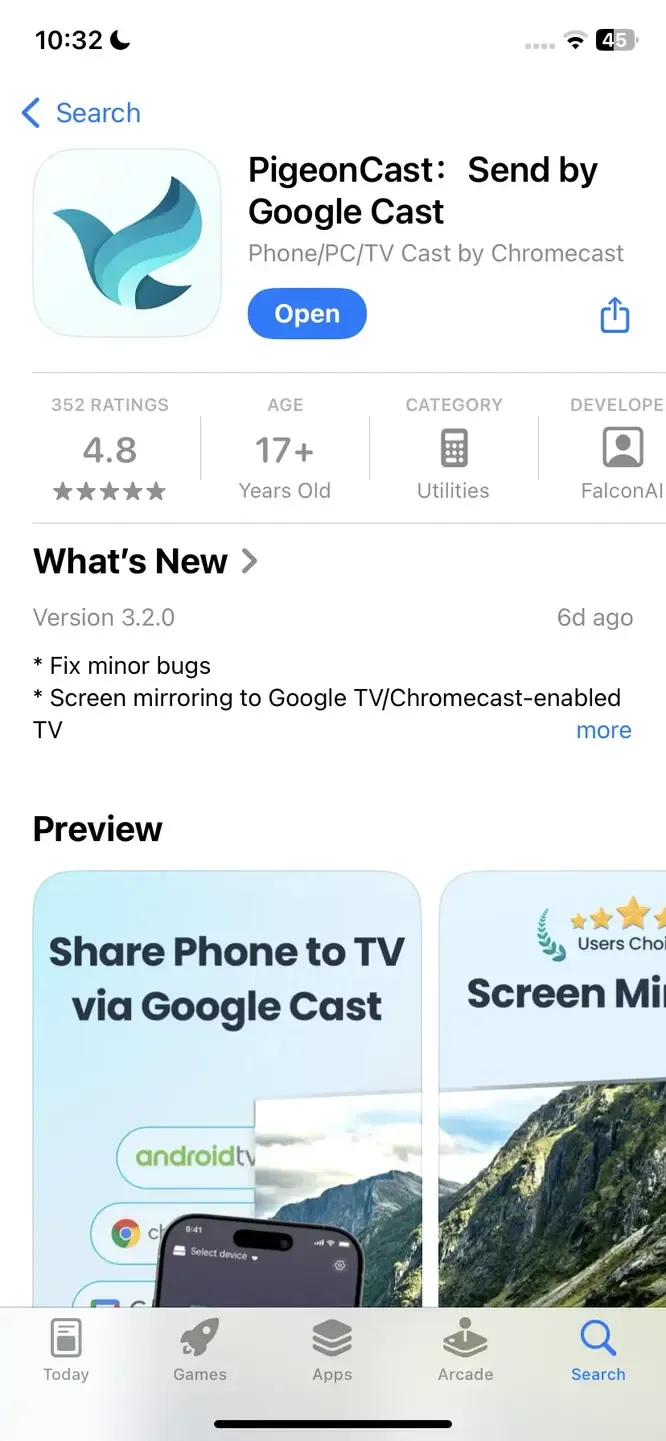
Steps to the Roku screen mirroring app:
Step 1. Ensure your sender device connects to the same wireless network as your Roku.


Overall Rating:



Step 2. Install PigeonCast on your sender device, such as your Android phone, iPhone, iPad, Mac, or Windows PC, then launch it.
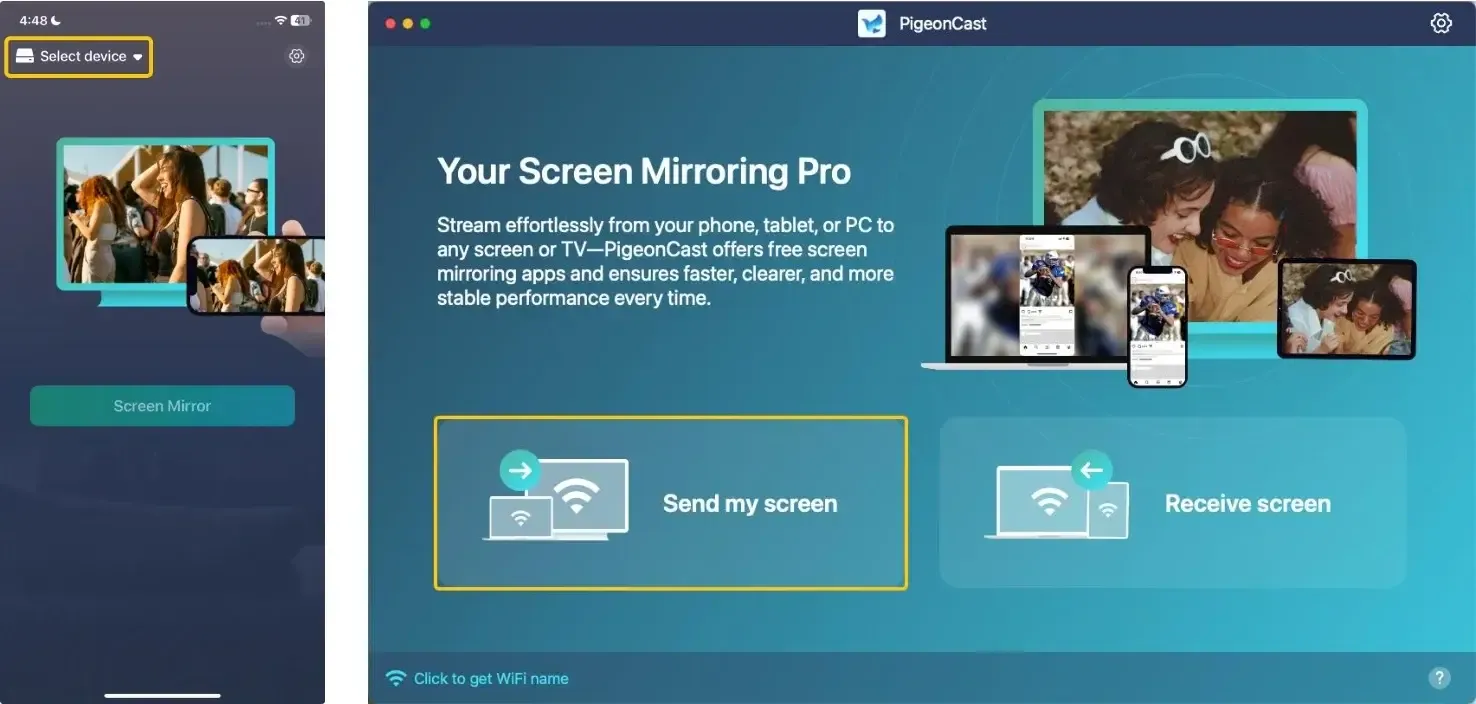
Step 3. On the sender device, tap Select device or Send my screen to choose your Roku from the available list.
Step 4. Enter the onscreen code to confirm your pairing performance.
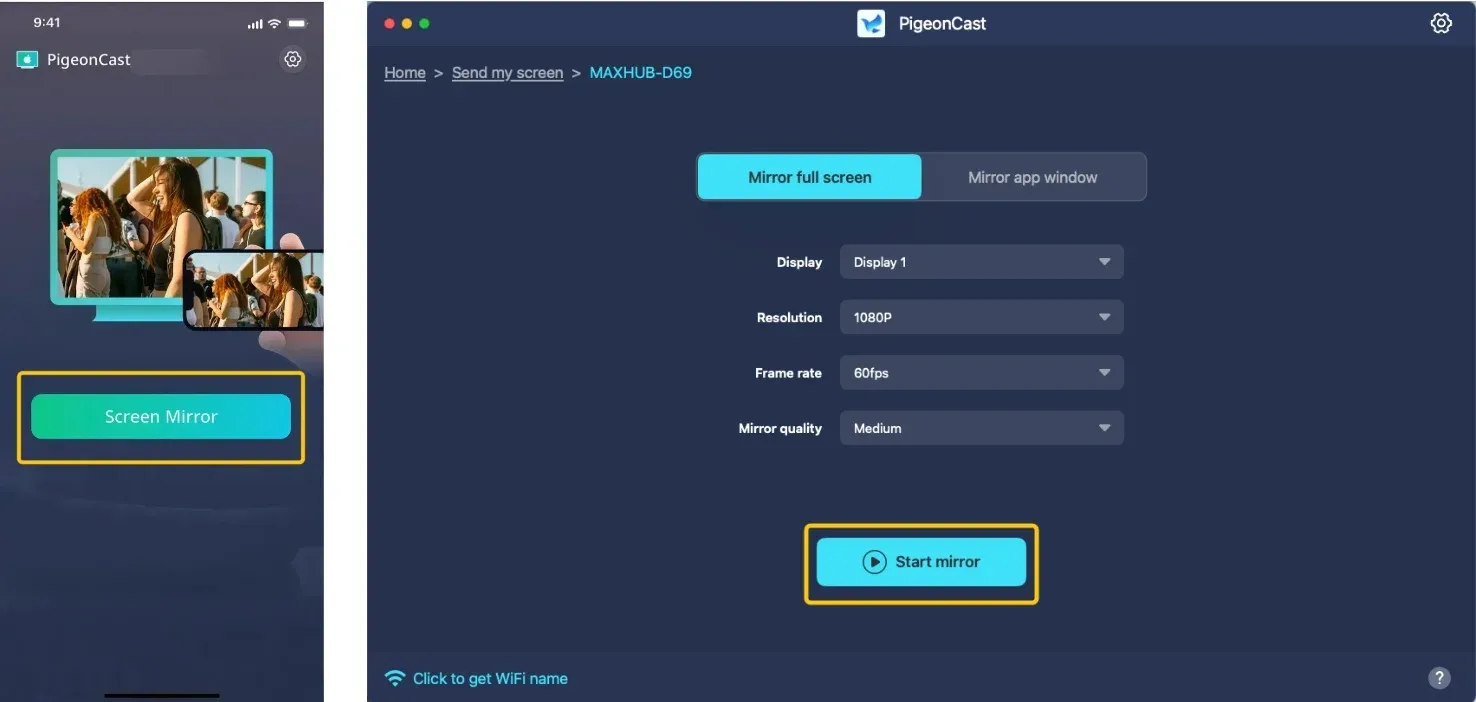
Step 5. When you finish the connection, tap Screen Mirror or Start mirror to begin your mirroring activities with the PigeonCast. (If you use a laptop, you can choose whether to mirror the full screen or a single app window)
2. TV Cast App - Cast Phone to TV
Another excellent option is the all-brand integrated screen casting app by BoostVision, including Samsung TV, Chromecast, LG TV, Roku TV & Stick, and Fire TV & Stick. This mirror for Roku app lets you cast your iOS and Android screens to a wide range of TV devices, offering a seamless streaming experience. With low latency, it ensures reliable and stable performance, so you can enjoy smooth casting without interruptions.
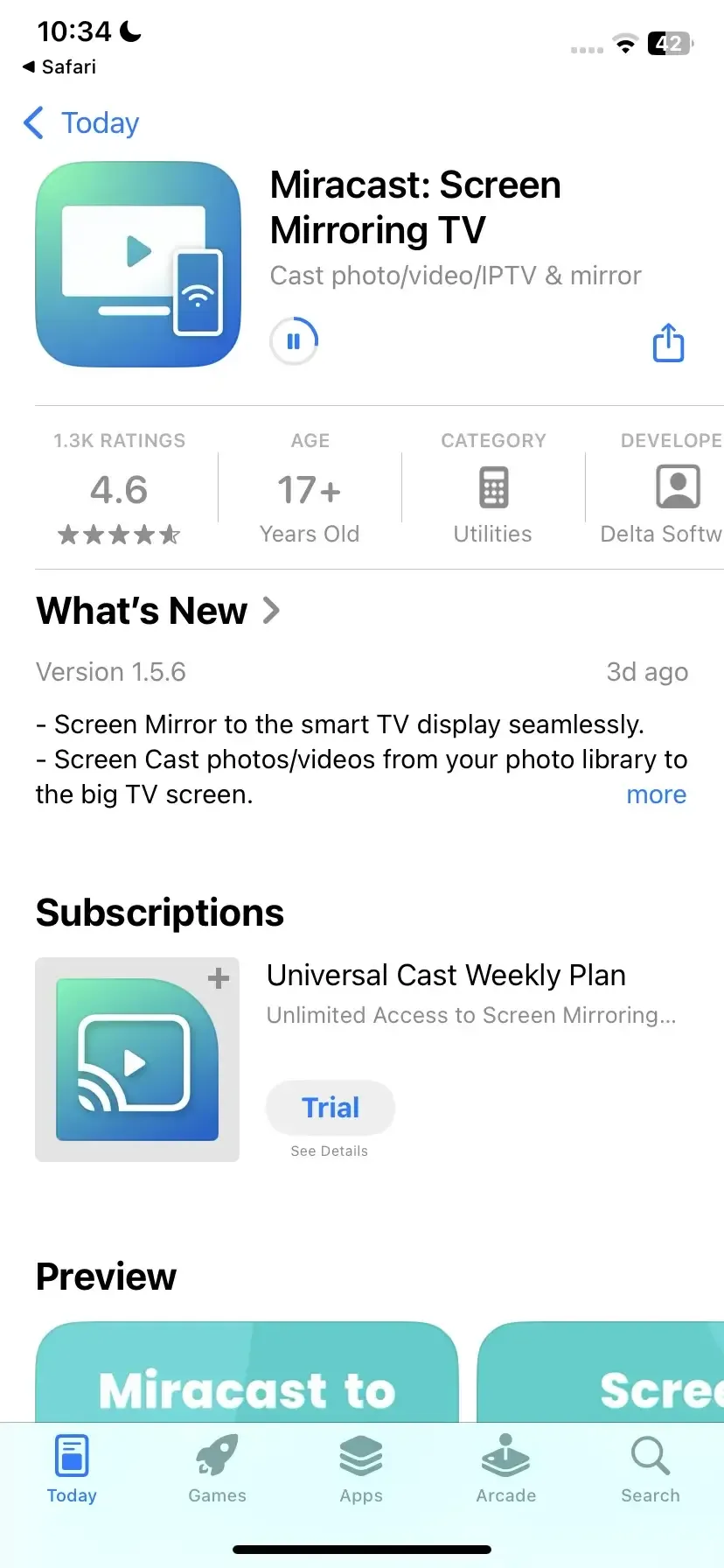
Steps to the Roku screen mirroring app:
Step 1. Ensure your devices are covered by the same WiFi network.
Step 2. Install the TV Cast App on your sender device and open it.
Step 3. Click Tap to connect to choose your Roku from the device list and type the PIN code.
Step 4. Once the pairing process succeeds, you can then tap Screen Mirror or other onscreen choices to start the casting behaviors on Roku.
3. AirDroid Cast
AirDroid Cast offers a versatile, cross-platform solution for screen sharing. It supports casting to a wide range of devices, and one of its standout features is browser casting, which lets you mirror mobile and connect laptop screens to your TV directly. While there is a premium version available for about $2.50/month, the Roku casting app provides great value with its seamless performance and ease of use.
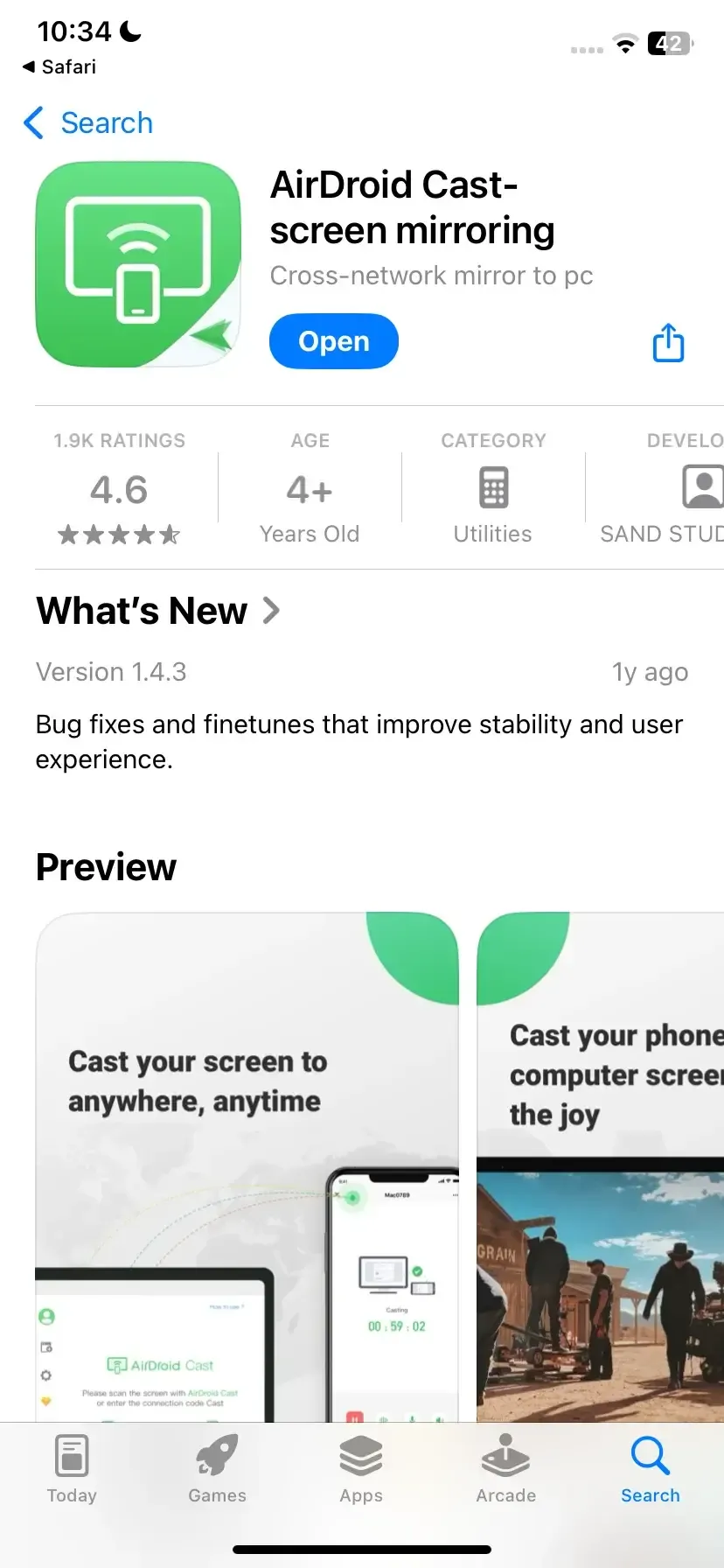
Steps to the Roku screen mirroring app:
Step 1. Connect your device and Roku TV to the same WiFi network.
Step 2. Download AirDroid Cast on your Android, iPhone, or PC and launch it.
Step 3. On the Roku web browser on the Roku TV screen, input webcast.airdroid.com.
Step 4. For the phone, you will see a QR code scanner and a tab for Cast Code on the AirDroid Cast app. For Windows or Mac, you will need to tap the cast to on the Roku mirroring app.
Step 5. To connect, simply enter the cast code displayed on your TV screen into your Android, iPhone, or PC, or you can scan the QR code. Then, just accept the request on your TV by clicking Allow. Once connected, your device screen will be mirrored on your Roku TV.
How to Select The Best Casting App for Roku
Choosing the right free casting app for Roku device comes down to several important factors. Each app offers a unique set of features, so it's essential to evaluate them based on your specific needs.
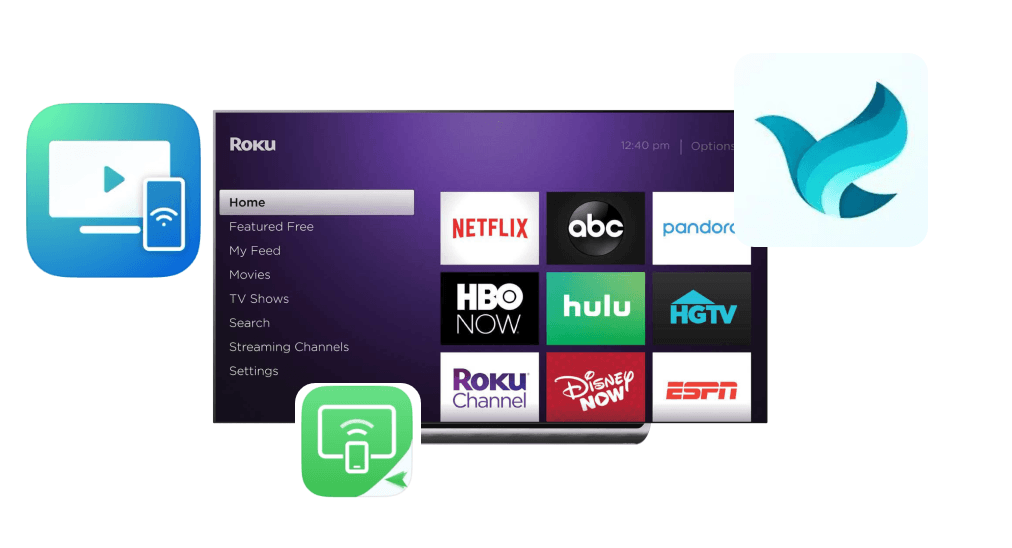
- Device Compatibility: First and foremost, ensure that the app to screen mirror to Roku works with your device. There may be one Roku screen mirroring app for Android or iOS exclusively, while others support both. It's crucial to pick an app that's fully compatible with your device's operating system for a smooth experience.
- Features: Think about the features you really need. Do you want simple screen mirroring, or are you looking for additional capabilities like media streaming? Some apps provide extra functionalities, so make sure the one you choose aligns with what you're hoping to do.
- Ease of Use: A good casting app should be straightforward to set up. If the interface is cluttered or the setup process is overly complicated, you might run into unnecessary frustration. Look for a Roku app to screen mirror with a clean design and intuitive navigation that won't waste your time.
- Performance: The app's performance is key to a seamless streaming experience. Some apps provide high-quality mirroring with minimal lag, ensuring smooth playback. It's worth checking user reviews or testing an app to see how well it performs, especially if you're planning to use it for streaming videos or gaming.
- Cost: While many apps are free to use, some offer premium features that come with a subscription. Before making a decision, consider whether the paid features justify the cost based on your intended usage. For example, you might need premium features for 4K support or enhanced functionality, but if you're just casually mirroring, a free option might be enough.
Is It Safe to Use a Roku Cast App
While third-party apps can make screen mirroring convenient, it's essential to prioritize safety. Many apps request access to your personal data or device information, so choosing a trustworthy app is a must. Here are some simple tips to help ensure you're using a secure app to screen mirror on Roku:
- Download from Trusted Sources: Always download apps from reliable platforms like the Google Play Store or Apple's App Store. Avoid third-party websites, as they may offer apps that are not properly vetted or could be potentially harmful.
- Check User Reviews: Before installing any app, take a moment to read user reviews. Look out for any complaints about security issues, unexpected ads, or data misuse. A high rating and positive feedback usually indicate a safer, more reliable app.
- Review App Permissions: Pay attention to the permissions the app requests. If an app asks for unnecessary access, like to your contacts or messages, it could be a red flag. Stick to apps that only ask for permissions relevant to their functionality, such as screen mirroring or media access.
Wrapping Up
Selecting the right and best app to screen mirror to Roku is key to enjoying a seamless viewing experience. Apps like PigeonCast, TV Cast, and AirDroid Cast offer great features like low latency, high-quality streaming, and easy device compatibility. With the right app, screen mirroring to Roku can be both easy and enjoyable.
Mirror Screen to Roku App FAQ
How to screen mirror Apple phone to Roku TV?
To mirror your Apple phone to Roku TV, you can use the AirPlay feature. Simply ensure that your Roku device supports AirPlay (this is available on most newer Roku models). Then, swipe down on your iPhone's screen to open the Control Center, tap on Screen Mirroring, and select your Roku device from the list.
What's the best free screen mirroring app for Android to Roku?
For Android devices, PigeonCast is among the best free screen mirroring apps for Roku, which offers excellent performance and simple setup, making it a great choice for casting your Android device's screen to Roku.
Why can't I screen mirror to my Roku?
Here are a few reasons why you might not be able to screen mirror to your Roku:
- Device Compatibility
- Network Issues
- Screen Mirroring Disabled
- Operating System Incompatibility
- Outdated Software
- App Restrictions
How do I connect my phone to Roku TV?
To connect your phone to your Roku TV, ensure both devices are on the same Wi-Fi network. On your phone, enable screen mirroring (or cast) from the settings or use a compatible app like PigeonCast. Then, select your Roku device from the available options. If using AirPlay on an Apple device, simply select your Roku under screen mirroring options.
How to screen mirror from the Roku app?
To screen mirror from the Roku app, follow these steps:
- Ensure that your phone or tablet is running iOS 12.0 or later (for iOS devices) or Android 4.4.2 or higher (for Android devices). Also, confirm that your Roku device supports screen mirroring.
- Make sure both your phone/tablet and Roku device are connected to the same Wi-Fi network.
- Launch the casting app on your mobile device and follow the onscreen instructions to finish the connection.
- Once you've selected your Roku, the app should automatically start mirroring the content from your mobile device to the Roku TV.
Is there a Mirror screen to Roku app for Mac?
Yes, PigeonCast is a great option for mirroring your Mac screen to Roku. It's a free, easy-to-use app that supports Mac-to-Roku screen mirroring with minimal latency. Simply download PigeonCast, ensure both your Mac and Roku are connected to the same Wi-Fi network, and follow the simple steps to start mirroring. It also supports up to 4K resolution for an enhanced viewing experience.
Clara Rossi is an experienced technology editor and a seasoned expert in screen mirroring and casting technologies. With a keen eye for detail and a deep understanding of how to seamlessly connect devices, Clara excels at optimizing user experiences for effortless sharing and streaming. Whether you're seeking quick fixes or advanced tips, her expertise and responsiveness ensure that every query is met with a well-informed and efficient solution.