
If you keep wondering why can't I screen mirror to my Roku TV, the issue is usually not random. In most cases, the failure comes from one of four areas:
-
local network discovery
-
protocol compatibility
-
Roku permission settings
-
unstable session behavior after connection starts
Instead of repeating factory resets or random router changes, first determine whether the problem is caused by discovery, permissions, compatibility, or connection stability.
Why Won't My Roku TV Let Me Screen Mirror
Successful Roku screen mirroring requires a seamless handshake between the sender's protocol (AirPlay or Miracast) and Roku's acceptance settings. If either step fails, Roku may not appear at all, or the connection may immediately disconnect.
Cause 1. Network Discovery Failures
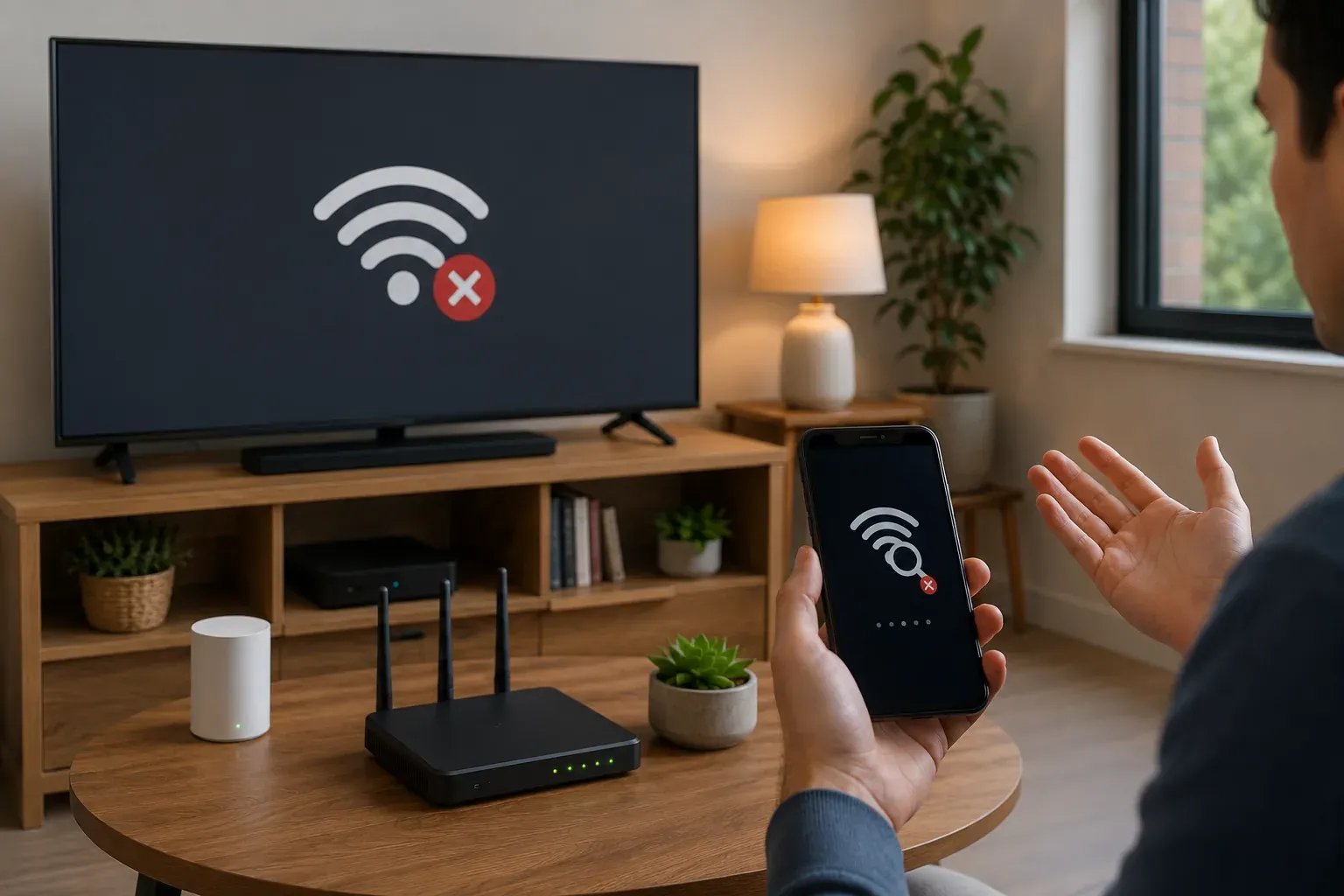
The most common symptom is simple: your Roku never appears in the AirPlay or cast list even though both devices have internet access. This usually happens because local discovery traffic is blocked somewhere on the network. Guest Wi-Fi, AP isolation, VPN routing, and mesh segmentation are common causes.
-
Check SSID Alignment: Ensure both the phone and Roku are on the same primary Wi-Fi network (avoid mixing 2.4GHz and 5GHz if your router doesn't bridge them).
-
Kill Active VPNs: Disable any VPN or Proxy on your phone/laptop, as these reroute traffic away from the local network.
-
Disable Client Isolation: Log into your router to turn off "Guest Network" mode or "AP Isolation" settings that prevent devices from communicating.
-
Refresh Discovery: Toggle Wi-Fi off and on, then wait 20–30 seconds for the discovery route to rebuild before re-scanning.
Cause 2. Protocol Mismatch
Why can't I screen mirror my iPhone to my Roku TV? Many users are actually dealing with a protocol mismatch rather than a hardware problem. Roku supports different mirroring methods depending on the sender device:
-
iPhone full-screen mirroring uses AirPlay
-
Android mirroring often uses Miracast
-
Some streaming apps use app-level casting instead of full-screen mirroring
Step 1. Confirm whether you are using full-screen mirroring or app-level casting.
Step 2. Test only one protocol at a time. Avoid switching between AirPlay, Miracast, and app casting during the same test.
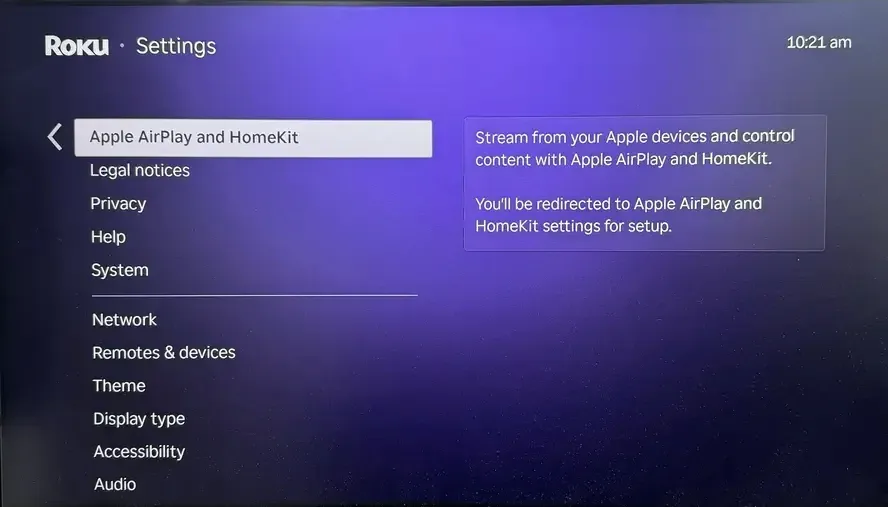
Step 3. If you are using iPhone or Mac, make sure AirPlay is enabled under Settings > Apple AirPlay and HomeKit on Roku.
Step 4. Test Apple and Android devices separately. A failure on one device does not always mean the Roku itself is broken.
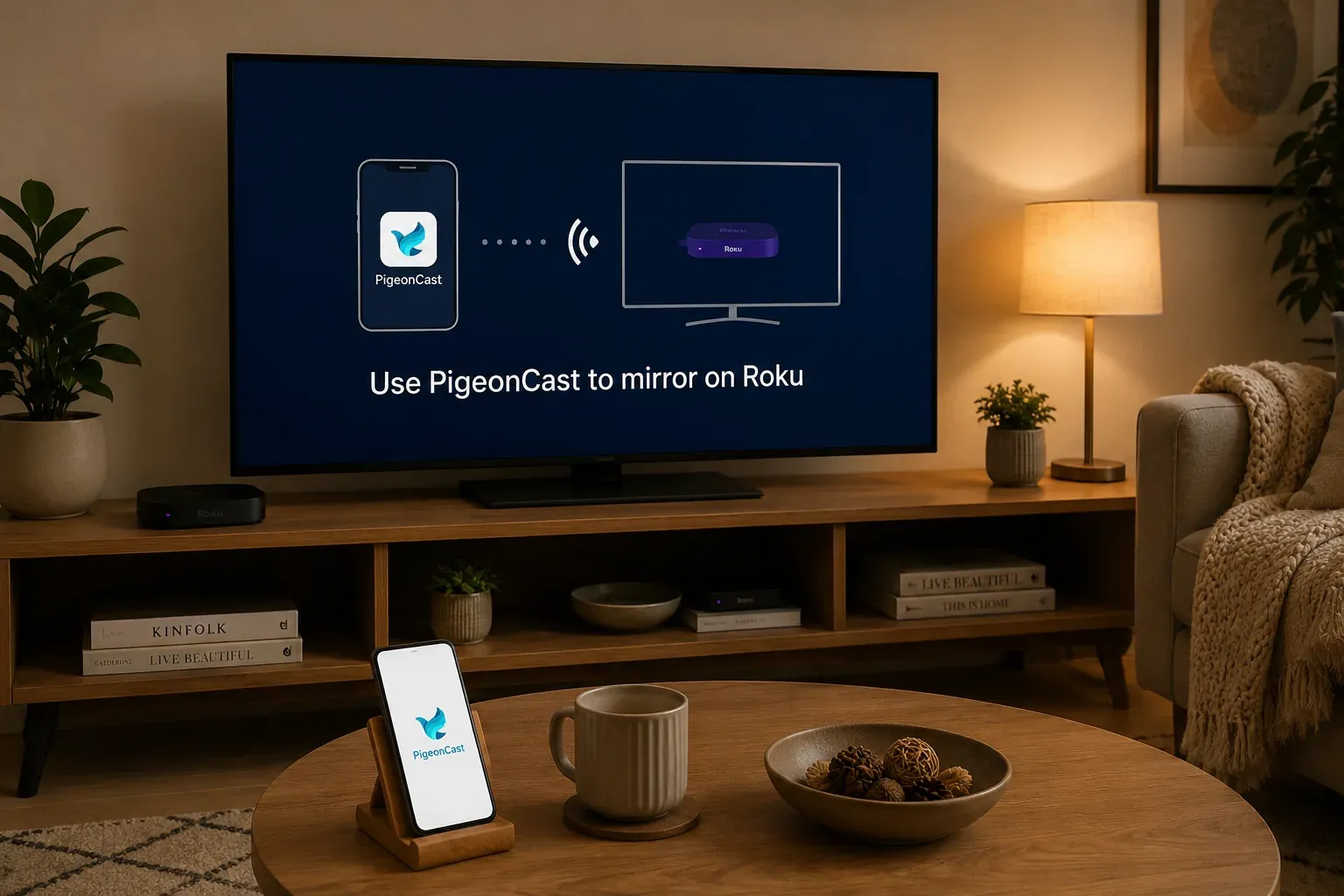
Tip: If your Roku appears for one device but not another, the issue may be related to protocol compatibility rather than the Roku device itself. In this case, testing a free mirroring app like PigeonCast, which supports AirPlay, Google Cast, and DLNA, can help when native AirPlay, app casting, or device-level mirroring behaves differently across devices.


Overall Rating:



Cause 3. Restricted Roku Mirroring Mode
Why can't I screen mirror to my TCL Roku TV even though the device appears correctly? Your Roku is visible, but connections fail, get stuck in loops, or repeatedly ask for permission. This happens when the mirroring policy is too restrictive (set to "Prompt") or a "Deny" record is saved for your device, causing automatic rejection.
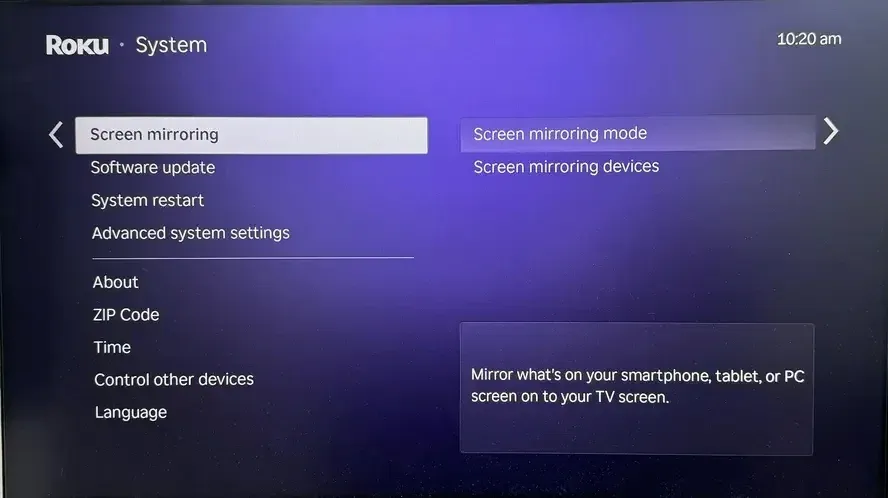
Step 1. Go to Settings > System > Screen Mirroring and check the current mirroring mode.
Step 2. Set Screen Mirroring Mode to Always allow or Prompt instead of Deny.
Step 3. Open the Blocked Devices list and remove any saved deny records for your phone, tablet, or laptop.
Step 4. During testing, connect one sender device at a time to avoid temporary session conflicts.
Step 5. If Roku shows a permission popup, make sure the request is accepted before testing longer streaming sessions.
Cause 4. Mirroring Connects but Keeps Disconnecting
Sometimes screen mirroring connects successfully but disconnects after locking the phone, switching apps, or streaming for a short period of time. The initial connection works correctly, but the session cannot stay stable because of battery restrictions, background limits, or weak Wi-Fi signal quality.
Step 1. Keep the sender device active and unlocked during the first minute of mirroring.
Step 2. Temporarily disable battery-saving or background restrictions for the mirroring app.
Step 3. Test a short 2-minute session first, then test a longer session to see whether the disconnect happens over time.
Step 4. Move the sender device closer to the Roku or router to reduce signal instability.
Cause 5. Screen Mirroring Stopped Working After an Update
If Roku screen mirroring suddenly stops working after a Roku OS or phone update, the issue is often caused by changed permissions or compatibility settings rather than a hardware failure. System updates can reset Local Network access, modify AirPlay behavior, or interrupt previously stable device pairing.
Step 1. Recheck all screen mirroring and Local Network permissions on the sender device after the update.
Step 2. Fully restart both the Roku and the sender device to clear temporary post-update conflicts.
Step 3. Test with a simple non-DRM video before troubleshooting streaming apps individually.
Step 4. Try a second phone, tablet, or laptop to determine whether the problem is tied to one specific device update.
Cause 6. Streaming Apps Show a Black Screen While Mirroring
why isn't my Roku TV screen mirroring? If Roku screen mirroring works on the home screen but turns black inside apps like Netflix or Disney+, the issue is usually related to DRM protection rather than your Roku or Wi-Fi connection. Some streaming services block mirrored playback to prevent unauthorized recording.
Step 1. Test YouTube or local photos first to confirm that screen mirroring itself is working normally.
Step 2. Compare two different streaming apps to check whether the problem only affects one provider.
Step 3. If only protected apps fail while everything else mirrors correctly, the restriction is most likely caused by the app's content policy rather than a Roku hardware issue.
Cause 7. Mirroring Keeps Lagging or Randomly Disconnecting
If Roku screen mirroring connects but becomes laggy, pixelated, or unstable over time, the issue may be related to router traffic or local network policies. Heavy bandwidth usage, multicast filtering, or complex mesh routing can interrupt continuous mirroring traffic even when the devices stay technically connected.
Step 1. Pause large downloads or 4K streaming on other devices during testing.
Step 2. Check whether your router has Multicast Filtering or IGMP settings that may interfere with local discovery traffic.
Step 3. Test screen mirroring again during a lower-traffic period to see whether network congestion is causing instability.
Step 4. If you are using a guest network or mesh node, move both devices to the primary router connection temporarily.
Cause 8. The TV Keeps Switching Inputs During Mirroring
If screen mirroring starts but the TV suddenly switches inputs or returns to the Roku home screen, another HDMI device may be interrupting the session through HDMI-CEC controls. This can happen when consoles, soundbars, or streaming devices send automatic input-switch signals during playback.
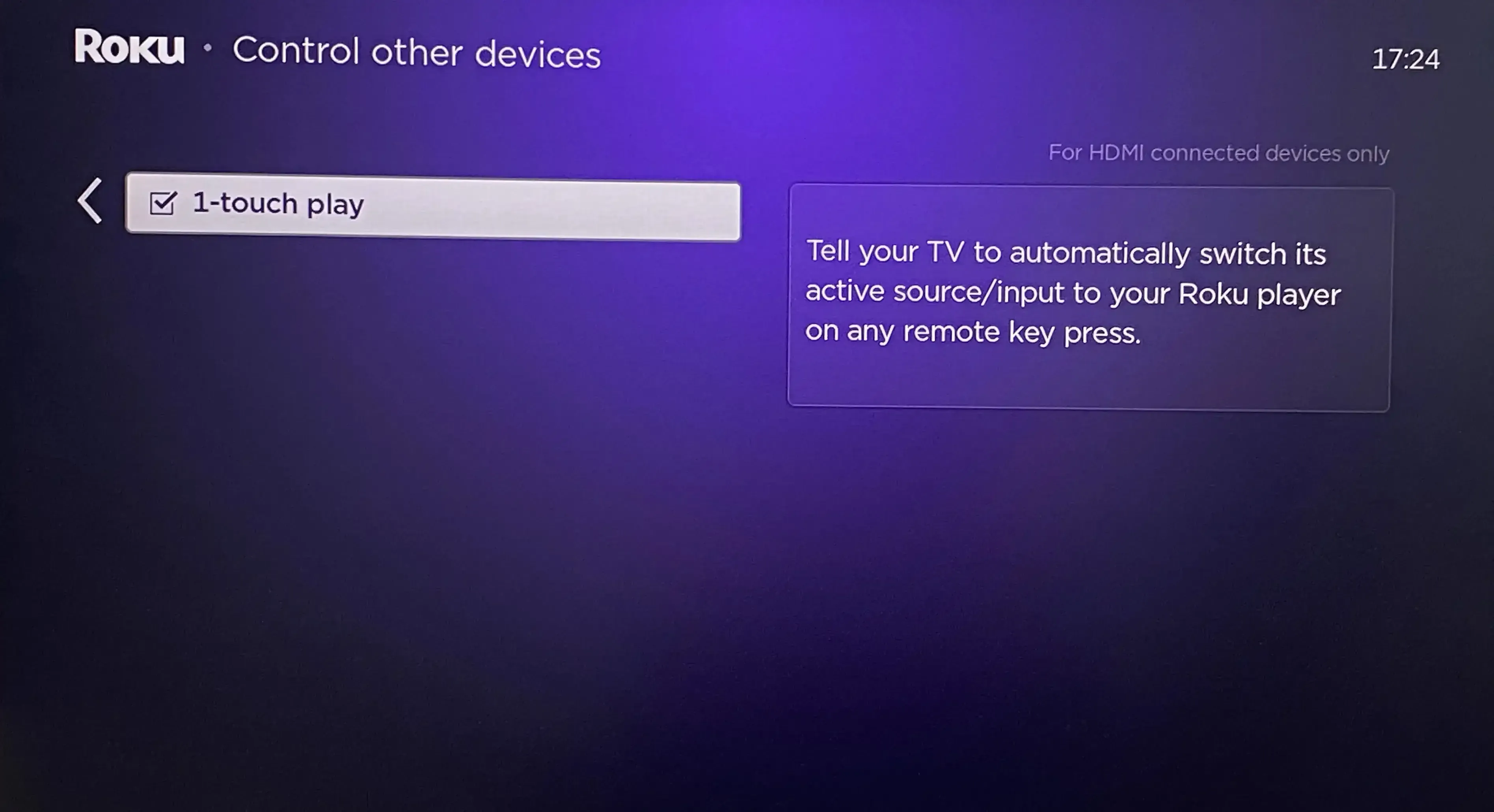
Step 1. Go to Settings > System > Control other devices (CEC) and temporarily disable 1-Touch Play.
Step 2. Unplug other HDMI-connected devices like consoles or soundbars during testing.
Step 3. Avoid using other remotes or waking nearby HDMI devices while starting screen mirroring.
Step 4. Keep the Roku home screen active during connection setup to prevent unwanted input switching.
Cause 9. Testing Too Many Fixes at Once
If you change several settings at the same time, it becomes harder to know what actually fixed or caused the can't screen mirror to Roku mirroring problem. A simple order works better: first check whether Roku appears, then confirm permissions, then test stability, and only after that test specific apps.
Step 1. Confirm that Roku appears in the AirPlay, cast, or screen mirroring list.
Step 2. Start a connection and check whether Roku shows a permission prompt or accepts the request.
Step 3. Mirror a local photo, browser page, or public video for at least 2 minutes to test basic stability.
Step 4. Test apps like Netflix or Disney+ only after normal mirroring works. If only those apps fail, the issue is likely DRM protection.
Wrapping Up
To fix the issue of why can't I screen mirror on my Roku, the fastest way is to check visibility first, then permissions, then connection stability before testing streaming apps individually. If Roku appears inconsistently across devices or native AirPlay and Miracast behavior changes between networks, comparing different protocol paths with a receiver app like PigeonCast may also help isolate whether the issue is related to compatibility or local network behavior.
Why Can't I Screen Mirror to My Roku TV FAQ
Why is my mac not screen mirroring to my Roku TV?
The failure to mirror your Mac to a Roku TV is typically caused by a handshake error in the AirPlay protocol or a network discovery block. To resolve this professionally, check these three primary layers:
-
AirPlay & System Permissions
-
Network Discovery Barriers
-
Software "State Drift"
Can I screen mirror to my Roku TV without WiFi?
Technically, you cannot screen mirror to a Roku TV without Wi-Fi hardware being active, though an active internet connection is not always required depending on your device:
-
Android and Windows (Miracast) These use Wi-Fi Direct to create a private, peer-to-peer connection. You do not need a router or internet access, but both devices must have their Wi-Fi toggled On to "talk" to each other.
-
Apple Devices (AirPlay) Apple requires both the Mac/iPhone and the Roku to be on the same local network. This typically requires a router to act as a bridge, even if that router isn't connected to the web.
-
No-Wi-Fi Workarounds If no wireless environment exists, you can use a Mobile Hotspot to create a temporary local network for both devices, or use a Wired HDMI adapter for a direct physical connection.
Which cause should I test first when Roku is not visible?
When your Roku is not visible in the device list, you should always test Cause 1. Network Discovery Failures first. This is the foundational layer; if your phone or laptop cannot "see" the Roku, no other settings or protocols matter.
-
Check SSID Alignment
-
Disable Active VPNs
-
Toggle Wi-Fi Hardware
-
Disable AP Isolation
Do I need factory reset to solve most Roku mirroring failures?
No, a factory reset is rarely necessary and should be your absolute last resort. Most Roku mirroring failures are caused by temporary network "state drift" or setting mismatches rather than permanent software corruption.
Why does Roku keep prompting even after I allowed once?
This behavior is usually caused by a session mismatch or a privacy setting that hasn't been locked in. If your Roku continues to ask for permission every time you try to connect, check these three specific areas:
-
Go to Settings > System > Screen Mirroring > Screen Mirroring Mode. If this is set to Prompt, the TV is legally required to ask every time. Change this to Always allow notifications for all recognized devices to stop.
-
If you are using an iPhone or Mac, Roku handles these through a separate menu. Go to Settings > Apple AirPlay and HomeKit. Change the Require Code setting from First Time Only to Reset and then back to First Time Only. This often "re-seats" the permission token that may have become corrupted.
-
If your phone uses "Private Wi-Fi Address" (a common feature in iOS and Android), it generates a new virtual MAC address periodically. The Roku sees this as a "new" device every time it changes and will prompt you again. Turn off Private Wi-Fi Address specifically for your home network in your phone's Wi-Fi settings to maintain a consistent identity.
Why does mirroring work briefly and then drop?
Mirroring drops are usually caused by session interruptions rather than a total loss of connection. Here are the simple reasons why:
-
Aggressive Battery Saving
-
Network Congestion
-
Signal Interference
-
CEC Input Switching
Clara Rossi is an experienced technology editor and a seasoned expert in screen mirroring and casting technologies. With a keen eye for detail and a deep understanding of how to seamlessly connect devices, Clara excels at optimizing user experiences for effortless sharing and streaming. Whether you're seeking quick fixes or advanced tips, her expertise and responsiveness ensure that every query is met with a well-informed and efficient solution.