
Does Roku have screen mirroring? This is one of the most common questions asked by users who want to cast their phones or computers onto their Roku TV or Roku-connected TV. Roku streaming devices provide a variety of options for screen mirroring, but the features vary depending on the device and technology used. In this guide, we'll answer the question and explain how you can make the most of screen mirroring for Roku.
Does Roku Have Screen Mirroring
Yes, Roku does have screen mirroring. However, the method you use for mirroring and the devices that support it can vary based on your Roku streaming device and the type of device you're using to mirror.
Most modern Roku streaming devices and Roku TVs support Miracast and AirPlay, two popular screen mirroring technologies. Miracast is commonly used for Windows PCs and Android devices, while AirPlay is used for iOS and macOS devices. However, the support for these technologies may vary depending on the Roku model.
Some Roku models (such as Roku Ultra and Roku Streaming Stick+) support both Miracast screen mirroring and AirPlay, whereas others (like the Roku Express 3700) do not support Miracast mirroring and rely solely on AirPlay for wireless streaming.
Where Is Screen Mirroring on Roku
To screen mirror to Roku from a phone or laptop, you need to activate it in the Roku settings. Here's how to enable screen mirroring on Roku:
- Enable screen mirroring (Miracast) on Roku:
Step 1. Press the Home button on your Roku remote.
Step 2. Navigate to Settings > System > Screen mirroring.
Step 3. You will see options to Prompt, Always allow, or Never allow connections.
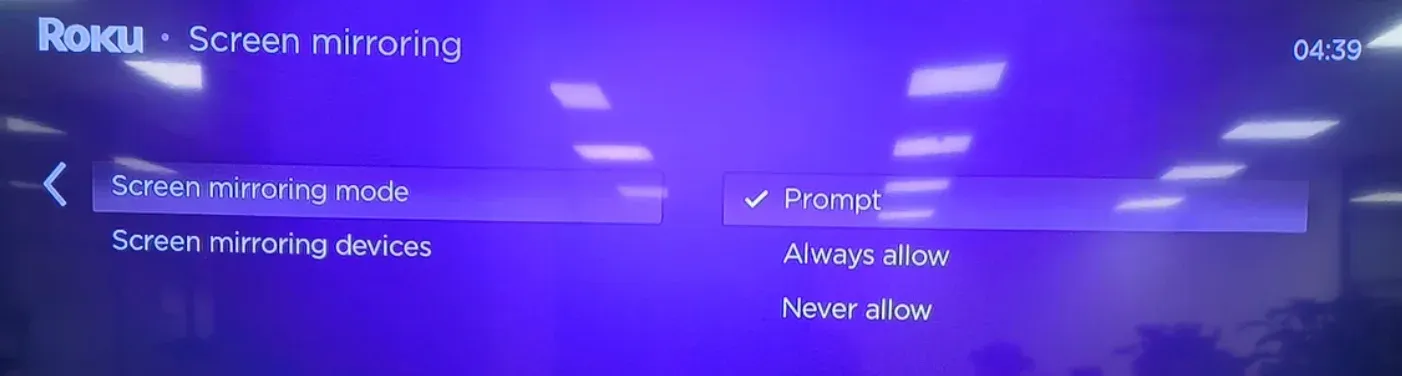
Step 4. Choose Allow or Always allow to permit devices to mirror to your Roku.
- Enable screen mirroring (AirPlay) on Roku:
Note: Your Roku screen mirroring devices should be running Roku OS 9.4 or higher to stream with AirPlay.
Step 1. Press the Home button on your Roku remote.
Step 2. Scroll and select Settings.
Step 3. Choose Apple AirPlay and HomeKit.
Step 4. Select AirPlay and turn it on.
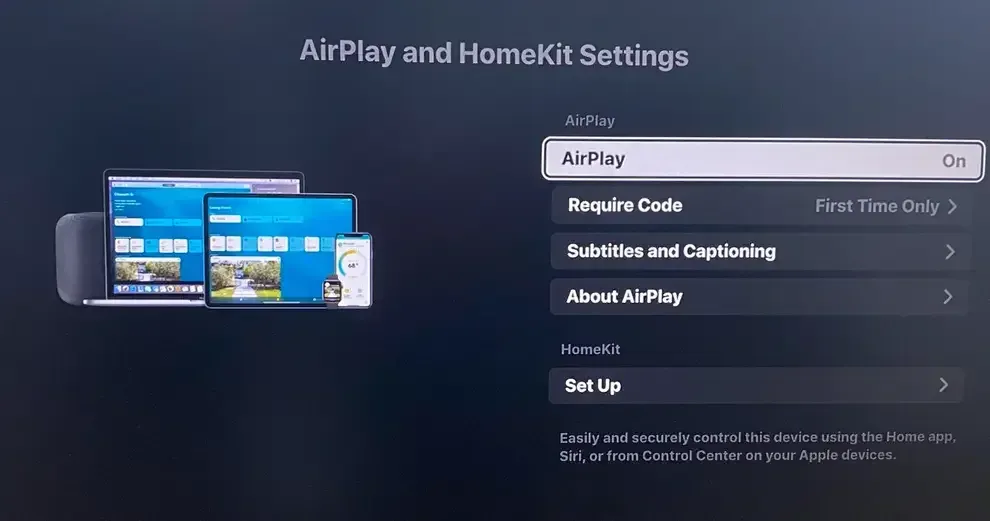
If you can't find Screen Mirroring or AirPlay on your Roku device, the device doesn't support wireless screen mirroring.
How to Screen Mirror on Roku
With Miracast and AirPlay enabled on your Roku device and devices on the same network, you can start screen mirroring.
Step 1. Open the Quick Settings menu on your Android device.
Step 2. Tap Smart View (or Cast depending on your device).
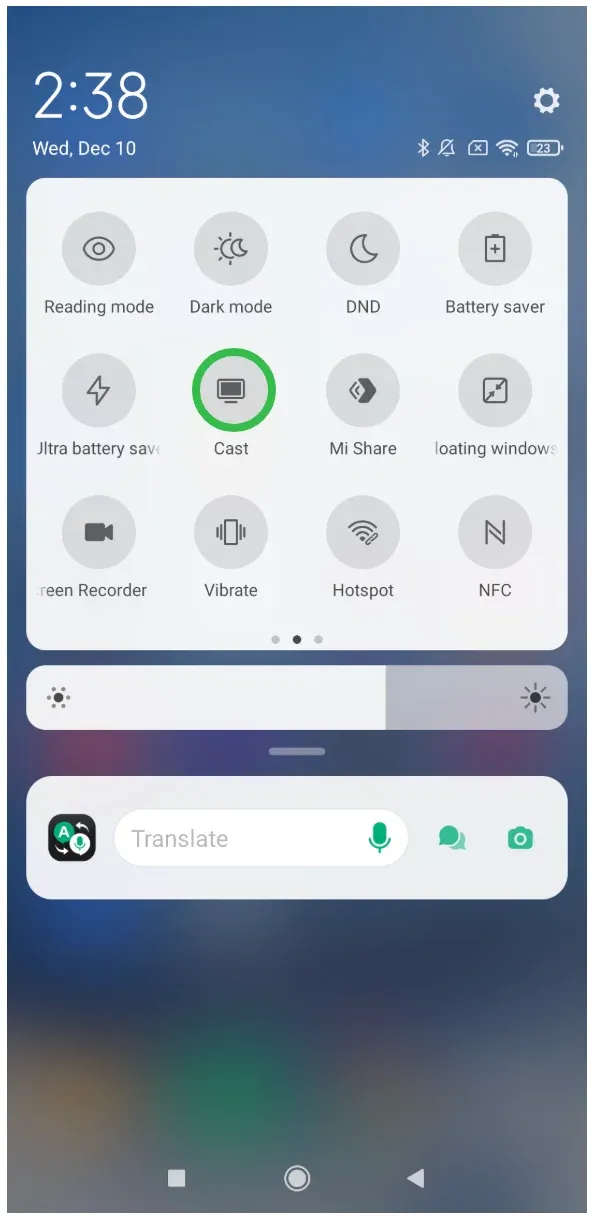
Step 3. Select your Roku device from the list.
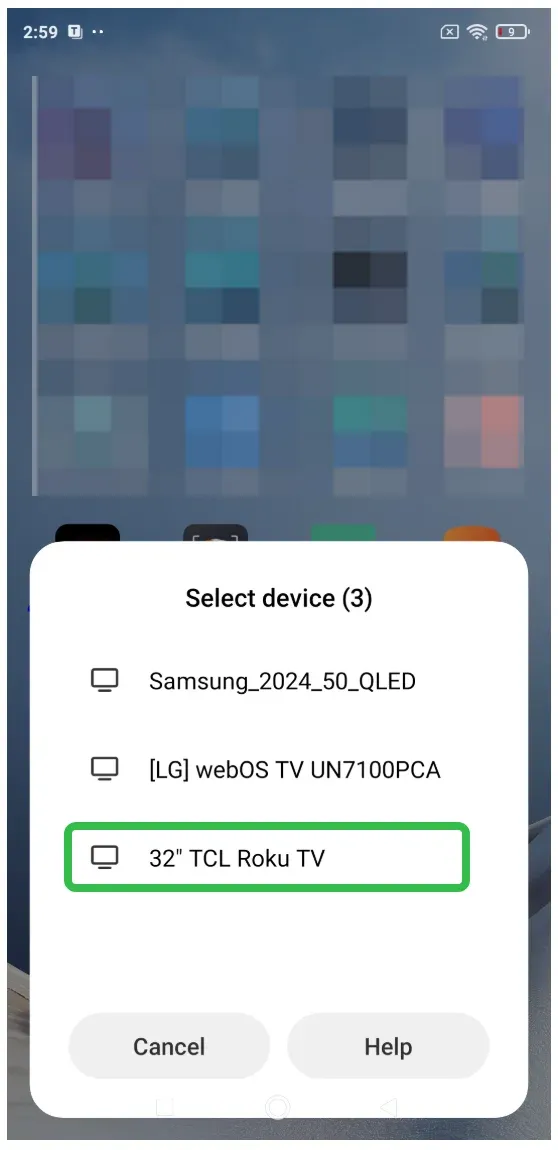
Step 4. Your Android device will begin mirroring to your Roku TV.
- Screen mirror Roku from Windows PC
Step 1. Open the Action Center on your Windows device by clicking the notification icon on the taskbar.
Step 2. Click Connect.
Step 3. Select your Roku device from the list of available devices.
Step 4. Follow the instructions on your Roku screen to complete the connection.
Step 1. Open Control Center and tap Screen Mirroring on your Apple device.
Step 2. Select your Roku device from the list to start the mirroring.
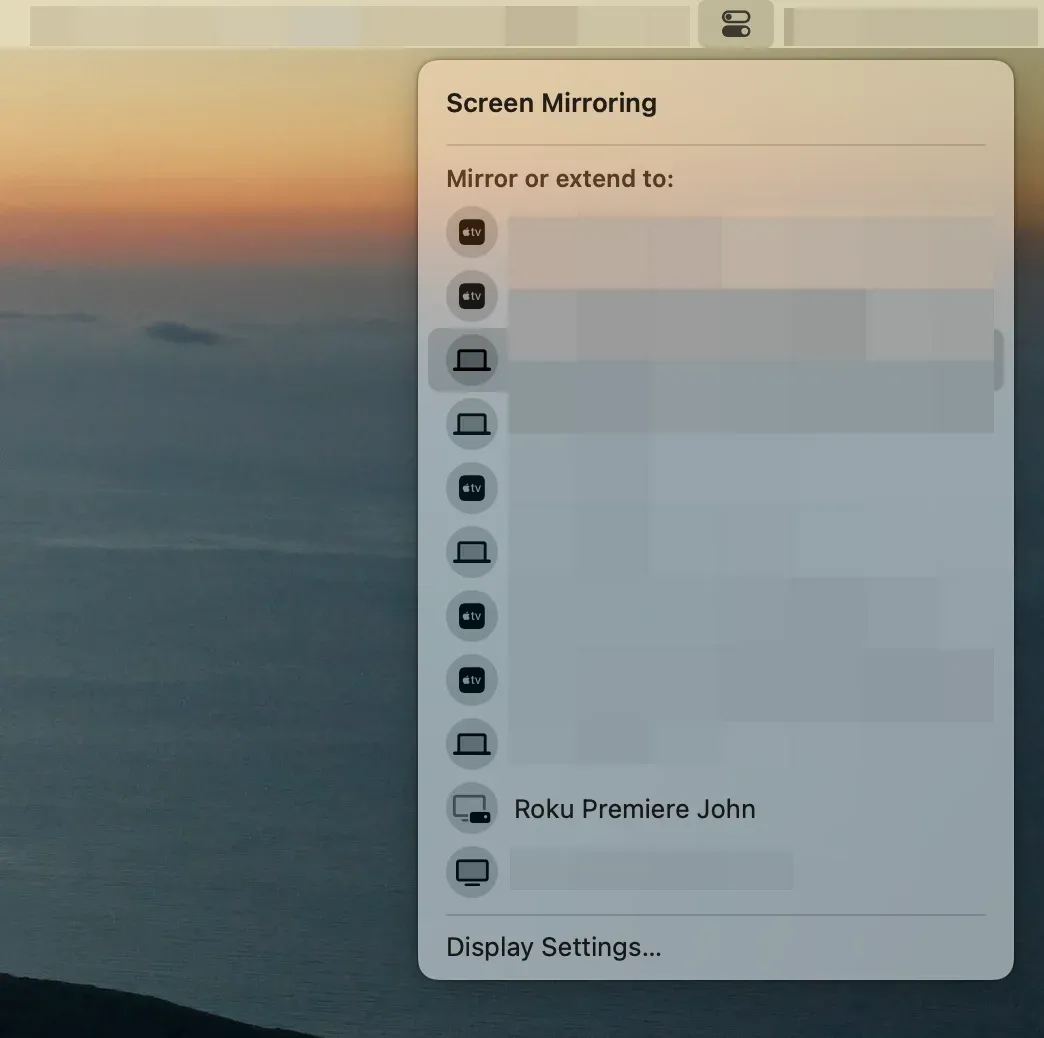
Step 3. Enter the PIN code if prompted.
Expanding Screen Mirroring Options with PigeonCast
While Roku provides solid support for Miracast and AirPlay, you may encounter limitations when trying to mirror from devices that don't support these technologies. PigeonCast is an excellent third-party screen mirroring solution that expands your options beyond Roku's native features.
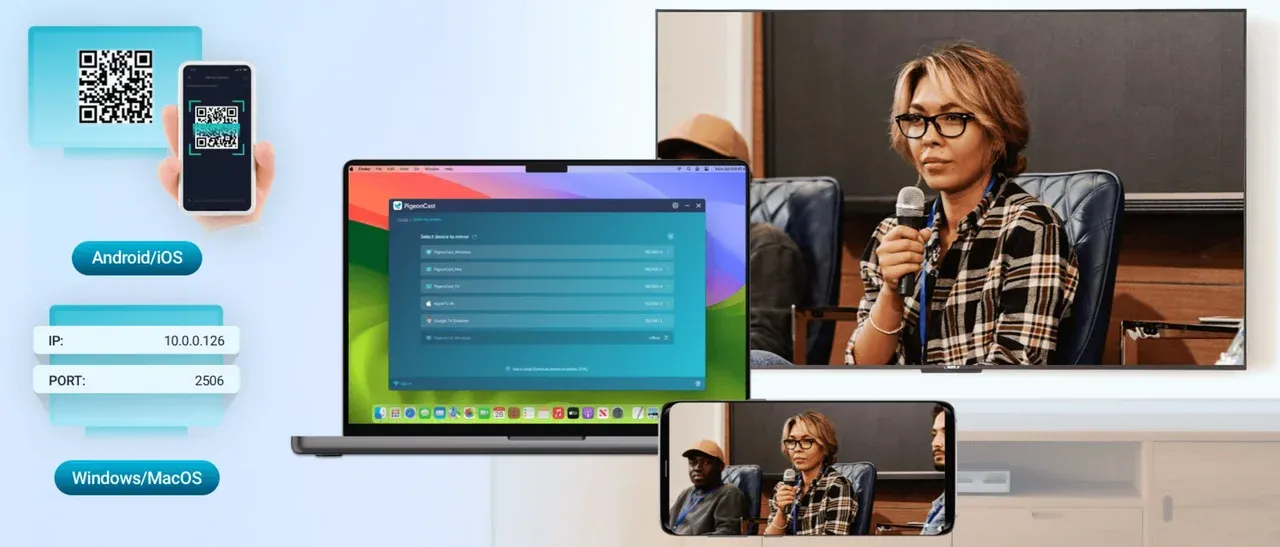
PigeonCast supports AirPlay, Google Cast, and DLNA, allowing you to mirror your screen to any smart TV or streaming device that supports these protocols. Whether you're using macOS, Windows, Android, or iOS devices, PigeonCast ensures compatibility with a wide range of devices and gives you a seamless mirroring experience.


Overall Rating:



The free screen mirroring app also offers a high-quality, stable connection that works across platforms, making it the perfect solution for users who need reliable screen mirroring.
Wrapping Up
Most current Roku devices do support screen mirroring. Whether you're using Miracast for Windows and Android devices or AirPlay for iOS and macOS devices, Roku offers a solid screen mirroring solution. However, if you encounter compatibility issues or need more flexibility, PigeonCast can enhance your screen mirroring options and provide a seamless experience across multiple devices and platforms.
Does Roku Have Screen Mirroring FAQs
Does Roku TV have screen mirroring?
Yes, most Roku TV models support screen mirroring using Miracast for Android and Windows devices and AirPlay for iOS and macOS devices.
Does Roku Express have screen mirroring?
Yes, Roku Express models 3960, 3930, and 3900 support Miracast, allowing you to mirror Windows PCs and Android devices. However, Roku Express model 3700 does not support screen mirroring.
Is screen mirroring available on all Roku models?
No, not all Roku models support screen mirroring. While most newer Roku streaming players and Roku TV models do, older models or specific versions like the Roku Express 3700 may not support this feature. Be sure to check your model's compatibility by visiting Settings > System > About.
Why can't I mirror my iPhone to my Roku TV?
If AirPlay isn't working, ensure that both your iPhone and Roku TV are connected to the same Wi-Fi network. Also, check if AirPlay is enabled on your Roku device under Settings > Apple AirPlay and HomeKit.
What is the best app for screen mirroring?
While modern TVs support Miracast, Google Cast, or AirPlay, if you need more versatility or are facing compatibility issues, screen mirroring apps like PigeonCast offer a cross-platform solution.
How do you know if your TV does screen mirroring?
To check if your TV supports screen mirroring, go to the Settings menu on your TV and look for Screen Mirroring, Miracast, or AirPlay options. Depending on your TV brand, it may also be listed as Wireless Display or Casting. If available, enable the feature and choose whether you want to allow devices to connect automatically or ask for permission each time.
What are the disadvantages of screen mirroring?
Screen mirroring can sometimes cause lag or pixelation, especially if the devices are far from the router or the Wi-Fi signal is weak. Additionally, not all devices support AirPlay or Miracast, which can limit compatibility.
What is the other name of screen mirroring?
Screen mirroring is also known by other names such as casting, display mirroring, wireless display, or smart casting. The term used can vary based on the device or operating system.
Mia Clarke is a technology editor specializing in screen mirroring and casting solutions across multiple platforms. Mia provides clear, practical guides and in-depth insights to help users seamlessly connect their devices. Passionate about enhancing digital experiences, Mia is dedicated to keeping readers updated on the latest trends and tools in cross-platform screen sharing. Whether you’re looking to mirror your smartphone, laptop, or smart TV, Mia’s content delivers reliable, user-friendly advice to simplify your tech setup.