
Trying to mirror your Mac to a Roku TV can feel confusing at first. macOS relies heavily on AirPlay, while Roku was not originally designed with Apple devices in mind. Still, Roku screen mirroring Mac setups are very possible once you know which method fits your device and situation. In this guide, we break down practical ways to mirror a MacBook to Roku, from wireless options to a guaranteed cable-based fallback.
Can You Mirror Mac to Roku
Yes, you can mirror a Mac to a Roku TV, but the experience depends on the method you choose. Some newer Roku models support AirPlay, which allows direct screen sharing from macOS. In other cases, third-party tools or a physical cable are required. Understanding these limits early helps avoid situations, especially when users wonder, "Why is my Mac not screen mirroring to my Roku TV after repeated attempts?".
How to Mirror Mac to Roku
Before choosing a specific method, it helps to understand your overall options. Mac to Roku screen mirroring usually falls into two categories: wireless mirroring and wired connections. Wireless methods are more convenient for daily use, while wired options prioritize stability.
If you want a broader overview of how macOS connects to TVs beyond Roku, this guide on screen mirroring a MacBook to a TV breaks down common approaches, supported devices, and real-world use cases. It can help you quickly identify whether AirPlay, a third-party app, or a cable makes the most sense for your setup.
Once you know what your Roku model supports and what kind of experience you need, you can move on to the specific methods below.
Method 1: Use AirPlay
AirPlay is the most natural option if your Roku TV supports it. When it works, it feels almost instant and requires no extra apps on your Mac.
Check if your Roku supports AirPlay:
- Open Settings on your Roku TV.
- Go to Apple AirPlay and HomeKit.
- Make sure AirPlay is turned on.
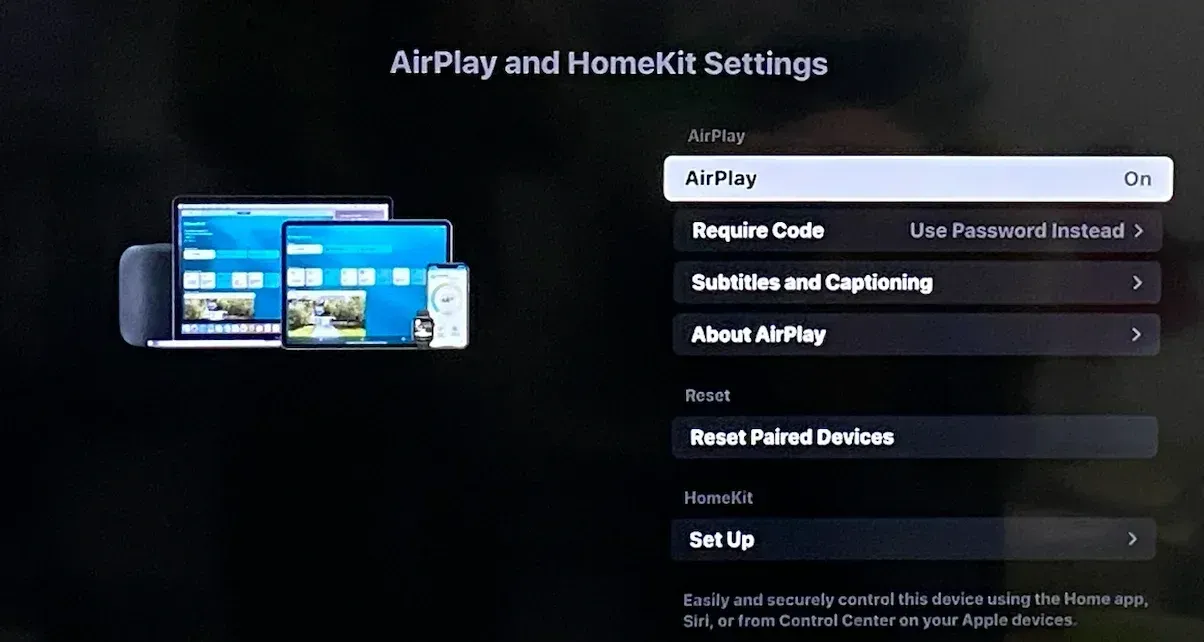
If this menu is missing, your Roku model does not support AirPlay.
Steps for screen mirroring MacBook to Roku TV with AirPlay:
Step 1. Connect your Mac and Roku device to the same Wi-Fi network.
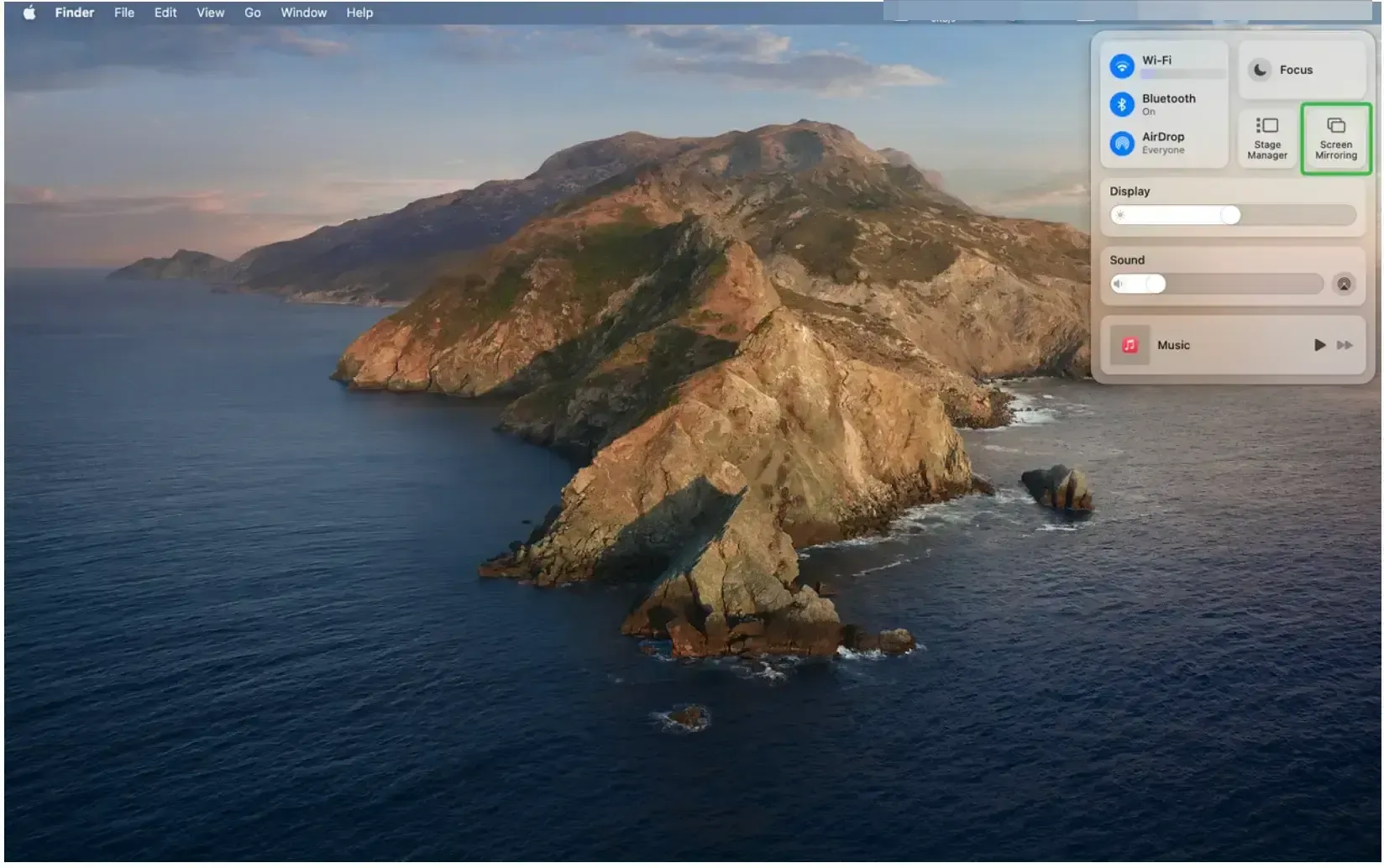
Step 2. On your Mac, click the Control Center in the menu bar.
Step 3. Click Screen Mirroring.
Step 4. Choose your Roku TV from the list.
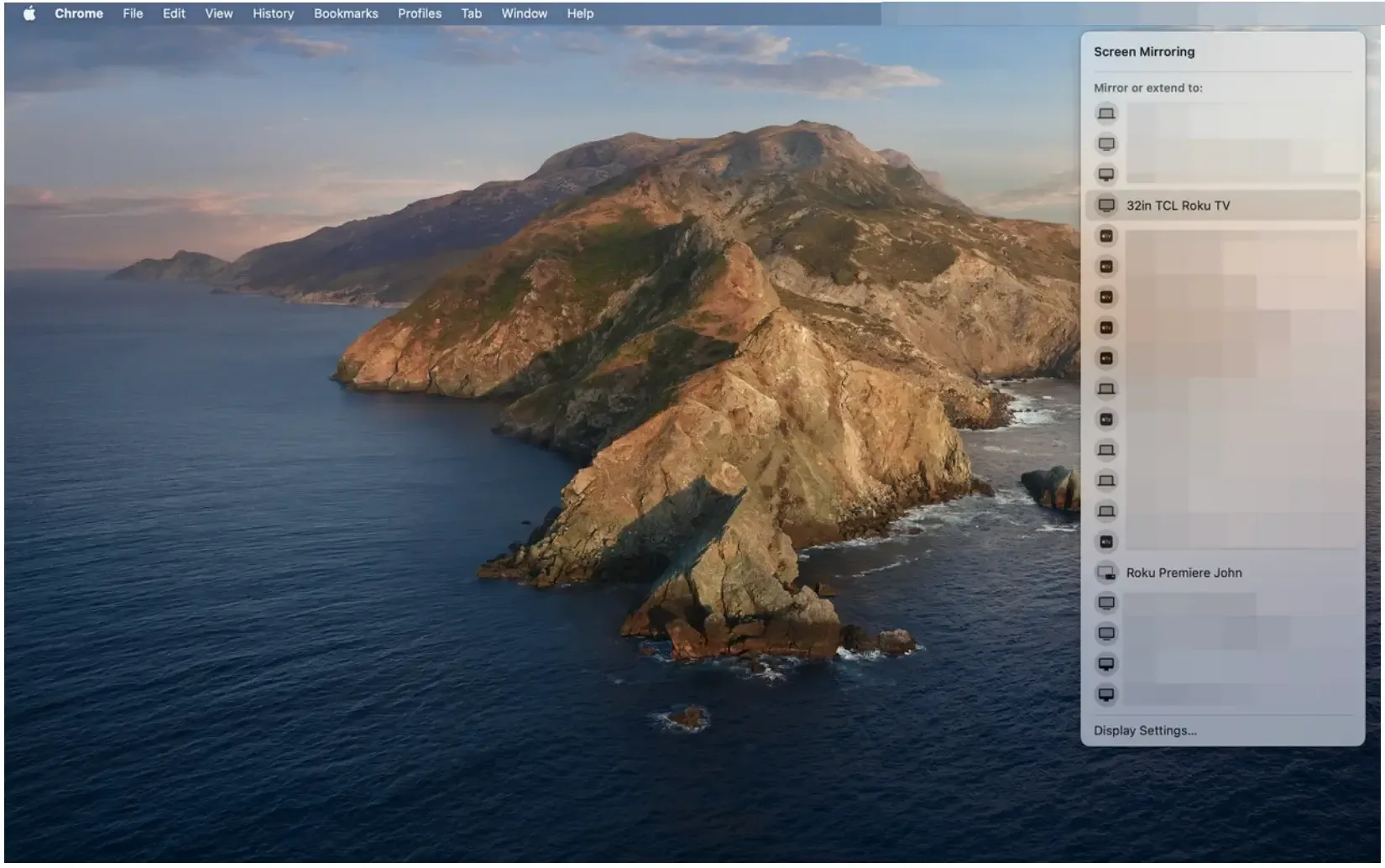
Step 5. Enter the PIN code displayed on your Roku device if prompted.
Step 6. Your Mac screen will display on the large screen.
Method 2: Use PigeonCast
PigeonCast is a simple and flexible option for mirroring a Mac to a Roku TV, especially when native options feel limited. It focuses on ease of use rather than technical setup, which makes it approachable even for first-time users.
 Why many users choose PigeonCast:
- Free to get started, with no complicated setup
- Works across platforms, including iOS and macOS
- Supports high-definition screen mirroring
- Helpful in situations where built-in options are unstable
How to use PigeonCast for Mac screen mirroring:
Step 1. Install PigeonCast on your Mac.


Overall Rating:


Step 2. Ensure your Mac and Roku TV are connected to the same Wi-Fi network.
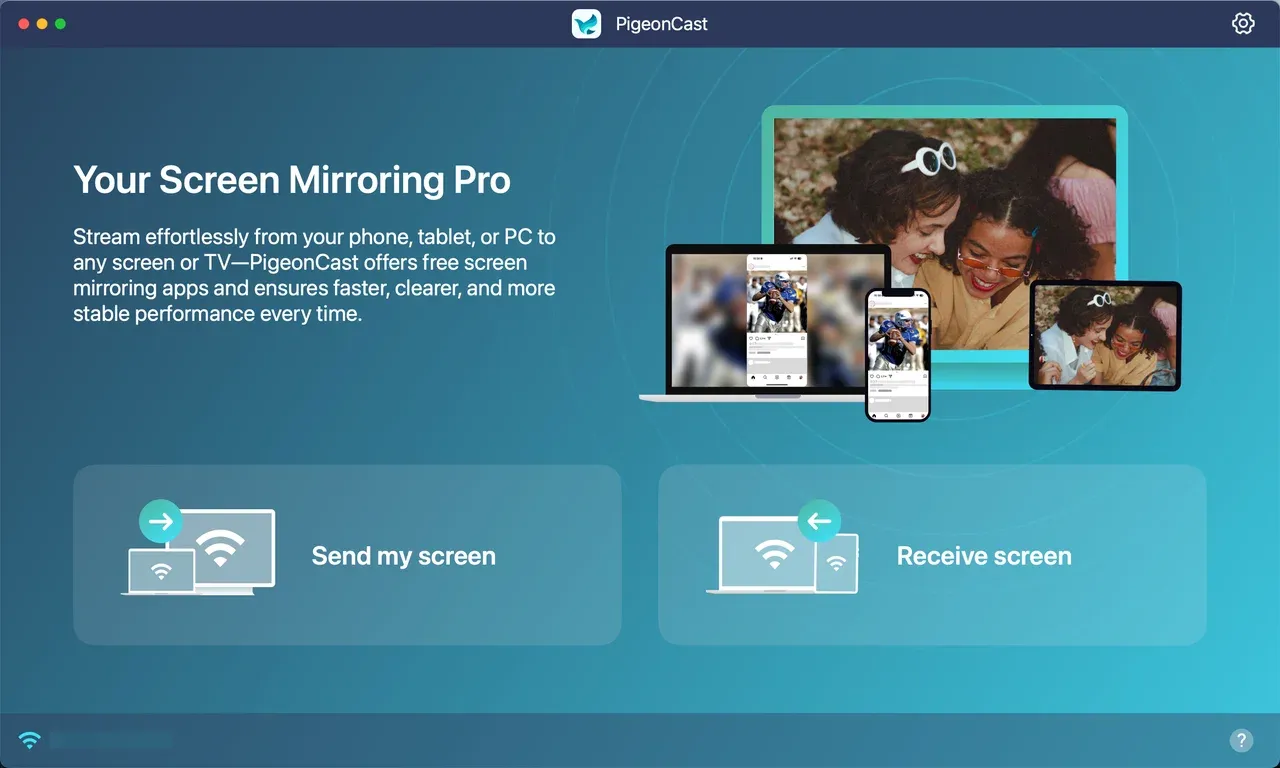
Step 3. Open the PigeonCast app on your Mac and click the Send my screen option.
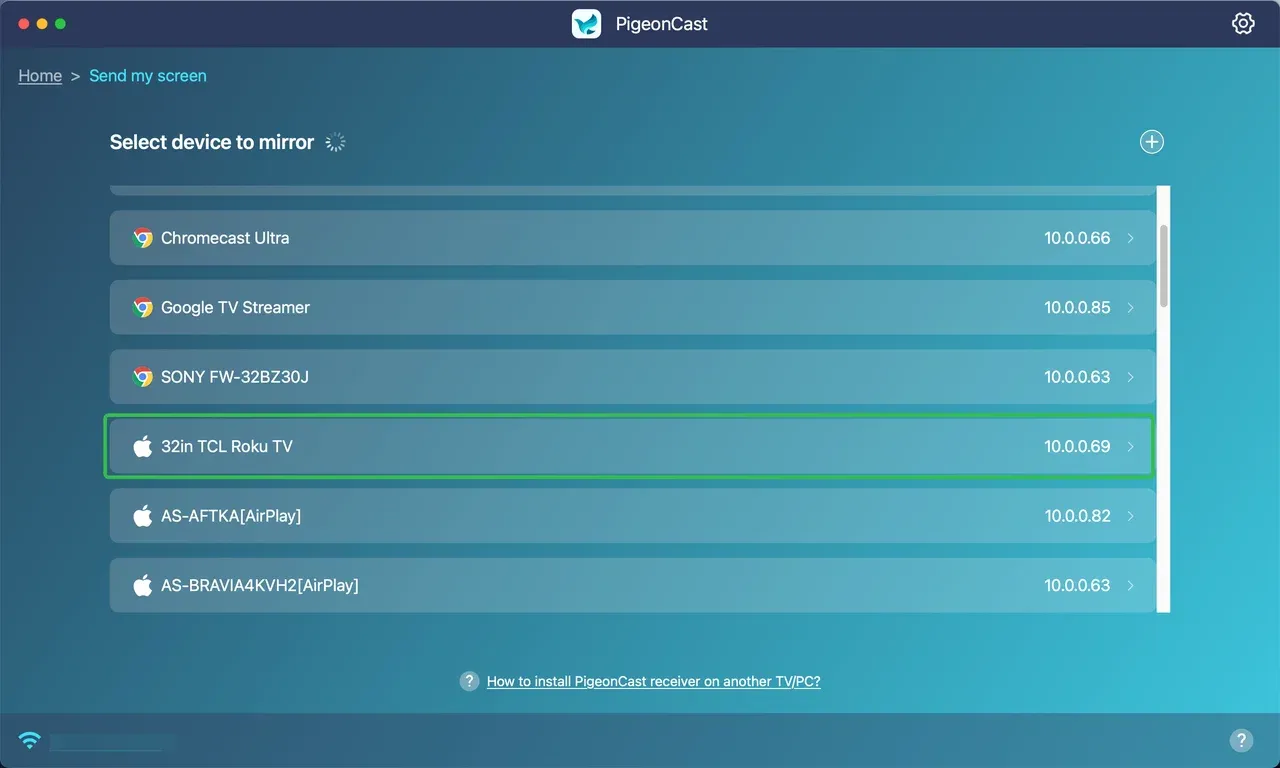
Step 4. Choose your Roku device from the list.
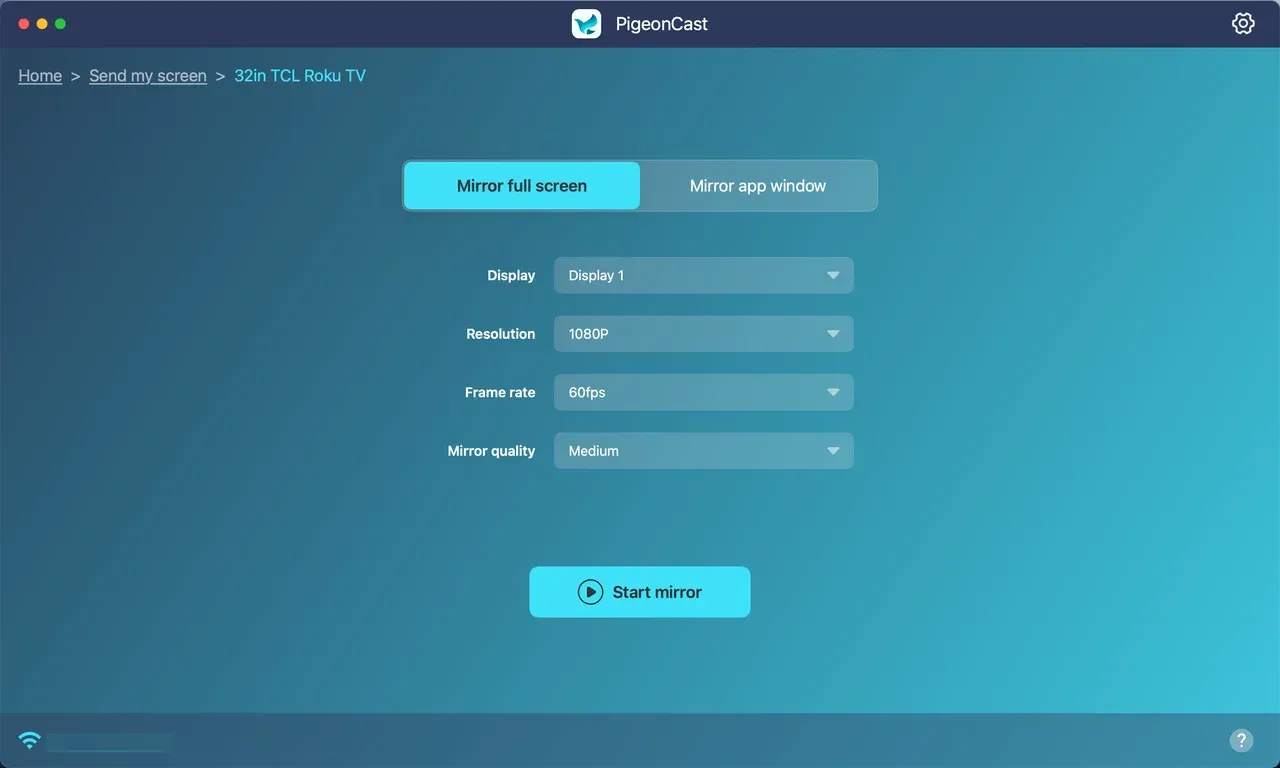
Step 5. Click the Start mirror option to start Roku screen mirroring Mac. For a better screen mirroring experience, you can refine the settings, like display, resolution, frame rate, and mirror quality.
Tip: PigeonCast allows you to cast a single app window to the connected device. You can switch to the Mirror app window option and stream your app rather than the whole screen.
Step 6. Enjoy your Mac screen on your TV.
This option is often picked by users looking for Roku screen mirroring MacBook solutions that are easy to try, cost nothing upfront, and work reliably across different devices.
Method 3: Use an HDMI Cable
Aside from wireless methods, a wired method, like an HDMI cable, offers the most reliable way to mirror a Mac to a Roku TV. It removes variables entirely.
What you need:
- An HDMI cable
- A compatible adapter for your Mac model
Steps for screen mirroring Mac to Roku with HDMI cable:
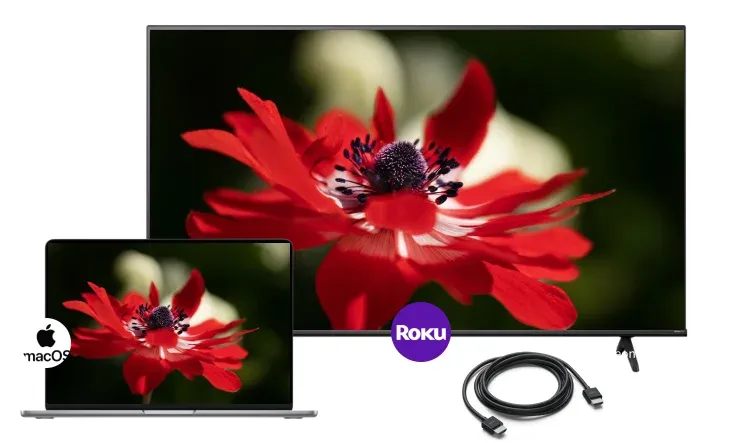
Step 1. Connect the HDMI cable to your Mac using the adapter.
Step 2. Plug the other end into your TV.
Step 3. Switch to your TV input to the correct HDMI port using your remote.
Step 4. Your Mac screen appears instantly, with no lag.
When HDMI is the best choice:
- You need zero latency
- Wi-Fi is unstable or restricted
- You are giving a live presentation
While it is not wireless, it solves nearly every Mac-to-Roku screen mirroring problem.
Screen Mirroring MacBook to Roku Not Working
When screen mirroring is not working, the issue is usually small but easy to miss. Most problems are related to settings, network conditions, or device compatibility, rather than the Mac or Roku itself.
Quick checks to fix common issues:
- Confirm device support: Make sure your Roku model supports screen mirroring or AirPlay, depending on the method you are using.
- Check the Wi-Fi network: Your MacBook and Roku TV must be on the same network. Guest or isolated networks often block discovery.
- Restart both devices: A simple restart can clear temporary connection glitches.
- Review Roku settings: Go to your Roku system settings and ensure screen mirroring or AirPlay is enabled and not set to block connections.
- Close unused apps: Heavy background activity on your Mac can affect mirroring stability.
If screen mirroring MacBook to Roku not working becomes a recuring problem, switching methods often helps. For example, moving from native options to a third-party app, or using a wired HDMI connection, can save time and frustration.
Final Words
There is no single perfect solution for screen mirroring MacBook to Roku TV. AirPlay works well on supported models, PigeonCast fills the compatibility gap, and HDMI remains the most dependable fallback. Once you match the method to your setup, Roku screen mirroring MacBook becomes straightforward rather than frustrating.
Roku Screen Mirroring Mac FAQs
How to mirror computer screen on Roku?
You can mirror a computer screen to Roku using AirPlay on macOS, a third-party mirroring app, or a direct HDMI connection, depending on your device support.
Can I mirror my Mac screen to my TV?
Yes. Most Macs can mirror their screen to a TV either wirelessly or with a cable. Wireless options include AirPlay or compatible screen mirroring apps, while a direct HDMI connection works with almost any modern TV. The exact method depends on your TV brand and the features it supports.
Can you screen mirror Apple to Roku?
You can screen mirror Apple devices to Roku if the Roku model supports AirPlay. Otherwise, third-party mirroring solutions are needed.
Why can't I screen mirror to my Roku?
Common causes include unsupported Roku models, different Wi-Fi networks, disabled AirPlay settings, or network restrictions.
What is the difference between mirroring and AirPlay?
Screen mirroring shows everything on your device in real time. AirPlay can mirror the screen or stream content directly to the TV, often with smoother playback.
Mia Clarke is a technology editor specializing in screen mirroring and casting solutions across multiple platforms. Mia provides clear, practical guides and in-depth insights to help users seamlessly connect their devices. Passionate about enhancing digital experiences, Mia is dedicated to keeping readers updated on the latest trends and tools in cross-platform screen sharing. Whether you’re looking to mirror your smartphone, laptop, or smart TV, Mia’s content delivers reliable, user-friendly advice to simplify your tech setup.