
Whether it's for streaming your favorite movies, delivering a professional presentation, or simply sharing content with friends, screen mirroring MacBook to TV makes the experience much more engaging. You can mirror wirelessly with AirPlay on supported TVs, use a reliable HDMI cable for a direct connection, or try third-party apps like PigeonCast, which offer broader compatibility across different TV brands and platforms.
How to Mirror MacBook to TV
Screen mirroring from MacBook to TV allows you to display your laptop's content on a bigger screen. Depending on your TV model and your preference, you can either use a wireless connection or a wired connection. Both methods are simple and provide reliable ways to mirror or extend your MacBook display.
MacBook Screen Mirroring to TV Wirelessly
How to connect MacBook to TV screen mirroring? The easiest way to mirror your MacBook screen to a TV is by using AirPlay, Apple's built-in wireless casting feature. This method works best if you have an Apple TV or a smart TV that supports AirPlay 2. If you have compatibility issues, you can adopt PigeonCast to continue screen mirroring MacBook Air to TV.
- Way 1. Screen Mirroring on MacBook to TV via AirPlay
Step 1. Make sure your MacBook and your TV are connected to the same WiFi network.
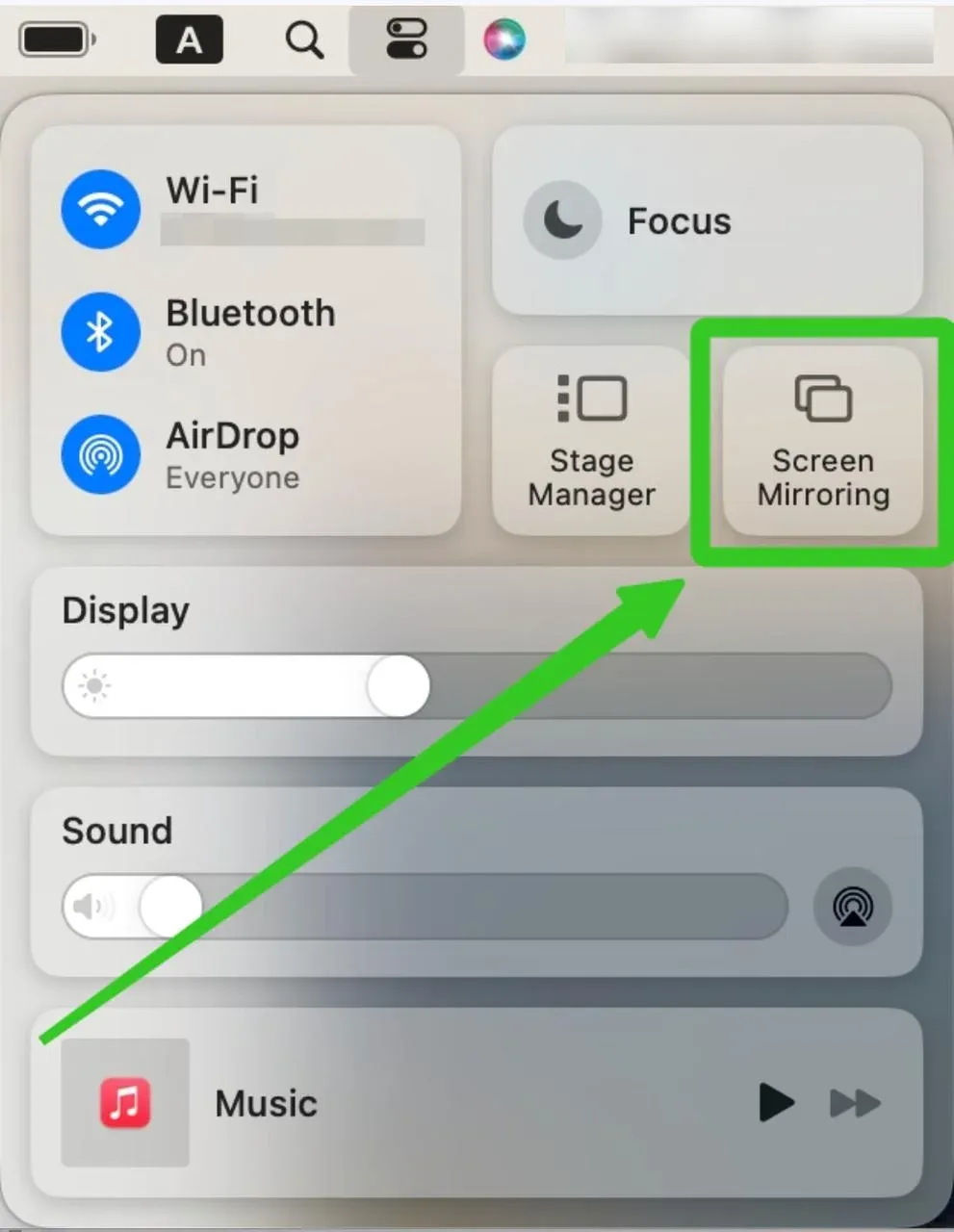
Step 2. On your MacBook, click Screen Mirroring from the Control Center icon in the top-right corner of the screen.
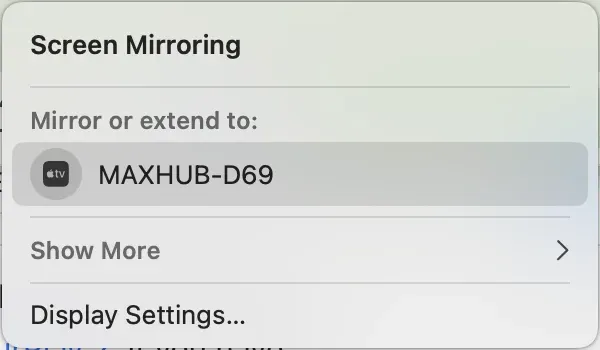
Step 3. Choose your TV or Apple TV from the list of available devices and enter the onscreen code to confirm the connection
Step 4. Your MacBook screen should now appear on your TV. You can also choose to mirror or extend your display, depending on your needs.
- Way 2. Screen Mirroring on MacBook to TV via PigeonCast
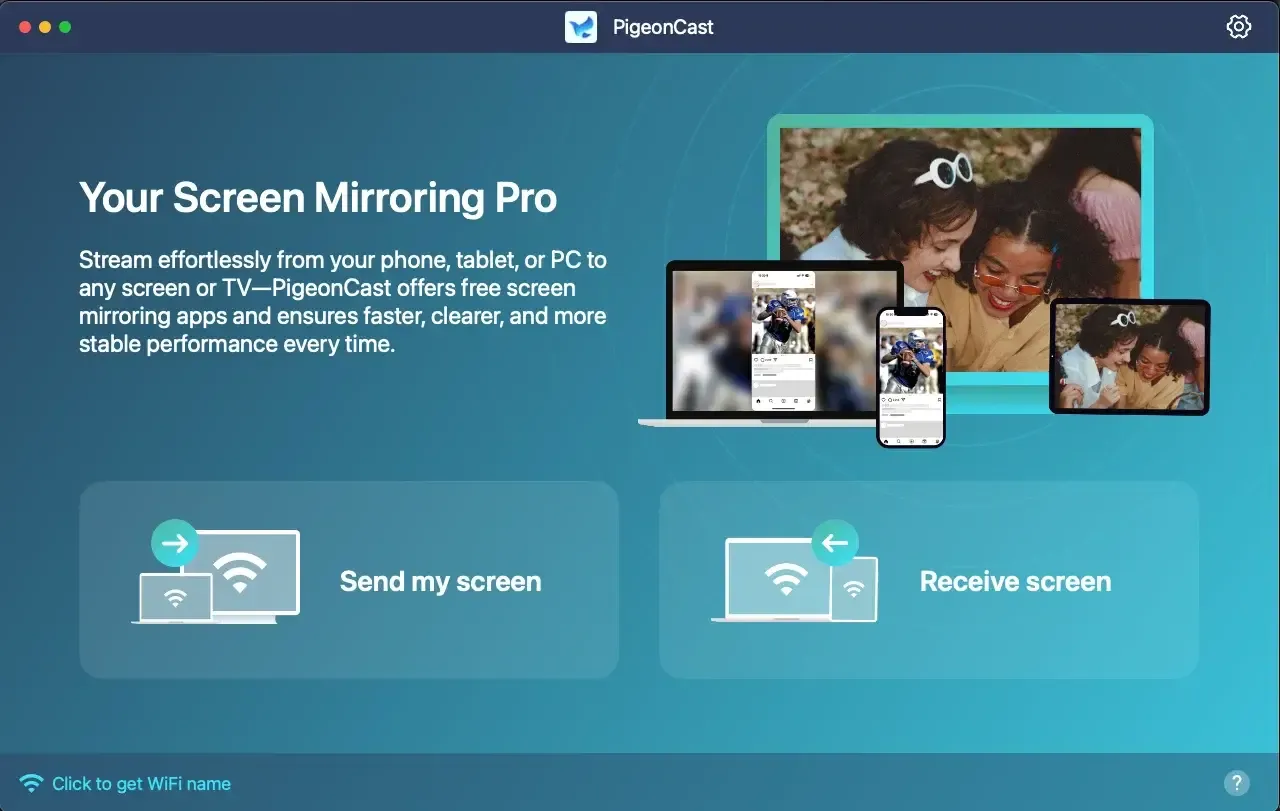
PigeonCast is the best screen mirroring app for MacBook to TV, offering full support for AirPlay, Google Cast, and DLNA. Effortlessly cast your Android or iOS device to your Mac, or mirror your MacBook to another laptop or TV in stunning full HD. With robust privacy protection and zero data leakage, PigeonCast delivers a fast, secure, and seamless mirroring experience.
Step 1. Download and install the free PigeonCast on your MacBook from the App Store.

PigeonCast Screen Mirroring

Official Download


Step 2. Make sure both devices are connected to the same Wi-Fi network for seamless communication.
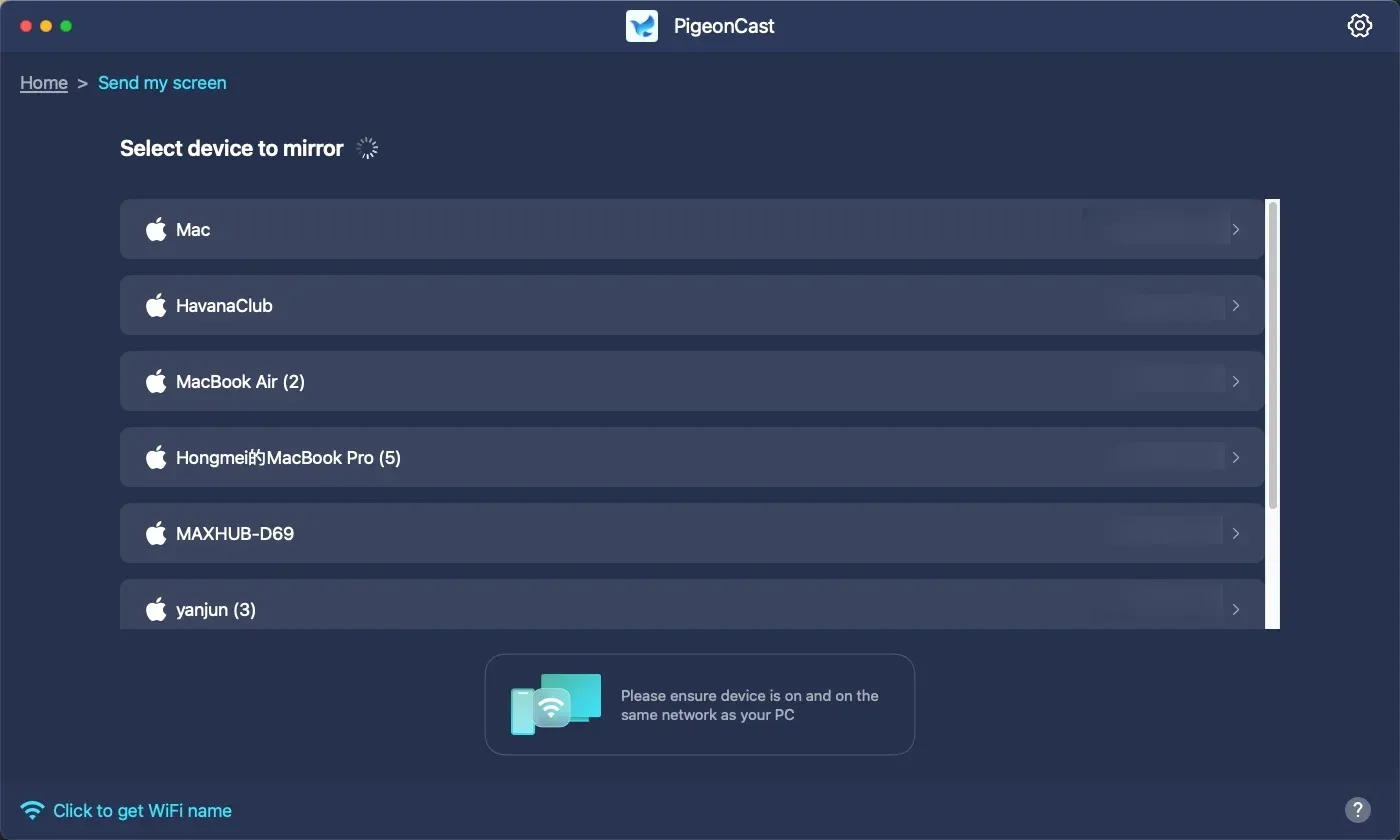
Step 3. Open PigeonCast on your MacBook and click Send my screen to choose your TV from the device list.
Step 4. Enter the onscreen PIN code to ensure your mirroring performance.
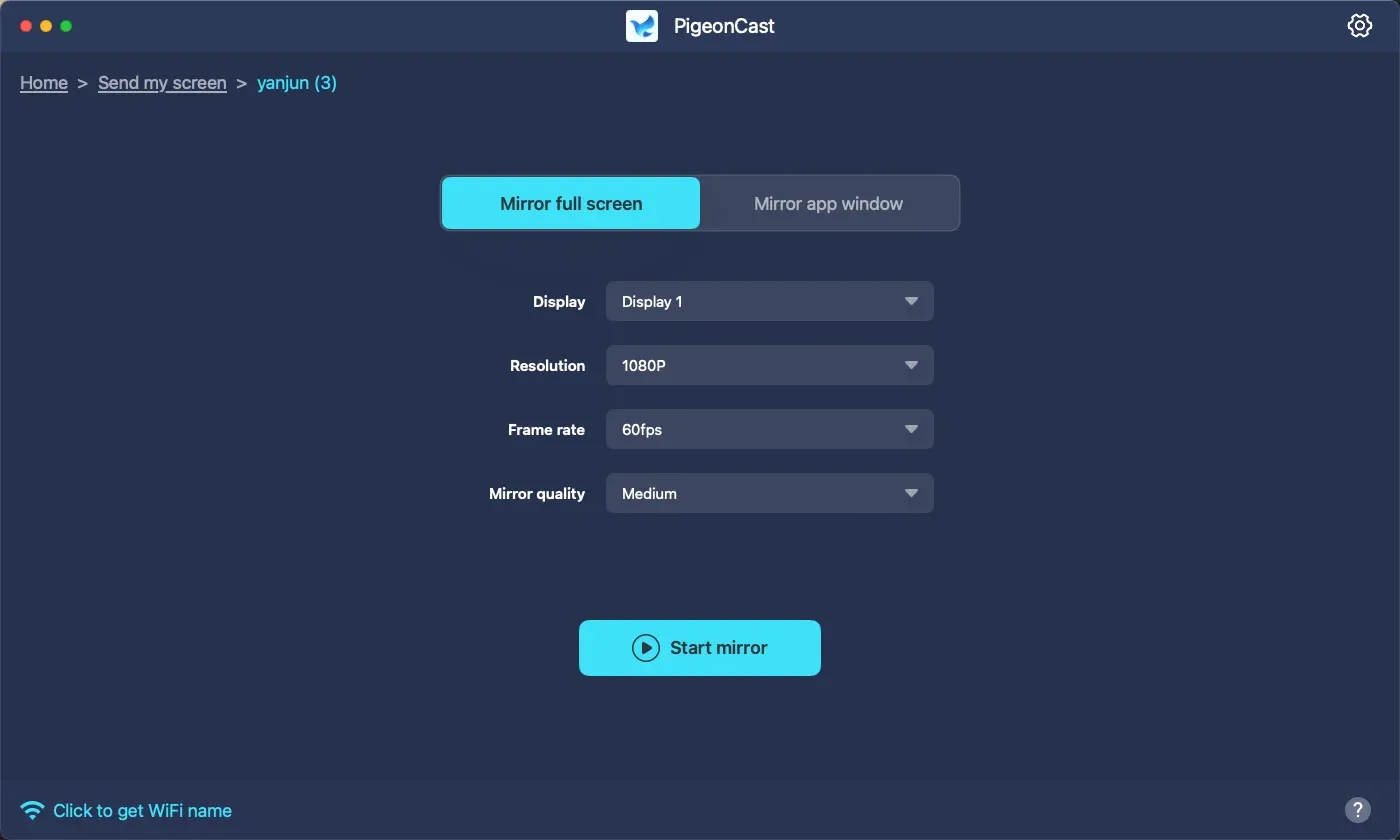
Step 5. Once connected, your MacBook screen will appear on the TV, and you can choose to Mirror full screen or Mirror app window option to select your mirroring form.
Step 6. Finally, click Start mirror to begin your mirroring activities.
MacBook Screen Mirroring to TV with an HDMI Cable
How to mirror Mac to TV? If you prefer a wired connection or if your TV doesn't support AirPlay, you can also use an HDMI cable. This method ensures a stable connection of the screen mirroring MacBook to smart TV without relying on Wi-Fi. In this section, let's check how to do Mac HDMI to TV:
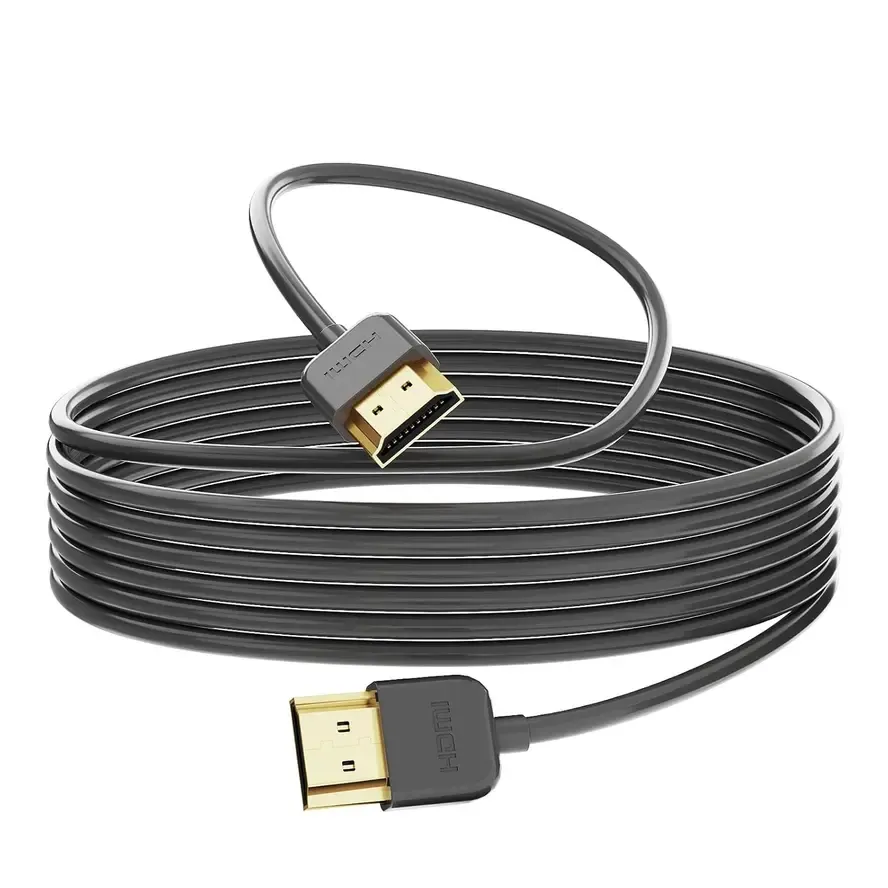
Step 1. Plug one end of the HDMI cable into your TV and plug the other end into your MacBook. If your MacBook has only USB-C ports, use a USB-C to HDMI adapter.
Step 2. Turn on your TV and set the input source to the HDMI port you connected.
Step 3. Your MacBook screen will now appear on the TV, allowing you to enjoy your content on a larger display.
To Sum Up
How to cast from MacBook to TV? For Apple users, AirPlay offers a seamless wireless option on supported TVs. If you prefer a more stable connection, a direct HDMI cable provides reliable, high-quality mirroring. For TVs that don't support AirPlay, third-party apps like PigeonCast give you broader compatibility across different brands and platforms.
Screen Mirroring MacBook to TV FAQ
Q: How do I mirror my Mac to my TV?
To mirror your Mac to your TV, you can use AirPlay for a wireless connection on compatible TVs or Apple TV. Simply connect your Mac and TV to the same Wi-Fi network, click the AirPlay icon in the Mac menu bar, and select your TV. Alternatively, you can use an HDMI cable to connect directly, or a third-party app like PigeonCast for broader compatibility.
Q: How do I turn off screen mirroring?
To turn off screen mirroring, open the Screen Mirroring or Cast menu on your device and select Stop Mirroring or Disconnect. On a Mac, click the AirPlay icon in the menu bar and choose Turn AirPlay Off. On iPhone or iPad, use the Control Center to stop mirroring, and on Android, use Quick Settings or the Cast menu. You can also disconnect directly from your TV if it supports screen mirroring controls.
Q: How do I connect my MacBook Pro to my TV wirelessly?
To connect your MacBook Pro to your TV wirelessly, use AirPlay if your TV supports it or if you have an Apple TV. Alternatively, you can use a free third-party app like PigeonCast for wireless mirroring on TVs that don't support AirPlay. Just make sure both your MacBook Pro and TV are on the same Wi-Fi network before you start.
Q: Why can't I cast from my MacBook to my TV?
You might not be able to cast from your MacBook to your TV if your devices aren't on the same Wi-Fi network, if your TV doesn't support AirPlay, or if your MacBook's software or your TV's firmware is outdated. Other issues can include firewall settings, network restrictions, or incorrect input/source selection on the TV. Using an HDMI cable or a third-party app like PigeonCast can resolve compatibility problems.
Q: How to screen mirror MacBook to TV without AirPlay?
If your MacBook or TV doesn't support AirPlay, you can screen mirror using an HDMI cable or a third-party app, such as PigeonCast. Connect your MacBook to the TV with an HDMI cable and select the correct input on the TV, or use apps like PigeonCast to mirror wirelessly over Wi-Fi.
Q: How do I connect my laptop to my TV?
You can connect your laptop to your TV using an HDMI cable or wirelessly.
- For a wired connection, plug one end of the HDMI cable into your laptop and the other into your TV, then select the correct HDMI input on the TV.
- For a wireless option, use screen mirroring features like Miracast, Chromecast, or AirPlay, depending on your devices. Plus, you can use some mirroring app for that.
Clara Rossi is an experienced technology editor and a seasoned expert in screen mirroring and casting technologies. With a keen eye for detail and a deep understanding of how to seamlessly connect devices, Clara excels at optimizing user experiences for effortless sharing and streaming. Whether you're seeking quick fixes or advanced tips, her expertise and responsiveness ensure that every query is met with a well-informed and efficient solution.