
What is screen mirroring? In this comprehensive guide, we'll explore everything you need to know about screen mirroring: how it works, the different methods available, supported devices, and the various applications. Plus, we'll dive into the advantages and limitations to help you get the most out of this technology.
What Is Screen Mirroring
Screen mirroring allows you to display the contents of your device's screen on a larger display, such as a TV or projector. This technology enables real-time sharing your smartphone, tablet, or computer screen with others, making it a useful tool for both personal and professional use.
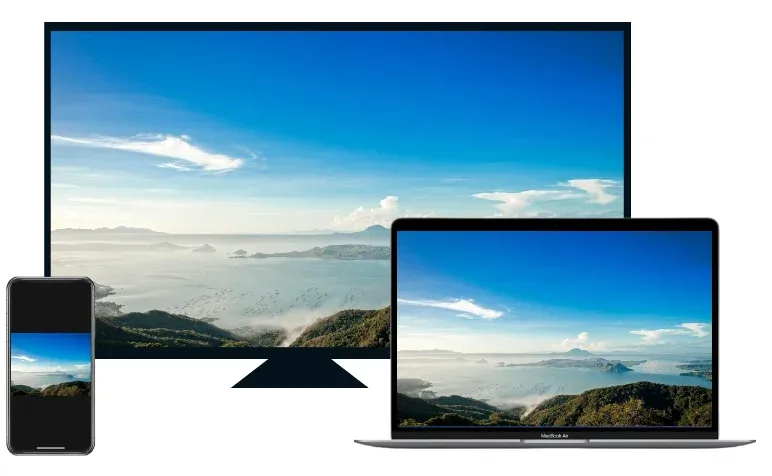
Whether you're watching a movie on your phone and want to see it on a larger screen or sharing a work presentation with colleagues, screen mirroring provides a simple solution.
How Does Screen Mirroring Work
Screen mirroring duplicates the display of one device onto another, transmitting the content in real time. This process is facilitated through wireless or wired connections, depending on the devices and the chosen method.
Screen mirroring leverages different protocols to facilitate this transmission, depending on the devices involved and the chosen method. Whether you're using Miracast, AirPlay, or Google Cast, the basic principle is the same: transmit content from one device to another without altering its appearance or functionality.
- Miracast: A wireless technology that allows Android and Windows devices to mirror their screens to compatible TVs and monitors without an internet connection.
- AirPlay: Apple's naive screen mirroring protocol, designed for iOS and macOS devices to wirelessly connect to Apple TVs and other AirPlay-enabled devices.
- Google Cast (Chromecast): Primarily used for streaming content, Google Cast allows Android and Chrome users to wirelessly transmit content to a compatible TV.
Does screen mirroring use Bluetooth? No. Bluetooth is typically used for device pairing for remote control or audio streaming, but not ideal for content transfer due to its limited bandwidth.
What Devices Support Screen Mirroring
Understanding what screen mirroring devices are and the compatibility between various platforms is crucial for a seamless experience. Different devices and operating systems support different mirroring protocols.
- Smartphones and tablets: Android devices typically support Miracast or Google Cast, while iOS devices rely on AirPlay for screen mirroring.
- Laptops and desktops: Windows computers support Miracast, and Mac computers are equipped with AirPlay for seamless integration with Apple TVs.
- Smart TVs and projectors: Many modern smart TVs support Miracast, AirPlay, or Google Cast, allowing you to directly mirror your device's display.
- Streaming devices: Chromecast, Apple TV, and Roku offer casting and mirroring capabilities, enabling cross-device content sharing.
| Screen Mirroring Devices | Miracast | Google Cast | AirPlay |
|---|---|---|---|
| Android phones/tablets | ✅ | ✅ | ❌ |
| iPhones/iPad | ❌ | ❌ | ✅ |
| Windows PCs | ✅ | ❌ | ❌ |
| MacBooks | ❌ | ❌ | ✅ |
| Samsung TVs | ✅ | ❌ | ✅ |
| LG TVs | ✅ | ✅ | ✅ |
| Roku TVs | ✅ | ❌ | ✅ |
| Chromecast | ❌ | ✅ | ❌ |
| Apple TV | ❌ | ❌ | ✅ |
While certain platforms have their preferred mirroring protocols, you can still mirror across different devices (e.g., Windows to MacBook) using the appropriate software or tools like the free PigeonCast for Windows app. This makes screen mirroring a versatile option for various device ecosystems.
What Are Screen Mirroring Apps
Screen mirroring apps are third-party tools that enable devices with different operating systems or protocols to connect and share content seamlessly. They offer enhanced features, such as greater compatibility across platforms, improved performance, and the ability to mirror content from one device to another, even if the built-in screen mirroring feature is unavailable or limited.
Here are some of the most popular options:
- PigeonCast:
PigeonCast is a free, ad-free, and easy-to-use wireless screen mirroring tool designed for seamless cross-platform streaming. It supports a wide range of devices, including Android, iPhone, Windows PC, MacBook, smart TVs, and streaming devices.

With PigeonCast, you can effortlessly mirror your content between different platforms without the hassle of compatibility issues. Its stable performance and intuitive interface make it an ideal choice for both personal and professional use, whether you're streaming videos, sharing presentations, or playing games on a bigger screen.
- ApowerMirror:
ApowerMirror is a powerful and versatile screen mirroring app for both iOS and Android devices. It allows users to mirror content wirelessly via USB, making it suitable for presentations, gaming, and media streaming. The app also supports screen recording and screenshot features, providng an all-in-one solution for personal or professional use.

Whether you're sharing your mobile screen to a PC or streaming to a smart TV, ApowerMirror ensures a smooth and high-quality experience with minimal latency.
- LetsView:
LetsView is a free, user-friendly screen mirroring tool that supports wireless mirroring between Windows, Android, and iOS devices. It allows for easy sharing of photos, videos, presentations, and games, with no need for extra cables or adapters.

letsView also supports screen annotation and screen recording, making it ideal for educational settings and remote collaboration. With its compatibility across various platfroms, LetsView provides a semaless experience for users looking for an efficient mirroring solution.
How to Connect Devices for Screen Mirroring
Screen mirroring can be done either through wired connections or wirelessly, with each method offering distinct advantages. Let's look at the different ways you can mirror your device's display to a larger screen.
Wired Screen Mirroring
While wireless connections are becoming more common, wired connections offer a stable, reliable way to mirror your device's screen, particularly for high-quality video streaming or gaming.
- HDMI: One of the most popular methods for screen mirroring, HDMI cables provide high-definition video and audio transmission between devices.
- USB and VGA: There are alternative wired connections often used with older monitors or projectors.
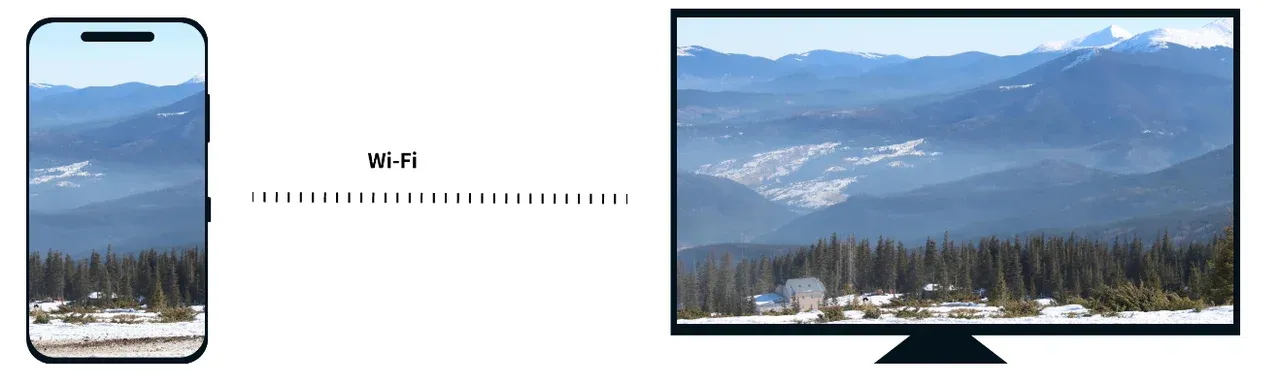
Wireless Screen Mirroring
The wireless method is highly convenient, allowing you to connect your devices via protocols or third-party tools like PigeonCast, which require physical cables. Check the tutorial on How to Connect Laptop to TV Without HDMI for screen mirroring.
Each method has its pros and cons in terms of setup, compatibility, and performance, depending on your use case.
Why Enable Screen Mirroring on Your Devices
Screen Mirroring offers numerous benefits, especially in professional, educational, and entertainment settings. Here's how screen mirroring can enhance your experience:
- Boosting productivity
In the workplace, screen mirroring allows for efficient collaboration during meetings, webinars, and presentations. You can quickly share your screen with colleagues, eliminating the need for physical documents or slides.
- Enhanced entertainment experience
Screen mirroring makes it easy to share videos, movies, music, or games from your mobile device to a larger TV screen. The final image quality depends on your device, network connection, and display settings, so adjusting the screen mirroring resolution can help improve clarity and viewing quality.
- Educational benefits:
Teachers can use screen mirroring to share their screen with students in a classroom setting. This allows for interactive lessons, video presentations, and live demonstrations of apps or content.
How to Enable Screen Mirroring on Your Devices
Setting up screen mirroring depends on your device and operating system, but the process relateively simple. Here's how to enable screen mirroring on various devices:
Enable TV Screen Mirroring
Many modern smart TVs support Miracast, AirPlay, or Google Cast, making it easy to mirror content from your devices. Here's how to set it up:
Step 1. Go to your TV's Settings or Network menu.
Step 2. Enable Screen Mirroring, Miracast, AirPlay, or Google Cast based on your TV's compatibility.
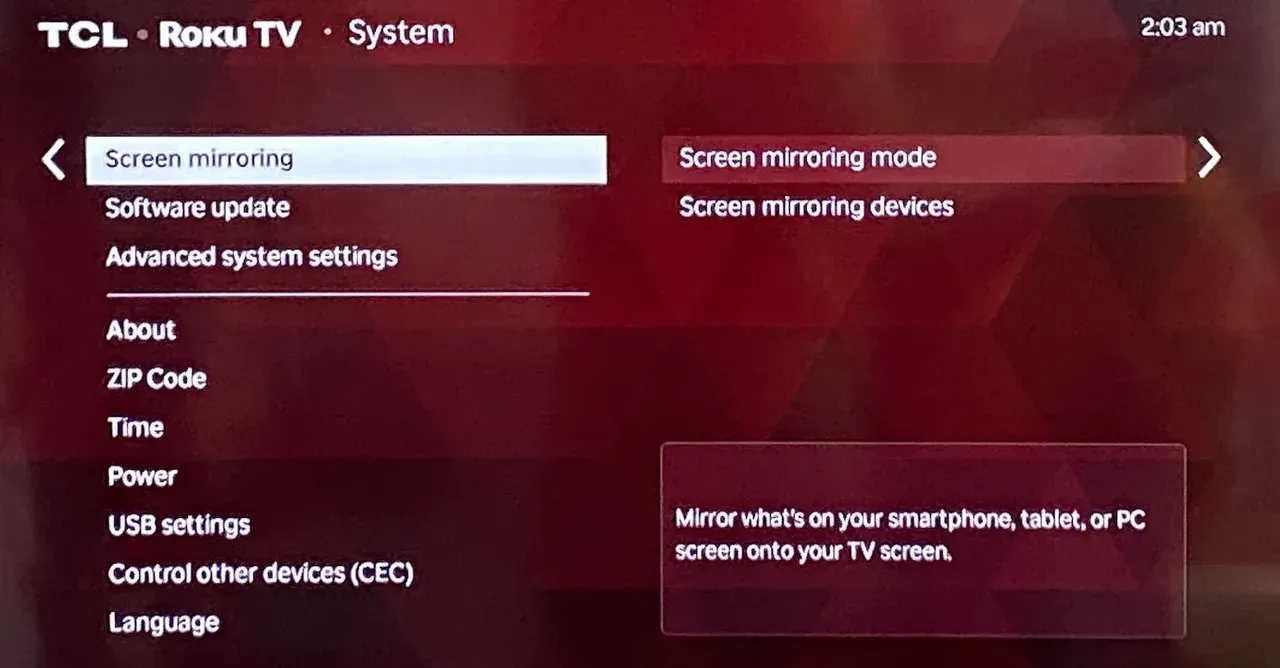
Once you've enabled screen mirroring on your TV, you can mirror content from any compatible device. Below, we'll explain how to add a TV to screen mirroring from your Windows PC, MacBook, Android, or iPhone.
Enable Windows Screen Mirroring
For Windows PCs, screen mirroring is easy to set up with built-in settings:
Step 1. Press Windows + P shortcut.
Step 2. Click Connect a wireless display on the Project menu.
Step 3. Choose your TV or display you want to connect to.
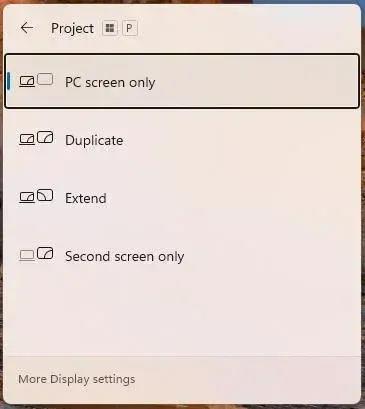 Note: Make sure both your Windows PC and TV are connected to the same Wi-Fi network.
Enable Mac Screen Mirroring
Mac devices offer seamless mirroring via AirPlay to compatible TVs or Apple TVs, and here's how to Airplay from MacBook to TV:
Step 1. Click the Control Center icon.
Step 2. Click the Screen Mirroring option.
Step 3. Select the device you want to mirror to, such as an Apple TV or AirPlay-enabled smart TV.
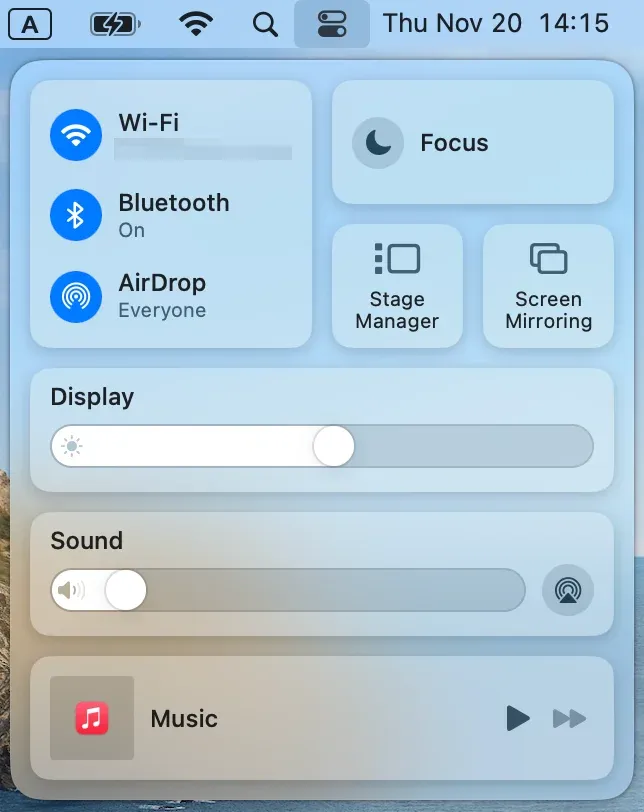
Note: Ensure that the receiving device is compatible with AirPlay and on the same Wi-Fi network.
Enable Android Screen Mirroring
Many Android devices support Miracast or Google Cast for wireless screen mirroring, and you can start screen mirroring on an Android device like this:
Step 1. Go to the Quick Settings menu on your Android phone.
Step 2. Tap Cast, Smart View, or Wireless Display.
Step 3. Choose the device you want to mirror to from the available list.
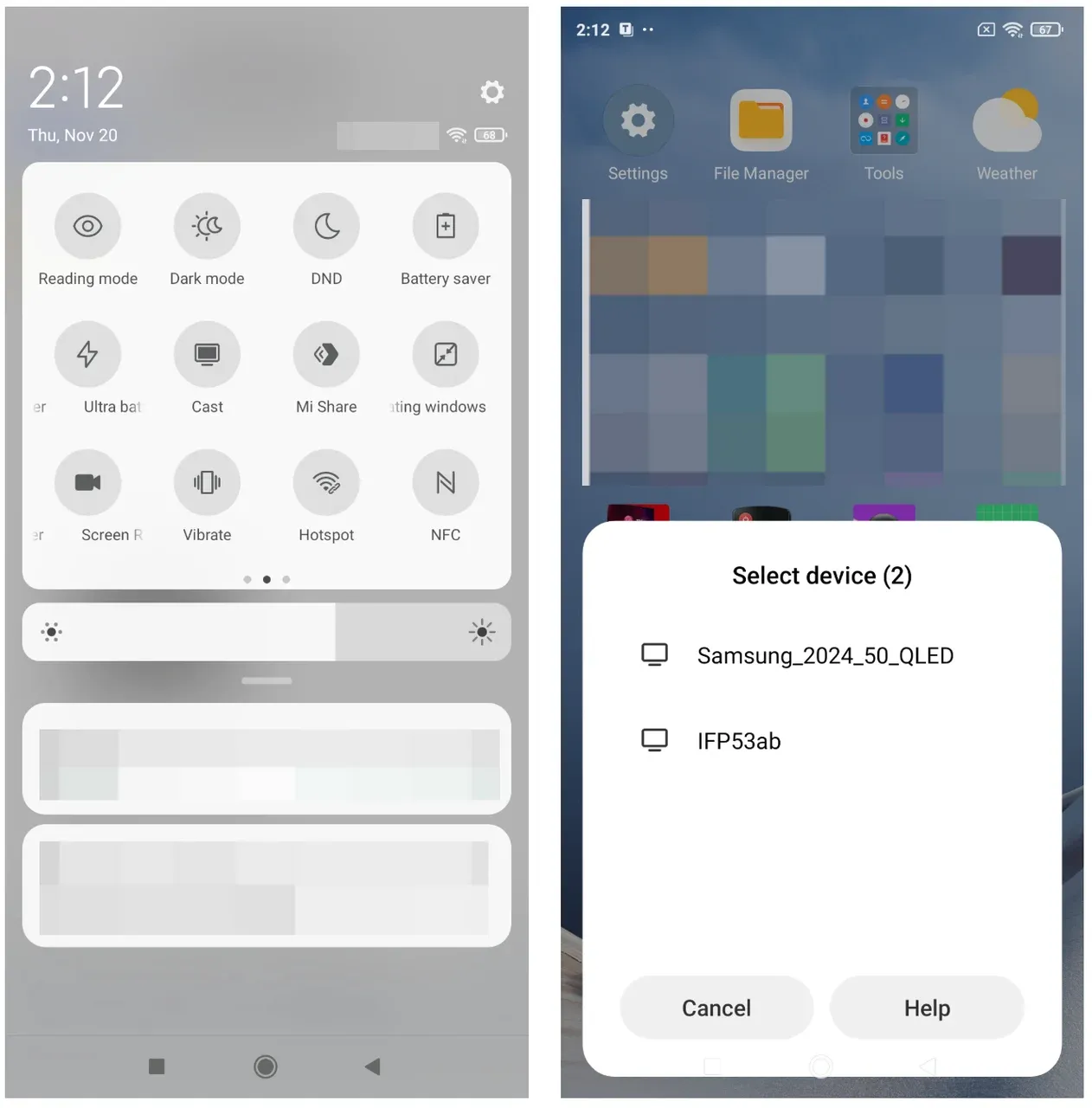
Note: Ensure both your Android device and the receiving device are connected to the same Wi-Fi network.
Enable iPhone Screen Mirroring
iPhones and iPads use AirPlay for seamless screen mirroring to Apple TVs and other compatible devices. So, you can mirror your iPhone easily:
Step 1. Open Control Center > Screen Mirroring.
Step 2. Select the AirPlay-enabled device you want to mirror to, such as an Apple TV or a compatible smart TV.
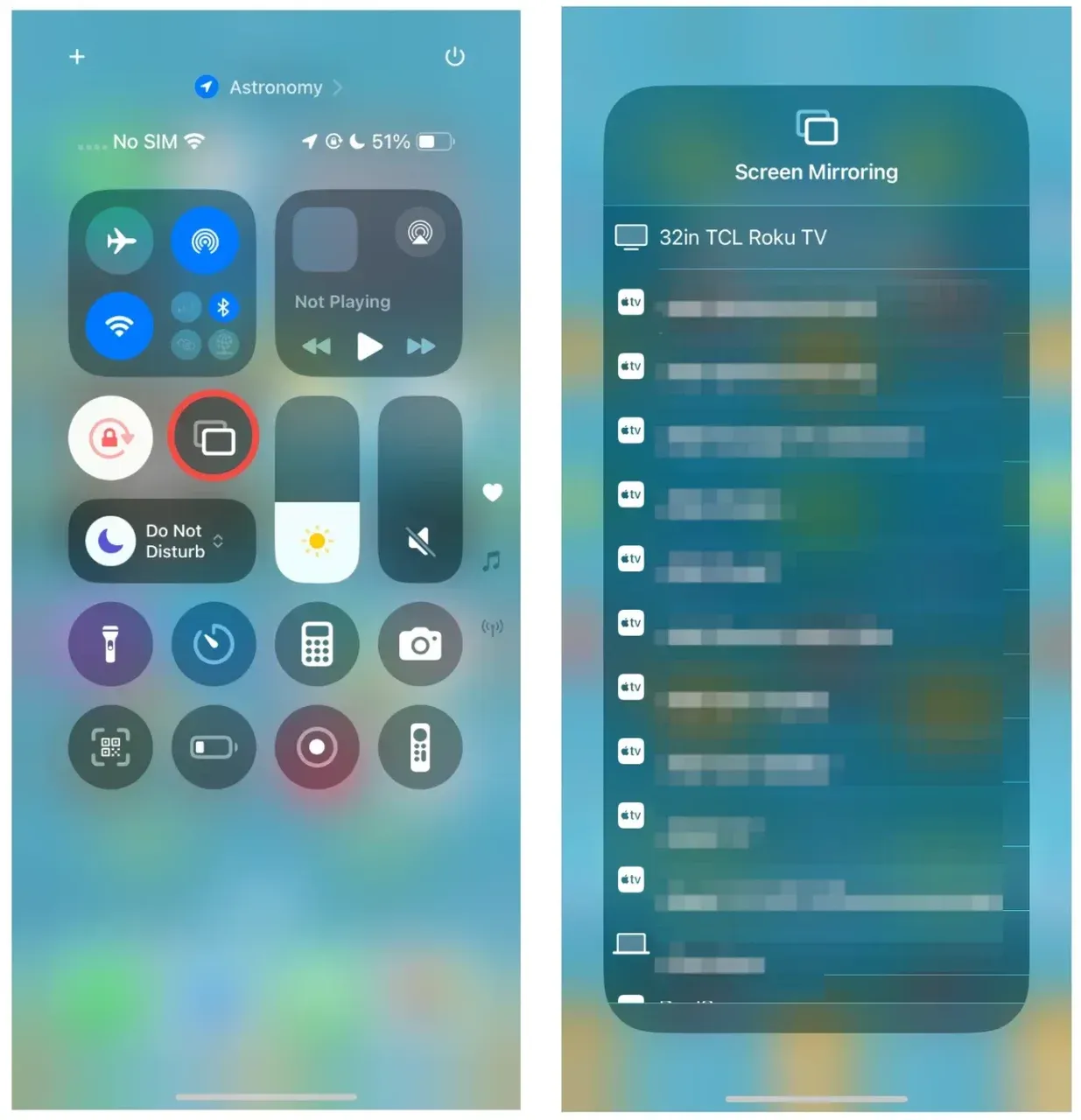
Note: Both the iOS device and the receiving device must be connected to the same Wi-Fi network.
Enable Screen Mirroring with PigeonCast
The native screen mirroring feature often comes with limitations tied to specific ecosystems and device compatibilities. To overcome these restrictions and unlock more flexibility, using an external tool can offer cross-platform compatibility, better performance, and enhanced features.
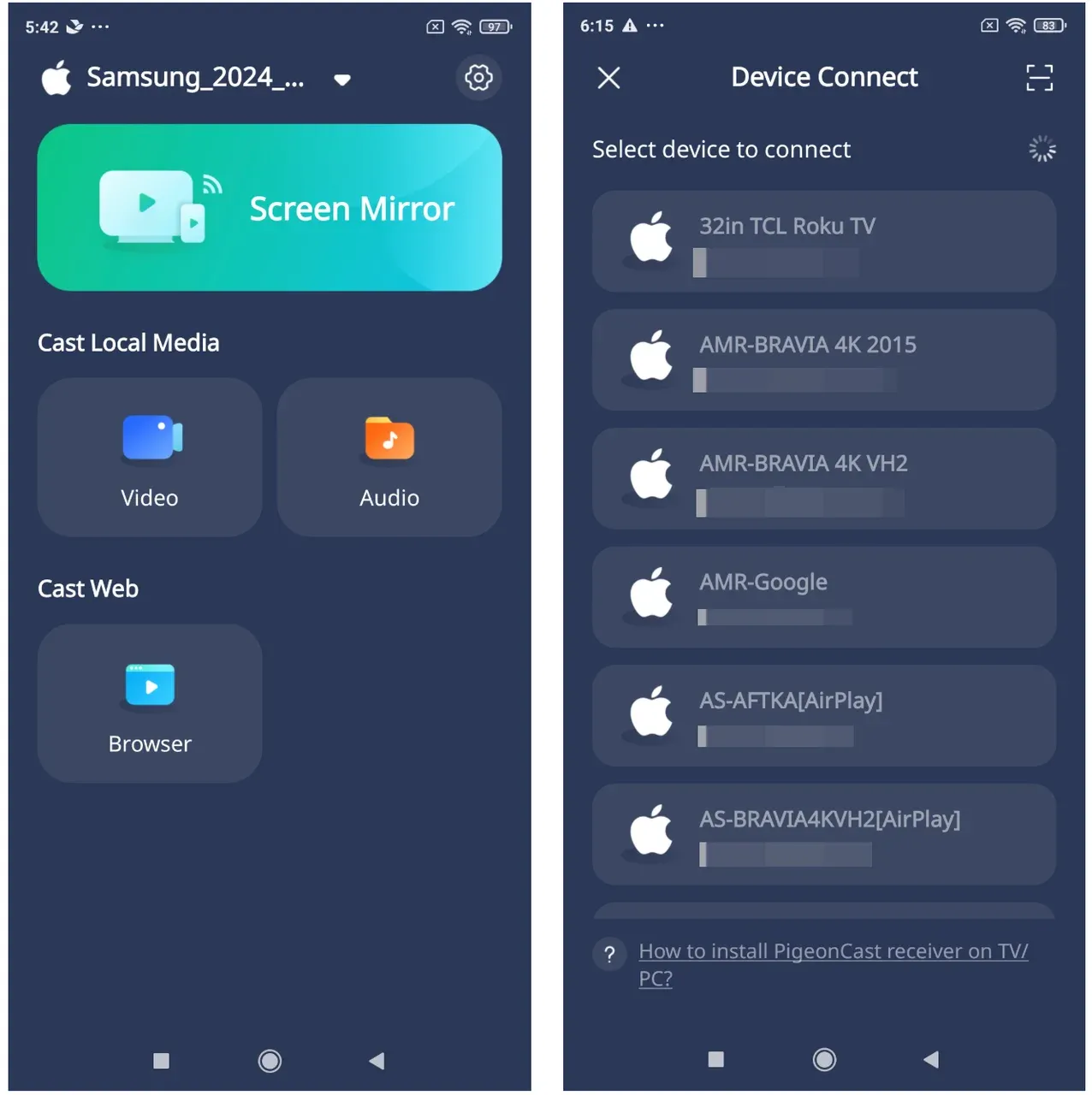
Here's how to use PigeonCast for seamless screen mirroring:
Step 1. Download and install PigeonCast on both your devices.

PigeonCast Screen Mirroring

Official Download



Step 2. Ensure your two devices are connected to the same Wi-Fi network.
Step 3. Launch the app on both devices. On the sender, choose the PigeonCast-enabled device and follow the onscreen instructions to start mirroring.
Enable Screen Mirroring with HDMI Cable
HDMI offers a simple and reliable way to mirror your screen with a wired connection. Here's how:
Step 1. Connect the HDMI cable (an HDMI adapter may be needed) from your device to the TV or monitor.
Step 2. Select the HDMI input on your TV.
Using HDMI ensures a stable, high-quality connection with no lag, making it ideal for high-definition content.
Limitations and Challenges of Screen Mirroring
Although screen mirroring is incredibly useful, it comes with a few limitations that users should be aware of.
- Compatibility issues:
Not all devices and operating systems are compatible with each other. For instance, a Windows laptop doesn't support AirPlay, and an Android device might not work with Apple TV, requiring apps or software. Luckily, third-party apps can bypass the ecosystem limits.
- Latency and quality issues:
Wireless screen mirroring can sometimes experience lag, especially when streaming high-definition videos or during gaming. This can affect user experience and is particularly noticeable in fast-paced activities.
- Security risks:
Screen mirroring, especially wirelessly, can expose your content to unauthorized access if the connection is not properly secured. It's important to ensure your network and devices are secure to prevent any data breaches.
- Bandwidth requirements:
High-quality content, such as 4K videos, or intensive applications require a strong and stable network connection for smooth screen mirroring. Insufficient bandwidth may result in poor video quality or buffering.
Screen Mirroring vs Casting: Understanding the Difference
You may have another question related to screen mirroring: casting vs mirroring, what are the differences?
Screen mirroring and casting are both powerful tools for sharing content across devices, but they differ in functionality and use cases. Understanding these differences will help you choose the most suitable option based on your needs.
| Feature | Screen Mirroring | Casting |
|---|---|---|
| Definition | Duplicates the entire device screen on a larger display | Streams specific content (video/audio) to another device |
| Best For | Presentations, gaming, and real-time content sharing | Streaming movies, music, or media from apps |
| Advantages | Full-screen sharingNo app compatibility issuesWorks with a wide range of devices | Optimized for media streamingSmoother performance with less bandwidthBetter for high-quality video and audio |
| Disadvantages | May experience lag or quality lossDevice compatibility required | Limited to specific content (e.g., videos, music)Dependent on app/platform compatibility |
While screen mirroring is best for full-device sharing, casting excels in media streaming. However, both methods have their limitations, especially in terms of device compatibility and network performance. To overcome these restrictions and enhance your mirroring experience, third-party tools like PigeonCast offer greater flexibility and cross-platform compatibility.
Conclusion
Screen mirroring is an invaluable tool for sharing content across devices, whether for work, entertainment, or education. By understanding the different methods available, you can choose the best solution for your specific needs.
While the native screen mirroring features on devices like Windows, iOS, and Android are convenient, they often come with limitations, such as ecosystem compatibility issues and reduced performance for high-quality streaming. To overcome these restrictions, using third-party tools can unlock greater flexibility, better performance, and more advanced features.
However, it's important to ensure you download and use third-party screen mirroring apps from trusted sources to avoid security risks. Always verify the app's reputation and user reviews before installing to ensure a safe and reliable experience.
What Is Screen Mirroring FAQs
What does screen mirroring icon look like?
The screen mirroring icon varies depending on the device and operating system. On iOS devices, it typically appears as a two rectangles overlapping, which is the AirPlay icon. On Android devices, the icon might look like a TV screen with a Wi-Fi signal or simply say "Cast". On Windows, it can be a monitor icon with a Wi-Fi symbol or labeled as "Project" in the display settings.
What is the purpose of screen mirroring?
The purpose of screen mirroring is to share the exact content of one device's screen with a larger display, such as a TV or projector. This is useful for a wide range of scenarios, including:
- Presentations or meetings (sharing your screen with a group)
- Watching movies or videos on a larger display
- Playing games or showing apps on a big screen
- Sharing photos or documents for educational purposes
Can someone mirror my iPhone without me knowing?
No, someone cannot mirror your iPhone without your knowledge unless you have already connected to a device via AirPlay or another mirroring tool. Screen mirroring requires both devices to be on the same Wi-Fi network and for the user to manually allow the connection. iOS will prompt you with a notification when a device tries to connect via AirPlay, so you'll be aware of any attempted mirroring. However, it's always a good practice to disable AirPlay in the Control Center if you're concerned about unauthorized access.
How do I turn off screen mirroring?
To turn off screen mirroring, follow these steps based on your device:
- iPhone/iPad: Open the Control Center, tap on the Screen Mirroring button, and select Stop Mirroring.
- Android: Go to Settings > Connected Devices > Cast and tap the Disconnect or Stop Casting option.
- Windows: Press Windows + P, select Disconnect or choose PC screen only to stop mirroring.
- Smart TV: Simply change the input source on your TV to another HDMI or app, or turn off the screen mirroring feature in your TV's settings.
How can I solve screen mirroring lag?
To minimize lag, ensure both devices are connected to a high-speed Wi-Fi network and that no other devices are hogging bandwidth.
Is there a free screen mirroring app?
Yes, PigeonCast is a free, ad-free screen mirroring application that supports screen mirroring across Windows, Android, and iOS devices.
How do I mirror my Android phone to my TV for free?
To mirror your Android phone to your TV for free, you can use Google Cast or Miracast from the Quick Settings menu, and choose your TV from the device list. Alternatively, you can use free apps like PigeonCast, which allow wireless mirroring without any extra cost. Simply ensure both your phone and TV are connected to the same Wi-Fi network, and follow the mirroring instructions in the app.
How can I mirror my PC to a TV without HDMI?
To mirror your PC to a TV without HDMI, you can use wireless options like Miracast (if supported by your PC and TV) or use third-party apps like PigeonCast. These apps allow you to mirror your PC screen to a TV over Wi-Fi. Make sure both devices are connected to the same network for a smooth experience.
Why is my screen mirroring not working?
Screen mirroring issues can arise due to several factors, including:
- Device compatibility: Ensure that both devices support the same mirroring protocol (e.g., AirPlay, Miracast, or Google Cast).
- Network connection: Both devices must be connected to the same Wi-Fi network.
- Outdated software: Check for updates on both your device and the receiving device to ensure compatibility.
- Interference: Other devices connected to the network may cause interference, so consider disconnecting unused devices.
Is screen mirroring safe for streaming personal content?
Screen mirroring is generally safe, but it can pose a risk if you are streaming sensitive or personal content over an unsecured connection. If you are using a Wi-Fi network for screen mirroring, ensure that the network is secure and that you trust the receiving device. It's also important to check if the app or device you are using for screen mirroring has encryption or secure protocols in place to protect your data. To further reduce the risk, always turn off screen mirroring when it's not in use, especially on public or shared networks.
Mia Clarke is a technology editor specializing in screen mirroring and casting solutions across multiple platforms. Mia provides clear, practical guides and in-depth insights to help users seamlessly connect their devices. Passionate about enhancing digital experiences, Mia is dedicated to keeping readers updated on the latest trends and tools in cross-platform screen sharing. Whether you’re looking to mirror your smartphone, laptop, or smart TV, Mia’s content delivers reliable, user-friendly advice to simplify your tech setup.