
How to change screen mirroring resolution? In many setups, you cannot simply flip one master switch to force perfect 1080p or 4K. Instead, you improve resolution by aligning source settings, network stability, and receiver limits. This guide gives a clear cross-platform process for iPhone, Android, Windows, and Mac, then covers fallback options when direct resolution controls are missing.
Why Screen Mirroring Resolution Drops
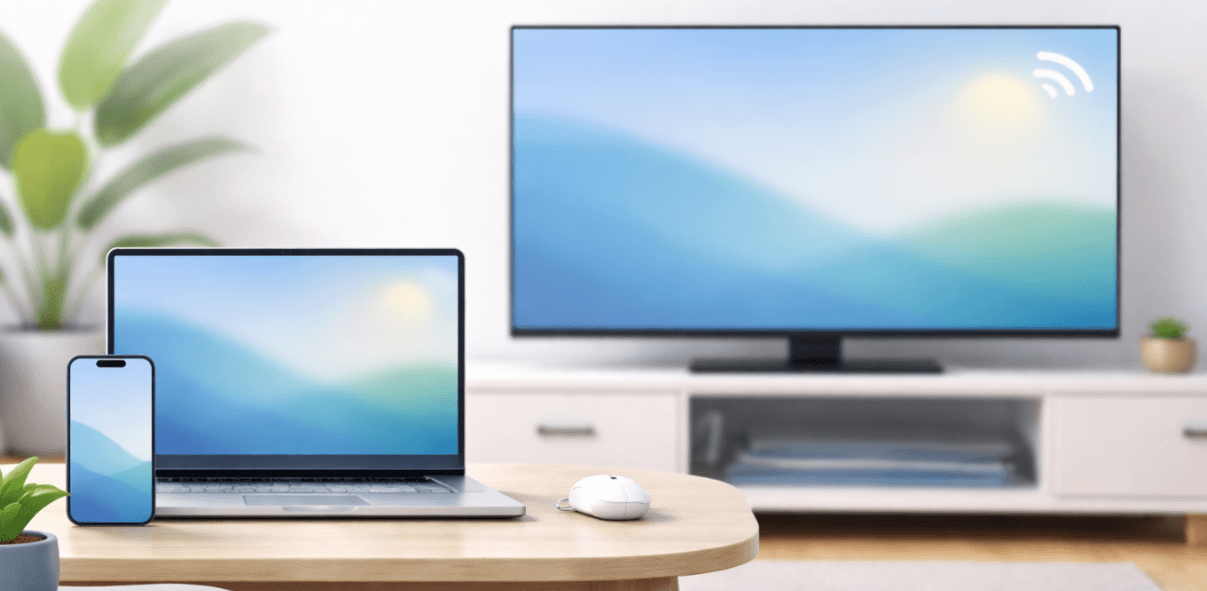
Screen mirroring quality depends on four main things: your device, the casting technology, the receiving device, and your network connection. Even if your TV supports 4K, the mirrored image may still drop to 1080p or 720p if the connection or devices can't handle higher quality. Here are the most common reasons:
-
Source device: Your phone or computer may limit the output resolution or refresh rate.
-
Casting technology: AirPlay, Google Cast, and Miracast handle video quality differently.
-
Receiver limits: Some TVs, dongles, or apps only support certain resolutions.
-
Network quality: Slow or unstable Wi-Fi can force the stream to lower its resolution.
How to Change Screen Mirroring Resolution
After understanding why screen mirroring quality becomes lower, it's time to fix or change display resolution on second screen. The sections below explain how to change screen resolution on multiple monitors to adjust and practical solutions, organized by device type, to help you improve mirroring quality.
iPhone/Mac and AirPlay
AirPlay does not provide a manual option to select AirPlay resolution. Instead, the system dynamically negotiates the best resolution based on Wi-Fi bandwidth, device performance, and the supported resolution of the receiving display.
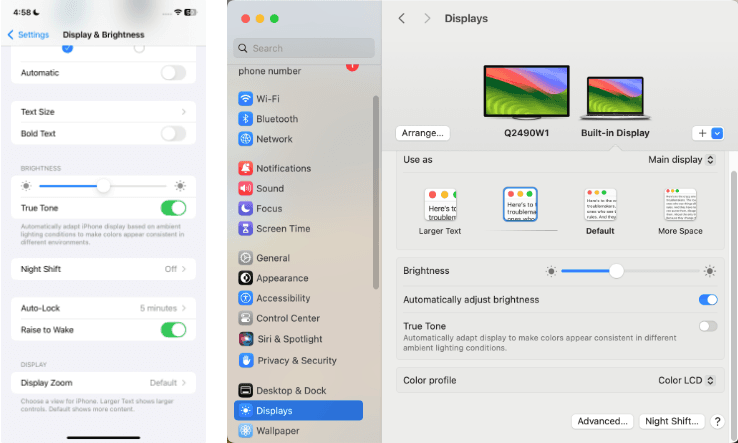
Step 1. On iPhone, open Settings > Display & Brightness and disable Zoomed view; on Mac, open System Settings > Displays and choose a native or suitable scaled mode.
Step 2. Connect both the Apple device and the AirPlay 2 receiver to the same 5 GHz Wi-Fi network, and avoid guest networks that may limit bandwidth.
Step 3. After adjusting settings, restart AirPlay mirroring so the system can renegotiate the optimal resolution.
Step 4. Test mirroring using detailed content (for example, text-heavy pages or high-resolution photos) to better evaluate clarity.
Step 5. If available on the TV or receiver, use a neutral picture mode such as Standard or Filmmaker to avoid additional image processing that may soften details.
Android and Google Cast
Google Cast works differently from screen mirroring technologies like Miracast. If casting appears compressed or blocky on Chromecast or Google TV, improving network quality and app playback settings usually produces the best results.
Step 1. Make sure the Android device and Chromecast are connected to the same Wi-Fi network, preferably a 5 GHz band.
Step 2. Move the Chromecast or router closer to reduce signal interference.
Step 3. In streaming apps such as YouTube or Netflix, manually select High, HD, or Best available quality if the option exists.
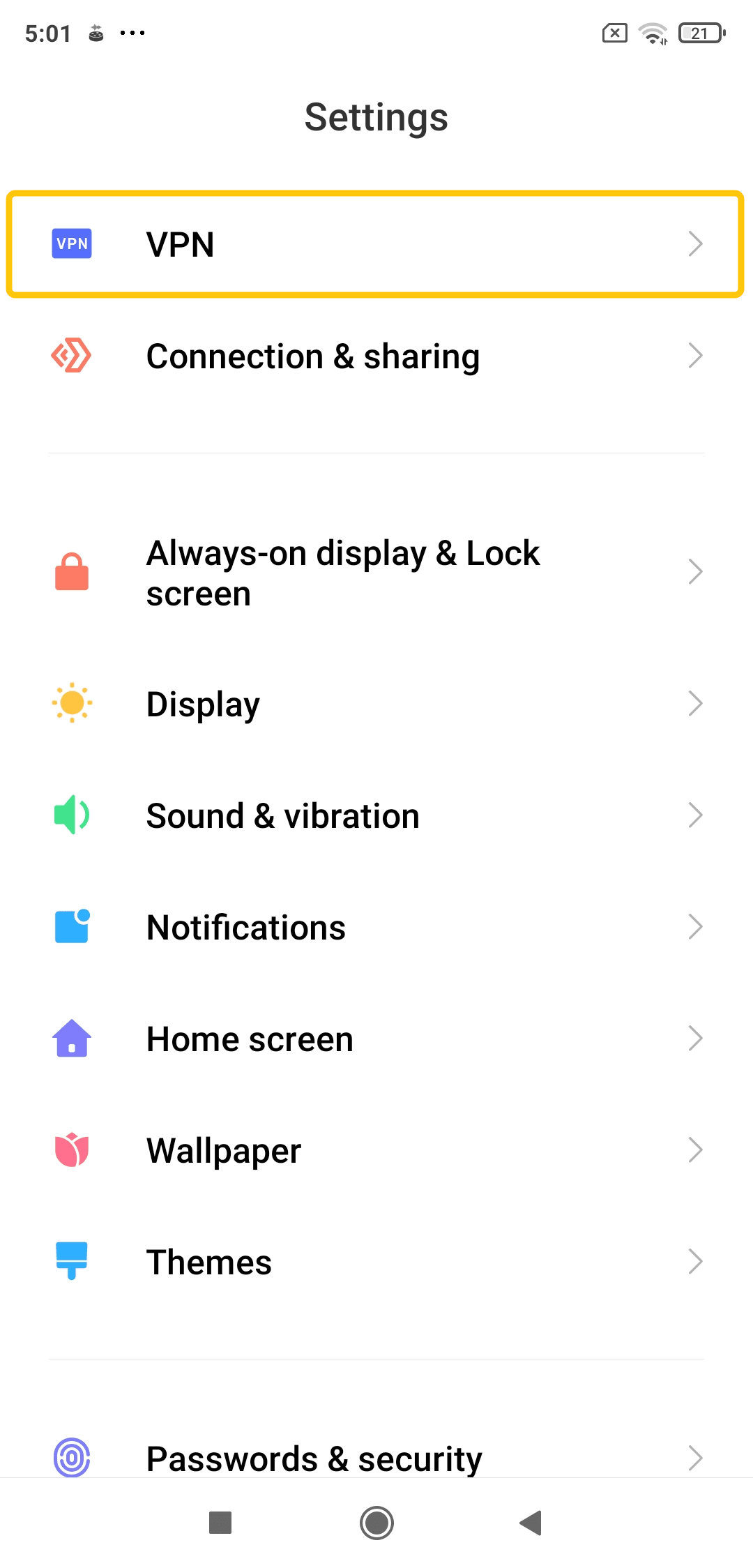
Step 4. Temporarily disable VPN or private DNS, which can sometimes reduce streaming quality.
Step 5. Stop casting and reconnect to Chromecast, so the streaming session restarts with updated conditions.
Windows and Miracast
Miracast works similarly to a wireless HDMI connection. Windows mirrors your desktop in real time and encodes it as a video stream that is sent to the receiving device. The mirrored output is based directly on the Windows desktop resolution, incorrect scaling or refresh rate settings can make the image appear blurry or compressed on the TV. Read on to check how to change resolution when screen mirroring:
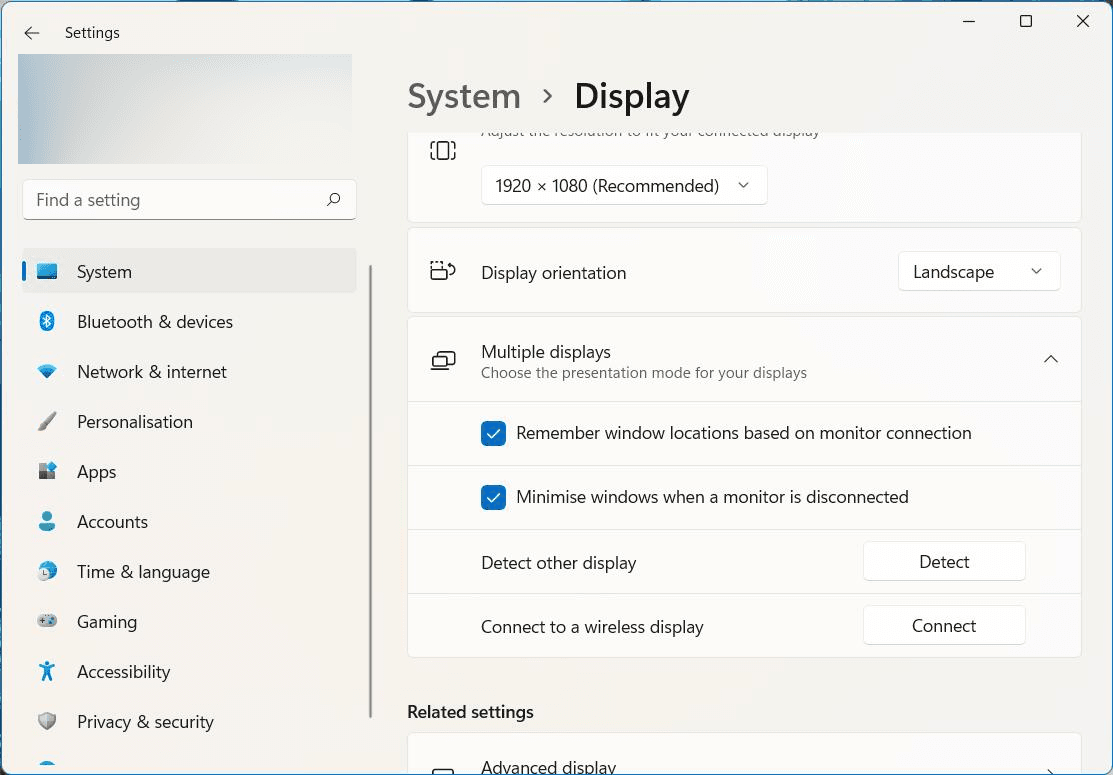
Step 1. Open Settings > System > Display and set your desktop resolution to the panel's native target before casting.
Step 2. In Advanced display, test 60 Hz first; unstable links at higher refresh rates can lower effective quality.
Step 3. Update GPU and Wi-Fi drivers from the device manufacturer.
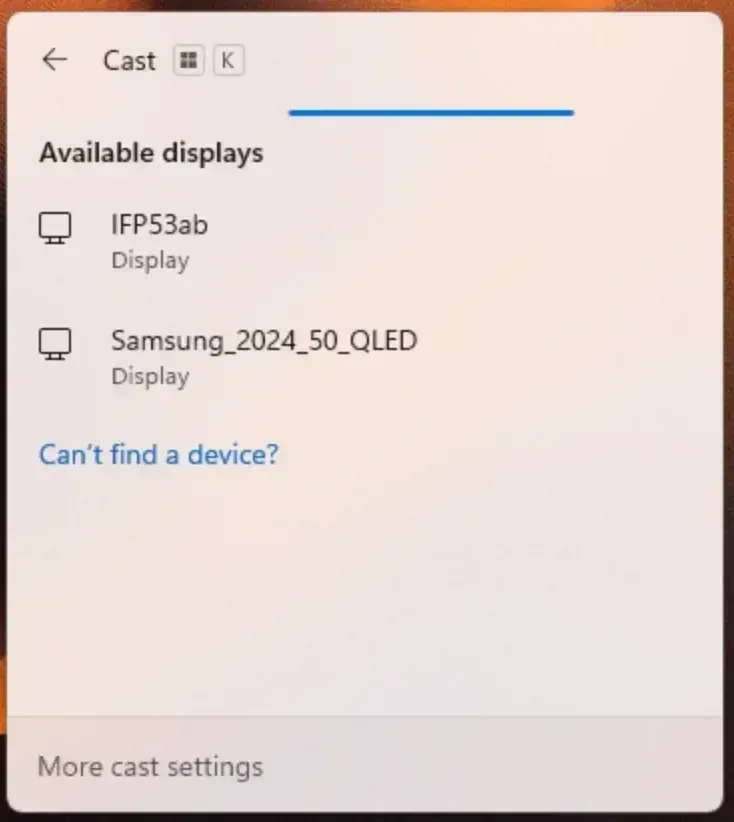
Step 4. Press Win + K, disconnect the wireless display, and reconnect after updating drivers.
Step 5. If text appears soft, disable heavy motion smoothing or noise reduction in the TV picture settings.
Fix Screen Mirroring Quality When It Won't Reach 1080p or 4K
If your mirrored display still doesn't reach 1080p or 4K quality, the issue may come from bitrate limits, display settings, or wireless bandwidth constraints. The options below focus on practical adjustments that often improve clarity and stability.
Option 1. Tune App Bitrate and Stream Quality
If the streaming app provides manual quality settings, increasing the playback quality or bitrate can improve image clarity during casting. However, this adjustment usually has little effect on full-device mirroring, where the streaming quality is controlled by the system rather than the app.
Step 1. In your streaming app, manually set playback quality to the highest stable option available.
Step 2. Reduce network congestion by pausing other heavy activities such as cloud backups, large downloads, or game updates.
Step 3. Reconnect screen mirroring and test using a high-detail scene (for example, small text or complex textures) for at least 30–60 seconds to evaluate quality.
If the steps above still don't deliver stable 1080p or 4K mirroring, the limitation may come from the casting protocol, device compatibility, or network conditions. In these situations, trying a different screen casting app may help maintain better streaming quality.
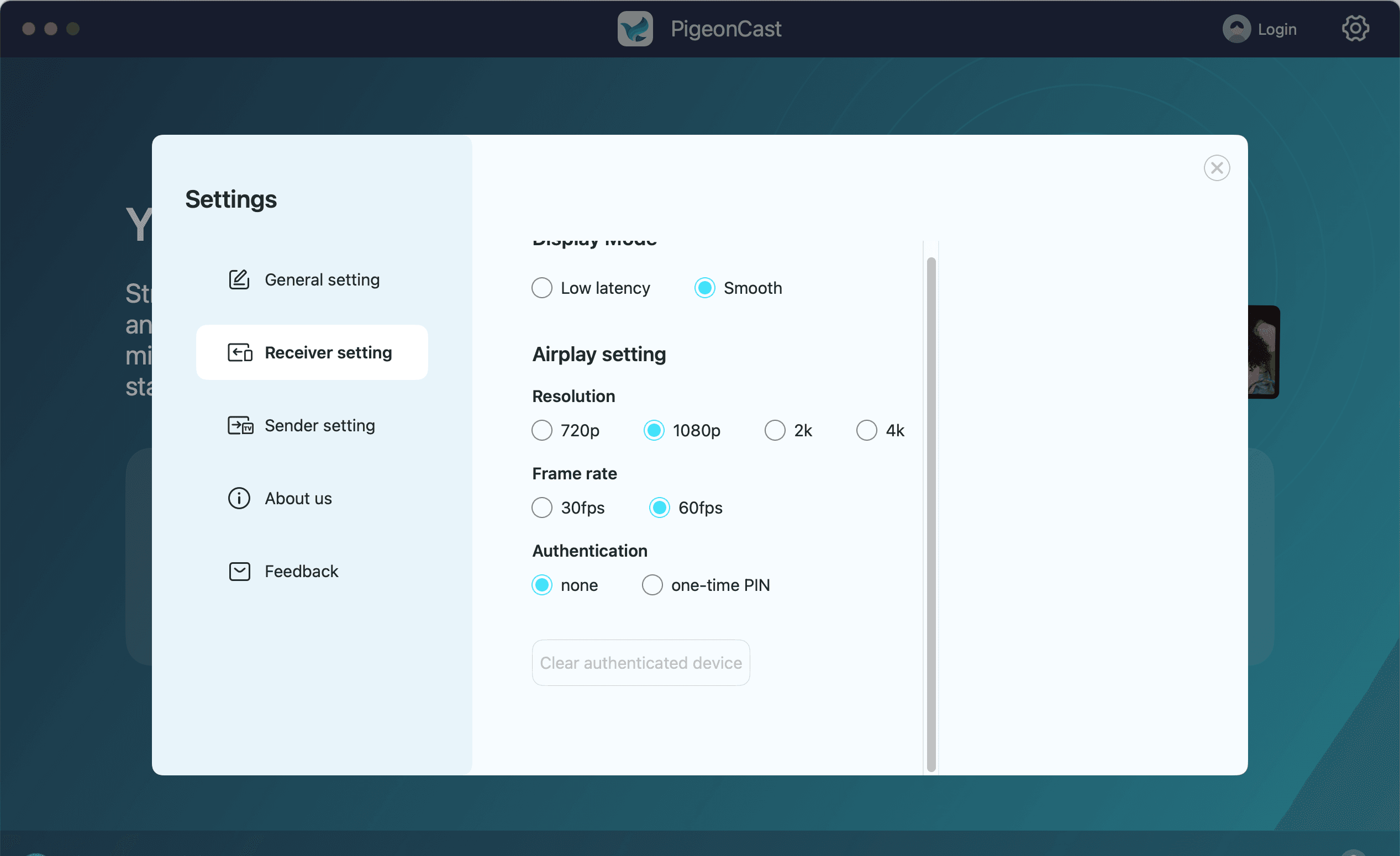
PigeonCast, for example, can help stabilize screen output and reduce compression artifacts on certain TV setups when native AirPlay, Google Cast, or DLNA connections struggle to maintain quality.


Overall Rating:



For example, PigeonCast is a screen mirroring app that supports streaming content in up to 4K resolution with minimal latency, which can provide a smoother viewing experience on compatible devices (Android, iOS, Windows, Mac, and TVs) and networks.
Option 2. Adjust Source Refresh Rate and Display Scaling
If you're mirroring from a laptop or desktop and the text or interface looks blurry on the TV, adjusting the device's refresh rate or display scaling can help improve clarity. This works best on computers with full display settings and may have limited effect on phone-to-TV mirroring, where display controls are more limited.
Step 1. Set the source device's display resolution to the native resolution supported by the TV, typically 1080p or 4K.
Step 2. If the connection appears unstable, reduce the refresh rate to a stable baseline (usually 60 Hz).
Step 3. Restart mirroring and compare text clarity and interface sharpness before adjusting other settings.
Option 3. Use a Wired Connection for Stable Output
If wireless mirroring still cannot deliver stable 1080p or 4K quality, switching to a wired connection can provide a more consistent and reliable output. This option is especially helpful for presentations, detailed documents, or other situations where image clarity matters, though it may not be suitable if you need full wireless mobility.
Step 1. Connect the device to the TV using HDMI or a USB-C–to-HDMI adapter that supports your target resolution.
Step 2. Set the output resolution directly in the device's display settings.
Step 3. Confirm that the HDMI cable and TV input support the selected resolution and refresh rate.
To Sum Up
How do I change screen mirror resolution? Screen mirroring resolution depends on your device settings, network quality, and the casting technology used. By optimizing display settings, improving your Wi-Fi connection, and checking receiver limitations, you can often achieve clearer mirroring. If quality still drops below 1080p or 4K, consider using a wired connection or an alternative casting app.
How to Change Screen Mirroring Resolution FAQ
How to change screen mirroring resolution iPhone?
You cannot manually set the screen mirroring resolution on an iPhone. AirPlay automatically adjusts the resolution based on your network speed, the iPhone's performance, and the capabilities of the receiving device (such as an Apple TV or compatible smart TV). To improve screen mirroring quality on iPhone, you can:
-
Disable Display Zoom: Go to Settings > Display & Brightness > Display Zoom and select Standard.
-
Use a strong Wi-Fi connection: Connect both the iPhone and the receiver to the same 5 GHz Wi-Fi network.
-
Restart AirPlay mirroring after changing settings so the system can renegotiate the best resolution.
-
Reduce network congestion by pausing large downloads or other heavy network activity.
How to change screen mirroring resolution iPad?
You cannot manually change the screen mirroring resolution on an iPad. When using AirPlay, the system automatically adjusts the resolution based on your Wi-Fi network quality, the iPad's performance, and the capabilities of the receiving device (such as Apple TV or a compatible smart TV).
How to fix screen mirroring resolution Android?
You usually cannot manually set a specific screen mirroring resolution on Android. When using Google Cast or similar casting features, the system automatically adjusts the resolution based on network speed, device performance, and the capabilities of the receiving device. To improve screen mirroring resolution on Android, try these steps:
-
Use a stable Wi-Fi connection
-
Move closer to the router
-
Set higher playback quality in apps
-
Close background apps
-
Reconnect screen mirroring
How to change display resolution on third monitor?
Changing the display resolution on a third monitor depends on your operating system, but the process is generally similar to adjusting any external display.
-
On Windows
-
Right-click on the desktop and select Display settings.
-
Scroll to Rearrange your displays and select the third monitor.
-
Under Display resolution, choose the resolution you want (for best clarity, select the recommended or native resolution). Click Keep changes to apply the setting.
-
-
On macOS
-
Open System Settings > Displays.
-
Select the third monitor from the display panel.
-
Choose Default for display or select a Scaled resolution.
-
The change will apply automatically.
-
How to change screen resolution on Vizio TV?
You cannot directly change the screen resolution setting on most Vizio TVs. The TV automatically displays the resolution that is sent from the connected device (such as a streaming box, game console, or computer). To adjust the resolution on a Vizio TV, change the output resolution on the source device instead.
How do you change the screen size when mirroring?
You usually cannot directly change the screen size during screen mirroring, because the mirrored display automatically matches the aspect ratio and resolution of the source device. However, you can adjust a few settings to improve how the mirrored screen fits your TV.
-
Open your TV's picture settings and look for Aspect Ratio, Screen Fit, or Just Scan. Setting it to Full, 16:9, or Screen Fit can remove black bars or stretching.
-
On computers, adjust display scaling or resolution in the system display settings before starting mirroring.
-
On devices like iPhone or iPad, turning off Display Zoom can help the mirrored screen fit better.
-
Some devices allow "extend display" or "fit to screen" options instead of simple mirroring.
Clara Rossi is an experienced technology editor and a seasoned expert in screen mirroring and casting technologies. With a keen eye for detail and a deep understanding of how to seamlessly connect devices, Clara excels at optimizing user experiences for effortless sharing and streaming. Whether you're seeking quick fixes or advanced tips, her expertise and responsiveness ensure that every query is met with a well-informed and efficient solution.