

A broken phone screen can be extremely frustrating, especially when you need to watch a stunning movie, retrieve important data, or use apps in a hurry. The problem becomes more serious when USB debugging is not enabled. How to view broken phone screen without USB debugging? Whether your phone screen is cracked, black, or unresponsive, this blog will help you view Android screen on PC and regain access to your device.
What's USB Debugging and Why It Matters
USB debugging is a mode in Android devices that allows communication between a phone and a computer using ADB (Android Debug Bridge). It is primarily used by developers, but also crucial for tasks such as screen mirroring, data recovery, or app installation from a PC.
However, USB debugging must be turned on manually while the screen is still usable. If the screen is broken and you haven't previously enabled it, you cannot rely on USB-based mirroring or control tools. How to access Android phone on PC with broken screen? Although this case is a little tricky, don't worry; easy solutions are shared below.
How to View Broken Phone Screen on Computer Without USB Debugging
Understanding your specific situation will help determine which method works best. Here are three common broken screen scenarios and what you can do:
Phone Screen Is Visible and Touchable
Luckily, this is the best-case scenario. Your phone screen is visibly broken, but still works when you tap on it. In this case, you can easily view the screen on your computer via a screen mirroring app. PigeonCast apps might be the best choice, which enable you to mirror broken Android screen on PC without USB debugging.
About PigeonCast apps:
- Fully wirelessly screen mirroring over the same Wi-Fi network.
- No need to enable USB debugging
- Support mainstream mirroring protocols, including AirPlay, Google Cast, and DLNA
- Designed for Windows and Mac
Therefore, whether you are trying to mirror broken screen Android to PC or just want a simple way to display your phone screen on a computer, PigeonCast apps are worth trying, offering a clean and efficient solution.
How to mirror broken phone screen on computer via PigeonCast? Follow the steps below:
Step 1. Make sure that your Android phone and Windows PC or Mac are connected to the same Wi-Fi network.
Step 2. Download the Pigeoncast desktop app on your PC, depending on whether you have a Windows PC or MacBook.

PigeonCast Screen Mirroring

Official Download



Step 3. Just launch the desktop app on your PC, and then the device becomes a universal receiver, discoverable by your Android without OS barriers.
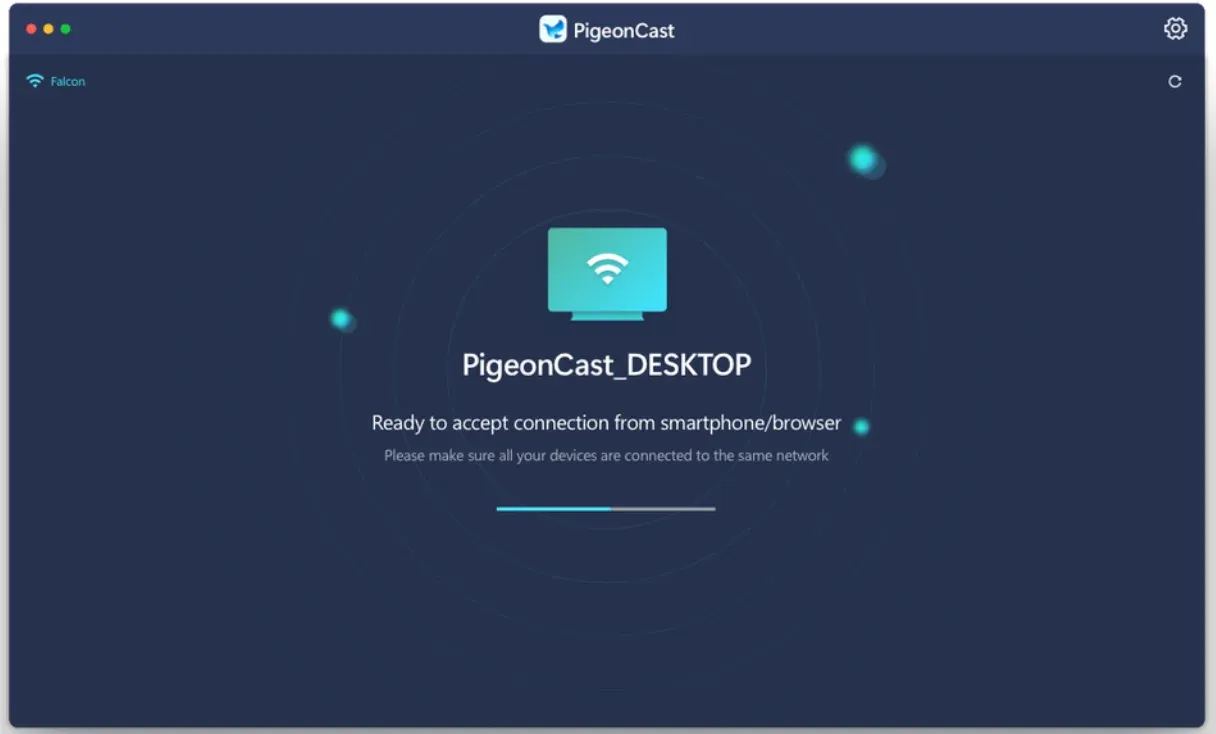
Step 4. Swipe down your broken phone screen, tap the cast button (the feature varies on different brands), then choose the target computer.
Step 5. Follow the on-screen instructions to complete the connection. Once connected, you can view your phone screen clearly on your computer, free from the visual obstruction caused by the cracks.
PigeonCast works well for those searching for how to view broken phone screen on computer when the Android device is still partially functional.
Phone Screen Is Visible But Untouchable
How to view phone screen on PC? In this scenario, the phone screen is still displaying content, but the touchscreen no longer responds. While this limits your control, you can still operate the phone using a mouse or keyboard.
If your phone supports OTG (On-The-Go), you can connect a USB mouse directly to your phone to access it again and view it on the computer. The process goes like:
Step 1. Use an OTG adapter to connect a USB or wireless mouse to your phone.
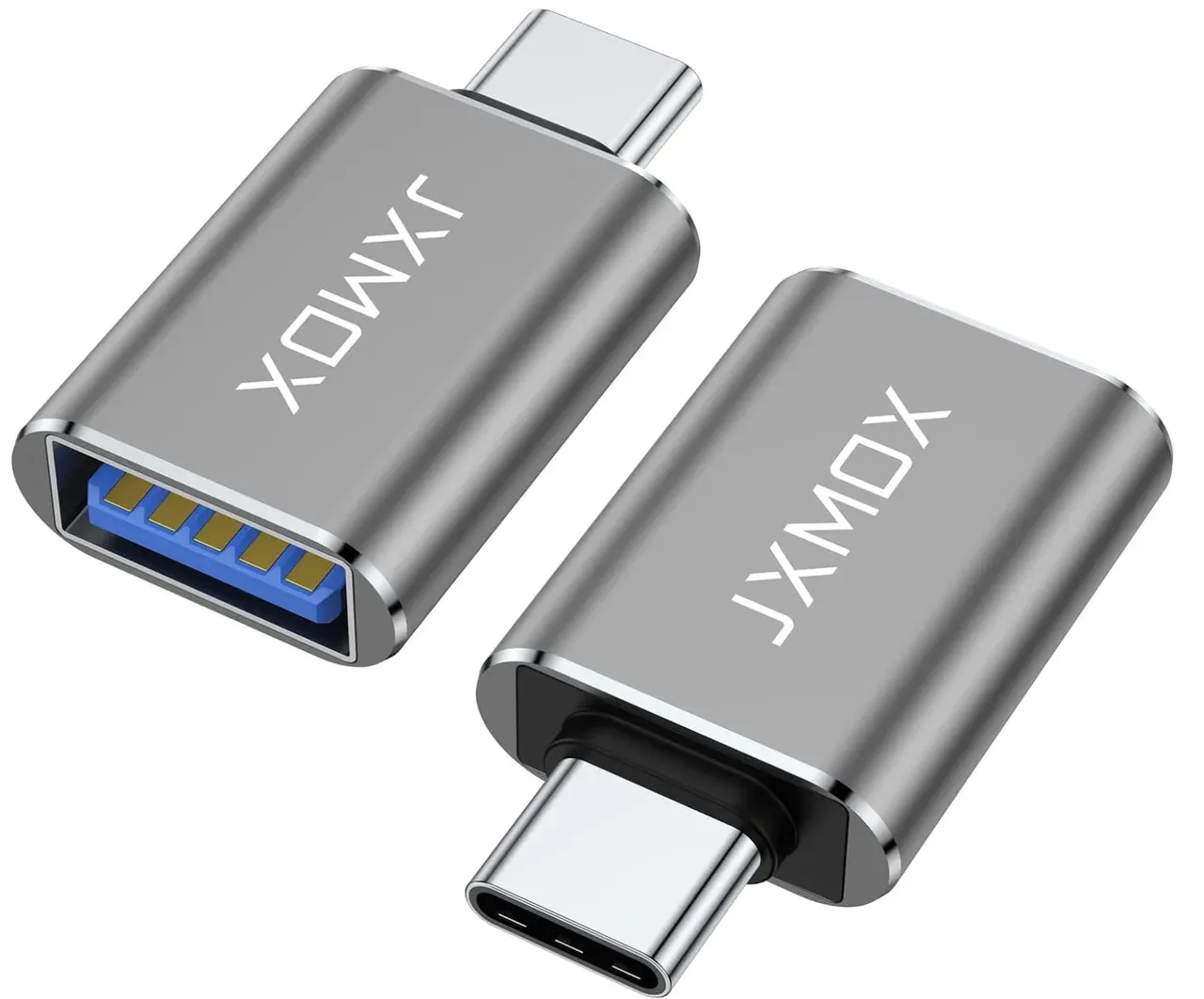
Step 2. The mouse cursor will appear on your phone screen as a replacement for touch. So, use the mouse to unlock or navigate your phone.
Step 3. Use PigeonCast apps to display content from your phone onto the computer screen as the steps listed above.
Important Note:
If your phone screen is broken and unresponsive, now is the critical time to back up your important data. Situations like this can escalate quickly: what is visible today may become completely inaccessible tomorrow. Once you've managed to display your screen or regain basic controls using a mouse, make data backup your top priority.
Transfer essential files, photos, videos, and documents to your PC or an external storage device as soon as possible. This may be your last chance to safeguard your data before the device becomes completely unusable. We find a universal how-to guide on phone backup, and you can follow it if you're unclear about that process.
Phone Screen Is Black and Unresponsive
This is the most challenging situation. If your screen is black and there is no response to touch, and you have not previously enabled USB debugging or any remote access features, your options are very limited. But don't worry; first, do some checks; then, try simple fixes.
Step 1. Check if your phone is still working internally
Although the phone screen is black, this doesn't mean the entire phone is dead. To verify, try the following:
- Call your phone from another device: if it rings or vibrates, your phone is still functioning internally.
- Plug your phone into a charger: look for charging sounds, LED lights, or vibration. These signs indicate the phone is working, but the display is broken.
- Connect your phone to PC via USB: if your computer recognizes the device, then it's likely a display issue.
Step 2. Force restart your phone
Press and hold down the power button or a combination of buttons, such as the power and volume buttons, until you feel a vibration. Sometimes, a force reboot can fix black screen issues caused by a crash or system glitch.
Step 3. Charge your phone
Connect your phone to a power source using the official cable and adapter. This is to ensure it has enough battery charge.
If your phone screen reverts, you can use the screen mirroring apps mentioned above to view your phone screen on your computer. However, if nothing helps, check the phone for any visible signs of physical damage, particularly around the screen. If you notice cracks, severe impact marks, or distortion, it's likely the display is damaged and may require professional repair.
How to View Broken Samsung Phone Screen on Computer
If you have a Samsung phone, Samsung apps, like Samsung Flow, allow you to mirror broken Android screen on PC without USB debugging.
Samsung Flow is a seamless application developed by Samsung to help you connect and sync your Galaxy phones or tablets with your Windows PC or tablet. To use the app for mirroring from phone to Windows PC, you need to:
Step 1. Download the Samsung Flow app on your broken Samsung phone and PC.
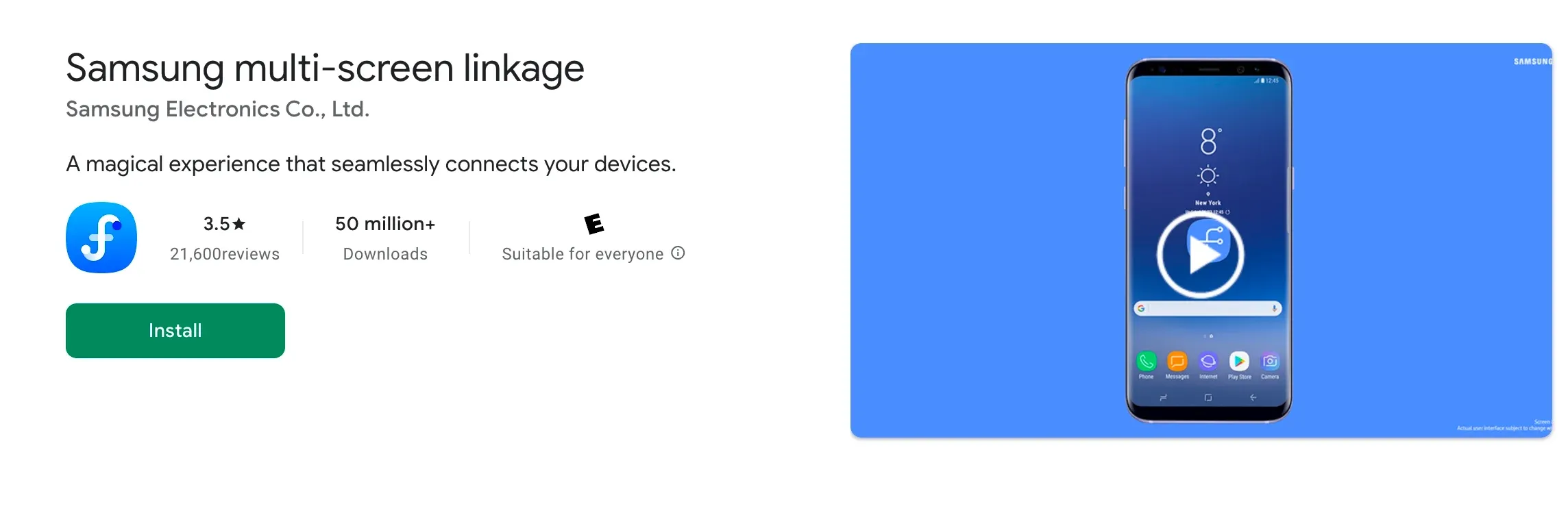
Step 2. Launch the app and choose the PC option on your phone.
Step 3. Choose the Accept option when you see a connection request on your computer.
Step 4. Once the connection is established, tap the Mirroring option on your phone. Then, you can view your phone on your computer.
Bottom Line
A broken phone screen without USB debugging enabled may seem like the end of the road, but it's not. Whether your screen is cracked, frozen, or completely black, tools like PigeonCast apps and Samsung Flow help you mirror broken Android screen on PC without USB debugging. With the right method, you can view phone screen on PC, back up your data, and stay in control. Scroll back to find the solution that best fits your situation.
How to View Broken Phone Screen on Computer Without USB Debugging FAQ
How do I allow my computer to access my phone with a broken screen?
If your phone screen is broken but still displays content, you can allow your computer to access it by using a USB mouse connected via an OTG adapter. This lets you unlock the phone and approve any file transfer prompts. If the screen is completely unresponsive, wireless screen mirroring apps like PigeonCast can help you view your phone screen on a PC without USB debugging, provided the phone is still running and connected to Wi-Fi. Once mirrored, you can control the device and allow access from your computer.
How do I enable USB debugging when my screen is broken?
Unfortunately, USB debugging must be manually enabled on your phone before the screen becomes unusable. If the screen is broken but touch still works, you may be able to activate USB debugging by navigating through Settings using a USB mouse or a previously paired Bluetooth input device. If the screen is fully unresponsive and USB debugging was never turned on, you'll need to rely on wireless mirroring solutions like PigeonCast, or explore professional data recovery services.
How do you get data off a broken Android phone screen?
The best approach depends on the condition of your phone. If the screen is broken but functional, you can unlock the device with a mouse (via OTG) and then transfer files to a PC or cloud storage. In tough cases, professional recovery services may be required to extract your data.
Can I mirror a broken Android phone to a PC without USB debugging and Wi-Fi?
No, it is usually not possible to mirror a broken Android phone without USB debugging or an active Wi-Fi connection. Most screen mirroring tools require either a wireless network or prior device authorization to establish communication. If your phone cannot connect to Wi-Fi and USB debugging was never enabled, your options may be limited to repairing the screen temporarily or seeking professional data recovery assistance.
How can I control a broken Android phone from a computer?
You can control a broken Android phone from a computer if the screen is still visible or if you can connect an OTG mouse to unlock and navigate the device. After that, a screen mirroring app can display and help manage the phone from your PC. The exact method depends on whether the touchscreen works and whether the device can connect to the same Wi-Fi network as your computer.
How do I unlock an Android phone with a broken touchscreen?
If the display still works but touch is broken, you can use an OTG adapter and USB mouse to unlock your Android phone. The mouse acts as a replacement for touchscreen input, allowing you to enter passwords or patterns. This method is widely used when users need immediate access to files, apps, or backup options before the device becomes unusable.
Is it possible to cast a broken phone screen to a laptop?
Yes, you can cast a broken phone screen to a laptop if the display is still partially functional and the phone can access Wi-Fi. Wireless screen mirroring apps make it possible to display your Android screen without requiring USB debugging. This solution is especially useful for viewing content, backing up files, or continuing to use the device while arranging repairs.
Can I access apps on a broken phone screen?
Yes, you may still access apps if the phone is powered on and the display remains visible. Using an OTG mouse or screen mirroring software can help you navigate apps even when the touchscreen no longer responds. This approach is commonly used to retrieve messages, authentication codes, banking information, or work-related files from damaged devices.
Mia Clarke is a technology editor specializing in screen mirroring and casting solutions across multiple platforms. Mia provides clear, practical guides and in-depth insights to help users seamlessly connect their devices. Passionate about enhancing digital experiences, Mia is dedicated to keeping readers updated on the latest trends and tools in cross-platform screen sharing. Whether you’re looking to mirror your smartphone, laptop, or smart TV, Mia’s content delivers reliable, user-friendly advice to simplify your tech setup.