
Screen mirroring is one of Roku's best features, but when it stops working, it can be frustrating. Whether you're casting from an Android, iPhone, PC, or Mac, a non-responsive Roku can disrupt your streaming plans. The good news is most issues are easy to fix with a few simple steps. This guide will explain why screen mirroring fails and show you how to resolve Roku screen mirroring not working quickly, no matter which Roku device you're using.
Why Is Screen Mirroring Not Working Roku
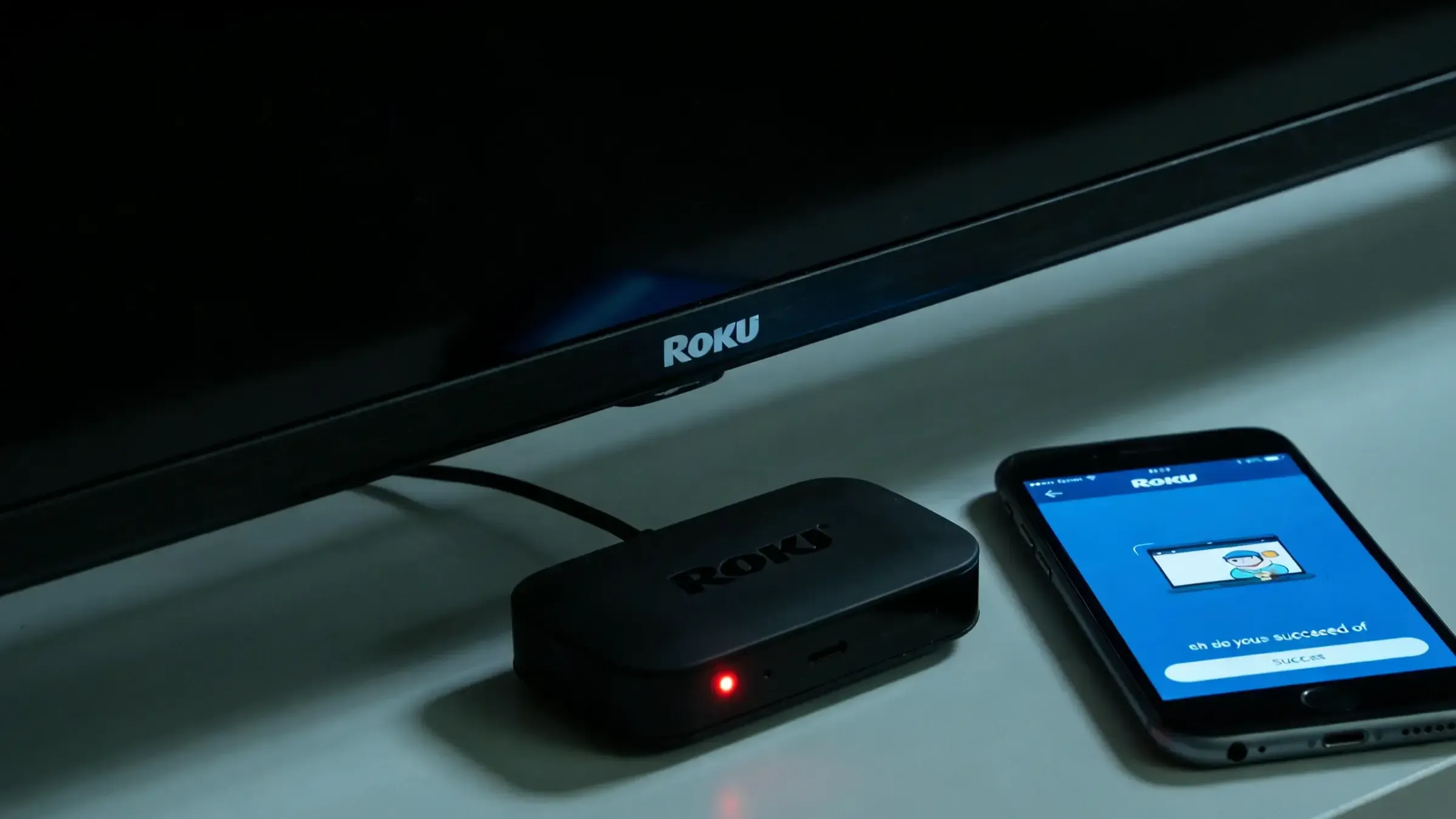
Before you start troubleshooting, it's important to know what might be causing the Roku TV screen mirroring not working. Screen mirroring relies on a solid connection between your Roku and the device you're casting from (phone, tablet, or computer). Common causes include:
- Compatibility issues: Not all devices support Roku screen mirroring, and some devices may need specific software versions to connect properly. For instance, some older Android phones or Windows PCs may not be compatible with newer Roku devices.
- Network problems: A weak or unstable Wi-Fi connection can interrupt the mirroring process. Both your Roku and the device you're casting from need to be connected to the same network. If the connection drops or fluctuates, the screen mirroring won't work.
- Outdated software: Whether it's your Roku device or the device you're casting from, outdated software can cause screen mirroring to fail. Your Roku or sending device might be running an older version of its operating system, which can create compatibility issues or bugs that prevent mirroring.
- Incorrect settings: Sometimes the problem lies in the settings of either device. For example, if your Roku's screen mirroring setting is turned off, or if the sending device's casting feature is disabled, the connection won't go through.
How to Solve Screen Mirroring Not Working on Roku
Screen mirroring problems usually don't require professional help. Most of the time, you can fix them on your own with a clear, step-by-step approach. We've laid out the solutions from the easiest to the more advanced fixes, so you can stop troubleshooting as soon as the problem is resolved.
Fix 1. Try PigeonCast as an Alternative
If you're in a hurry or feeling anxious about using screen mirroring, a great workaround is to try a free and universal app like PigeonCast. This ad-free tool lets you easily mirror your Android, iOS, Mac, or PC screen to your Roku without the need for cables or adapters. Plus, it supports up to 4K resolution, so you can enjoy your content in high quality without any hassle.

Step 1. Ensure your sender device connects to the same wireless network as your Roku TV.


Overall Rating:



Step 2. Install PigeonCast on your sender device, like an Android phone, iPhone, Mac, or Windows PC.
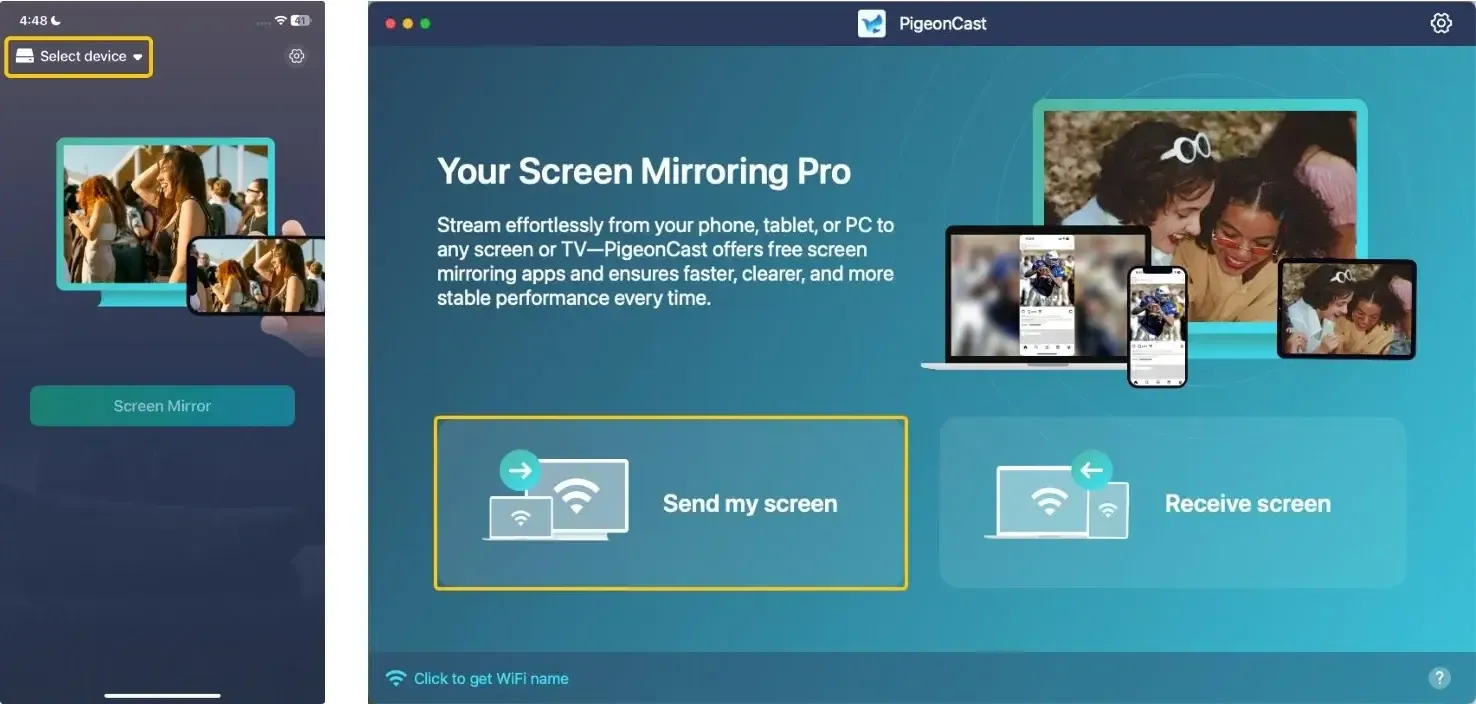
Step 3. Launch the app, tap Select device or Send my screen to choose your Roku from the available list.
Step 4. Enter the onscreen PIN code to confirm the connection behavior.
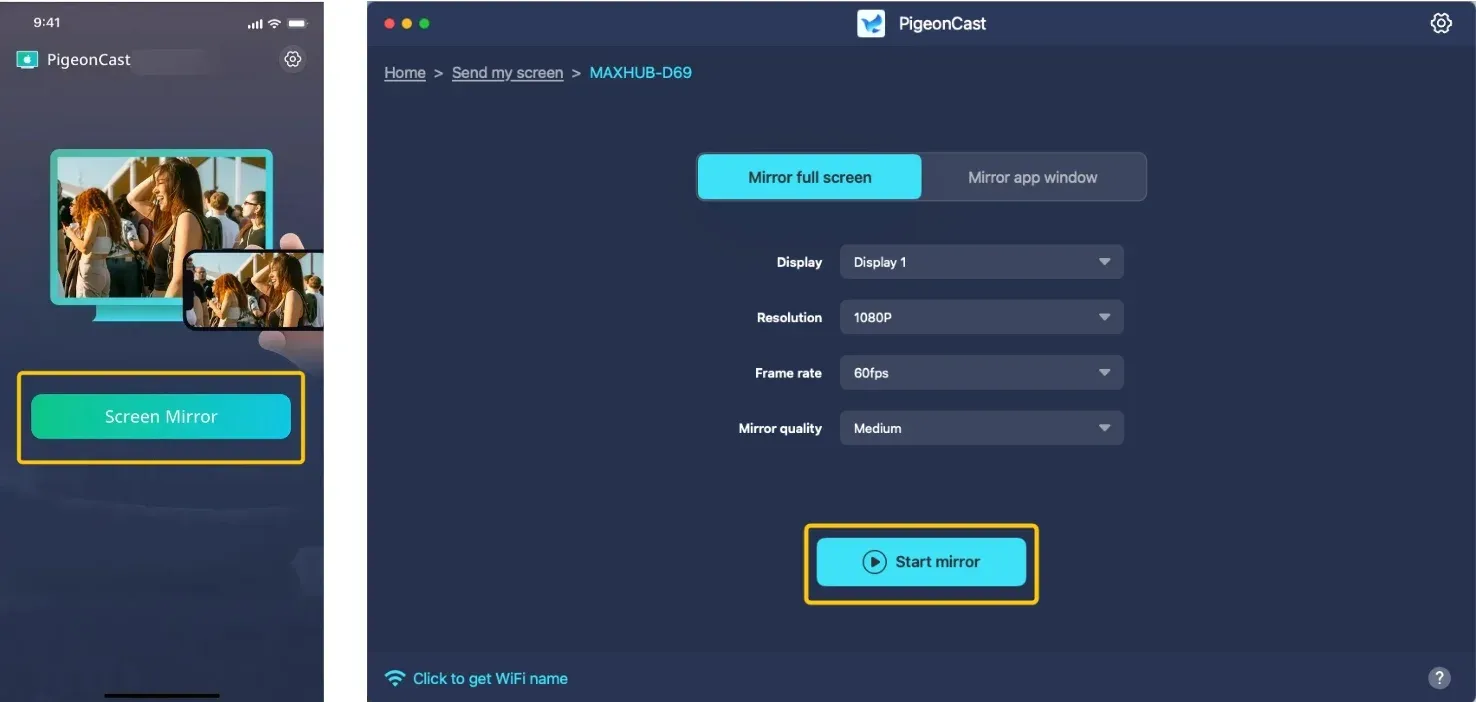
Step 5. Once you pair successfully, tap Screen Mirror or Start Mirror to begin your mirroring activities on Roku. If you use a laoptop, you can choose whether to mirror the full screen or a single app window.
Fix 2. Check Device Compatibility
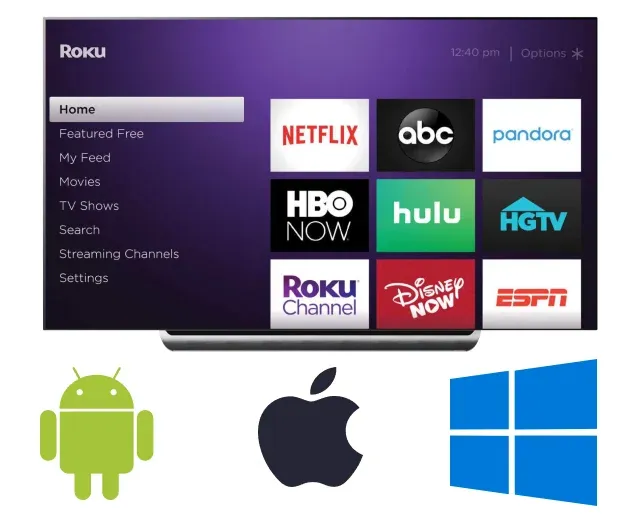
Not all devices work the same way as Roku's screen mirroring feature and this is often the overlooked reason why screen mirroring Roku not working. Roku uses Miracast for Android and Windows devices and AirPlay for Apple devices. Roku does not work as a native Google Cast receiver, so if you want to Chromecast to Roku TV, you usually need an external Chromecast device connected to the Roku TV's HDMI port. If your device doesn't support these protocols, mirroring won't work.
- For Android & Roku:
Miracast is used for Android-to-Roku mirroring. Most modern Android phones and tablets support it, but it's worth double-checking in your settings under Cast or Screen Mirroring. Your Roku must be running Roku OS 7.7 or higher for Miracast to work properly.
- For iPhone, iPad, MacBook & Roku:
Apple devices rely on AirPlay 2 to mirror to Roku. Your iPhone or iPad needs to be running iOS 12.3 or later, and your Mac should have macOS Catalina or later. Your Roku device must be a 4K model or later and have AirPlay enabled in the settings.
- For Windows PC & Roku:
Windows 10 and 11 PCs with Miracast support can mirror Roku. To check, open the Project menu (Windows + P) and select Connect to a wireless display. If the option is grayed out, your PC may not support Miracast.
Fix 3. Check Network Connection
How to solve screen mirroring on Roku not working? A stable Wi-Fi connection is essential for smooth screen mirroring. Both your Roku and the device you're casting from need to be on the same network for the connection to work properly. Any interruptions or instability in the network can cause mirroring to fail. Here are specific steps to ensure your connection is up to par:
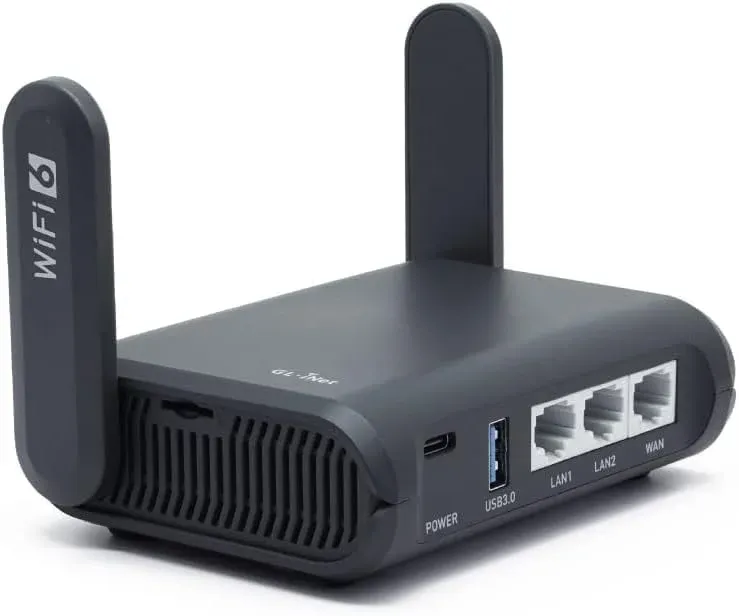
Step 1. Double-check that both your Roku and the device you're mirroring from (phone, tablet, or PC) are connected to the same Wi-Fi network.
Step 2. If your router broadcasts both 2.4GHz and 5GHz bands under the same name, one device might connect to 2.4GHz while the other uses 5GHz causing mirroring to fail. Please check the router settings to connect both your devices to the same band.
Step 3. Other electronics like microwaves, cordless phones, or Bluetooth devices can interfere with WiFi signals. Move your router away from such devices and closer to your Roku.
Step 4. Too many connected devices can strain your bandwidth. Disconnect unused devices or pause heavy downloads/uploads during mirroring.
Step 5. Power off your router, wait 30 seconds, and then power it back on to refresh the network.
Fix 4. Restart Your Devices
If your network checks out but screen mirroring not working on Roku TV continues, the next step is to refresh the devices themselves. Restarting both your Roku and the device you are mirroring can often resolve minor glitches that may prevent screen mirroring. Here's the specific step:
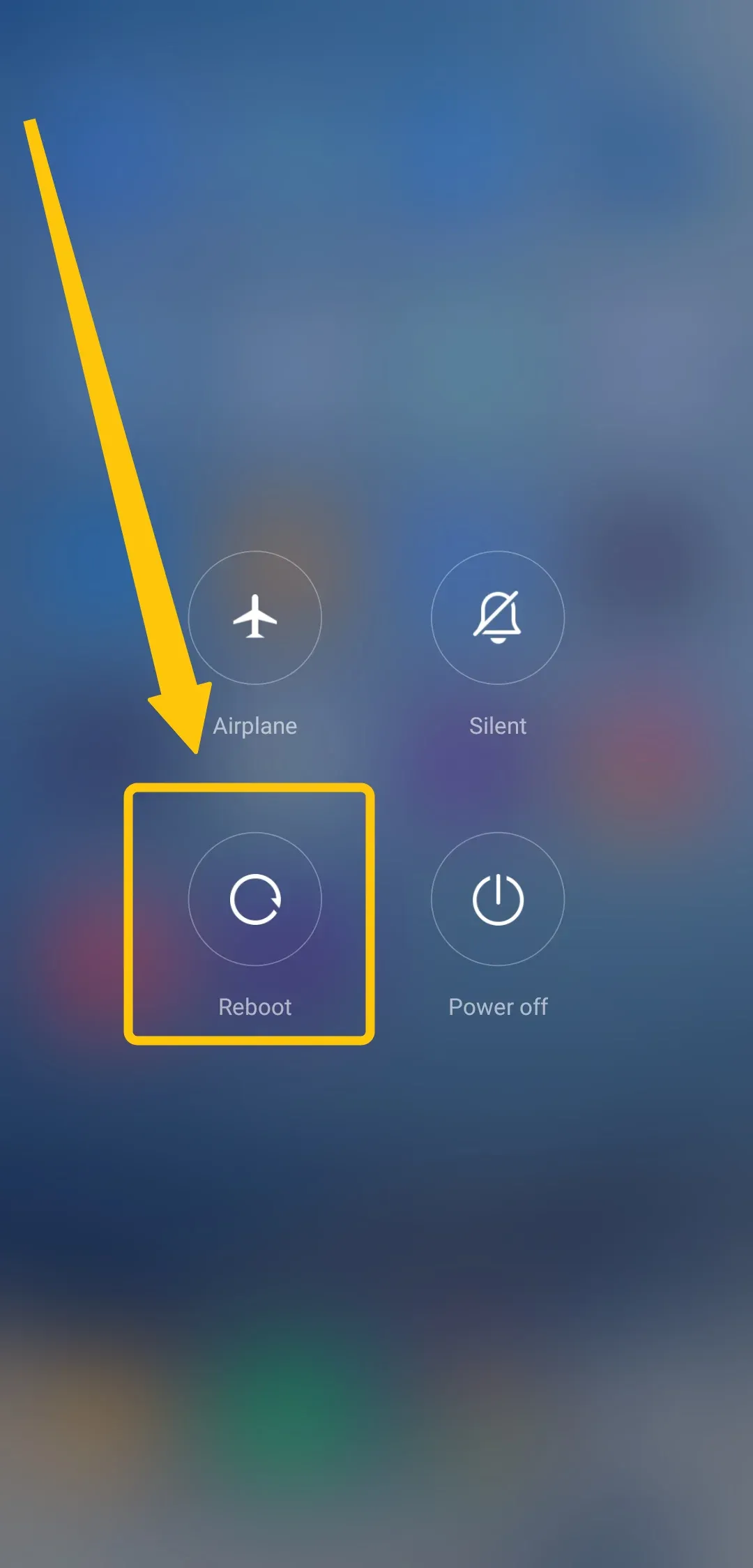
For Android: Hold the power button and select Restart/Reboot. Wait for the device to fully reboot before trying to mirror again.
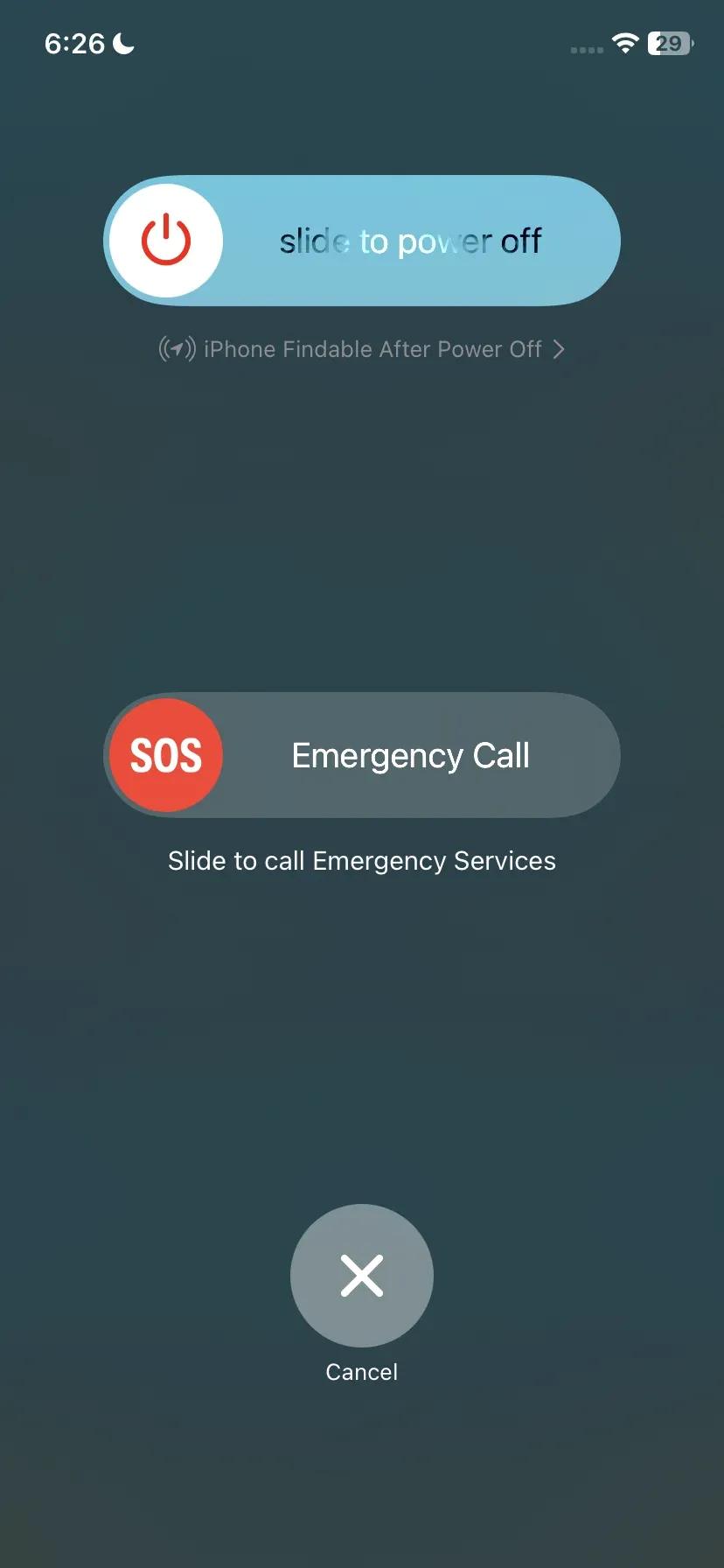
For iPhone/iPad: Press and hold the Side button and either Volume button, then slide to power off. Turn it back on after 30 seconds.
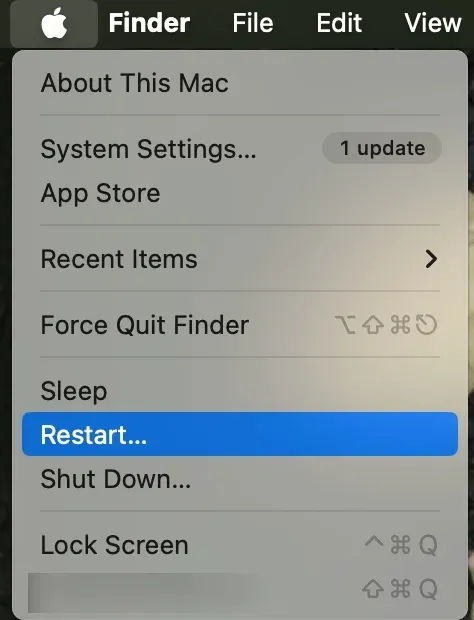
For MacBook: Click the Apple menu and choose Restart to allow the Mac to reboot completely.
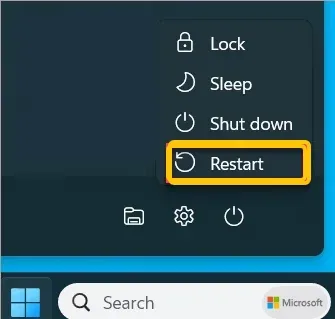
For Windows PC: Click Start > Power > Restart, then give your PC time to fully reboot.
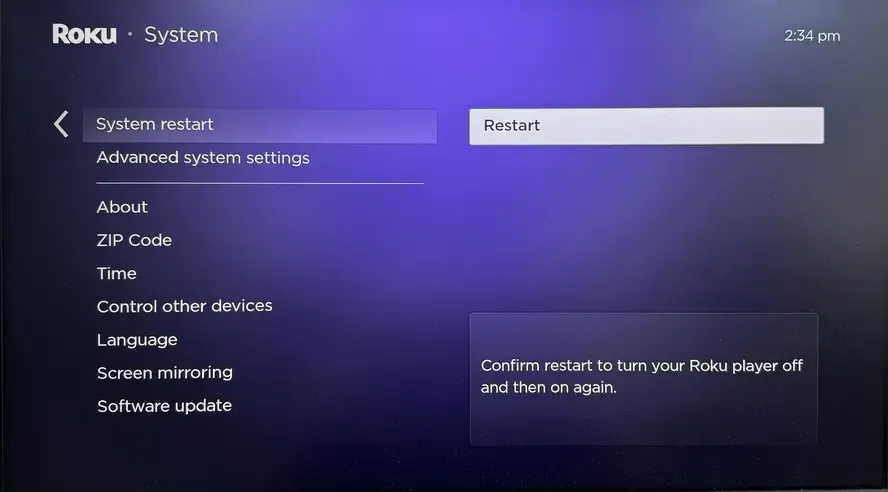
For Roku: To restart your Roku, go to Settings > System > System Restart, or simply unplug the device from the power source and plug it back in.
Fix 5. Update Your Devices
Why is Roku screen mirroring not working? Outdated software can cause connectivity and compatibility issues, making screen mirroring fail. To avoid this, it's important to keep all your devices updated. Software updates often include fixes that improve performance and resolve bugs.
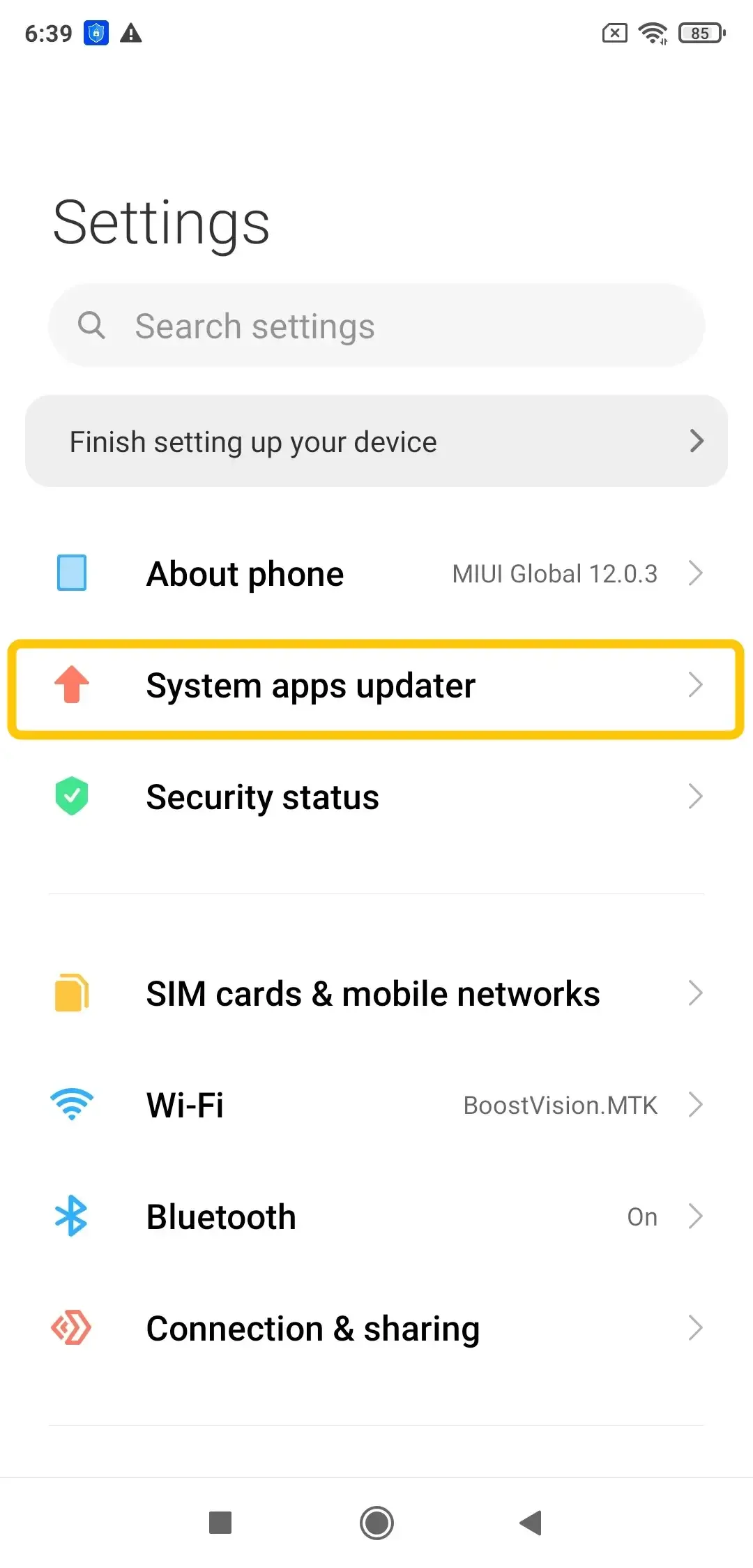
For Android: Go to Settings > Software Update and follow the prompts to install any available updates.
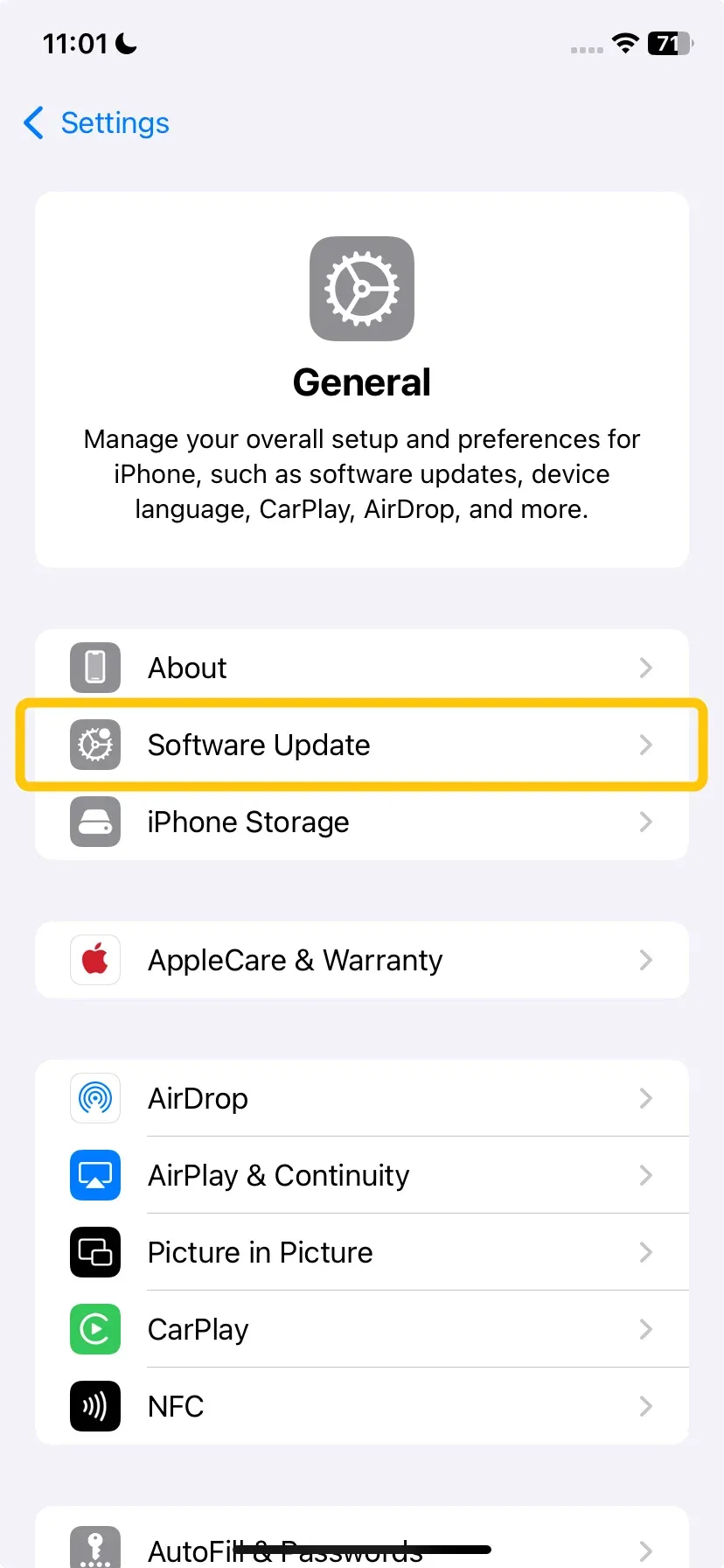
For iPhone/iPad: Move to Settings > General > Software Update to check for the latest updates.
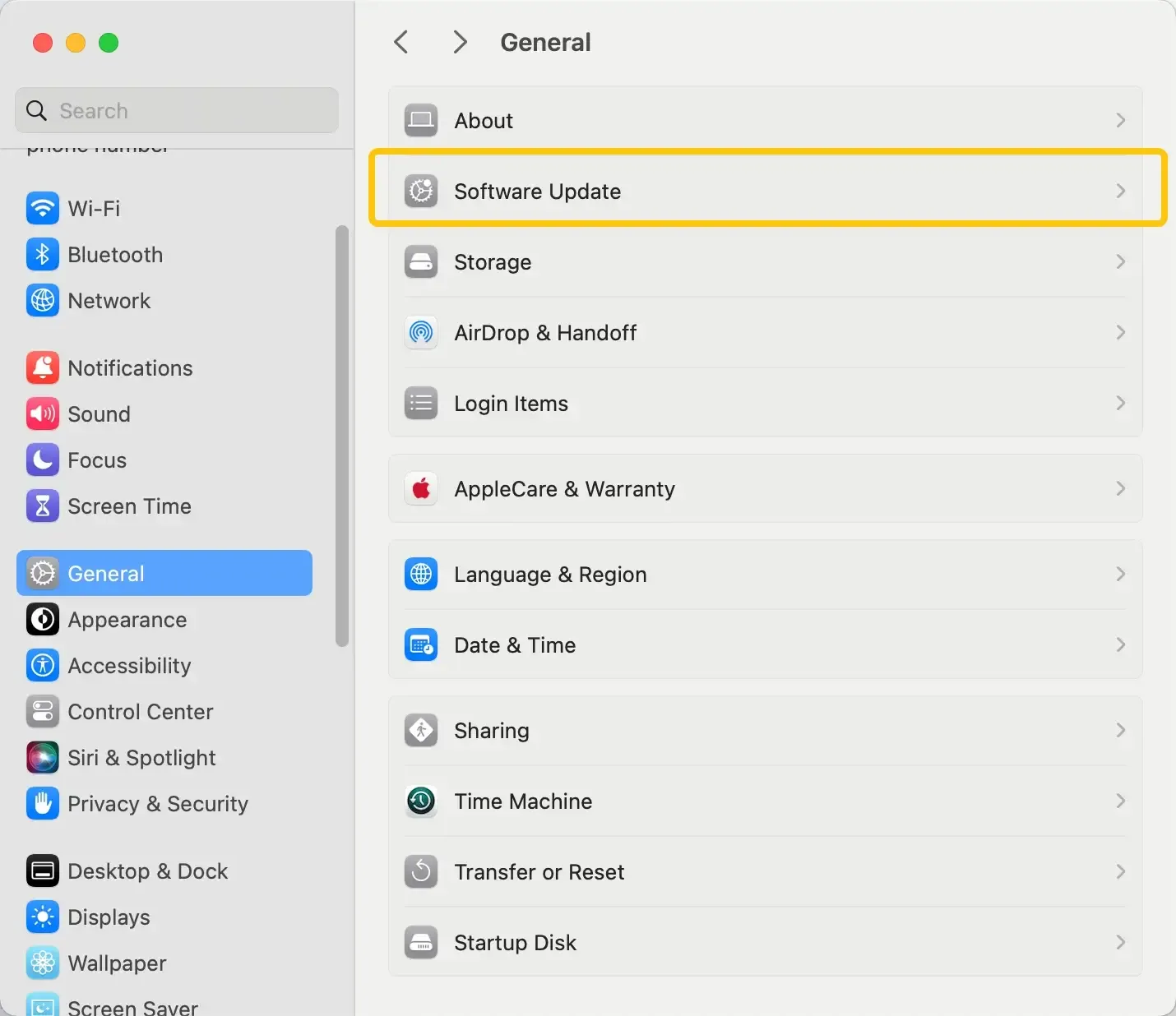
For MacBook: Navigate to System Preferences > General > Software Update to update.
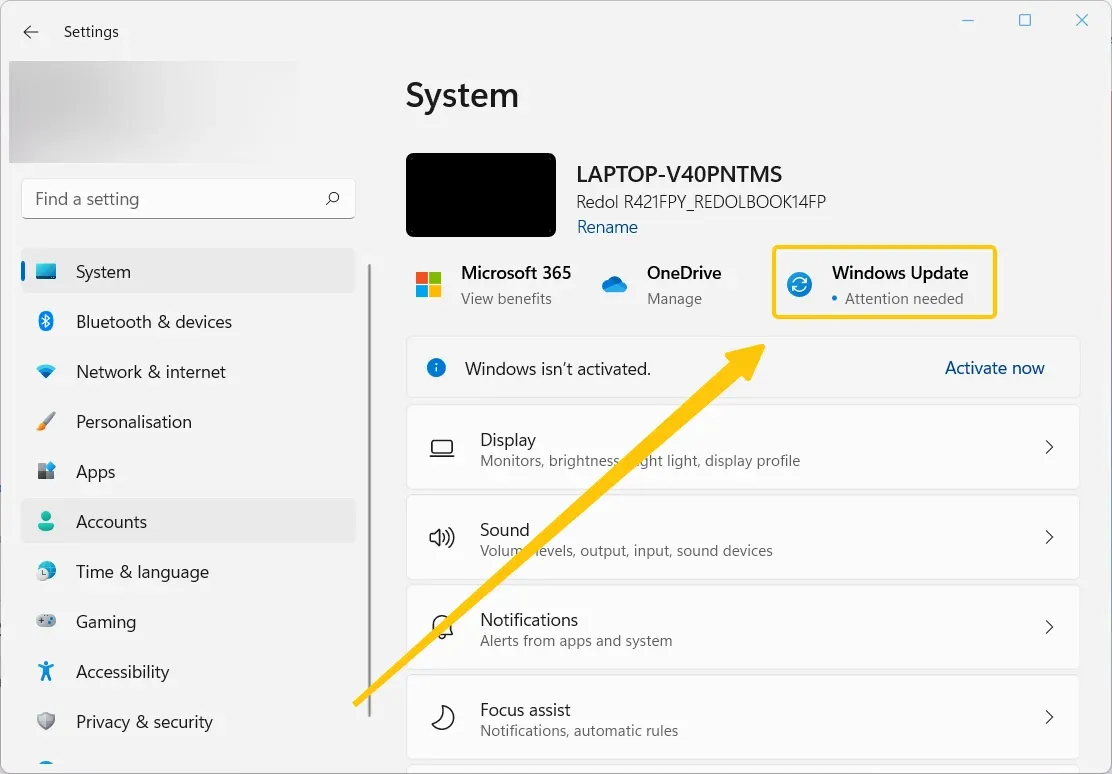
For Windows PC: Open Settings > Update & Security > Windows Update and check for updates.
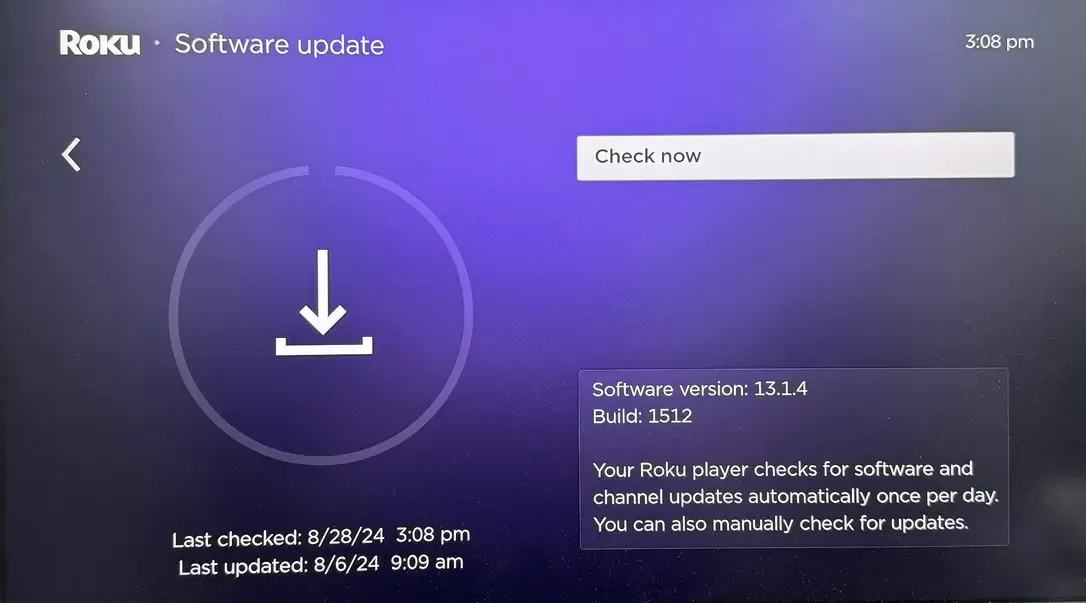
For Roku: Access to Settings > System > System update > Check now. Install any available updates.
Fix 6. Reconnect Your Devices
Why is screen mirroring not working on my Roku TV? The connection might have become corrupted. In this case, fully disconnecting both devices and reconnecting them can often fix the issue. When doing so, make sure to also verify that your Roku's mirroring settings are correctly configured, ensuring a smooth connection from the start.
Step 1. On your mobile device or PC, turn off screen mirroring, wait a moment, and then re-initiate the connection from the beginning.
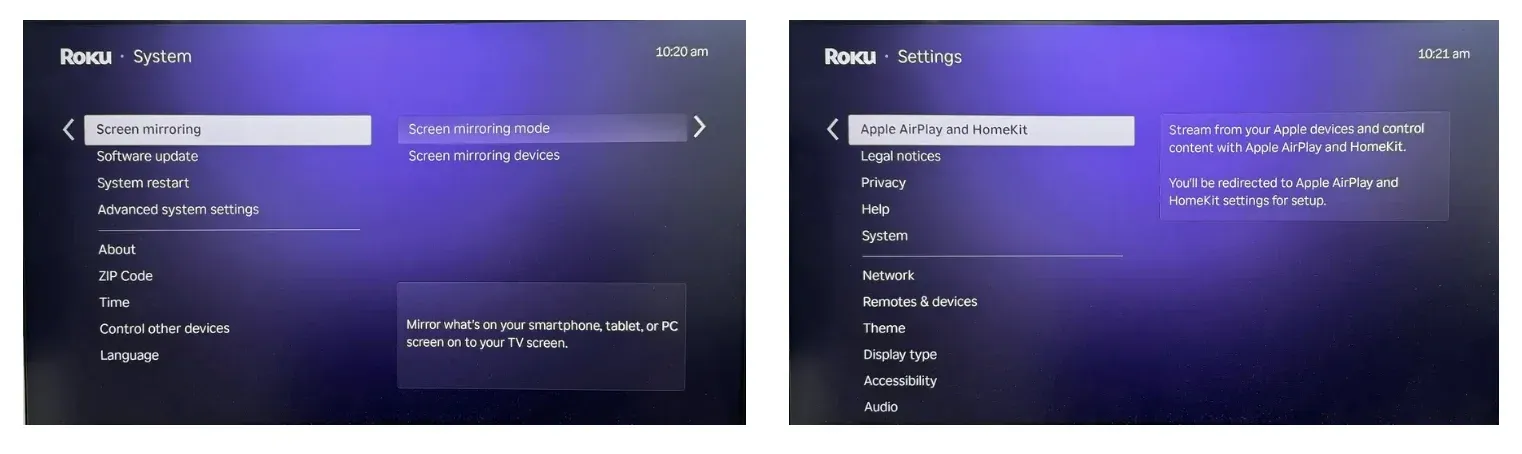
Step 2. On Roku, you can also go to Settings > System > Screen mirroring or Apple AirPlay and HomeKit in Settings to reset the connection mode to Prompt or Always allow.
Step 3. Select your Roku device from the available list to finish the connection.
Fix 7. Check the Screen Mirroring Settings
How to restore screen mirroring to Roku not working? Roku has specific screen mirroring settings that could be set to "Off" or "Never allow", which would block incoming connection requests. It's important to check and adjust these settings to ensure your Roku is ready to accept a mirroring connection.
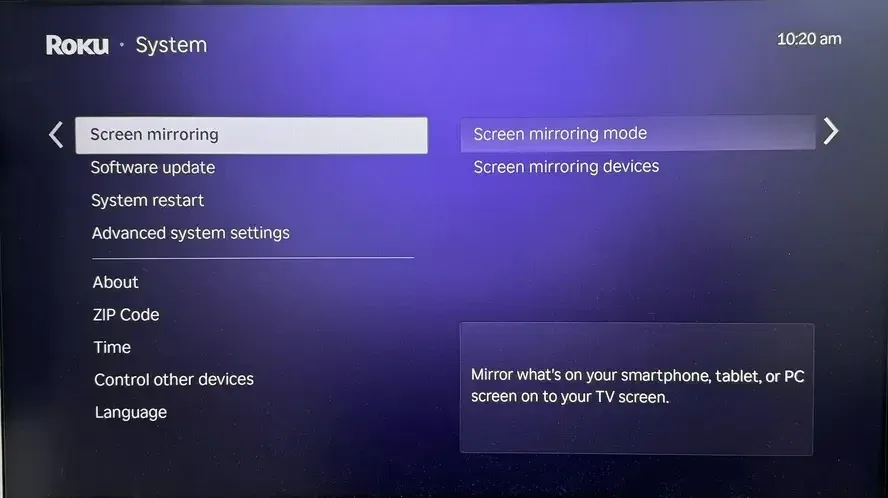
Step 1. On your Roku device, go to Settings > System > Screen mirroring.
Step 2. Set Screen mirroring mode to Prompt or Always allow.
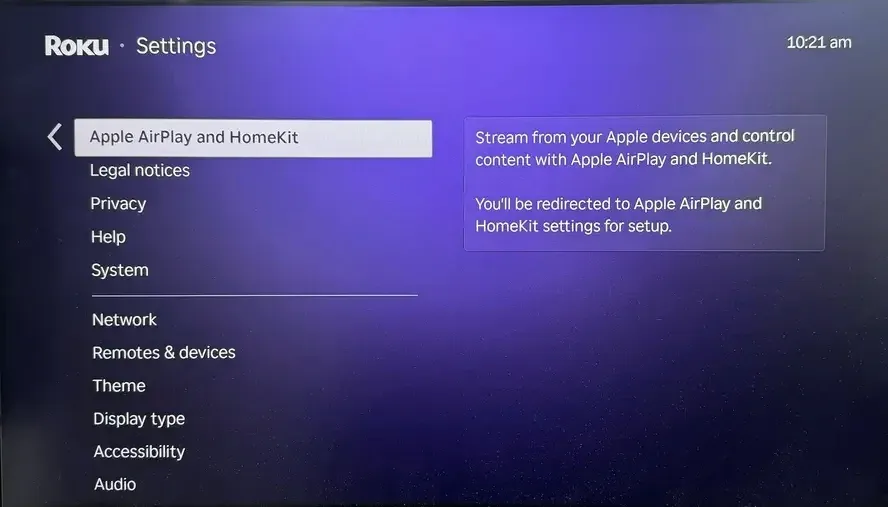
Step 3. For AirPlay (Apple devices), also check Settings > Apple AirPlay and HomeKit on Roku to ensure AirPlay is enabled.
Fix 8. Contact Roku Support
If you've gone through all the steps and screen mirroring still isn't working, it may be time to get expert help. Visit Roku Support or use the Roku mobile app to chat with an agent. For quicker assistance, make sure you have your Roku's serial number and device model ready.
Wrapping Up
Screen mirroring on Roku is a great feature, but when it stops working, it can be frustrating. Luckily, most issues are easy to fix with the right steps, whether it's checking compatibility, adjusting network settings, updating software, or troubleshooting device settings. By following this guide, you can quickly resolve common problems and get your Roku screen mirroring back on track. If all else fails, don't hesitate to contact Roku support for further assistance.
Roku Screen Mirroring Not Working FAQ
Why is TCL Roku TV screen mirroring not working?
TCL Roku TV screen mirroring may not be working due to the following reasons:
- Compatibility Issues
- Network Problems
- Outdated Software
- Incorrect Settings
- Interference or Connectivity Issues
How to solve Hisense Roku TV screen mirroring not working?
To solve Hisense Roku TV screen mirroring not working, follow these steps:
- Ensure your device supports the required protocols (Miracast for Android/Windows or AirPlay for Apple devices).
- Make sure both your Hisense Roku TV and the device you're casting from are connected to the same Wi-Fi network. A weak or unstable connection can disrupt mirroring.
- Ensure both your Hisense Roku TV and the casting device have the latest software updates installed.
- Go to Settings > System > Screen Mirroring on your Hisense Roku TV and set it to Prompt or Always allow.
- Restart both your Hisense Roku TV and the device you're casting from to resolve any temporary glitches or network issues.
- Move your router away from electronic devices that may cause interference (e.g., microwaves, Bluetooth devices).
How to fix Onn Roku TV screen mirroring not working?
To fix Onn Roku TV screen mirroring not working, try the following steps:
- Ensure the device you're casting from supports Roku's screen mirroring protocols (Miracast for Android/Windows or AirPlay for Apple devices).
- Both your Onn Roku TV and the device you're casting from need to be on the same Wi-Fi network. Check the Wi-Fi settings on both devices to ensure they’re connected to the same network.
- Make sure both your Onn Roku TV and the casting device have the latest software updates. Outdated software can cause connectivity issues.
- On your Onn Roku TV, go to Settings > System > Screen Mirroring, and set it to Prompt or Always allow to enable incoming connections.
- Power cycle both your Onn Roku TV and the device you're casting from. Unplug your TV, wait 30 seconds, and plug it back in. Restart the casting device as well.
- If there are too many devices connected to the network, or other electronics causing interference, disconnect unused devices or move the router closer to your TV.
Why is Insignia Roku TV screen mirroring not working?
Insignia Roku TV screen mirroring may not be working due to the following reasons:
- Compatibility issues
- Network connection
- Outdated software
- Incorrect screen mirroring settings
- Interference or glitches
Clara Rossi is an experienced technology editor and a seasoned expert in screen mirroring and casting technologies. With a keen eye for detail and a deep understanding of how to seamlessly connect devices, Clara excels at optimizing user experiences for effortless sharing and streaming. Whether you're seeking quick fixes or advanced tips, her expertise and responsiveness ensure that every query is met with a well-informed and efficient solution.