
AirPlay is a convenient way to stream videos, music, and mirror your iPhone, iPad, or Mac screen directly to your Roku TV. However, sometimes AirPlay not working on Roku occurs. This guide will help you understand why AirPlay may not be working on your Roku device and provide step-by-step solutions to resolve the issue.
Why Is AirPlay Not Working on Roku
Roku devices sometimes face problems with AirPlay, and understanding the common causes can help you troubleshoot quickly. The following section explains why AirPlay may not work on Roku and how to fix it.
- Device Compatibility: Not all Roku models support AirPlay. Ensure your Roku TV or streaming device is compatible.
- Network Issues: AirPlay requires both devices to be on the same Wi-Fi network. Differences in network bands (2.4GHz vs. 5GHz) can sometimes cause failures.
- Outdated Roku Software: If your Roku TV isn't running the latest software, AirPlay may not function correctly.
- AirPlay Settings Disabled: AirPlay might be turned off on your Roku device, preventing connections.
- Interference or Firewall Restrictions: Some routers or antivirus software can block AirPlay traffic, causing connection errors.
How to Fix AirPlay on Roku TV Not Working
If AirPlay is not working on your Roku TV, there's no need to panic. Most issues are simple to fix, often related to network settings or software updates. The following guide will show you how to fix Roku AirPlay not working and get your iPhone content streaming without interruptions.
#1. Check Compatibility
Before trying other AirPlay to Roku not working solutions, make sure that both your Roku TV and your Apple device support AirPlay. Some Roku models do not include AirPlay, and only certain iPhone, iPad, and Mac models support AirPlay 2. Checking compatibility first can save time and help you identify whether the issue is due to unsupported devices.
- Check if AirPlay is available on your Roku:
Step 1. Go to Settings > Apple AirPlay and HomeKit on your Roku TV.
Step 2. If this option appears, your Roku supports AirPlay. If it does not, your model likely isn't compatible. Alternatively, you can check your Roku model and inspect the compatibility with AirPlay.
- Check your Apple device compatibility:
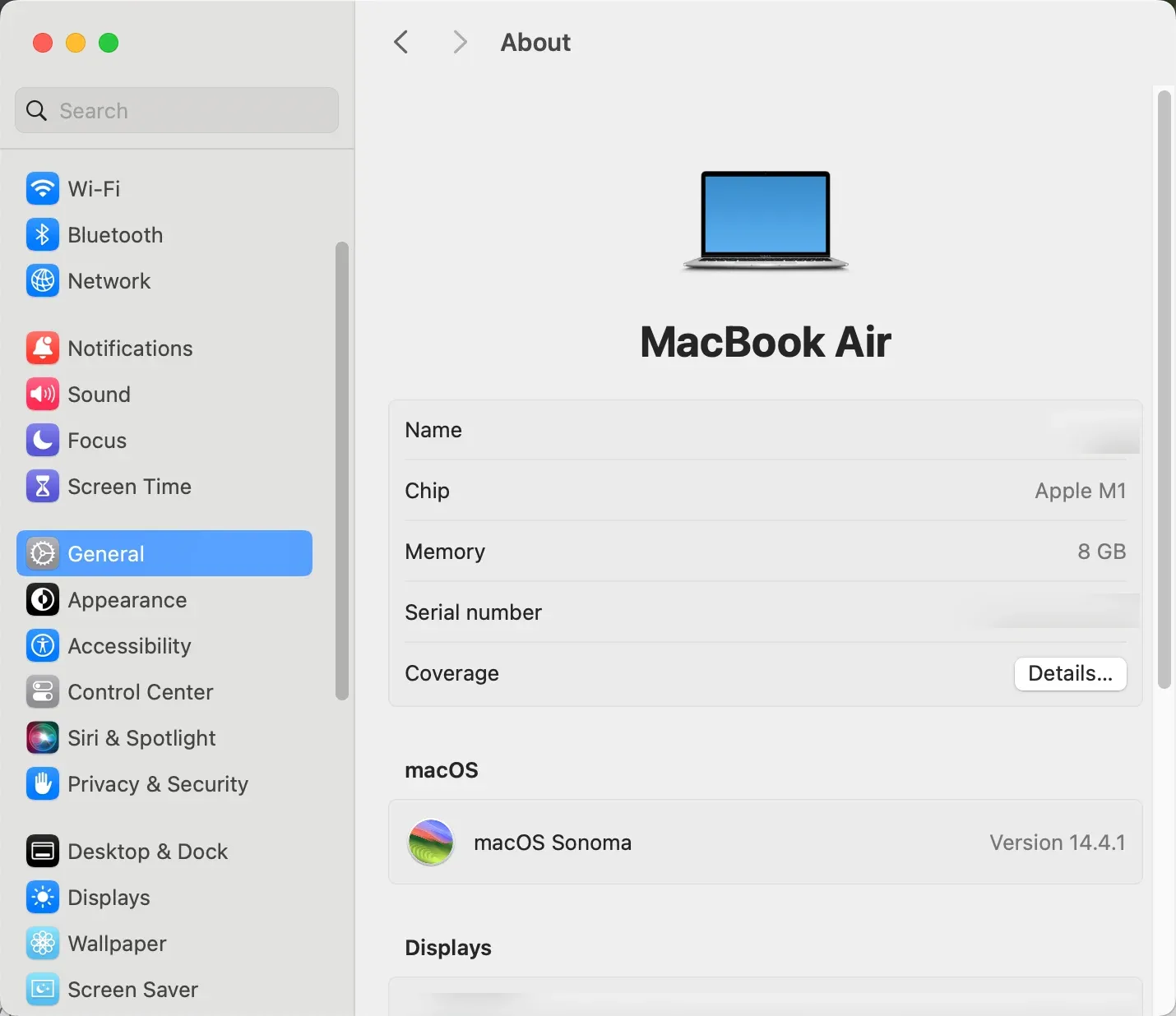
AirPlay 2 works on iPhone, iPad, and iPod touch running iOS 12.3 or later, and Mac computers running macOS Mojave 10.14.5 or later. You can check your device version by going to Settings > General > About (on iPhone or iPad) or Apple menu > About This Mac (on Mac).
#2. Make Sure Both Devices Are on the Same Network
Why is my AirPlay not working on Roku? Once you've confirmed that your Roku TV and Apple device support AirPlay, the next step is to check their network connection. AirPlay only works when both devices are connected to the same Wi-Fi network, so verifying this setting is essential before troubleshooting further.
Step 1. On your iPhone, go to Settings > Wi-Fi.
Step 2. On your Roku, check under Settings > Network > About.
If one device is on a 5GHz band and the other is on 2.4GHz, try switching both to the same frequency for better stability.
#3. Ensure AirPlay and Screen Mirroring Are Enabled on Your Roku
How to solve AirPlay not working on Roku TV? The next step is to make sure that AirPlay and Screen mirroring are enabled on your Roku TV. Even if your devices support AirPlay, the feature will not work unless it is turned on in the Roku settings.
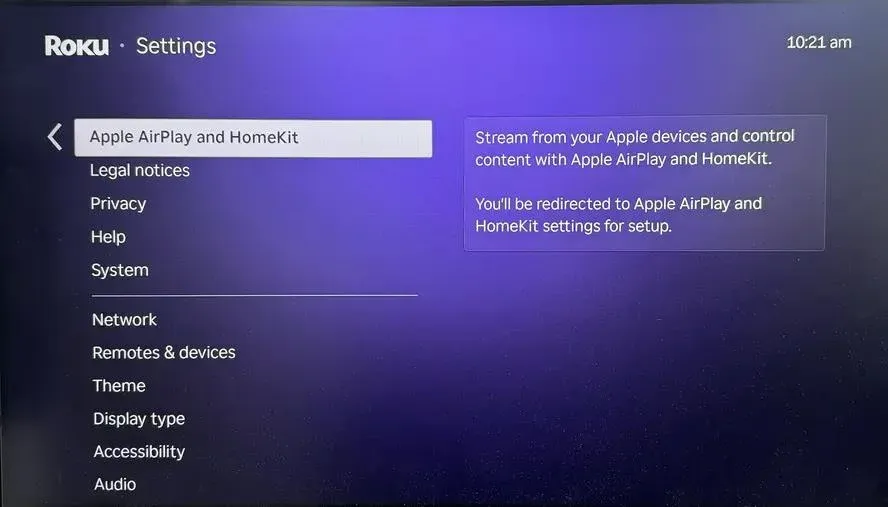
Step 1. Press the Home button on your remote on your Roku remote.
Step 2. Select Settings > Apple AirPlay and HomeKit and set the AirPlay switch to On.
Step 3. Back to System > Screen mirroring, and ensure Prompt or Always allow is selected.
#4. Restart Your Devices
Next, how to restore Roku TV AirPlay not working? Sometimes AirPlay problems are caused by minor software glitches or memory issues. Restarting your Roku TV and your Apple device gives both devices a fresh start, clears temporary errors, and can restore a smooth connection for streaming or screen mirroring.
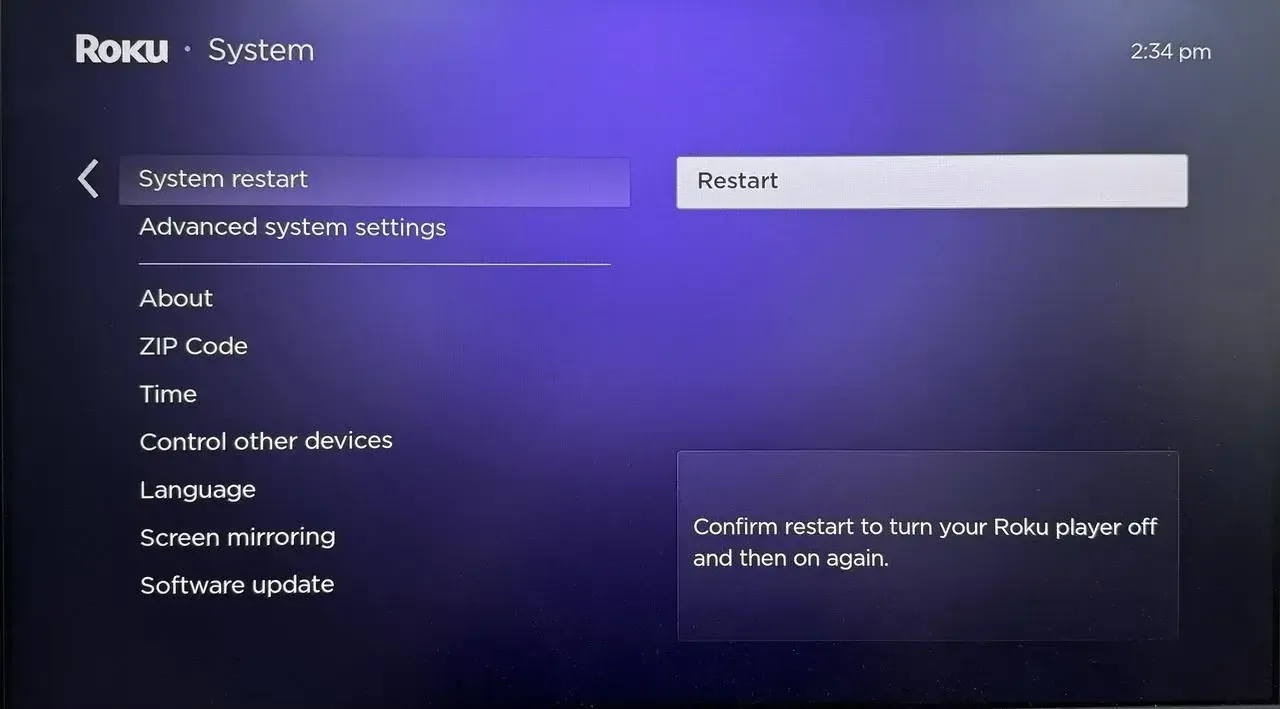
Step 1. Go to the TV's Settings > System > Power > Restart and click the Restart option.
Step 2. On your iPhone, press and hold the side button and either the Volume button (on Face ID models) or the top/side button (on Touch ID models) until the slider appears.
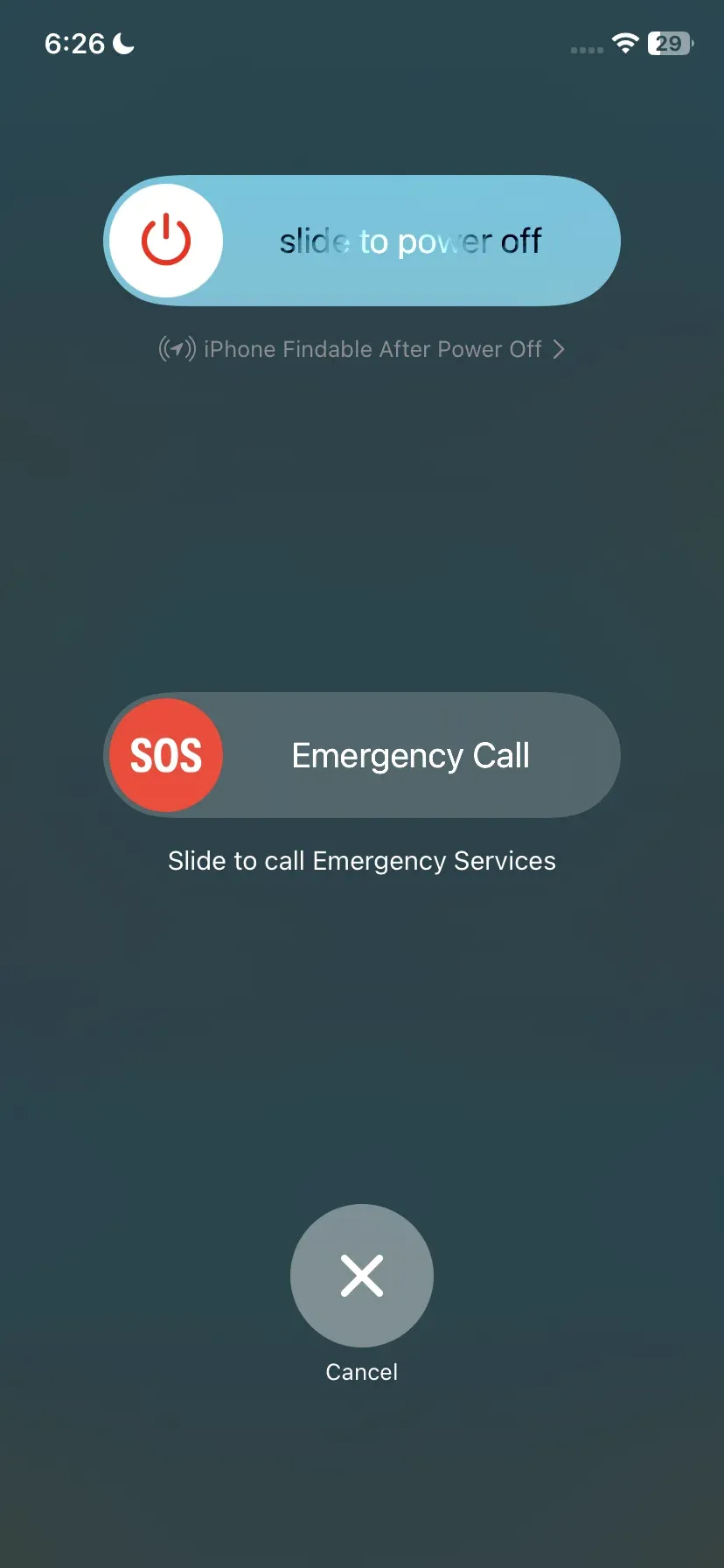
Step 3. Slide to power off. After the device turns off, press and hold the side/top button again until the Apple logo appears.
#5. Restart or Reset Your Router
Sometimes AirPlay problems aren't caused by your Roku or iPhone but by your Wi-Fi network. Start by turning off your router for about 30 seconds and then powering it back on to refresh the connection.
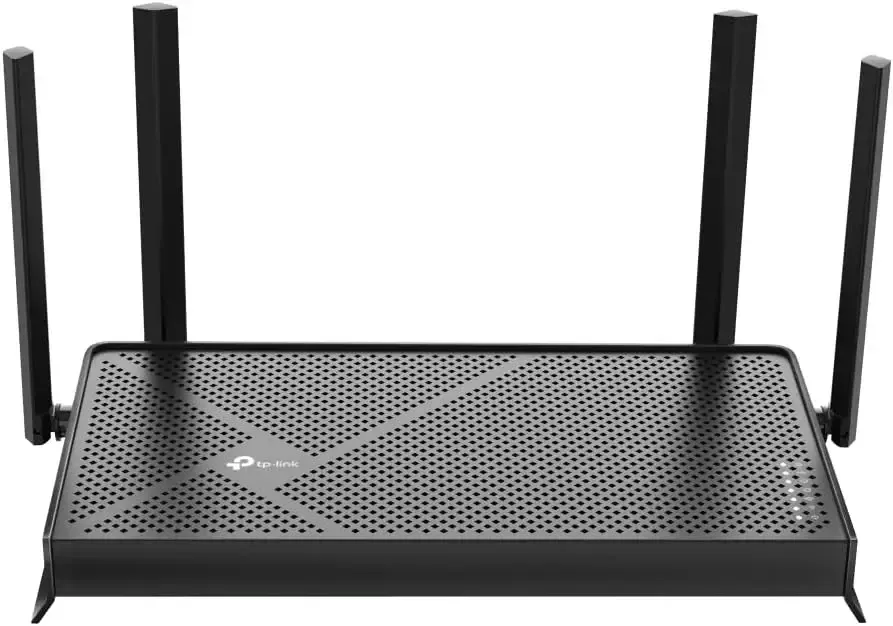
Step 1. Power off your router and wait about 30 seconds.
Step 2. Turn the router back on and allow it to fully reconnect to the internet.
Step 3. If AirPlay still doesn't work, log in to your router's settings (check the back of your router or its website).
Step 4. Check for options like AP Isolation, Client Isolation, or Guest Mode and make sure they are turned off, as these can block devices from communicating.
#6. Update your Roku
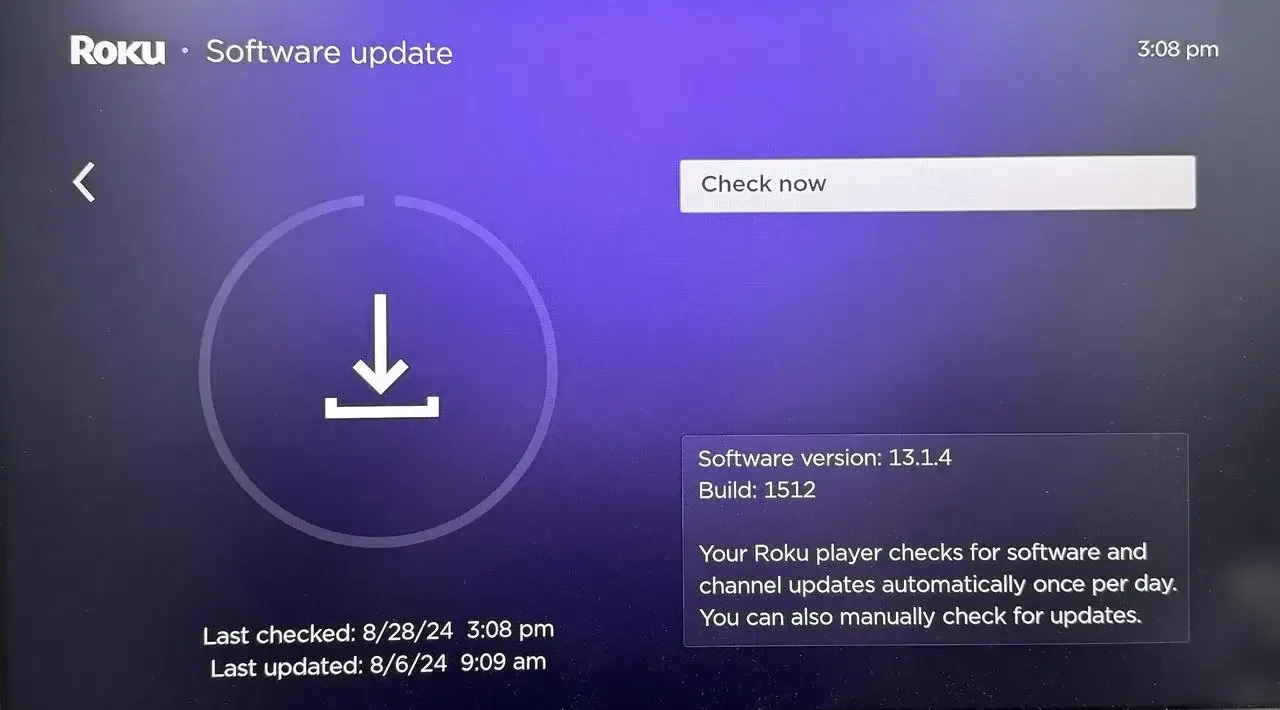
If you're still wondering, "Why is my AirPlay on Roku not working?", outdated software could be the cause. Running an older version of Roku OS can create glitches or compatibility issues that prevent AirPlay from functioning correctly. The next step is to check for and install any available updates to ensure your Roku works smoothly.
Step 1. Press the Home button on your remote.
Step 2. Select Settings > System > Software update.
Step 3. Select Check now. Your Roku will receive the latest updates if they are available.
#7. Reconnect the Devices
If AirPlay to Roku is not working even after updating your Roku, a simple solution is to reconnect your devices. Disconnecting and reconnecting both your Roku TV and iPhone can refresh the connection, clear temporary errors, and help the devices recognize each other for successful screen mirroring.
Step 1. Disconnect Wi-Fi from your Apple device, then reconnect.
Step 2. Turn off AirPlay on Roku and then turn it back on. Go to Roku Settings > Apple AirPlay and HomeKit.
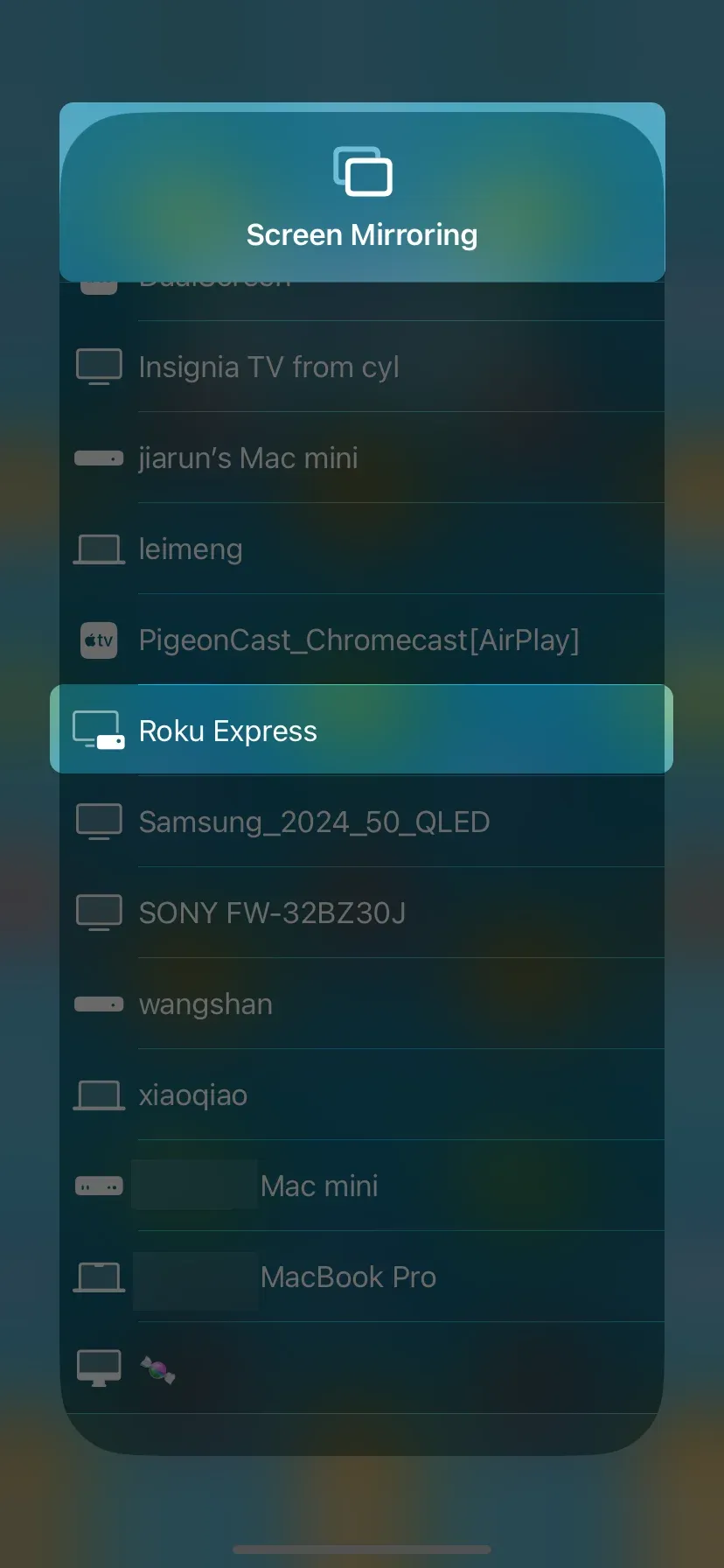
Step 3. Tap Screen Mirroring from the Control Center on your Apple device to choose Roku from the available list.
#8. Disconnect the VPN
If you're still asking, "Why can't I AirPlay to my Roku TV?”, one possible reason is an active VPN. VPNs can block local network connections, preventing your iPhone and Roku from communicating. Here's the step to disable the VPN:
- iPhone & iPad: Open the Settings app and tap General, followed by VPN Ensure your VPN is disconnected.
- Mac: Click the Apple icon and click System Settings (or System Preferences). Click VPN (It may be under Network). Ensure your VPN is disconnected.
#9. Reset Network Settings on Your iPhone
If AirPlay is still not working, network issues on your iPhone could be the cause. Resetting your iPhone's network settings can clear Wi-Fi conflicts, remove outdated connections, and fix other errors that may be preventing AirPlay from functioning properly.
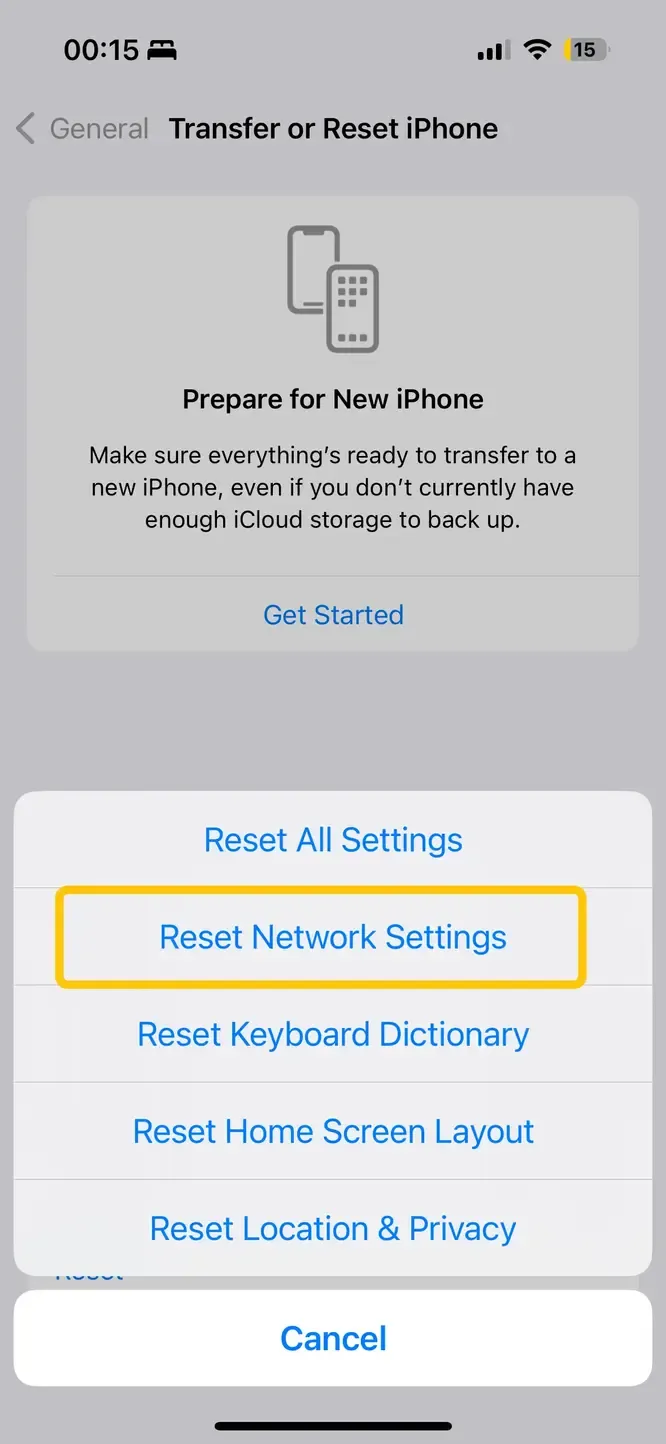
- iPhone & iPad: Go to Settings > General > Transfer or Reset > Reset > Reset Network Settings.
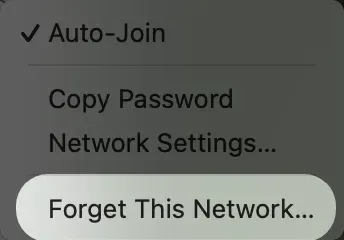
- Mac: You can reset your network connection by forgetting it and reconnecting to it. Click the Wi-Fi icon in the Settings and select three dots next to your Wi-Fi connection. Click Forget This Network... and then Remove. Reconnect to your Wi-Fi network.
#10. Enable Fast TV Start
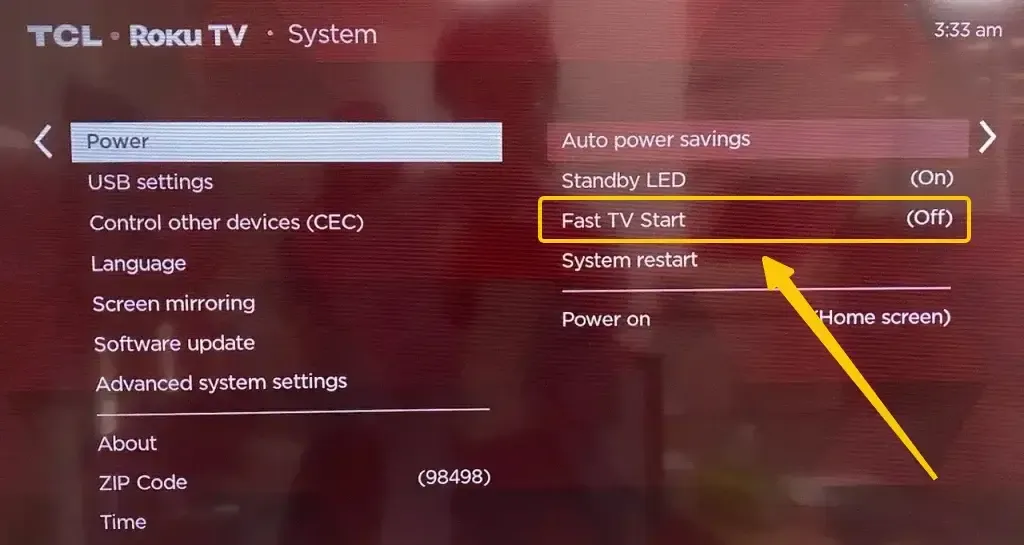
If AirPlay is still unreliable, adjusting your Roku's power settings can help. Enabling Fast TV Start allows your Roku to boot quickly and maintain a stable network connection, which can improve AirPlay performance and reduce connection delays.
Step 1. Press the Home button on your remote.
Step 2. Select Settings > System > Power.
Step 3. Select Fast TV Start or Fast Start.
Step 4. Ensure Fast TV Start or Fast Start is checked.
#11. Enable Device Connect in Roku TV
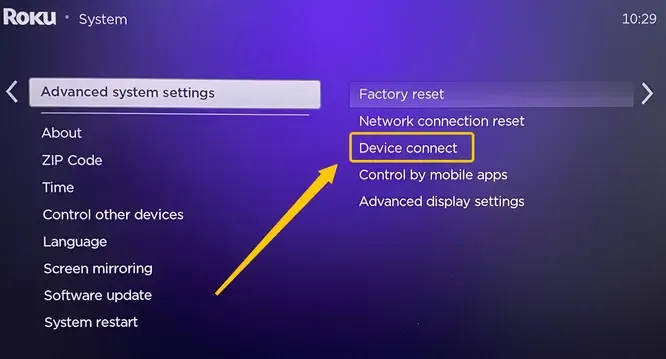
To ensure smooth AirPlay streaming, your Roku TV needs to communicate properly with other devices on your network. Enabling Device Connect allows your Roku to be discoverable by your iPhone, making it easier to mirror your screen and stream content without interruptions.
Step 1. Press the Home button on your remote.
Step 2. Select Settings > System > Advanced System Settings.
Step 3. Select Device Connect > Enable 'Device Connect'.
#12. Check Your Screen Time Settings
Plus, restrictions on your iPhone could be the cause. Checking your Screen Time settings ensures that screen mirroring and AirPlay are allowed, preventing any limits or content restrictions from blocking the connection to your Roku TV.
- iPhone & iPad: Go to Settings > Screen Time and turn off App & Website Activity.
- Mac: Click the Apple menu and go to System Settings > Screen Time. Scroll down and turn off App & Website Activity.
#13. Factory Reset Roku
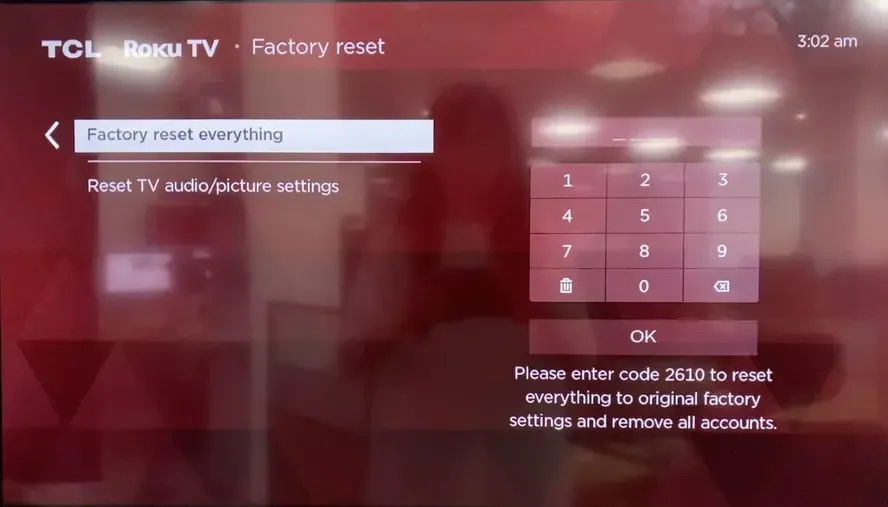
If none of the previous steps have resolved the issue, a factory reset on your Roku may be necessary. This restores the TV to its original settings, clears persistent glitches, and can fix underlying software issues that prevent AirPlay from working properly.
Step 1. Press the Home button on your remote.
Step 2. Select Settings > System > Advanced System Settings.
Step 3. Select Factory Reset > Factory reset everything, and follow the prompts.
#14. Contact Customer Support for Both Devices
If AirPlay won't work on Roku TV persistently after trying all the troubleshooting steps, it may be a deeper hardware or software issue. The next step is to contact customer support for both your Roku TV and Apple device to get expert guidance and resolve any persistent problems.
Best Tip: Use PigeonCast as AirPlay Alternative
Alternatively, you can use the free PigeonCast app to enhance the connection between your TV and an Apple device. This app mirrors your iPhone or iPad to PC, TV, or other screens with PigeonCast. Enjoy crystal-clear visuals, stable audio, and wireless casting via AirPlay, Cast, and DLNA.


PigeonCast Screen Mirroring

Official Download



Step 1. Install the PigeonCast on your iPhone and your TV.
Step 2. Ensure your iPhone and TV are connected to the same wireless network.
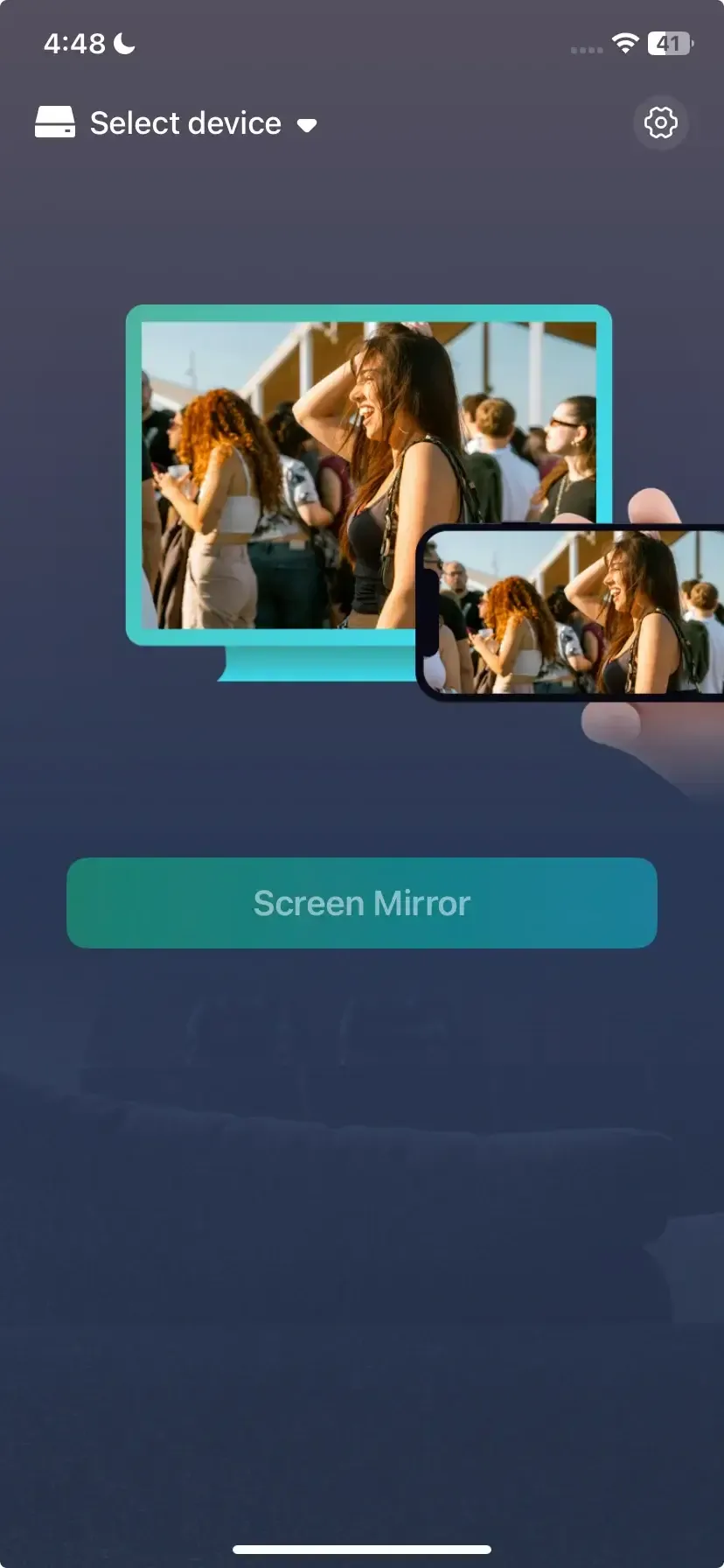
Step 3. Launch the app on both your devices. On the Apple device, tap Select device to choose your TV with the PigeonCast name from the available list.
Step 4. Once successful, you can then tap the Screen Mirror button to start the mirroring performance.
Wrapping Up
Why is AirPlay not working on my Roku, and how can I fix AirPlay won't connect to Roku? Following steps like checking compatibility, enabling AirPlay, restarting devices, updating software, and adjusting network or power settings can resolve most problems. If issues persist, options such as factory resetting your Roku, disabling VPNs, contacting customer support, or using apps like PigeonCast provide reliable alternatives for smooth, wireless mirroring and streaming.
AirPlay Not Working on Roku FAQ
Q: Why is my Roku not connecting to AirPlay?
Your Roku may not be connecting to AirPlay due to:
- Device incompatibility
- Network issues
- Outdated software
- AirPlay disabled on Roku
- VPN or firewall interference
- Restrictions on your Apple device
Q: What settings affect AirPlay on Roku?
Settings that can affect AirPlay on Roku include:
- AirPlay and HomeKit: Must be enabled on the Roku TV.
- Screen Mirroring: Should be set to Prompt or Always Allow.
- Network Settings: Both devices must be on the same Wi-Fi network; AP Isolation or Guest Mode can block connections.
- Device Connect: Allows the Roku to be discoverable by other devices.
- Screen Time or Restrictions: Limits on the Apple device can prevent AirPlay.
- Power Settings (Fast TV Start): Helps maintain a stable connection.
Q: Is screen mirroring the same as AirPlay?
No, screen mirroring and AirPlay are not exactly the same:
- AirPlay is Apple's proprietary technology that allows you to stream or mirror content from an iPhone, iPad, or Mac to compatible devices like Apple TV or certain smart TVs, often with optimized performance and resolution.
- Screen mirroring is a broader term that lets you display your device's screen on another screen, which can include AirPlay, Google Cast, or other third-party apps.
In short, AirPlay is one type of screen mirroring, but not all screen mirroring uses AirPlay.
Q: Why won't my phone connect to my Roku TV anymore?
Your phone may not connect to your Roku TV anymore due to:
- Network issues: Your phone and Roku may be on different Wi-Fi networks or experiencing connectivity problems.
- Device incompatibility: Your Roku model or phone may not support the required casting or AirPlay features.
- Software updates needed: Outdated Roku OS or phone software can prevent connections.
- AirPlay or screen mirroring disabled: Settings on the Roku or phone may block mirroring.
- VPNs or firewall restrictions: These can interfere with device communication.
- Restrictions on the phone: Screen Time or content limits may block casting.
Q: How to connect a phone to a Roku TV wirelessly?
You can connect a phone to a Roku TV wirelessly using these methods:
- AirPlay (for iPhone/iPad)
- Ensure your Roku TV supports AirPlay and it's enabled in Settings > Apple AirPlay and HomeKit.
- Make sure your iPhone/iPad and Roku are on the same Wi-Fi network.
- Open the Control Center on your iPhone/iPad, tap Screen Mirroring, and select your Roku TV.
- Roku Mobile App (iPhone or Android)
- Install the Roku app on your phone.
- Connect your phone to the same Wi-Fi network as your Roku TV.
- Use the Play on Roku feature to stream photos, videos, or music.
- Screen Mirroring (Android)
- On your Roku, go to Settings > System > Screen Mirroring and select Prompt or Always allow.
- On your Android phone, enable Cast or Screen Mirroring in the settings and select your Roku TV.
Clara Rossi is an experienced technology editor and a seasoned expert in screen mirroring and casting technologies. With a keen eye for detail and a deep understanding of how to seamlessly connect devices, Clara excels at optimizing user experiences for effortless sharing and streaming. Whether you're seeking quick fixes or advanced tips, her expertise and responsiveness ensure that every query is met with a well-informed and efficient solution.