
AirPlay makes screen mirroring simple and convenient, especially since it works with Apple devices as well as popular TV brands like Samsung. But you've run into the problem of AirPlay not working on Samsung TV when you're ready to relax and enjoy your favorite show? It can be frustrating, especially if you're home alone with no one around to help troubleshoot. The good news? Most of the time, the fix is simple.
Why Is AirPlay Not Working on Samsung TV
If you've ever sat down ready to stream your favorite movie, only to find screen mirroring iPhone to Samsung TV not working, you know how frustrating it feels. Don't worry. This isn't usually a big problem. In most cases, it comes down to a few common issues that are easy to check and fix once you know what to look for.
- Device Compatibility
- Interference from Other Devices
- Network Issues
- AirPlay Disabled on TV
- Outdated TV Firmware
- Improper Settings
How to Solve Apple AirPlay Not Working on Samsung TV
In this section, we'll explore practical solutions for the AirPlay not working on Samsung smart TV issue and provide detailed, step-by-step instructions to help you troubleshoot and get your screen mirroring working smoothly.
Fix 1. Ensure Your Samsung TV Supports AirPlay
Before troubleshooting, make sure your Samsung TV is compatible with Apple AirPlay 2. AirPlay is only supported on Samsung Smart TVs from 2018 or later. If your TV is older, it will not be able to mirror iPhone, iPad, or Mac screens using AirPlay.
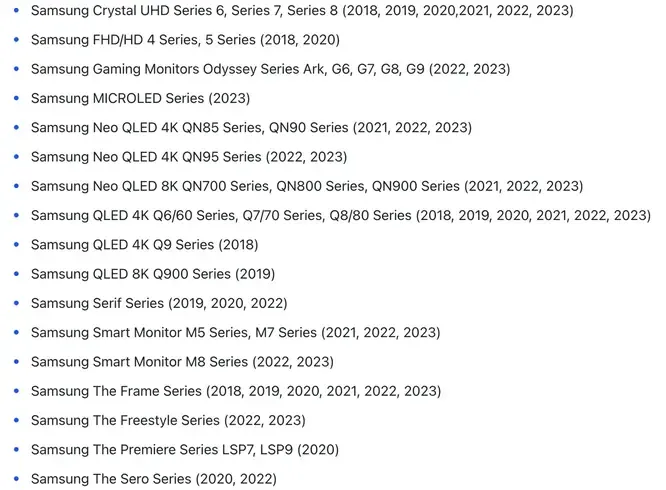
Fix 2. Restart your iPhone and Samsung TV
Moving on from Fix 1, let's continue addressing the why AirPlay not working on Samsung TV issue with another simple solution. Restarting both your iPhone and Samsung TV can quickly resolve minor glitches and improve connectivity.
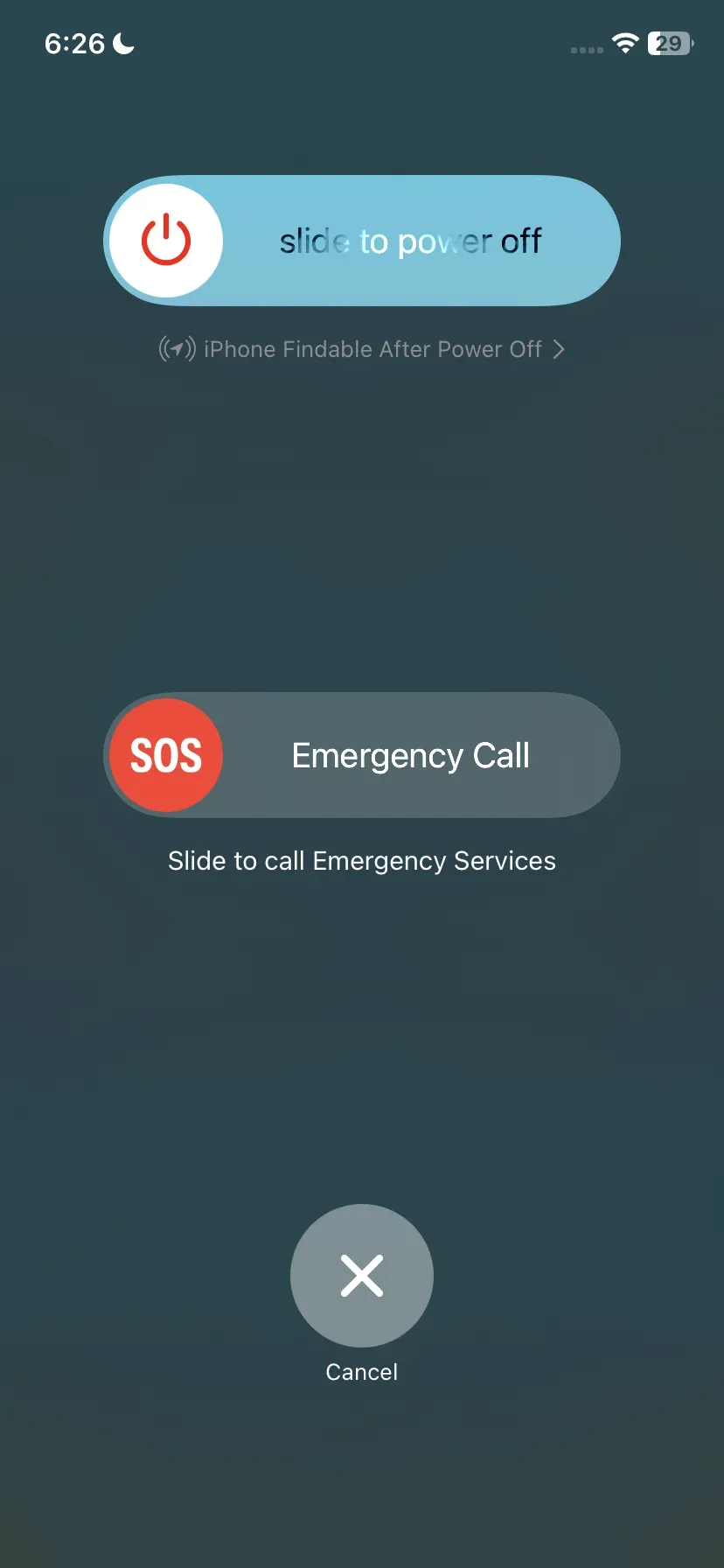
- iPhone/iPad: Press the Power button and any Volume button together until the Slide to power off option appears. Turn off the device, wait 10–15 seconds, then turn it back on.
- Samsung TV: Press the Power button on the remote or unplug the TV from the power source for 30 seconds, then plug it back in and turn it on.
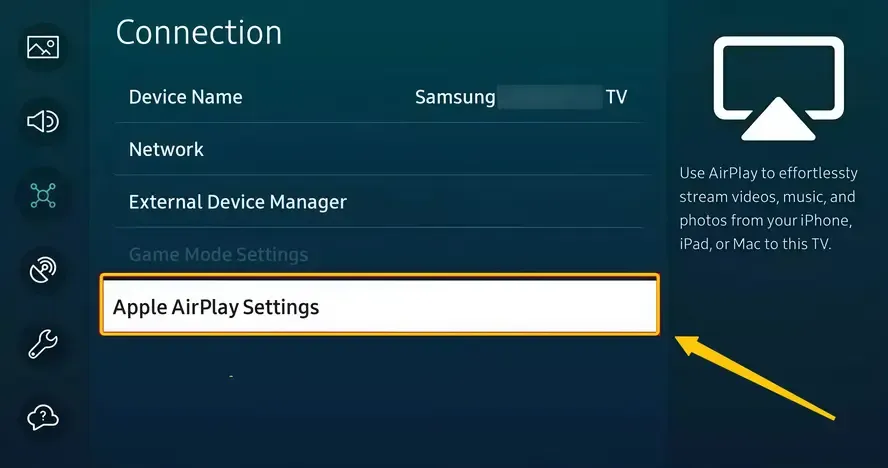
Remember to re-enable AirPlay on your Samsung TV to see if the issue has been resolved: navigate to Settings > General/Connection > Apple AirPlay Settings > AirPlay.
Fix 3. Check the Network Connection
A stable network connection is crucial for AirPlay to work properly. If your iPhone and Samsung TV aren't on the same reliable Wi-Fi network, streaming can fail or become unstable. Let's see how to check and optimize your network connection in the next step.
- Ensure your devices are on the same Wi-Fi network
AirPlay may fail if your devices are connected to different networks. If you have multiple Wi-Fi networks at home, check both your Apple device and your Samsung TV to ensure they are connected to the same network for seamless streaming.
- Ensure your devices are in close range and remove interference
For the best AirPlay performance, keep your iPhone or iPad close to your Samsung TV, ideally within the same room. Also, avoid placing your devices near microwaves, cordless phones, or other electronics that could interfere with the Wi-Fi signal.
- Check your network connection status in your TV's Settings
Even if your devices are on the correct network, temporary glitches can disrupt the connection. To troubleshoot, check your Samsung TV's network settings and reconnect to ensure a stable connection.
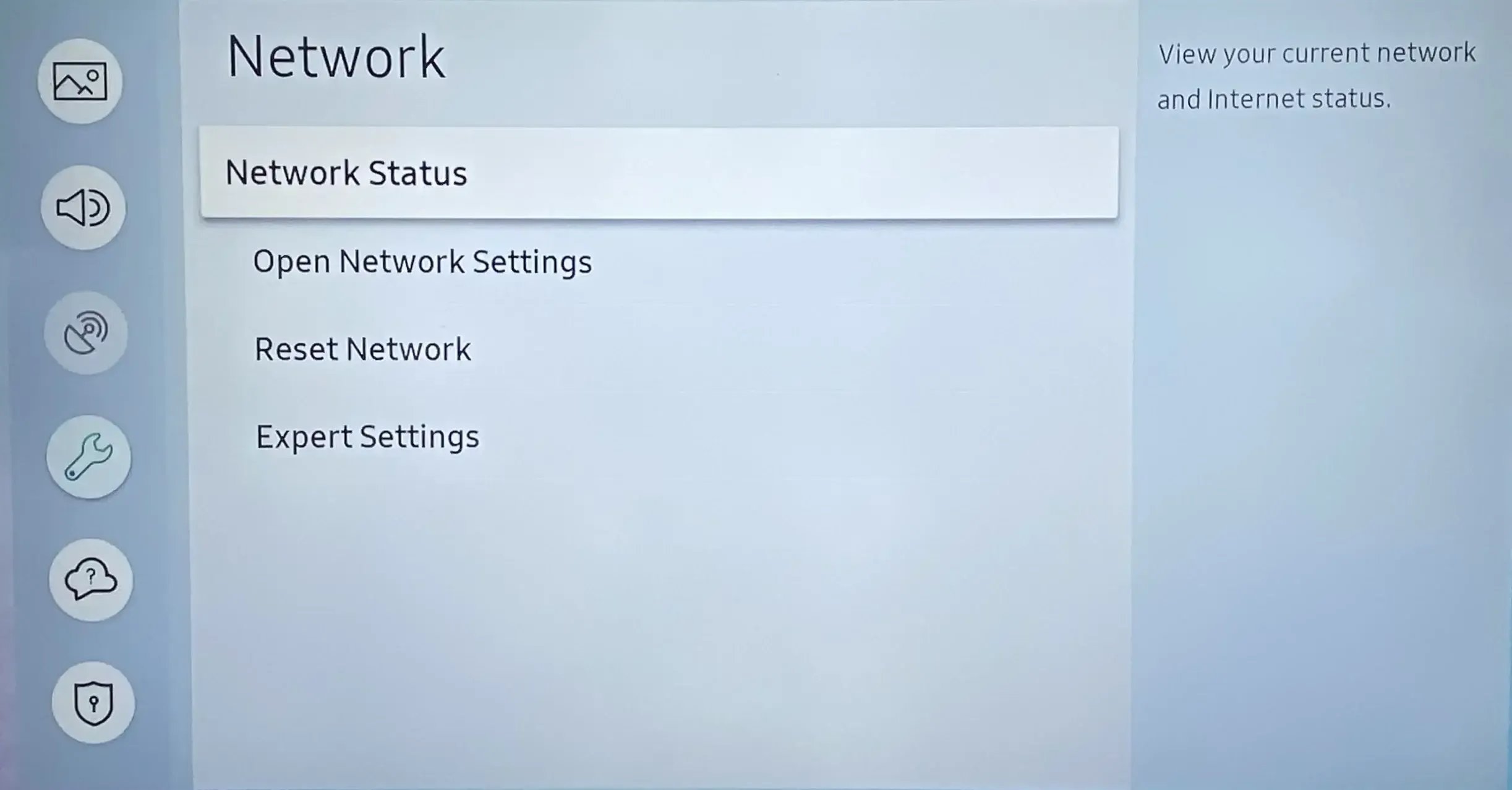
Step 1. On your Samsung TV, go to Settings > General > Network > Network Status.
Step 2. Ensure the TV shows Connected and the signal strength is strong.
Step 3. If the connection is weak or disconnected, try reconnecting the Wi-Fi from the Retry button on the Network Status screen or restarting your router.
- Turn off the VPN
If your AirPlay is not working on Samsung TV, the VPN may be the final culprit. It can interfere with AirPlay by making it seem like your devices are on different networks. If you have a VPN enabled on your Apple device, try turning it off while using AirPlay to ensure a smooth connection.
- Change the Network Band
Another reason AirPlay may not work on your Samsung TV is that the current network band isn't fully compatible. Changing the network band to 2.4GHz can help AirPlay work more reliably on Samsung TVs because 2.4GHz signals generally have a longer range and better penetration through walls, reducing connection drops.
Some Samsung TVs also have better compatibility with 2.4GHz networks, whereas 5GHz can be faster but less stable over longer distances or through obstacles. You should check your router's user manual to do that.
- Turn Off Private WiFi Address
On the Apple Community, many users have discussed AirPlay issues with Samsung TVs, noting that the problem became more frequent with iOS 16.3. Several users reported that turning off Private Wi-Fi Address successfully resolved the issue.
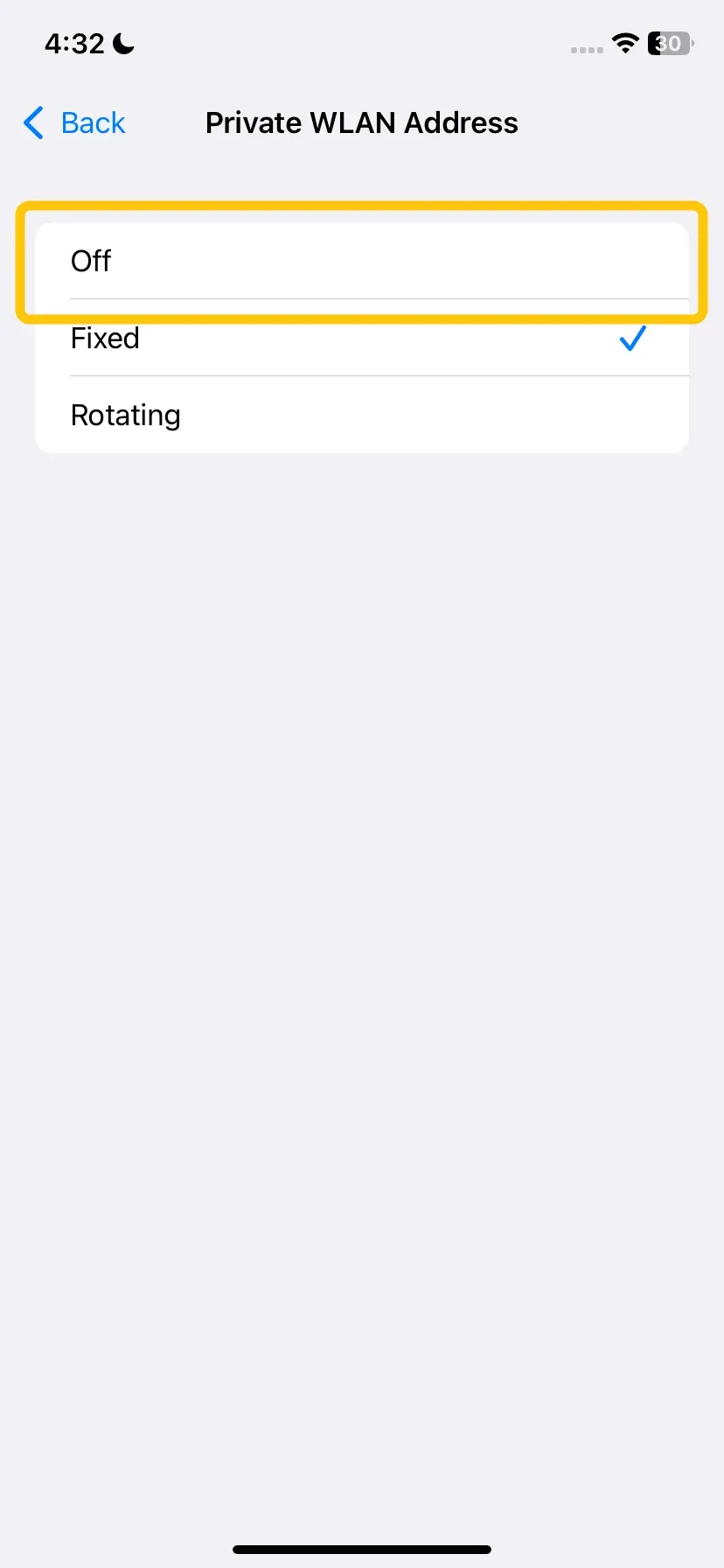
Step 1. On your iPhone, go to Settings > Wi-Fi.
Step 2. Tap the ⓘ next to your connected network.
Step 3. Toggle Private Wi-Fi Address off, return to the home screen, and try AirPlay again.
If it works, you can optionally turn Private Wi-Fi Address back on. AirPlay should continue to function normally. This simple tweak has helped many users restore smooth streaming to Samsung TVs, especially after iOS updates.
Fix 4. Disable Bluetooth on Your Apple device
Why is my AirPlay not working on my Samsung TV? Although AirPlay uses Bluetooth for device discovery (see does screen mirroring need Bluetooth), sometimes active Bluetooth connections with other devices can interfere with screen mirroring. Disabling Bluetooth temporarily on your iPhone, iPad, or Mac can help AirPlay connect more reliably to your Samsung TV.
- iPhone or iPad:
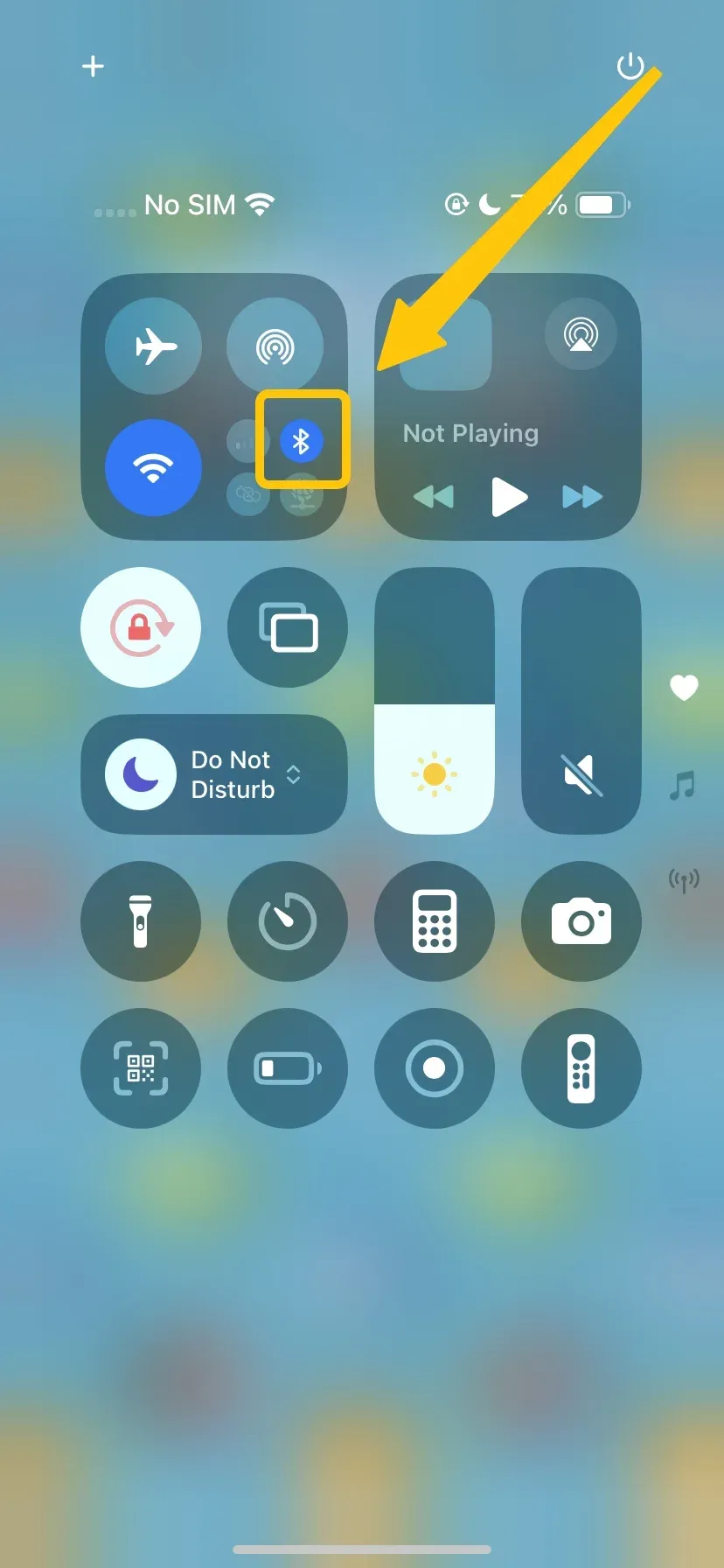
Open Settings > Bluetooth and toggle it off. Alternatively, you can swipe into the Control Center and tap the Bluetooth icon to turn it off.
- Mac:
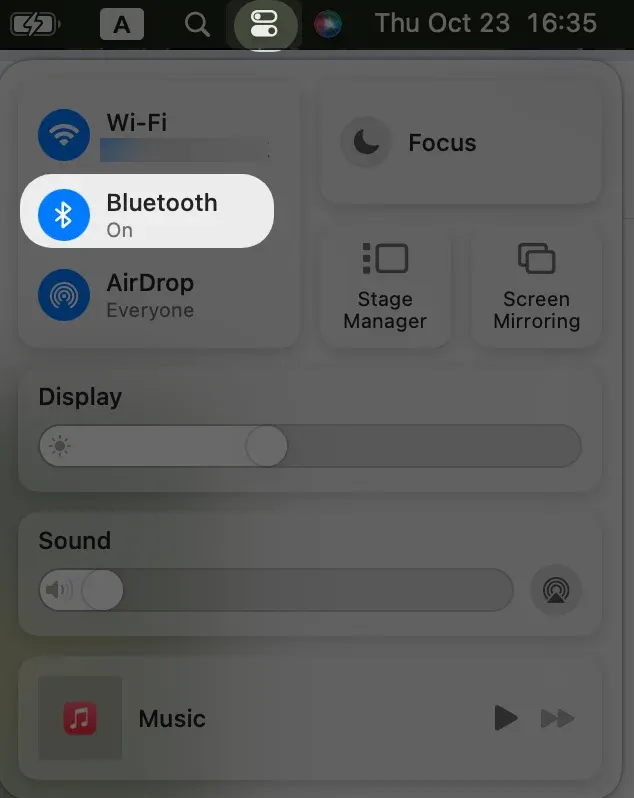
Click the Bluetooth icon in the menu bar and select Turn Bluetooth off.
Fix 5. Change Require Code Settings and Reset Paired Devices
AirPlay is not working on my Samsung TV? Sometimes AirPlay issues occur due to mismatched security settings or previously paired devices that are interfering with new connections. Adjusting the Require Code settings and resetting paired devices can often fix these problems. Here are the quick steps:
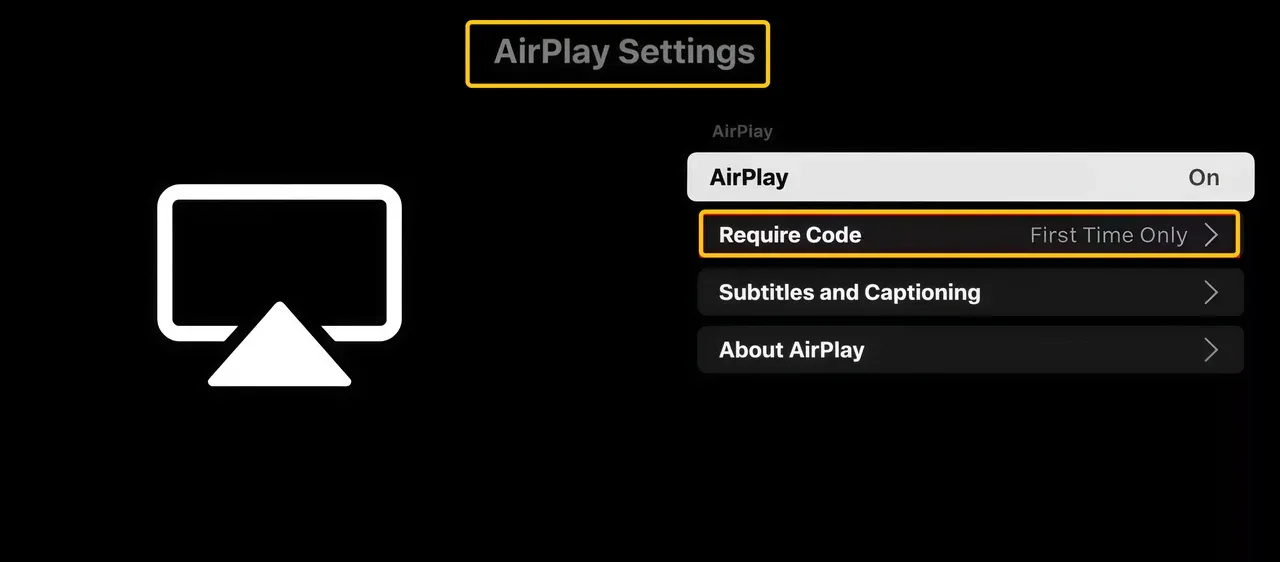
Step 1. On your Samsung TV, go to Settings > General > Apple AirPlay Settings > Require Code.
Step 2. You can choose:
- Require Code the First Time: A code is needed only the first time your iOS device connects.
- Require Code Every Time: A code is needed every time you connect for added security.
- Custom Passcode: You can set your own passcode instead of using a randomly generated one.
Step 3. If adjusting the code settings doesn't work, select the Reset Paired Devices option to unpair the connected AirPlay devices and reset all the AirPlay settings for your Samsung TV.
Step 4. Reconnect your Apple device using the new settings.
Fix 6. Update Your Device Firmware
One of the most common reasons AirPlay is not working on Samsung TV is outdated software. To ensure full compatibility with AirPlay 2, make sure both your Samsung TV and Apple device are running the latest firmware or operating system.
- Update your Samsung TV
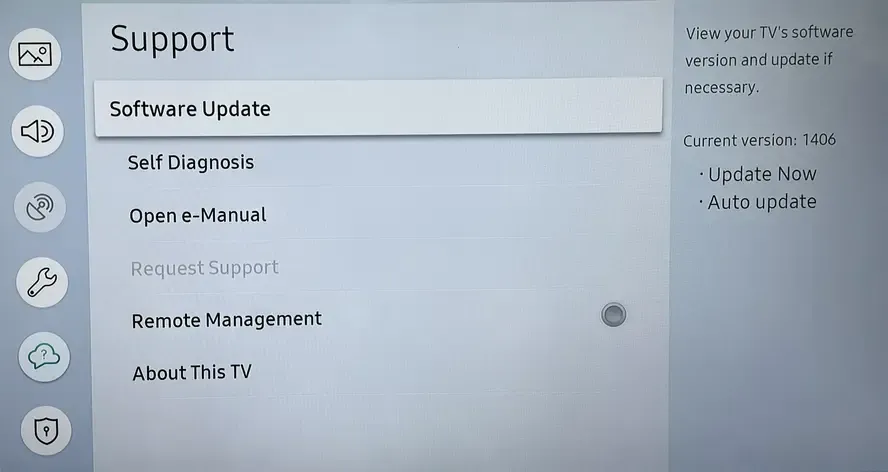
Step 1. Press the Home button on your remote and go to Settings > Support > Software Update > Update Now.
Step 2. If an update is available, follow the on-screen instructions to install it. After updating, restart your TV.
- Update your Apple device
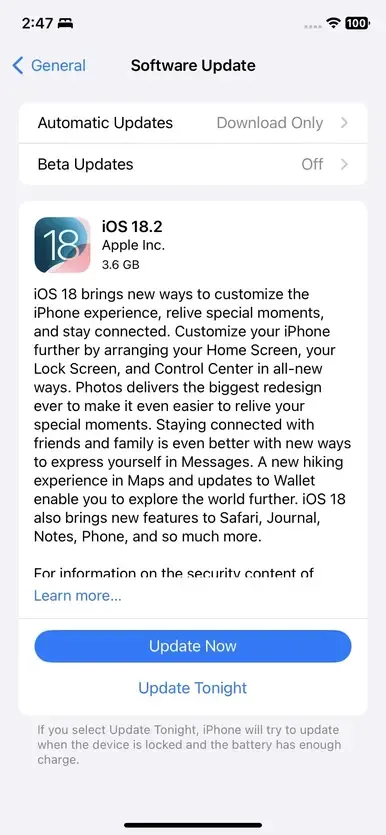
Step 1. On your iPhone or iPad, go to Settings > General > Software Update.
Step 2. If an update is available, tap Download and Install.
- Update MacBook
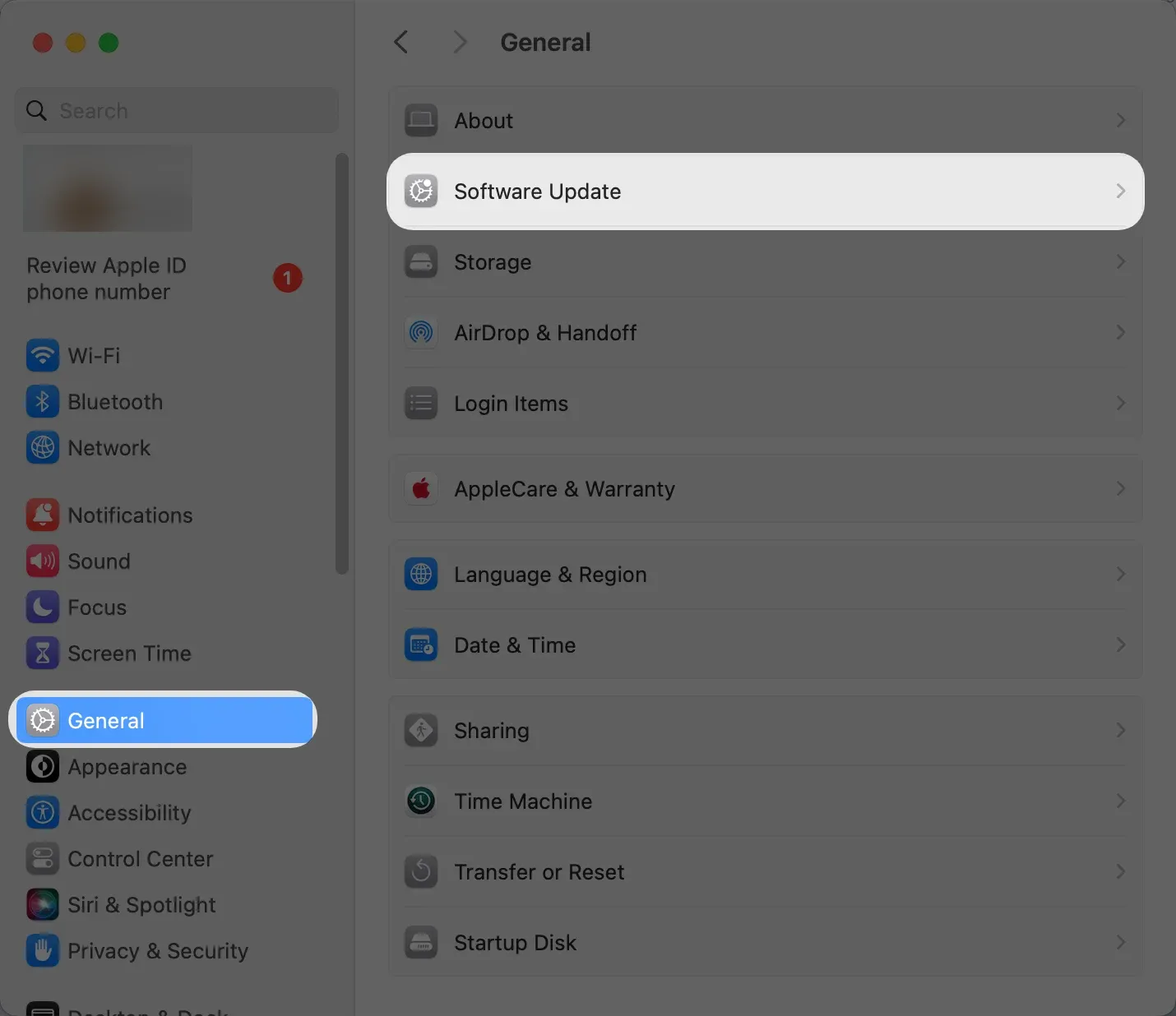
Click the Apple Icon > System Preferences > General > Software Update > Update now.
Fix 7. Disable Auto Protection Time on your TV
Some Samsung TVs have a feature called Auto Protection Time that prevents screen burn-in by dimming or turning off the display after a set period of inactivity. While useful, this feature can sometimes interfere with AirPlay, causing the connection to drop unexpectedly.
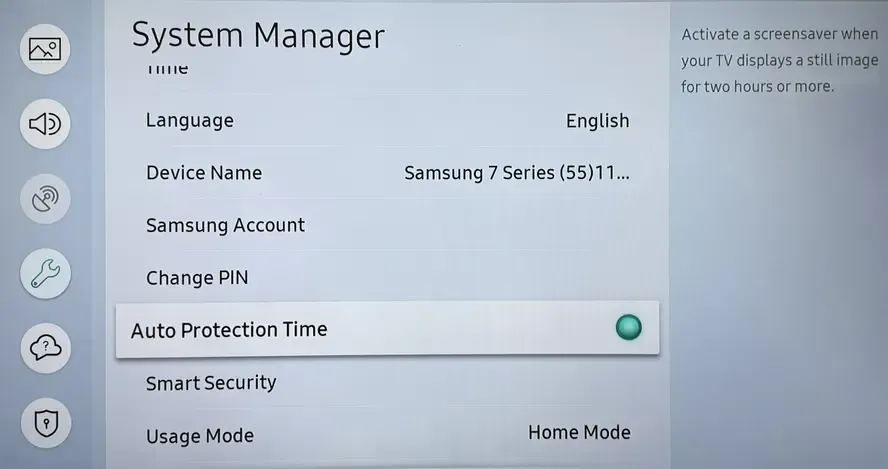
Press the Home button on your Samsung remote and go to Settings > General > System Manager > Eco Solution > Auto Protection Time.
Fix 8. Enable IP Remote
How to solve AirPlay not working on my Samsung TV? AirPlay may fail to work if your Samsung TV's IP Remote feature is disabled. IP Remote allows devices on your network, like iPhones, iPads, and Macs, to communicate with your TV, which is essential for AirPlay to function properly.
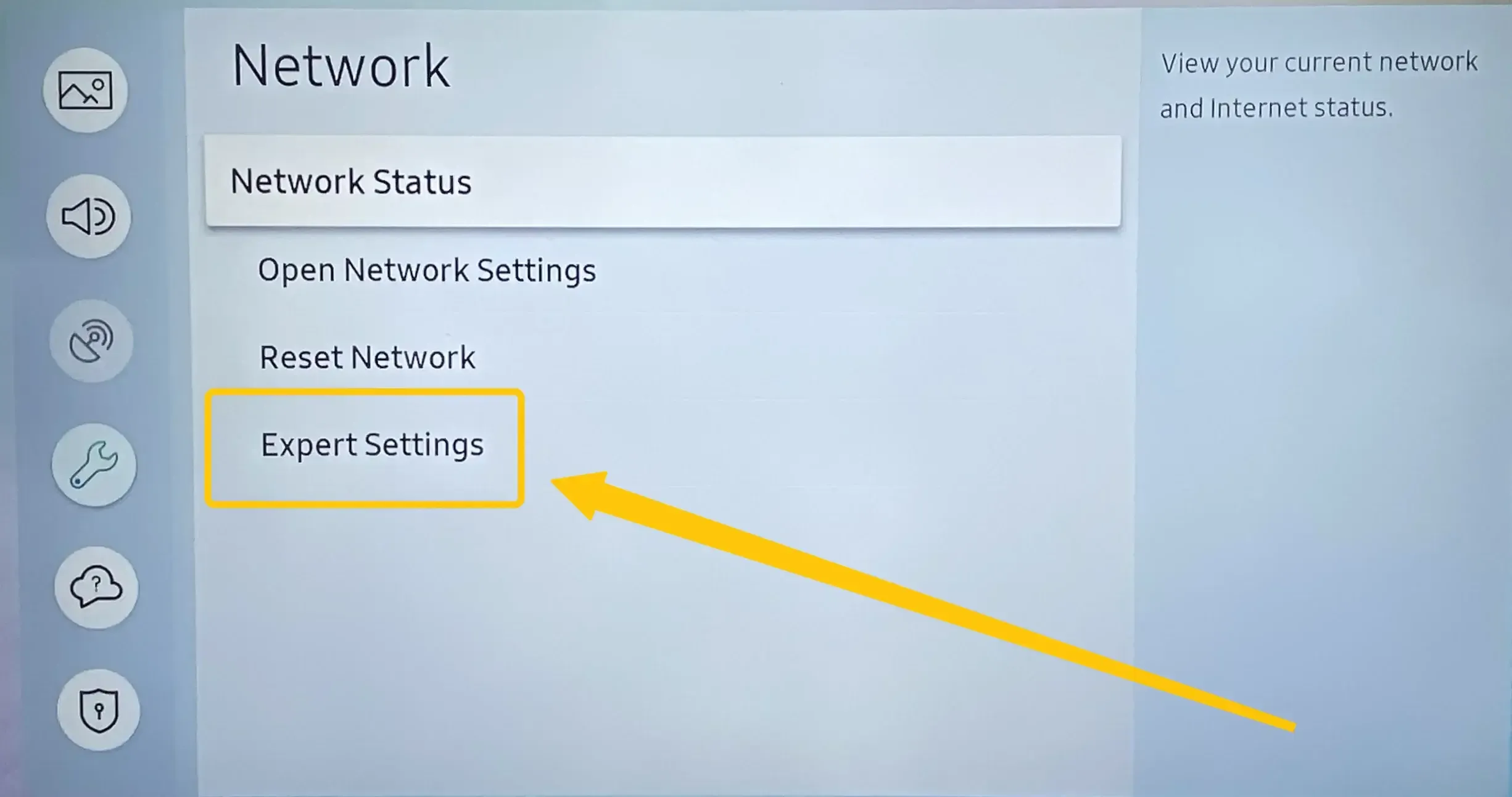
Step 1. Press the Home button on your Samsung remote and navigate to Settings > General > Network > Expert Settings.
Step 2. Toggle the IP Remote to On and check if AirPlay works.
Fix 9. Disable IPv6 on Samsung TV
Plus, AirPlay may fail to work due to network protocol conflicts, especially when IPv6 is enabled on your Samsung TV. Disabling IPv6 can improve compatibility with Apple devices and ensure smoother screen mirroring.
Step 1. Press the Home button on your Samsung remote and go to Menu > Network > Expert Settings.
Step 2. Disable IPv6.
Step 3. Restart your TV and Apple device to apply the changes.
Fix 10. Factory Reset Samsung TV Settings
If all other troubleshooting steps fail, performing a factory reset on your Samsung TV can often resolve persistent AirPlay issues. A factory reset restores your TV to its original settings, clearing any configuration conflicts that might be preventing AirPlay from working.
Note: A factory reset will erase all your customized settings, installed apps, and network configurations. Make sure to back up any important data or settings before proceeding.
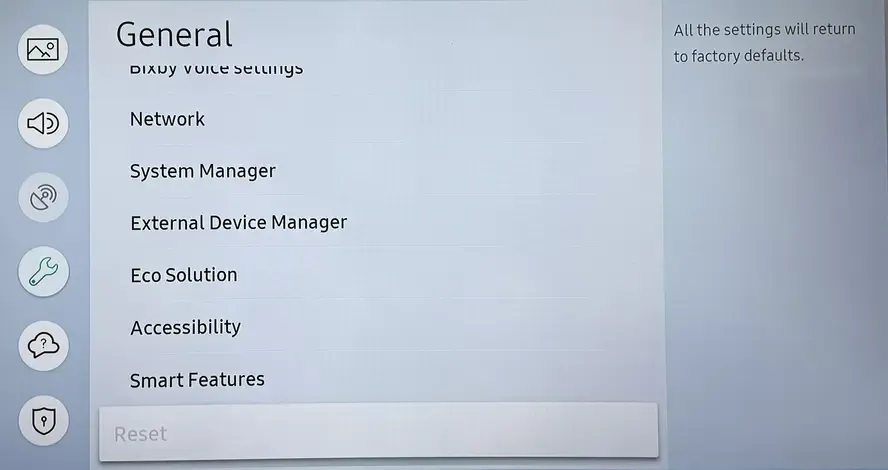
Step 1. Go to Menu > Settings All Settings > General > Reset.
Step 2. Enter your PIN (default is usually 0000).
Step 3. Then choose Reset again to confirm and select OK, and your TV will restart automatically.
Best Alternative to AirPlay on Samsung TV: PigeonCast
If you have a Chromecast dongle or your Samsung TV has Chromecast built in, you can use PigeonCast to mirror your iOS device or Mac to your Samsung TV. This universal screen mirroring app supports AirPlay, Google Cast, and DLNA, allowing easy streaming with up to 2K resolution and adjustable frame rates for smooth playback.

Step 1. Plug an external Chromecast device into the Samsung TV's HDMI port to add Chromecast functionality.

PigeonCast Screen Mirroring

Official Download


Step 2. Install the PigeonCast on your Apple device from the App Store.
Step 3. Ensure your Apple device and Samsung TV are under the same wireless network.
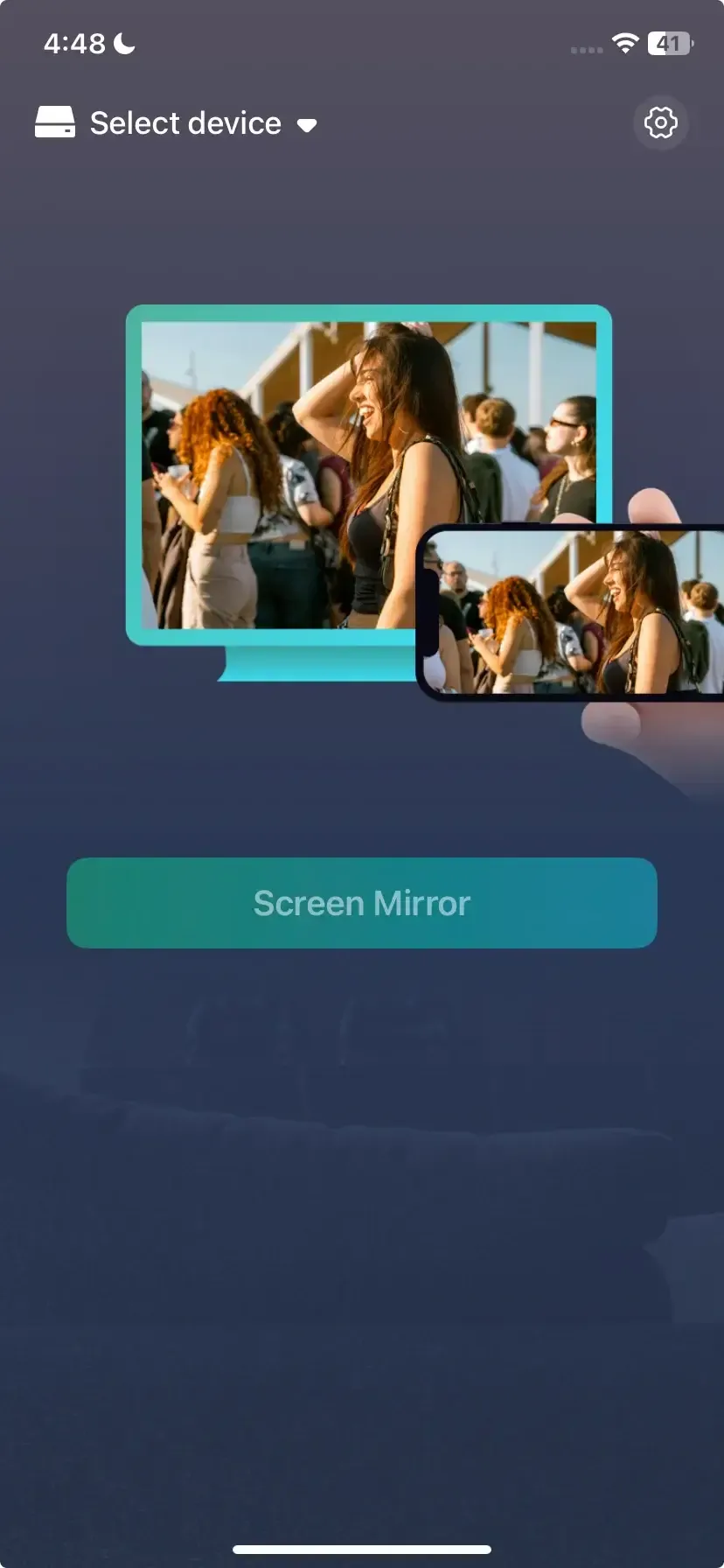
Step 4. On your Apple device, launch the app and tap Select device to choose Samsung TV from the available list.
Step 5. Follow the onscreen introduction to finish connection.
Step 6. Once succeeds, you can screen mirror your Apple device to the Samsung smart television.
Closing Words
Apple AirPlay on Samsung TV not working can be frustrating, but most issues are easy to fix. Try checking your TV's compatibility, network connection, AirPlay settings, or updating your devices. If AirPlay still doesn't work but you have a Chromecast, you can use PigeonCast as an alternative to mirror your iPhone, iPad, or Mac to your Samsung TV easily.
AirPlay Not Working on Samsung TV FAQ
Q: Why won't my iPhone connect to Samsung?
iPhones and Samsung devices use different operating systems (iOS vs. Android) and communication protocols, which can prevent direct connections for certain features. You may need a third-party app, a cloud service, or a compatible method like Bluetooth, Wi-Fi Direct, or email to share data between them.
Q: How do I activate AirPlay on a Samsung TV?
To activate AirPlay on a Samsung TV:
- Make sure your Apple device and Samsung TV are on the same Wi-Fi network for AirPlay to work smoothly.
- Press the Home button on your remote and go to Settings > General > Apple AirPlay Settings.
- Toggle AirPlay to On.
- Once enabled, your iPhone, iPad, or Mac can detect the TV for screen mirroring.
Q: Can Samsung use Apple AirPlay?
Yes. Most Samsung Smart TVs from 2018 and later support AirPlay 2, allowing iPhones, iPads, and Macs to mirror or stream content directly to the TV.
Q: Why is my Samsung TV not showing up on AirPlay?
Not all Samsung TVs support AirPlay, and those that do may need to have AirPlay enabled in the settings. Ensure your TV and Apple device are on the same Wi-Fi network, the TV's firmware is up to date, and AirPlay is turned on in the TV's settings.
Q: Why does AirPlay keep disconnecting from my Samsung TV?
AirPlay may disconnect due to Wi-Fi interference, weak signal strength, or outdated software. Make sure your Samsung TV and Apple device are on the same stable Wi-Fi network, keep both devices updated, and try restarting them to improve the connection.
Q: Why is there no AirPlay code showing on my Samsung TV?
If no AirPlay code appears, your Samsung TV may not have AirPlay enabled, or it could be on an outdated firmware version. Ensure AirPlay is turned on in the TV's settings, the TV and Apple device are on the same Wi-Fi network, and the TV’s software is up to date.
Q: Why is my Samsung TV's AirPlay sound not working?
If AirPlay sound isn't working on your Samsung TV, it could be due to muted TV volume, incorrect audio output settings, or a weak Wi-Fi connection. Check that the TV volume is up, the correct audio output is selected, and both the TV and Apple devices are on the same stable network.
Q: Why is AirPlay lagging or buffering on my Samsung TV?
AirPlay may lag or buffer on your Samsung TV due to a weak or congested Wi-Fi connection, outdated software, or network interference. Ensure both your TV and Apple device are on the same strong Wi-Fi network, minimize other network usage, and keep the devices' software updated.
Q: Why does my Samsung TV say "AirPlay Not Available"?
Your Samsung TV may say "AirPlay Not Available" for a few common reasons:
- AirPlay is turned off: Go to Settings > General > Apple AirPlay Settings and make sure AirPlay is enabled.
- Devices not on the same Wi-Fi network: Ensure both your Apple device and Samsung TV are connected to the same network.
- Outdated software: Check for software updates on your TV and Apple device.
- Temporary glitches: Restart your TV and Apple device to resolve minor connection issues.
Q: Can I use AirPlay without Wi-Fi on my Samsung TV?
No, you cannot use AirPlay on a Samsung TV without Wi-Fi. AirPlay requires both your Apple device and the Samsung TV to be connected to the same Wi-Fi network to establish a wireless connection. Without Wi-Fi, AirPlay will not function, though you can still mirror your device using alternatives like Miracast, Chromecast, or a wired HDMI connection.
Clara Rossi is an experienced technology editor and a seasoned expert in screen mirroring and casting technologies. With a keen eye for detail and a deep understanding of how to seamlessly connect devices, Clara excels at optimizing user experiences for effortless sharing and streaming. Whether you're seeking quick fixes or advanced tips, her expertise and responsiveness ensure that every query is met with a well-informed and efficient solution.