
Screen mirroring has become a common feature nowadays, but many people still wonder: Does screen mirroring use Bluetooth? If you've had the same question, you're in the right place. In this guide, we provide a clear explanation and walk you through the process of using screen mirroring on your device.
Does Screen Mirroring Use Bluetooth
No, screen mirroring does not rely on Bluetooth. Bluetooth was designed for short-range, low-bandwidth connections such as wireless headphones, keyboards, and small file transfers. It does not have the speed or capacity to handle high-quality video and audio transmission. That's why most screen mirroring solutions use Wi-Fi or specialized wireless protocols like:
- Apple AirPlay (iOS/macOS → Apple TV or smart TVs)
- Google Chromecast (Android/iOS → Chromecast devices or TVs)
- Miracast (Windows/Android → Miracast-enabled displays)
- Built-in Smart TV features (Samsung, LG, Sony, etc.)
How to Screen Mirror Your Screen Without Bluetooth
Does screen mirroring use WiFi or Bluetooth? Since screen mirroring doesn't rely on Bluetooth, the process usually happens over Wi-Fi or direct wireless protocols. The exact steps vary depending on the device you're using. Here's a detailed breakdown:
Screen Mirroring with Apple AirPlay (iPhone, iPad, Mac)
Does iPhone screen mirroring use Bluetooth? The answer is also no. However, if you are using Peer-to-Peer AirPlay, you don't need wifi, but you need to turn on Bluetooth. Fore more situations, if you're an Apple user, you'll be glad to know that Apple offers a built-in solution called AirPlay. With AirPlay, you can effortlessly streaming device. Here, we'll use Apple TV as an example.
Step 1. Ensure your iPhone/iPad/Mac and Apple TV (or AirPlay-compatible smart TV) are connected to the same Wi-Fi network.
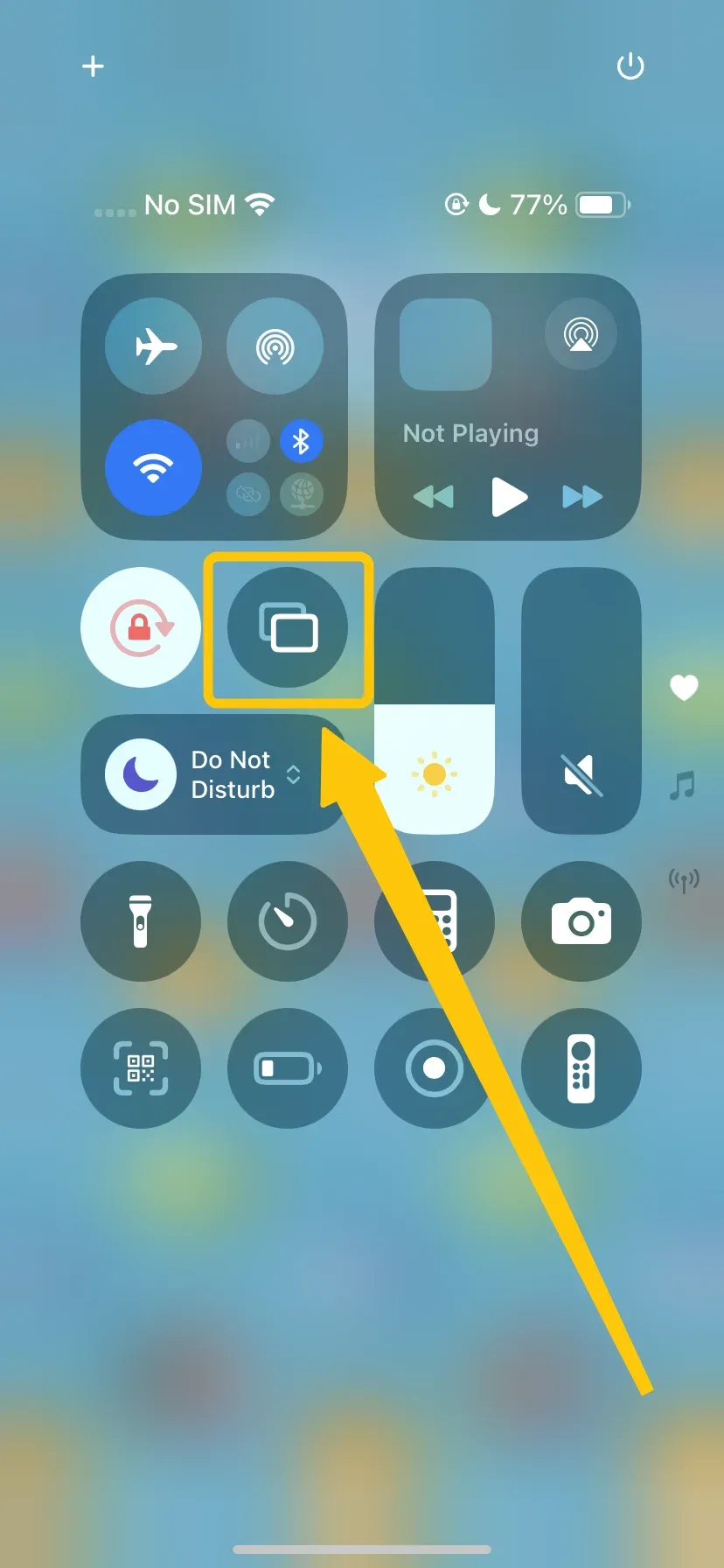
Step 2. On iPhone or iPad, swipe down from the top-right corner to open Control Center.
Step 3. Tap or click Screen Mirroring and select your Apple TV or AirPlay-compatible device.
Step 4. If prompted, enter the AirPlay passcode displayed on your TV, and then your screen instantly mirrors to the TV in full resolution.
Screen Mirroring with Google Chromecast (Android, iOS, Chrome Browser)
If you're not in the Apple ecosystem, don't worry, screen mirroring is just as easy with Google Chromecast. Whether you're using an Android device, an iPhone, or even the Chrome browser on your computer, you can cast your screen to TV via Chromecast.
Step 1. Plug the Chromecast into your TV and connect it to the same Wi-Fi network as your device.
Step 2. Tap or click the Cast option from your corresponding device to mirror your entire screen or just stream content:
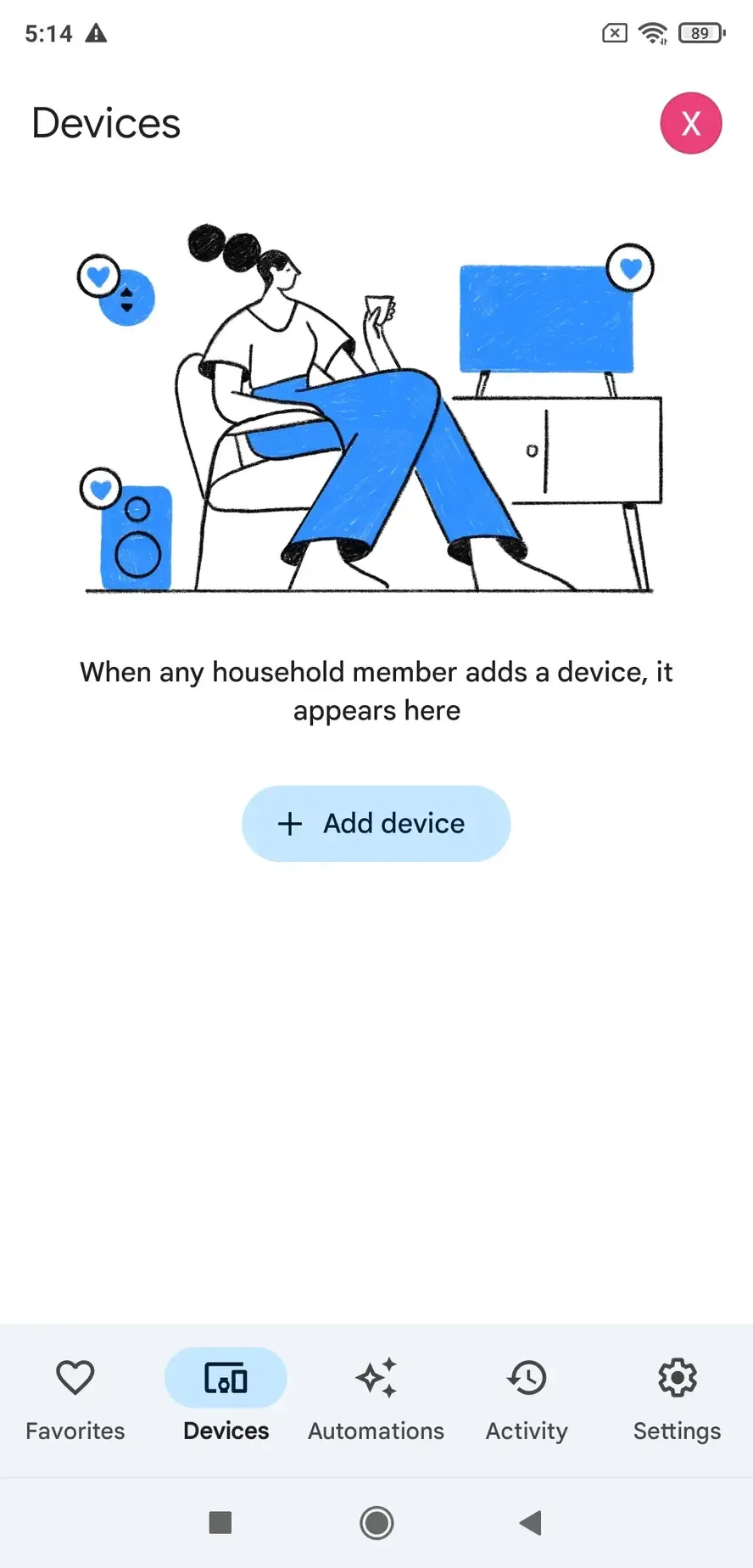
- On Android, open the Google Home app, then tap Add device.
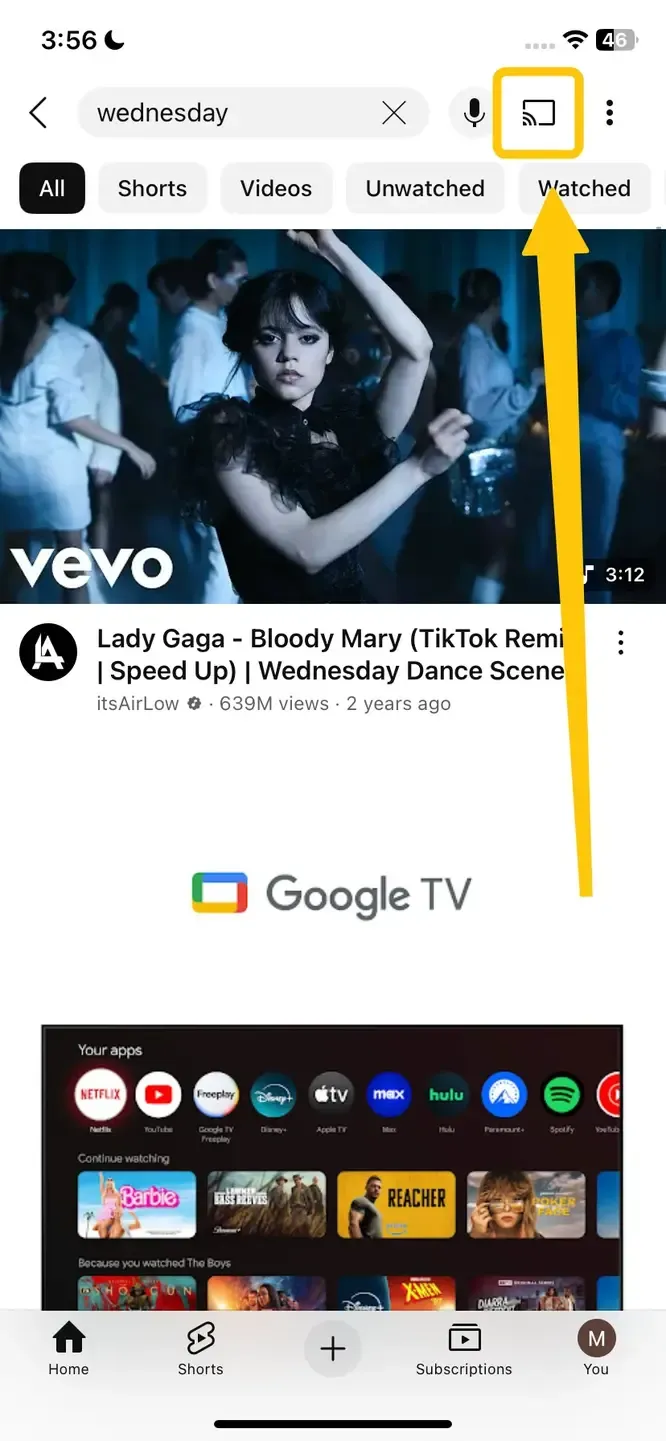
- On iOS, open apps that support Chromecast (YouTube, Netflix, etc.), then tap the Cast icon.
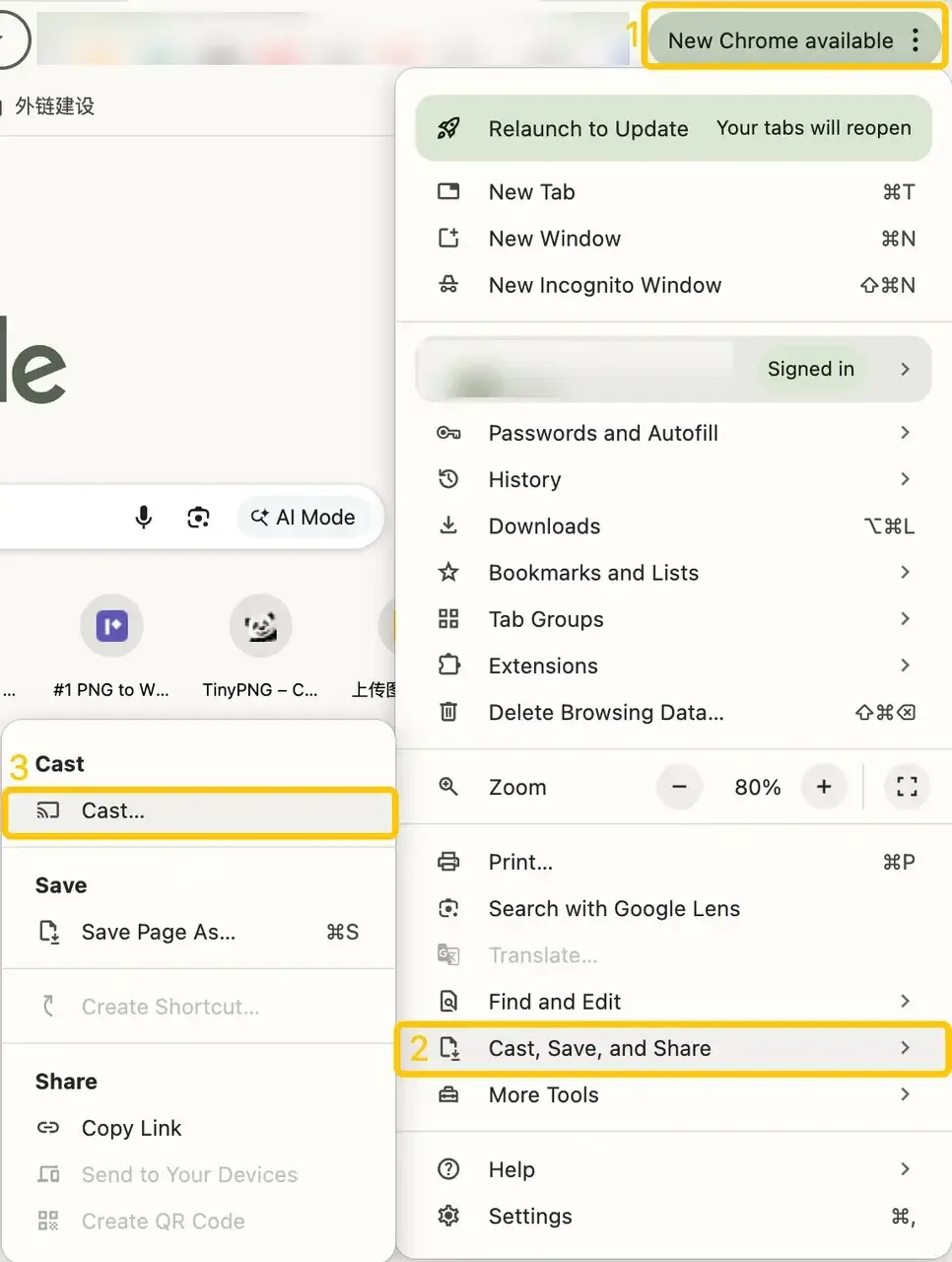
- On the desktop, open Google Chrome, click the three dots menu, and select Cast.
Screen Mirroring with Miracast (Windows, Android, Smart TVs)
For users who prefer a more universal and device-agnostic approach, Miracast offers a convenient solution. Unlike AirPlay or Chromecast, Miracast works across Windows PCs, Android devices, and many Smart TVs without requiring additional apps or services. If you want a straightforward way to mirror your screen directly to your TV, Miracast is a reliable option.
Step 1. Ensure both your PC/phone and TV/projector are Miracast-enabled and on the same Wi-Fi network.
Step 2. Enter the pairing entry from your device:
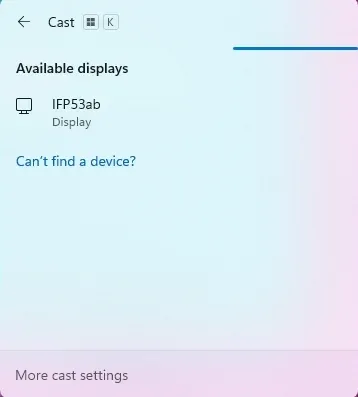
- On Windows, press Windows Key + K or go to Settings > Display > Connect to a wireless display.
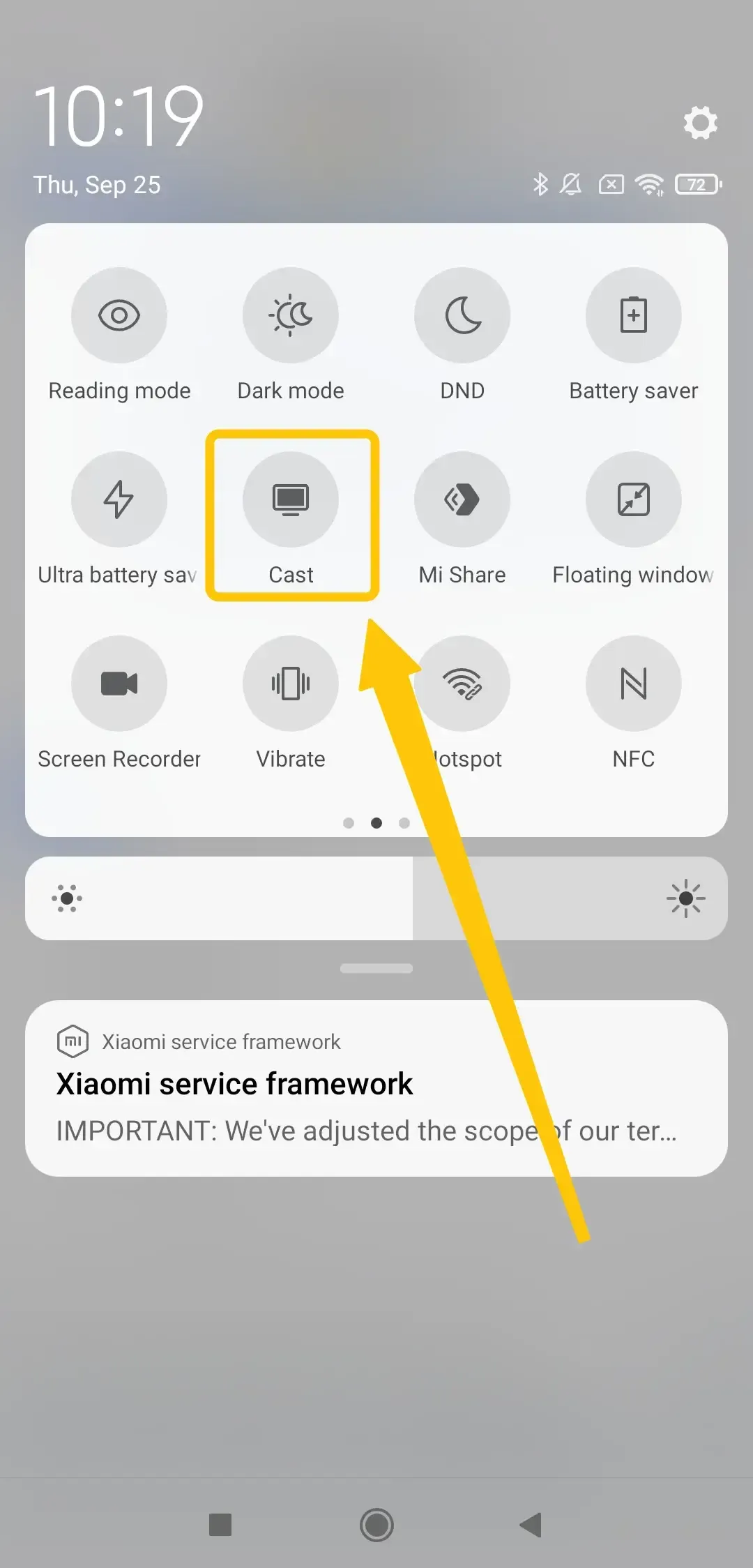
- On Android, go to Quick Panel > Cast (wording varies by brand).
Step 4. Select your TV from the list and allow the connection, then your device screen will appear on the TV in real time.
Screen Mirroring with PigeonCast
When built-in options like AirPlay, Chromecast, or Miracast aren't available or if you need more flexibility, third-party apps step in as a practical solution. These apps, such as PigeonCast, are designed to work across different platforms, making it easy to mirror your screen whether you're using iOS, Android, Windows, or macOS.
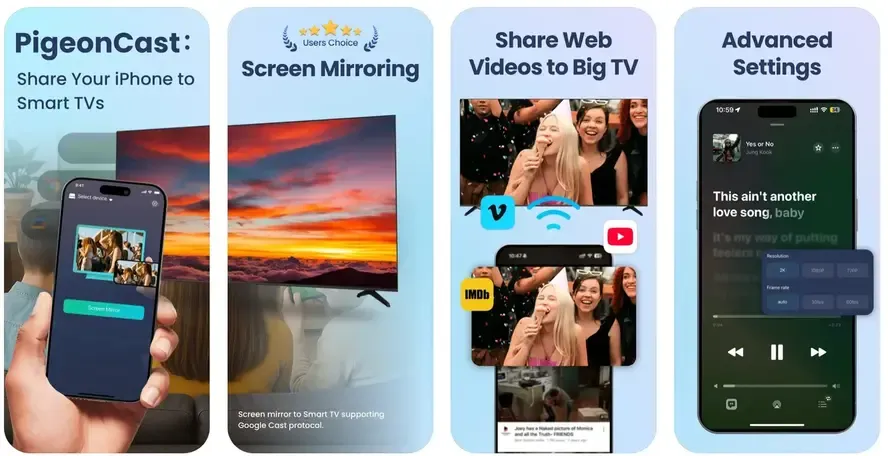
PigeonCast shines for its versatility, offering seamless screen mirroring across Android, iOS, Windows, macOS, and smart TVs. It supports major streaming protocols, including AirPlay, Google Cast, and DLNA, making it a go-to solution for virtually any setup.

PigeonCast Screen Mirroring

Official Download



Final Verdict
Does screen mirroring use Bluetooth or WiFi? The answer is Wi-Fi, not Bluetooth. Bluetooth simply doesn't have the speed or bandwidth needed for video mirroring. Instead, screen mirroring relies on Wi-Fi–based technologies such as Miracast, AirPlay, Chromecast, or third-party apps like Pigeoncast. For smooth, high-quality mirroring, ensure your devices are on the same Wi-Fi network or use a compatible casting tool.
Does Screen Mirroring Use Bluetooth FAQ
Q: Can you mirror a screen using Bluetooth?
No, you can't mirror a screen using Bluetooth. Bluetooth is designed for low-bandwidth tasks like connecting headphones, keyboards, or transferring small files. Screen mirroring requires high-speed data transfer for video and audio, which Bluetooth cannot handle. Instead, screen mirroring works through Wi-Fi–based technologies such as AirPlay, Chromecast, or Miracast.
Q: What connection does screen mirroring use?
Screen mirroring primarily uses a WiFi connection. Unlike Bluetooth, which lacks the speed and bandwidth for video transmission, WiFi provides the fast and stable network required to share both audio and video in real time. Most screen mirroring technologies, such as AirPlay, Chromecast, and Miracast rely on WiFi to deliver a smooth and high-quality experience.
Q: Does your Bluetooth have to be on to screen mirror on an iPhone?
No, Bluetooth does not need to be on to screen mirror from an iPhone. Screen mirroring on iPhone uses AirPlay, which relies on Wi-Fi, not Bluetooth. As long as your iPhone and the AirPlay-compatible device (like an Apple TV or smart TV) are connected to the same Wi-Fi network, you can mirror your screen without enabling Bluetooth.
Q: Does Miracast use Bluetooth?
No, Miracast does not use Bluetooth. It relies on Wi-Fi Direct, which allows devices to connect directly over Wi-Fi without needing a wireless router. This connection enables high-quality video and audio streaming between compatible devices, such as PCs, laptops, smartphones, and smart TVs.
Q: Does AirPlay use Bluetooth for screen mirroring?
AirPlay does not rely on Bluetooth for screen mirroring. It primarily uses a Wi-Fi network to stream audio, video, or mirror your device's screen to compatible receivers like Apple TV or AirPlay-enabled smart TVs. While Bluetooth may be used briefly for initial device discovery or proximity detection, the actual content transmission happens over Wi-Fi, ensuring high-quality, low-latency streaming.
Q: Is Bluetooth fast enough for screen mirroring?
No, Bluetooth is generally not fast enough for screen mirroring. Bluetooth has limited bandwidth, which makes it suitable for audio streaming or device pairing but insufficient for transmitting high-resolution video in real time. Screen mirroring requires a faster, more stable connection, such as Wi-Fi, Wi-Fi Direct, or wired HDMI, to ensure smooth video and low latency.
Q: Can I screen mirror if I only have Bluetooth on?
No, you generally cannot screen mirror using only Bluetooth. Bluetooth's bandwidth is too limited to transmit high-resolution video and audio in real time. Screen mirroring requires a faster connection, such as Wi-Fi, Wi-Fi Direct, or a wired connection, to ensure smooth, lag-free streaming. Bluetooth may assist with device discovery or initial pairing, but it cannot handle the actual screen mirroring data.
Clara Rossi is an experienced technology editor and a seasoned expert in screen mirroring and casting technologies. With a keen eye for detail and a deep understanding of how to seamlessly connect devices, Clara excels at optimizing user experiences for effortless sharing and streaming. Whether you're seeking quick fixes or advanced tips, her expertise and responsiveness ensure that every query is met with a well-informed and efficient solution.