
If you're wondering how to connect to Chromecast, you're not alone. Millions of users are exploring ways to stream videos, mirror screens, or share content from their phones and computers to the big screen using Chromecast. Whether you're on an Android phone, iPhone, Windows PC, or MacBook, there are several ways to get started.
What Is Chromecast
Chromecast is a compact streaming device developed by Google that plugs into your TV's HDMI port. Once connected, it allows you to cast or mirror content over Wi-Fi from your phone, tablet, or computer. This is due to the Google Cast protocol.
Google Cast is a proprietary streaming technology that lets supported apps and devices send media to the RC without needing physical cables. Unlike traditional screen mirroring, casting streams content directly from the internet to the Chromecast, freeing up your phone or computer for other tasks.
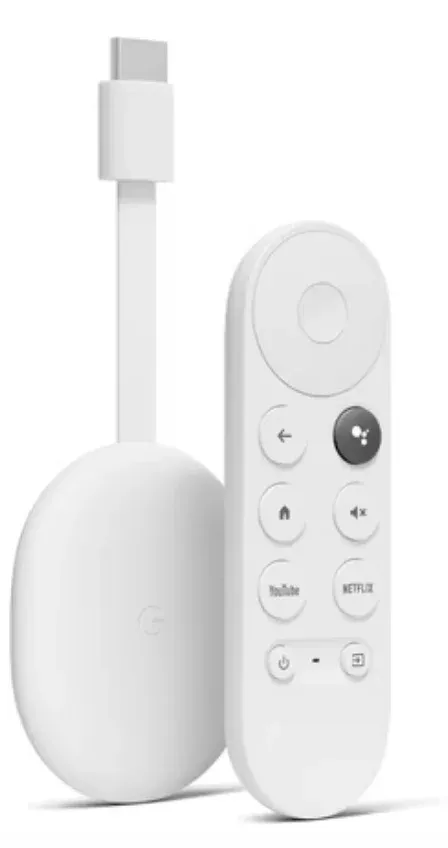
Chromecast has gone through several versions since its launch in 2013, including:
- Chromecast (1st Gen): the original dongle-style device with basic 1080 streaming
- Chromecast (2st Gen): improved design and Wi-Fi performance
- Chromeccast Ultra: Added support for 4K and HDR streaming
- Chromecast with Google TV: combines casting with a built-in operating system and remote, turning any TV into a full smart TV experience.
How to Connect Chromecast to TV
Before using Chromecast for screen mirroring or casting, you need to go through a quick setup process. This ensures that your Chromecast device is properly connected to your TV and linked to the same Wi-Fi network as your phone or computer.
Whether you're setting it up for the first time or reconfiguring it after a reset, the steps are simple and only take a few minutes. Let's walk through how to get your Chromecast ready to use.
Here's how to connect Chromecast to TV:
Step 1. Insert the Chromecast into your TV's HDMI port and use the USB cable and power adapter to plug it into a wall outlet.
Step 2. Turn on your TV and switch to the correct HDMI input by pressing the Input or Source button on the remote control.
Step 3. To continue with how to connect Chromecast to TV from mobile, download the Google Home app on your iPhone or Android device.
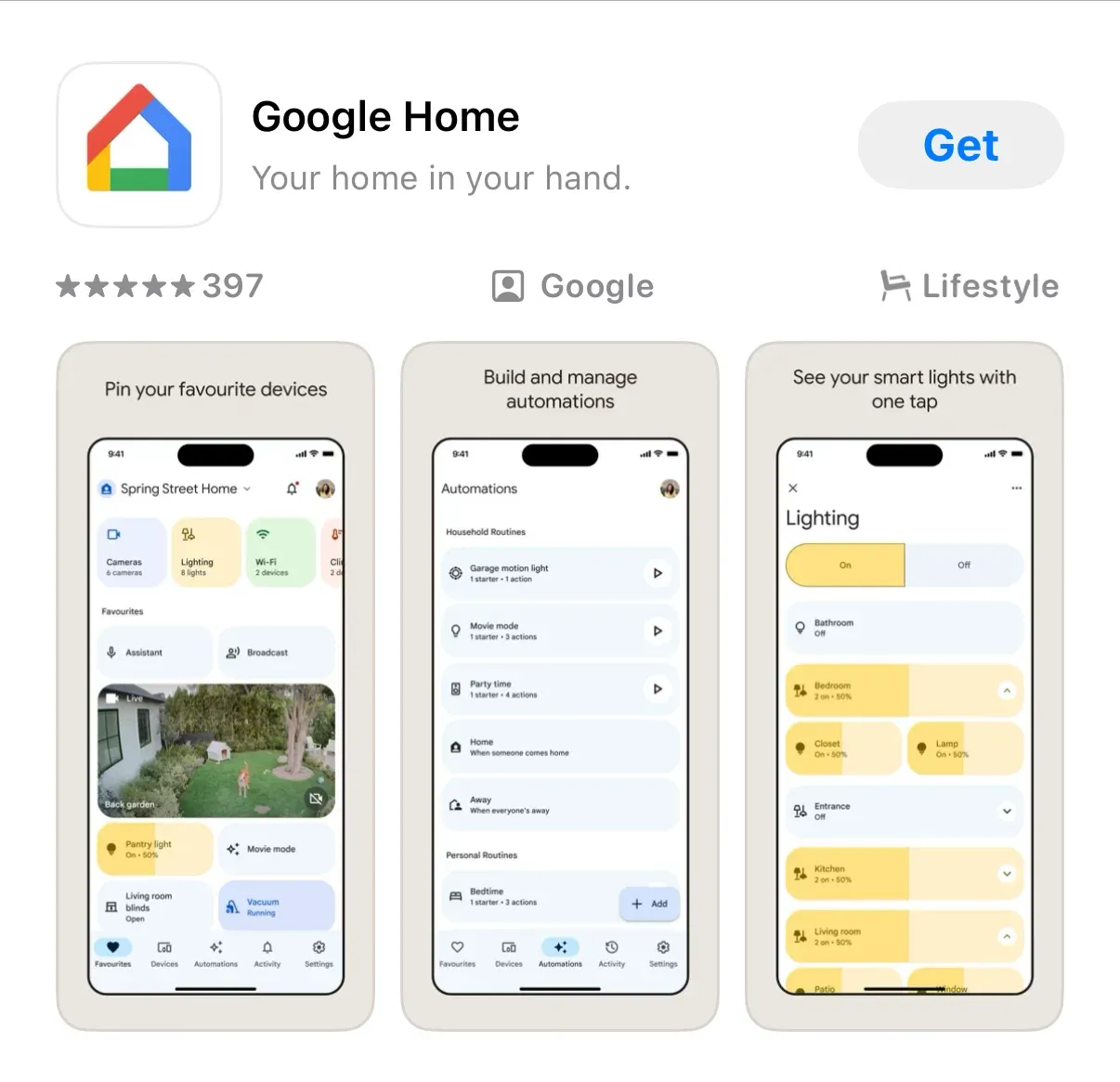
Step 4. On the Google Home app, tap the + icon and choose Set up new device.
Step 5. Once the app finds your Chromecast, follow the instructions to link it to your Wi-Fi network.
Step 6. Assign your Chromecast a name like "Living Room TV" or "Office Display".
How to Connect Chromecast to TV from Different Devices
Once Chromecast is set up and connected to your TV and Wi-Fi network, the next step is to connect it to your preferred device.
Whether you're using an Android phone, iPhone, Windows PC, or MacBook, the method varies slightly depending on your operating system and what you want to cast. Some devices support native casting, while others may require a third-party app for full-screen mirroring. If your Chromecast is already ready and you want to cast to Chromecast, the steps depend on whether you are using a phone, browser, or computer.
Below, we'll break down how to connect to Chromecast from each major platform.
How to Connect Android to Chromecast
Since Android phones have built-in Google Cast support, you can connect your Android device to Chromecast directly, without needing extra apps or hardware.
How to connect to Chromecast Android? The steps are:
Step 1. Ensure your Android phone and Chromecast are on the same Wi-Fi network.
Step 2. On your Android phone, swipe down and tap the Cast feature.
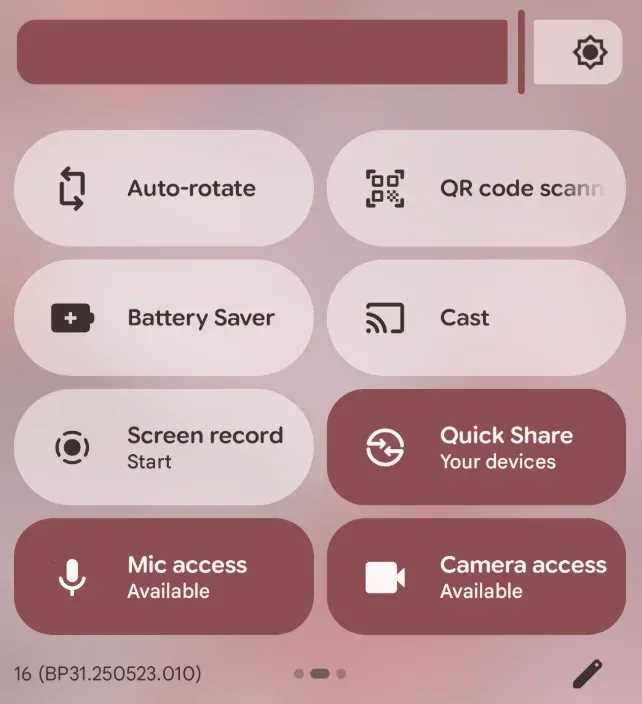
Step 3. Choose your Chromecast device from the list.
Step 4. Once connected, your Android screen or app will appear on the TV.
This is the easiest example of how to connect phone to Chromecast, since both Android and Chromecast support Google Cast. So, if the phone is running on iOS, is the process just as simple?
How to Connect iPhone to Chromecast
As mentioned earlier, Chromecast uses the Google Cast protocol, while iPhones are built around AirPlay, Apple's own wireless streaming technology. Since these two systems are not natively compatible, you can't directly connect an iPhone to Chromecast without a little help.
But don't worry; there are still easy ways to Chromecast from iPhone, depending on what you want to do. If you're looking to cast videos or music, many popular apps like YouTube, Netflix, and Disney+ support Google Cast out of the box. All you need to do is open the app, play the video or song, tap the Cast icon, and choose your Chromecast device.
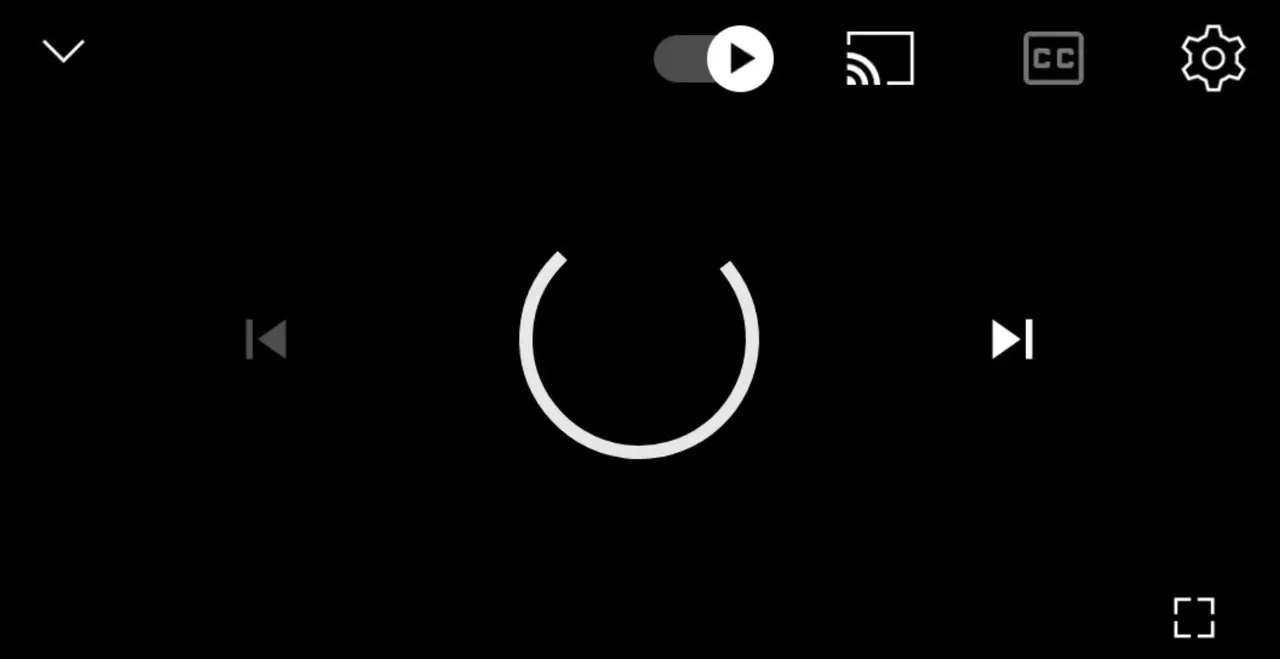
If you want to mirror your entire iPhone screen, you will need a third-party solution. One reliable option is the PigeonCast for iPhone Screen Mirroring app. It integrates with Google Cast and allows you to wirelessly mirror your iPhone's display or cast photos, videos, and presentations to your Chromecast device.
Here's how to connect to Chromecast iPhone using the Pigeoncast app:
Step 1. Download and install the PigeonCast for iPhone app from the App Store.

PigeonCast Screen Mirroring

Official Download


Step 2. Check if your iPhone is connected to the Wi-Fi network your Chromecast uses.
Step 3. Launch the iOS app and grant the necessary permissions to it, such as network.
Step 4. Choose your Chromecast device from the device list provided by the app.
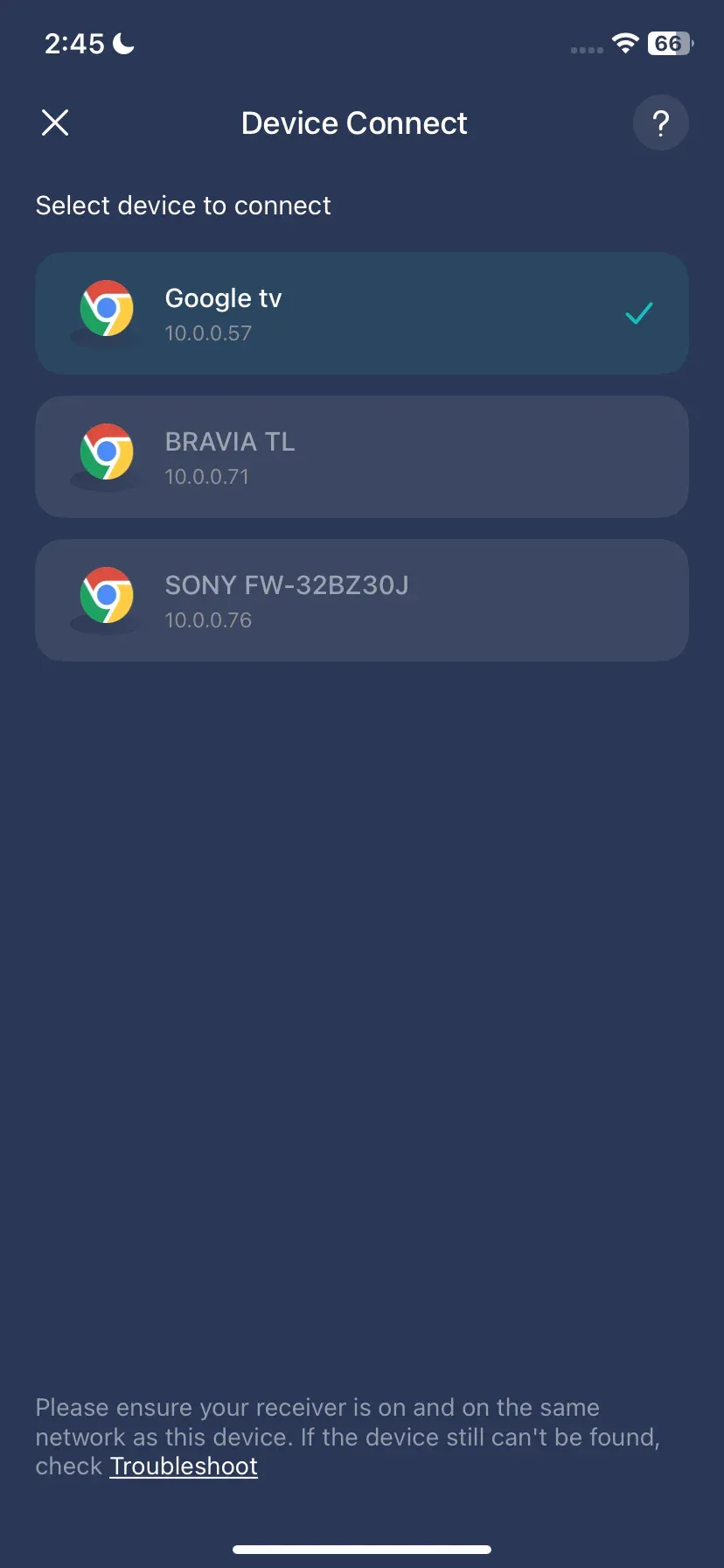
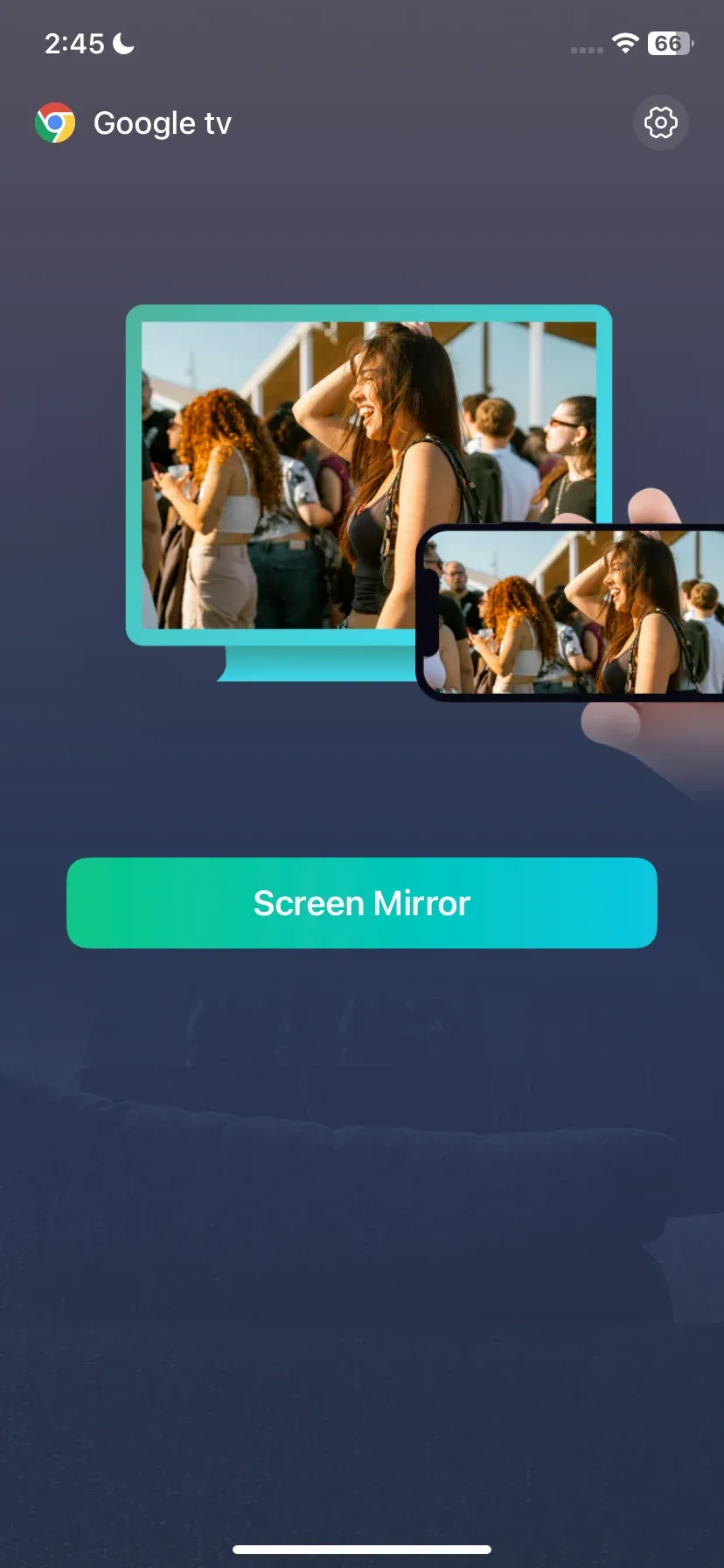
Step 5. Now your iPhone and Chromecast should be connected, and you can tap the Screen Mirror feature on the app if you want to see your phone screen on a big screen.
How to Connect Computer to Chromecast (Windows PC & MacBook)
Yes, you can connect your laptop or desktop, whether running Windows or macOS, to Chromecast, but it's important to understand how it works behind the scenes.
Windows and macOS use different screen sharing protocols by default. Windows PCs often rely on Miracast, which works well with Miracast-enabled TVs and dongles, but not with Chromecast. MacBooks, on the other hand, use AirPlay, which is exclusive to Apple devices and also incompatible with Chromecast. This means that, like the iPhone, neither system can mirror directly to Chromecast through its native protocols.
However, there's a workaround that works for both platforms: Google Chrome. The browser has built-in support for Google Cast, allowing you to stream content or mirror your desktop to Chromecast with just a few clicks.
Therefore, for Windows and macOS users, how to connect Chromecast to laptop becomes fairly straightforward:
Step 1. Open Google Chrome on your Windows PC or MacBook.
Step 2. Click the three-dot menu in the upper-right corner.
Step 3. Navigate to Cast, Save, and Share > Cast.
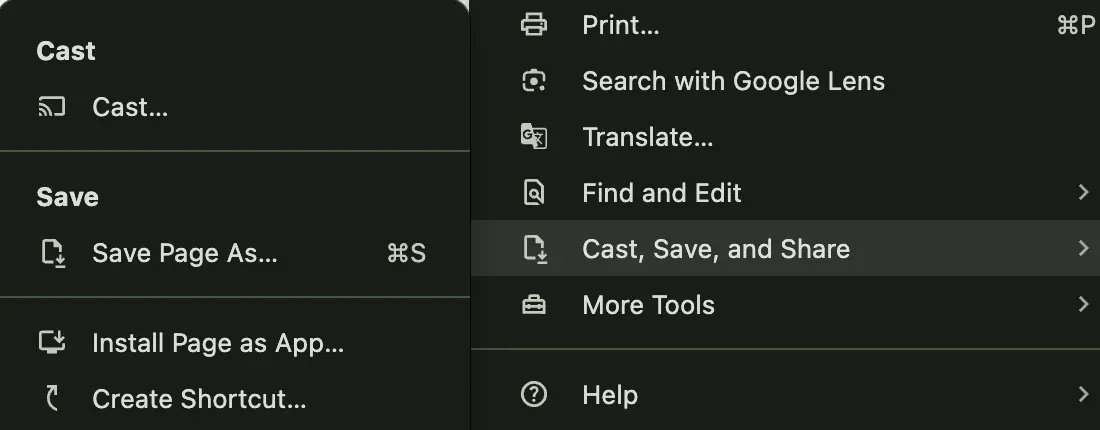
Step 4. Choose your Chromecast and choose whether to cast a tab, your entire screen, or a file.
That's how to connect MacBook to Chromecast. Chrome-based casting is straightforward, but it has limitations: it does not support full desktop audio or high-quality mirroring. If your smart TV supports Miracast or AirPlay, you can stream directly without Chromecast.
Final Thoughts
With this step-by-step guide on how to connect to a Chromecast, you now have a clear roadmap for setting up your device and streaming content from various platforms—whether it's an Android phone, iPhone, Windows PC, or MacBook.
Keep in mind that devices like iPhones, Windows PCs, and MacBooks use native protocols such as AirPlay and Miracast, which aren't directly compatible with Chromecast. To bridge the gap, you'll need third-party solutions like PigeonCast for iPhone or the Google Chrome browser on your computer.
Seamless connection. Cinematic experience at home.
How to Connect to Chromecast FAQs
Q: How do I connect my phone to Chromecast?
The steps vary depending on the type of phone you're using. If you have an Android device, simply open Quick Settings, tap the Cast icon, and select your Chromecast. This connects your phone and Chromecast using the built-in Google Cast protocol.
For iPhone users, it's a bit different. iPhones use AirPlay, which isn't natively compatible with Chromecast. To bridge this gap, you'll need a third-party app like PigeonCast for iPhone, which supports multiple casting protocols. Just launch the app, select your Chromecast, and you'll be able to mirror your screen or cast media seamlessly.
Q: How do I connect Chromecast to my Wi-Fi?
- Plug your Chromecast into an HDMI port on your TV and power it via the USB adapter.
- Turn on the TV and choose the matching HDMI input.
- Download and open the Google Home app on your phone, ensuring Bluetooth is enabled.
- In the app, tap the plus icon, then go to Set up device > New devices, and choose your Chromecast when it appears.
- Follow the prompts to connect Chromecast to your Wi-Fi network.
Q: How do I Chromecast from my iPhone?
You can Chromecast from your iPhone through Chromecast-enabled streaming apps, like YouTube, Netflix, and Disney+. Just open the app, play a video, tap the Cast icon, and choose Chromecast. Then you can enjoy the video on the Chromecast-connected TV. To mirror your iPhone's entire screen or cast local files, you can use the PigeonCast for iPhone app: launch the app and choose Chromecast.
Q: Why can't I cast to my Chromecast from my iPhone?
The main reason is a compatibility gap: iPhones use AirPlay, while Chromecast relies on Google Cast, and the two protocols aren't directly compatible. To cast media from your iPhone, you'll need to use apps that support Google Cast natively—like YouTube or Netflix. If you want to cast personal videos, photos, or even mirror your entire screen, a third-party app like PigeonCast for iPhone can help bridge the gap. Just make sure both your iPhone and Chromecast are connected to the same Wi-Fi network, or the devices won't detect each other.
Q: Can I AirPlay to Chromecast?
No, AirPlay and Google Cast are entirely different technologies and are not natively compatible. You can mirror your iOS screen or cast media to Chromecast using third-party mirroring apps like PigeonCast for iPhone. These tools act as a bridge by emulating a Google Cast sender on your iPhone, enabling screen mirroring and media casting over Wi-Fi.
Mia Clarke is a technology editor specializing in screen mirroring and casting solutions across multiple platforms. Mia provides clear, practical guides and in-depth insights to help users seamlessly connect their devices. Passionate about enhancing digital experiences, Mia is dedicated to keeping readers updated on the latest trends and tools in cross-platform screen sharing. Whether you’re looking to mirror your smartphone, laptop, or smart TV, Mia’s content delivers reliable, user-friendly advice to simplify your tech setup.