
Chromecast phone to TV is a simple way to turn your TV into a shared viewing screen without moving files or using cables. Whether you use Android or iPhone, this guide will show you the easiest way to cast from your phone to TV, explain when screen mirroring is needed, and help you fix common problems like the Cast icon not showing or Chromecast not connecting.
Can You Chromecast Phone to TV
Yes. You can use Chromecast to cast videos, photos, music, and other supported content from both Android phones and iPhones to a TV. If you want to cast to Chromecast from different devices, the basic flow is to use the same WiFi, open a supported app, tap the Cast icon, and choose your TV. If you want to display your entire phone screen, Android supports screen mirroring more easily, while iPhone usually requires a separate screen mirroring solution.
Check Your TV and Phone Before Casting
Before you start, check whether your TV and phone can work with Chromecast. This helps you know if you can cast directly or need another option.
| Device | What to Check |
|---|---|
| TV | Your TV should have Chromecast built in, which is common on many Google TV and Android TV models. If not, you need a Chromecast device connected to the TV. |
| Android phone | Most Android phones can cast from supported apps. Many can also mirror the whole screen through the Google Home app. |
| iPhone | iPhone can cast from apps that support Chromecast, such as video, music, and photo apps. Full iPhone screen mirroring to Chromecast is not a direct built in feature. |
| WiFi | Your phone and TV need to be on the same WiFi network. Avoid guest networks or VPN if the TV does not appear. |
| App | The app you want to cast from should show a Cast icon. If there is no Cast icon, that app may not support Chromecast. |
How to Chromecast Android Phone to TV
If you use an Android phone, the easiest way is to cast from an app that already supports Chromecast. This works well for videos, photos, and music, and it is usually smoother than mirroring your whole phone screen.
Step 1. Turn on your TV and make sure your Chromecast TV or Chromecast device is ready.
Step 2. Connect your Android phone and TV to the same WiFi network.
Step 3. Open a Cast enabled app, such as YouTube, Google Photos, or Spotify.
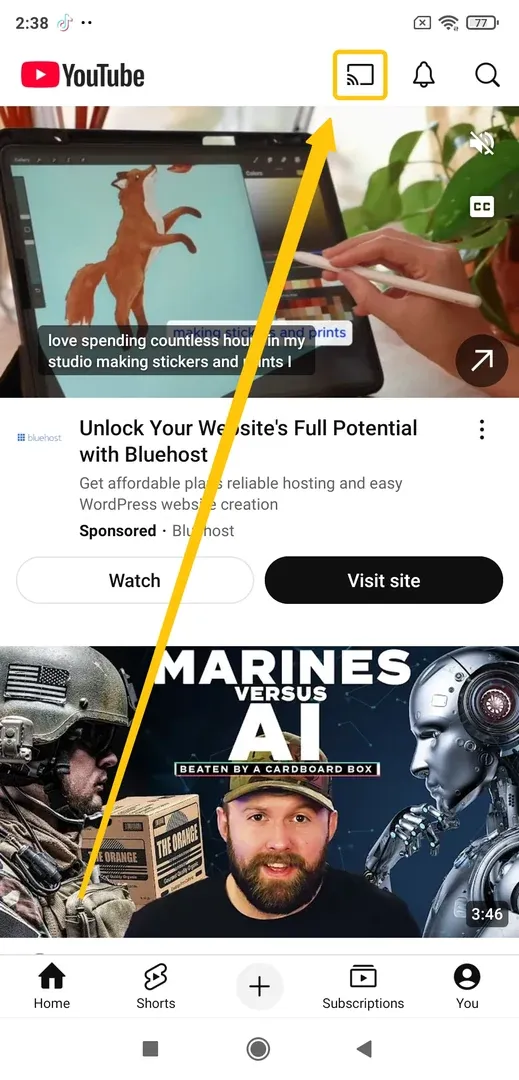
Step 4. Find and tap the Cast icon in the app. The icon may appear in different places depending on the app.
Step 5. Choose your TV or Chromecast device from the device list.
Step 6. Start playing the video, photo, or music you want to watch on TV.
Once the content starts playing on TV, your phone becomes the remote. You can pause, change volume, or choose another video from your phone without keeping the phone screen on all the time.
How to Mirror Android Phone Screen to TV
If the app does not have a Cast icon, or you want to show a webpage, document, game, or phone screen on TV, you can mirror your Android screen through the Google Home app. This works best on Android 8.0 or later.
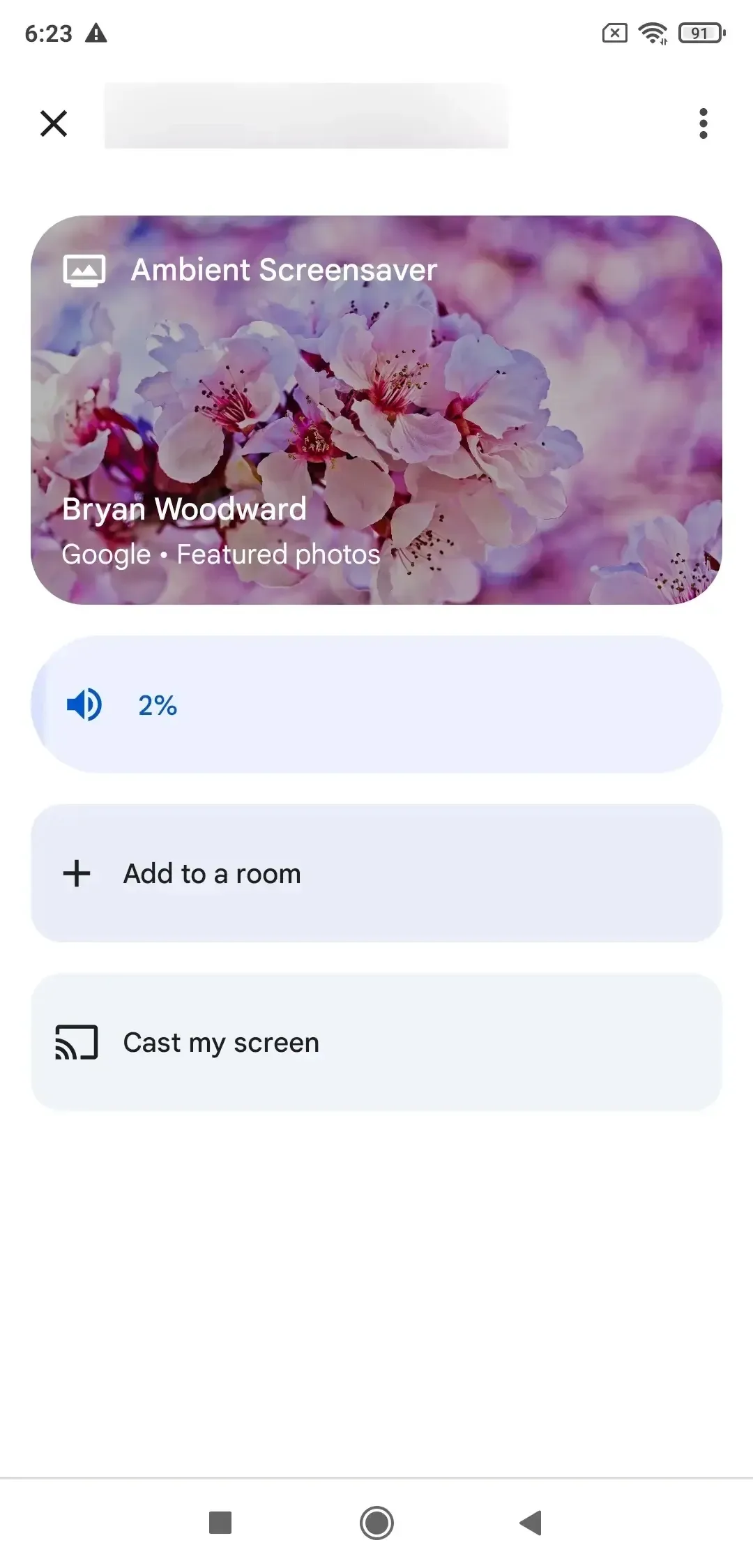
Step 1. Open the Google Home app on your Android phone.
Step 2. Tap the Chromecast TV or Chromecast device you want to use.
Step 3. Tap Cast my screen > Cast screen to confirm.
Step 4. Open the app, webpage, photo, or file you want to show on TV.
Screen mirroring shows everything on your phone, including notifications and pop ups. Before you start, turn on Do Not Disturb if you want a cleaner viewing experience. For movies or music, use app casting when possible, since it is usually more stable than full screen mirroring.
How to Chromecast iPhone to TV
Casting from iPhone works best when the app itself supports Chromecast. This method is good for watching videos, playing music, or showing photos on TV. It does not mirror every action on your iPhone screen, but it is simple and stable for supported apps.
Step 1. Turn on your TV and make sure your Chromecast TV or Chromecast device is ready.
Step 2. Connect your iPhone and TV to the same WiFi network.
Step 3. Open a Chromecast supported app, such as YouTube, Google Photos, Spotify, or another app with a Cast icon.
Step 4. Tap the Cast icon in the app, and choose your TV or Chromecast device from the list.
Step 5. Play the video, photo, or music you want to watch on TV.
Mirror Your Full iPhone Screen
If you want the TV to show your entire iPhone screen, regular Chromecast casting may not be enough. The Cast icon only appears in apps that support Chromecast, so it cannot help when you want to show a browser page, a short video app, a presentation, a game, or another screen on your iPhone.
PigeonCast works as a screen mirroring tool for iPhone, Android, computers, and TVs. It supports common casting protocols such as AirPlay, DLNA, and Google Cast, so your TV or receiving device can accept screen sharing from different devices over WiFi. Here is how to mirror your iPhone screen with PigeonCast:


Overall Rating:



Step 1. Install PigeonCast on your iPhone from the App Store and on your TV from the app shop if available.
Step 2. Make sure your iPhone and TV are connected to the same WiFi network.
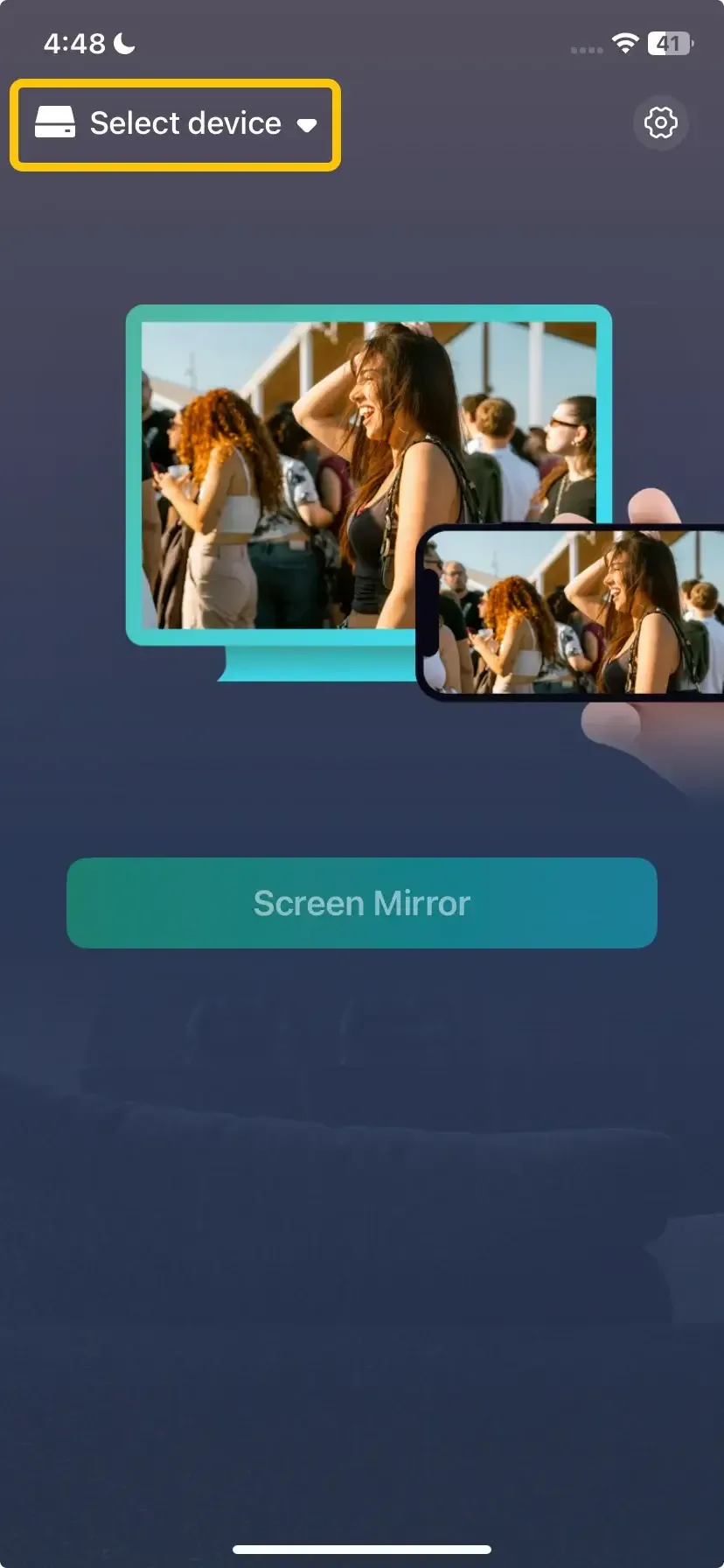
Step 3. Launch PigeonCast, tap Select device to choose your TV from the available list.
Step 4. Enter the onscreen PIN code to confirm the pairing process.
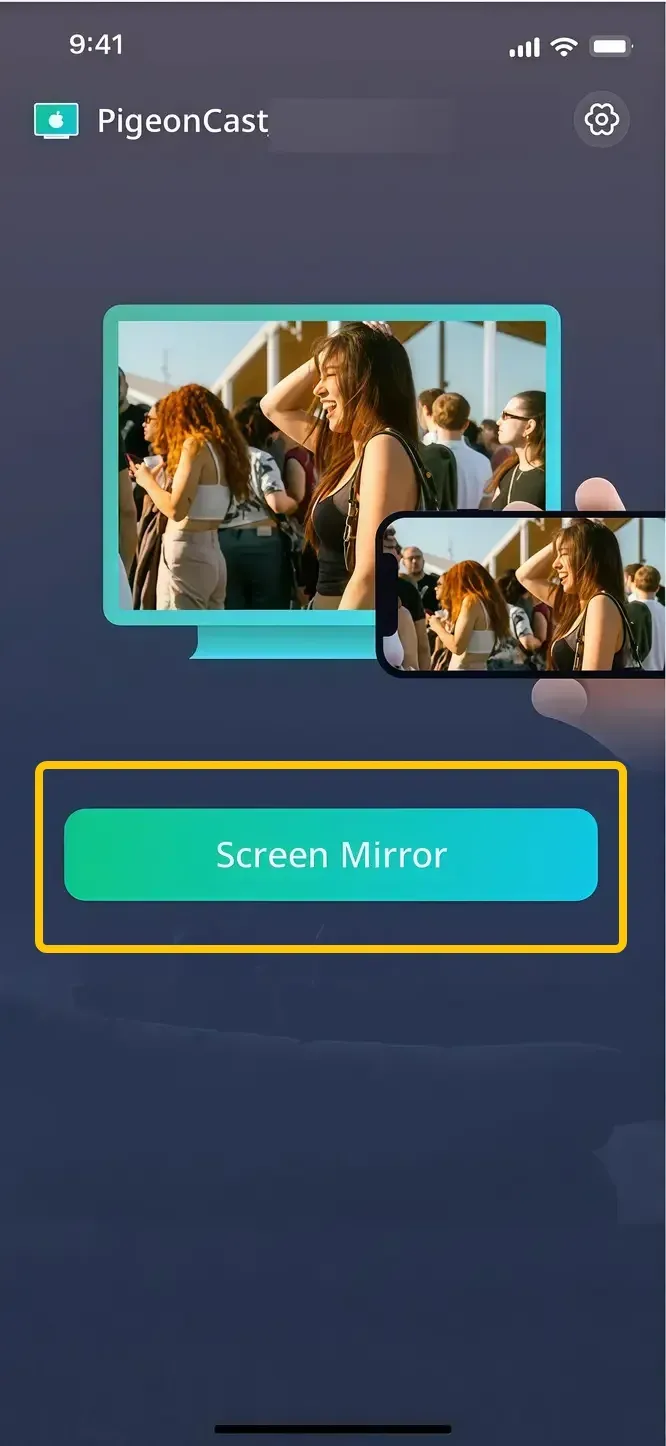
Step 5. Once you finish the connection, tap Screen Mirror to choose the content you want to show on TV.
To Sum Up
The right way to cast your phone depends on what you want to show. For supported apps, use the Cast icon for a smoother experience. For a full Android screen, use Google Home screen mirroring. For a full iPhone screen, use a screen mirroring tool like PigeonCast when Chromecast casting is not enough.
Chromecast Phone to TV FAQ
How to connect phone to TV using Bluetooth?
Bluetooth is not the best way to cast your phone screen to TV. Most TVs use Bluetooth for speakers, headphones, keyboards, remotes, or audio pairing, not for screen casting. If you want to show videos, photos, apps, or your full phone screen on TV, use WiFi-based methods like Chromecast, Google Cast, AirPlay, or a screen mirroring tool instead.
How to cast Android screen to TV without Chromecast?
You can cast an Android screen to TV without Chromecast if your TV supports screen mirroring, Miracast, Smart View, Wireless Display, or a similar feature.
-
Open the screen casting option on your Android phone, choose your TV from the device list, and start mirroring.
-
If your TV does not appear, make sure both devices are on the same WiFi network, or use a screen mirroring receiver app or device that works with Android.
Can you Chromecast phone to TV without WiFi?
In most cases, Chromecast needs WiFi to cast from your phone to TV. Your phone and Chromecast TV should usually be connected to the same network. If home WiFi is not available, you may be able to use a mobile hotspot, but setup and stability can vary by device. For the best experience, use a stable WiFi network whenever possible.
Why is Chromecast phone to TV not working?
Chromecast phone to TV may not work for several reasons:
- Your phone and TV are connected to different WiFi networks.
- Your phone is using a VPN.
- The Chromecast device is not turned on or ready.
- The app you are using does not support Chromecast.
- The Cast icon is hidden or not available in the app.
- Your router blocks device discovery.
- Chromecast setup in the Google Home app is incomplete.
Can I Chromecast phone to TV with USB?
No. Chromecast does not cast your phone to TV through a USB cable. Chromecast works mainly over WiFi, while USB is usually used for power, file transfer, or charging. If you want a wired connection, you need a compatible HDMI adapter instead of Chromecast.
Why is my Chromecast lagging when casting from phone to TV?
Chromecast may lag when the WiFi signal is weak, too many devices are using the same network, the video quality is too high for your connection, or your phone is far from the router. Screen mirroring can also lag more than app casting because it sends your live phone screen to the TV.
Clara Rossi is an experienced technology editor and a seasoned expert in screen mirroring and casting technologies. With a keen eye for detail and a deep understanding of how to seamlessly connect devices, Clara excels at optimizing user experiences for effortless sharing and streaming. Whether you're seeking quick fixes or advanced tips, her expertise and responsiveness ensure that every query is met with a well-informed and efficient solution.