
Chromecast is a popular device for streaming videos, music, and apps from your phone, tablet, or computer directly to your TV. However, there are times when you may want to stop casting or turn off Chromecast entirely, either to save energy, prevent unwanted playback, or troubleshoot connectivity issues. This guide walks you through the steps across various devices, ensuring you have full control over your streaming experience.
How to Turn Off Chromecast
Chromecast devices don't have a traditional on-off switch and are designed to stay on, showing a home screen whenever they aren't casting. However, there are times when you might want to disable Chromecast from running or prevent it from appearing as active on your network. In the sections below, we'll walk you through how to turn off Chromecast on phone, pause a stream, or turn off TV with Chromecast.
Way 1. Disconnect Power to Stop Casting Chromecast
If you need a quick and reliable way to stop Chromecast from casting, disconnecting the power is the simplest method. This approach works for all devices and doesn't require navigating apps or menus, making it an effective solution when you want to immediately end a stream.
- If your Chromecast is plugged into a TV's USB port, either unplug the USB cable or turn off the TV's USB power (some TVs continue supplying power even when off).
- If your Chromecast is connected to a wall adapter, simply unplug the adapter from the power outlet.
Way 2. Use the Google Home App
How do I turn off Chromecast? For a more controlled and convenient way to stop casting, you can use the Google Home app. This method allows you to manage your Chromecast directly from your phone or tablet, giving you the flexibility to pause or disconnect streams without physically touching the device. Here we take the detailed steps on how to turn off Chromecast on Android phone as an example:
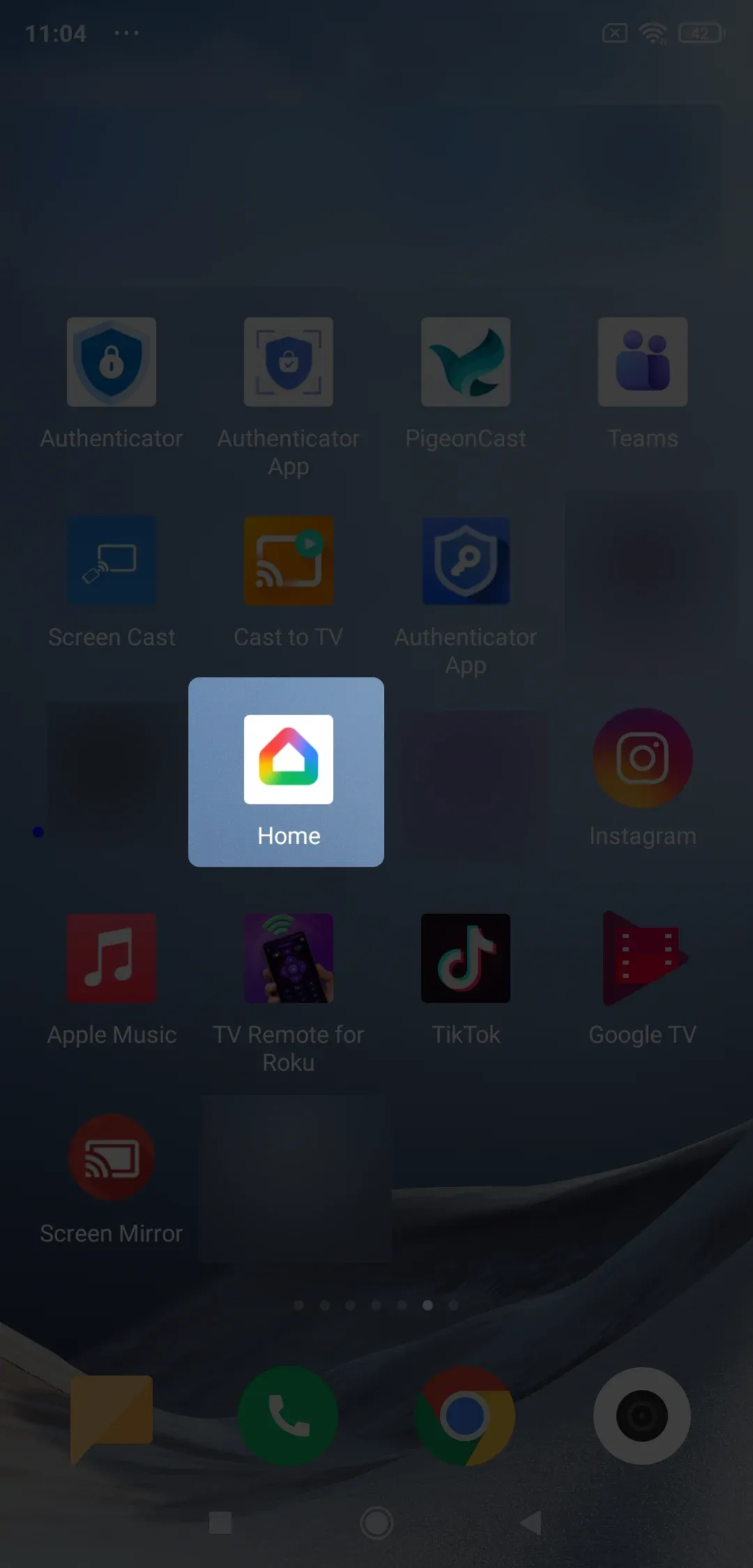
Step 1. Launch the Google Home app on your Android mobile device.
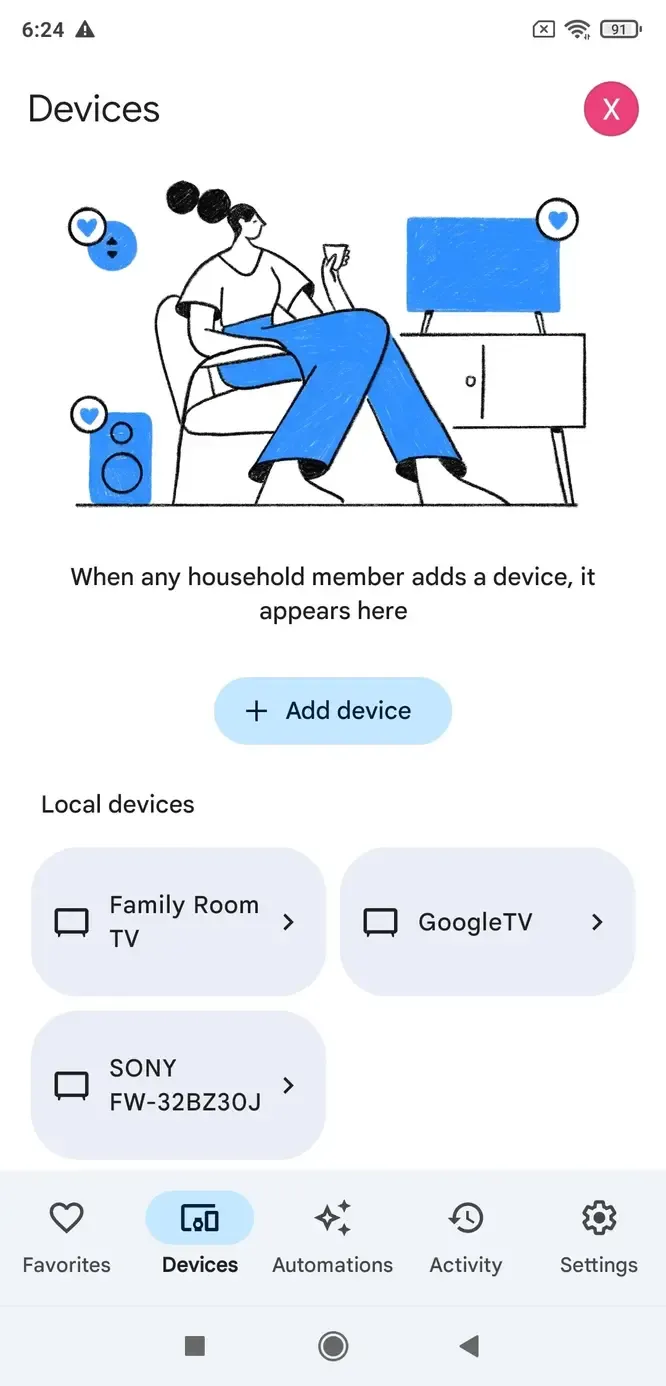
Step 2. Go into the Devices tab and tap on the Chromecast you want to stop casting to.
Step 3. If it's a Chromecast with Google TV, you need to tap and hold. Then Hit the Stop casting option for the Chromecast turn off TV.
Way 3. Turn Off Chromecast TV by Controlling the TV
How to turn Chromecast off? Another simple method to stop casting is by controlling your TV directly. By turning off the TV or switching inputs, you can effectively end the Chromecast stream without using your phone or apps. Here's how to disable Chromecast from the TV settings:
- Switch TV Input/Source: If you don't want to turn off the TV completely, switch the Input or Source to another device (e.g., HDMI 1, HDMI 2, or cable). This will disconnect Chromecast from the active display.
- Check the TV menu: Some TVs allow you to disable the HDMI port or connected devices through the settings menu. Navigate to Settings > Input or HDMI and turn off or disconnect the Chromecast input.
Way 4. Disable Chromecast on Chrome
How to turn off Google cast? If you're casting from a computer, another effective way to stop Chromecast is directly through the Chrome browser. This method disables the current casting session without affecting the device itself, making it useful if you want to stop streaming quickly.
Step 1. Open Google Chrome.
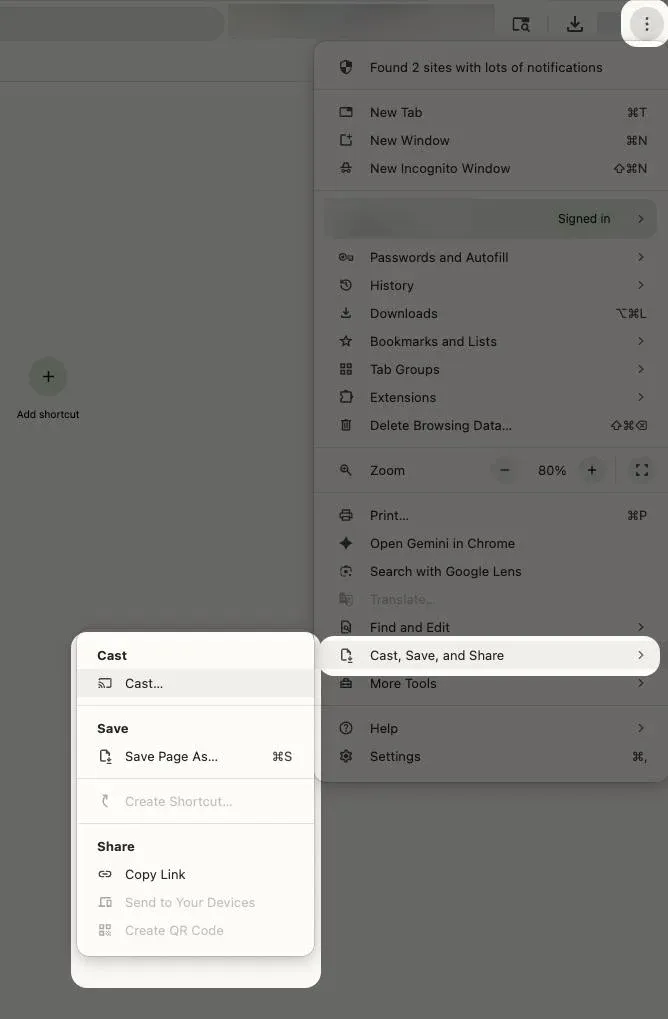
Step 2. Click the three-dot menu in the top-right corner and select Cast.
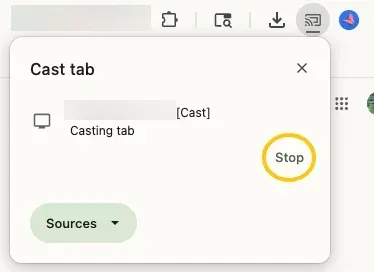
Step 3. In the cast menu, click your Chromecast device and choose Stop option.
Way 5. Factory Reset (Optional)
How to disconnect Chromecast? If you want to completely shut down or reset your Chromecast for troubleshooting or transferring ownership. But this will erase all settings and paired devices.
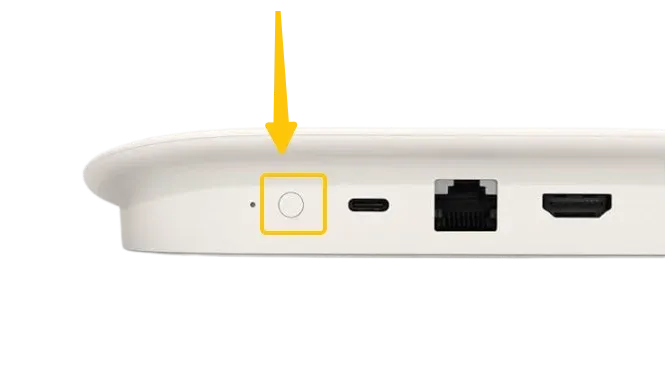
Step 1. Press and hold the button on the Chromecast device for at least 25 seconds.
Step 2. Release the button when the LED light starts flashing.
Step 3. Your Chromecast will reset, which effectively "turns it off" until you set it up again.
Use PigeonCast When It's not Working
If your Chromecast isn't working as expected, you can try using PigeonCast, a free and ad-free alternative. To switch from Chromecast, simply follow the steps above on how to disconnect from Chromecast, then install PigeonCast. It works seamlessly on Android, iOS, Windows, Mac, and even Google Cast-enabled TVs, with no restrictions or limitations. Enjoy smooth casting without the hassle!


PigeonCast Screen Mirroring

Official Download



Step 1. Ensure your devices are covered by the same wireless network.
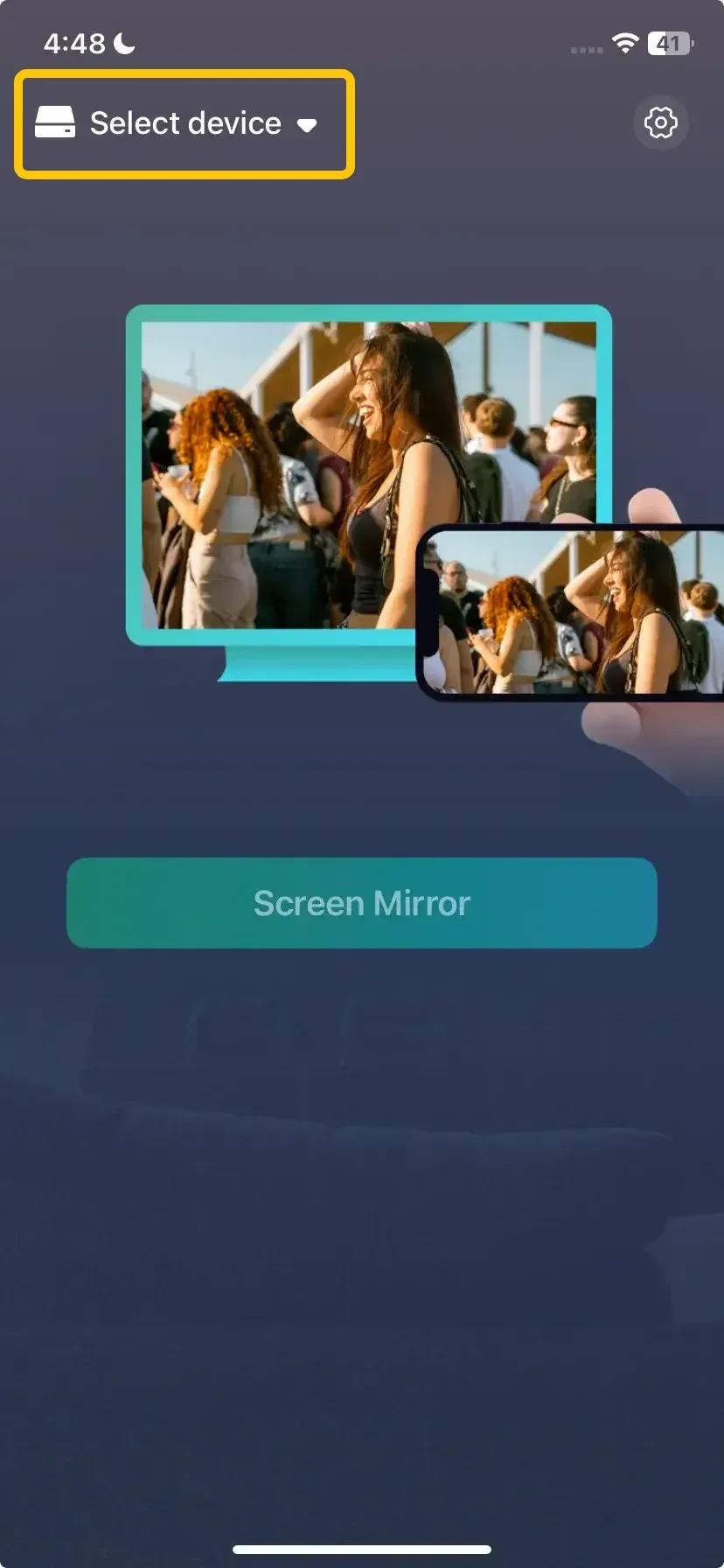
Step 2. Install the app and launch it on your device. On your mobile device, tap Select device to choose your TV from the available list to connect.
Step 3. If prompted, enter the onscreen PIN code to finish the pairing process.
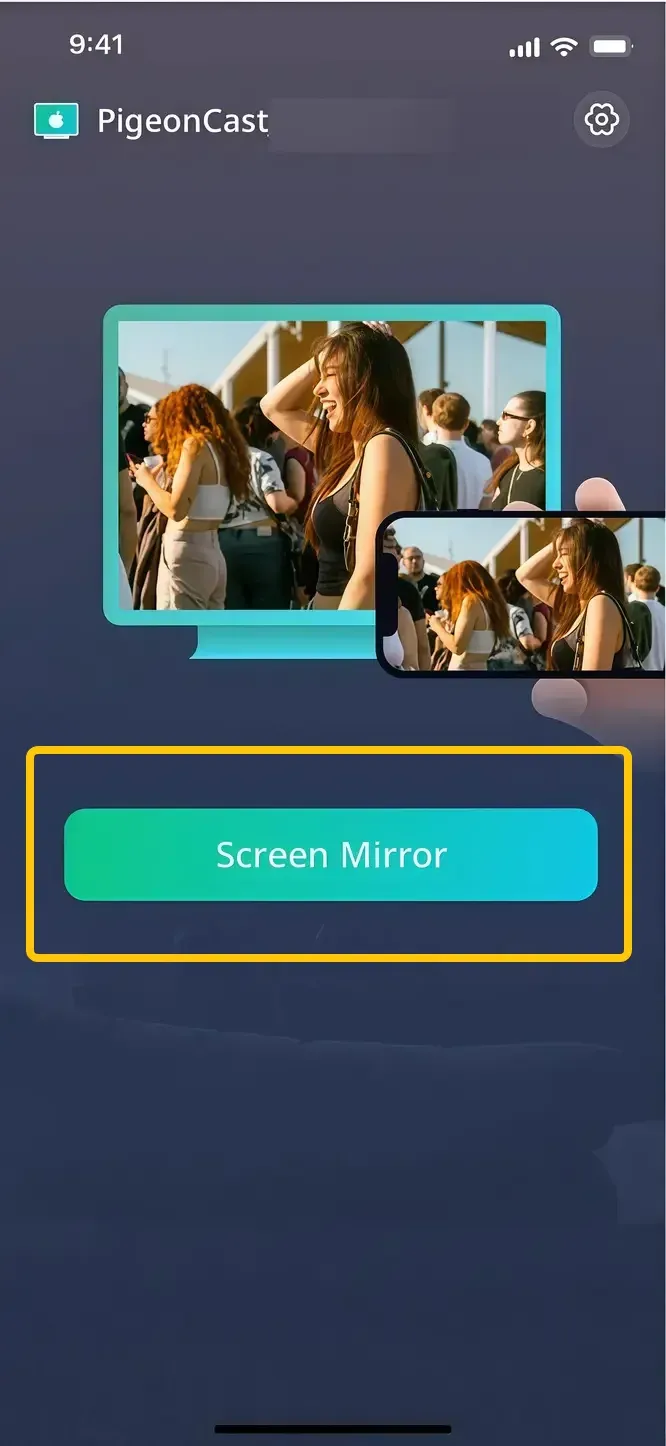
Step 4. Once connected, you can then tap the Start Mirror button and start your mirroring activities.
Wrapping Up
How to cancel Chromecast? Turning off Chromecast is easier than it seems, and the method you choose depends on your device and situation. By following the steps in this guide, you can easily stop casting, save energy, and keep your devices running smoothly whenever you need.
Turn Off Chromecast FAQ
Is Chromecast always on?
Yes, Chromecast is designed to stay on at all times. It remains in standby mode when not casting, displaying a home screen on your TV. This allows it to be ready instantly whenever you start streaming from your device.
How to turn off Chromecast YouTube?
To turn off Chromecast on YouTube, open the YouTube app on your phone or computer, then tap or click the Cast icon. From the list of connected devices, select your Chromecast and choose Stop casting. This will immediately end the stream and return your TV to the Chromecast home screen.
How to turn off Chromecast on laptop?
To turn off Chromecast on a laptop, open Google Chrome, click the three-dot menu in the top-right corner, and select Cast. When the casting window appears, click on your Chromecast device and choose Stop casting. This will disconnect the stream and stop casting from your laptop.
Can you turn off Chromecast?
Yes, you can turn off Chromecast, but it doesn't have a traditional power switch. You can stop it from casting in several ways:
- Disconnect power by unplugging the device from the TV USB port or wall adapter.
- Use the Google Home app to stop casting or disconnecting the device.
- Control the TV by turning it off or switching inputs.
- Stop casting from Chrome on a computer.
- Third-party apps like PigeonCast can also disconnect Chromecast.
- Factory reset if you want to completely shut it down and erase settings.
How to turn off Chromecast with Google TV?
To turn off Chromecast with Google TV:
- Using the remote: Press and hold the Home button on the Google TV remote, then navigate to Settings > System > Power, and select Sleep or Turn off.
- Through the Google Home app: Open the app, select your Chromecast with Google TV device, and choose Stop casting to end any active stream.
- Disconnect power: Unplug the Chromecast from the HDMI port or power source for a full shutdown.
Clara Rossi is an experienced technology editor and a seasoned expert in screen mirroring and casting technologies. With a keen eye for detail and a deep understanding of how to seamlessly connect devices, Clara excels at optimizing user experiences for effortless sharing and streaming. Whether you're seeking quick fixes or advanced tips, her expertise and responsiveness ensure that every query is met with a well-informed and efficient solution.