
Smart homes are built on convenience, but when things don't work as expected, it can get frustrating quickly. One of the most common issues users face is when the Google Home can't find Chromecast. The good news? This is usually easy to fix once you understand the possible causes and solutions.
Why Can't Google Home Find My Chromecast
If you can't find Chromecast on Google Home, this is a common issue. It often happens due to connectivity problems, network differences, outdated software, or Wi-Fi interference. Understanding these causes makes troubleshooting faster and more effective.
- Wi-Fi connection issues: For Chromecast to work properly, both your Chromecast and your phone or tablet must be connected to the same Wi-Fi network. If they are on different networks, the Google Home app can't find Chromecast devices.
- Multiple networks: Many homes have both 2.4 GHz and 5 GHz Wi-Fi bands. If your Chromecast is connected to one Wi-Fi band while your phone is on another, detection problems can occur. Make sure both devices are in the same band for a stable connection.
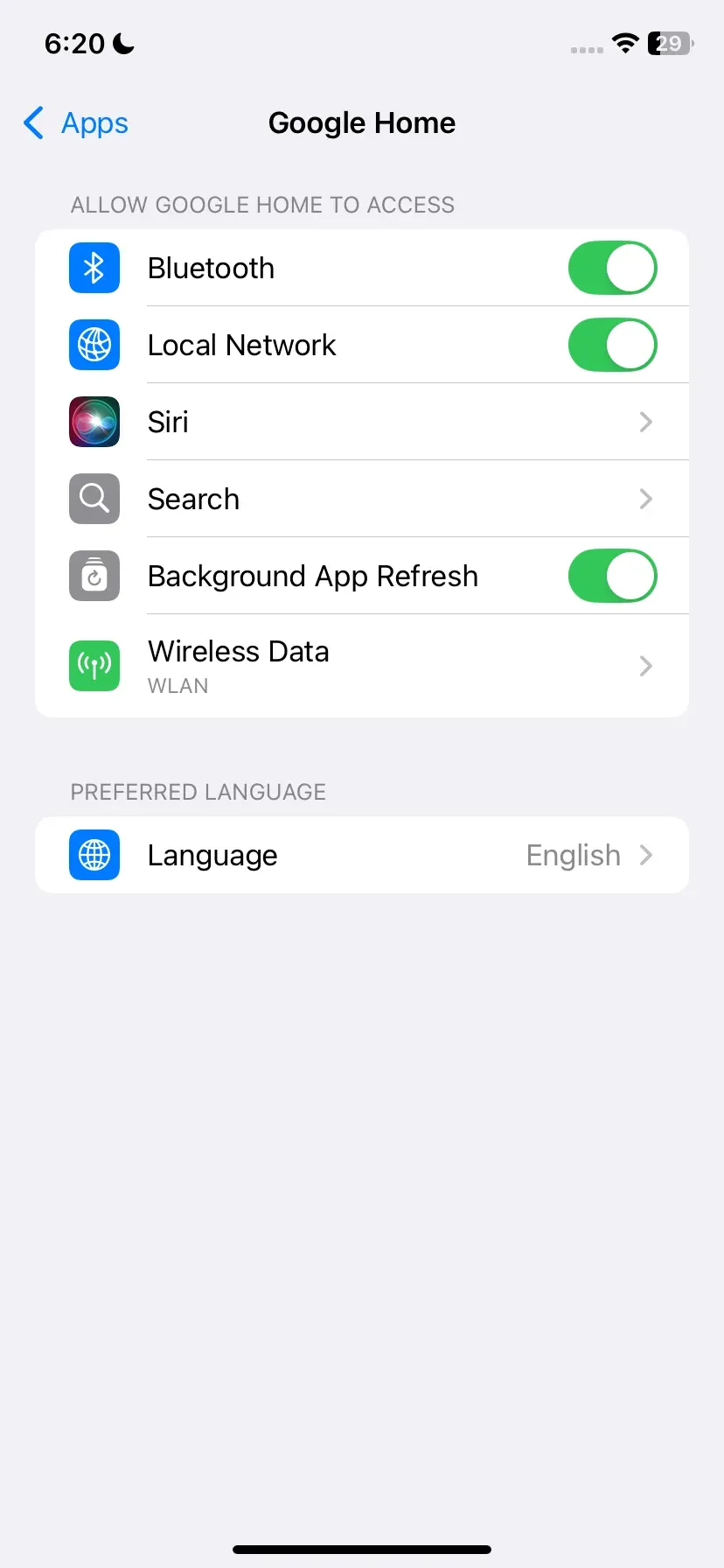
- Bluetooth or location disabled: Google Home sometimes relies on Bluetooth and location services to locate nearby devices. Ensure both are enabled on your phone or tablet during setup.
- Device not powered properly: A Chromecast plugged into a TV's USB port may not receive enough power to function correctly. Using the power adapter supplied with the device is generally more reliable and prevents connection issues.
- Outdated software: Running an old version of the Google Home app or outdated Chromecast firmware can prevent detection. Always keep both your app and Chromecast up to date to ensure smooth setup.
- Router or ISP settings: Certain router settings, such as guest mode, AP isolation, or strict firewall rules, can block communication between your phone and Chromecast. Check your router configuration if other solutions don't work.
9 Solutions to Google Home App Can't Find Chromecast
Now that we know why you can't find Chromecast device in Google Home, the next step is to put solutions into action. Luckily, most of these fixes are quick, and you don't need to be a tech expert to try them.
#1. Check Wi-Fi Connection
A strong and stable Wi-Fi connection is the foundation for a successful Chromecast setup. Many detection issues arise simply because your devices are on different networks or experiencing weak signals. Before exploring more advanced fixes, it's important to verify that both your Chromecast and your phone or tablet are properly connected to the same Wi-Fi network.
Note: Make sure your Google Home app is connected to the Wi-Fi network. First, check that your phone or tablet is connected to Wi-Fi. Once your device is online, open the Google Home app and confirm it can access the same network.
#2. Check Network Signal
Older models, like the Chromecast 1st generation, only support 2.4GHz, which offers better range and wall penetration but slower speeds. Newer models, such as the Chromecast 2nd generation, Chromecast Ultra, and Chromecast with Google TV, support both 2.4GHz and 5GHz.
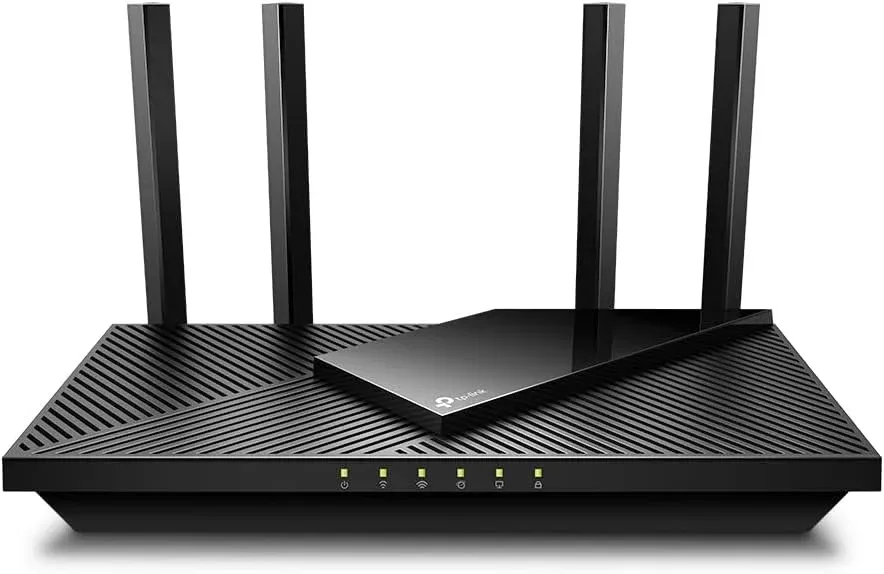
The 5GHz band offers faster speeds and is less prone to interference from other devices, making it ideal for high-quality streaming and short-range connections. The 2.4GHz band provides better coverage over longer distances and can penetrate walls and other obstacles more effectively, making it more reliable in larger homes or areas with structural interference.
Step 1. Open your router settings (instructions on the back/bottom of your router or via its IP address).
Step 2. Find your Chromecast in the list of connected devices.
Step 3. Make sure it's on the right band—2.4GHz for older devices or 5GHz for newer devices if the signal is strong.
#3. Ensure Proper Connection
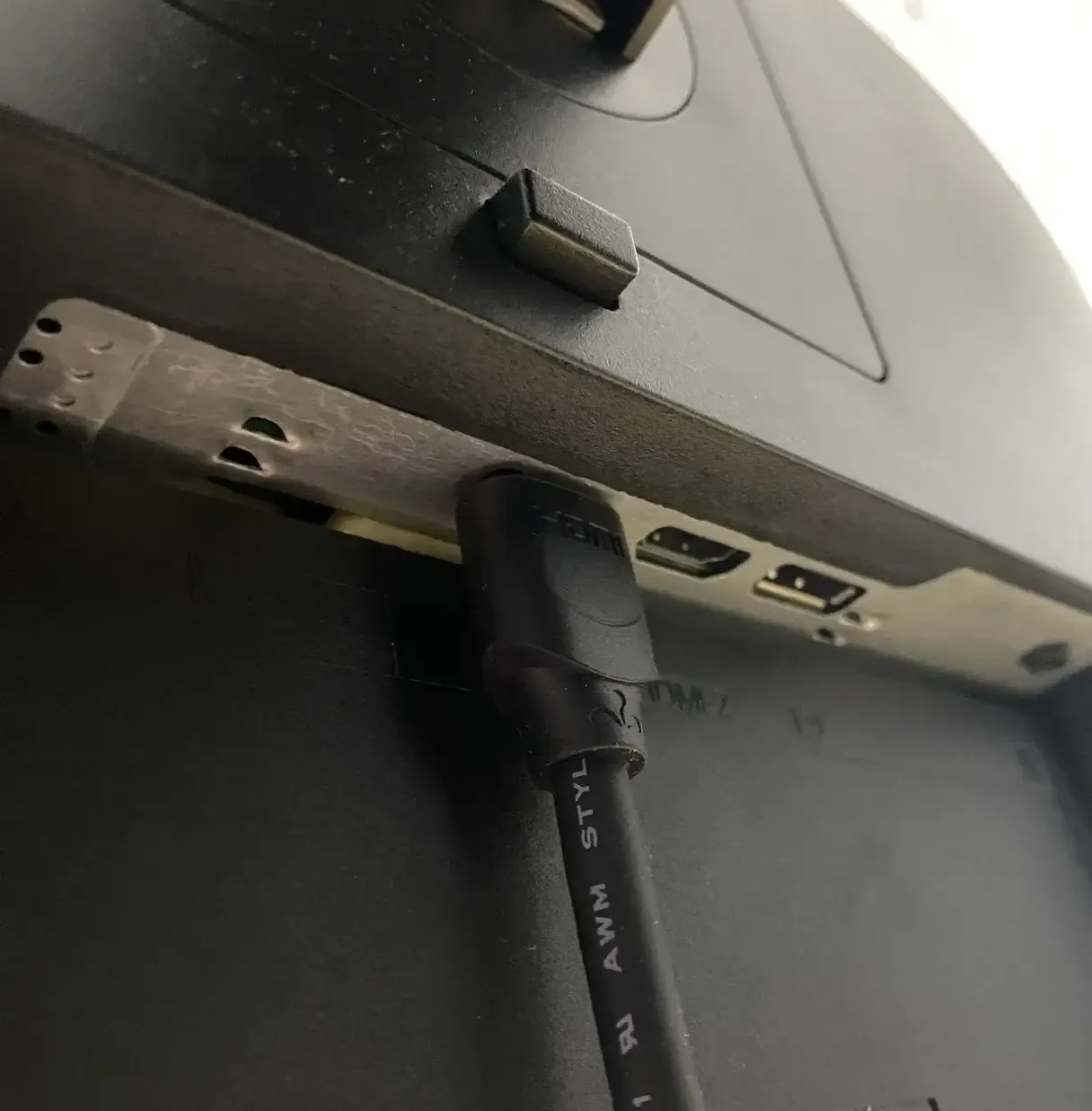
Can't find my Chromecast on Google Home? If your Google Home app isn't detecting your Chromecast persistently, check that the device is powered on and firmly connected to your TV's HDMI port. Also, ensure your TV is turned on and set to the correct HDMI input.
#4. Restart Devices
If checking your Wi-Fi connection doesn't resolve the issue, the next step is to restart your devices. Rebooting your Chromecast, phone, tablet, or router can clear temporary glitches, refresh network connections, and often solve detection problems without any complicated adjustments. Here's the simple restart process:
Step 1. Unplug your Chromecast from the HDMI port and power source, wait 10 seconds, then plug it back in.
Step 2. Turn your phone or tablet off, wait a few seconds, and turn it back on.
Step 3. Power your router off, wait 30 seconds, and power it back on.
Step 4. Open the Google Home app and check if your Chromecast is detected.
#5. Update Your Device
When your Google Home can't find Chromecast iPhone, the next step is to make sure all your devices are running the latest software. Updating your Chromecast, Google Home app, and your phone or tablet can fix bugs, improve compatibility, and often resolve detection or connectivity issues.
Step 1. Open the Google Home app, tap your Chromecast device, go to Settings, and check for a firmware update. Install it if available.
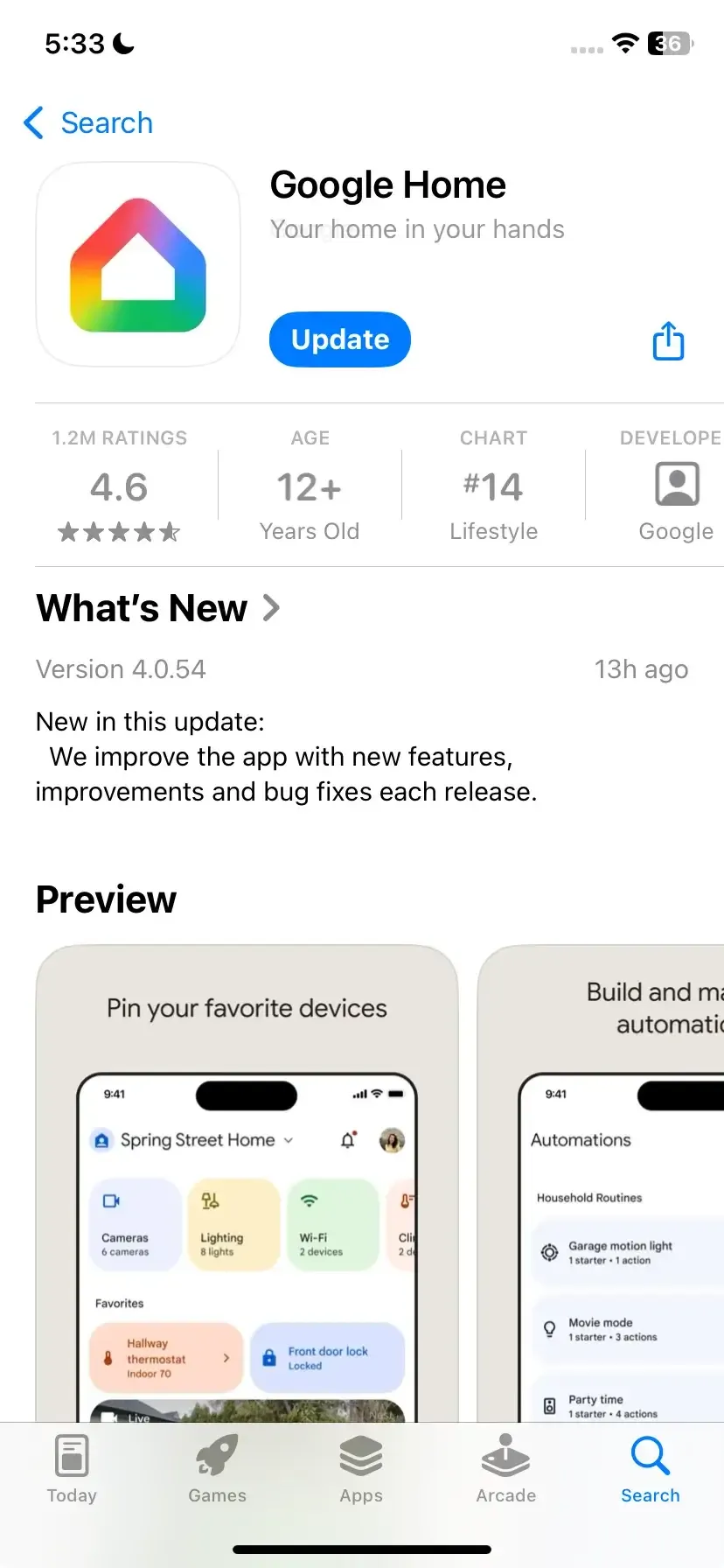
Step 2. Open the App Store on your iPhone, tap your profile icon, and update the Google Home app if an update is available.
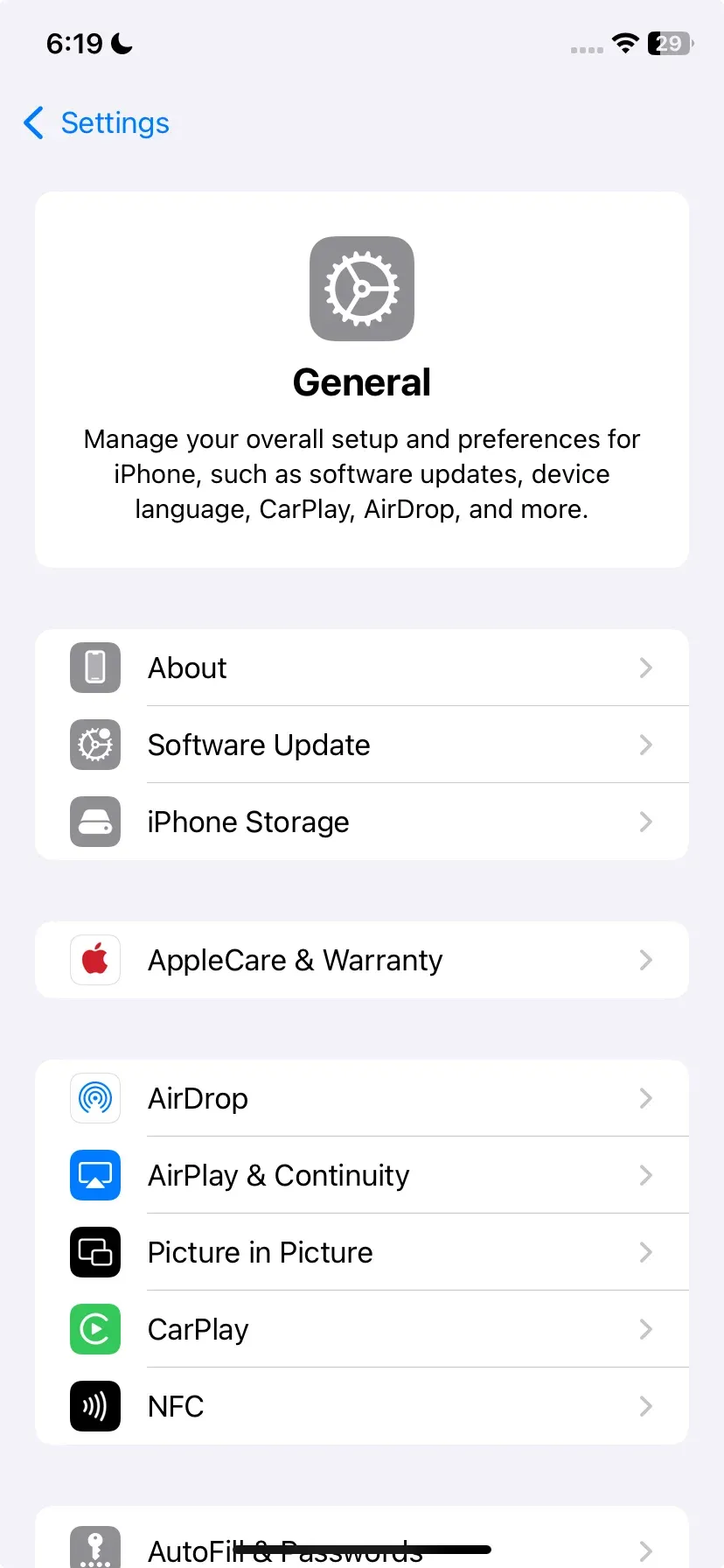
Step 3. Go to Settings > General > Software Update on your iPhone or iPad, and install the latest iOS version if needed.
#6. Enable Location & Bluetooth
Before your Google Home can detect your Chromecast, it needs certain permissions on your iPhone. Ensuring that Location Services and Bluetooth are enabled allows your devices to communicate properly and improves detection accuracy. If either of these settings is turned off, your Google Home may struggle to find your Chromecast, even if everything else is up to date.
#7. Relocate Devices
Can't find Chromecast on my Google Home app? Physical obstacles, Wi-Fi interference, or distance between your Google Home, Chromecast, and router can prevent them from communicating properly. Adjusting the location of your devices can often improve connectivity and help your Google Home detect your Chromecast.
#8. Adjust Your Router Channels
How to solve my Google Home app can't find my Chromecast? Most routers let you change the wireless channel they use. If your router is set to the same channel as your neighbors, it can cause interference and prevent your Chromecast from connecting properly. Here's how to fix it:
Step 1. Access your router's settings (check the instructions on the bottom of the router, or search online for your router's brand and model).
Step 2. Look for a Wireless section, then find the Channel and SSID settings (names may vary).
Step 3. Click the channel field. If the channel is set to Auto, try changing it to a numbered option.
#9. Use PigeonCast Instead
Here is actually a practical answer to the question "I can't find my Chromecast on Google Home". Even if your Chromecast isn't working and basic fixes don't help, you can still mirror your iPhone to the TV using PigeonCast. It's a universal mirroring app that supports AirPlay, Google Cast, and DLNA for easy streaming.

PigeonCast Screen Mirroring

Official Download


Step 1. Install this PigeonCast on your Android TV from Google Play.
Step 2. Ensure your Android TV and mobile device are connected to the same wireless network.
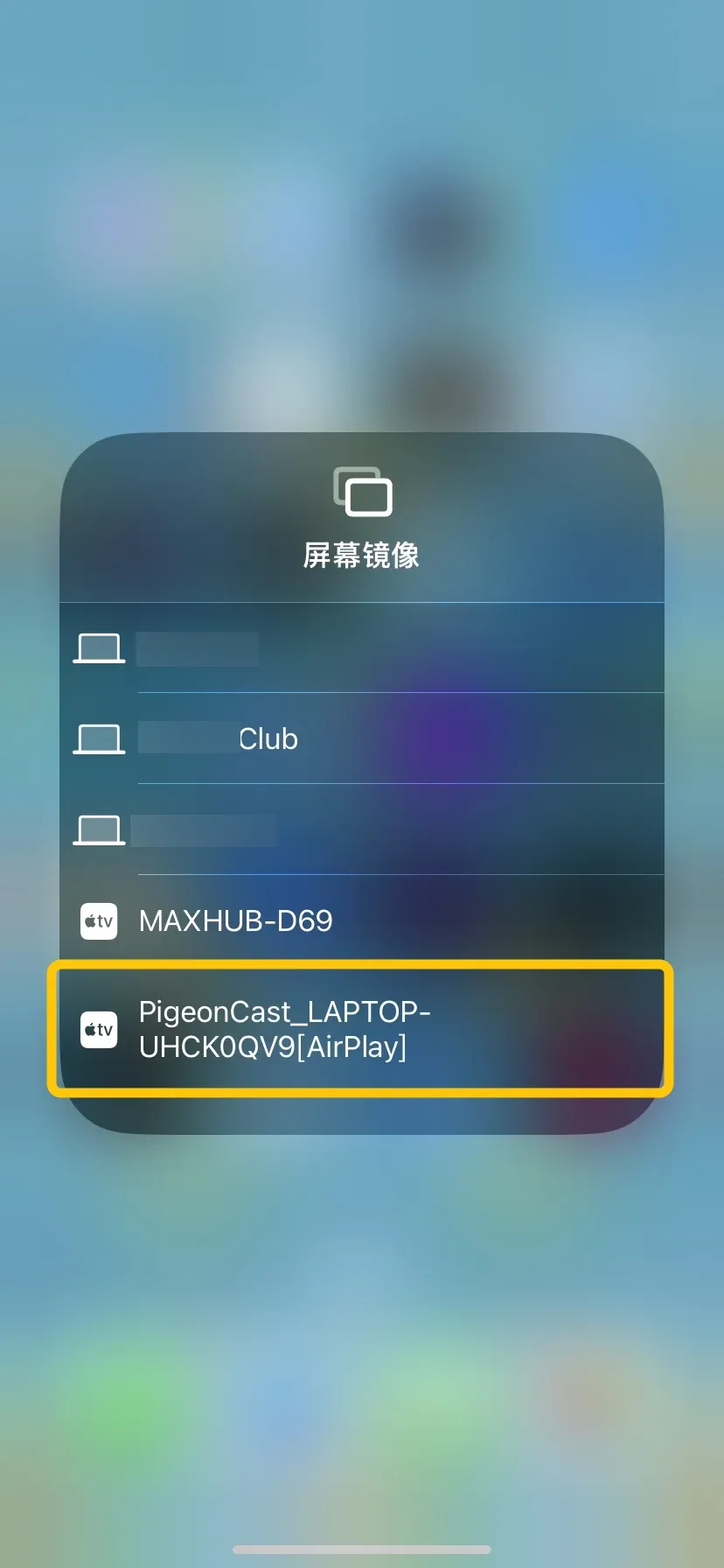
Step 3. Tap Screen Mirroring or Cast option (or other similar names) on your mobile device to choose the PigeonCast option from the available list.
Step 4. If prompted, enter the onscreen PIN code to confirm and finish the pairing process.
Step 5. When it's connected successfully, you can see your mobile device's screen displayed on your Android smart television.
Conclusion
When you see the error "Google Home can't find my Chromecast device" happens, try the nine troubleshooting methods listed above. If you've ever used a screen mirroring app, this is a great time to try it and enjoy high-quality mirroring from your iOS, Mac, or Android device to your TV with no cables or extra setup needed.
Google Home Can't Find Chromecast FAQ
Q: Why is Google Home not finding my Chromecast?
Google Home may not find your Chromecast due to common issues like outdated software, devices not being on the same Wi-Fi network, disabled Bluetooth or Location Services, or interference from your router's settings. Restarting your devices, updating software, and ensuring all connections are correct usually resolves the problem.
Q: How do I know if my router is blocking Chromecast?
If your Chromecast doesn't appear in the Google Home app but other devices connect to Wi-Fi normally, your router may be blocking it. Check your router's settings for features like AP isolation, client isolation, or firewall restrictions. If these are enabled, they can prevent Chromecast from communicating with other devices on the network. Turning them off usually fixes the issue.
Q: How do I reset Chromecast if Google Home can't find it?
To reset your Chromecast when Google Home can't find it, press and hold the Reset button on the Chromecast device until the LED light turns solid white. This will restore it to factory settings. After it restarts, open the Google Home app on your phone or tablet and set up Chromecast again as a new device.
Clara Rossi is an experienced technology editor and a seasoned expert in screen mirroring and casting technologies. With a keen eye for detail and a deep understanding of how to seamlessly connect devices, Clara excels at optimizing user experiences for effortless sharing and streaming. Whether you're seeking quick fixes or advanced tips, her expertise and responsiveness ensure that every query is met with a well-informed and efficient solution.