

If you've ever mirrored your phone to a TV and ended up with black bars around the picture, you've probably noticed that most online guides on how to make screen mirroring full screen on TV offer the same advice: switch your TV to Full Screen mode, rotate your phone, and adjust the aspect ratio settings.
Sometimes that works.
Sometimes it doesn't.
What makes screen mirroring frustrating is that two people can follow the exact same steps and get completely different results. One user enables Screen Fit on a Samsung TV and the image instantly fills the display. Another enables the same setting and still ends up with black bars on both sides of the screen.
After testing screen mirroring across Samsung TVs, LG TVs, Roku devices, Fire TVs, Android TVs, AirPlay receivers, and several different phone models, I've found that the problem usually isn't a single setting. More often, it's the interaction between the phone, the TV, and the protocol that's carrying the image from one device to another.
If you're trying to make screen mirroring full screen, it's worth understanding where the limitation is actually coming from before spending another half hour digging through menus.
Quick Answer to Full Screen Mirroring on TV
The fastest way to make screen mirroring full screen is to check whether your TV offers options such as Screen Fit, Just Scan, Fit to Screen, or 16:9 Full. On many TVs, these settings remove unnecessary scaling restrictions and allow mirrored content to use the entire display area.
If you've already enabled those options and the image still doesn't fill the screen, the issue is often related to aspect ratio mismatches, device compatibility, or the screen mirroring protocol itself rather than the TV settings.
Why Black Bars Appear During Screen Mirroring
One misconception I see frequently is the belief that black bars automatically mean something is wrong. In reality, black bars are often the result of the TV preserving the original dimensions of the content being mirrored.

Modern televisions are designed around a 16:9 display format, but phones are not. Most smartphones today use taller screen ratios such as 19.5:9 or 20:9. When that image is sent to a television, the TV has to decide whether to stretch the picture, crop part of it, or preserve the original shape. Most manufacturers choose the third option because it avoids distortion.
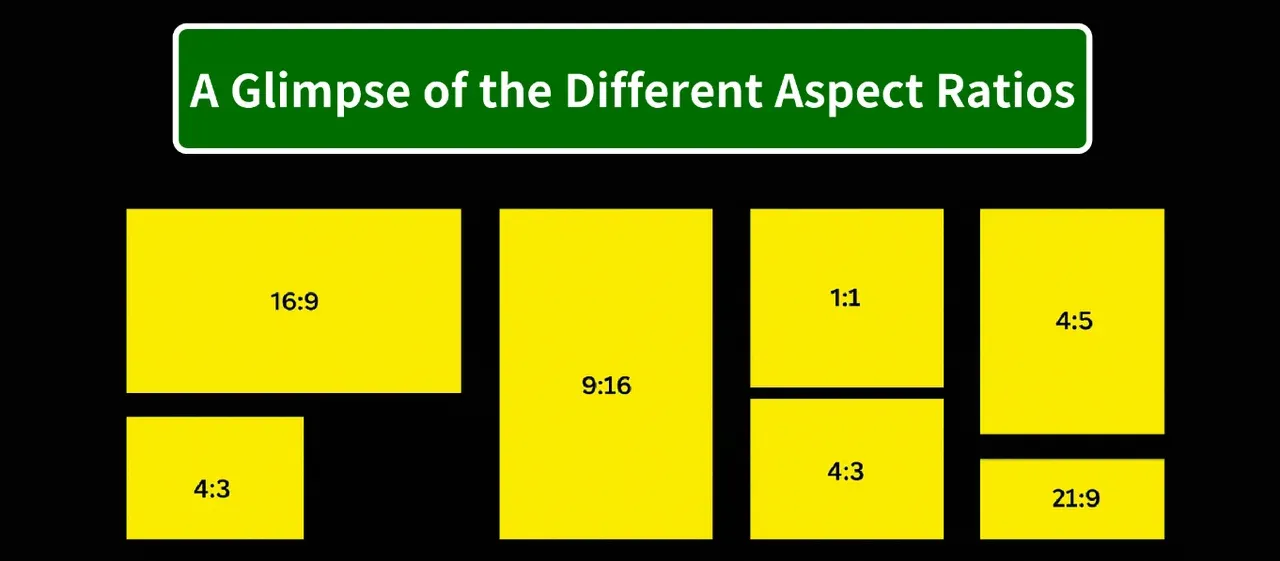
That's why you might see black bars even when everything is technically working correctly.
A simple example is vertical video. If you're mirroring TikTok, Instagram Reels, or YouTube Shorts, those videos were never designed to fill a widescreen television. No setting on your TV can transform a vertical video into true widescreen content without either cropping or stretching the image.
Before adjusting any TV settings, it's worth confirming that the content you're viewing is actually intended to display in landscape mode.
5 Fixes to Make Screen Mirroring Full Screen on TV
Once you've confirmed that the black bars aren't simply caused by the content itself, the next step is identifying where the display limitation is occurring. In some cases, the issue originates from the phone. In others, the television is applying display settings that prevent mirrored content from using the full screen. Occasionally, the problem comes from the mirroring protocol itself.
The good news is that most full-screen issues can be narrowed down fairly quickly. When testing screen mirroring across different TV brands and mobile devices, these are the troubleshooting steps I usually work through before assuming there's a deeper compatibility problem.
Fix 1: Rotate Your Phone and Check the Content Format
If you're mirroring a video, presentation, or photo slideshow, make sure the phone is in landscape mode before adjusting any TV settings.
Many apps automatically switch between portrait and landscape layouts. If the content remains vertical after rotating the phone, the black bars may be caused by the content format itself rather than the TV. In that case, changing aspect ratio settings is unlikely to help.
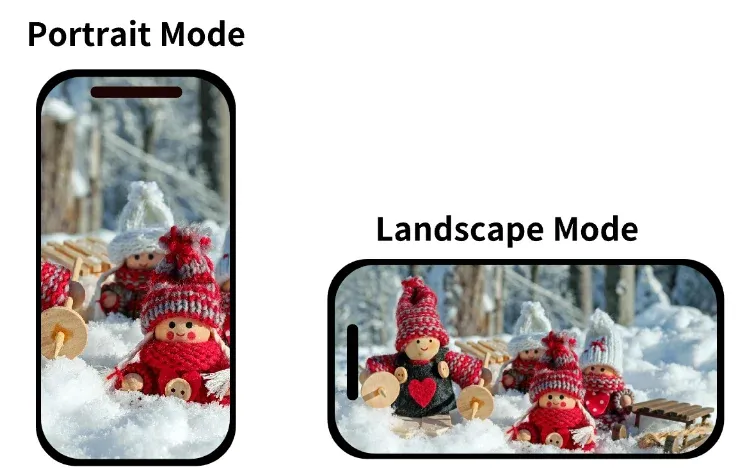
To rule this out, rotate your phone into landscape mode and check whether the app supports horizontal viewing. If you're mirroring a YouTube video, a movie, a presentation, or a photo slideshow, switching to landscape should immediately give the television more usable screen space.
If the content remains vertical even after rotating the device, the black bars are likely expected behavior rather than a display problem.
Fix 2: Check Your TV's Aspect Ratio Settings
If the content is already playing in landscape mode but still doesn't fill the screen correctly, the next thing to check is how the TV interprets the incoming image.
Most televisions allow you to choose how a video signal is displayed. Depending on the manufacturer, you may see options such as 16:9, Original, Auto, Wide, or Fit to Screen. These settings control the overall shape of the image rather than its size.
The goal here isn't to stretch the picture. Instead, you're trying to make sure the TV is using the correct aspect ratio for the mirrored content. If the TV is interpreting a widescreen signal incorrectly, black bars may appear even though the source content is already formatted for full-screen viewing.
Samsung TV
Samsung TVs typically place these controls under Picture Size Settings. In most cases, selecting 16:9 Standard or Screen Fit provides the best results for screen mirroring.
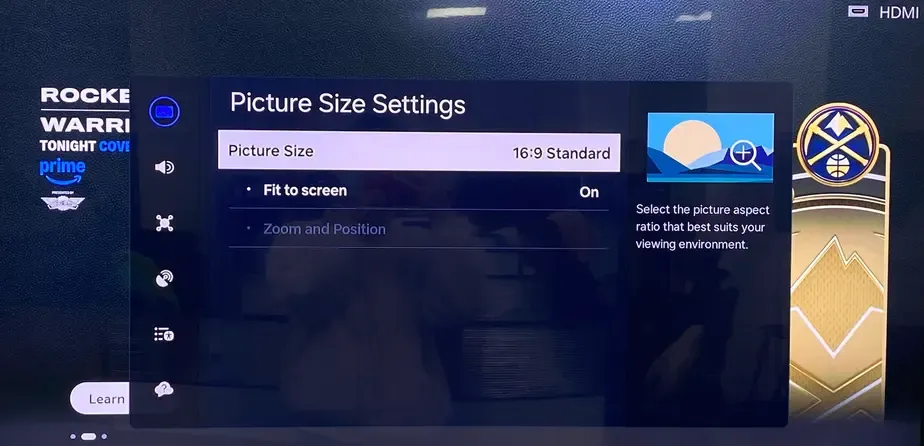
If Screen Fit is unavailable, check whether any energy-saving features are enabled, as some Samsung models temporarily restrict certain display options when Eco Mode is active.
LG TV
On LG TVs, aspect ratio controls are usually located under Aspect Ratio Settings.
Options such as Original, 16:9, and Just Scan determine how the incoming signal is interpreted before it reaches the screen. If mirrored content appears compressed or surrounded by black bars, switching between these modes can often resolve the issue without affecting image quality.
Roku TV
Roku TVs vary considerably depending on the manufacturer.
Some models expose aspect ratio controls through Display Type settings, while others manage scaling automatically. If you can't find a dedicated aspect ratio menu, it's worth checking both the system display settings and any playback-specific picture controls available on your device.
The exact menu structure may differ, but the objective remains the same: ensuring the TV is displaying the incoming signal using the correct proportions.
Fix 3: Disable Overscan or Zoom Mode
If adjusting the aspect ratio doesn't help, the problem may not be the shape of the image at all. Instead, the TV could be modifying the image after it has already been received.
This behavior is commonly known as overscan. Rather than displaying every pixel from the source device, the TV slightly enlarges the image and trims the outer edges. While this behavior was useful for older broadcast signals, it can create unexpected display issues when mirroring content from modern phones and tablets.
In practice, overscan can cause several symptoms that users often mistake for aspect ratio problems. Parts of the image may appear cropped, menus may extend beyond the edges of the screen, or mirrored content may look slightly zoomed in compared to the phone.
To check for this, look for settings such as:
- Overscan
- Zoom
- Display Area
- Screen Size
- Picture Zoom
If any of these options are enabled, try switching them off and compare the results. The exact naming varies by manufacturer, but the purpose is always the same: displaying the incoming image without additional cropping or enlargement.
Fix 4: Update Your TV and Phone Software
Software updates may not seem directly related to display scaling, but they can have a surprisingly large impact on screen mirroring performance.
Over the past few years, Apple, Google, Samsung, Roku, and other manufacturers have released updates affecting AirPlay, Chromecast, Miracast, and device compatibility. Occasionally, what appears to be a display problem is actually caused by a bug in the mirroring software itself.
One example I encountered involved AirPlay mirroring between an iPhone and a Samsung TV. Following a TV firmware update, mirrored content suddenly displayed with unexpected borders despite no changes to the phone's settings. A later software update resolved the issue entirely.
Because mirroring relies on communication between multiple devices, keeping both the phone and television updated is an easy troubleshooting step that's often overlooked.
Fix 5: Try a Different Mirroring or Casting Method
If none of the previous fixes solve the problem, it's time to consider the possibility that the issue isn't related to display settings at all.
Many users use the terms "casting" and "screen mirroring" interchangeably, but they're fundamentally different technologies. Depending on the app and the device, they can produce noticeably different results.
For example, a YouTube video sent through Chromecast may fill the screen perfectly, while mirroring the same video directly from a phone results in black bars. Similarly, AirPlay and Miracast may handle scaling differently even when connected to the same television.
When troubleshooting, it's worth testing an alternative connection method if one is available. If you're currently using AirPlay, try a Cast-enabled app. If you're relying on screen mirroring, test whether direct casting is supported.
A surprising number of full-screen issues disappear as soon as the connection protocol changes, which is often a strong sign that the underlying problem is related to compatibility rather than display settings.
In one test, I connected a Roku streaming device to a Samsung TV and compared two types of content using the same phone. YouTube videos filled the screen perfectly, but photo mirroring immediately introduced black bars on both sides.
At first glance, this looked like a display setting issue. In reality, the TV settings never changed. The difference came from the connection method itself. YouTube was using a casting protocol, while photo mirroring relied on a screen mirroring protocol. Although both appear similar from a user's perspective, they process video signals differently and can produce noticeably different scaling behavior.
That's why changing the connection method sometimes solves a full-screen issue even when none of the display settings seem to make a difference.
When a Dedicated Screen Mirroring App Makes a Difference
This is one of the reasons dedicated screen mirroring apps have become increasingly popular over the last few years.
The challenge isn't that native mirroring is broken. The challenge is that native mirroring was designed primarily for devices that exist within the same ecosystem. Once you start mixing iPhones, Android phones, Roku TVs, Samsung TVs, LG TVs, Fire TVs, and third-party receivers, compatibility becomes far less predictable.
In my own testing, this is where tools such as PigeonCast often provide a smoother experience. Rather than relying on a single connection method, they support multiple casting and mirroring technologies, making it easier to establish a stable connection across different devices and brands.
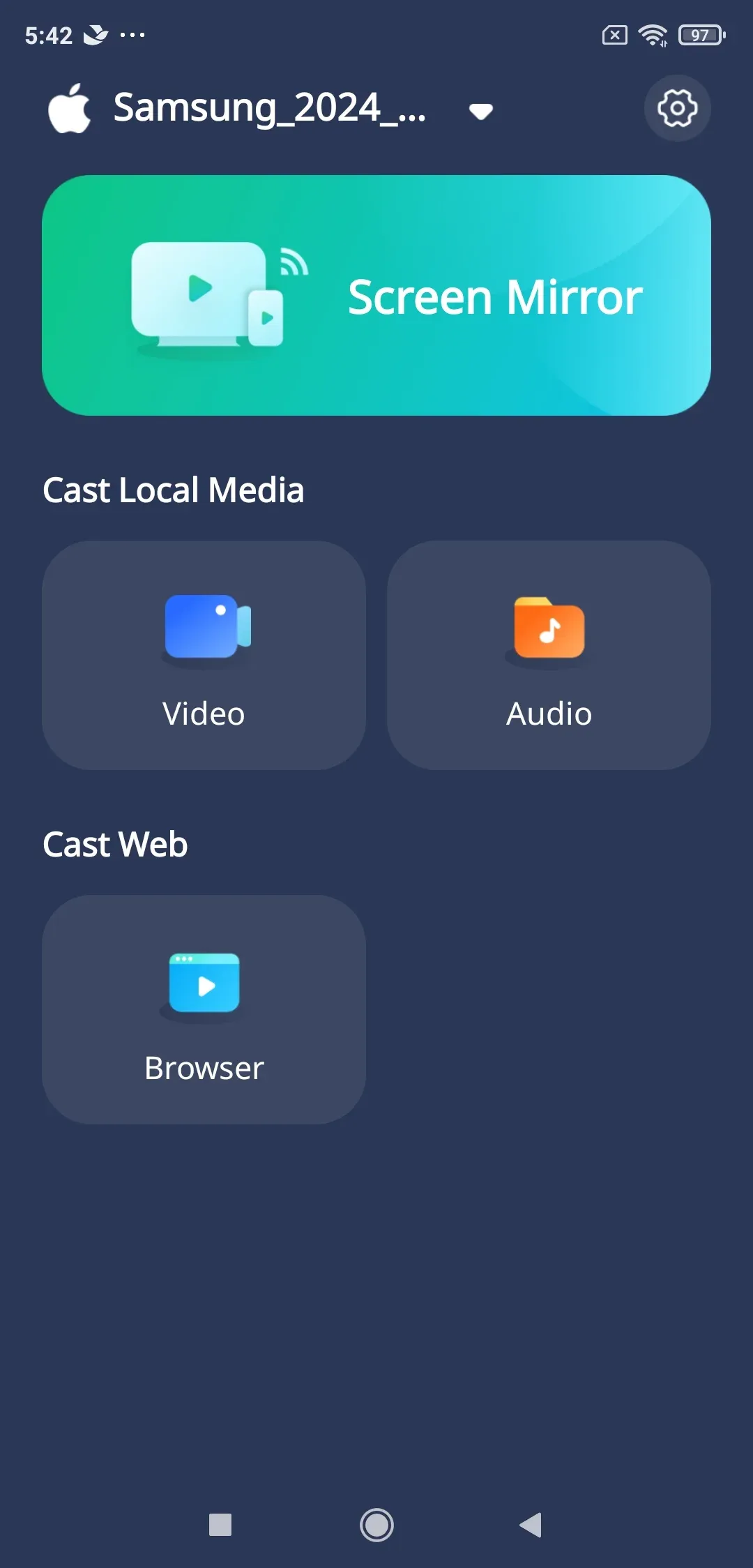

PigeonCast Screen Mirroring

Official Download



What I appreciate most isn't necessarily the setup process. It's the consistency. A connection that works reliably on one television is far more likely to work reliably on another, which reduces the amount of troubleshooting required every time you switch devices. If your mirrored screen still appears blurry, stretched, or lower quality than expected, adjusting your screen mirroring resolution settings can often improve the viewing experience.
It's important to set realistic expectations. No screen mirroring app can magically remove black bars from content that was never designed to be widescreen. A vertical TikTok video will still be vertical. However, when landscape content should be filling the screen and isn't, compatibility issues are often the real culprit—and that's exactly where a dedicated mirroring solution can help.
My Recommendation
If you're seeing black bars while screen mirroring, start with the basics. Confirm that the content supports landscape viewing, check your TV's aspect ratio settings, and look for options such as Screen Fit or Just Scan.
If those adjustments don't change anything, there's a good chance the issue isn't being caused by a display setting at all. More often than many users realize, the limitation comes from the way the phone and TV are communicating with each other.
That's why screen mirroring problems can feel so inconsistent. The same television can behave differently depending on the app, the protocol, the phone, or even the software version involved.
When you've reached the point where the standard fixes aren't making a difference, trying a dedicated solution like PigeonCast is often the quickest way to determine whether the issue is compatibility-related rather than display-related. In many cases, solving the connection problem solves the full-screen problem as well.
How to Make Screen Mirroring Full Screen on TV FAQs
How do I make screen mirroring full screen on a Samsung TV?
Open Settings > Picture > Picture Size Settings and select Screen Fit or 16:9 Standard. If those options aren't available, check whether Eco Mode or other power-saving features are limiting picture controls. Samsung TVs may handle mirrored content differently depending on the source device, so it's also worth testing both AirPlay and Smart View if black bars persist.
How do I make screen mirroring full screen on a Roku TV?
Start by rotating your phone to landscape mode, then check your Roku's display settings under Settings > Display Type. Roku devices automatically scale incoming signals, but the results can vary between manufacturers and models. If mirrored content still doesn't fill the screen, try switching from screen mirroring to direct casting, as the two methods often handle aspect ratios differently.
How do I make AirPlay full screen?
To make AirPlay full screen, first switch the video or app to landscape mode and tap its built-in full-screen button. AirPlay typically preserves the original aspect ratio rather than stretching content to fit the display. If black bars remain, check your TV's picture settings and make sure it's using a mode such as Screen Fit, Just Scan, or Fit to Screen.
How do I make my iPhone mirror full screen on a TV?
To full screen mirror iPhone, rotate your iPhone horizontally before starting screen mirroring and ensure the content supports landscape viewing. If the image still doesn't fill the screen, check your TV's aspect ratio settings and disable any zoom or overscan features. In some cases, using a dedicated mirroring app such as PigeonCast can improve compatibility across different TV brands.
Why is my screen not full when mirroring to a TV?
The most common reason is an aspect ratio mismatch between the phone and the television. Modern smartphones use taller screen formats than most TVs, which can result in black bars even when mirroring is working correctly. Display settings, overscan, and the mirroring protocol itself can also affect how the image appears on screen.
How do I make screen mirroring full screen on Android TV?
Connect your Android phone using Cast, Smart View, or another supported mirroring feature, then check the TV's picture settings for options such as 16:9, Fit to Screen, or Display Area. If the content remains smaller than expected, test a different casting method because Android TVs may process mirrored and casted content differently.
Why does AirPlay show black bars on my TV?
AirPlay is designed to preserve the original proportions of the source content. If you're mirroring a vertical app, a tall smartphone display, or content that doesn't match your TV's aspect ratio, black bars are normal. Switching to landscape mode or using an app's full-screen playback option can often reduce unused screen space.
How do I make full-screen mirroring without delay?
A stable 5GHz Wi-Fi connection usually provides the best balance between image quality and responsiveness. Network congestion, background downloads, and older routers can all increase latency during screen mirroring. If you're presenting, gaming, or streaming live content, using a dedicated solution like PigeonCast may help deliver a smoother full-screen experience across different devices.
Mia Clarke is a technology editor specializing in screen mirroring and casting solutions across multiple platforms. Mia provides clear, practical guides and in-depth insights to help users seamlessly connect their devices. Passionate about enhancing digital experiences, Mia is dedicated to keeping readers updated on the latest trends and tools in cross-platform screen sharing. Whether you’re looking to mirror your smartphone, laptop, or smart TV, Mia’s content delivers reliable, user-friendly advice to simplify your tech setup.