
TikTok has become one of the most popular platforms for short-form video entertainment, but watching on a small phone screen isn't always the best experience. Many users wonder: how to cast TikTok to TV for a bigger and more immersive view? The answer is simple: yes, you can watch TikTok on TV, and setting it up is easier than you think. In this guide, we'll explore different methods with step-by-step instructions, so you can enjoy TikTok videos, lives, and trends on the big screen.
Can you Watch TikTok on TV
Yes, you have two main options: either cast TikTok to your TV from a mobile device or install TikTok directly on your TV if it supports the app. Casting works by wirelessly streaming the content from your phone or laptop to the TV screen, while installing the app lets you browse and watch TikTok without needing your phone or laptop at all. Both approaches are effective, and which one you choose depends on your devices and preferences.
Method 1. Watch TikTok on TV via Chromecast
Chromecast lets you wirelessly send content from your phone, tablet, or computer to your TV. While TikTok doesn't offer a fully native Chromecast integration like YouTube or Netflix, Android users sometimes see a Cast option in the Share menu. If it doesn't appear, you can still mirror your entire screen via Chromecast from both mobile devices and desktop browsers.
- How to cast TikTok to TV from iPhone and Android:
Step 1. Connect your TV (with Chromecast built-in or a Chromecast dongle) and your phone to the same Wi-Fi network and the receiver is powered on.
Step 2. Open the TikTok app on your phone.
Step 3. Follow the onscreen instructions on your mobile device:
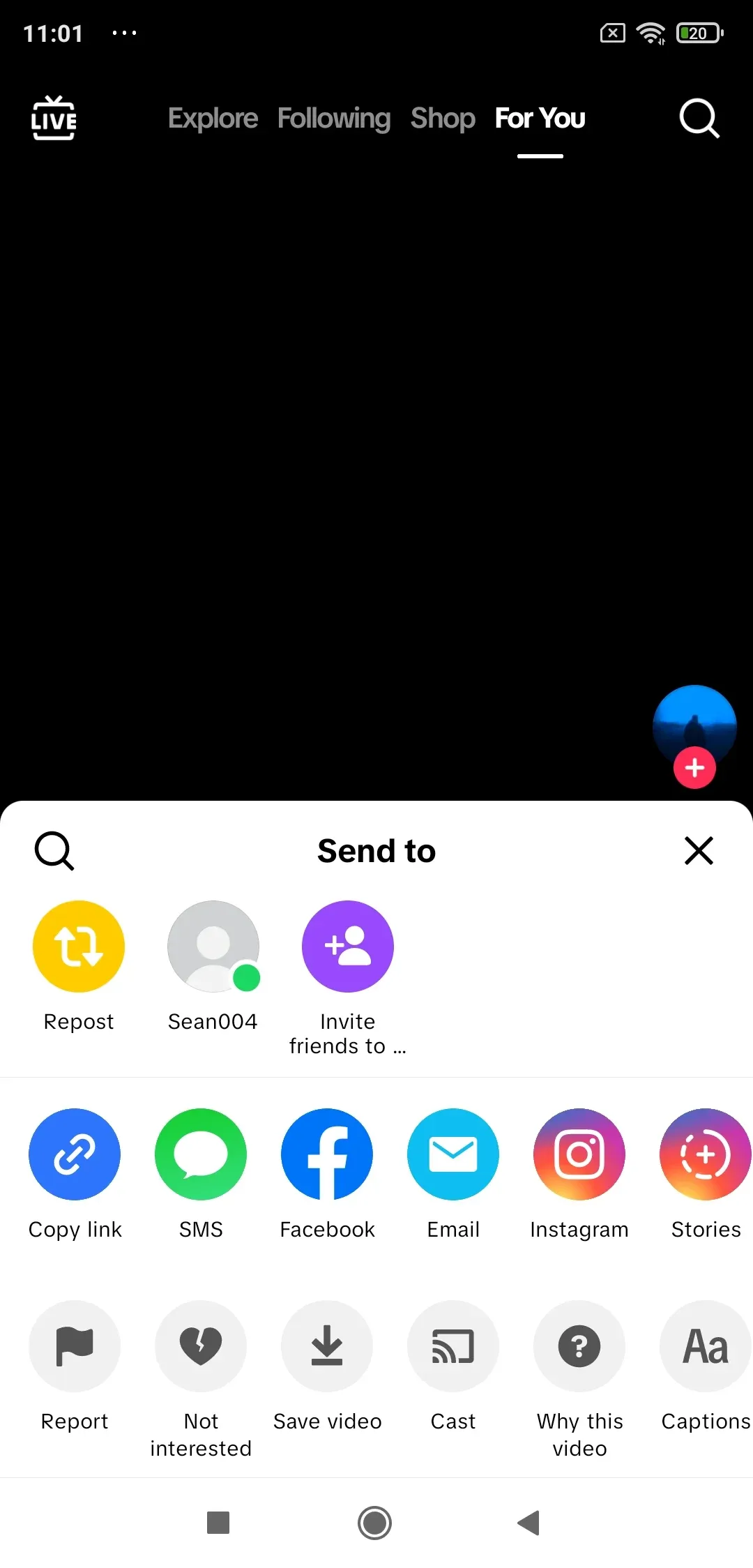
- For Android, play a video, tap Share > Cast, and choose your Chromecast if available. If the Cast button greyed out, check the device's power and Wi-Fi connection.
- For iPhone, TikTok usually doesn't expose the Cast option. Instead, open the Google Home app, choose Cast screen, and mirror your iPhone to Chromecast. Alternatively, you can AirPlay TikTok to TV.
Step 4. Watch TikTok Live on your TV instead of the small screen.
- How to cast TikTok to smart TV from Windows and MacBook:
Step 1. On your computer, open the Google Chrome browser.
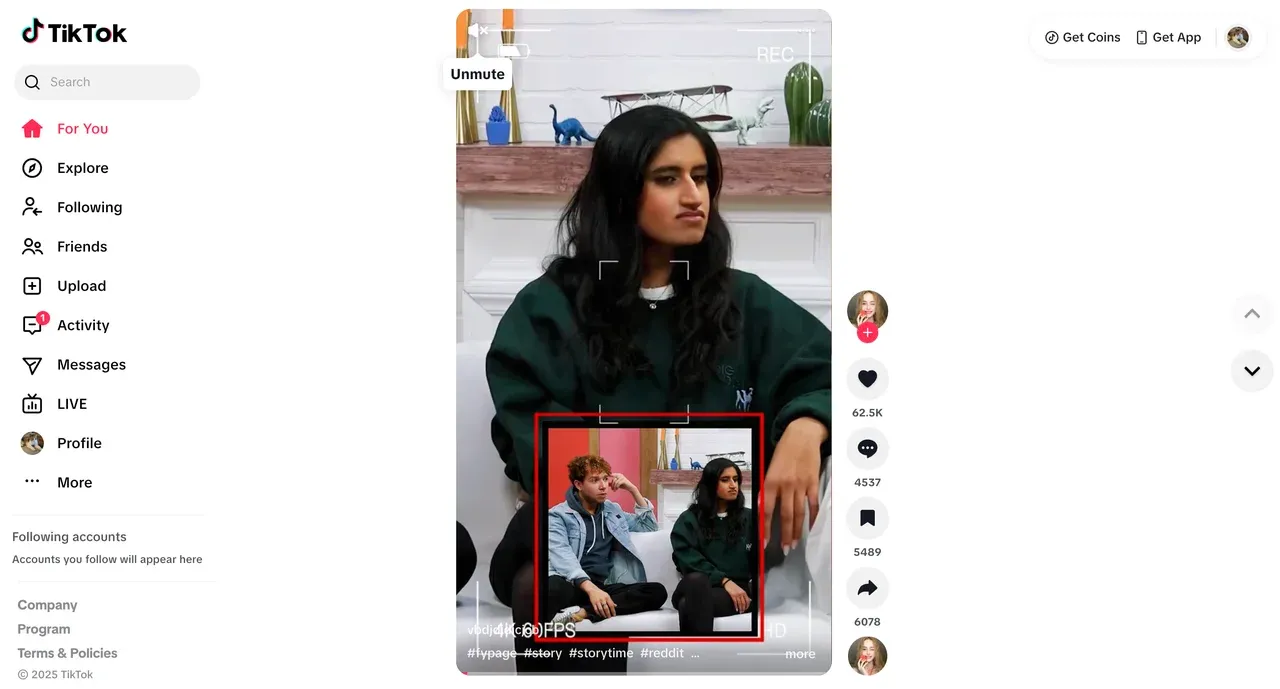
Step 2. Go to TikTok's website and sign in.
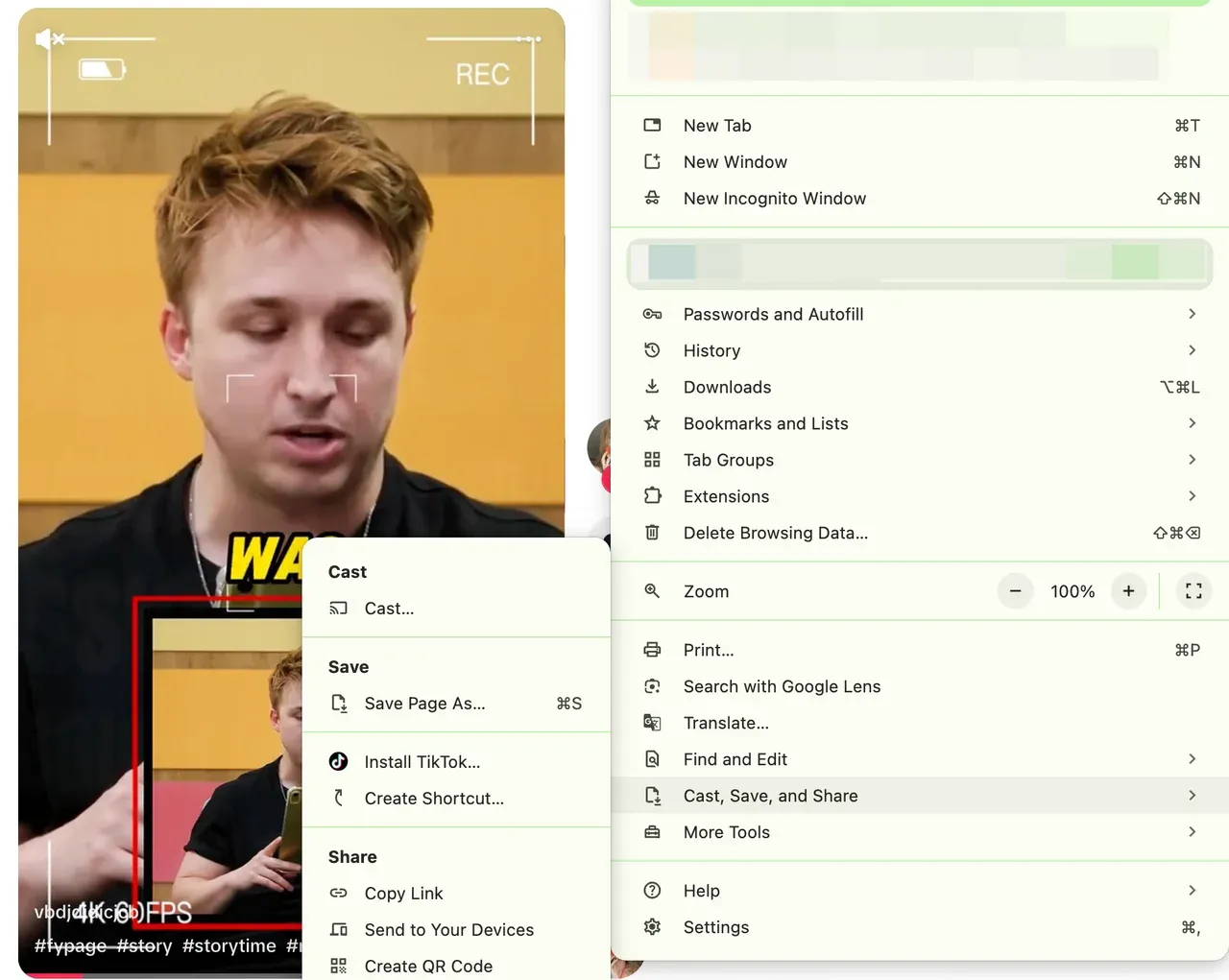
Step 3. Click the More option (three dots) in Chrome and choose Cast, Save, and Share > Cast.
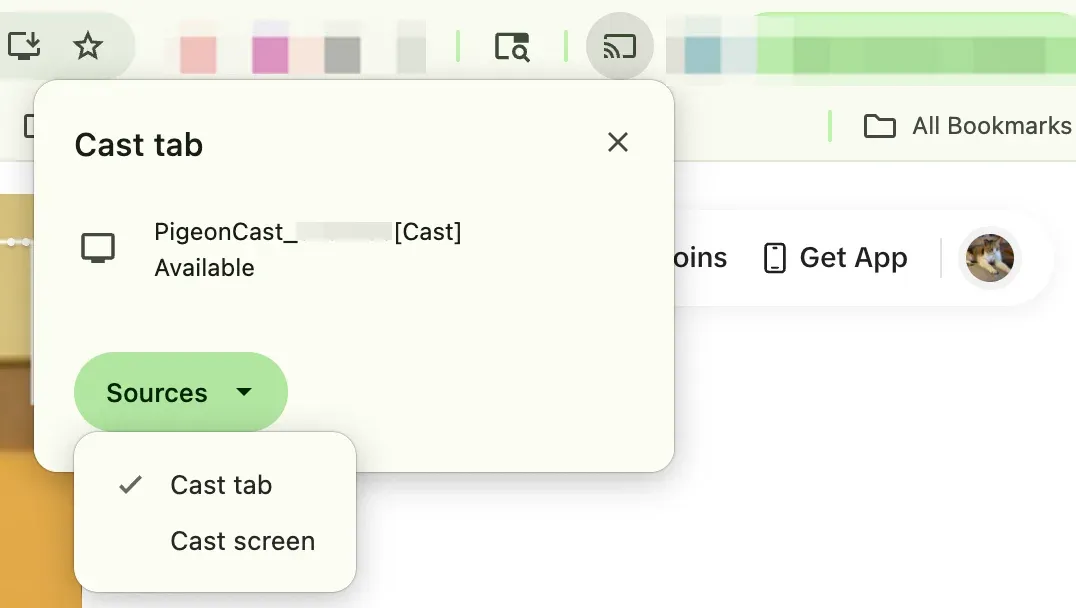
Step 4. Choose your Chromecast-enabled TV from the list and choose to cast the TikTok tab.
Step 5. TikTok videos will play on your TV, while your computer acts as the controller.
Method 2. Watch TikTok on TV via AirPlay
AirPlay is Apple's wireless streaming technology. If you own an iPhone, iPad, or Mac and an Apple TV (or an AirPlay-compatible smart TV), you can easily stream TikTok to your TV.
AirPlay is especially useful for watching TikTok Lives on TV, since it mirrors the entire feed in real time. The only limitation is that notifications or interruptions on your phone may also appear on the TV, so consider enabling Do Not Disturb mode before starting a stream.
Here's how to AirPlay TikTok to TV:
Step 1. Ensure your Apple device (iPhone/iPad/MacBook) and TV are on the same Wi-Fi network.
Step 2. Open TikTok and play the live you want to watch.
Step 3. On your Apple device, go to the Control Center and enable Screen Mirroring.
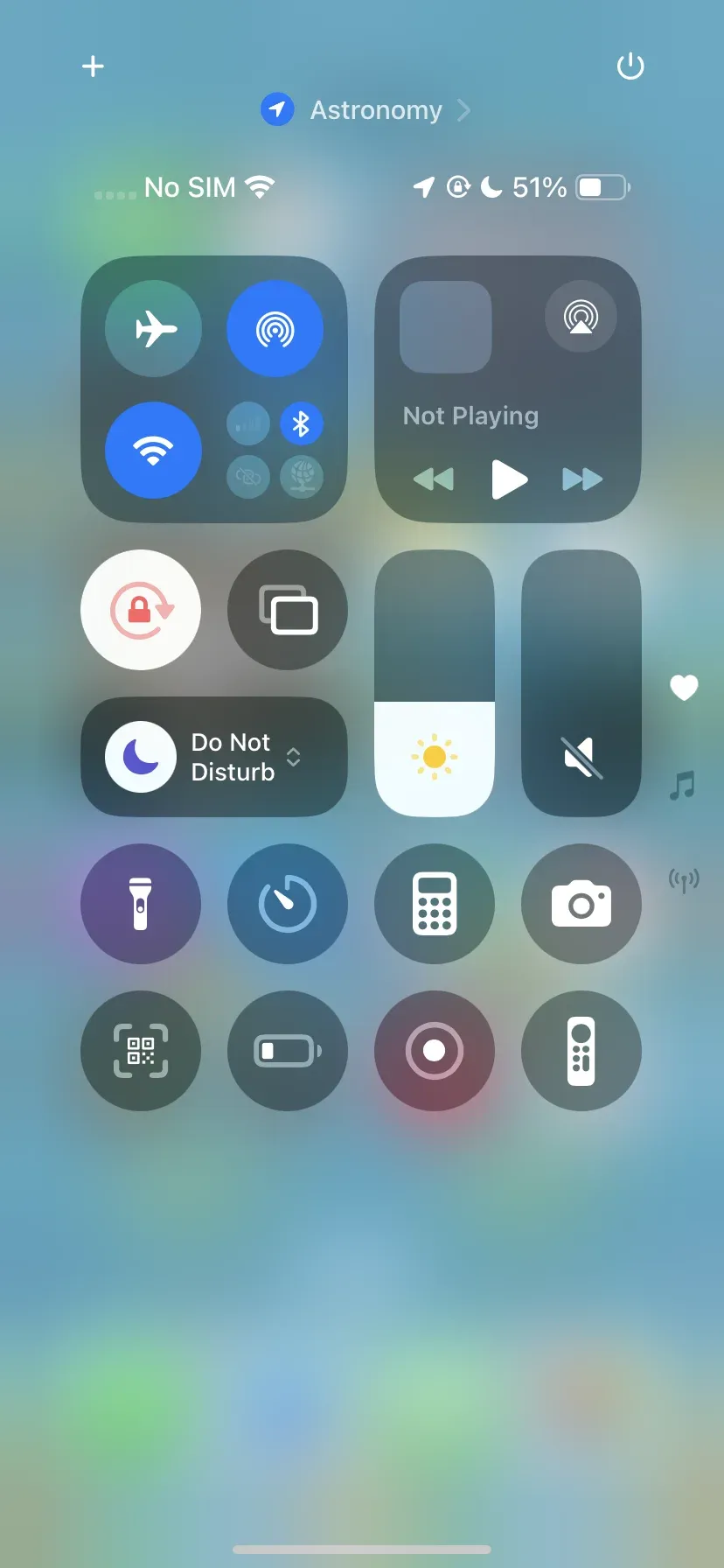
Step 4. Choose your Apple TV or AirPlay-enabled TV.
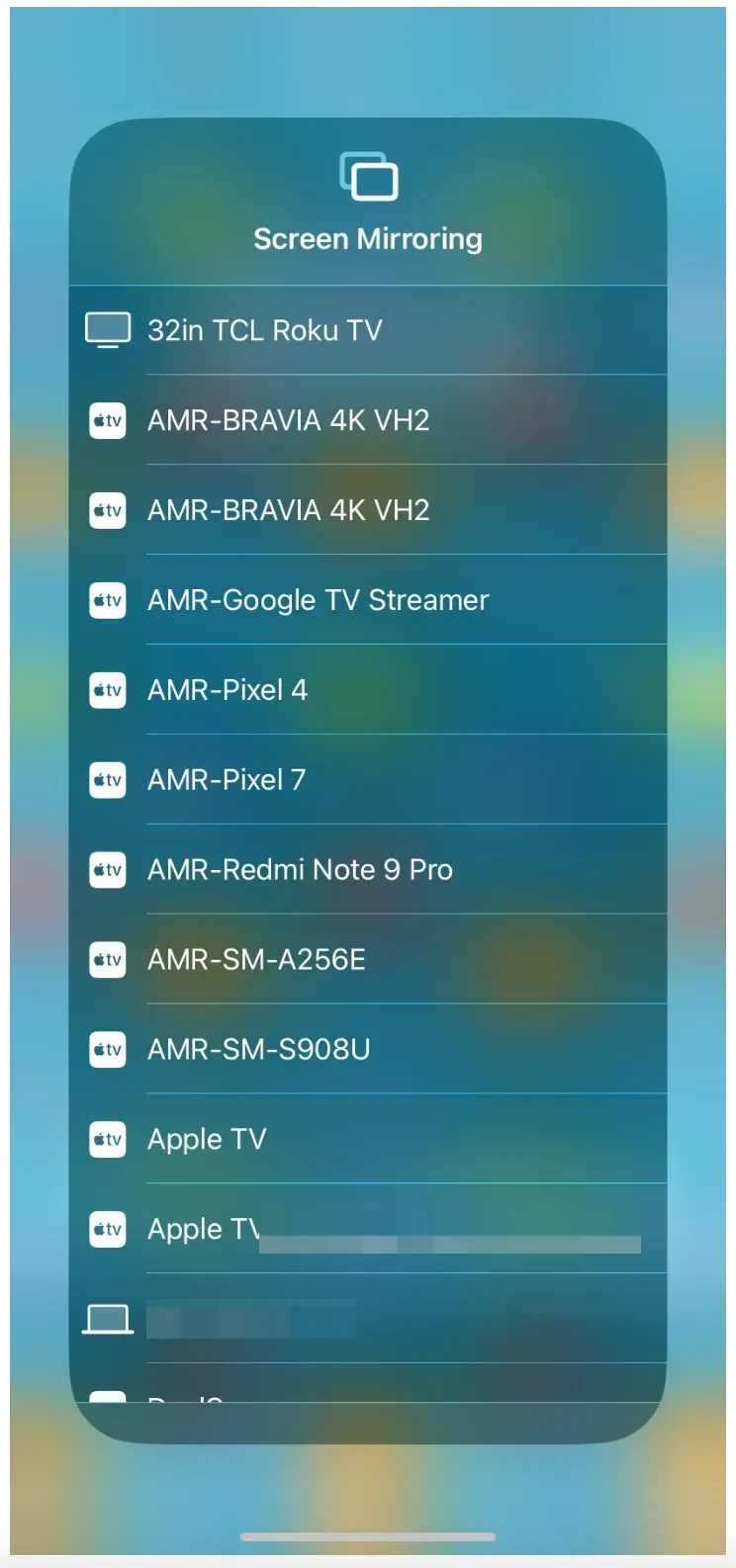
Step 5. Your entire screen (including TikTok lives or videos) will appear on the TV.
Unlike the above way, AirPlay projects your entire screen to the TV, which means you can't lock your device or use other apps in the background while casting. If you minimize TikTok or switch to another app, the mirrored screen will update on the TV as well. For the best experience, keep your iPhone, iPad, or Mac dedicated to TikTok during AirPlay sessions.
Method 3. Watch TikTok on TV via PigeonCast
If your TV doesn't support Chromecast or AirPlay directly, third-party apps like PigeonCast provide a reliable alternative. PigeonCast is a free screen mirroring app available on many platforms, from phone, laptop, to TV, and works over Wi-Fi, streaming content (like TikTok) between your devices without hassles.
How to stream TikTok to TV with PigeonCast? The process is simple:
Step 1. Download and install PigeonCast on your phone, laptop, or TV.

Step 2. Ensure your phone and TV or laptop and TV are on the same Wi-Fi network.
Step 3. Open the TikTok app on your mobile device or the TikTok website on your laptop.
Step 4. Open the PigeonCast on both devices.
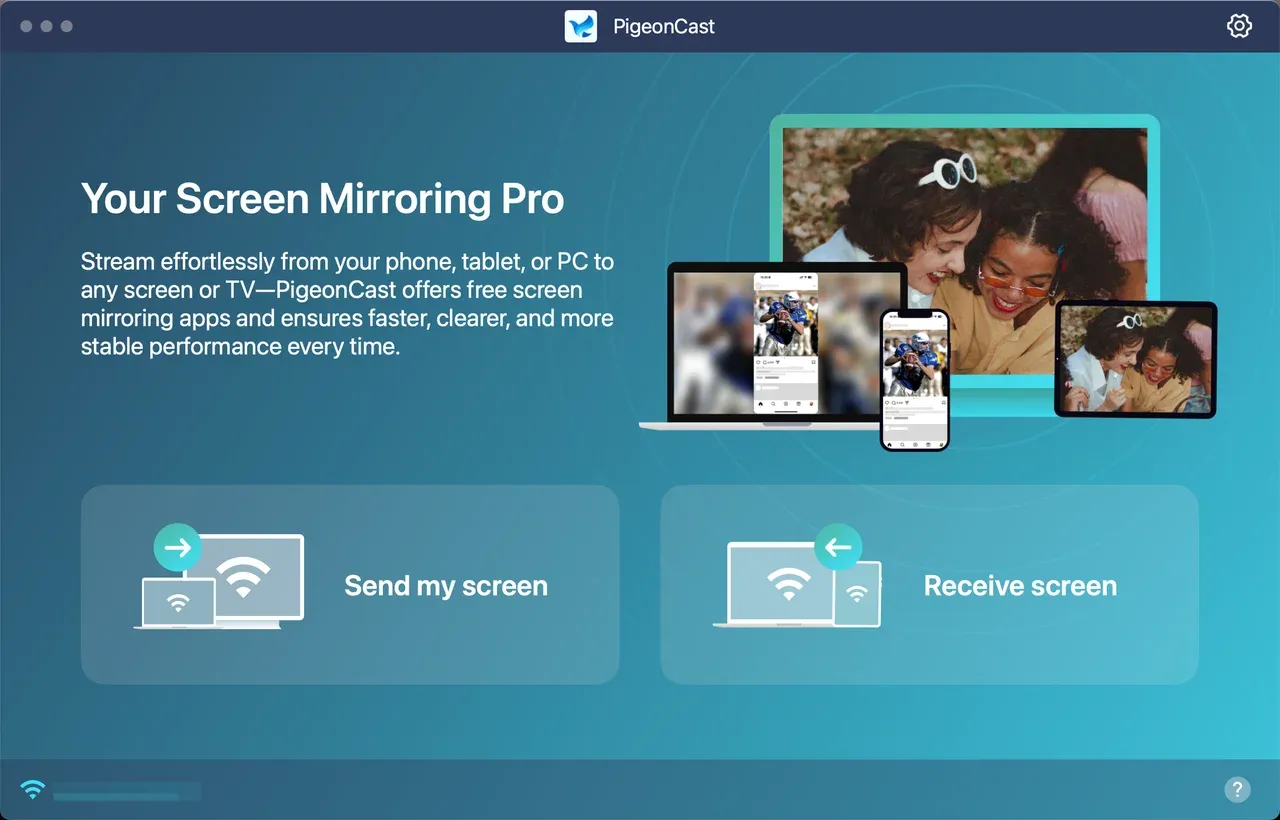 Step 5. Choose your PigeonCast-enabled TV
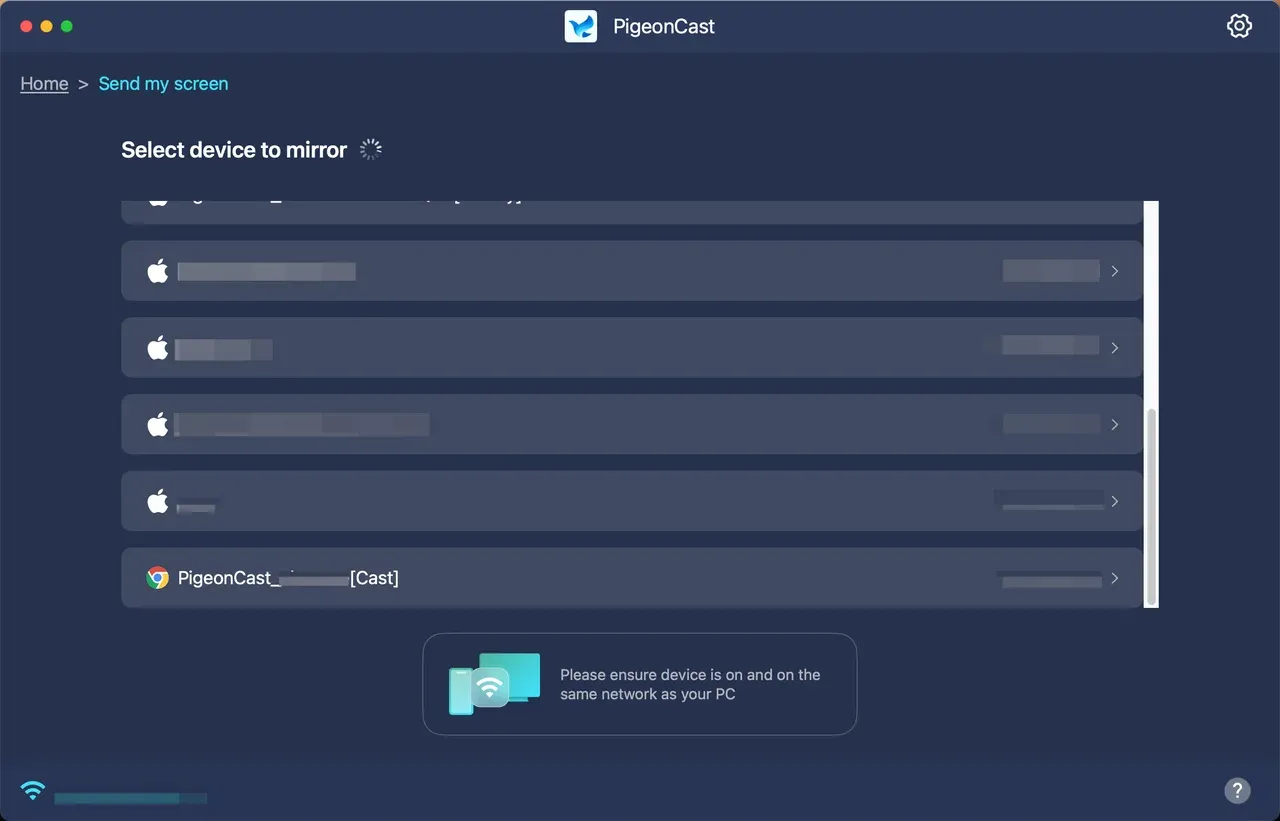
Step 6. Start screen mirroring or casting with onscreen instructions.
Step 7. Watch TikTok on your TV.
Method 4: Watch TikTok on TV via HDMI
How to connect TikTok to TV? For a stable, no-lag connection, you can connect your phone or computer directly to your TV using an HDMI cable. This method doesn't rely on Wi-Fi and is useful if wireless casting isn't available.
Step 1. Get the right adapter:
- For iPhone: use a Lightning to HDMI adapter or USB-C to HDMI adapter.
- For Android: use a Micro-USB to HDMI adapter or USB-C to HDMI adapter.
- For laptops: use a USB-C to HDMI adapter if no HDMI port
Step 2. Plug one end of the HDMI cable into your TV and the other into your device (or adapter).
Step 3. Switch your TV to the correct HDMI input.
Step 4. Open TikTok on your phone or computer, and the screen will display on your TV.
Method 5. Install TikTok on TV
How to watch TikTok on smart TV? Some smart TVs let you install TikTok directly as an app, removing the need for casting. TikTok TV provides a simplified, remote-friendly interface optimized for the big screen.
TikTok works on several TVs, including:
- Amazon Fire TV
- Android TV
- Chromecast with Google TV
- LG smart TVs (2018 and newer models)
- Samsung smart TVs
If you have one of the models above, download and install TikTok on the device and start watching. Here's how to watch TikTok on TV:
Step 1. Search for TikTok from the app store on the TV.
Step 2. Choose Install on the TV screen and wait for it to download and install.
Step 3. Launch the TikTok app on your TV and log in to your account or start watching without an account.
Why Can't You Watch TikTok on TV
Sometimes TikTok won't connect to your TV as smoothly as expected. Here are the most common reasons and how to fix them:
- Regional availability: TikTok didn't launch a dedicated TV app until 2021, and even now, it's only officially available in certain regions like North America and Europe. If your smart TV app store doesn't show TikTok, your location may be the reason.
- Same Wi-Fi network: Casting and mirroring only work if your phone, tablet, or computer shares the same Wi-Fi connection as your TV. Double-check network settings if your devices can't "see" each other.
- Device compatibility: Screen mirroring requires a TV or streaming stick that supports it. If your TV doesn't allow mirroring, TikTok won't appear until you use Chromecast, AirPlay, or a third-party app like PigeonCast.
- Chromecast issues: If casting from the TikTok app or website fails, restart your devices, update TikTok, and make sure Chromecast is properly set up in Google Home. Sometimes switching to full screen mirroring works more reliably than in-app casting.
- General fixes: Restart your phone and TV, update software, and disable VPNs or firewalls that may block discovery.
By checking these factors, you can usually stream TikTok on your TV without much hassle.
What's Your Take
Watching TikTok on a big screen can completely change the experience—from casual scrolling on your phone to enjoying viral videos with friends and family in the living room. Some prefer casting for flexibility, while others like installing the app directly for a smoother experience. Which method do you find works best for you?
How to Cast TikTok to TV FAQs
Q: How to cast TikTok Live to TV?
The process is the same as regular videos—use Chromecast, AirPlay, or third-party apps like PigeonCast. Simply open the Live on your phone or laptop and cast your screen to the TV. If your TV has the TikTok app, just watch the Live on the large screen.
Q: How to cast TikTok to Roku TV?
Roku supports screen mirroring via Miracast and AirPlay. If you're using an Android or Windows device, enable screen mirroring in your settings and select your Roku TV. For iPhone users, AirPlay makes it possible to mirror TikTok to a TV.
Q: Can I install TikTok directly on my smart TV?
Yes, if your TV is in a supported region and has TikTok in its app store. Otherwise, casting or mirroring is your best option.
Q: Do I need Wi-Fi to cast TikTok to TV?
Yes. For wireless casting methods like Chromecast, AirPlay, or PigeonCast, your phone (or computer) and TV must be on the same Wi-Fi network. If you're using an HDMI cable, Wi-Fi isn't required since the connection is wired, though this counts as screen mirroring rather than true casting.
Mia Clarke is a technology editor specializing in screen mirroring and casting solutions across multiple platforms. Mia provides clear, practical guides and in-depth insights to help users seamlessly connect their devices. Passionate about enhancing digital experiences, Mia is dedicated to keeping readers updated on the latest trends and tools in cross-platform screen sharing. Whether you’re looking to mirror your smartphone, laptop, or smart TV, Mia’s content delivers reliable, user-friendly advice to simplify your tech setup.