
iPhone and Samsung TVs use different operating systems, which can make it confusing to figure out whether you can connect them or how to screen mirror iPhone to Samsung TV. Fortunately, this guide provides all the answers you need, walking you through the process step by step. Let's dive in!
Can You Screen Mirror From iPhone to Samsung TV
Yes, you can mirror your iPhone to a Samsung TV, but the method depends on your TV model and iOS version. Samsung smart TVs released after 2018 generally support AirPlay 2, allowing direct wireless mirroring. Older Samsung TVs may require a wired connection or a third-party app for screen mirroring.
How to Screen Mirror from iPhone to Samsung TV
There are 3 effective ways to mirror your iPhone screen to a Samsung TV. Depending on your device compatibility and personal preference, you can choose from AirPlay, Apple's Digital AV Adapter, or third-party apps like PigeonCast. Each method has its pros and cons, which we'll walk through step by step.
Method 1. Use AirPlay
If you want a quick and wireless way to do screen mirroring iPhone to Samsung TV, AirPlay is the easiest option, provided your Samsung TV supports AirPlay 2. It lets you stream both video and audio directly from your iPhone without any cables, making it perfect for watching movies, showing photos, or sharing apps on the big screen. Here's how to set it up step by step.
Step 1. Ensure your Samsung TV supports AirPlay 2 and both devices are on the same WiFi network.
Step 2. On your iPhone, open Control Center (swipe down from top-right on iPhone X or later, swipe up on older models).
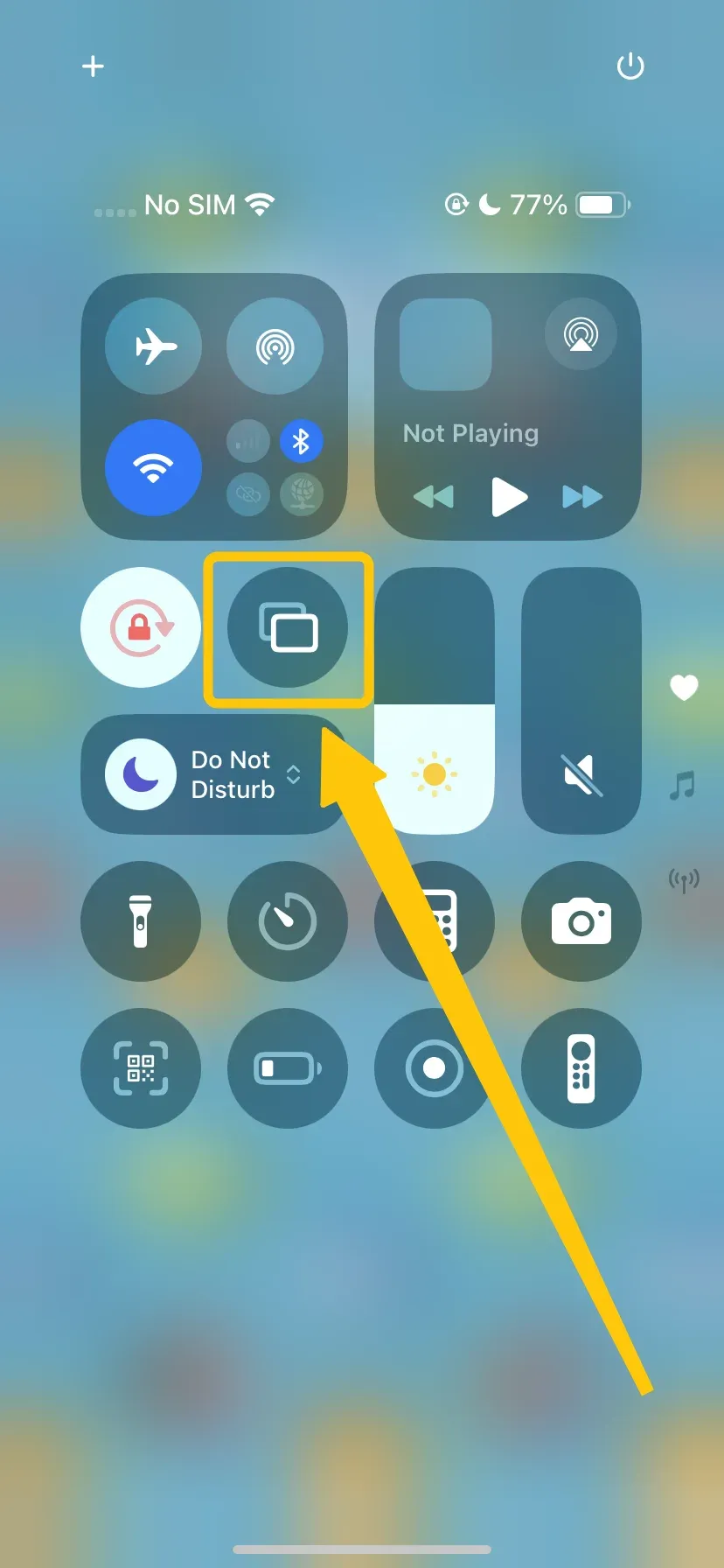
Step 3. Tap Screen Mirroring and select your Samsung TV from the device list.
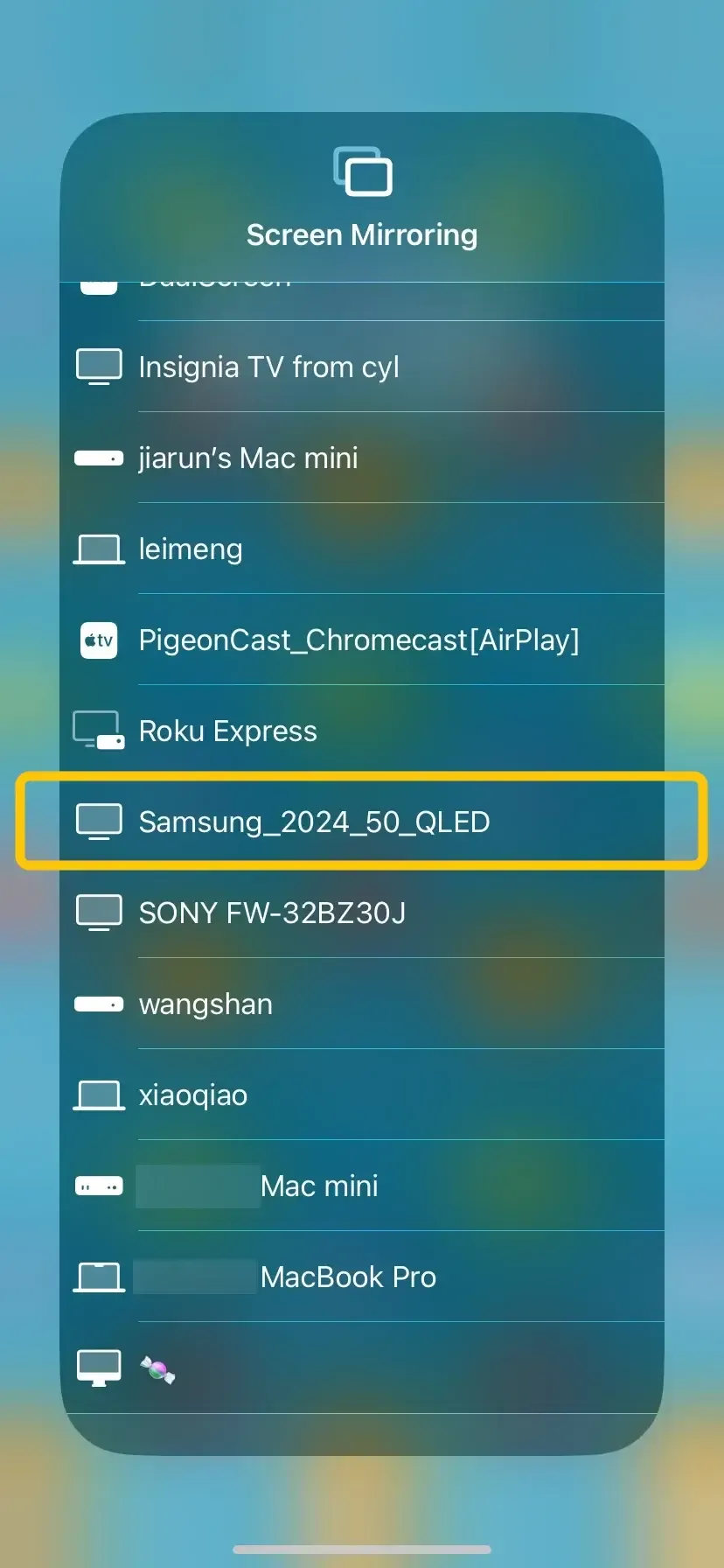
Step 4. Enter the AirPlay code shown on your TV if prompted. Your iPhone screen will appear on the TV, with audio included automatically.
Method 2. Use Apple's Digital AV Adapter
If your Samsung TV doesn't support AirPlay, or you prefer a stable wired connection, you can still do screen mirroring iPhone to Samsung TV without AirPlay using Apple's Digital AV Adapter. This method ensures stable, high-quality video and audio without depending on Wi-Fi, making it ideal for movies, presentations, or gaming.
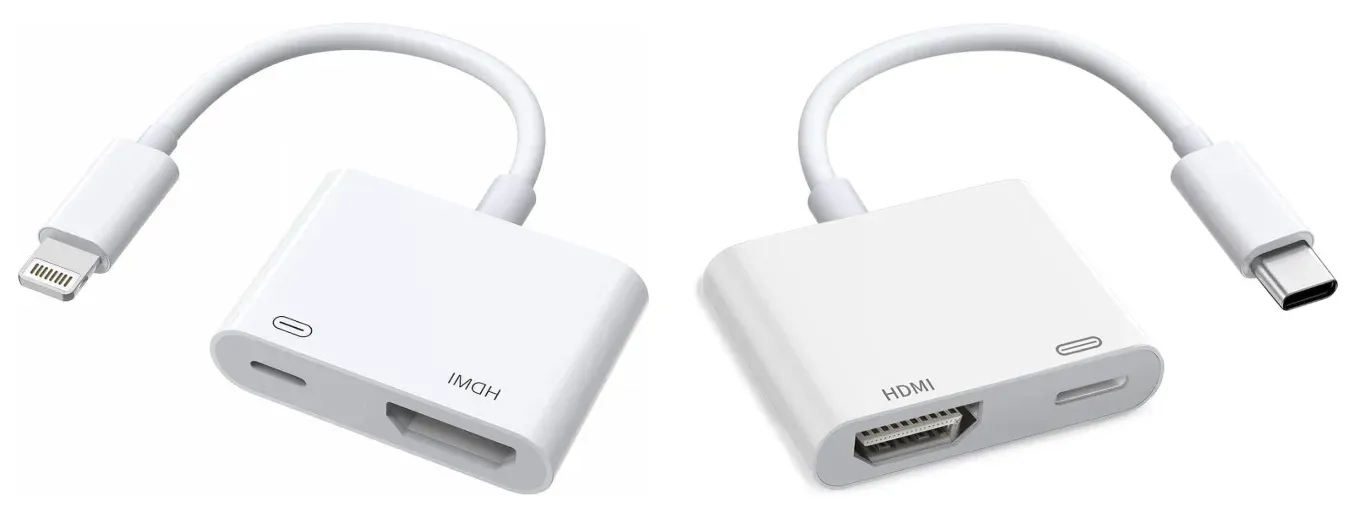
Step 1. Plug the Lightning Digital AV Adapter or Apple USB C to HDMI Adapter into your iPhone.
Step 2. Connect an HDMI cable from the adapter to your Samsung TV.
Step 3. Switch your TV to the correct HDMI input, and your iPhone screen will be mirrored instantly, including all sounds.
Method 3. Use PigeonCast
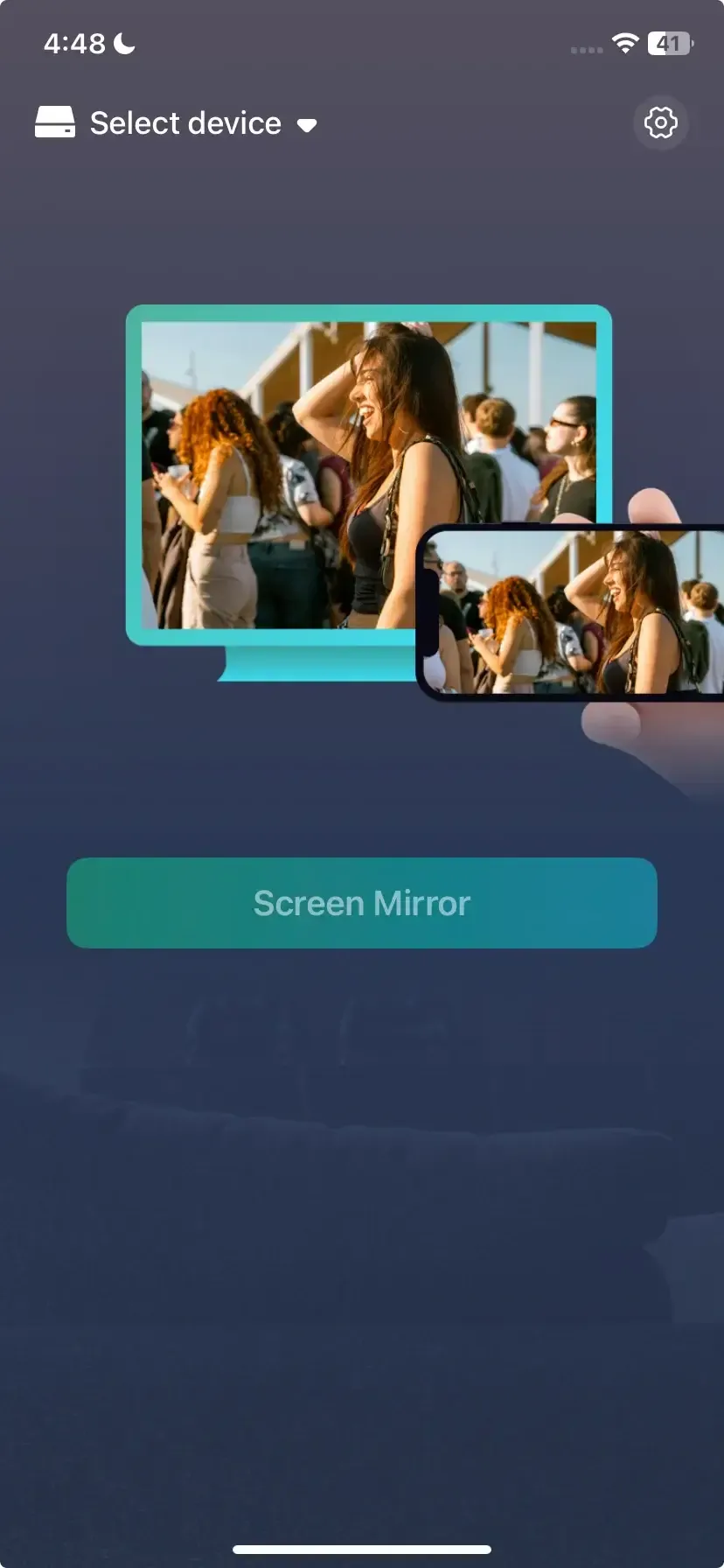
How to screen mirror iPhone to Samsung TV free? Newer Samsung Smart TVs (models released in recent years) come with Google Cast support natively. Pigeoncast on iPhone supports Google Cast and it's especially helpful if your Samsung TV doesn't support AirPlay 2 or if you encounter connectivity issues with Wi-Fi.

PigeonCast Screen Mirroring

Official Download


With PigeonCast, you can mirror your iPhone effortlessly, enjoy smooth video and audio, and use it across different devices without any cables. Plus, PigeonCast protects your privacy, ensuring no data leakage, making it a safe and reliable alternative to built-in mirroring options. Now, let's check how to use this software:
Step 1. Install the PigeonCast app on your iPhone.
Step 2. Ensure your iPhone and Samsung TV are covered by the same wireless network.
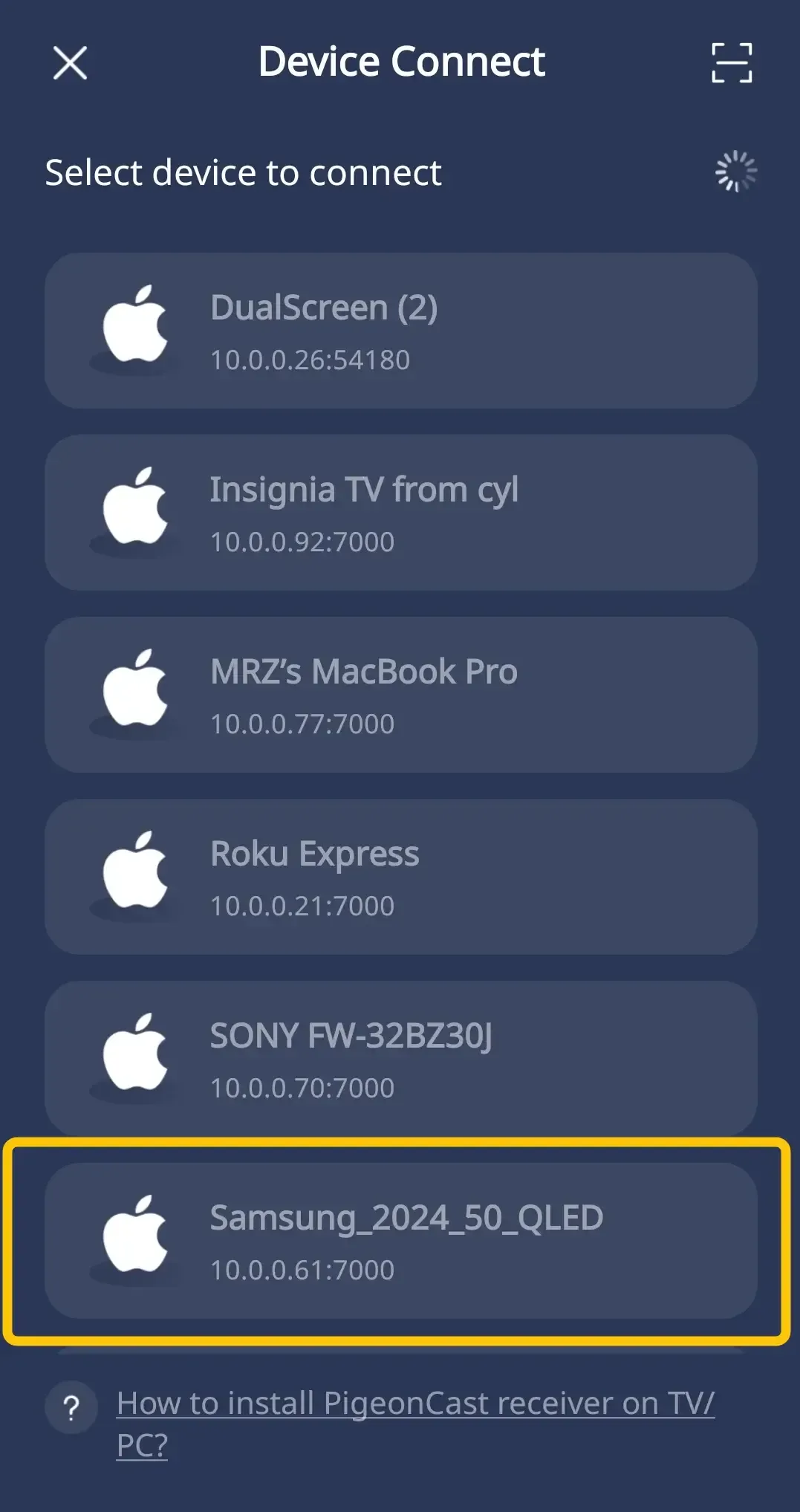
Step 3. Open the PigeonCast app and select your Samsung TV from the device list.
Step 4. Enter the onscreen PIN code to confirm the mirroring performance.
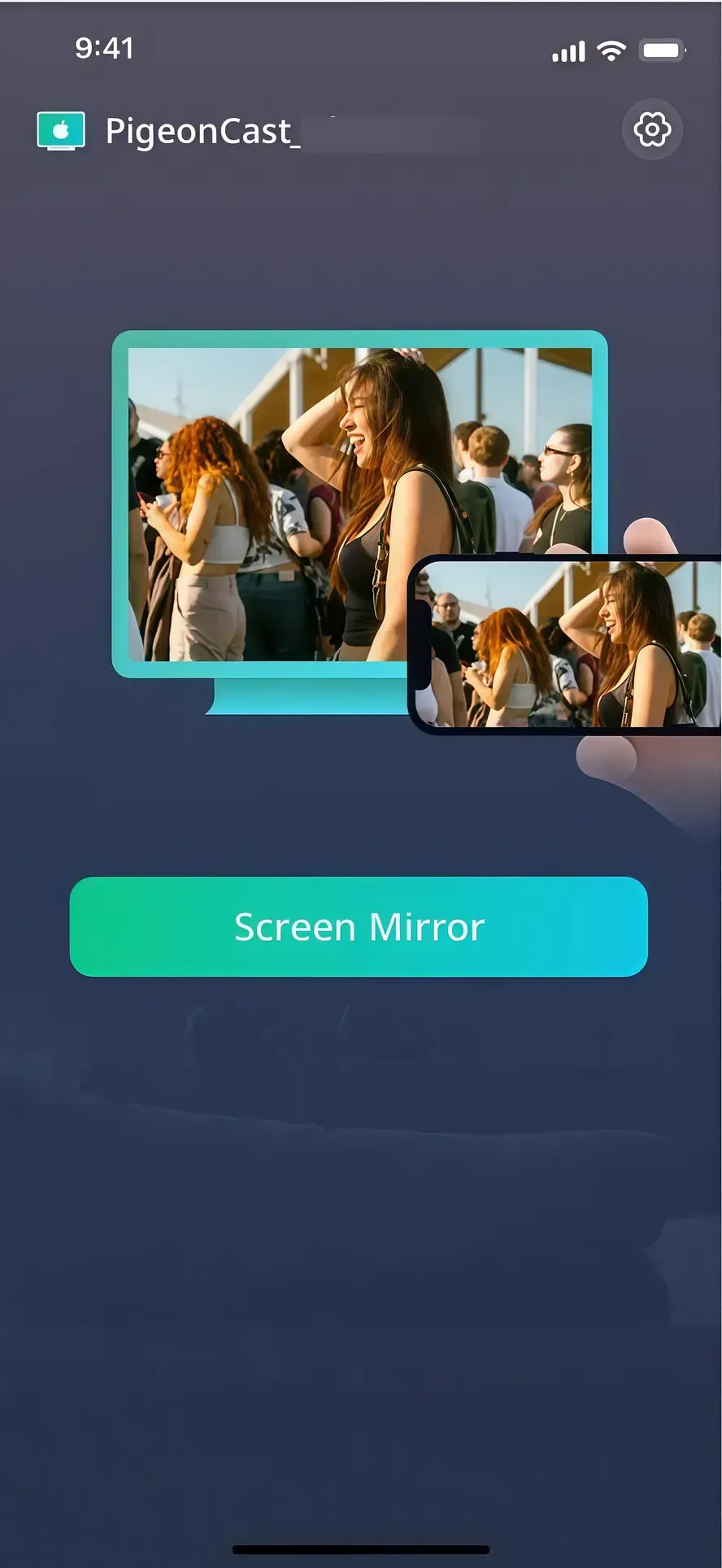
Step 5. Tap the Start Mirroring button to display your iPhone screen on the TV, including audio.
Why use the PigeonCast screen mirroring app:
If you've struggled with AirPlay compatibility, connectivity issues, or TVs that don't support wireless mirroring, PigeonCast offers a practical solution. This section will explain why using the PigeonCast screen mirroring app can make your iPhone-to-TV experience easier, safer, and more enjoyable.

- Cross-platform support: works on smart TVs, iPhone, Mac, Android devices, and Windows PCs.
- Wireless mirroring: no cables needed, reducing clutter.
- High-quality audio and video streaming: low latency ensures smooth playback.
- User-friendly interface: minimal setup, suitable even for non-technical users.
- Free to use: basic mirroring is free, making it accessible for everyone.
- Privacy protection: PigeonCast ensures your data is secure, with no risk of leakage.
Wrapping Up
How to screen mirror on Samsung TV with iPhone? Whether you use AirPlay for wireless convenience, the Digital AV Adapter for a wired connection, or a free screen mirroring app iPhone to Samsung TV like PigeonCast, for broad compatibility, you can enjoy videos, photos, apps, and more on the big screen. Always ensure your devices are updated and on the same network, and pick the method that fits your TV model and preferences.
How to Screen Mirror iPhone to Samsung TV FAQ
Q: How do I mirror my iPhone to my Samsung TV?
Use AirPlay if your TV supports it, or connect with Apple's Digital AV Adapter via HDMI. Alternatively, use a third-party app like PigeonCast for wireless mirroring.
Q: Why can't I use screen mirroring anymore from iPhone to Samsung TV?
You might not be able to use screen mirroring from your iPhone to your Samsung TV anymore because of compatibility issues, software updates, or network problems. For example, your TV may no longer support the AirPlay version on your iPhone, your devices might be on different Wi-Fi networks, or temporary glitches could be blocking the connection.
Q: How to screen mirror iPhone to Samsung TV without AirPlay?
You can screen mirror your iPhone to a Samsung TV without AirPlay by using a wired connection or a third-party app. With a wired method, connect your iPhone to the TV using Apple's Lightning Digital AV Adapter and an HDMI cable, which streams both video and audio reliably. Alternatively, you can use a screen mirroring app like PigeonCast, which works wirelessly across different platforms and devices.
Q: Why won't my iPhone find my Samsung TV for screen mirroring?
If your iPhone can't find your Samsung TV for screen mirroring, it's usually due to compatibility or network issues. Common reasons include:
- TV doesn't support AirPlay 2: Only Samsung TVs from 2018 onward generally support AirPlay 2.
- Devices not on the same Wi-Fi network: Both your iPhone and TV must be connected to the same network.
- AirPlay is disabled on the TV: Check the TV's settings under General > Apple AirPlay Settings.
- Outdated software: Make sure both the iPhone and Samsung TV have the latest updates installed.
- Network interference or weak Wi-Fi signal: Poor connectivity can prevent the TV from appearing.
- Firewall or router settings: Certain settings may block device discovery or Bonjour/multicast traffic.
Q: Does my Samsung TV support AirPlay?
Most Samsung smart TVs from 2018 or later support AirPlay 2. To confirm:
- Go to Settings > General > Apple AirPlay Settings.
- Look for AirPlay in the user manual or product specs. The feature is usually listed under connectivity or smart features.
- Some models require the latest firmware to enable AirPlay 2.
Q: What if my Samsung TV doesn't have AirPlay support?
If your Samsung TV doesn't support AirPlay, you can still stream content using PigeonCast, an Apple AirPlay 2 receiver, or by connecting an Apple TV. You can also use a compatible streaming device like Roku or Fire TV with an AirPlay-enabled app, or mirror your device with a wired connection such as a Lightning-to-HDMI adapter.
Q: Can I use a cable to mirror my iPhone to Samsung TV?
Yes, you can mirror your iPhone to a Samsung TV using a cable. You'll need a Lightning-to-HDMI adapter (also called a Lightning Digital AV Adapter) and an HDMI cable:
- Connect the Lightning adapter to your iPhone.
- Plug an HDMI cable into the adapter and the TV.
- Switch the TV to the correct HDMI input.
- Your iPhone screen will now be mirrored on the Samsung TV.
- This method works even if your TV doesn't support AirPlay.
Q: How do I fix lag or delay when screen mirroring my iPhone to Samsung TV?
Lag or delay when mirroring your iPhone to a Samsung TV is usually caused by network or device issues. To fix it:
- Use a strong Wi-Fi connection: Make sure both devices are on the same, stable Wi-Fi network.
- Reduce network congestion: Disconnect other devices that may be using bandwidth.
- Update software: Ensure your iPhone and Samsung TV have the latest updates installed.
- Restart devices: Restart both the iPhone and TV to clear temporary glitches.
- Move closer to the router: Reduce distance and interference for better signal strength.
- Use a wired connection: If lag persists, try a Lightning-to-HDMI adapter to mirror your screen directly.
Q: Can I mirror my iPhone to my Samsung TV without Wi-Fi?
Yes, you can mirror your iPhone to a Samsung TV without Wi-Fi using a wired connection. Here's how:
- Use a Lightning-to-HDMI adapter (Lightning Digital AV Adapter).
- Connect an HDMI cable from the adapter to your Samsung TV.
- Switch the TV to the corresponding HDMI input.
- Your iPhone screen will now be mirrored directly to the TV.
Clara Rossi is an experienced technology editor and a seasoned expert in screen mirroring and casting technologies. With a keen eye for detail and a deep understanding of how to seamlessly connect devices, Clara excels at optimizing user experiences for effortless sharing and streaming. Whether you're seeking quick fixes or advanced tips, her expertise and responsiveness ensure that every query is met with a well-informed and efficient solution.