
Stop wasting time on methods that lag or disconnect. To get Instagram Reels and Lives onto your big screen reliably, you need the specific Instagram Chromecast path that matches your device. This guide skips the trial-and-error, providing the most stable, tested setups for iPhone, Android, and Desktop in 2026.
Can You Chromecast Instagram
Yes, but the "how" depends on your location and what you want to watch. In 2026, Instagram Chromecast options have split into a modern native experience and traditional mirroring workarounds.
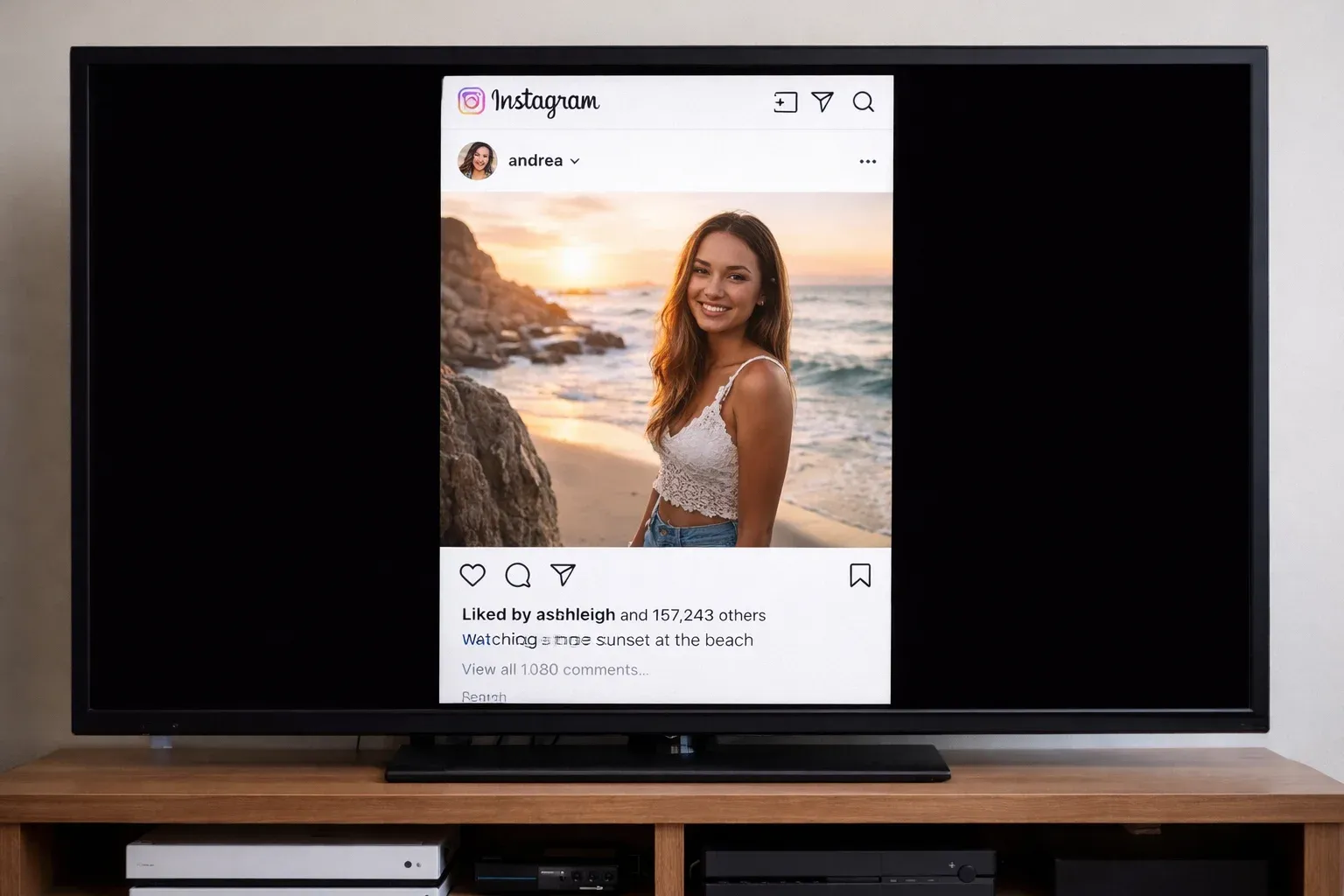
- The Native App (Best for Reels)
Meta has officially launched a dedicated Instagram for TV app on the Google Play Store for Google TV and the Google TV Streamer.
-
Experience: Designed for lean-back viewing. You can browse high-quality 4K Reels using your TV remote, with support for up to five household accounts and auto-playing "For You" channels.
-
Catch: It is currently an early build (US-exclusive) heavily focused on Reels. It does not yet fully support private Stories, DMs, or the interactive features of Instagram Live.
-
Traditional Screen Mirroring (Best for Everything Else)
Since the Instagram chromecast native app is still evolving, mirroring remains the only way to see your full feed, Stories, and real-time Live broadcasts.
-
Android: Swipe down to Quick Settings and tap "Screen Cast" or "Smart View". This mirrors your entire phone screen directly to the Chromecast with the lowest possible latency.
-
iPhone: Since the Instagram app lacks a native "Cast" icon, you must use the Google Home app to mirror your screen or use an AirPlay-to-Cast bridge if your TV supports it.
-
Desktop: Often the most stable non-app method. Open Instagram in Google Chrome, right-click any blank space, and select "Cast..." to beam that specific tab to your TV.
How to Cast Instagram to Chromecast
To cast Instagram to TV, the secret is to treat your device as a "sender" first and only initiate the link once the video has started locally.
Instagram Chromecast iPhone
Because Apple and Google use different streaming protocols, you might face disconnects if you try to force a connection before the app is ready. The key is to validate the network "handshake" before you start mirroring, and here's how to cast Instagram to TV from iPhone:
Step 1. Connect your iPhone and Chromecast to the same Wi-Fi network.
Step 2. On your iPhone, open the Google Home app to confirm your receiver appears online and ready.
Step 3. Launch the Instagram app and preload your target Reel or video for 5–10 seconds.
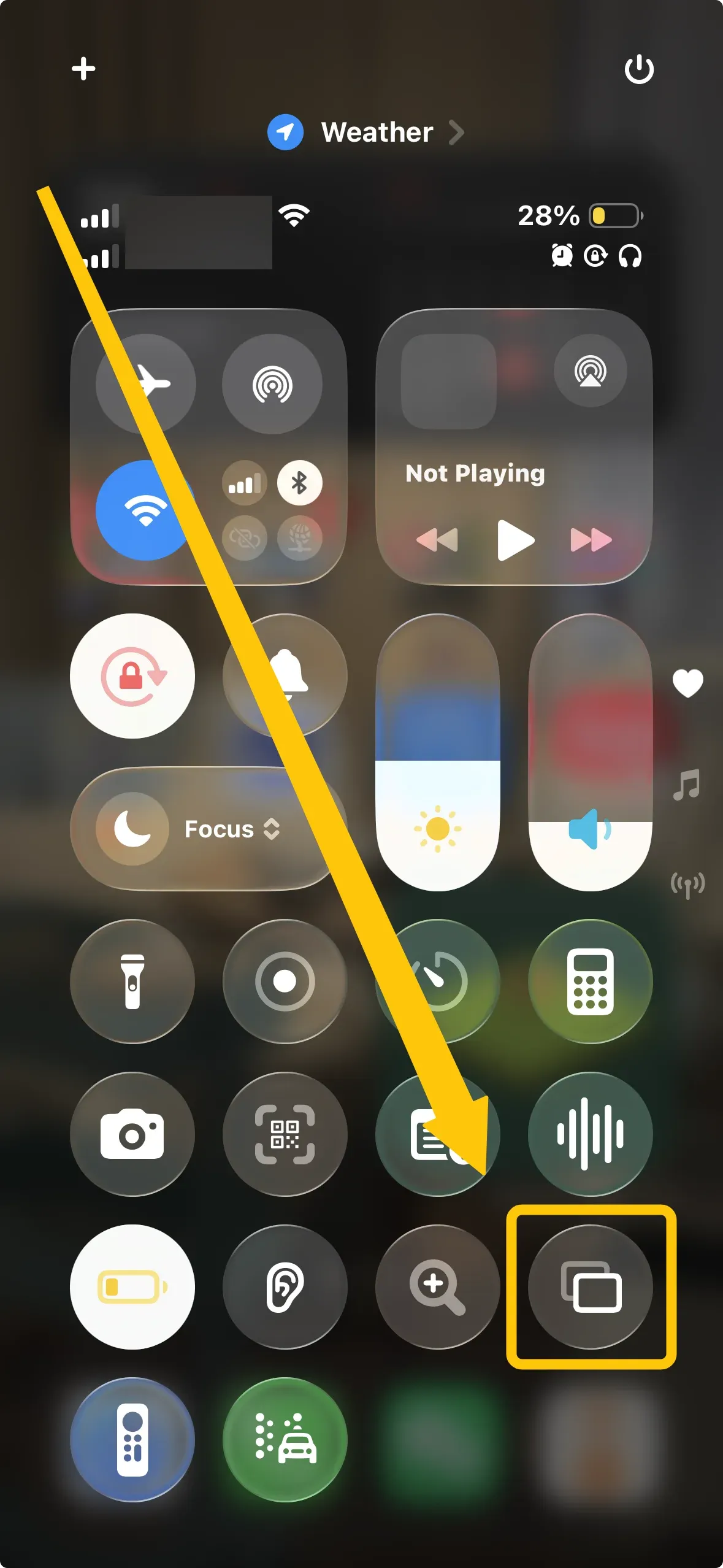
Step 4. Click Control Center on your iPhone, then tap Screen Mirroring to select your Chromecast.
Step 5. If prompted, enter the onscreen code and keep your iPhone unlocked for the first 20–30 seconds of playback to ensure the stream stabilizes.
Instagram Chromecast Android
Can you cast Instagram to Chromecast? Android is usually the most seamless route because the casting controls are baked into the system layer. Since you have a native advantage here, your main focus is simply managing network consistency and screen orientation.
Step 1. Ensure your Android phone and TV are under the same Wi-Fi network.
Step 2. Open Instagram and start your local playback first.
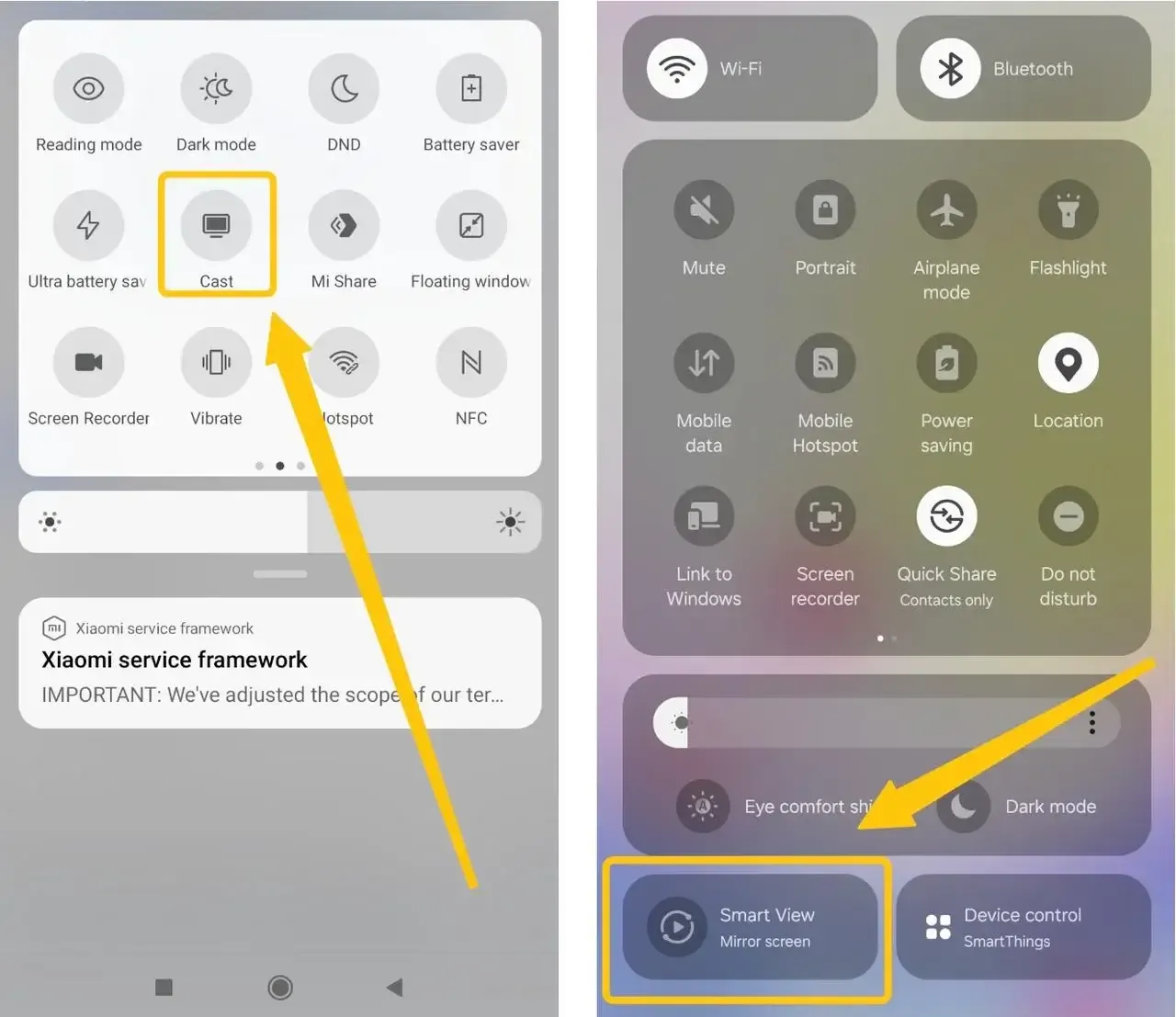
Step 3. Swipe down the Quick Settings on Android, tap Cast or Smart View option to choose your TV.
Step 4. Finish the connection, then keep the app in the foreground until you see the playback is completely stable on the big screen.
Instagram Chromecast Win/Mac
How to watch Instagram live on Chromecast? If you find mobile apps too finicky, desktop browser casting is the most repeatable path. It gives you explicit manual controls and clearer visibility of the stream state than mobile-only flows. Here are steps on how to cast from Chrome browser:
Step 1. Ensure your Windows PC or Mac is on the same Wi-Fi or Ethernet network as your Chromecast.
Step 2. Open Instagram Web in Chrome or Edge, then sign in and load the content you want to watch.
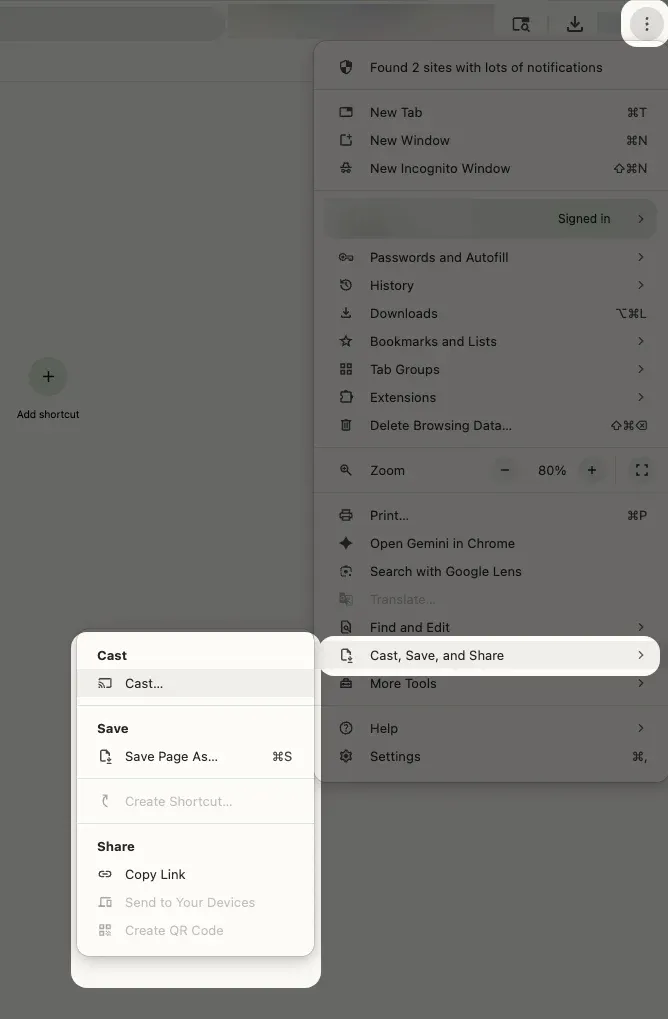
Step 3. Right-click anywhere, open the browser Cast menu, and select your TV.
Bonus: A More Stable Way to Cast Instagram Live to Chromecast
For those who deal with "Device Not Found" errors, a dedicated utility like PigeonCast can be a lifesaver. Instead of relying on your phone's generic screen-sharing, it helps stabilize the connection and optimizes the stream, especially when watching long Instagram Lives or high-definition Reels that usually trigger buffering.
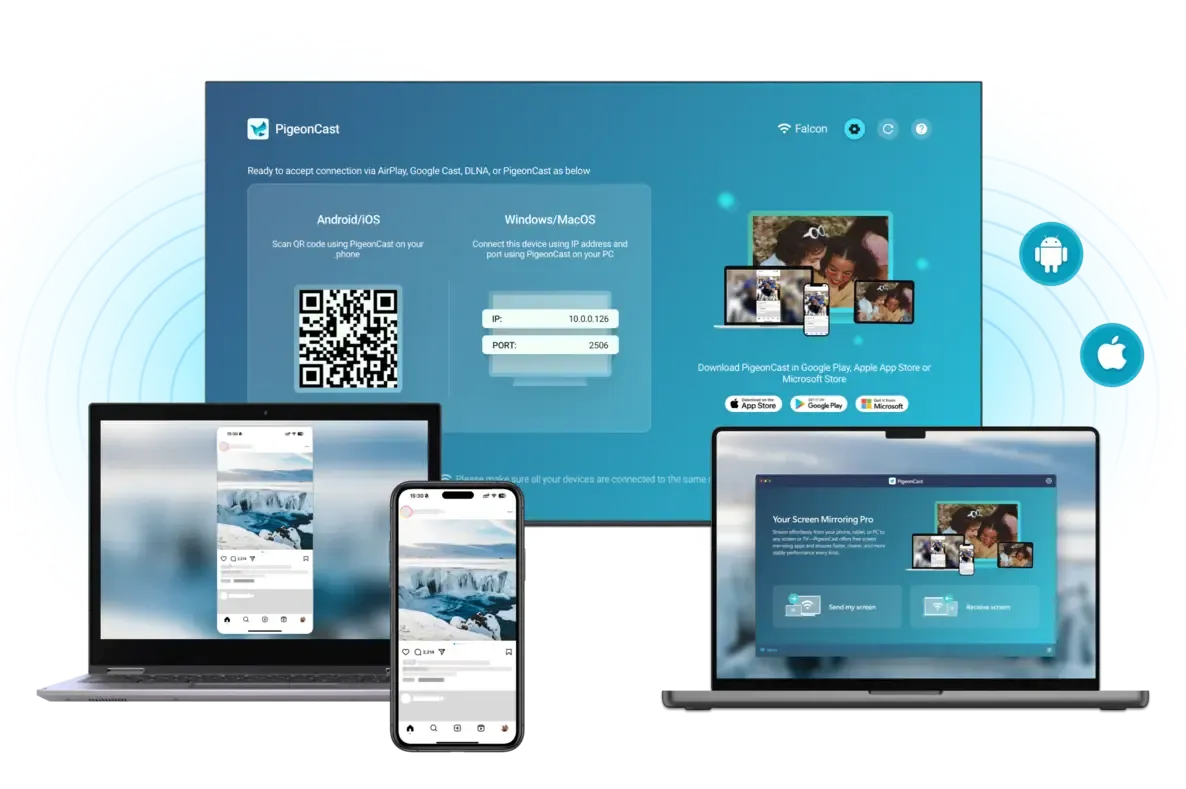
Step 1. Ensure your devices are covered by the same wireless network.


Overall Rating:



Step 2. Install PigeonCast on your mobile device and TV from the app store.
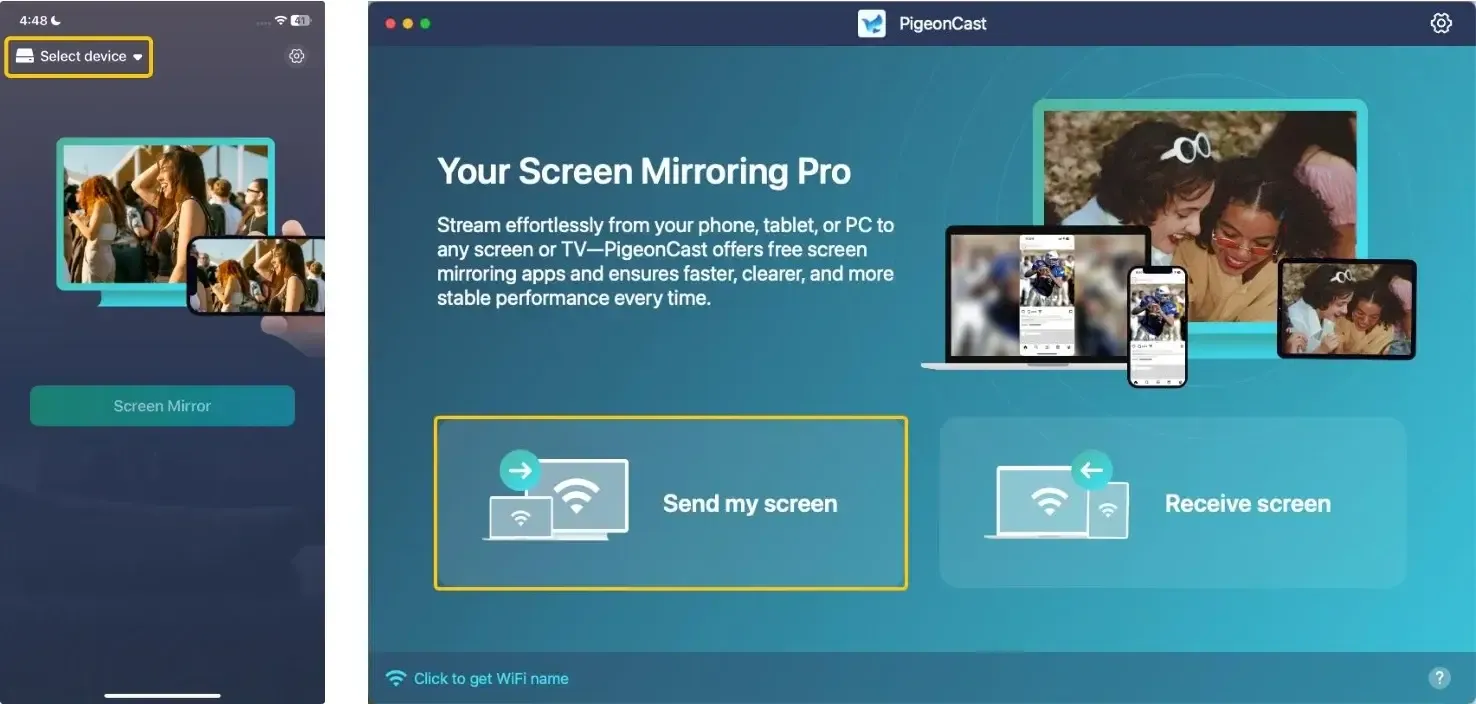
Step 3. Launch the app, tap Select device or Send my screen to choose your TV from the available list.
Step 4. Enter the onscreen code to confirm the pairing requisition.
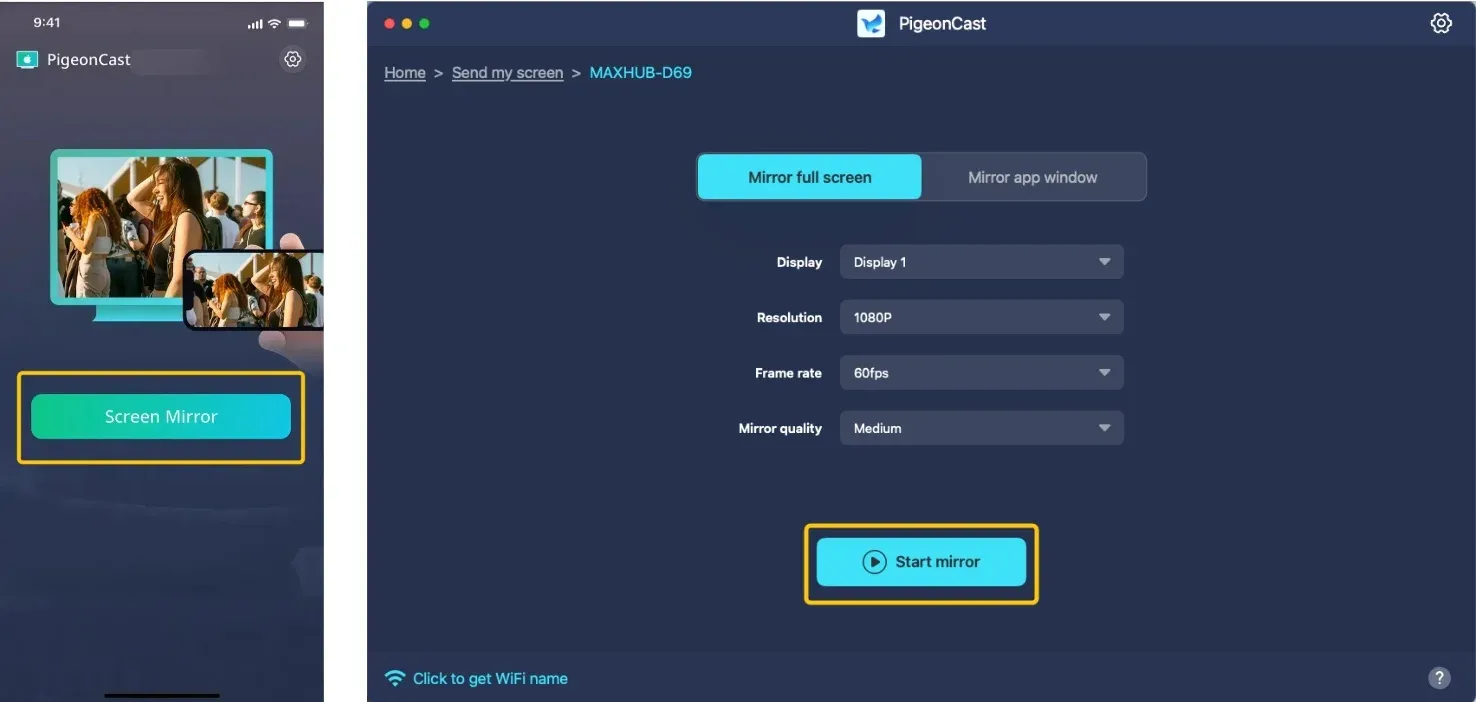
Step 5. Once you finish the connection, tap Screen Mirror or Start mirror to begin your mirroring activities with Instagram.
Wrapping Up
How to connect Instagram to Chromecast? Whether you use the native TV app for Reels, direct mirroring for Stories, or PigeonCast for a more reliable and lag-free connection, you no longer have to settle for small screens or constant disconnects. Simply pick your path, ensure a solid Wi-Fi handshake, and enjoy your favorite Instagram content on the big screen.
Instagram Chromecast FAQ
How to Instagram Live Chromecast iPhone?
To cast Instagram Live from your iPhone to a Chromecast in 2026, follow this stable mirroring workflow:
-
Ensure your iPhone and Chromecast are on the same Wi-Fi (5GHz is recommended for Live streams).
-
Open the Google Home app to confirm your Chromecast is active and "Online."
-
Open the Instagram app on your iPhone and join the Live broadcast locally first.
-
Swipe down for the Control Center, tap the Screen Mirroring icon, and select your Chromecast device.
-
Keep your iPhone unlocked and the app in the foreground. If you experience lag or "Device Not Found" errors, a utility like PigeonCast can provide a more stable, dedicated bridge for long-form Live content.
Can I Chromecast Instagram Live?
Yes, you can Chromecast Instagram Live, though the process differs depending on your device. In 2026, because the native Instagram app still lacks a dedicated "Cast" button for Live broadcasts, you must use one of the following stable methods:
-
Mirroring from iPhone or Android (Best for Interaction)
-
Browser Casting from Desktop (Most Stable)
-
Use a Stability Bridge (Best for Long Streams)
Why is there no "Cast" button inside my Instagram app?
Meta has not added a universal "Cast" icon to the mobile app for Stories or Live broadcasts. To send this content to your TV, you must use your phone's system-level mirroring (Control Center on iPhone or Smart View on Android) or cast a specific tab from a desktop browser.
Why do I get a black screen when trying to cast Instagram Reels?
A black screen usually indicates a connection "handshake" failure. To fix this, ensure your phone and Chromecast are on the same 5GHz Wi-Fi network. Try playing the Reel on your phone for a few seconds before initiating the mirror. If native mirroring continues to fail, a utility like PigeonCast can often bypass these protocol errors by providing a more stable bridge.
Can I watch Instagram Live on my TV with the comments visible?
Yes. When you use "Screen Mirroring" from your phone, your TV displays exactly what is on your mobile screen, including real-time comments and hearts. If you prefer a cleaner view without the chat covering the video, casting from a desktop browser (Chrome or Edge) is the better option.
How do I stop the stream from disconnecting during a long Live session?
Long broadcasts often drop when your phone enters power-saving mode or auto-locks. To prevent this, keep your phone plugged into a charger and disable "Auto-Lock" in your settings. For the most reliable connection during long-form content, using a dedicated tool like PigeonCast helps maintain a persistent link between your device and the TV.
Clara Rossi is an experienced technology editor and a seasoned expert in screen mirroring and casting technologies. With a keen eye for detail and a deep understanding of how to seamlessly connect devices, Clara excels at optimizing user experiences for effortless sharing and streaming. Whether you're seeking quick fixes or advanced tips, her expertise and responsiveness ensure that every query is met with a well-informed and efficient solution.