
Instagram is a great place to browse photos, watch videos, and enjoy stories and reels. But scrolling on your phone can be a real pain in the neck, right? Why not cast Instagram to TV instead? If your TV has a built-in web browser, just log in to your account directly. Don't have that feature? No worries, keep reading to find out how to stream Instagram on TV from your different devices!
How to Cast Instagram on TV
If your TV has a built-in web browser, you can easily sign in to your Instagram account there. But if your smart TV doesn't support this feature, or if you find the browser's performance lacking compared to your mobile device, don't worry. Follow the steps below to learn how to watch Instagram on TV:
Case 1. Instagram on TV from Android
Android devices offer flexible casting options, primarily using Google's technology or the universal Miracast standard. The process is generally quick and integrated into the operating system.
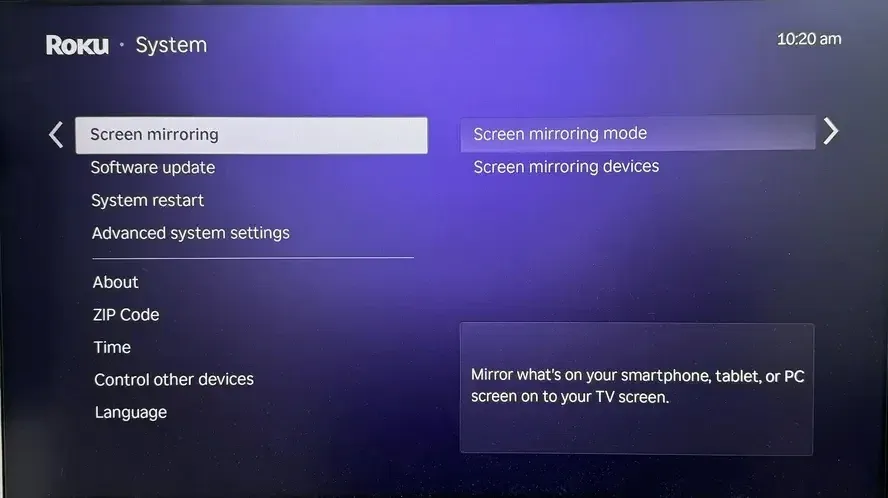
Step 1. Activate the built-in Screen Mirroring function on your TV in the Settings or Network menu.
Step 2. Ensure your Android and TV connect to the same wireless network.

Step 3. Swipe down from the top of your Android screen to open the Quick Settings panel, and tap Cast, Smart View, or Screen Cast.
Step 4. Select your TV's name from the available devices list to establish the connection.
Step 5. Open the Instagram app, then your feed, Stories, and Reels will now be mirrored on the TV.
Case 2. Instagram on TV from iPhone, iPad, MacBook
How to watch Instagram Live on TV from iPhone? Apple users can take advantage of the proprietary AirPlay feature, which delivers a smooth and seamless experience within the Apple ecosystem as long as you have the compatible hardware, such as Apple TV or AirPlay 2-compatible receivers.
Step 1. Make sure your iPhone or iPad and your TV are both on the same Wi-Fi network.
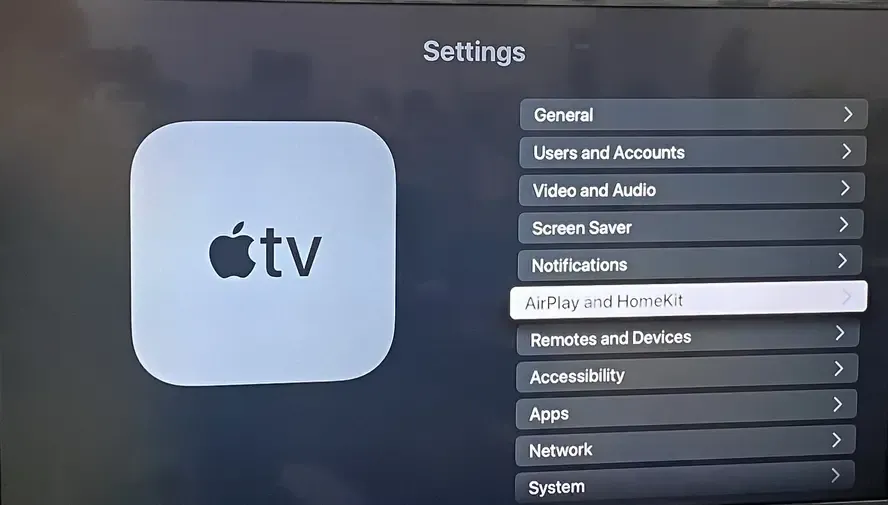
Step 2. Ensure AirPlay is enabled on the Apple TV under Settings > AirPlay and HomeKit.
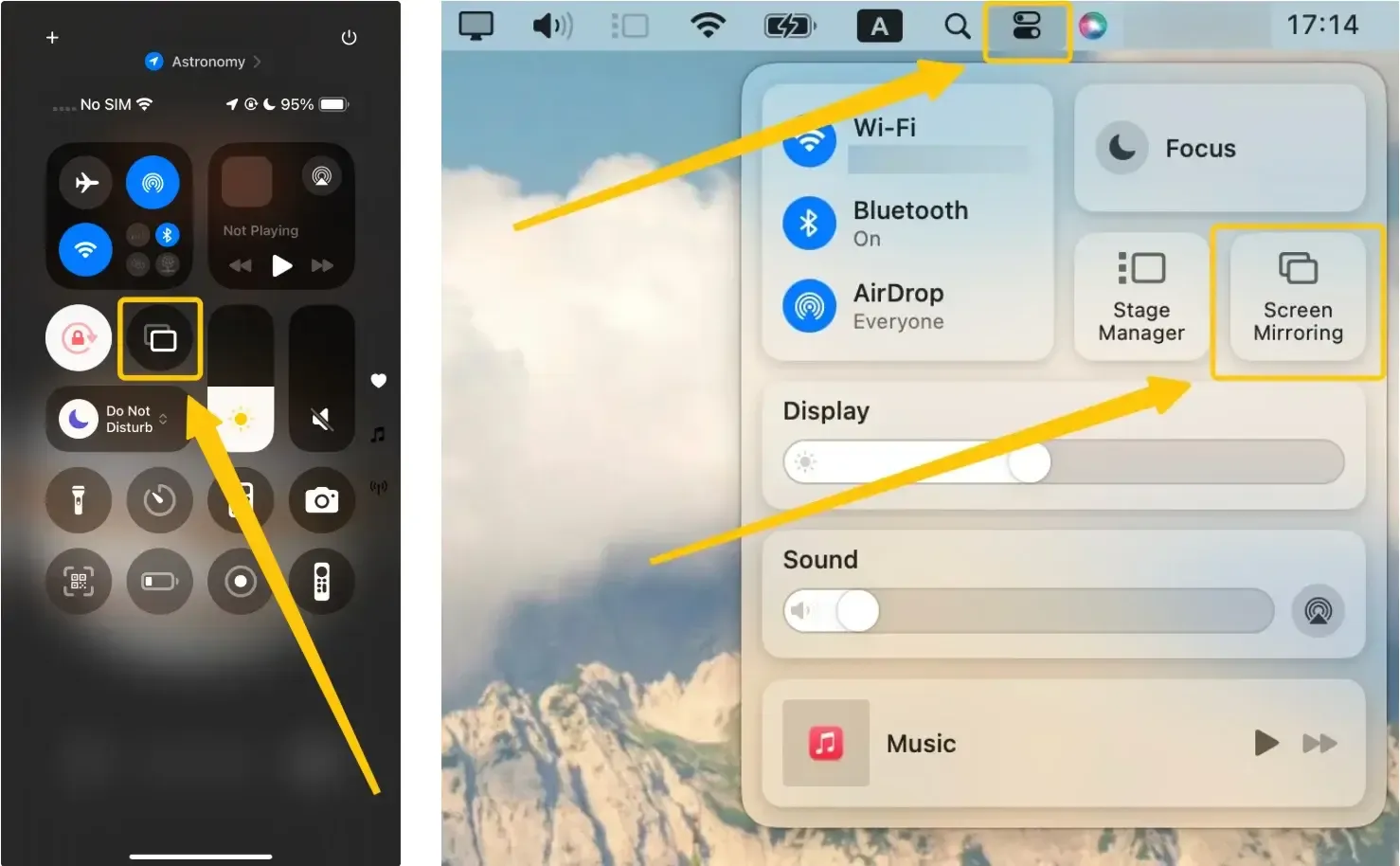
Step 3. On your iPhone or iPad, swipe to open the Control Center > Screen Mirroring. On your Mac, click Screen Mirroring from the upper-right menu.
Step 4. Select your Apple TV or AirPlay-compatible TV from the device list, and enter a code if prompted on your TV screen.
Step 5. Open the Instagram app, and then your iOS screen will now be duplicated on your television.
Case 3. Instagram on TV from Windows PC
You can also view Instagram on your TV via your PC. This method lets you enjoy your feed on a larger screen, whether you're browsing solo or sharing it with a friend during movie night. Here's the step-by-step process on how to watch Instagram on smart TV from Windows:
Step 1. Ensure that both your PC and TV are connected to the same Wi-Fi network.
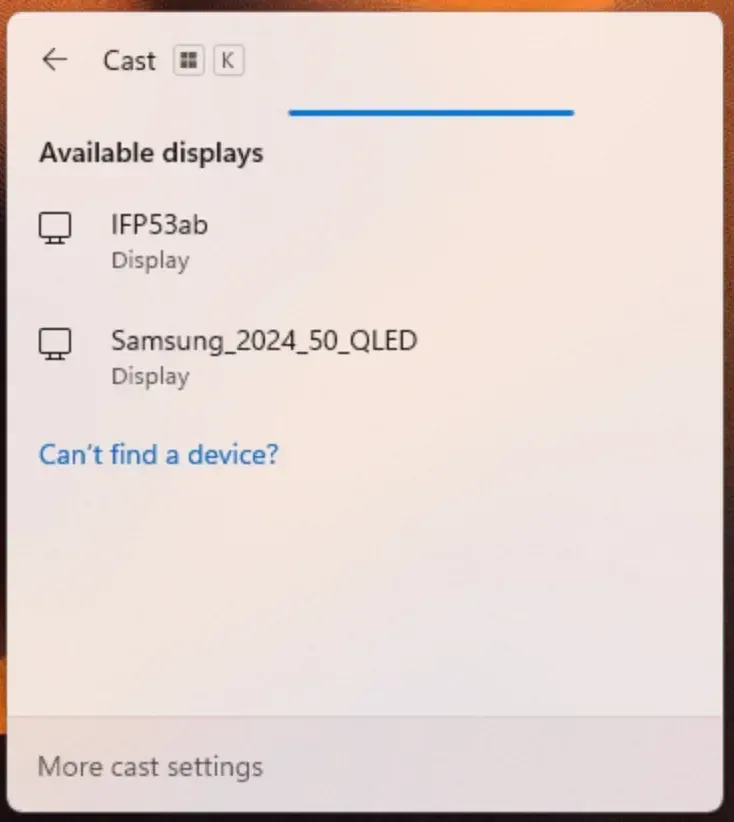
Step 2. On your PC, press Windows + K to open the Connect menu.
Step 3. Select your TV from the list of available devices.
Step 4. Once connected, open Instagram in your browser, and it will mirror to your TV.
Ultimate Tool for Casting Instagram to TV: PigeonCast
The process of using Instagram on smart TV is pretty simple, right? However, if you're facing compatibility issues with your devices, don't worry. Use the free PigeonCast app to bypass those troubles and stream content in up to 4K resolution, all without the need for cables. Give it a try for free!

Step 1. Ensure your devices are covered by the same WiFi network.


Overall Rating:



Step 2. Install PigeonCast on your phone, tablet, or laptop. You can also download it on your TV from the app store if available.
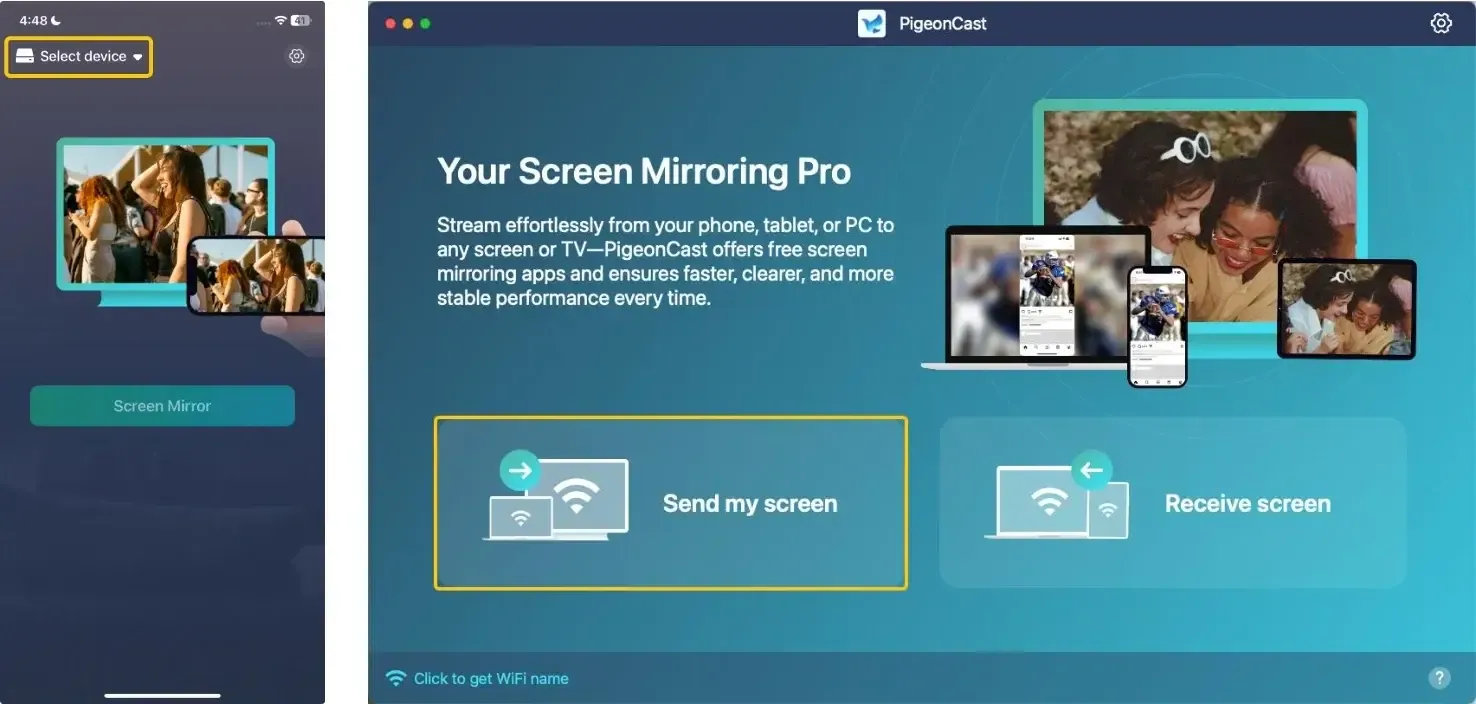
Step 3. Launch the app, tap Select device or Send my screen to choose your TV from the device list.
Step 4. Enter the prompted PIN code to confirm the connection requisition. Or you can scan the QR code shown on your television screen to build the connection.
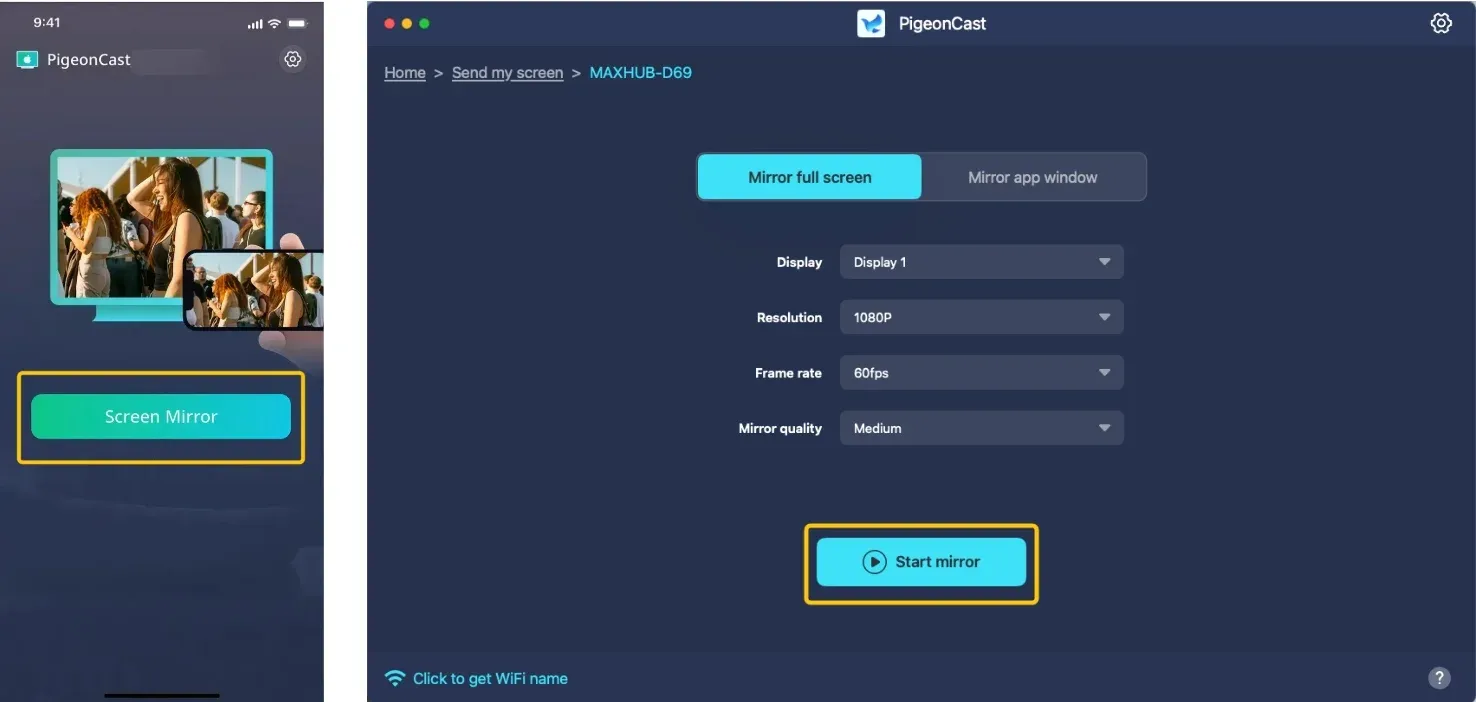
Step 5. Once you finish the pairing, tap Screen Mirror or Start mirror and put your Instagram on your TV.
Closing Words
How to get Instagram on TV? This is easy and offers a much more enjoyable experience compared to scrolling on your phone. Whether you're using Android, iPhone, PC, or the PigeonCast app, there are plenty of options to help you watch your feed, Stories, and Reels on a bigger screen. Just follow the steps for your device and start enjoying Instagram in high quality, all without the hassle of cables.
Cast Instagram to TV FAQ
Can I Watch Instagram on My TV?
Yes, absolutely. While there's no dedicated "Instagram TV" app, you can watch Instagram on your TV using screen mirroring, casting, or workarounds that display your phone, tablet, or computer screen on the television. The method depends on your devices (phone, TV brand, streaming stick), but a solution exists for nearly every setup.
How do I view Instagram on Apple TV?
- Ensure your iPhone/iPad/Mac and Apple TV are on the same WiFi.
- On your Apple device, open the Control Center and tap Screen Mirroring to select your Apple TV.
- Open the Instagram app on your device, and it will now appear on your TV.
How to get Instagram on Roku TV?
Roku doesn't have a dedicated Instagram app, but you can mirror your phone or tablet screen to your Roku TV using the screen mirroring feature. Here's how to do it:
- Ensure both your phone/tablet and Roku device are connected to the same Wi-Fi network.
- Enable screen mirroring on your Roku device by going to Settings > System > Screen Mirroring.
- On your phone or tablet, open Quick Settings (on Android) or Control Center (on iOS), and select Screen Mirroring or Cast.
- Choose your Roku device from the list.
- Open Instagram on your device, and it will show on your TV screen.
How to Cast Instagram on a Samsung TV?
- On your Samsung TV, press the Source button on your remote and select Screen Mirroring.
- On a Samsung phone, swipe down for Quick Settings and tap Smart View, then select your TV.
- On other Android phones, use the standard Cast or Screen Cast option in Quick Settings.
- For iPhone users, if your Samsung TV supports AirPlay 2 (2019+ models), you can use Screen Mirroring from your iPhone's Control Center.
How to install Instagram on Android TV?
Not officially. The Instagram app in the Google Play Store is not designed for TVs and is often marked as "incompatible".
How do I watch Instagram on Google TV?
Use the built-in Google Cast functionality to mirror your phone's screen. The Google TV is built on your Android TV and supports casting seamlessly.
- Ensure your phone and Android TV are on the same Wi-Fi.
- On your Android phone, tap "Cast" in your Quick Settings.
- Select your Android TV or Chromecast device.
- Your phone screen (including Instagram) will mirror to the TV.
How to cast Instagram on Fire TV?
There is no native Instagram app for Fire TV, but you can still cast Instagram content to it using screen mirroring from your phone. Here's how to do it:
- Connect your Fire TV and phone to the same Wi-Fi network.
- Enable screen mirroring on your Fire TV by going to Settings > Display & Sounds > Enable Display Mirroring or AirPlay & HomeKit Settings.
- On your phone, swipe down to open the Quick Settings menu (on Android) or Control Center (on iPhone), then tap Screen Mirroring or Cast.
- Choose your Fire TV from the list of available devices.
- Open Instagram on your phone, and it will appear on your TV.
Clara Rossi is an experienced technology editor and a seasoned expert in screen mirroring and casting technologies. With a keen eye for detail and a deep understanding of how to seamlessly connect devices, Clara excels at optimizing user experiences for effortless sharing and streaming. Whether you're seeking quick fixes or advanced tips, her expertise and responsiveness ensure that every query is met with a well-informed and efficient solution.