
Instagram is a favorite app for many, especially younger users, but after scrolling for a while, your hands and neck might start to feel sore. If you're looking for a more comfortable way to enjoy your Instagram, casting Instagram from your iPhone to your TV is the perfect solution. Let's dive into how to cast Instagram to TV from iPhone to relieve strain while still enjoying all your favorite content.
Can You Cast on Instagram
YouTube has Cast button, but Instagram doesn't have a built-in casting feature for its content, such as posts, Stories, or Reels. However, you can still enjoy Instagram on the big screen by using screen mirroring, AirPlay, third-party apps, or even an HDMI adapter.
Instagram does allow screen sharing during video calls, but it's important to note that screen sharing in Instagram is only available within video calls. If you're in a video call on Instagram, you can share your screen to show the other participant(s) whatever is on your device, including Instagram content. Here's how to share your screen in Instagram video calls:
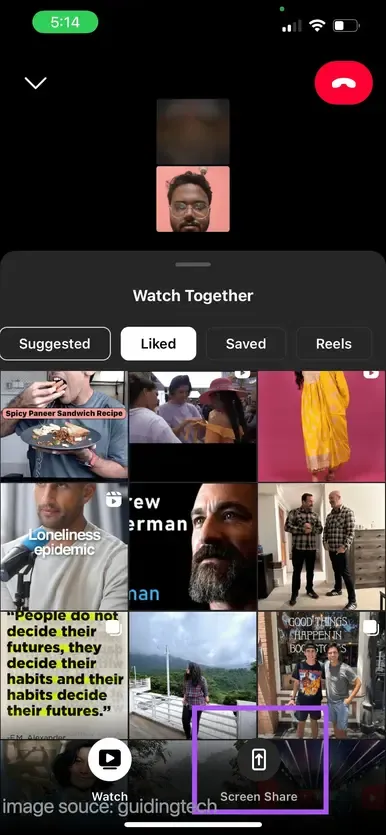
Step 1. Join a video call on Instagram from the Messages icon > Camera icon.
Step 2. Tap the Share Screen button at the bottom and select Start Now to begin sharing your screen.
This feature is great for showing Instagram content during a call, but it doesn't allow you to cast your feed or post content to the TV.
How to Cast Instagram from iPhone to TV
While there's no direct way to cast Instagram content to your TV through the app itself, you can easily display your Instagram feed using several methods. Let's explore the best options available for how to cast to TV from Instagram for iPhone users:
Method 1. Use AirPlay (For Apple TV or AirPlay-Compatible TVs)
How can I cast Instagram to my TV from my iPhone? If you have an Apple TV or an AirPlay-compatible smart TV (like those from Samsung, LG, or Sony), AirPlay is one of the easiest ways to cast your Instagram content to the big screen. This method mirrors everything on your iPhone, from your Instagram feed to stories, and even Reels.
Step 1. Make sure both your iPhone and Apple TV (or AirPlay-compatible TV) are connected to the same Wi-Fi network.
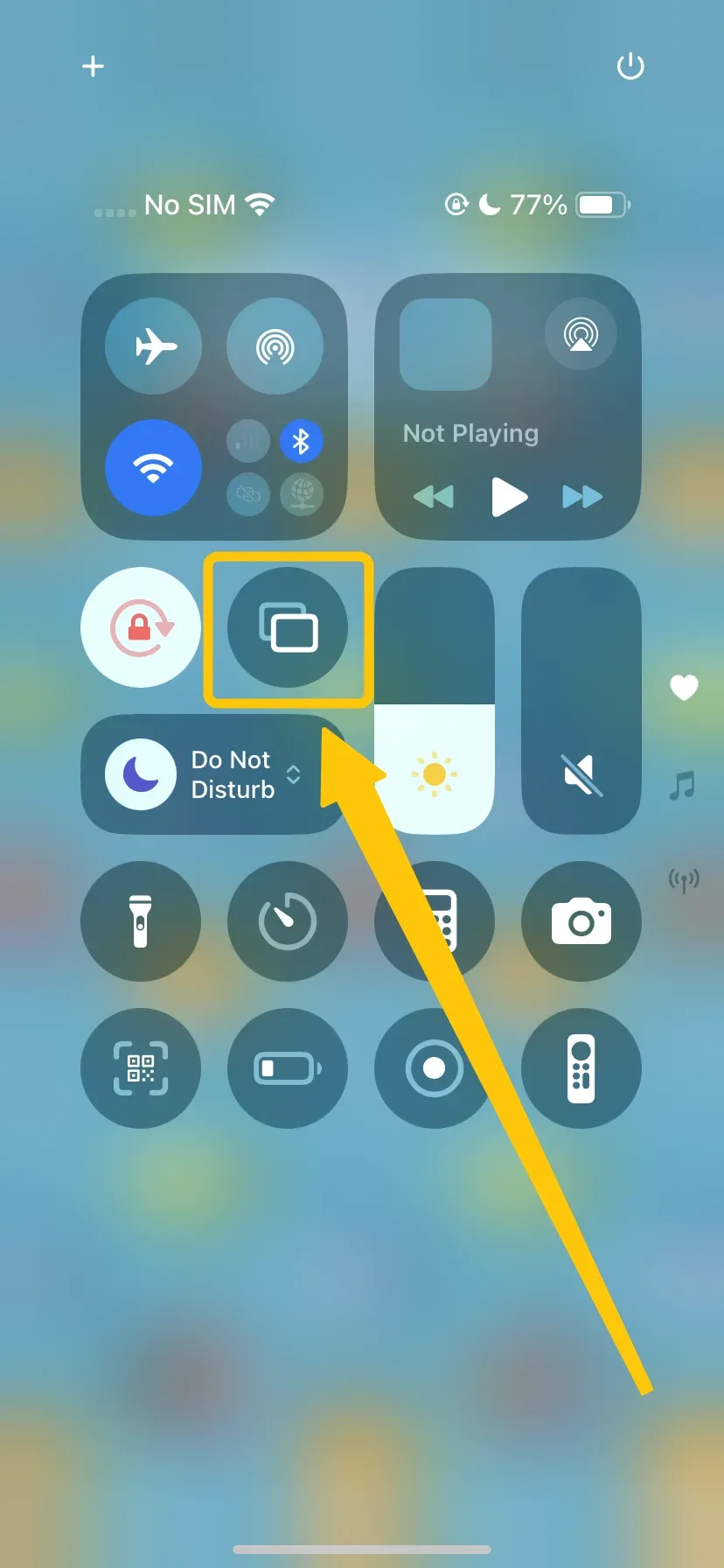
Step 2. Swipe down from the top-right corner of your iPhone to open the Control Center and tap on Screen Mirroring.
Step 3. Select your Apple TV or AirPlay-compatible TV from the list of available devices.
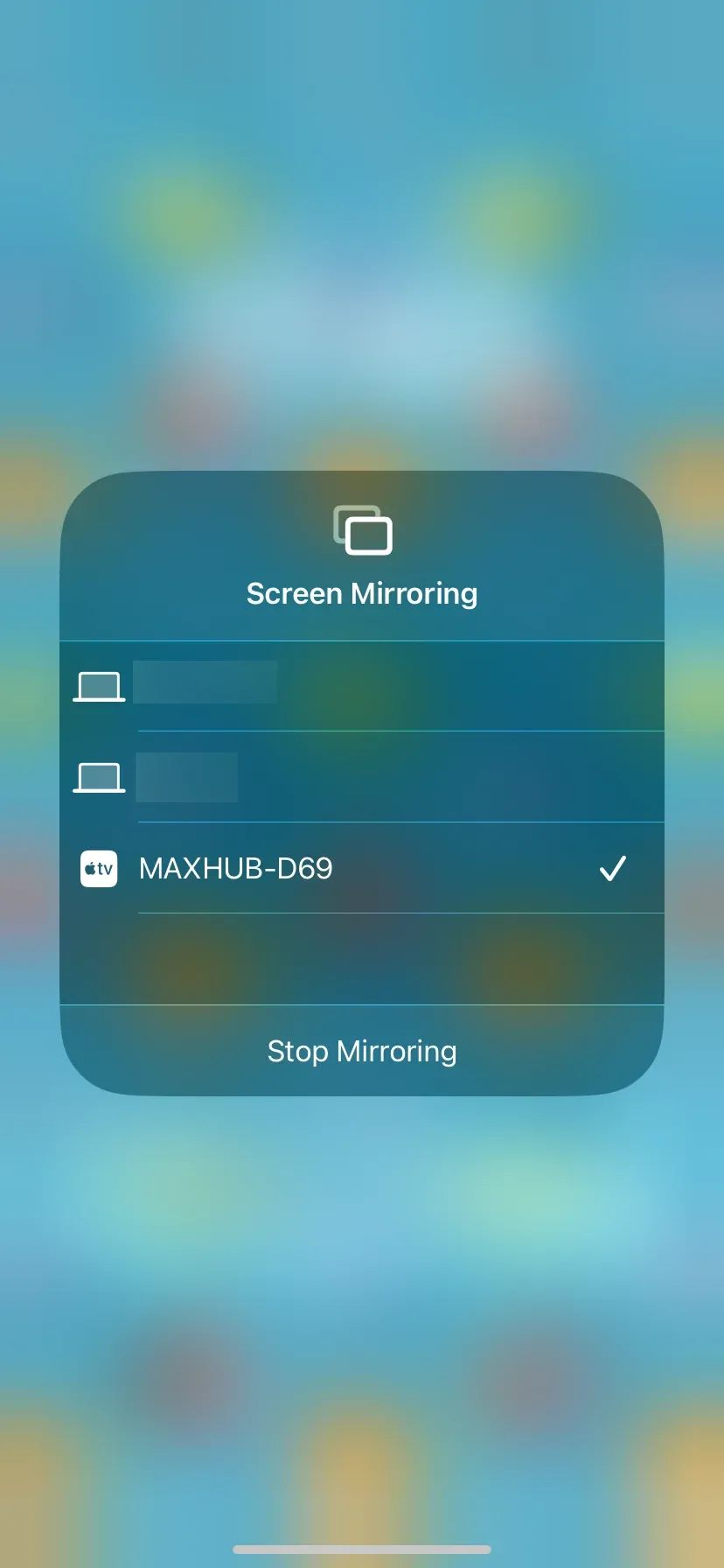
Step 4. Once connected, open Instagram on your iPhone, and your entire screen, including your feed, stories, and Reels, will be mirrored onto your TV.
Method 2. Use a Third-Party App Like PigeonCast
How to cast Instagram to TV from iPhone free? If you don't have an Apple TV or AirPlay support on your TV, you can use a third-party app like the PigeonCast iPhone Screen Mirroring app. It allows you to expand your iPhone or iPad screen to any Android TV or Google TV, offering an immersive viewing experience with 1080p streaming and no loss in quality.
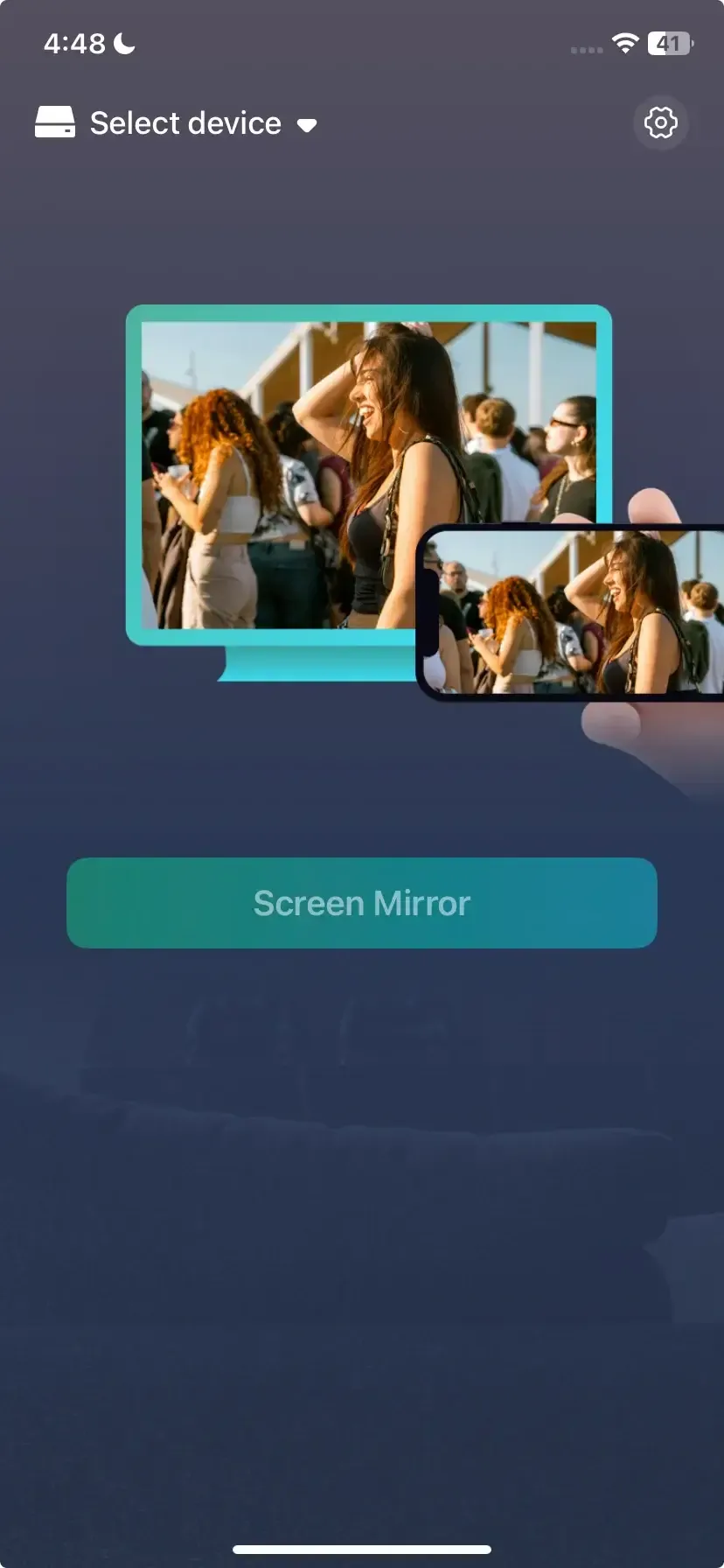
Step 1. Install PigeonCast from the App Store on your iPhone.

PigeonCast Screen Mirroring

Official Download


Step 2. Ensure your iPhone and TV are on the same WiFi network.
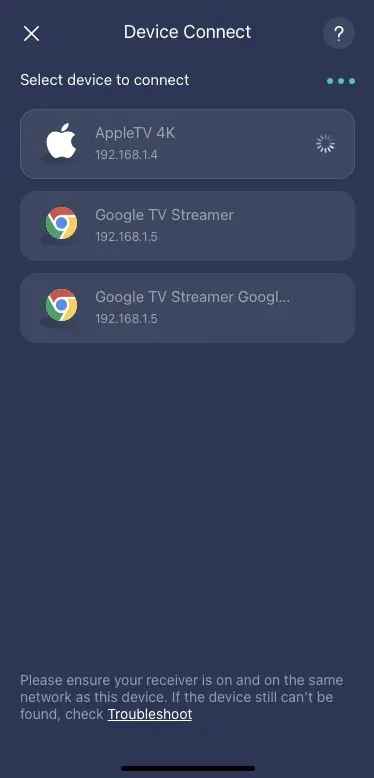
Step 3. Open the app, select your TV from the list of available devices, and enter the onscreen codes to confirm the connection process.
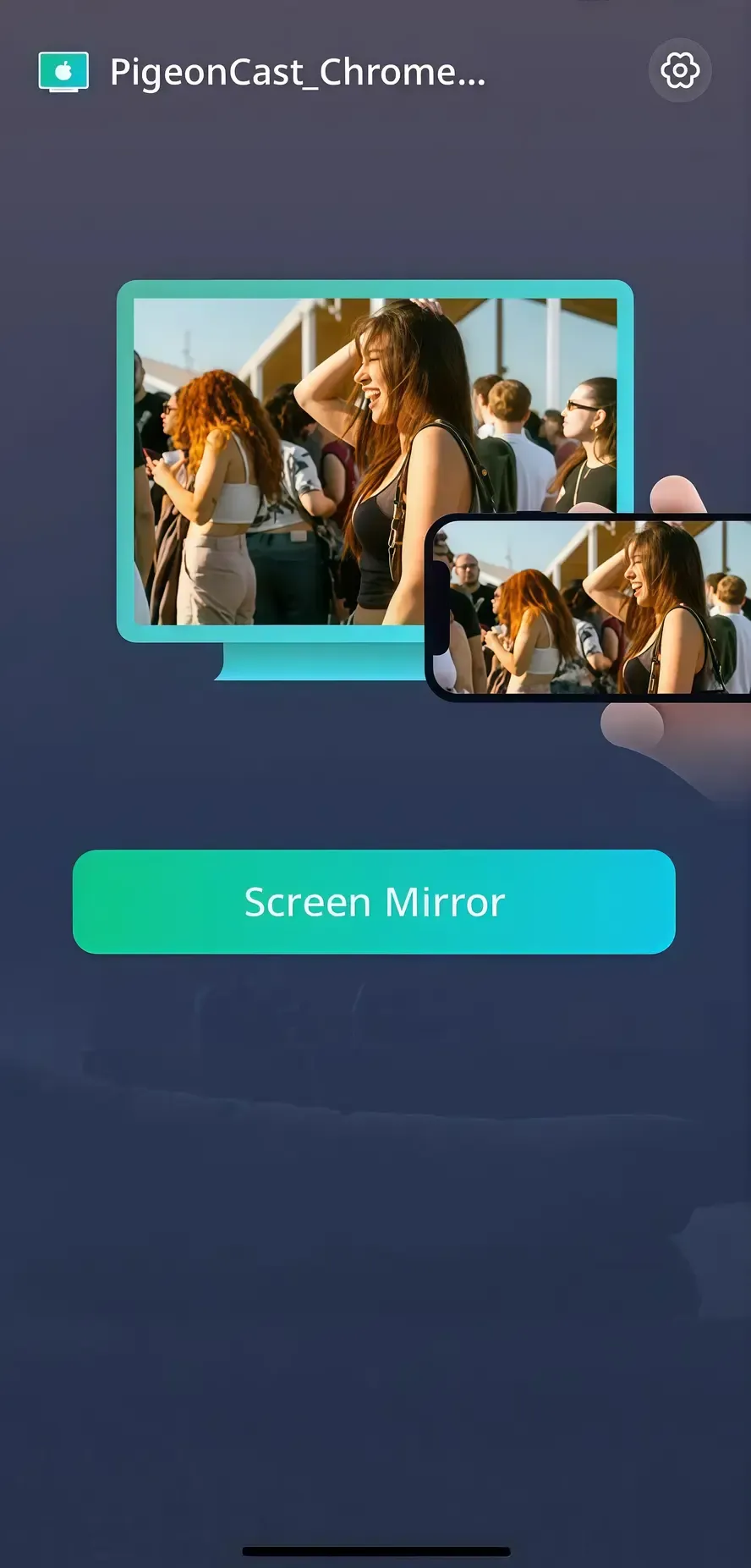
Step 4. Choose the Screen Mirroring option, then your iPhone's screen will be mirrored to your TV and allowing you to browse Instagram and view posts, stories, and Reels.
Method 3. Use HDMI with a Lightning to HDMI Adapter
If wireless casting methods aren't working for you, or you simply prefer a more reliable wired connection, using a compatible HDMI adapter is an excellent option. This method ensures you don't have to rely on Wi-Fi, and it provides a stable, lag-free connection, perfect for streaming content without interruptions.

It's also ideal for users who might not have access to a smart TV or casting device, as it directly connects your iPhone to any TV with an HDMI port.
Step 1. Plug the Lightning Digital AV Adapter or USB-C Digital AV Multiport Adapter into your iPhone.
Step 2. Connect an HDMI cable from the adapter to your TV.
Step 3. Switch your TV input to the correct HDMI port.
Step 4. Your iPhone screen will automatically display on your TV. Open Instagram and enjoy!
Method 4. Use the Instagram Web App on a Smart TV Browser
If you have a smart TV with a built-in web browser, you can access Instagram directly through its web version. While this method doesn't offer the full mobile app experience, it allows you to browse your feed, view stories, and interact with posts on a larger screen.
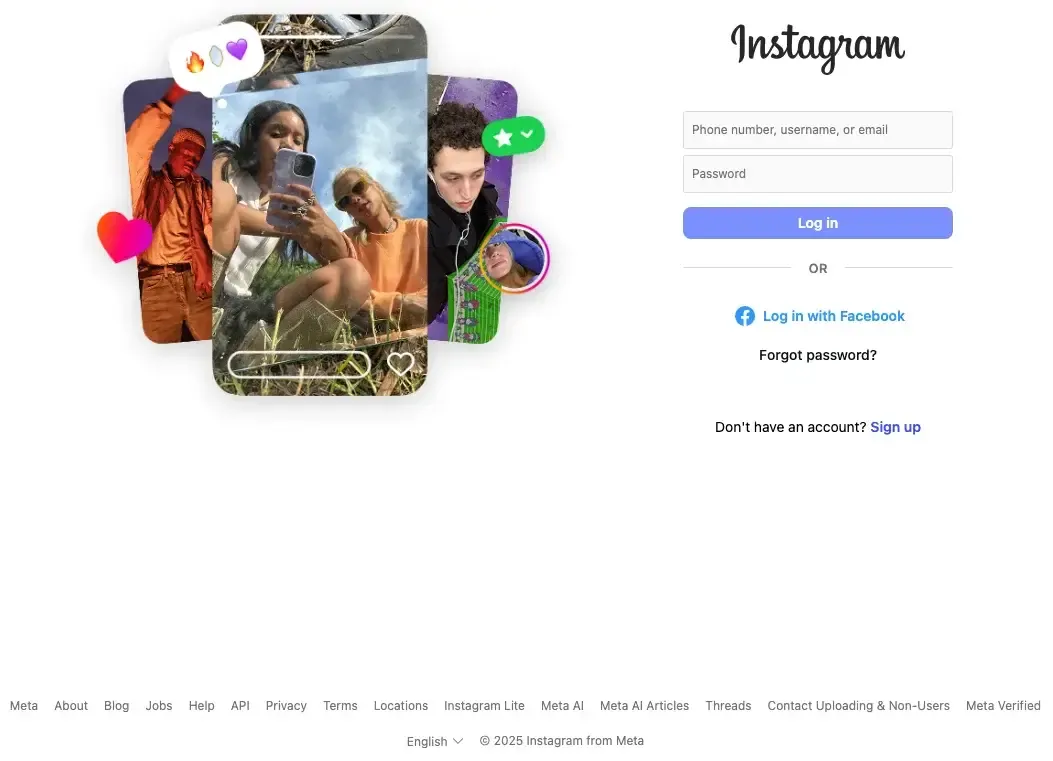
Step 1. Open the web browser on your smart TV.
Step 2. Go to instagram.com and log in to your Instagram account.
Step 3. Browse your feed, view stories, and interact with posts.
Note: Instagram's web version doesn't support the full mobile app experience, like posting content or viewing Reels, but it's still a good option for browsing.
Bottom Line
While Instagram doesn't have a built-in feature to cast content to your TV, you can still enjoy Instagram on a larger screen by mirroring your iPhone screen using AirPlay, third-party apps like PigeonCast, or a wired HDMI connection. These methods allow you to view your feed, Reels, and stories on your TV for a more enjoyable experience.
How to Cast Instagram to TV From iPhone FAQ
Q: Can I cast from iPhone to TV?
Yes, you can cast from your iPhone to your TV using AirPlay (for Apple TV and compatible TVs), Chromecast, Roku, or other third-party apps like PigeonCast for non-Apple devices.
Q: Can you mirror Instagram?
Yes, you can mirror Instagram from your iPhone to your TV using AirPlay, screen mirroring apps, or third-party tools like PigeonCast. This allows you to display your full Instagram feed and interact with posts on a larger screen.
Q: How to stream on Instagram from iPhone?
To stream live on Instagram, open the Instagram app, swipe right to open the camera, and choose Live. Tap the Go Live button to start streaming to your followers. You can mirror this live stream to your TV using AirPlay or a third-party app like PigeonCast.
Clara Rossi is an experienced technology editor and a seasoned expert in screen mirroring and casting technologies. With a keen eye for detail and a deep understanding of how to seamlessly connect devices, Clara excels at optimizing user experiences for effortless sharing and streaming. Whether you're seeking quick fixes or advanced tips, her expertise and responsiveness ensure that every query is met with a well-informed and efficient solution.