

VLC can cast videos to a TV through Google Cast or Chromecast on supported devices. On iPhone, iPad, Mac, Windows, or Android, you can also show VLC on a TV through system-level screen mirroring, such as AirPlay, Screen Mirroring, or wireless display, but those are not VLC's own casting protocols. This guide explains how to cast VLC to TV from Android, iPhone, Windows, and Mac, and when to use screen mirroring if VLC cannot find your TV.
How to Cast VLC to TV
The right method depends on your receiver. Use VLC's built-in casting option when your TV or streaming device supports Chromecast or Google Cast. Use AirPlay, Screen Mirroring, or wireless display when you are mirroring the whole device screen instead of casting from VLC itself. VLC can also browse UPnP/DLNA media sources on the local network, but that is not the same as sending VLC playback to a DLNA TV.
How to Cast VLC to TV from Android
Casting VLC from Android is clearest when your TV or streaming device supports Chromecast or Google Cast. In that case, VLC can send the video to the Cast-enabled receiver from the Android app. If you only want to browse media shared on the same network, VLC can also access local network sources, but that is a different use case from casting your Android screen or sending VLC playback to a TV.
- VLC Android Cast to TV via Chromecast
Step 1. Ensure both devices are on the same Wi-Fi network.
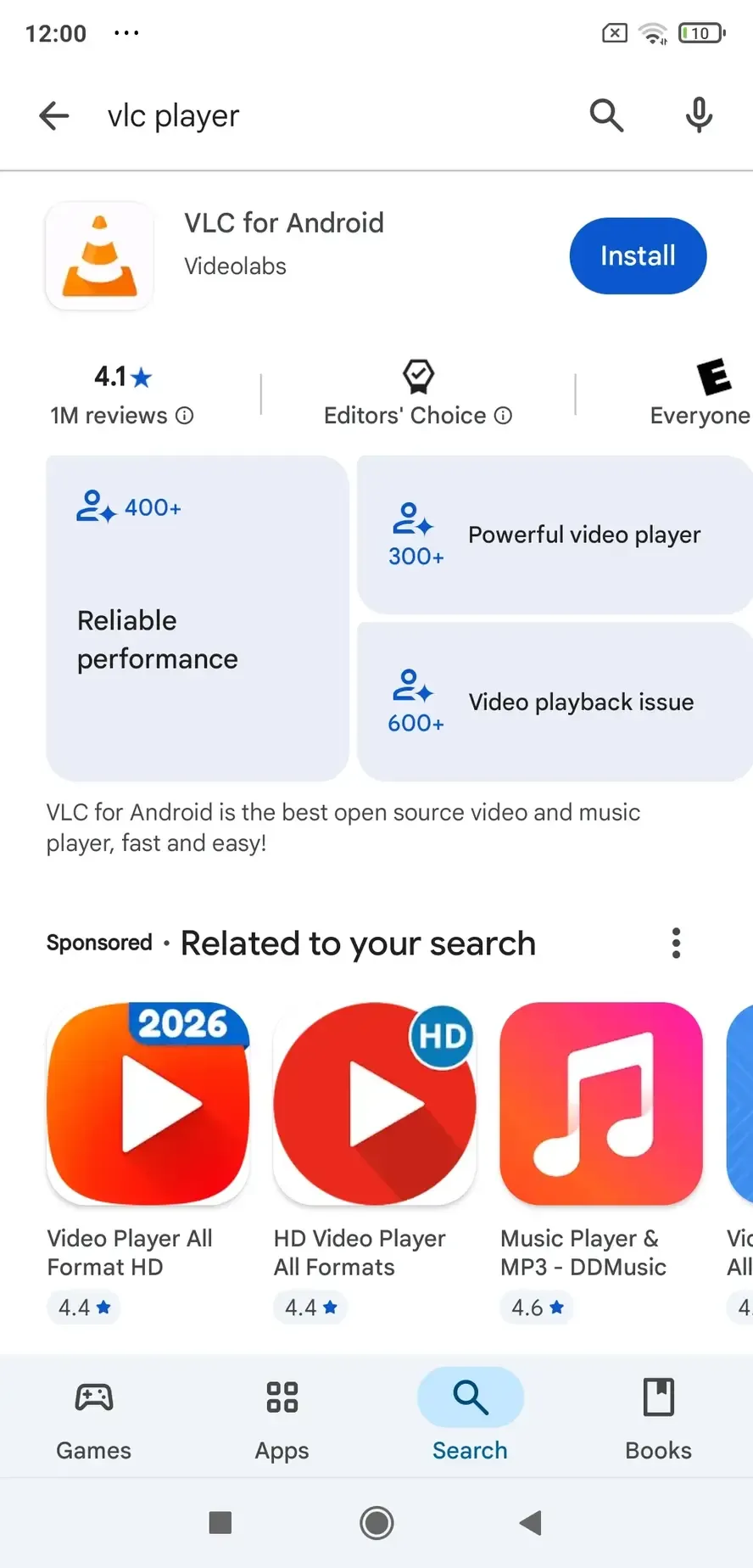
Step 2. Install and open VLC on your Android device, then start playing your video.
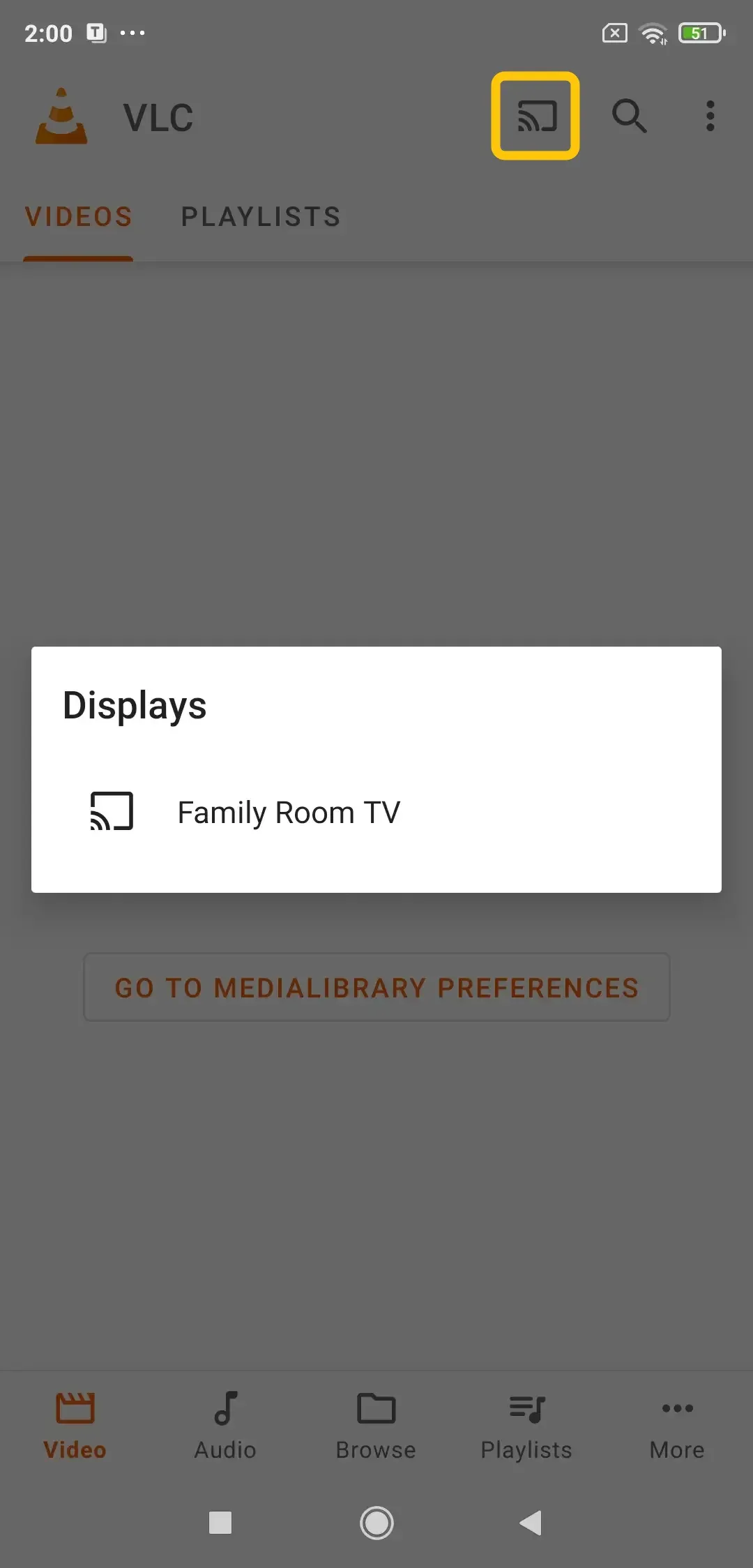
Step 3. Tap the Cast icon in the top-right corner (looks like a rectangle with Wi-Fi waves).
Step 4. Select your Chromecast, Google TV, Android TV, or other Cast-enabled receiver from the list of available devices.
Step 5. Adjust playback controls directly from your phone while the video plays on your TV.
This methoa applies to many Cast-supported apps, including Peacock, Jellyfin, and more.
- Play Local Network Media in VLC on Android
This method does not cast your Android screen to a TV. It lets VLC browse and play media shared by another device on the same local network, such as a computer, NAS, media server, or shared folder.
Step 1. Make sure the device that stores your media is connected to the same local network and has media sharing or file sharing enabled.
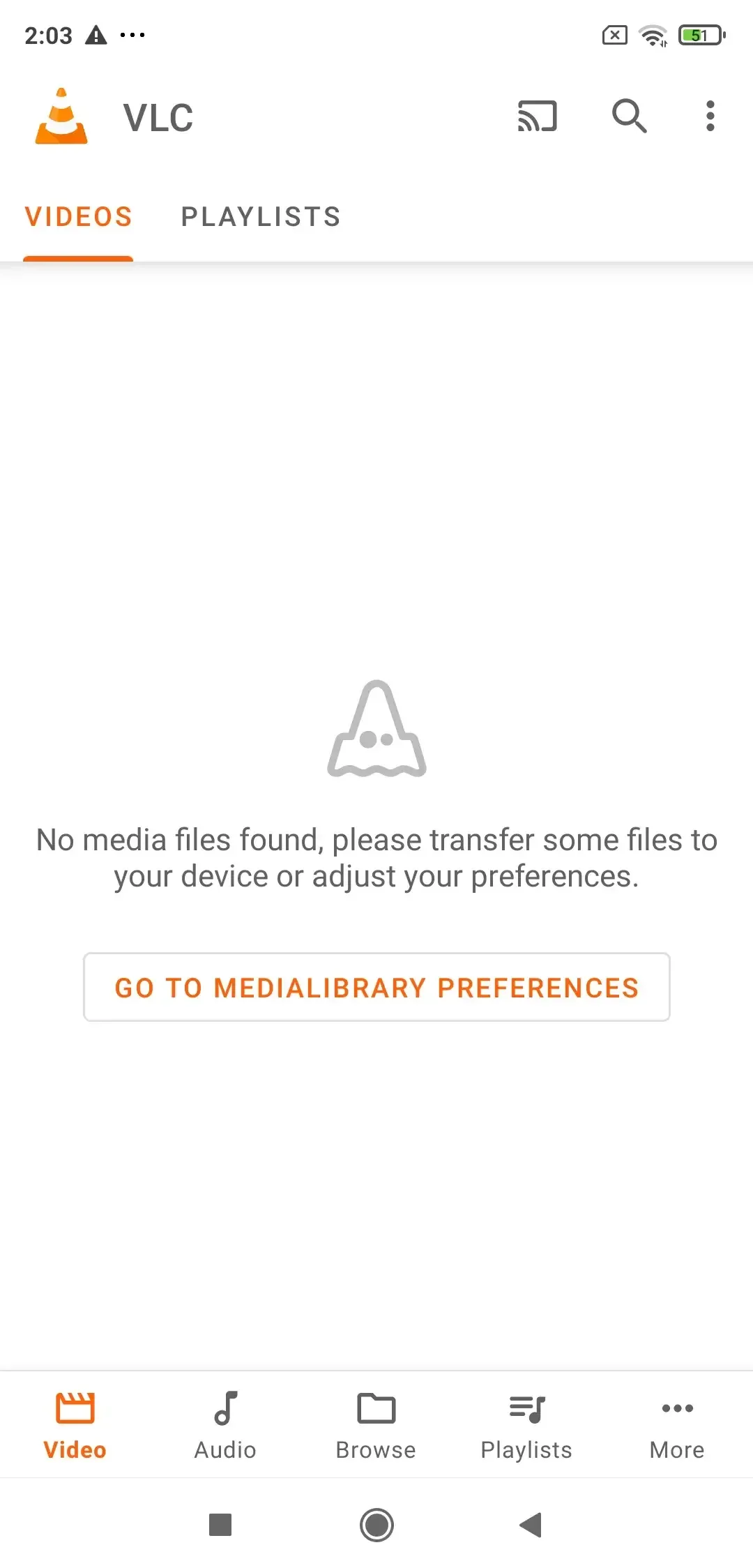
Step 2. Open VLC on your Android phone. If VLC does not show local media, tap GO TO MEDIALIBRARY PREFERENCES.
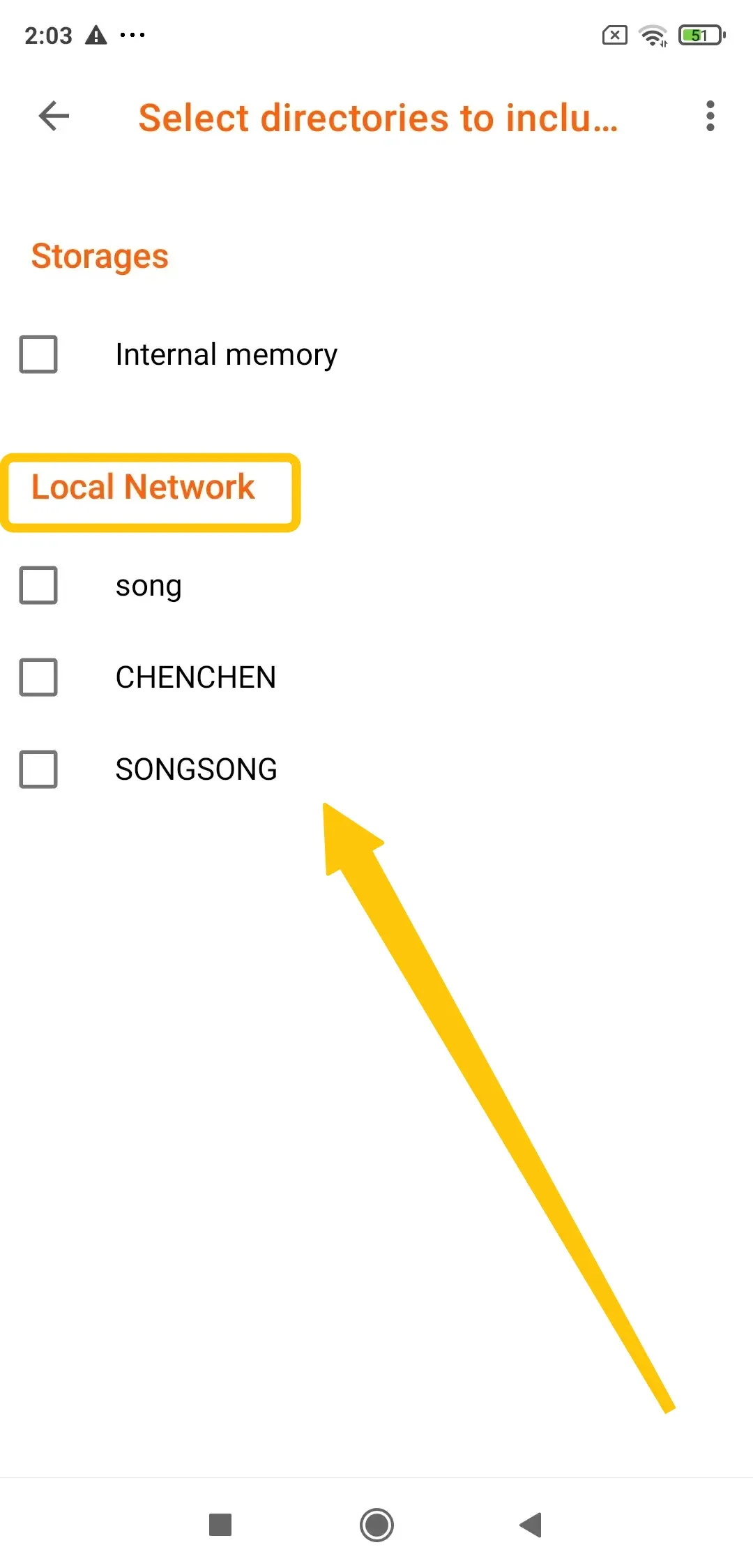
Step 3. In the media library folder list, select Local Network so VLC can include network sources.
Step 4. Return to VLC, open the Browse or Local Network section, and choose the shared device or media source.
Step 5. Browse the shared folders, select your media file, and play it in VLC.
How to Cast VLC to TV from iPhone/iPad/Mac
On iPhone, iPad, or Mac, you can show VLC content on a TV through Apple's system-level AirPlay or Screen Mirroring features. This works when you use an Apple TV or an AirPlay-compatible smart TV. The connection is handled by iOS, iPadOS, or macOS, so this method is different from VLC's built-in Chromecast casting.
- VLC Player Cast to TV via AirPlay or Screen Mirroring
Step 1. Connect your iPhone, iPad, or Mac and your Apple TV or AirPlay-compatible smart TV to the same Wi-Fi network.
Step 2. Open VLC and play the video you want to watch.
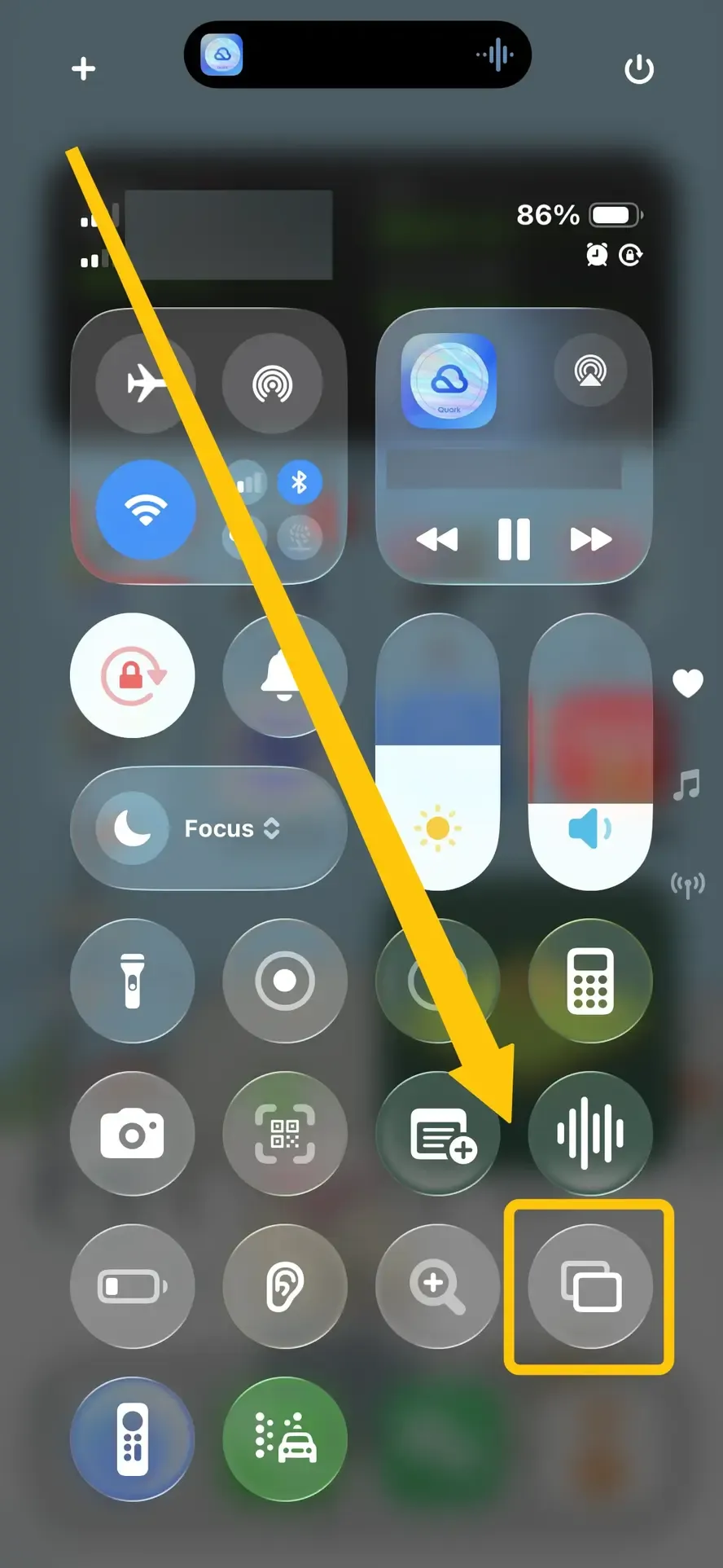
Step 3. Open Control Center on your iPhone or iPad, then tap Screen Mirroring. On Mac, open Control Center from the menu bar and choose Screen Mirroring.
Step 4. Select your Apple TV or AirPlay-compatible smart TV from the device list. Keep VLC open while the video plays on your TV.
Note: VLC for iOS mentions Chromecast rendering, but the available option may depend on your VLC version, iOS version, receiver, and network visibility. If Chromecast does not appear in VLC on iPhone or iPad, use AirPlay, Screen Mirroring, or another screen mirroring method instead.
How to Cast VLC to TV from PC
On Windows PC, VLC uses Playback > Renderer for Chromecast and other Cast-enabled receivers. Your PC and TV need to stay on the same Wi-Fi network, and the TV or streaming device must support Google Cast.
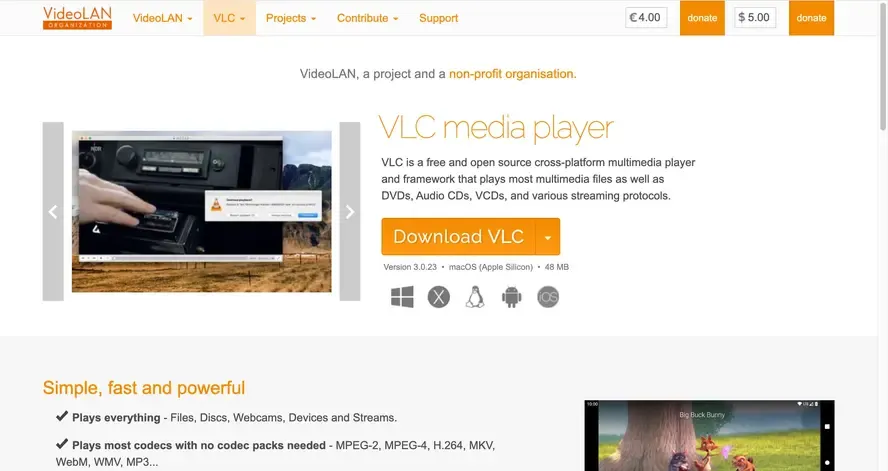
Step 1. Download or open VLC Media Player on your Windows PC.
Step 2. Click Playback in the top menu, then select Renderer.
Step 3. Select your Cast-enabled receiver from the list.
Step 4. Open your video file, and use VLC's playback controls on your PC to manage the stream.
Here are the advanced Windows features you can use for a more flexible and powerful VLC casting experience:
- Network Browsing: Access the "Local Network" section in VLC under the "View" menu to browse and stream content from DLNA/UPnP devices on your network.
- Playlist Casting: Create and cast entire playlists directly from VLC to your TV, making it easy to stream multiple videos without interruptions.
- Audio/Subtitle Sync: Adjust audio and subtitle sync in real-time during casting, ensuring the perfect viewing experience.
- Multiple Monitor Support: In multi-monitor setups, choose which screen to cast from, giving you flexibility in managing your display.
Use PigeonCast When VLC Native Casting Does Not Work
If VLC cannot find your Cast-enabled TV, or if Chromecast playback has subtitle, audio, or format problems, you can use free PigeonCast as a screen mirroring alternative. This does not make VLC use a new native casting protocol. Instead, PigeonCast mirrors your phone or computer screen to the TV, so the VLC playback window appears on the larger screen.
This mirroring app supports wireless screen mirroring across iPhone, Android, Windows, Mac, Android TV, Google TV, and Apple TV. It is useful when you want one method for different devices, or when VLC's built-in casting option is not stable on your TV.
Step 1. Ensure your devices are connected to the same wireless network.


Overall Rating:



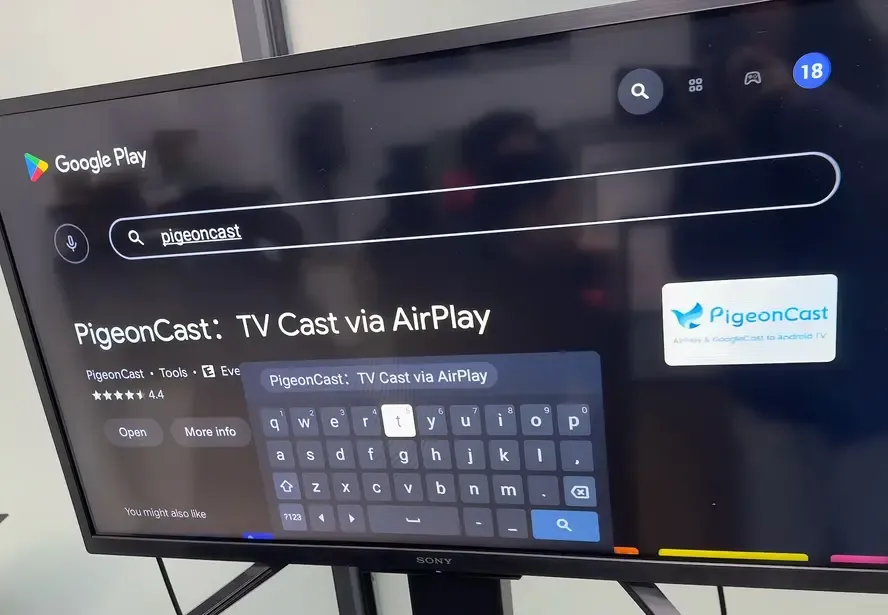
Step 2. Install PigeonCast on your mobile device, such as a phone, tablet, or laptop, from the app store. Install PigeonCast on your TV from the app store if available.
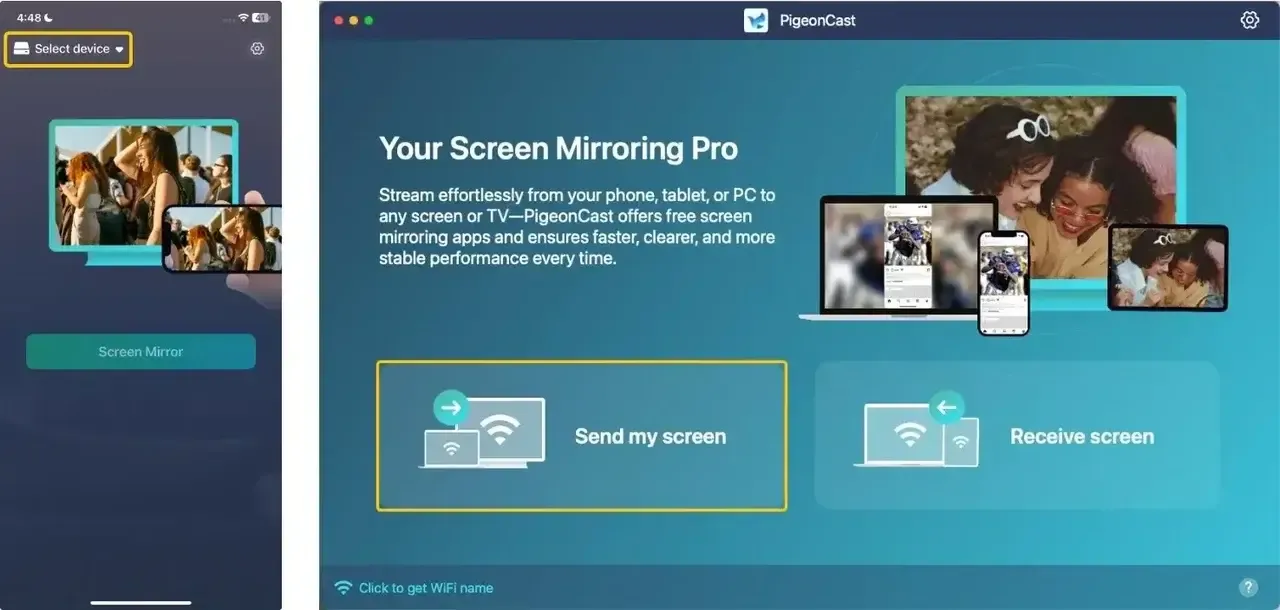
Step 3. Launch the app, tap Select device or Send my screen to choose your TV from the available list.
Step 4. Enter the onscreen PIN code to confirm the pairing process. Alternatively, you can scan the onscreen QR code to finish the connection.
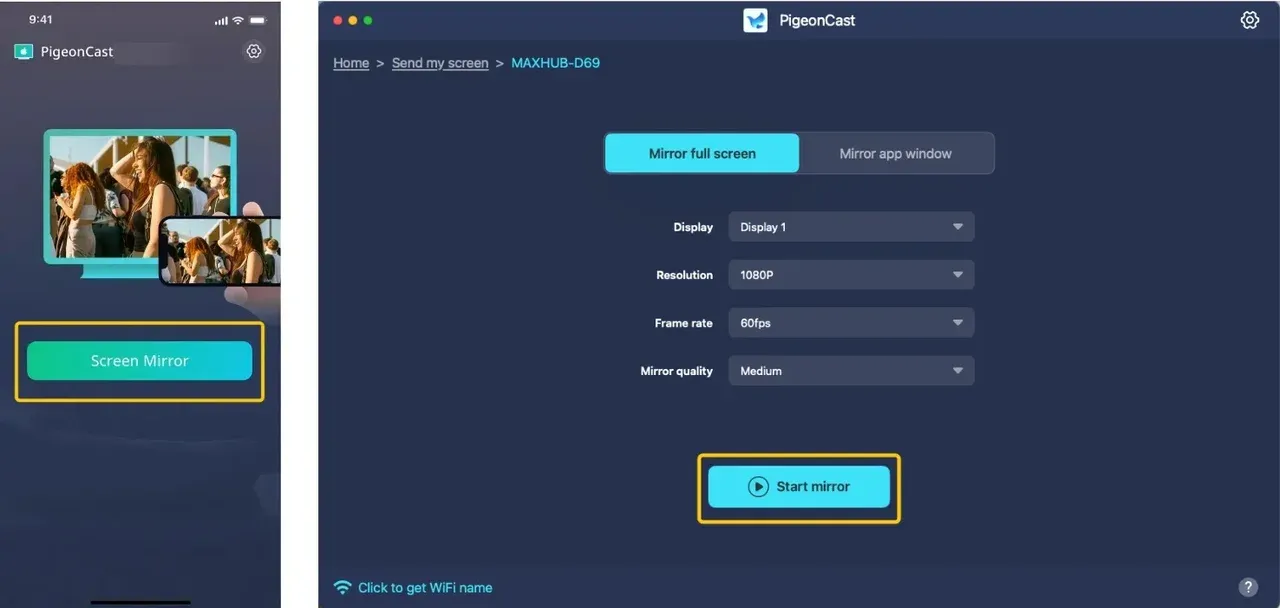
Step 5. When this pairing succeeds, tap Screen Mirror or Start mirror option to begin your mirroring activities and open the VLC app to stream VLC to TV.
Closing Words
VLC works well when your TV appears under the right casting or mirroring option, but the best path still depends on your receiver, device system, and media file. For a Cast-enabled TV, VLC’s built-in Renderer is the most direct choice. If your setup depends on screen mirroring, keep VLC open on your phone or computer and mirror the whole screen instead. When VLC cannot detect your TV or playback issues keep happening, PigeonCast can be a practical fallback for showing VLC on the bigger screen.
VLC Cast to TV FAQ
Why are subtitles not showing when casting VLC to TV?
Subtitles may not appear when casting VLC to TV because some casting protocols, such as Chromecast, do not fully support certain subtitle formats. Updating VLC, using SRT subtitles, or switching to screen mirroring can usually fix the issue.
Why is VLC not detecting my Google TV?
VLC may fail to detect your Google TV if both devices are not connected to the same Wi-Fi network, Chromecast is disabled, or the VLC app is outdated. Restarting your Google TV and reopening VLC usually fixes the issue.
Why is VLC Chromecast not working?
VLC Chromecast may stop working because of unsupported video codecs, network issues, outdated VLC versions, or Chromecast discovery errors. Restarting both devices or using screen mirroring can often solve the problem.
How to fix VLC cast to TV black screen?
A black screen usually means VLC has connected to the TV, but the video stream cannot display correctly because of codec, hardware decoding, protected content, or Cast connection issues.
- Test another video file in VLC to see whether the problem happens with all videos or only one file.
- Update VLC and restart your TV, Chromecast, Google TV, or other Cast-enabled receiver.
- If only one file shows a black screen, convert it to a common format such as MP4 with H.264 video and AAC audio.
- Turn off hardware acceleration in VLC and try casting again.
- If VLC still casts a black screen, use screen mirroring instead so the TV displays the VLC playback window directly.
Why does VLC casting lag or buffer on TV?
VLC casting may lag because of weak Wi-Fi signals, unsupported video formats, high-resolution files, or network congestion. Lowering the video quality or switching to screen mirroring can improve playback stability.
Can VLC cast to TV without Chromecast?
Yes, but not always through VLC's built-in casting feature. Without Chromecast or Google Cast, you can still show VLC on a TV through system-level screen mirroring, AirPlay on supported Apple devices and TVs, or a separate screen mirroring app. VLC can also browse UPnP/DLNA media sources on the same local network, but that is local media access rather than direct VLC-to-TV casting.
Why does VLC cast have no sound on TV?
VLC casting may have no sound if the video uses unsupported audio codecs such as DTS or AC3. Converting the file format or using screen mirroring instead of native casting usually fixes the issue.
Clara Rossi is an experienced technology editor and a seasoned expert in screen mirroring and casting technologies. With a keen eye for detail and a deep understanding of how to seamlessly connect devices, Clara excels at optimizing user experiences for effortless sharing and streaming. Whether you're seeking quick fixes or advanced tips, her expertise and responsiveness ensure that every query is met with a well-informed and efficient solution.