
If you've ever tried streaming a movie from your Android phone to your smart TV or sharing photos on the big screen, you've probably heard of DLNA Android. Though it's been around for over a decade, many Android users still face challenges or run into its limitations. This guide will show you how to use DLNA on your Android device and introduce modern alternatives for a better streaming experience.
How to Connect to DLNA from Android
DLNA (Digital Living Network Alliance) is a technology that lets devices share media over a home network. Developed by the Digital Living Network Alliance, a group of major tech companies, DLNA was introduced in 2003 to create a universal standard for media sharing. Over the years, it has become widely used for streaming content across devices like smart TVs, gaming consoles, and media players.
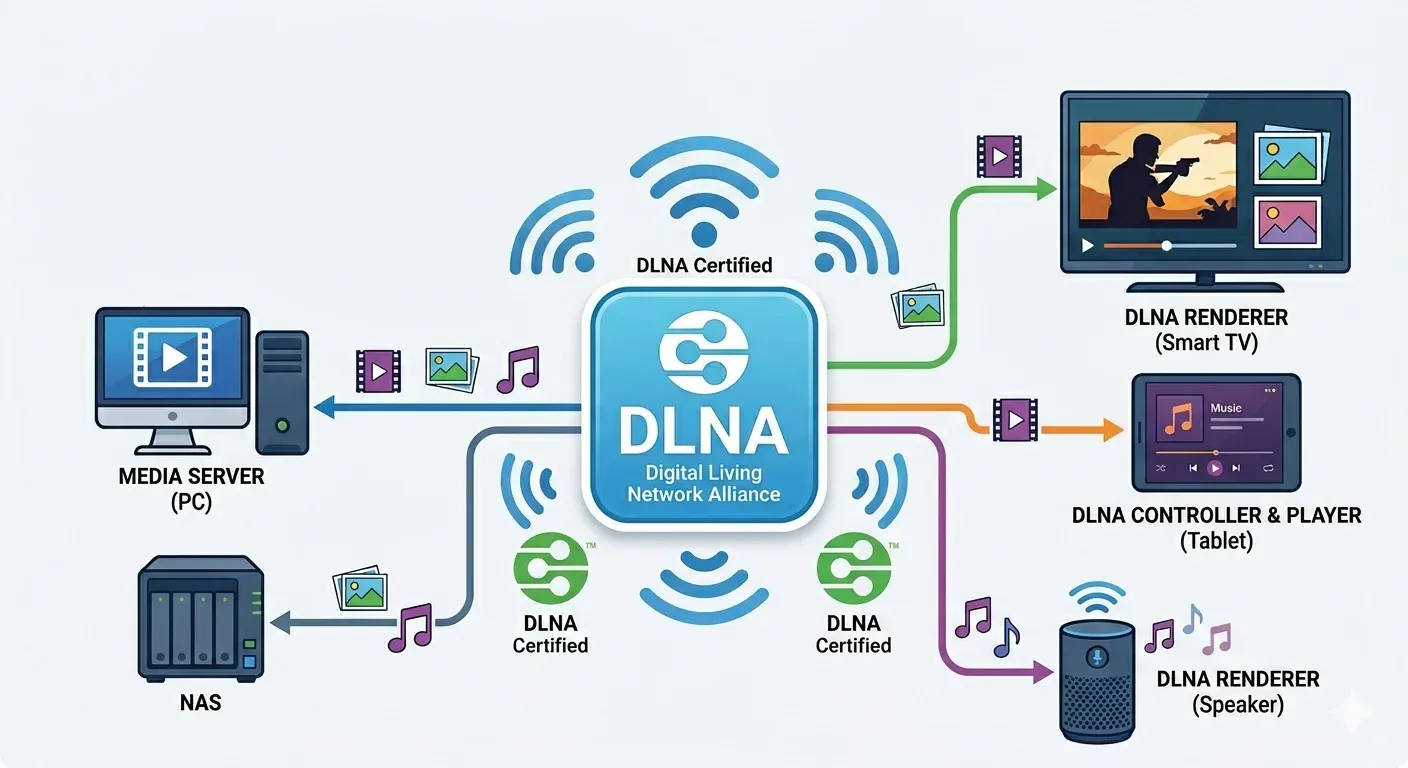
While most Android phones support DLNA, it functions differently than a simple "on/off" switch. Instead of a dedicated DLNA server Android system setting, it is a protocol integrated into apps like Gallery or Music to "push" individual files to other devices. This allows your phone to stay functional or even turn off while the media plays on the big screen. Here's a simple guide on how to stream via Android DLNA server:
Step 1. Confirm both your Android device and your target DLNA receiver (like a smart TV) are connected to the same WiFi network.
Step 2. Navigate to your phone's Gallery, Music, or your preferred video player app.
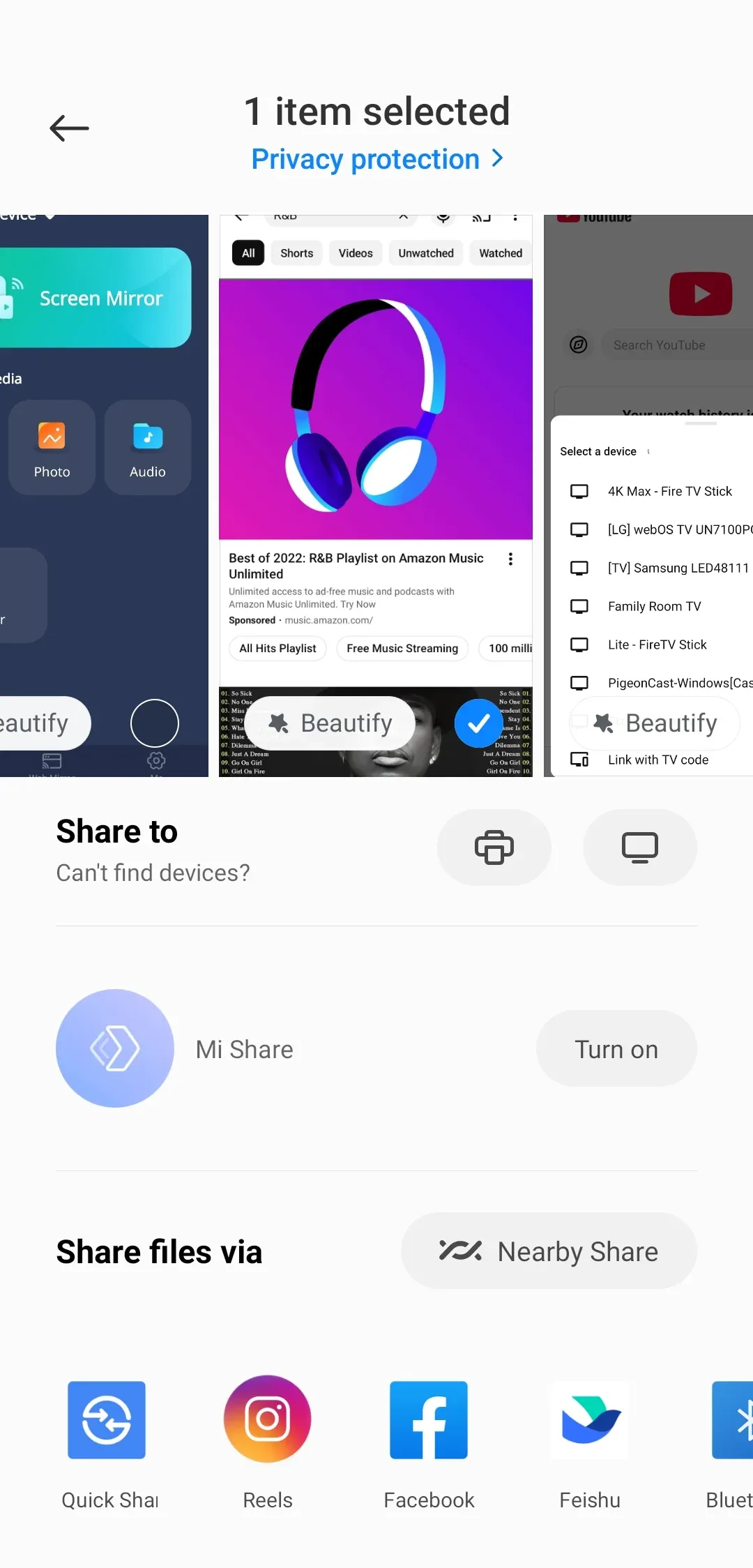
Step 3. Launch a photo, video, or music, then look for the Stream/Cast icon, or tap the Share button and select Play on Device or DLNA.
Step 4. Select your target DLNA-compatible TV or renderer from the device list. Your phone acts as the controller, pushing the file directly to the TV.
Step 5. When you finish the connection, your media will begin playing on the larger screen.
It's important to note that features like Smart View (Samsung), Screen Cast (Xiaomi), or Cast (Google) in your Quick Settings primarily use Miracast or Google Cast to mirror your entire screen. DLNA for Android, however, is usually accessed directly within your media player or gallery app's "Share" or "Stream" menu, as it is designed for file-sharing rather than full-screen cloning.
Beyond Traditional DLNA: PigeonCast
While standard DLNA on Android is useful for local files, it cannot mirror your actual screen and often struggles with cross-platform compatibility. PigeonCast Screen Mirroring App is a professional multi-protocol solution that supports AirPlay, DLNA, and Google Cast simultaneously.
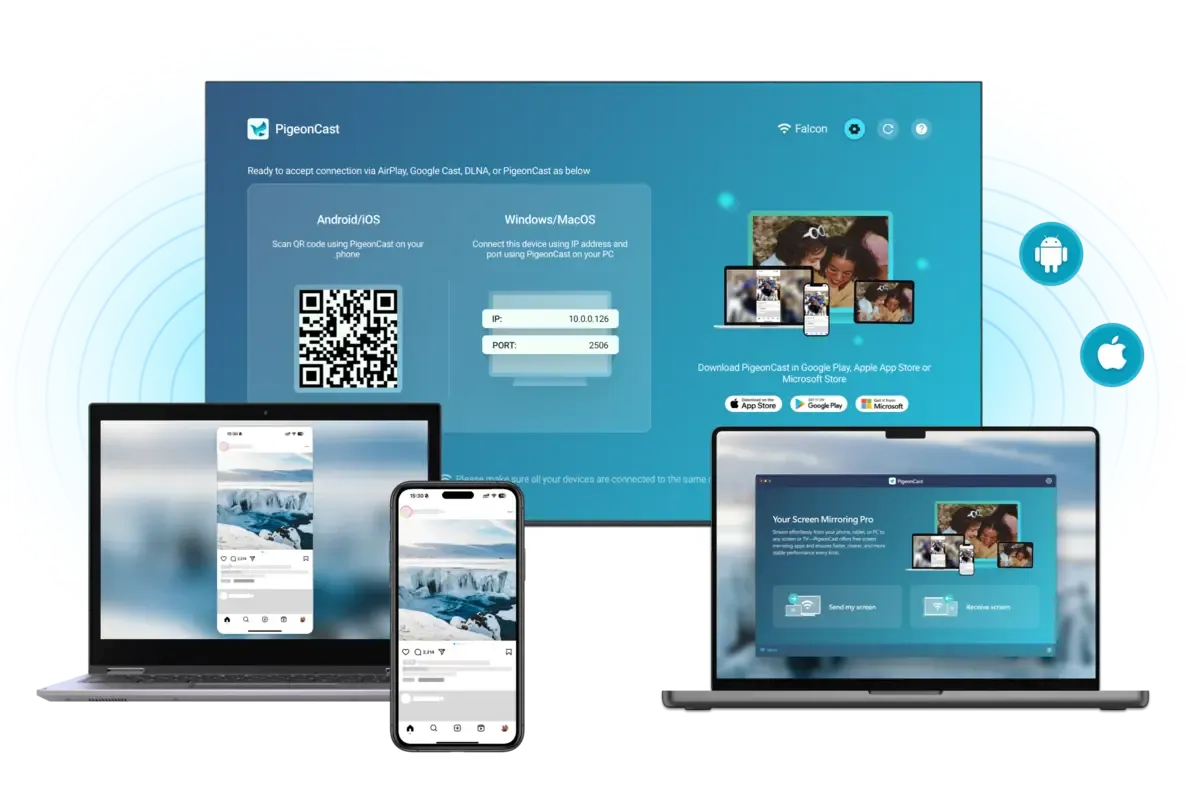
Unlike basic DLNA, this tool provides high-performance screen mirroring for apps and games, bridging the gap between different devices where standard Android tools fall short. Read on to see how to use the DLNA Android app:
Step 1. Ensure your mobile device and TV are under the same wireless network.


Overall Rating:



Step 2. Install PigeonCast on your mobile device from Google Play, App Store, or Microsoft Store.
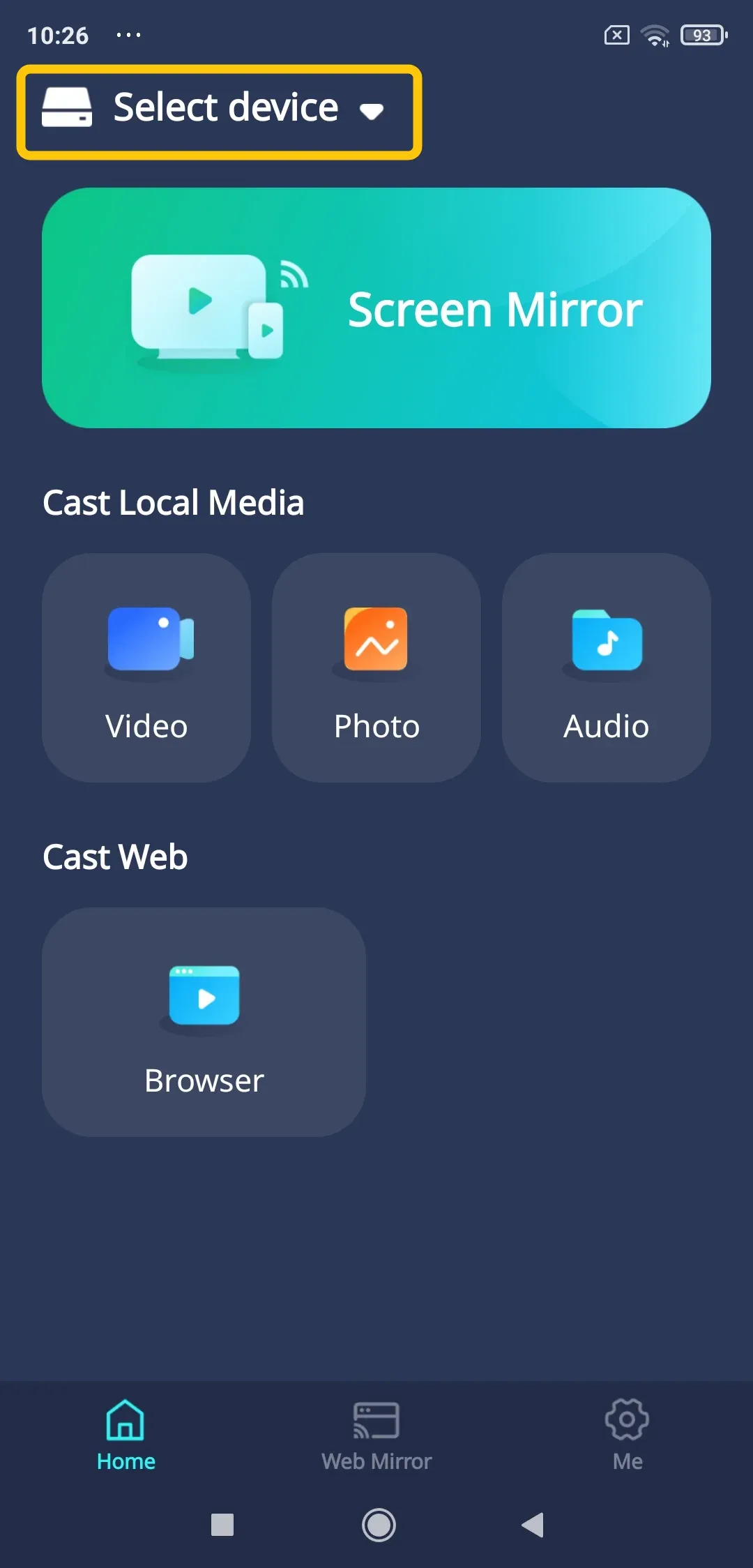
Step 3. Launch the app, tap Select device to choose your TV from the available list.
Step 4. Enter the PIN code to finish the pairing process.
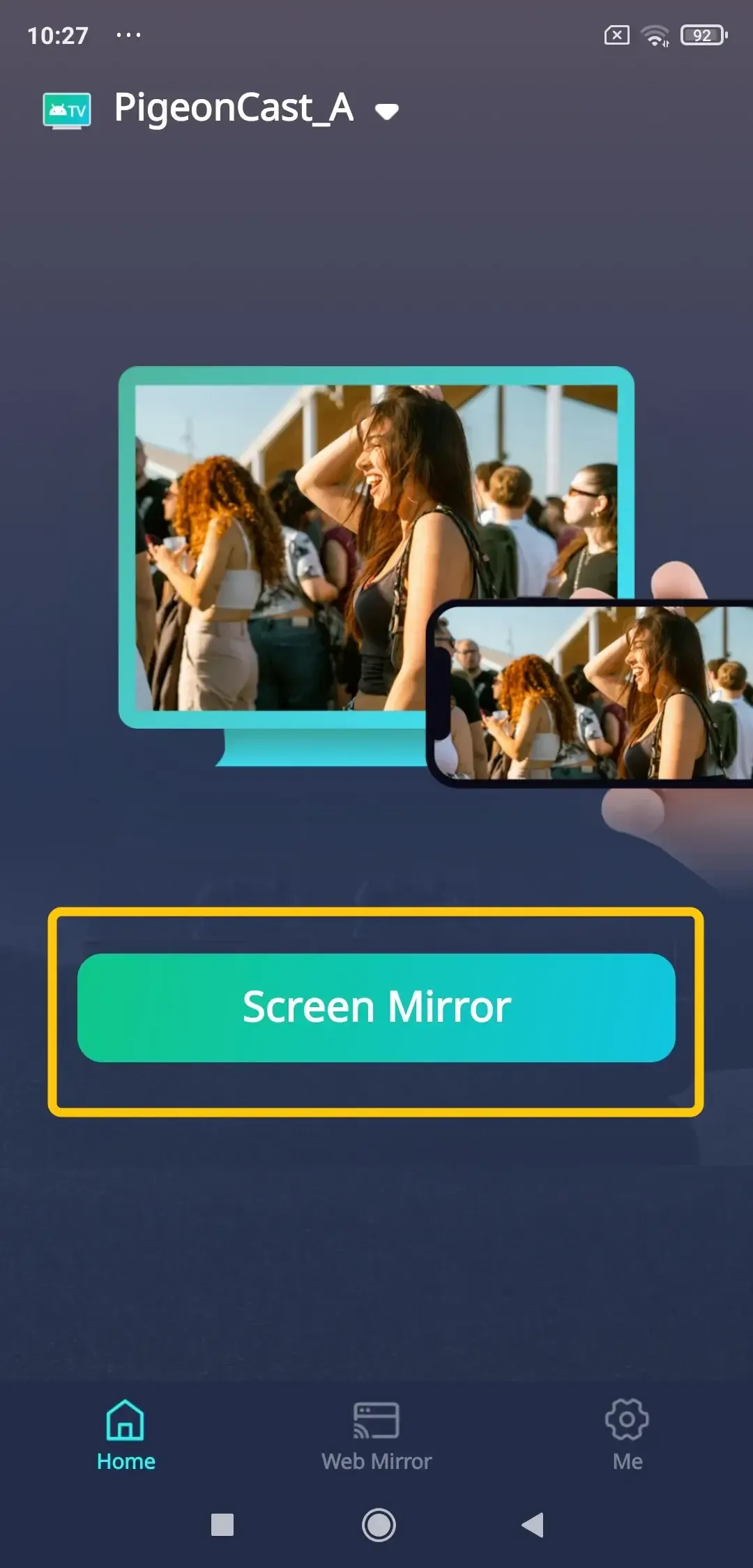
Step 5. Once the connection succeeds, tap Screen Mirror to start your mirroring activities on your smart television.
To Sum Up
DLNA Media Server Android allows you to stream content to compatible devices, but it can be limited by device compatibility and setup issues. For a more seamless experience, PigeonCast is a great alternative, offering cross-platform support, 4K resolution, and compatibility with DLNA, AirPlay, and Google Cast. Whether you use DLNA or try the Android DLNA client PigeonCast, you have options for easy media sharing across devices.
DLNA Android FAQ
What is DLNA in Android?
It is a protocol that lets your phone act as a Digital Media Controller (DMC). It finds media files on your device and tells a Renderer (like your Smart TV) to play them over Wi-Fi. It is integrated into your phone's native media players.
How to use DLNA Android?
-
Connect your Android phone and your receiver (TV, speaker) to the same Wi-Fi.
-
Use the "Cast"/"Smart View" button in your quick settings, or look for the cast icon inside apps like Google Photos or your music player.
-
Select your target device from the list to start streaming.
Does Android support DLNA?
Yes, it is a core part of the Android media framework. However, access varies: Google Pixels prioritize Google Cast, while brands like Samsung and Xiaomi integrate DLNA features directly within their Gallery and Music apps.
What is the best DLNA app for Android?
For basic DLNA media streaming, apps like BubbleUPnP are great. However, if you're looking for more advanced features like live screen mirroring for presentations, apps, or demonstrations, PigeonCast for Android is the better option. It supports both traditional media streaming and real-time screen sharing, offering a more versatile solution.
What is the purpose of DLNA?
The purpose of DLNA is to be a universal standard that lets devices from different brands (phones, TVs, stereos) easily discover and share digital media over a home network without needing special cables or accounts. On Android, it enables the convenient "cast to TV" functionality.
How to use VLC DLNA Android?
The popular VLC media player app has excellent DLNA capabilities. Here's how:
-
Install VLC from the Google Play Store.
-
Open VLC and go to the Browse tab.
-
Tap Local Network. VLC will scan and display all DLNA servers on your Wi-Fi (like your PC, NAS, or smart TV).
-
Tap a server to browse its shared media folders and play content directly on your phone.
To use VLC as a sender, play a video on your phone in VLC, tap the Cast icon in the player, and select your DLNA-compatible TV.
How does DLNA Android TV work?
Android TV (and Google TV) has DLNA support built directly into the operating system. Your Android TV can act as a:
-
DLNA Renderer (Player): Receive and play media sent from your phone. Use the built-in Chromecast feature or media apps.
-
DLNA Server: If you install a server app like Plex or Emby on your Android TV, it can share connected USB drive content to other devices on your network.
To cast to your Android TV, simply use the standard Cast button from your Android phone as described above.
Clara Rossi is an experienced technology editor and a seasoned expert in screen mirroring and casting technologies. With a keen eye for detail and a deep understanding of how to seamlessly connect devices, Clara excels at optimizing user experiences for effortless sharing and streaming. Whether you're seeking quick fixes or advanced tips, her expertise and responsiveness ensure that every query is met with a well-informed and efficient solution.