
With the DLNA Windows setup, you can easily stream music, videos, and photos from your PC to devices like smart TVs, gaming consoles, and more. This quick guide shows you how to enable DLNA on Windows for smooth, wireless media sharing across your home network. Get started with DLNA Windows 10 setup today for seamless streaming!
What Is DLNA
DLNA, which stands for the Digital Living Network Alliance, was founded in 2003 by Sony. It was a consortium of hundreds of companies, including major players like Intel, Microsoft, Samsung, and Philips. The goal was to create a universal standard for sharing media between devices, ensuring products from different manufacturers could work together seamlessly.
The technology is based on a set of rules built upon existing internet standards. It allows compatible devices on the same network to discover each other and share digital content like photos, music, and videos directly. You can think of it as a common language that lets your devices communicate for media sharing.
Plus, it is crucial to distinguish DLNA from screen mirroring. DLNA is designed for streaming specific media files from a server to a player on the network. It does not replicate a device's screen. Protocols like Miracast on Windows are used for mirroring, which transmits a live video feed of your entire display.
How to Setup DLNA Server Windows 10
Now that you understand what DLNA is and how it creates a connected media ecosystem, you can put it into practice. To set up DLNA on Windows 10 is a straightforward process, turning it into a powerful media library for your entire network.
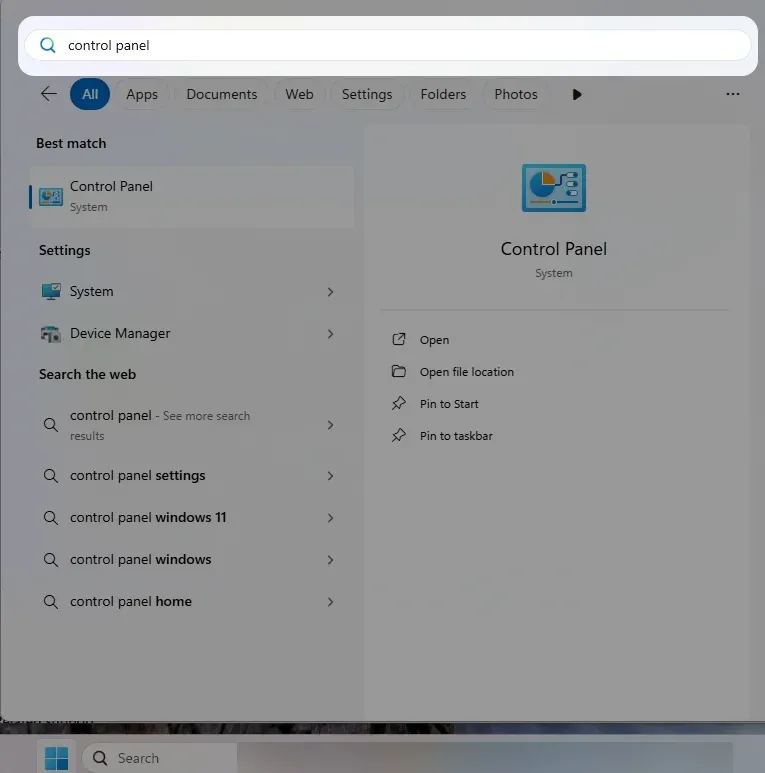
Step 1. Click the Start menu, type Control Panel, and select Control Panel from the results.
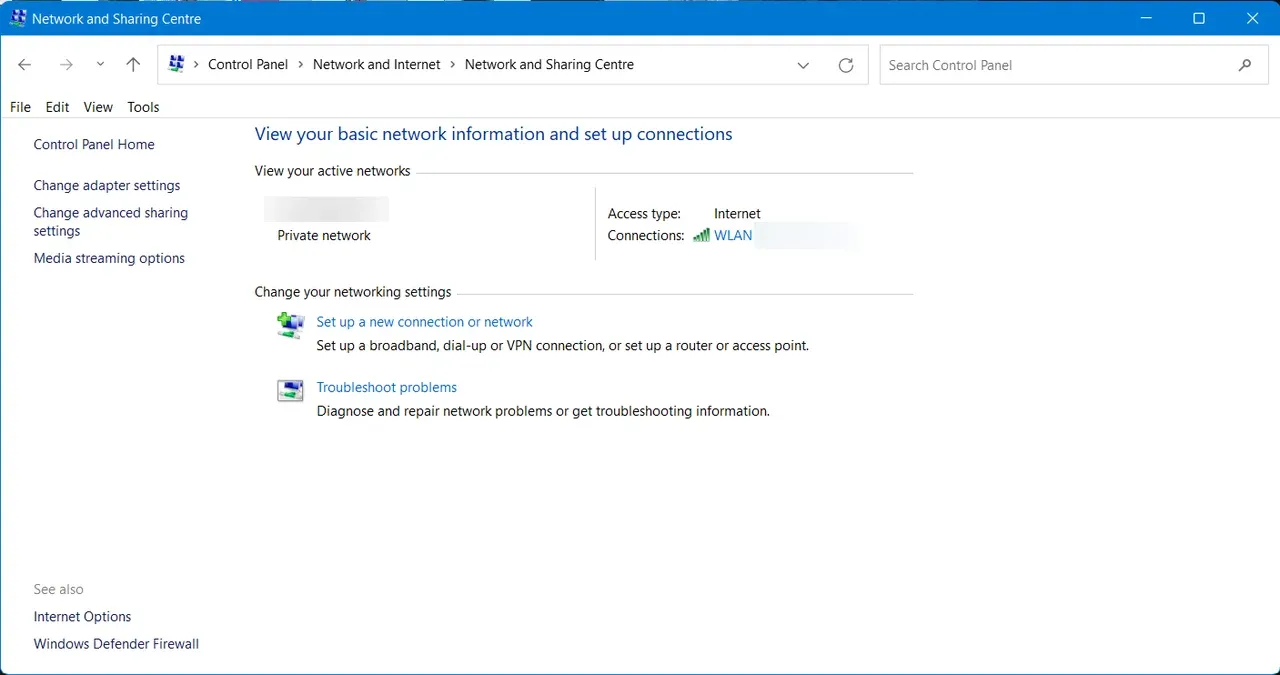
Step 2. Go to Network & Internet > View network status and tasks.
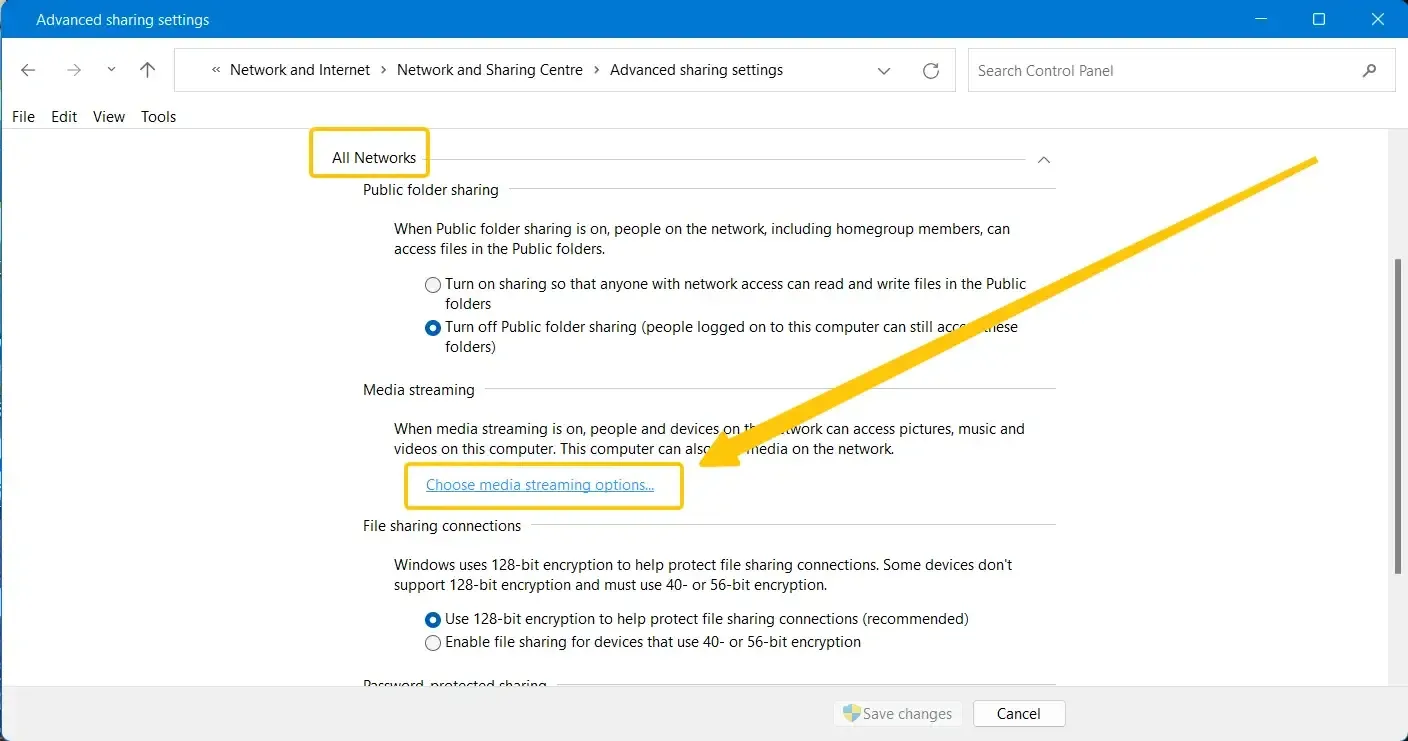
Step 3. Select Choose media streaming options... from Media streaming in All Networks.
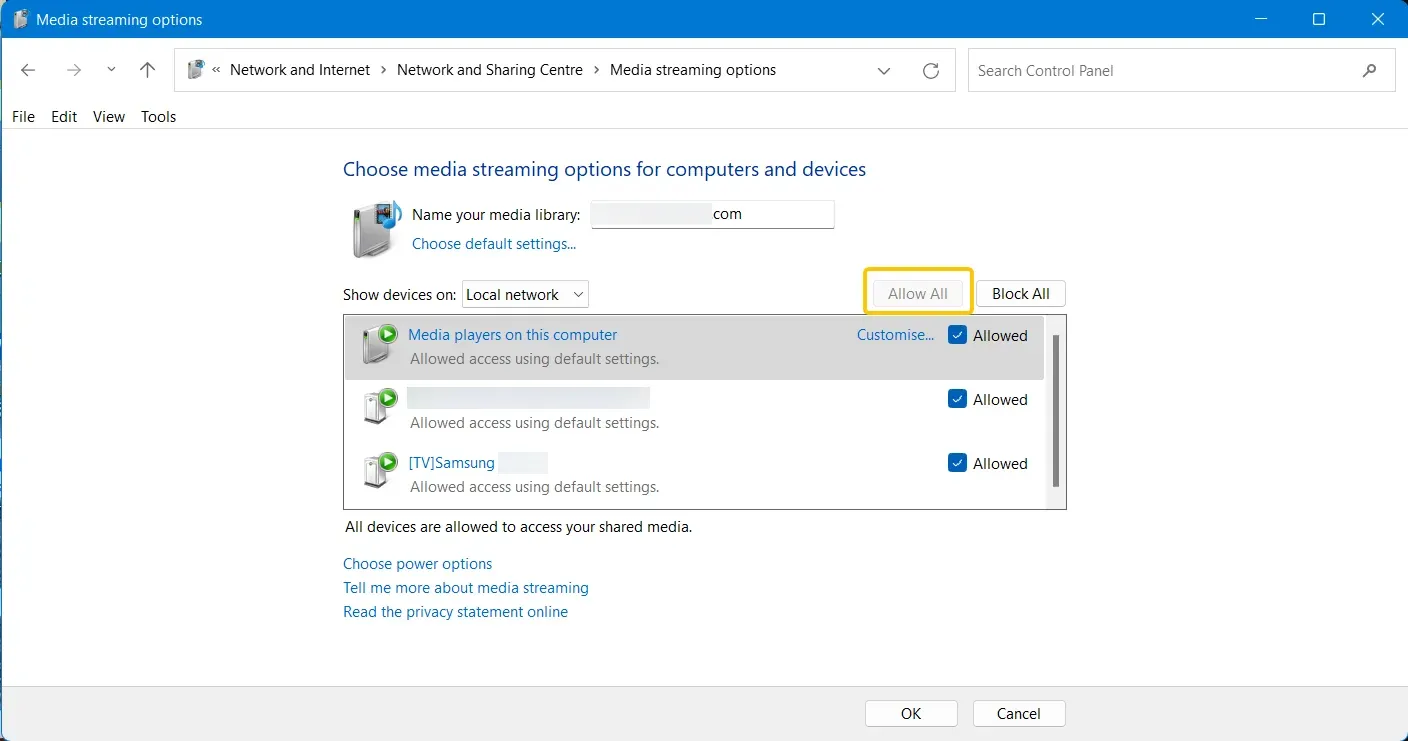
Step 4. Click Allow All and Allow all computers and media devices.
Step 5. If all the devices in the local network are allowed to access your network, select OK and close the screen.
Use PigeonCast to Screen Mirror to Windows
While DLNA is great for sharing media files, it doesn't support live screen mirroring. To display your device's screen on a Windows PC, you'll need a free and professional tool like PigeonCast for Windows, which enables seamless, real-time mirroring across devices.
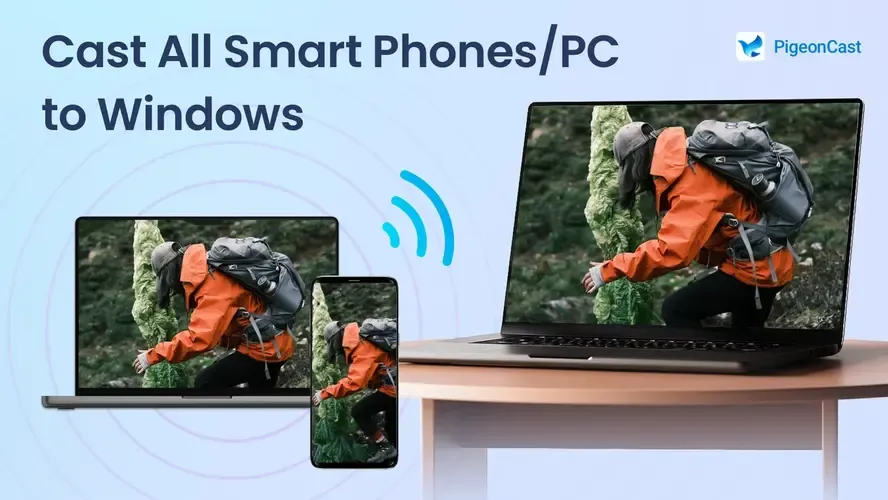
PigeonCast provides high-quality, low-latency screen mirroring with full audio support, making it an ideal solution for presentations, gaming, or simply viewing your phone's content (both iOS and Android) on a larger monitor.

PigeonCast Screen Mirroring

Official Download


Step 1. Install the screen mirroring app on your Windows from the Microsoft Store.
Step 2. Ensure your Windows PC is connected to the same WiFi network as your other device.
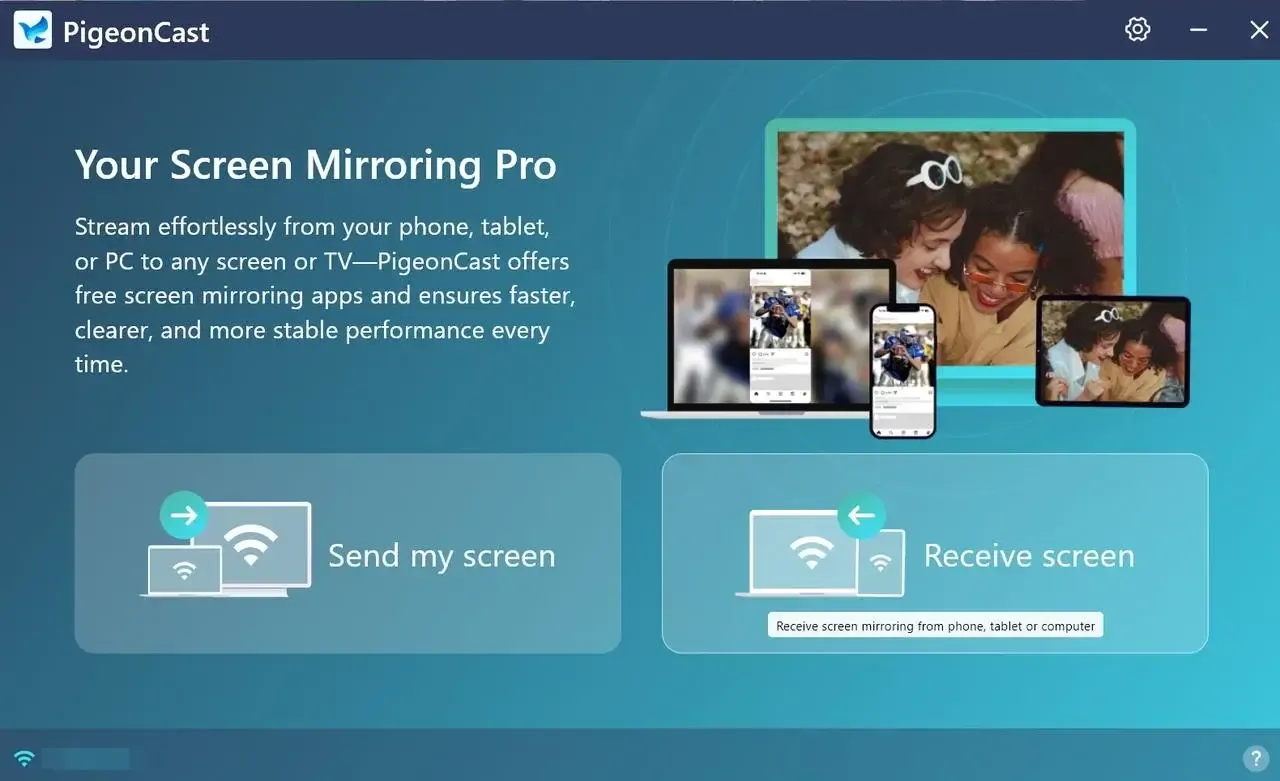
Step 3. Launch the app on your Windows computer, and click Send my screen or Receive screen.
Step 4. Choose your device from the available device list. If prompted, enter the onscreen code to finish the connection.
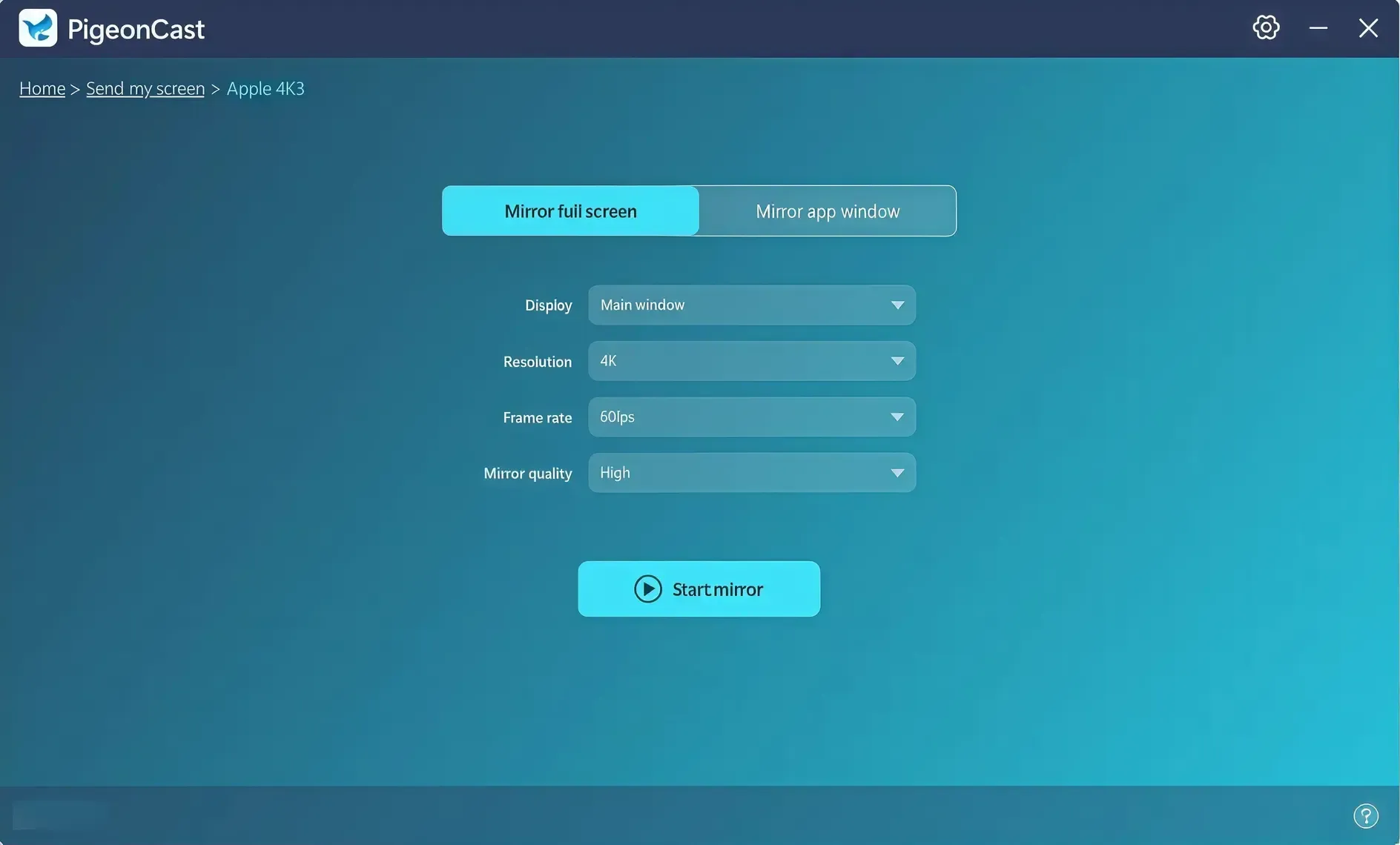
Step 5. When pairing successfully, tap the Start mirror option and you can see that the two screens are displaying the same things.
Wrapping Up
How to setup DLNA on Windows 10? With just a few settings in Windows 10 and a reliable DLNA client like PigeonCast, you can turn your PC into a media hub. Whether you're watching videos on your smart TV or listening to music on your phone, DLNA brings seamless access to your files wirelessly and without hassle.
DLNA Windows Setup FAQ
Q: What media formats does DLNA support on Windows?
DLNA supports common formats like MP4, MP3, JPEG, AVI, and WMV. Some devices may have limitations depending on their built-in media decoders.
Q: Can I use DLNA over Wi-Fi or do I need Ethernet?
Yes, DLNA works over Wi-Fi, as long as all devices are on the same local network. Ethernet is not required, but a strong Wi-Fi connection ensures smoother playback.
Q: Does Windows 11 still support DLNA?
Yes. Windows 11 also includes media streaming options. The process is nearly identical to Windows 10, using Control Panel and the Media Streaming Options menu.
Q: Can I use DLNA to stream from PC to a phone?
Yes, you can use DLNA to stream media from a PC to a phone. Your PC must run a DLNA server (like Windows Media Player or Plex), and your phone needs a DLNA-compatible app (such as VLC or BubbleUPnP). Both devices should be on the same Wi-Fi network. Note that DLNA streams media files only and does not mirror your screen.
Clara Rossi is an experienced technology editor and a seasoned expert in screen mirroring and casting technologies. With a keen eye for detail and a deep understanding of how to seamlessly connect devices, Clara excels at optimizing user experiences for effortless sharing and streaming. Whether you're seeking quick fixes or advanced tips, her expertise and responsiveness ensure that every query is met with a well-informed and efficient solution.