
VLC has long been the go-to media player for users who value flexibility and open-source innovation. It plays almost every video format, runs on every major platform, and even lets you stream over a network. But when it comes to VLC AirPlay, sending video from VLC to Apple TV, the story becomes more nuanced. Can VLC really use AirPlay? And if it can, how stable is it?
This guide dives deep into VLC AirPlay, explaining not just the how, but also the why. You'll learn the exact steps to AirPlay VLC from iPhone, iPad, and Mac, understand common issues like VLC AirPlay only audio, and discover reliable alternatives that work every time.
Does VLC Work with AirPlay
Before diving into the steps, let's clarify one of the biggest points of confusion: does VLC actually support AirPlay? In short: yes, VLC can connect to Apple TV and AirPlay-capable TVs, but how it does so depends on the device you're using.
On iPhone and iPad, VLC works with iOS's native AirPlay framework. This means you can mirror or cast videos to your Apple TV without needing extra apps. The AirPlay/Cast icon in VLC's playback controls allows direct streaming to nearby devices. However, its availability may vary depending on app version and network visibility.
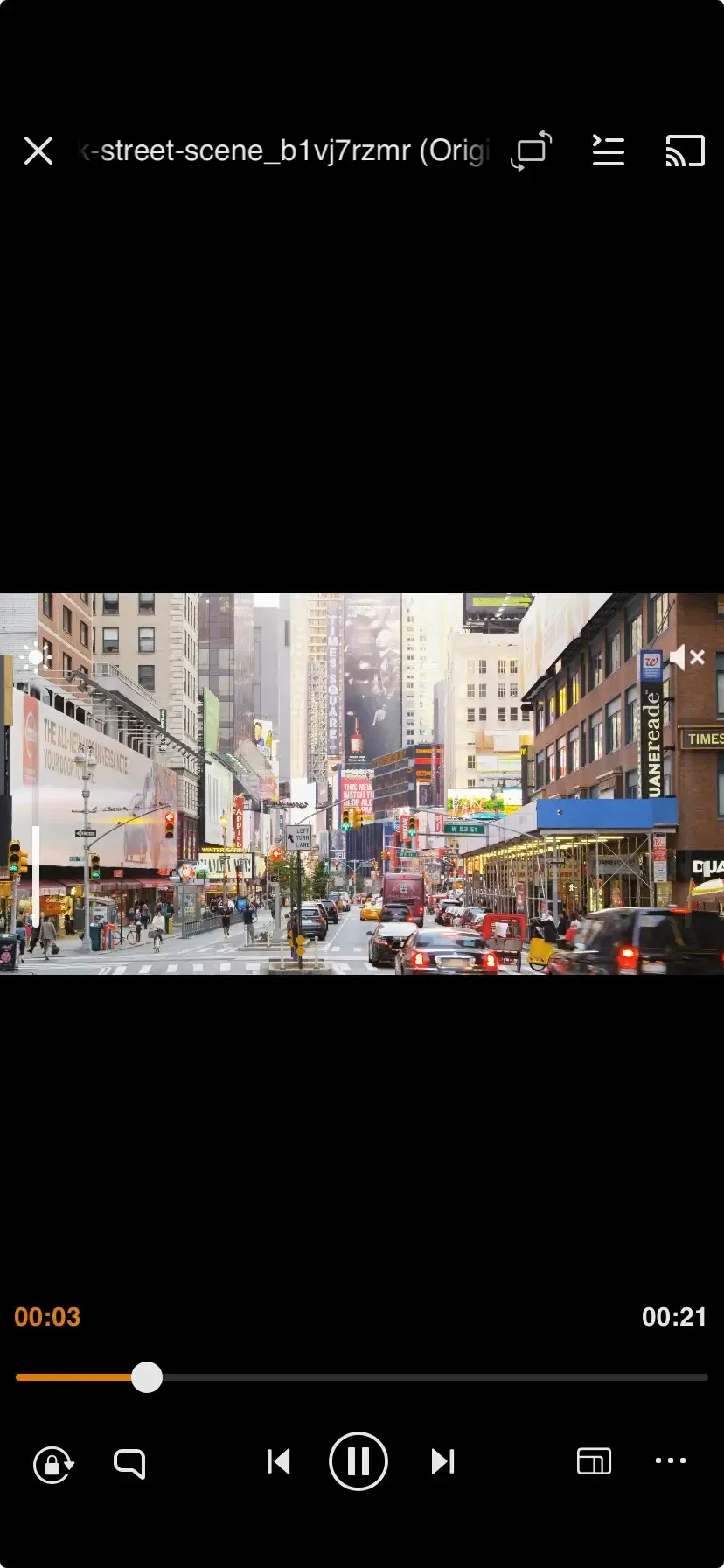
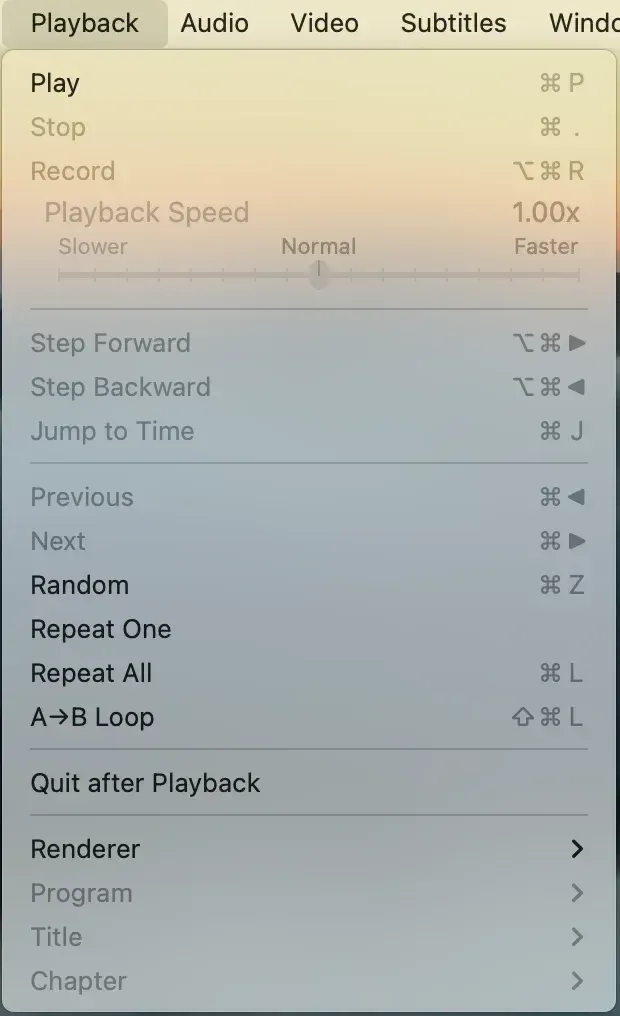
On a MacBook, VLC provides a Render feature that detects and streams to devices like Apple TV via AirPlay, Chromecast, or DLNA. When you choose your Apple TV from the Renderer menu, VLC tries to transmit video directly using AirPlay protocols. But since AirPlay's video layer isn't fully open-source, VLX's support is partial, which explains the familiar "VLC AirPlay only audio" issue.
How to AirPlay VLC
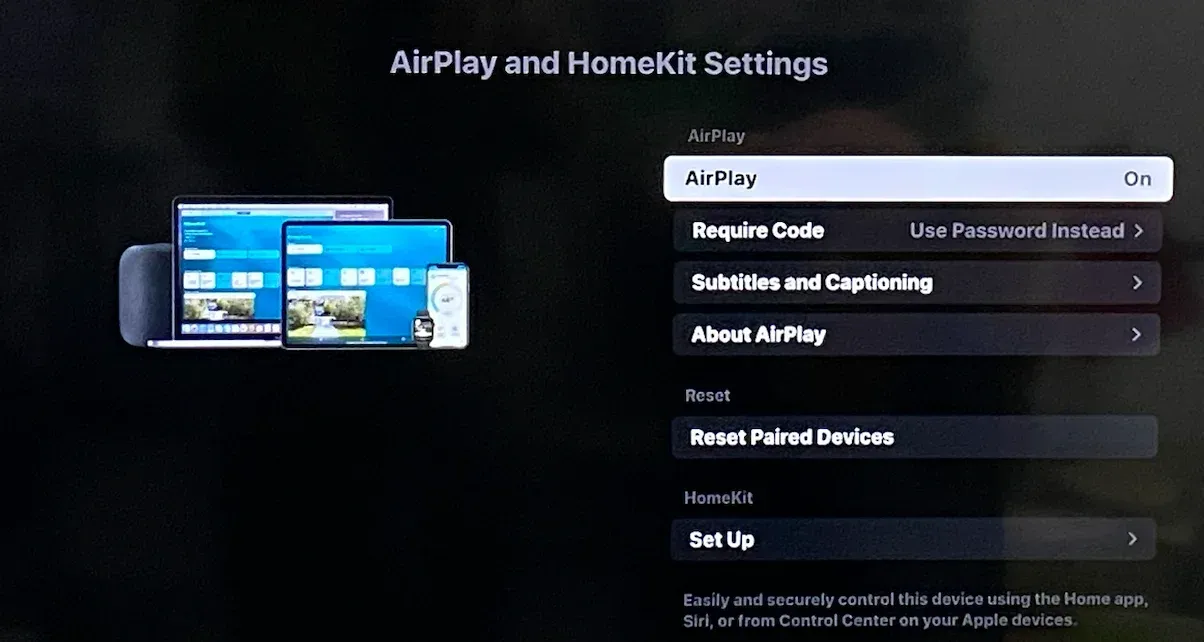
Before starting AirPlay VLC to Apple TV, make sure both your Apple TV (or AirPlay-compatible Smart TV) and your VLC device are connected to the same Wi-Fi network and AirPlay is turned on in Settings > AirPlay & HomeKit on your compatible TV. Once ready, pick the method below that matches your setup.
#1. AirPlay VLC from iPhone/iPad
When using an iPhone or iPad, AirPlay integration happens automatically through iOS. There are two main ways to stream VLC content: using the in-app AirPlay button or screen mirroring.
Step 1. Open the VLC app on your iPhone or iPad.
Step 2. Play the video you want to stream.
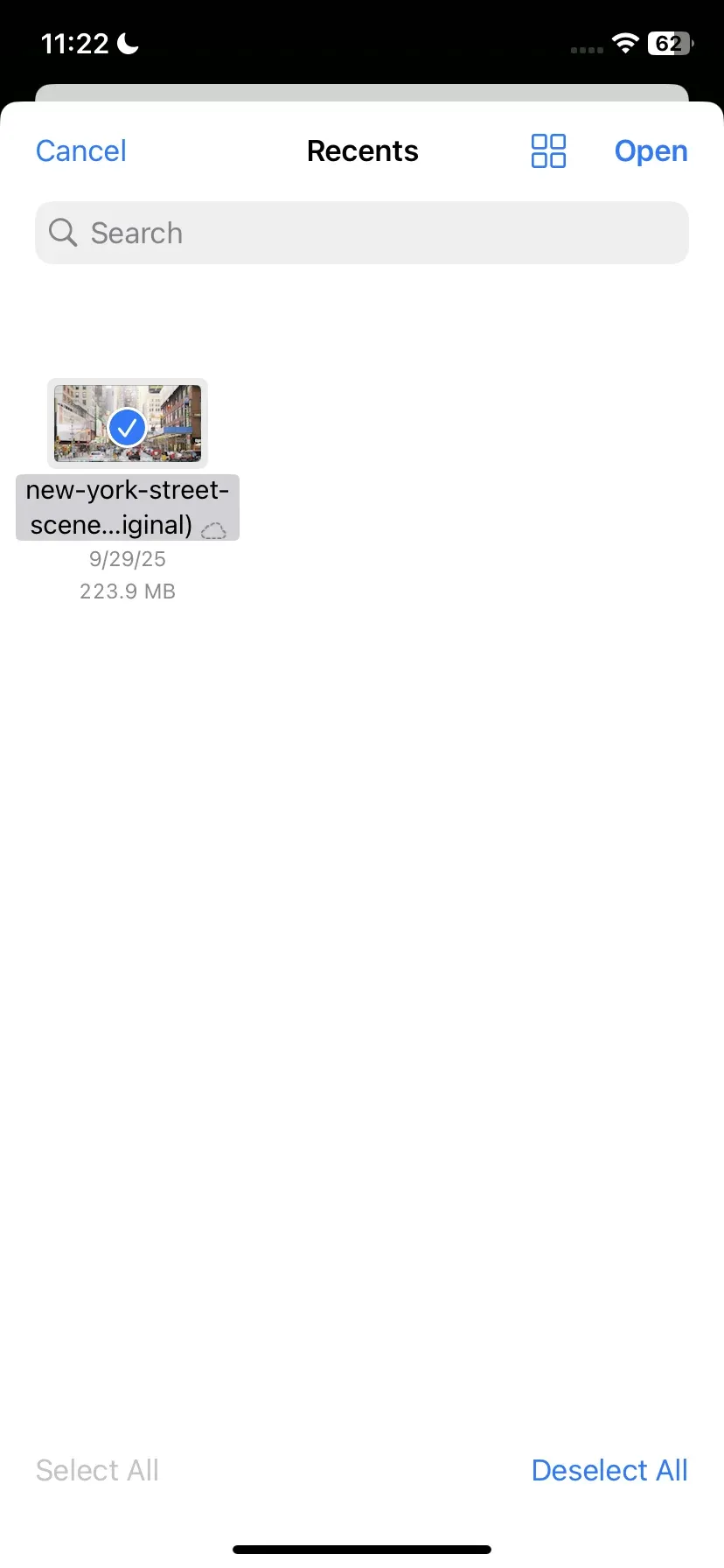
Step 3. If an AirPlay or Cast icon appears on the playback bar, tap it and tap AirPlay or Bluetooth.
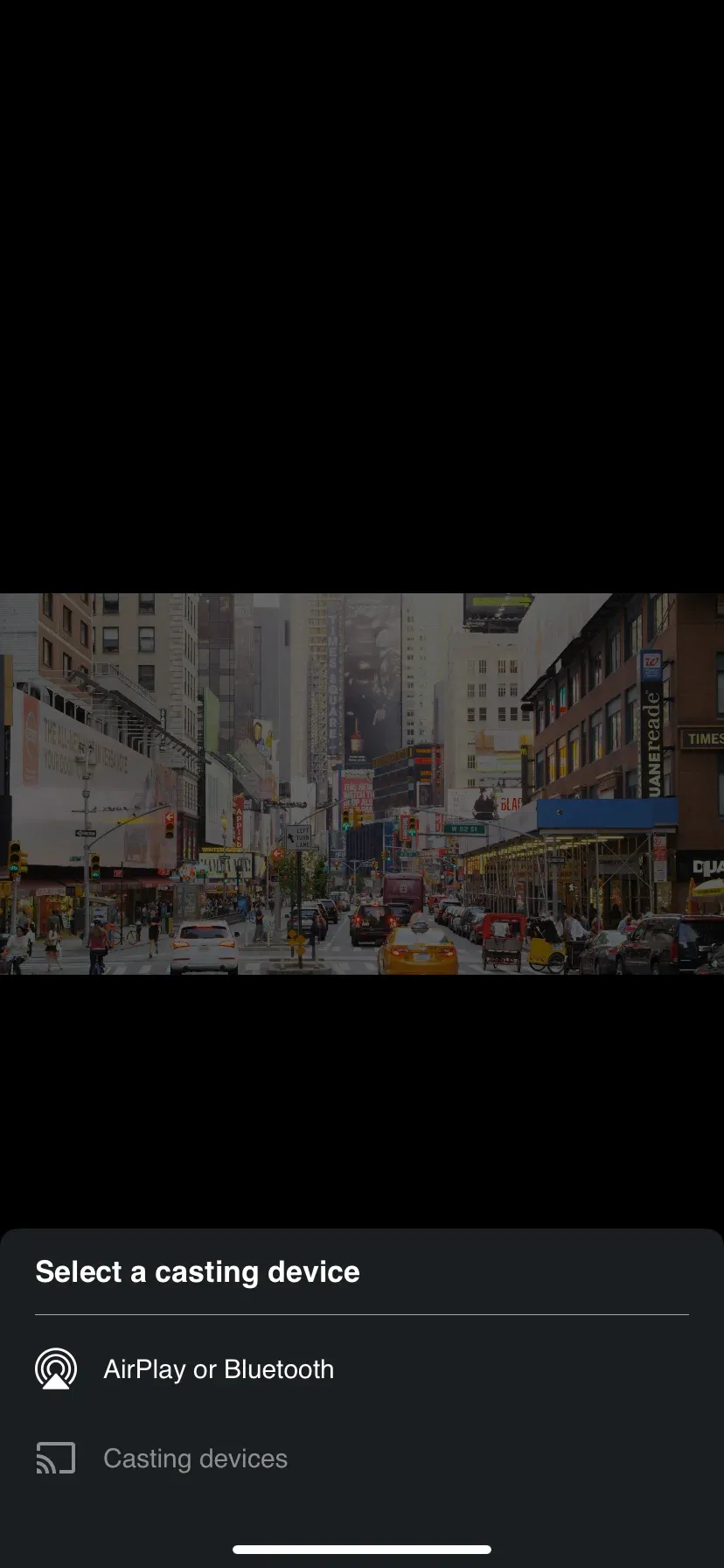
Step 4. Choose your AirPlay-compatible device from the list.
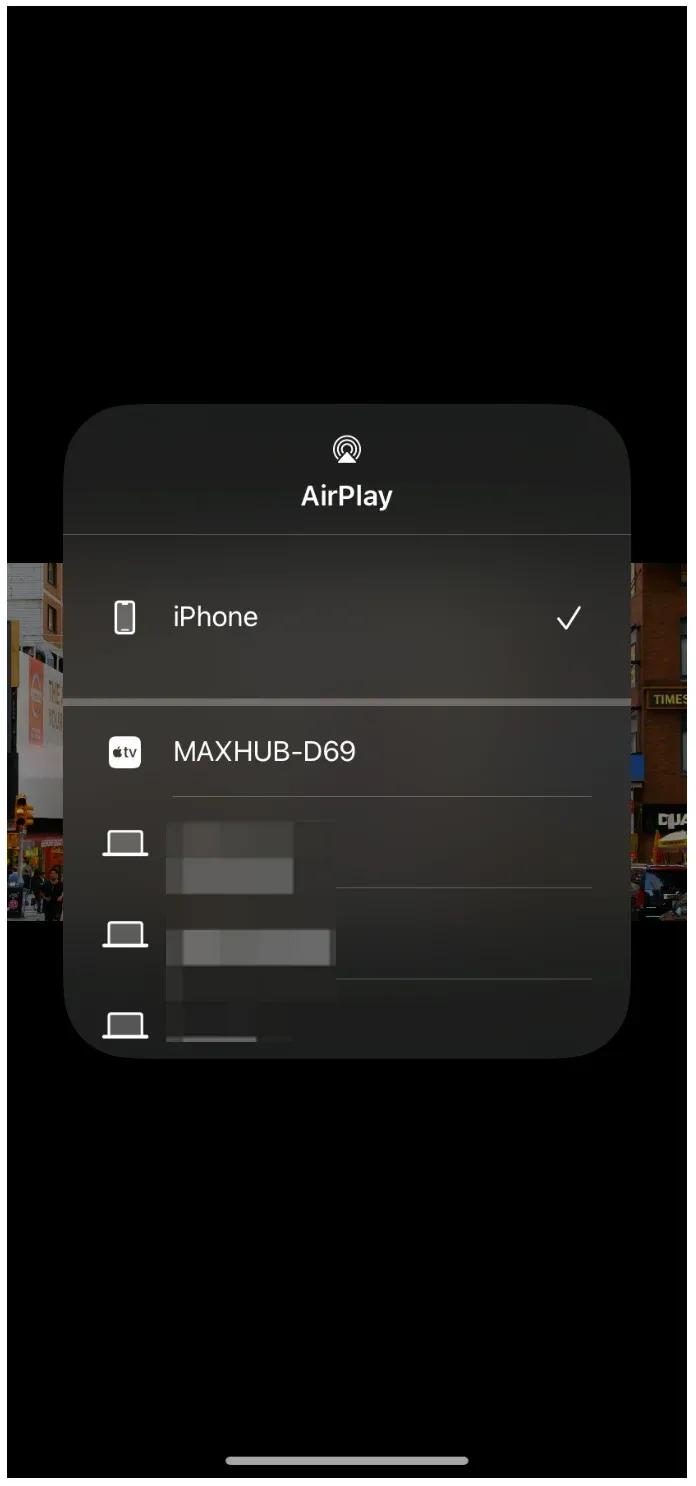
You may notice that this icon isn't always visible; that's normal. Its presence depends on your VLC version, iOS network permissions, and local network visibility. If the icon doesn't show up or fails to connect, simply use Control Center > Screen Mirroring to cast your entire screen (including VLC) to your Apple TV.
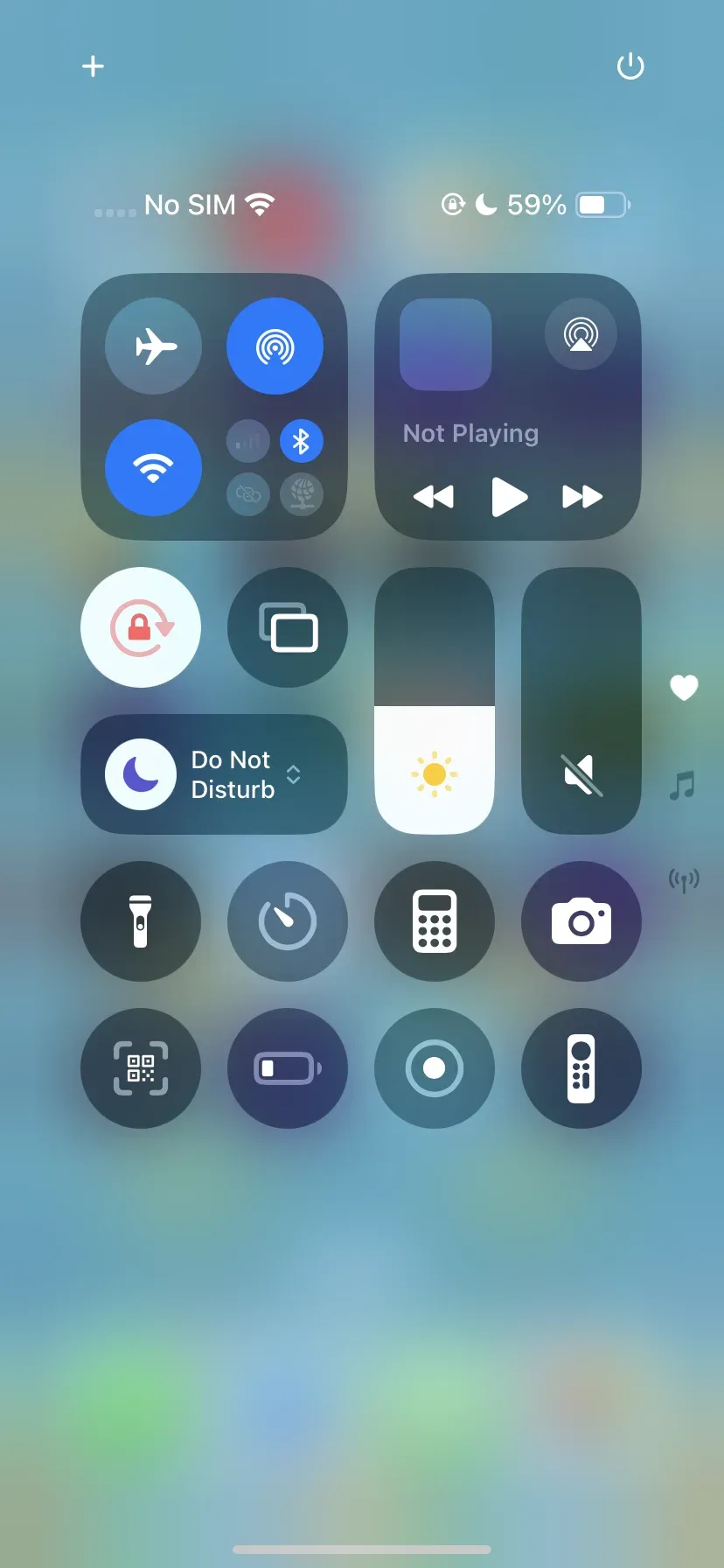
Screen mirroring is the most reliable way to AirPlay from VLC on iPhone, because it bypasses VLC's built-in casting logic and uses Apple's native AirPlay protocol directly. The only trade-off is that it mirrors everything on your display, not just the video window.
#2. AirPlay VLC from MacBook
Mac users have three distinct methods to use AirPlay VLC to Apple TV, each with different levels of control and compatibility.
Method 1: Use the Renderer Function
VLC's Renderer function can send audio and video directly to your Apple TV.
Here's how to AirPlay VLC from Mac:
Step 1. Open the VLC app on your Mac.
Step 2. Choose a video to watch and play it in VLC.
Step 3. Click the Playback option in the top bar, choose Playback > Renderer, and choose your TV from the list.
This lets VLC act as a network player rather than mirroring your display. However, due to AirPlay's proprietary video transport layer, VLC may only transmit audio, leading to the "VLC AirPlay only audio" issue.
If that happens, try the next method for better reliability.
Method 2: Use PigeonCast App for macOS
If you'd like to cast only the VLC app window instead of mirroring your whole screen, PigeonCast is an excellent solution. It supports window-level casting, meaning you can stream VLC to Apple TV or other receivers regardless of codec or AirPlay compatibility.
Here's how to AirPlay from VLC on Mac with PigeonCast:
Step 1. Download and install PigeonCast on your Mac.

PigeonCast Screen Mirroring

Official Download


Step 2. Make sure your Mac and TV are on the same Wi-Fi network, and keep the VLC app open on your Mac (you can leave it running in the background, just don't minimize it).
Step 3. Launch the PigeonCast app on your device and click Send my screen.
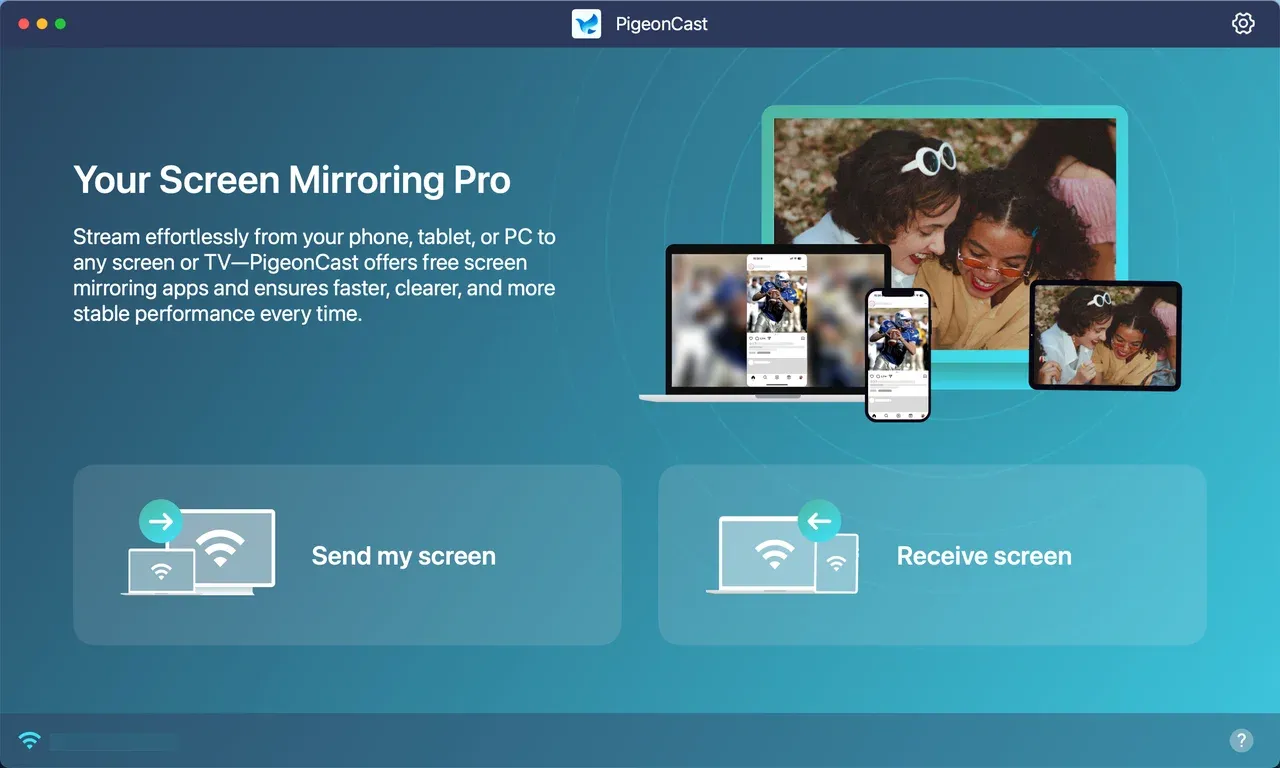
Step 2. Choose your TV from the available devices.
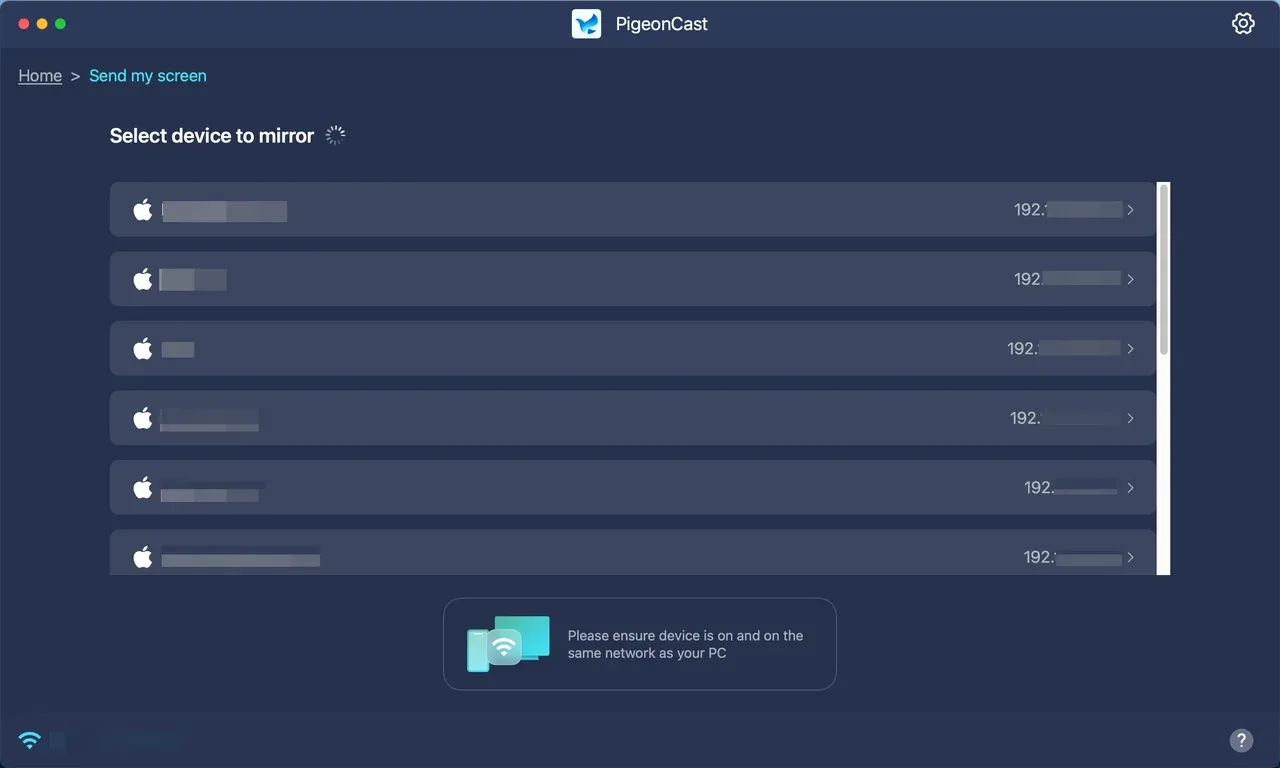
Step 3. Once connected, switch to the Mirror app window option and choose VLC from the App entry.
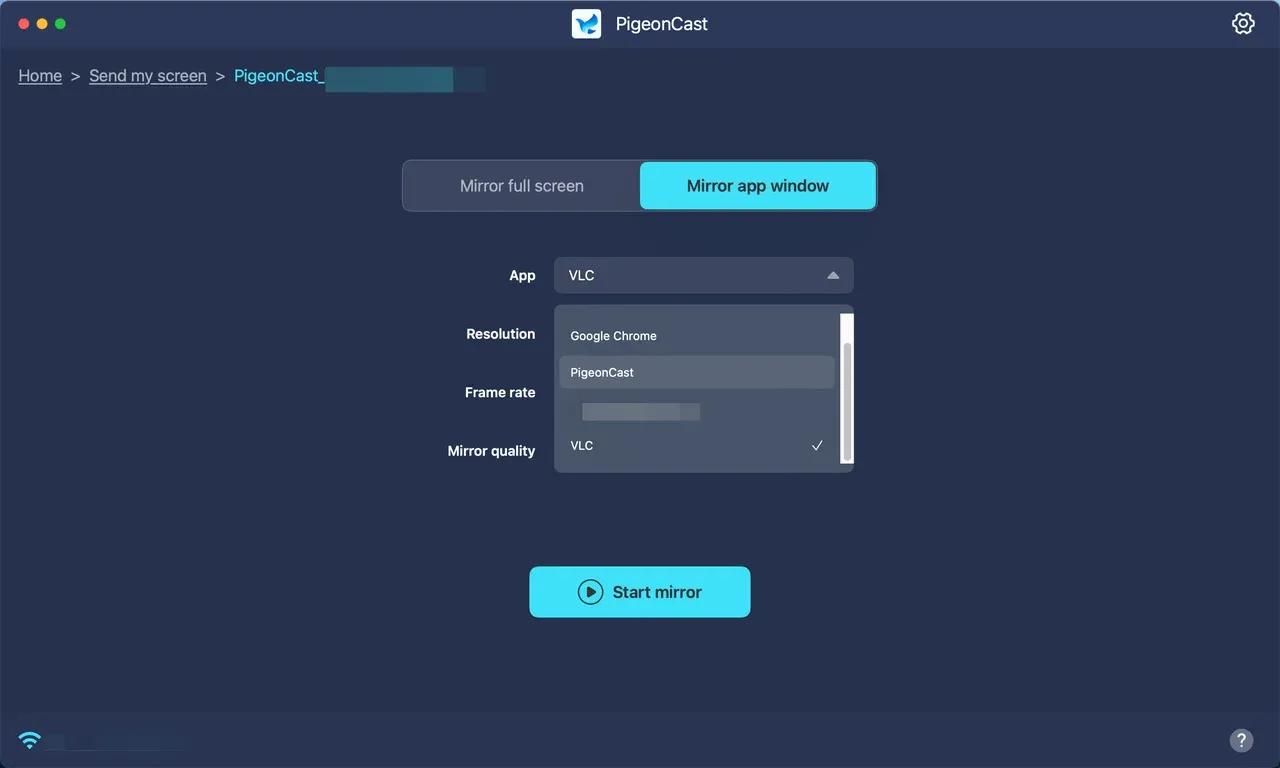
Step 4. Click Start mirror, and play a video in VLC. You can enjoy the video on your TV now.
This gives you flexible control and avoids the renderer's codec limitations. If playback stutters, lower the resolution in PigeonCast's settings to balance quality and performance.
Method 3: Use macOS AirPlay Mirroring
The most universal option is to use macOS's built-in AirPlay. Here's how:
Step 1. Click the Control Center icon in the top-right corner of your Mac
Step 2. Select Screen Mirroring.
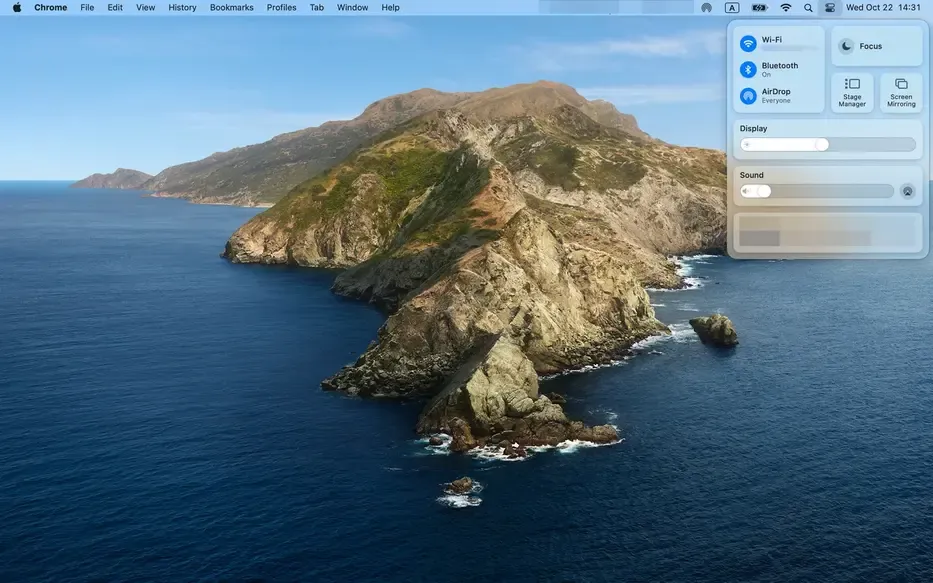
Step 3. Choose your TV from the device list.
Step 4. Once connected, open VLC and start playing your video.
This method mirrors your entire desktop, ensuring both video and audio appear on your TV. It's especially effective when you encounter playback issues with VLC's internal renderer.
VLC AirPlay Not Working
Even when everything seems properly set up, AirPlay can still misbehave when used with VLC. Sometimes you'll get only sound but no video, sometimes the connection fails to appear, and other times there's a frustrating lag. Let's look at what's really happening behind these issues and how to fix them effectively
VLC AirPlay Only Playing Sound (No Video)
One of the most common problems users encounter is that VLC AirPlay only plays audio while the screen remains black. The issue can happen for two main reasons.
First, VLC's built-in renderer doesn't always handle video encoding and transmission correctly over the AirPlay protocol. In simple terms, the sound data reaches your Apple TV, but the video stream fails to decode in sync.
Second, this problem may stem from unsupported video formats. While VLC can play nearly any file type, AirPlay and most smart TVs only support specific codecs like H.264 or H.265. If your video uses a format outside that range (for example, MKV or AVI with uncommon codecs), the picture won't display even though the audio plays normally.
The most reliable workaround is to skip VLC's internal renderer and instead use macOS AirPlay screen mirroring or a dedicated mirroring tool like PigeonCast, which directly mirrors the VLC window to your Apple TV. This approach ensures both video and audio are transmitted smoothly, regardless of the original file format.
VLC AirPlay No Sound
If you see the picture but hear nothing, the issue is likely with your system audio routing rather than VLC itself. When AirPlay is active, macOS and iOS sometimes fail to redirect the output audio channel to the Apple TV.
To fix this, go to System Settings > Sound > Output, then select Apple TV as your output device. On iPhone or iPad, double-check that Silent Mode is turned off and that the volume isn't muted. Once the correct output is set, your video should stream with full sound.
VLC AirPlay Not Showing Up
Another frequent issue is that AirPlay devices don't appear at all inside VLC or in the Control Center. This usually points to a network visibility problem. AirPlay relies on local network discovery (Bonjour protocol), meaning both your Mac or iPhone and your Apple TV must be connected to the same Wi-Fi network.
To resolve this, open your Apple TV's AirPlay Settings > Allow Access and choose Everyone on the Same Network. Then restart both VLC and your Apple TV to refresh the discovery list. Once both devices are visible, the connection should appear instantly in VLC or Control Center.
VLC AirPlay Lag or Delay
Even when the connection works, you might notice lag or desynchronization between audio and video. This usually stems from a weak or crowded Wi-Fi environment. AirPlay requires stable bandwidth for continuous streaming, and interference can easily cause buffering or delays.
Switch to a 5 GHz Wi-Fi band for a cleaner signal, close unnecessary apps that use network bandwidth, or lower the mirroring resolution slightly to improve performance. A quick restart of your router can also make a noticeable difference.
Summary
VLC and AirPlay can work hand in hand, but the best method depends on your device and what kind of playback experience you're aiming for. On iPhone or iPad, the easiest way to AirPlay from VLC is to simply tap the AirPlay or Cast icon that appears when a video is playing. This sends the stream directly to your Apple TV or any AirPlay-compatible smart TV without extra setup.
On Mac, however, the situation is a bit more nuanced. You can start by trying VLC's built-in Renderer, which uses AirPlay under the hood. If you find that VLC AirPlay only plays audio or the device doesn't show up, consider switching to PigeonCast for app-level mirroring or use macOS's native AirPlay display feature for the most stable connection.
Once you understand how AirPlay VLC behaves across different platforms, you can choose the most efficient route every time.
VLC AirPlay FAQs
Q: Why is VLC not playing video AirPlay?
This often happens when VLC AirPlay only plays audio but not video. The reason may be twofold: VLC's built-in AirPlay renderer is only partially supported, and some video formats (like MKV or AVI) use codecs that AirPlay or Apple TV can't decode. Try using macOS AirPlay screen mirroring or PigeonCast to mirror the VLC window instead.
Q: Does VLC have screen mirroring?
Not directly. VLC itself doesn't include native screen mirroring, but you can easily mirror it using your Mac's AirPlay feature, Control Center on iPhone/iPad, or a third-party app like PigeonCast for precise window mirroring.
Q: Can I cast VLC from phone to TV?
Yes. On iPhone or iPad, just tap the AirPlay or Cast icon when a video is playing in VLC. If the icon doesn't appear, open Control Center > Screen Mirroring, then select your TV to start casting instantly.
Q: Why can't I cast VLC to my TV?
First, make sure both your device and TV are connected to the same Wi-Fi network and that AirPlay is enabled on your TV. Also, check that VLC has Local Network Access permission on your iPhone/iPad. Restarting VLC and your Apple TV often helps refresh device discovery.
Q: How to stream screen with VLC?
VLC supports streaming video files via protocols like HTTP, RTSP, or Chromecast. But to stream your desktop or app window, you'll need AirPlay or a dedicated mirroring solution, since VLC doesn't natively broadcast live screen content.
Q: What devices support VLC?
VLC runs on nearly all platforms, including macOS, Windows, iOS, Android, Linux, and even some smart TVs. It's one of the most versatile media players available today.
Q: Is VLC still good in 2025?
Absolutely. VLC remains open-source, lightweight, and privacy-friendly. With continued updates and broad format support, it's still one of the most reliable tools for local playback and streaming on any device.
Mia Clarke is a technology editor specializing in screen mirroring and casting solutions across multiple platforms. Mia provides clear, practical guides and in-depth insights to help users seamlessly connect their devices. Passionate about enhancing digital experiences, Mia is dedicated to keeping readers updated on the latest trends and tools in cross-platform screen sharing. Whether you’re looking to mirror your smartphone, laptop, or smart TV, Mia’s content delivers reliable, user-friendly advice to simplify your tech setup.