
Picture this: you've just queued up a movie or a home video in VLC media player. It looks great on your laptop, but when friends or family gather around, squeezing in front of a small screen quickly loses its charm. That's when the thought hits you: "Can VLC cast to Chromecast so I can enjoy this on my TV instead?"
The answer is yes. With VLC Chromecast support, you can stream videos straight from your computer or phone to the big screen. In this guide, we'll show you exactly how to cast VLC to Chromecast on Windows, Mac, Android, and iOS. We'll also cover fixes when VLC casting isn't working and suggest an all-in-one solution if you run into compatibility issues.
VLC Chromecast Basics
Before jumping into VLC stream to Chromecast, let's quickly define two main players. VLC media player is a free, open-source video player that supports almost every file format, from MP4 to MKV to FLAC. Chromecast, on the other hand, is a streaming device (or built-in feature on many smart TVs) that lets you wirelessly send content from your phone or computer to your TV.
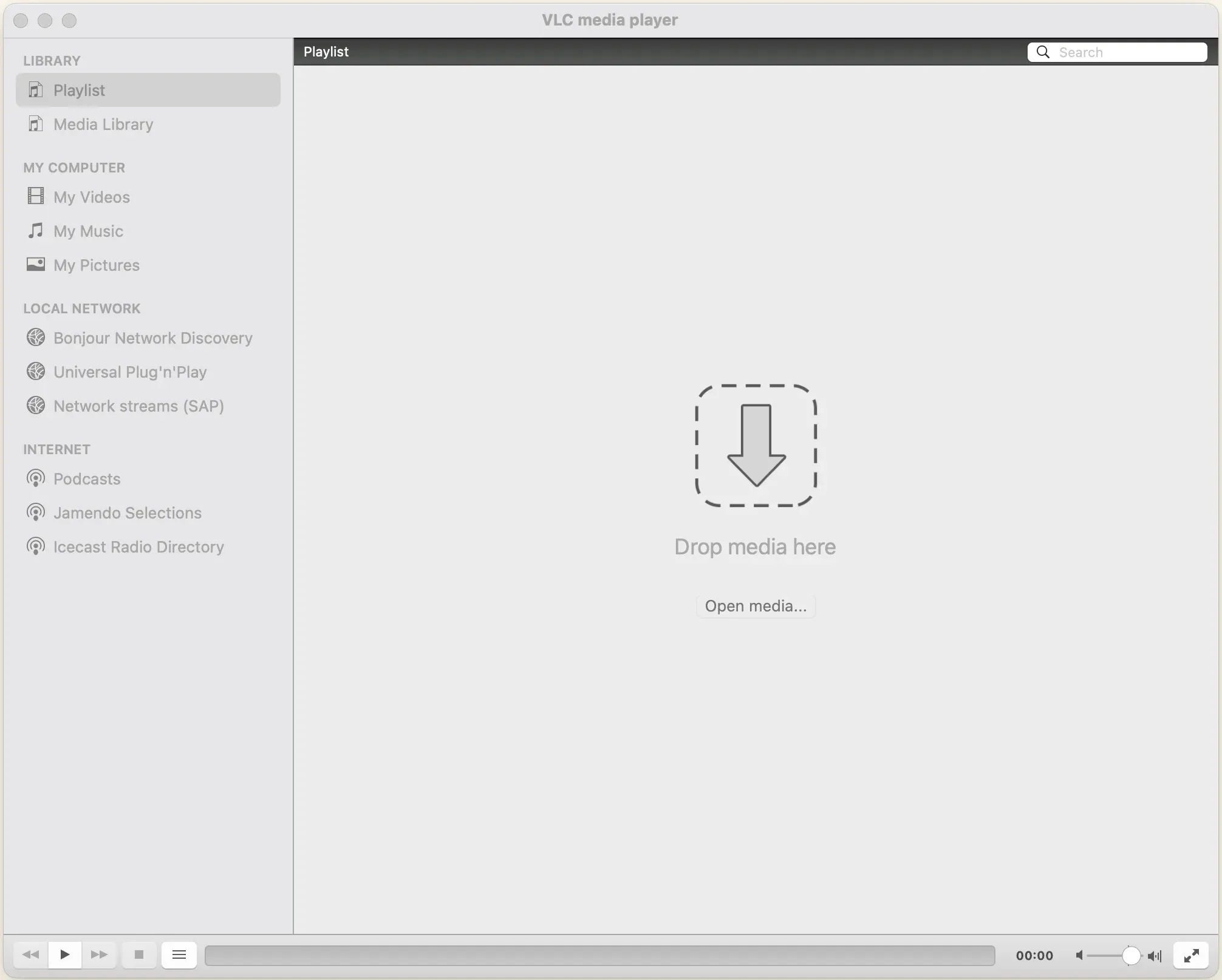
When combined, Chromecast VLC support allows you to play downloaded videos, music, or even network streams directly on your television. This makes it a handy alternative to streaming apps, especially if your media isn't available online.
Can VLC Cast to Chromecast
Yes, you can cast VLC to Chromecast, but with a few caveats. This feature was introduced in VLC 3.0, and it's still not as polished as native casting from other Chromecast-supported apps like YouTube or Netflix. VLC cast to Chromecast works best with common file types and stable Wi-Fi, but some high-bitrate or uncommon formats may stutter.
So, while the answer to "can you cast VLC to Chromecast" is a definite yes, don't be surprised if certain files need a workaround. That's why we'll also discuss tools like PigeonCast later in this guide.
How to Cast VLC to Chromecast
Casting VLC looks slightly different depending on your device, but the idea is the same: you connect your Chromecast to TV, then select your Chromecast inside the VLC player, and play your video. Below, we'll walk you through how to Chromcast VLC on Windows, Mac, Android, and iOS so you can stream smoothly no matter what device you use.
Cast VLC to Chromecast from Windows or Mac
It is easy to Chromecast VLC player on Windows or MacBook to TV:
Step 1. Make sure your Chromecast device and your computer are on the same Wi-Fi network.
Step 2. Open VLC media player on your computer.
Step 3. Go to Playback in the top menu bar and choose Renderer from the drop-down menu.
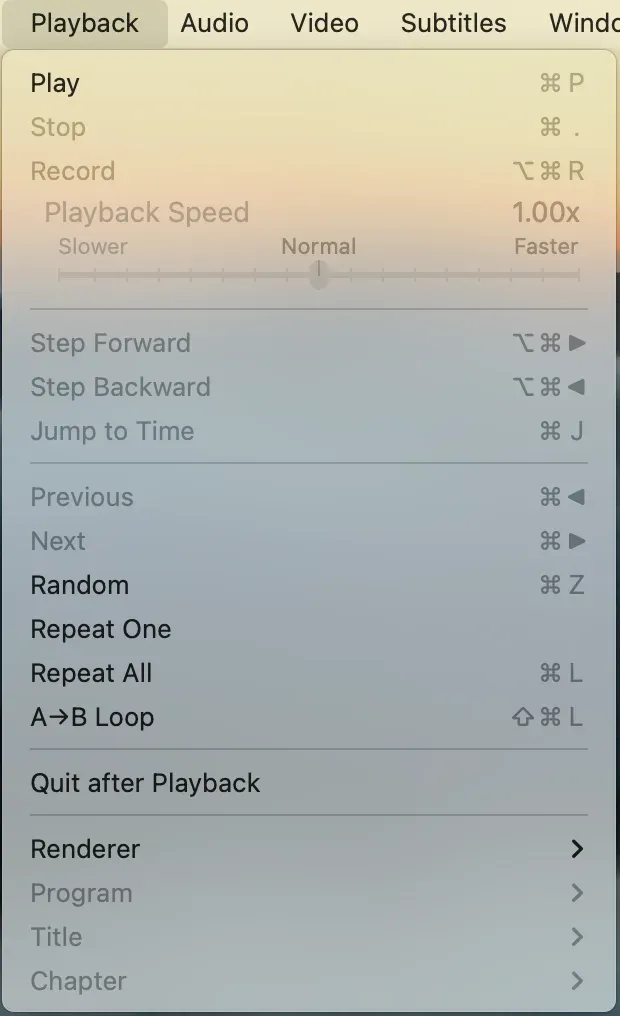
Step 4. Choose your Chromecast or smart TV from the list.
Step 5. Open your video file, and it should start streaming on your TV (if you see an Insecure prompt, click View certificate and Accept permanently.
There is an alternative way to stream VLC to TV or Chromecast on Windows PC:
Step 1. Play a video in the VLC player you want to cast to the TV.
Step 2. Right-click on the video, select Playback > Renderer, and choose your Chromecast device or TV.
The video should play immediately on your TV. You can click the buttons on your VLC player to control the video playback on your Chromecast-connected TV.
Cast VLC to Chromecast from Android or iPhone
How to cast from VLC to Chromecast if you're using an Android or iPhone? Yes, VLC is available on many platforms, from laptops to mobile phones. Start VLC cast to TV with the following steps:
Step 1. Connect your phone and Chromecast device to the same Wi-Fi.
Step 2. Open the VLC app on your phone and play a video.
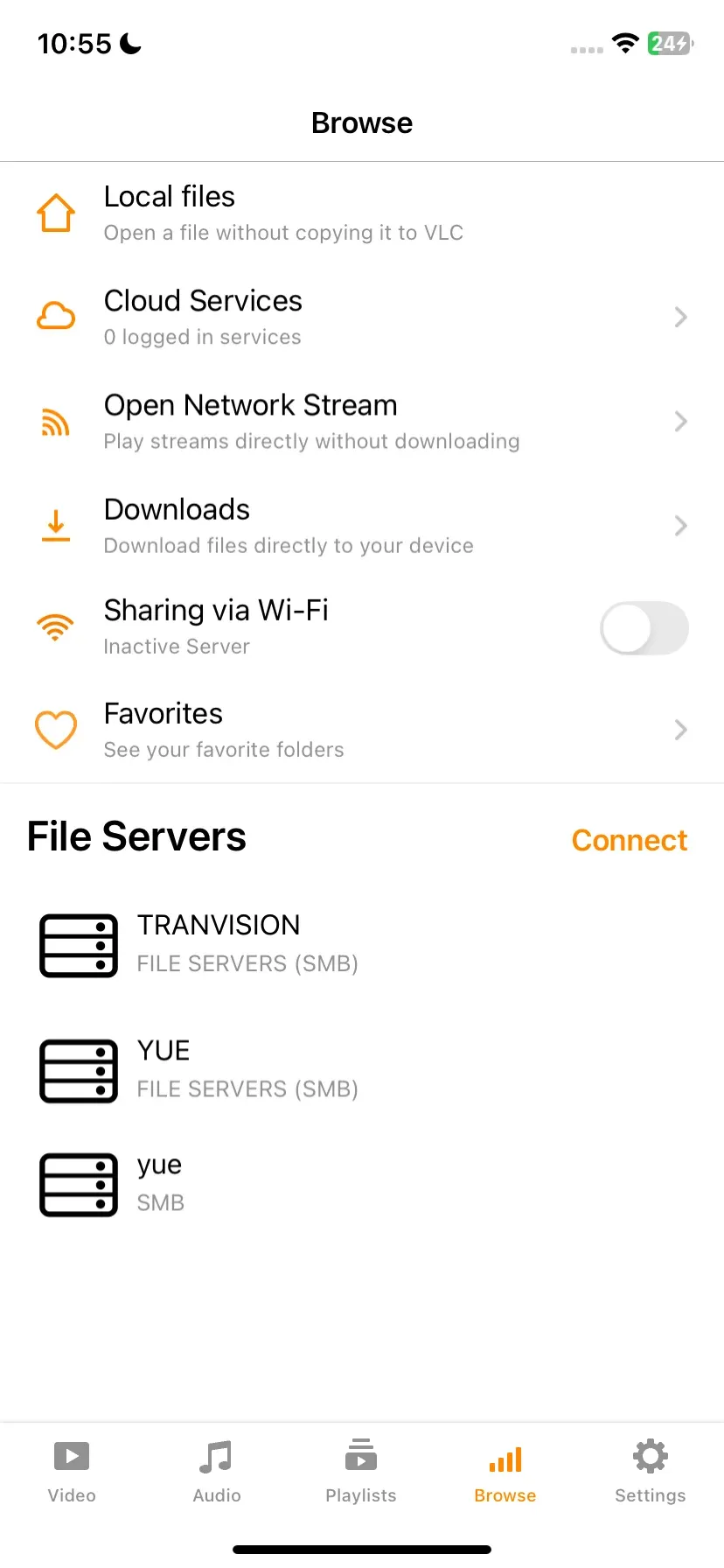
Step 3. Tap the Cast icon in the top-right corner and choose your Chromecast or smart TV from the available devices.
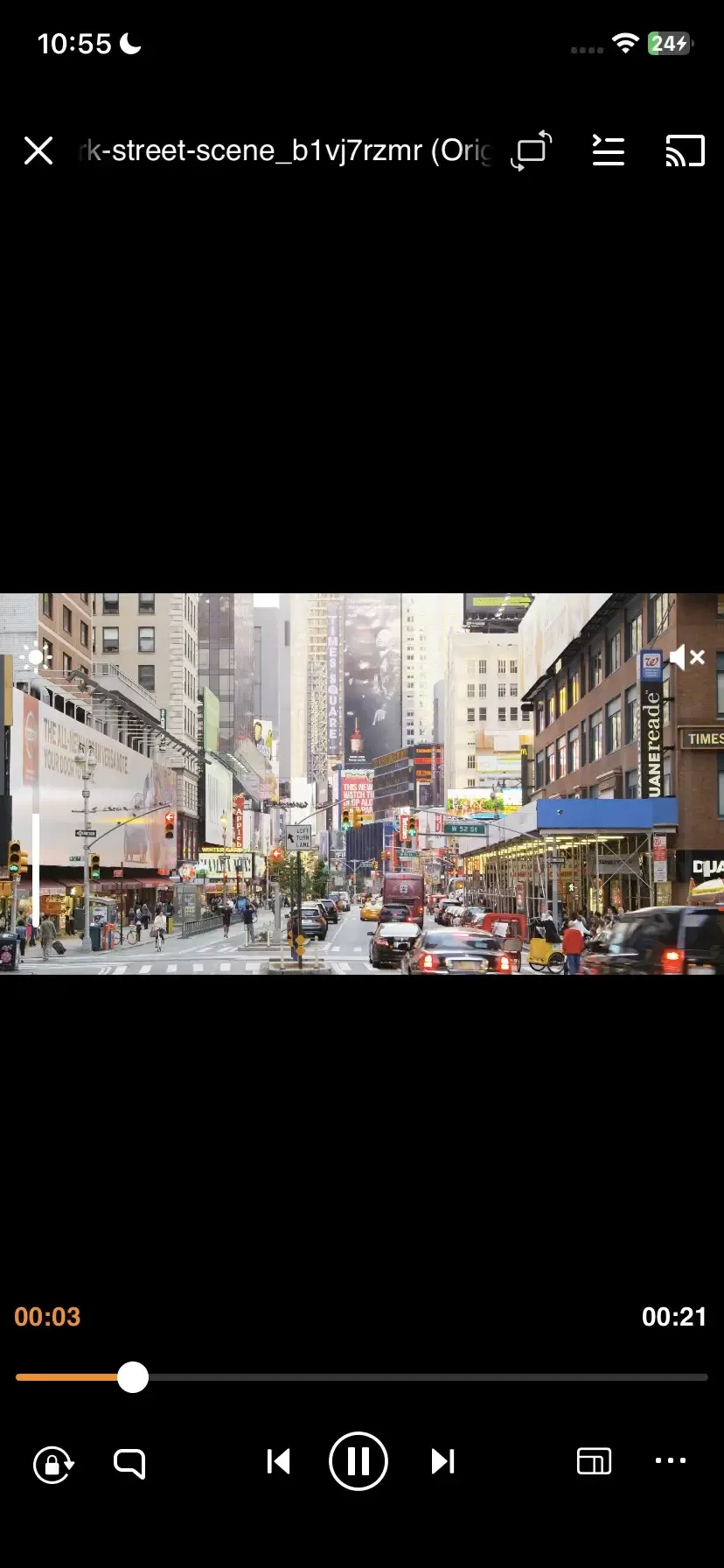
Step 4. Play a video via VLC, and it will appear on the selected device.
VLC Chromecast Not Working
Even though VLC supports casting to Chromecast, sometimes things go wrong. Below are common issues and practical fixes you can try.
- Chromecast not showing in VLC Renderer
- Double-check that your computer or phone and Chromecast are on the same Wi-Fi network.
- In VLC, under Playback -> Renderer -> Scan, trigger a new scan. Sometimes VLC needs a "nudge" to discover the device.
- If VLC hangs on scanning, try opening any multicast stream (e.g., udp://@224.0.0.X:5000, where X is between 100 and 199) temporarily to refresh the renderer list.
- Reset your VLC preferences or update your VLC or Chromecast firmware, then restart both devices.
- Turn off the firewall or VPN/proxy temporarily, which often blocks the connection.
- VLC media player Chromecast with black screen (no video)
- Make sure your network connectivity is stable, as poor Wi-Fi can cause video data to drop.
- In VLC's Preferences, switch the video output module (e.g., to OpenGL or DirectX) and disable hardware decoding if it's causing problems.
- As aforementioned, some formats or codecs aren't directly supported by Chromecast. Transcoding the file to a compatible format (like MP4/H.264) can resolve this.
- Inside VLC, go to Preferences > All Settings > Chromecast, disable Audio Passthrough to simplify the stream.
- Try a different media file to check if the issue is with that specific video.
- VLC Chromecast with Performance warning
When VLC has to transcode a file on the fly, you'll often see a performance warning like "Casting this video requires conversion…". Some users report that after clicking OK, nothing starts streaming.
If that happens, it's better to pre-convert the video file into a Chromecast-friendly format, such as MP4, H.264. Then, attempt the casting process again with the new file.
How to Cast VLC with PigeonCast
While VLC has built-in Chromecast support, it isn't always smooth. Sometimes devices don't show up, formats aren't supported, or playback stutters. This is where a third-party solution comes in. PigeonCast is an all-in-one casting tool that works with VLC media player and many other apps. Unlike the default VLC cast option, the third-party solution can mirror or stream any video file, regardless of format, to your TV.
How to start "VLC cast to smart TV without Chromecast"? For example, PigeonCast makes VLC casting from your laptop to your TV easy:
Step 1. Download and install PigeonCast on your Windows or Mac.

PigeonCast Screen Mirroring

Official Download



Tip: You can also install PigeonCast on your TV for a seamless connection and streaming experience.
Step 2. Make sure your Chromecast device, Android TV, or AirPlay-enabled TV and laptop are on the same Wi-Fi network.
Step 3. Open VLC media player on your laptop, then open PigeonCast and click Send my screen.
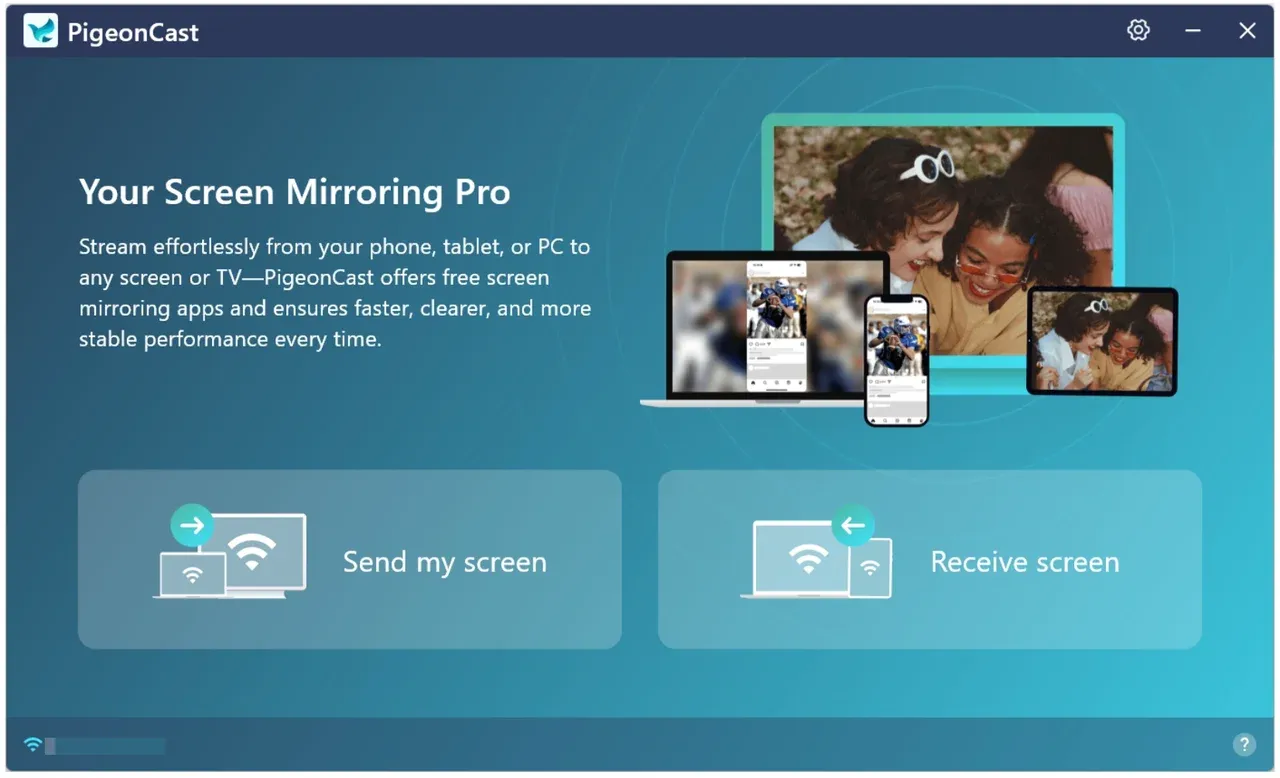
Step 4. Choose the device you want to cast VLC media player to.
Step 5. Once connected, switch to the Mirror app windows and choose VLC from the menu.
Step 6. Click Start mirror, and VLC will be displayed on the target device.
Step 7. Play a video inside VLC, and watch it on your large screen.
Final Thoughts
Casting your favorite videos from VLC to Chromecast is a game-changer, turning your laptop or phone into a powerful streaming hub. While the built-in feature isn't perfect, it works well for most common formats. And with tools like PigeonCast, you can overcome compatibility issues and even VLC cast to smart TV without Chromecast.
In short, whether you're on Windows, Mac, Android, or iOS, there's always a reliable way to make VLC media player Chromecast streaming work for you.
VLC Chromecast FAQs
Q: How to Chromecast VLC from a Mac?
Go to Playback > Renderer in VLC, then select your Chromecast device. If that fails, use AirPlay or PigeonCast.
Q: How do I stream VLC to TV without Chromecast?
You can use screen mirroring technologies like AirPlay or Miracast, or connect via HDMI. Third-party solutions, such as PigeonCast, can help you stream VLC across various devices.
Q: Can I use Windows Media Player with Chromecast?
Not directly. Unlike VLC, Windows Media Player does not support casting to Chromecast. You'll need a third-party app.
Q: What's the difference between Chromecast VLC and screen mirroring?
Casting sends the video file directly to your TV via Chromecast, while mirroring duplicates your entire screen. Casting is usually smoother and more efficient.
Q: Why is there no cast option in VLC?
If you don't see the cast option in VLC, it usually means your VLC version is outdated or your Chromecast device isn't detected on the same Wi-Fi network. Update to the latest VLC media player and ensure that both your computer and phone, as well as Chromecast, are connected to the same network. On the desktop, you can check under Playback > Renderer.
Q: Can VLC cast to Roku?
VLC does not have native support for Roku devices. However, you can still cast VLC to Roku by using third-party apps like PigeonCast or by casting from Windows or Android. This way, you can still enjoy VLC playback on a Roku TV, even without direct integration.
Q: Can VLC cast to Firestick?
VLC doesn't directly cast to Firestick via Chromecast protocol, but you can install the VLC app on Firestick itself from the Amazon Appstore. Alternatively, you can use PigeonCast or Firestick's built-in Miracast feature to mirror VLC videos from your phone or PC.
Mia Clarke is a technology editor specializing in screen mirroring and casting solutions across multiple platforms. Mia provides clear, practical guides and in-depth insights to help users seamlessly connect their devices. Passionate about enhancing digital experiences, Mia is dedicated to keeping readers updated on the latest trends and tools in cross-platform screen sharing. Whether you’re looking to mirror your smartphone, laptop, or smart TV, Mia’s content delivers reliable, user-friendly advice to simplify your tech setup.