
Netflix is packed with hit shows, movies, and even award-winning dramas, making it a must-have for entertainment lovers. But what if your TV doesn't support Netflix, or the app isn't working? Can you screen share Netflix then? Don't worry! You don't have to miss out. In this guide, we'll show you alternative ways to enjoy your favorite content with friends and family.
Can You Screen Share on Netflix
Yes, you can share Netflix on your TV, but there are some limitations. Because of copyright protection, Netflix blocks traditional screen sharing on most devices. This means that if you try to cast your screen on Zoom, Discord, or other video calls, you'll likely see a black screen. But don't worry, there are ways to enjoy Netflix together without breaking any streaming rules.
How Can You Screen Share Netflix on TV
While traditional screen sharing has limitations due to copyright protection, there are still ways to enjoy Netflix on your TV. Whether you want to watch alone on a bigger screen or share the experience with friends and family, using the right tools makes it simple and hassle-free. Let's explore how you can screen share Netflix on your TV.
Way 1. Use Netflix Party/Teleparty
Can you share your screen on Netflix? While direct screen sharing often runs into copyright restrictions, there's a great alternative that lets you watch together with friends safely. One of the easiest ways to do this is by using Netflix Party, now called Teleparty, which syncs playback and adds group chat so everyone can enjoy the show at the same time.
Note: Everyone must have an active Netflix account to join.
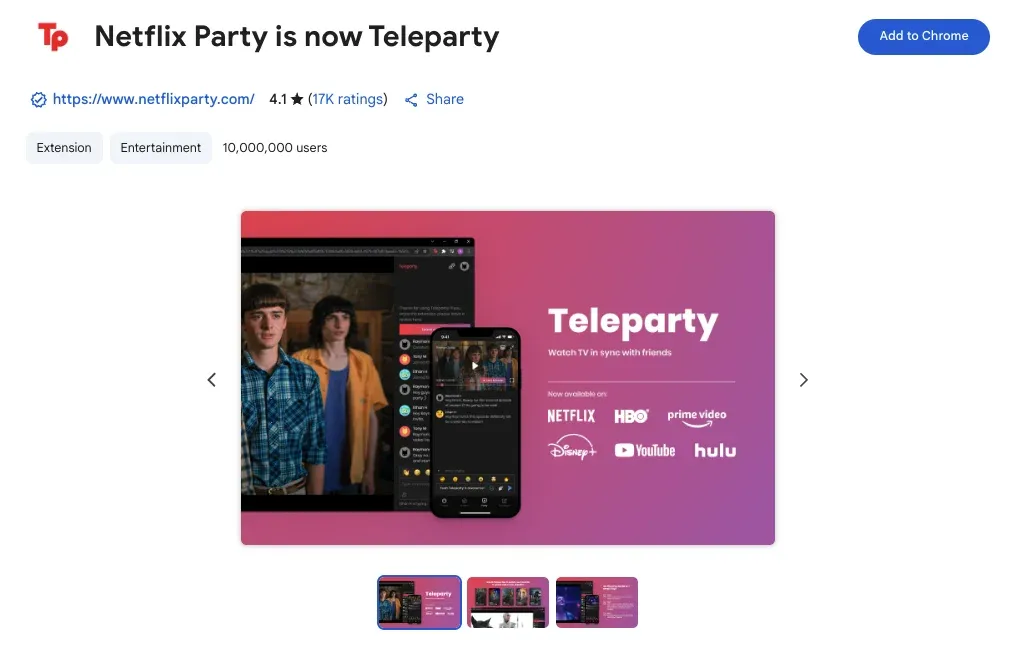
Step 1. Go to the Teleparty website and add the extension to Google Chrome or Microsoft Edge.
Step 2. Launch Netflix in your browser and play the show or movie you want to watch.
Step 3. Click the TP icon in the browser toolbar, then click Start the Party to create the watch party room.
Step 4. Copy the party URL and send it to friends or family.
Step 5. Participants click the link and join the synchronized viewing session.
Step 6. You can use the chat sidebar to message in real time as the video plays.
Way 2. Use a Streaming Device
Can you share screen Netflix? If you want a simple and reliable way to watch Netflix on your TV, using a streaming device is a great option. Devices like Chromecast, Roku, or Amazon Fire TV let you cast or mirror Netflix directly from your phone or tablet, giving you a bigger screen without worrying about screen sharing restrictions. Here we take Chromecast as an example:
Step 1. Plug your Chromecast into the TV's HDMI port and connect it to the same Wi-Fi network as your device.
Step 2. Launch the Netflix app or website on your phone or computer.

Step 3. Look for the Cast icon, which is usually in the top-right corner of the Netflix app.
Step 4. Choose your Chromecast or streaming device from the list.
Step 5. If prompted, enter the onscreen code to confirm the connection.
Step 6. Once you connect successfully, you can see the content playing on your TV from your mobile device or computer.
Way 3. Use a Universal Screen Mirroring App - PigeonCast
For a flexible and convenient way to share your phone or tablet screen, a universal mirroring app like PigeonCast is a great choice. It works across multiple devices and platforms, making it easy to cast movies, shows, or presentations to your TV without worrying about compatibility issues. With this software, you get smooth playback, simple setup, and the freedom to enjoy content on the big screen anytime.
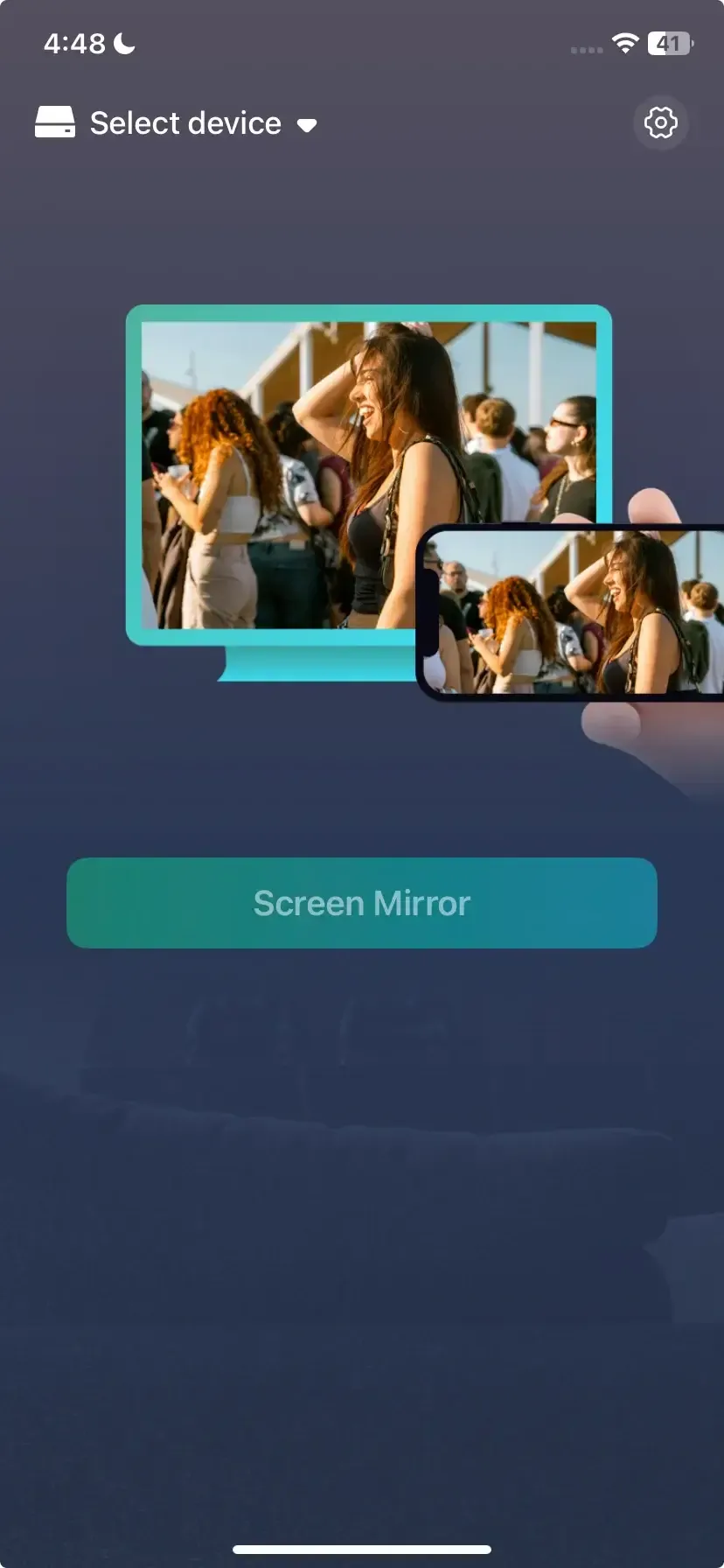

PigeonCast Screen Mirroring

Official Download



Step 1. Install the free screen mirroring app on your mobile device.
Step 2. Ensure your phone/tablet and TV are on the same Wi-Fi network.
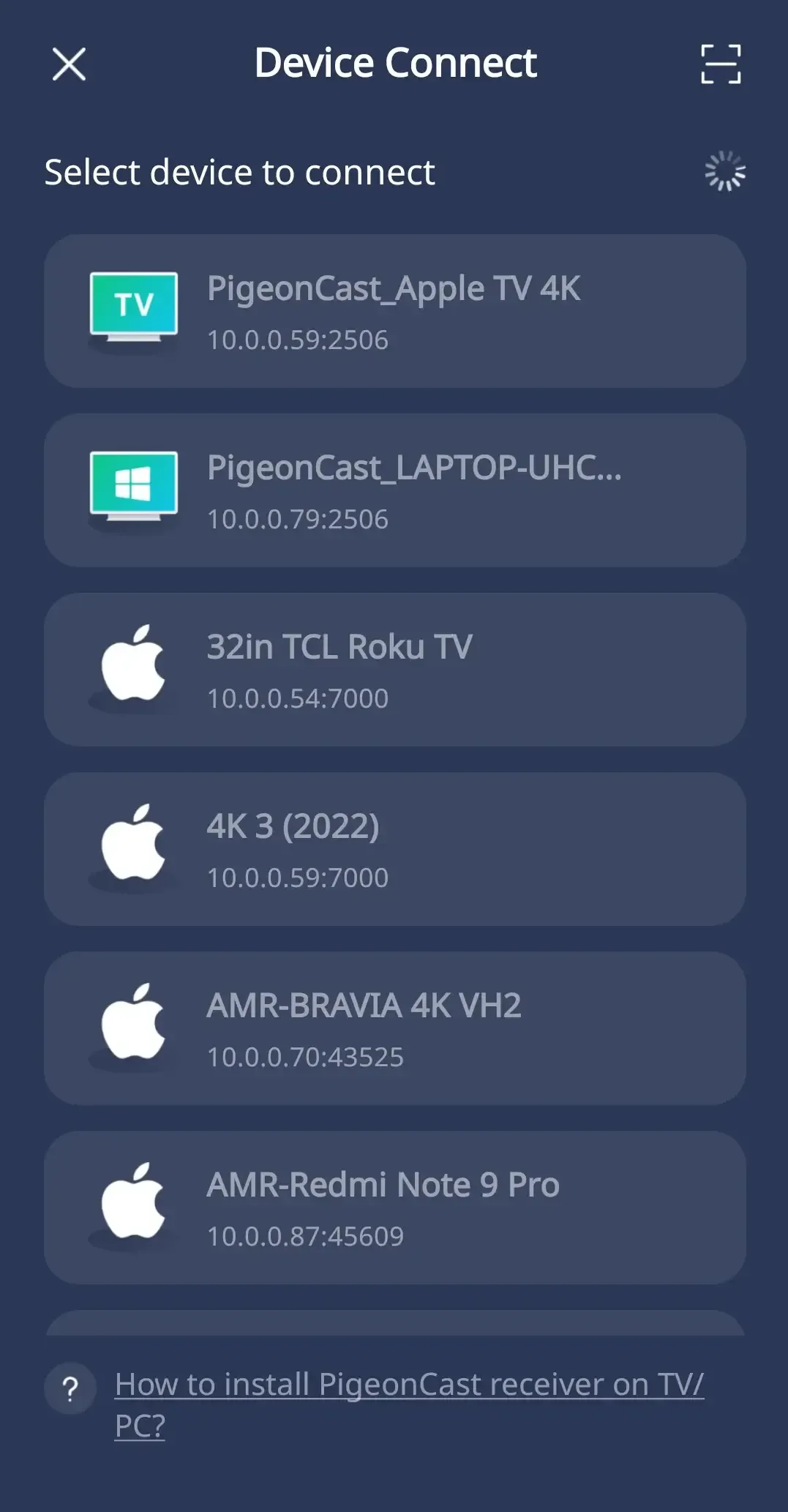
Step 3. Launch the mirroring app and select your target TV or streaming device.
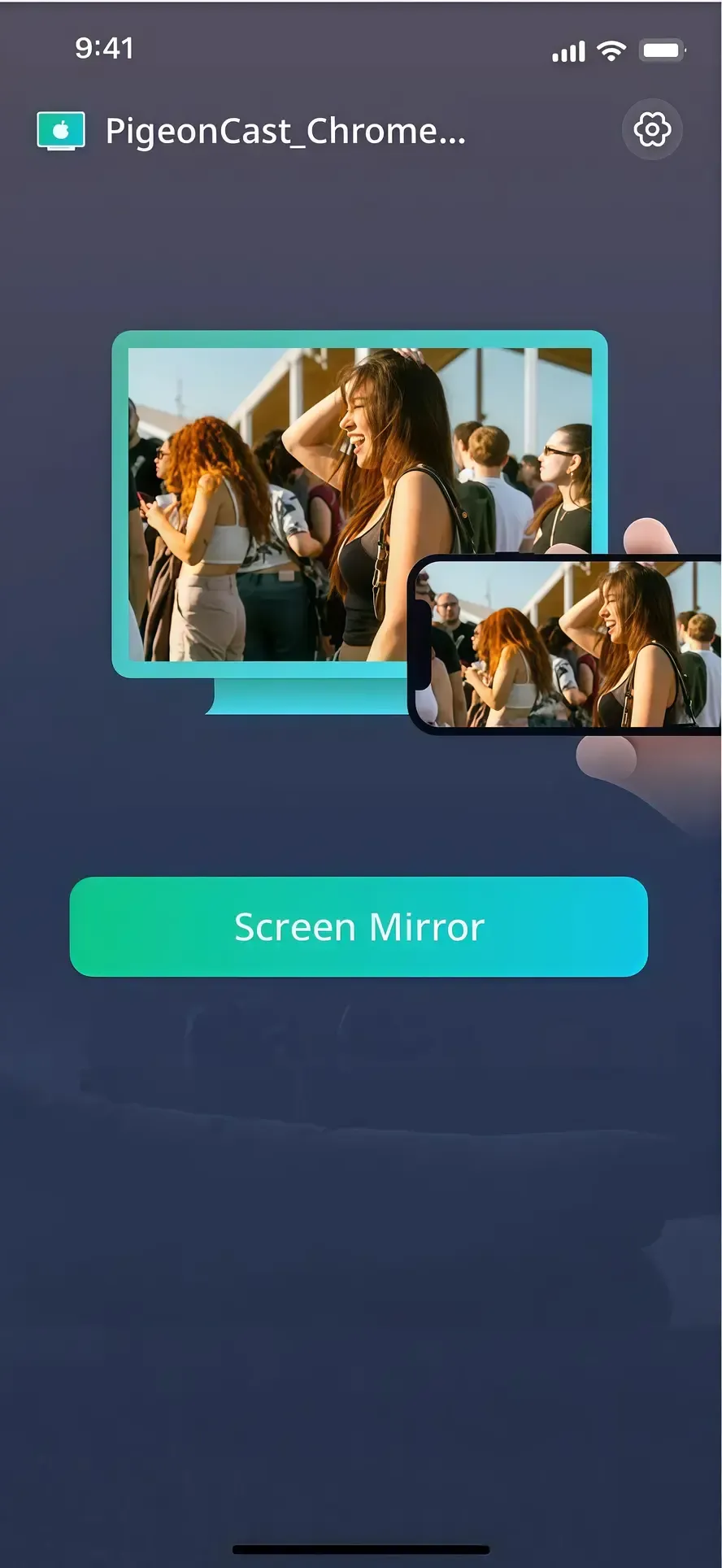
Step 4. Enter the onscreen code to finish the pairing performance and tap the Screen Mirror option.
Step 5. When you succeed, your screen will show the same content, and then you can enjoy the content with your friends or partner together on a bigger screen.
Which Method Works Best?
Now that you know the answer to "Can you screen share and watch Netflix?", it's time to weigh the pros and cons. Understanding the advantages and limitations of each method will help you choose the one that works best for your setup and viewing preferences.
| Method | How It Works | Pros | Cons |
|---|---|---|---|
| Teleparty | A browser extension that syncs playback and adds chat | Works remotely, includes chat, synchronized playback | Everyone needs a Netflix account, browser only |
| Streaming Devices | Cast content from phone or computer to TV | High-quality video, easy to set up, no internet lag for the local network | Only works in the same room, requires a device |
| PigeonCast | Cast web videos, local media, and apps to TV | Works with various media types, compatible with many devices, and free to use | Cannot cast Netflix directly due to DRM restrictions |
Bottom Line
Can you screen share with Netflix? Netflix's DRM protection prevents standard screen sharing on most platforms. However, there are several ways to enjoy Netflix with friends and family, whether you're in the same room or far apart. Tools like Teleparty, streaming devices like Chromecast or Roku, and apps like PigeonCast make it easy to share the experience and watch together.
Can You Screen Share Netflix FAQ
Q: Does Netflix allow screen sharing on FaceTime?
No, Netflix does not support screen sharing on FaceTime. If you try to share your screen while playing Netflix, the video will usually appear black due to DRM protection. To watch Netflix together, you can use alternatives like Teleparty for synced playback, or stream to a shared TV using devices like Chromecast or Roku, or third-party software like PigeonCast.
Q: Has Netflix blocked screen sharing?
Yes, Netflix has implemented measures to block screen sharing to protect its content from unauthorized distribution. This is achieved through Digital Rights Management (DRM) technologies, such as Widevine, which prevent screen sharing tools from displaying Netflix content.
Q: Why can't I cast Netflix?
You might not be able to cast Netflix due to Digital Rights Management (DRM) restrictions. DRM protects copyrighted content, which prevents some devices or apps from displaying Netflix videos when using screen sharing or unsupported casting methods. Other common reasons include:
- Device incompatibility
- Outdated apps or firmware
- Network issues
- App restrictions
Clara Rossi is an experienced technology editor and a seasoned expert in screen mirroring and casting technologies. With a keen eye for detail and a deep understanding of how to seamlessly connect devices, Clara excels at optimizing user experiences for effortless sharing and streaming. Whether you're seeking quick fixes or advanced tips, her expertise and responsiveness ensure that every query is met with a well-informed and efficient solution.