
Ever wished you could show someone exactly what's on your Android phone screen? Whether it's for a video call, online class, or helping a friend with an app issue, you can initiate screen sharing on your Android device. How to screen share on Android? While it sounds technical, screen sharing on Android is easier than you think. In this guide, I'll walk you through different ways to share your screen.
What's Screen Sharing on Android
While you're sharing your Android screen, everything you see on the screen is being broadcast to another device in real time. This could be a smart TV, a laptop, another phone, or even a remote contact on a video call.
Instead of sending screenshots or explaining things verbally, screen sharing lets the other person see exactly what's happening on your screen. In short, screen sharing turns your Android into a live visual presenter, making it easier to demonstrate, explain, teach, or troubleshoot.
Depending on the method or app you choose, screen sharing can be local or remote. Local means casting Android to a device under the same Wi-Fi network, like a computer or TV; remote means sharing your Android screen in a Zoom meeting.
Method 1. Share Android Screen via Cast Option
Many Android phones offer a built-in Cast or Smart View option powered by Miracast or Google Cast protocol to wirelessly mirror Android to smart TVs. While useful, this method doesn't work for casting to Apple TV, sharing to laptops, or video conferencing.
If your purpose is to share your phone with a TV for big-screen watching, the built-in option may help you. Here's how to screen share on Android to TV:
Step 1. Ensure your Android and TV are on the same Wi-Fi network and keep the TV powered on.
Step 2. Swipe down your Android screen to access the Quick Settings.
Step 3. From the Quick Settings menu, tap the option, like Cast, Smart View, or Wireless Display.
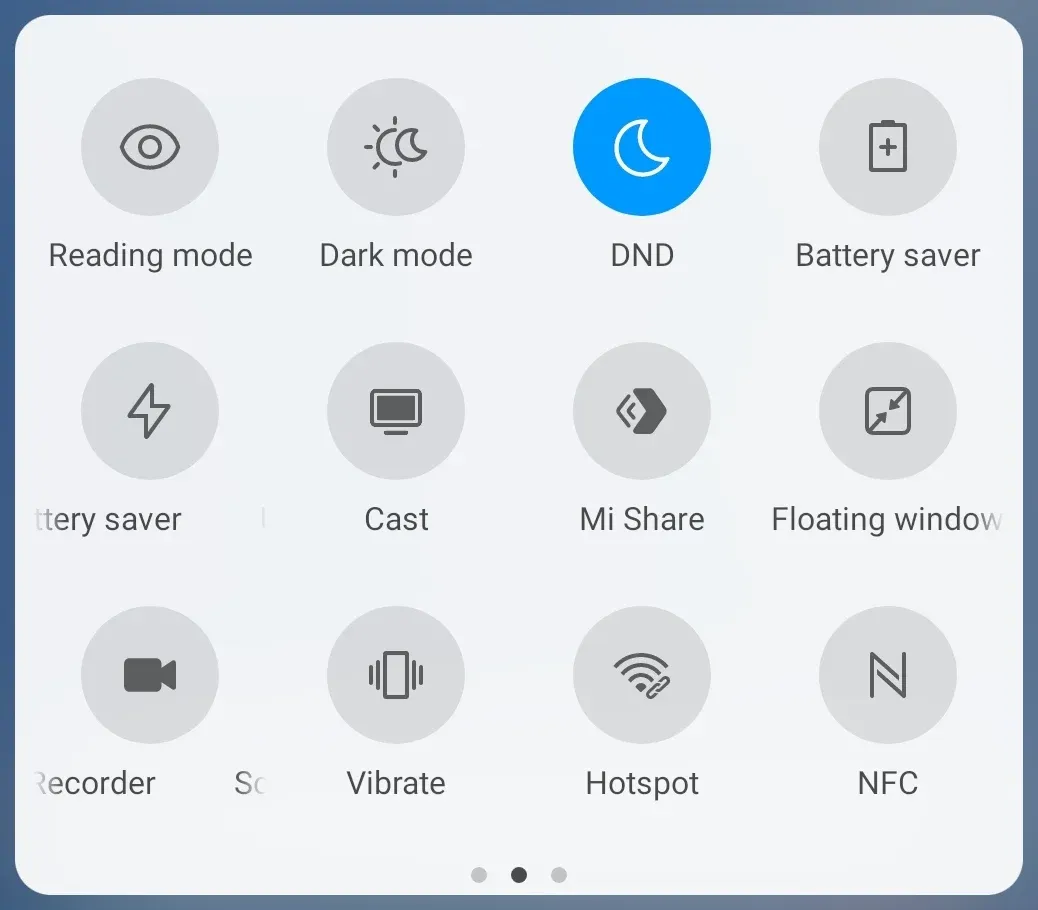
Step 4. Your Android will detect and list nearby devices on the same network. Choose your TV from the list.
Step 5. Once connected, your screen will appear on the TV. You can view content on the big screen.
Method 2. Share Android Screen via PigeonCast App
The Cast option is useful but limited, unable to cast Android to a laptop. The PigeonCast for Android app comes to your aid when you need to connect your phone screen to a computer or TV.
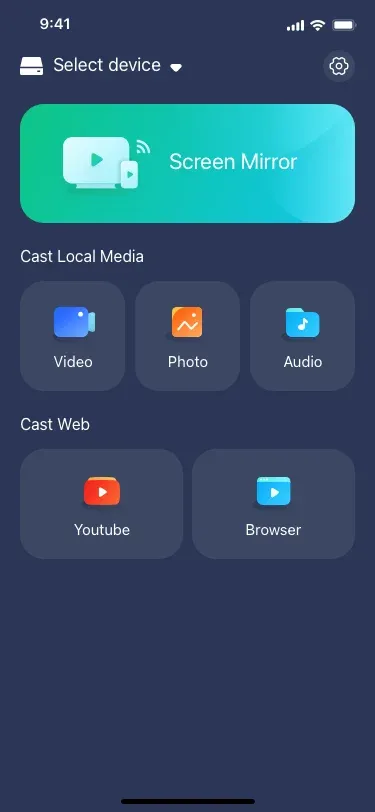
The free three-party screen mirroring app turns your Android into a universal sender, making it easy to share your Android screen with another device, like a MacBook or Apple TV. This is due to the app modifies the fact that Android doesn't have AirPlay.
How to share screen on Android via the PigeonCast app? Easy screen sharing:

PigeonCast Screen Mirroring

Official Download


Step 1. Download and install the app on your Android device, like a phone or tablet.
Step 2. The app requires that your Android and laptop or TV are connected to the same Wi-Fi network. So, check the network connection on the both devices.
Step 3. Launch the screen mirroring app on your Android and tap Select device.
Step 4. Choose your laptop or TV from the device list.
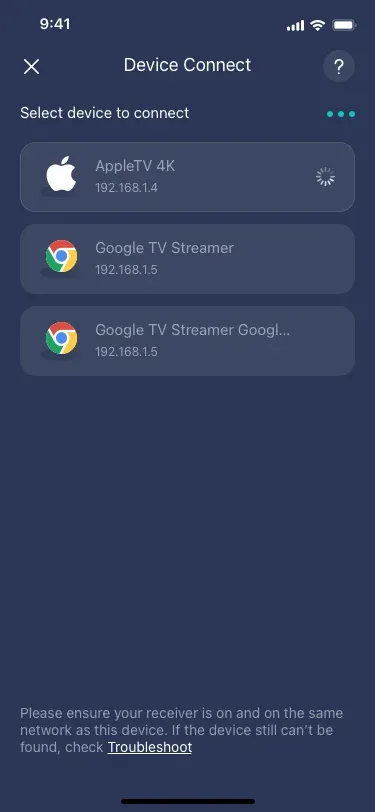
Step 5. Enter the PIN code displayed on the target device and tap OK if asked.
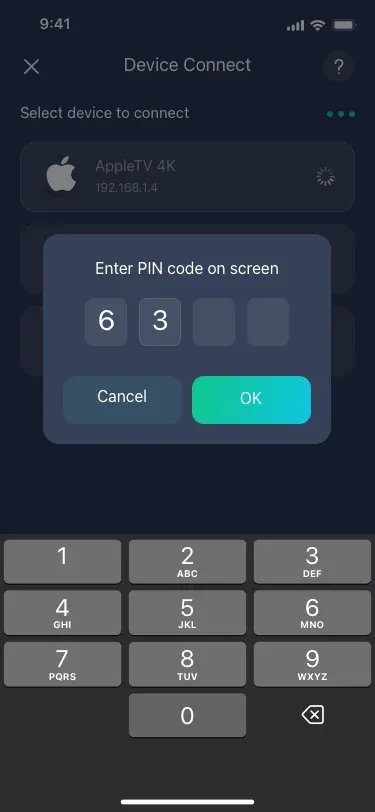
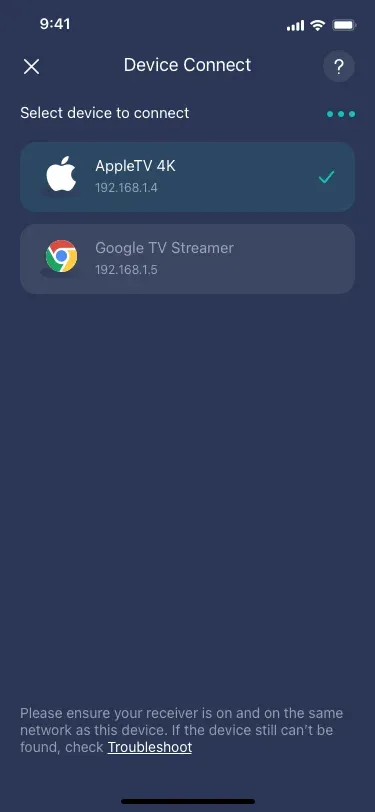
Step 6. Wait for the devices to be connected. When the connection is set up, a check mark will appear.
Step 7. Go back to the main interface and tap the Screen Mirror feature to start Android screen sharing.
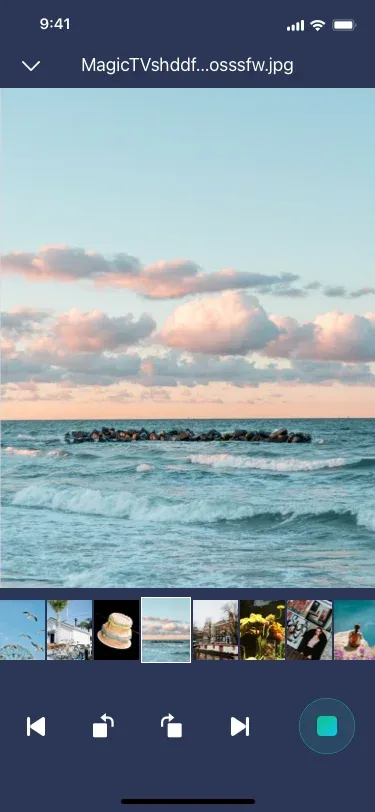
As you see, compared to the built-in cast option on Android, the free third-party option provides you with more flexibility to share your Android screen. Set the app and start Android screen mirroring or sharing effortlessly.
Method 3. Share Android Screen via Zoom
How to share your Android screen during an online meeting? Zoom lets you share your Android screen directly during meetings. According to Zoom Support, screen sharing on Zoom meetings is designed with a collaborative environment in mind, great for presentations and walkthroughs.
However, what you see on your Android might not be exactly what others see when you're screen sharing. Zoom's menus or displays may crop or block part of the shared screen.
Follow the guide on how to screen share on an Android via Zoom to get started:
Step 1. Download and install the Zoom Cloud Meetings app from the Google Play Store.
Step 2. Open the Zoom app on your Android and tap the Join a Meeting button.
Step 3. Tap the Share Content button at the bottom of the app interface.
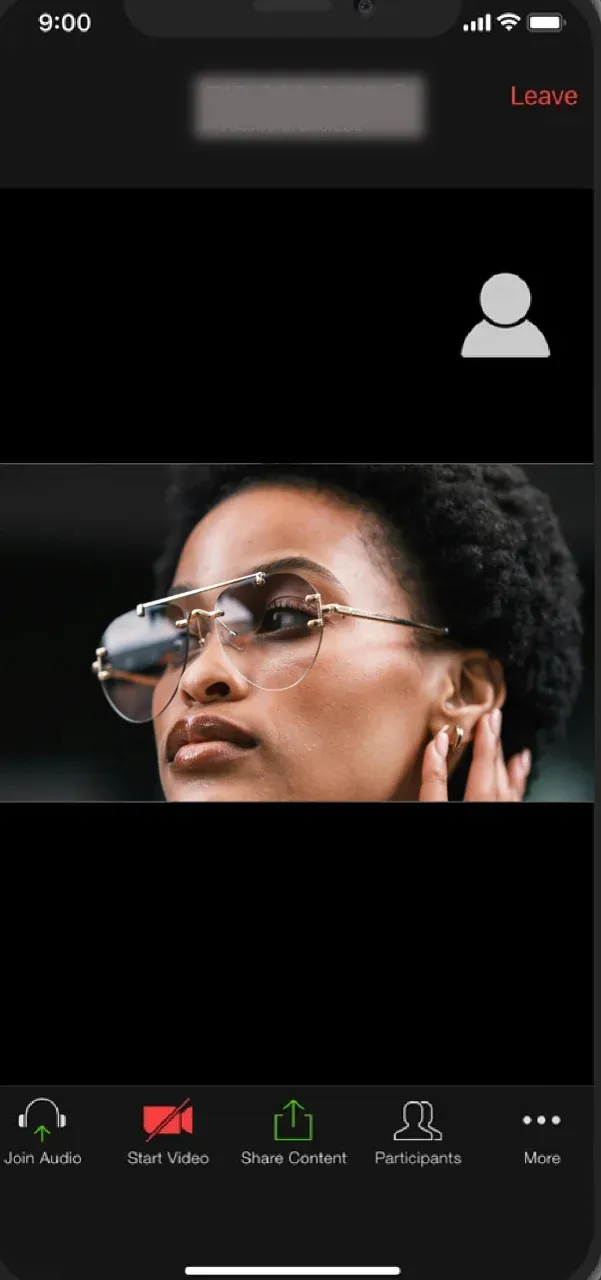
Step 4. From the pop-up menu, choose the Screen option. There are other options available, such as Photos, iCloud Drive, Box, Google Drive, etc.
Step 5. A menu on your Android will appear to indicate where you'll share your screen. Tap the Zoom option, then the Start Broadcast option.
Step 6. Wait for the brief breakdown to finish. A message will let you know you are successfully sharing your screen with everyone in the meeting.
Method 4. Share Android Screen via Google Meet
If you are using Google Meet for remote meetings or online classes, screen sharing on Android is just a tap away. Whether you want to present a sideshow, walk someone through an app, or play a video, Google Meet makes it easy to share your entire Android screen in real time.
If you have Google Meet installed on your Android, check the tutorial on how to screen share on Android:
Step 1. Open the Google Meet app on your Android device.
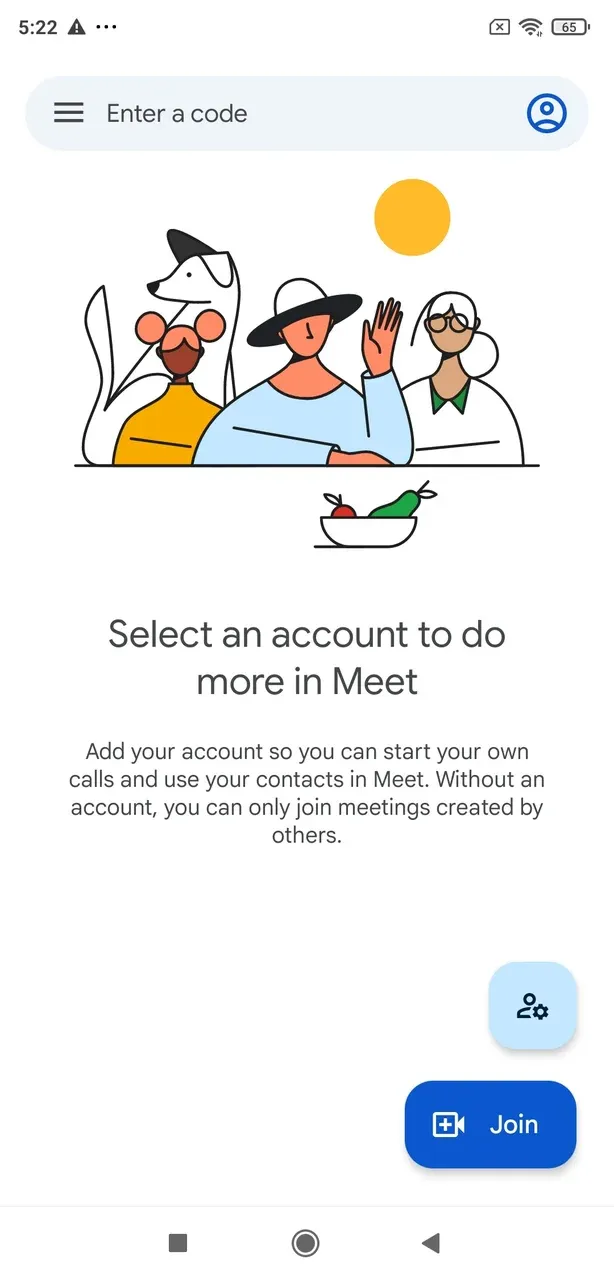
Step 2. Join a meeting or start a new meeting, and tap the three-dot menu in the bottom-right corner.
Step 3. Tap the Share Screen option from the menu, then click Start Sharing. Your Android screen will now be visible to all participants.
Step 4. To end Android screen sharing, click the Stop sharing button.
Method 5. Share Android Screen via Microsoft Teams
Microsoft Teams is a go-to platform for business meetings and team collaboration, and yes, it also supports screen sharing right from your Android device. Whether you're presenting a document, demonstrating an app, or guiding a teammate through a process, Teams lets you share your Android screen with just a few taps.
Here's how to do screenshare on Android quickly and smoothly during your next meeting.
Step 1. Open the Microsoft Teams app on your Android phone or tablet.
Step 2. Start or join a meeting via Teams.
Step 3. Tap the ellipsis icon, then choose Share > Share Screen.
Step 4. On the new pop-up window, choose Microsoft Teams. Microsoft Teams will start sharing your Android screen with other participants.
Method 6. Share Android Screen via Remote Access Apps
When it comes to sharing your Android screen remotely, especially for tech support or remote presentations, remote access apps like TeamViewer or AnyDesk allow someone else to view your Android screen from anywhere in the world. However, this method works when the app is installed on both devices.
So, to set up screenshare on Android, you can take advantage of one of such apps. Here I use AnyDesk as an example and offer a how-to guide.
Step 1. Open the app on your Android and get your AnyDesk address.
Step 2. Inform the viewers to open the app on their devices and enter that address.
Step 3. Your Android will receive a connection request, and tap the Accept option.
Step 4. Grant screen sharing permissions and tap Start Now.
Final Words
Screen mirroring on Android has come a long way. It's no longer just for tech-savvy users or corporate professionals. Whether you want to walk a family member through an app, deliver a presentation, tech remotely, or enjoy your phone's content on a bigger screen, this guide offers a variety of methods to help you do just that.
From the built-in Cast feature to reliable apps like PigeonCast, and collaboration platforms such as Zoom, Google Meet, and Microsoft Teams, you can find the best method for screen sharing on Android.
How to Screen Share on Android FAQ
Where is share on Android phone?
The Share button on an Android phone typically appears as a three-dot connected icon or the word "Share" and is found within most apps, like Photos, Files, and Messages. Tapping it brings up sharing options, such as Bluetooth, email, messaging apps, and social media.
However, for screen sharing or mirroring, you won't find a general "Share" button in Settings. Instead, you'll need to access the Quick Settings panel and look for features labeled Cast, Smart View, or use apps like PigeonCast that include screen sharing as a built-in function.
How do you share your screen on Android?
Sharing your screen on Android depends on what device or platform you're connecting to. For smart TVs, you can use the built-in Cast feature (available in the Quick Settings panel). For meetings or remote access, apps like Zoom, Google Meet, Microsoft Teams, or AnyDesk allow screen sharing directly within their interface.
If you're looking for a more flexible solution, third-party apps like PigeonCast let you mirror your Android screen to almost any device on the same Wi-Fi network, including laptops and Apple TVs. Each method typically requires just a few taps: select the target device, confirm permissions, and you're sharing.
How do I mirror my Android to my smart TV?
To mirror your Android to a smart TV, first ensure both your phone and TV are connected to the same Wi-Fi network. Then swipe down to access your Android's Quick Settings and tap the Cast, Smart View, or Screen Mirroring option (the name may vary by phone brand). Your phone will search for nearby compatible devices—select your smart TV from the list. Once connected, your Android screen will appear on the TV. If your TV doesn’t support casting natively, using a device like Chromecast or installing a mirroring app like PigeonCast on both devices can help you achieve the same result.
Mia Clarke is a technology editor specializing in screen mirroring and casting solutions across multiple platforms. Mia provides clear, practical guides and in-depth insights to help users seamlessly connect their devices. Passionate about enhancing digital experiences, Mia is dedicated to keeping readers updated on the latest trends and tools in cross-platform screen sharing. Whether you’re looking to mirror your smartphone, laptop, or smart TV, Mia’s content delivers reliable, user-friendly advice to simplify your tech setup.