
Watching your favorite shows or streaming apps while traveling can be tricky, especially on hotel TVs. Unlike your home setup, hotel TVs often have restrictions like locked HDMI ports, proprietary apps, or network limitations. Fortunately, there are several ways to cast to hotel TV, whether you're using Apple AirPlay, Chromecast, Miracast, or a simple cable connection.
How to Cast to Hotel TV
With hotel TV casting, you can bring your streaming experience from home right to your hotel room. Instead of struggling with unfamiliar remotes or limited channel options, you can easily cast movies, shows, or presentations from your own device. Let's explore how to cast to a hotel TV and make your stay more connected and enjoyable.
Hotel Casting with the Built-in Mirroring Feature
Casting to a hotel TV with a built-in mirroring feature like Cast to TV or Screen Share is a convenient way to enjoy your personal content while traveling. However, many hotel TVs require additional authentication via a PIN code or QR code to establish a connection for security reasons.
Step 1. Connect your device to the Hotel Wi-Fi Network.
Step 2. Open the hotel TV and find the casting menu.
Step 3. Follow the onscreen instructions to enter the PIN code or QR code to finish the pairing.
Hotel Casting with PigeonCast
Plus, you can make casting for hotels even easier by using PigeonCast. This versatile and free app supports multiple operating systems, including iOS, Android, and Windows, and works seamlessly with AirPlay, DLNA, and Google Cast. It also prioritizes security, ensuring that your personal data and streaming content stay private while using public or shared hotel networks.


PigeonCast Screen Mirroring

Official Download



Step 1. Install the PigeonCast on your mobile device.
Step 2. Ensure your mobile device is covered by the same wireless network with your hotel TV.
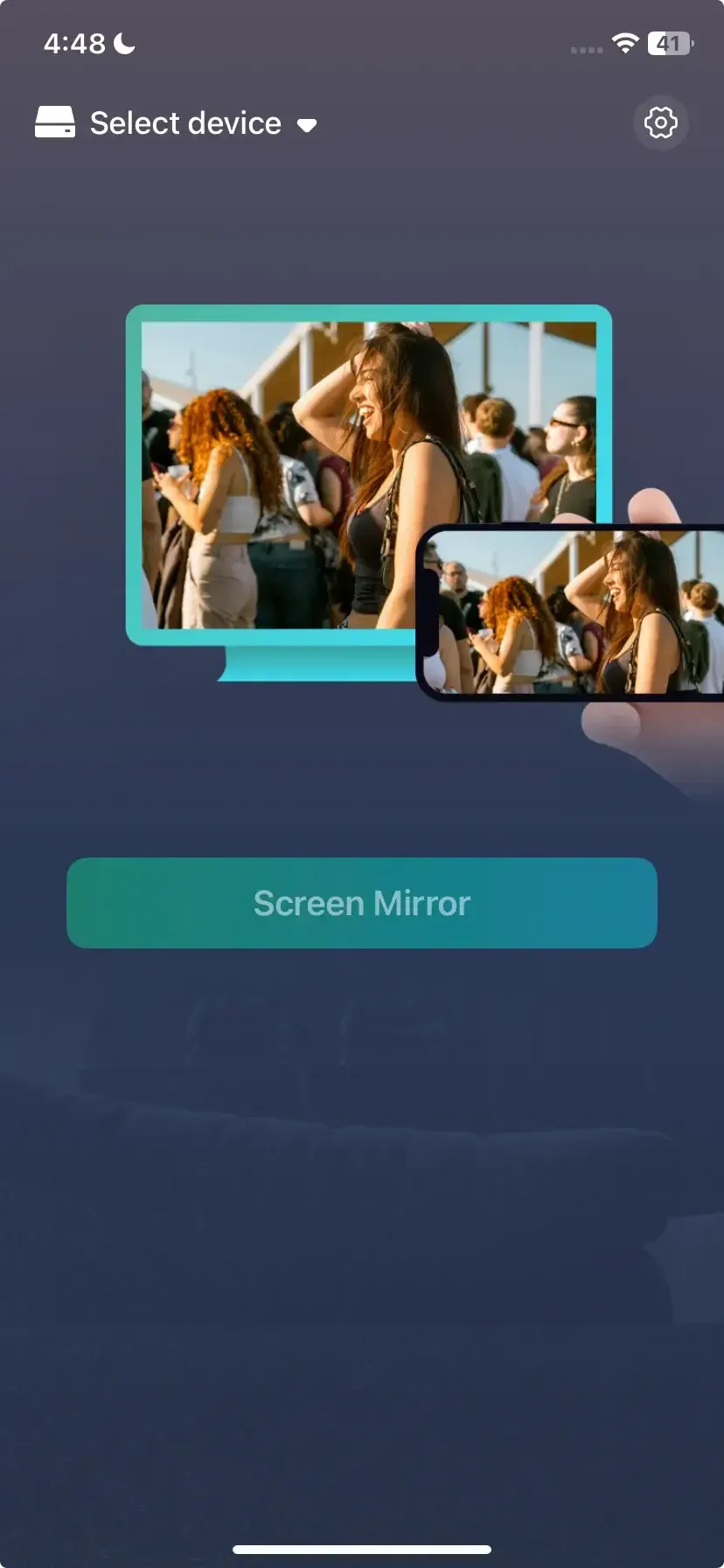
Step 3. Launch the app and tap Select device to choose your hotel TV from the available list.
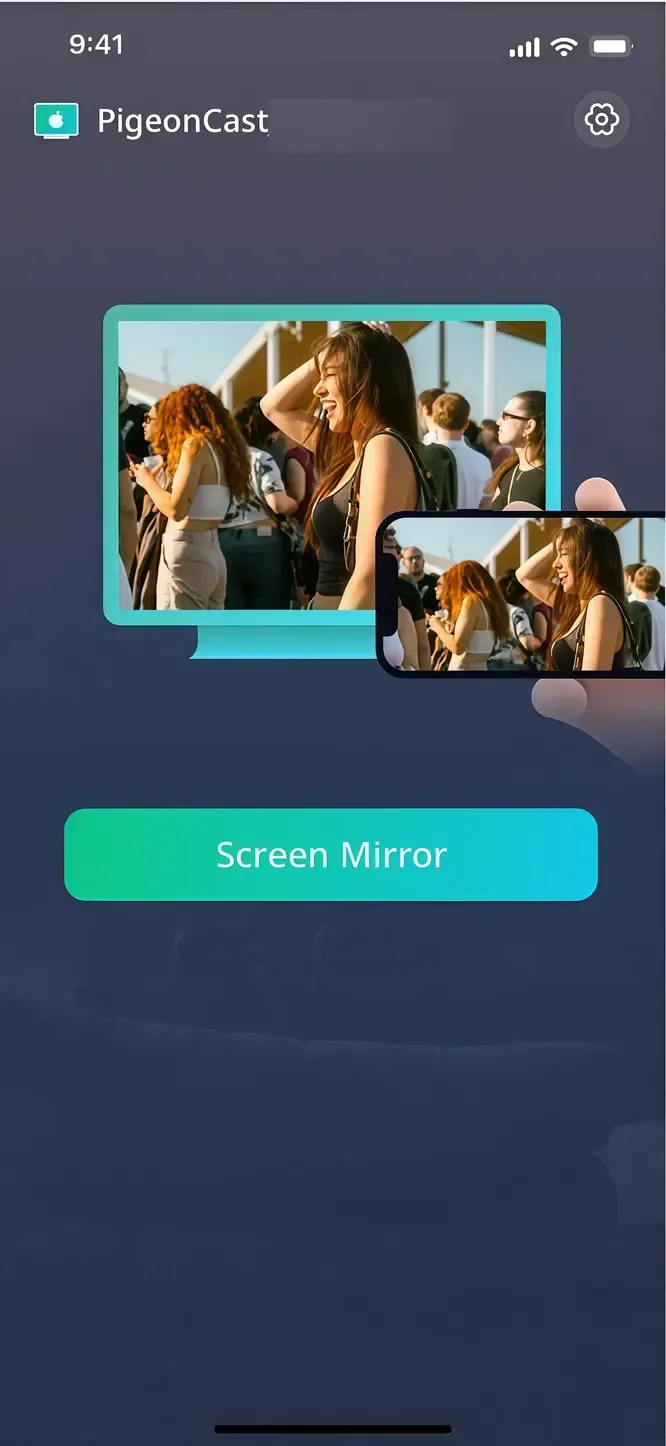
Step 4. Enter the onscreen PIN code to finish the connection and tap Screen Mirror to start your mirroring activities on the TV.
Hotel Casting with AirPlay
For Apple users, AirPlay offers one of the simplest ways to enjoy hotel TV casting. With AirPlay, you can wirelessly mirror your iPhone, iPad, or Mac screen to compatible TVs or Apple TV devices, making it easy to stream your favorite shows, photos, or presentations right from your own device.
Step 1. Ensure your iPhone or iPad and the hotel TV are connected to the same Wi-Fi network.
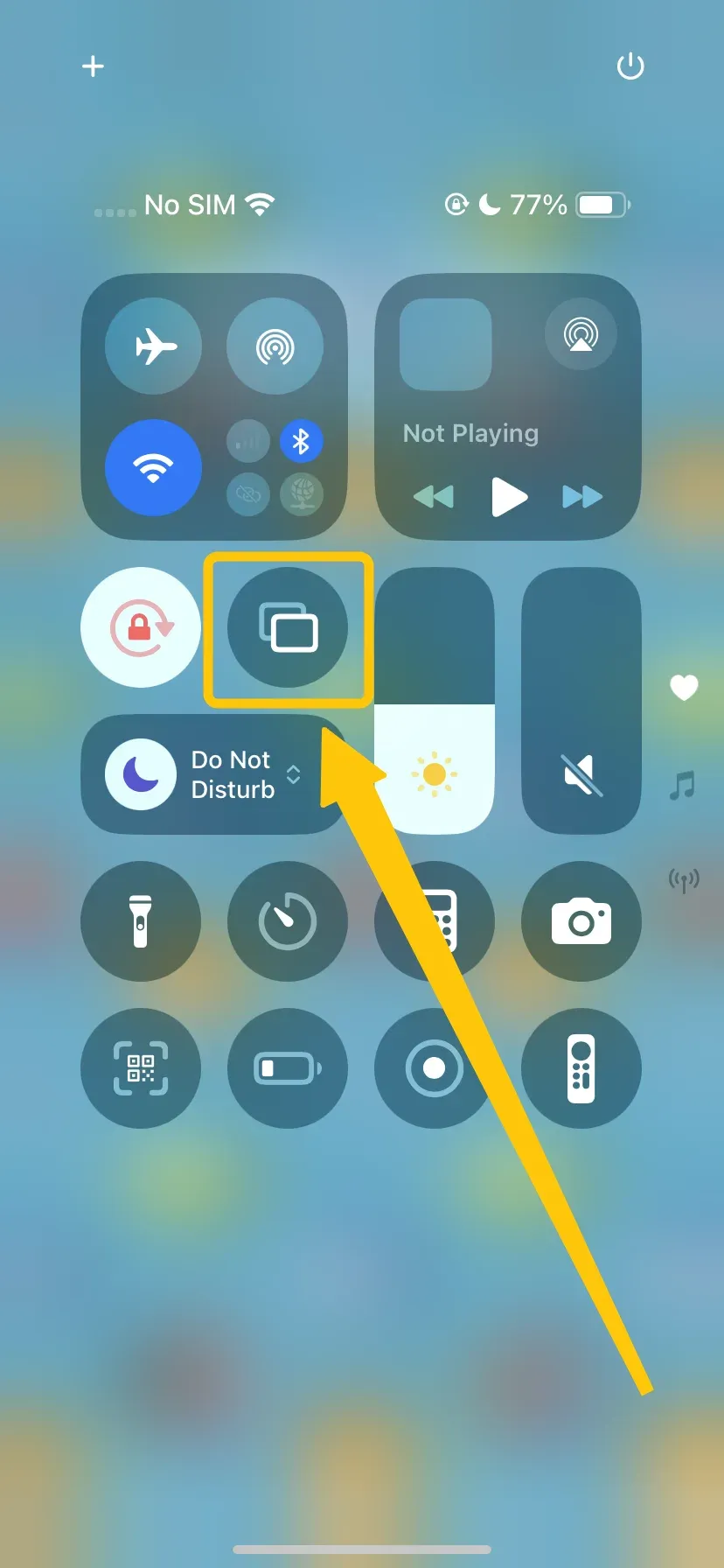
Step 2. Open Control Center on your device and tap Screen Mirroring.
Step 3. Select the hotel TV or Apple TV from the list.
Step 4. Approve any connection prompts and start streaming your media.
Hotel Casting with Chromecast
If AirPlay isn't supported on the hotel TV, don't worry. Chromecast is another easy and reliable option for casting for hotels. It is widely compatible with Android phones, iPhones, and even laptop browsers, making it a flexible solution no matter what device you use. Simply plug the Chromecast into the TV's HDMI port, connect it to the hotel's Wi-Fi or your own hotspot, and you can start streaming your favorite apps and shows right away.
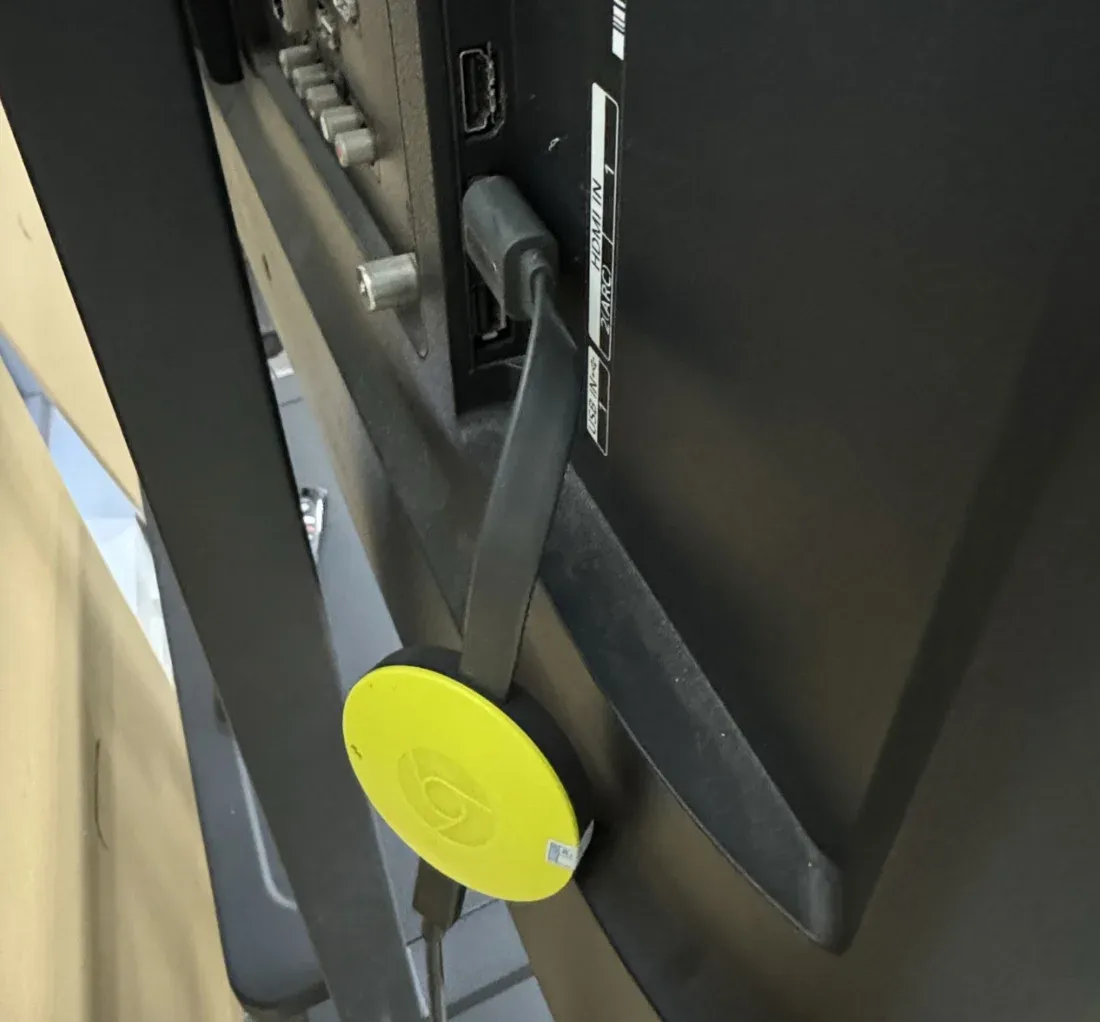
See how to use Chromecast in hotel:
Step 1. Plug the Chromecast into the hotel TV's HDMI port and a power outlet or USB port.
Step 2. Switch the TV's input source to the correct HDMI port.
Step 3. Connect your phone to the Chromecast device via the Google Home app.
Step 4. If the hotel Wi-Fi blocks device communication, connect both devices using your travel router or mobile hotspot.
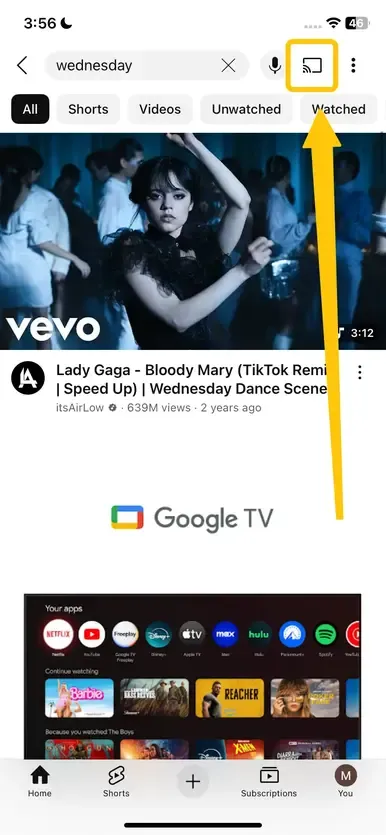
Step 5. Open a cast-enabled app like YouTube or Netflix and tap the Cast icon.
Hotel Casting with Miracast
Miracast is a built-in feature on many Android phones, tablets, and Windows laptops that allows direct wireless screen mirroring. It doesn't require Wi-Fi, making it an excellent option for hotels casting, especially in locations with restrictive or unreliable networks. This makes it easy to mirror your device to the TV quickly and securely, even when hotel internet connections are limited.
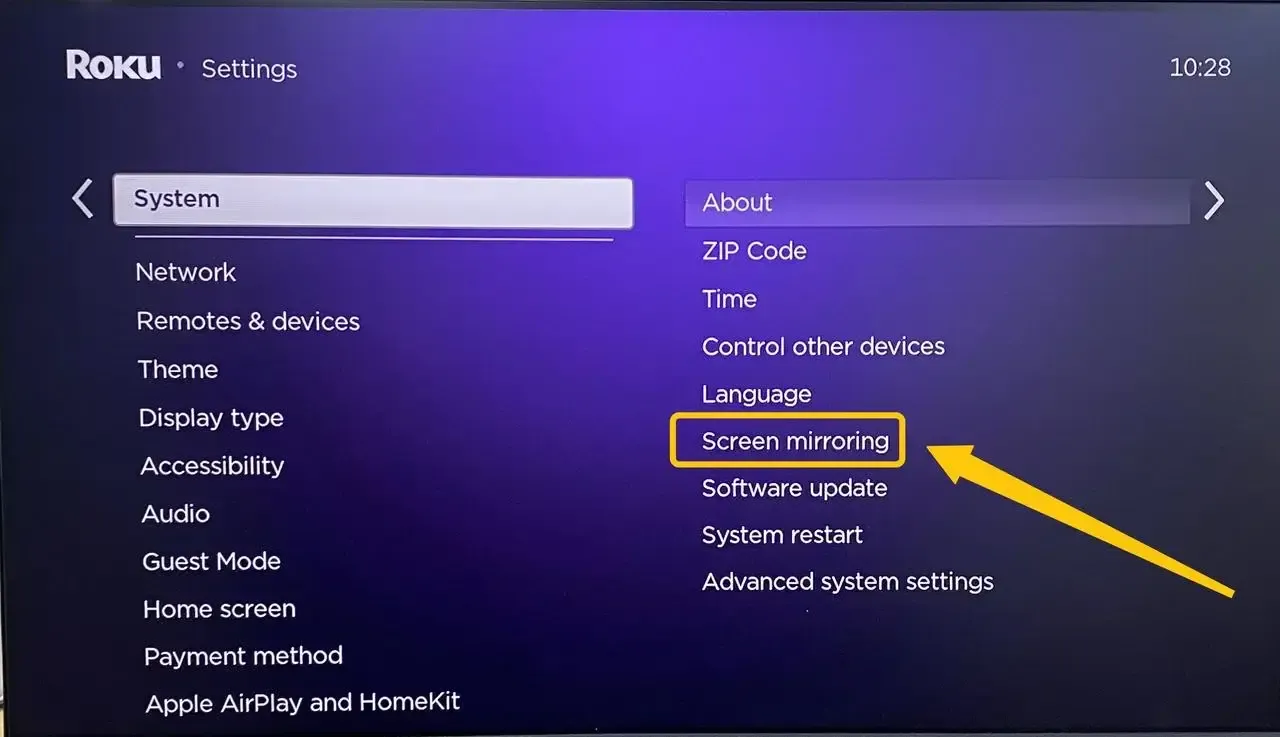
Step 1. On the hotel TV, navigate to Input or Source settings and enable Screen Mirroring (name may vary by brand).
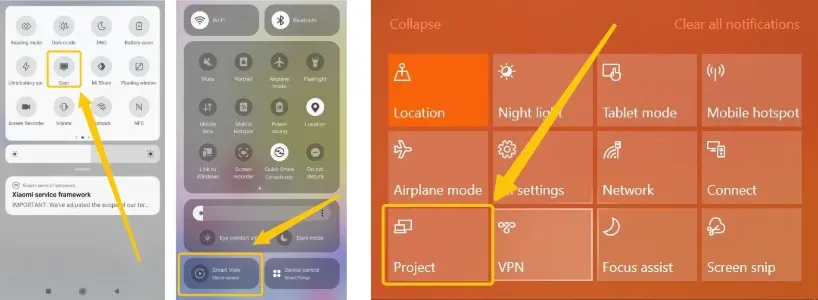
Step 2. On your Android or Windows device, open the Cast, Smart View, or Project option in settings.
Step 3. Choose the hotel TV from the list of available devices. Once connected, your screen will display on the TV.
Hotel Casting with Cable
How to screen cast to hotel TV? When Wi-Fi and wireless casting aren't an option, a wired connection provides a dependable alternative. This method works universally across devices and doesn't depend on hotel network access.
Step 1. Check if your hotel TV has an available HDMI port.
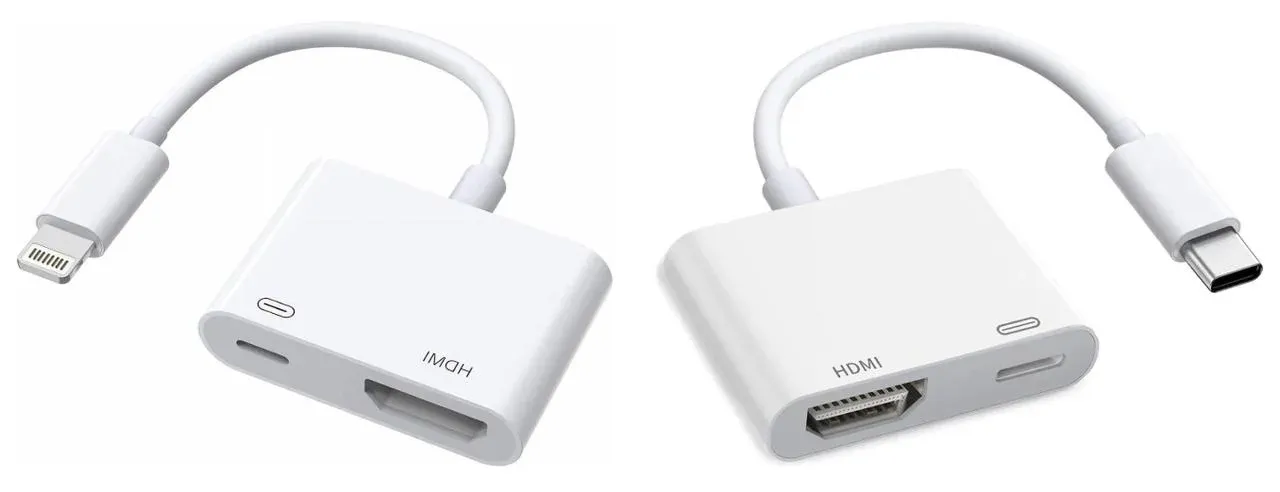
Step 2. Use a compatible adapter, such as a USB-C to HDMI or Lightning to HDMI.
Step 3. Plug your device into the adapter, and connect the HDMI cable to the TV.
Step 4. Change the TV input source to the correct HDMI port, and your screen should now mirror automatically.
Wrapping Up
In short, to cast phone to hotel TV lets you easily stream your favorite shows, movies, or apps while traveling. Whether you use AirPlay, Chromecast, Miracast, or a wired connection, these options make it simple to mirror your device to the TV. Tools like PigeonCast add extra flexibility and security, ensuring a smooth and private streaming experience so you can enjoy your content anywhere.
Cast to Hotel TV FAQ
Q: Do hotel TVs allow AirPlay?
Many modern hotel TVs with built-in smart features or Apple TV boxes support AirPlay. However, some networks restrict connections between devices, so using a travel router can help you connect successfully.
Q: What is the mirror trick in hotels?
The "mirror trick" refers to using screen mirroring (AirPlay, Miracast, or Smart View) to display your device on the hotel TV. It's especially useful when Wi-Fi is limited or the network blocks direct casting.
Q: Do streaming devices work on hotel TVs?
Yes, streaming devices can work on hotel TVs, but it depends on the TV and the hotel's setup. Most devices like Chromecast, Amazon Fire Stick, or Roku require an available HDMI port and a power source. Some hotels may restrict Wi-Fi access or block device connections, so in those cases, using a travel router or mobile hotspot can help. Additionally, apps like PigeonCast or using Miracast can make casting easier and more reliable on hotel TVs.
Q: How do I cast Netflix to my hotel TV?
To cast Netflix to your hotel TV, follow these steps:
- Ensure your phone, tablet, or laptop is connected to the hotel's Wi-Fi network. Both your device and the TV need to be on the same network.
- Look for the TV's casting or mirroring options, such as AirPlay, Chromecast, or Miracast. This may appear as Cast to TV or Screen Mirroring on the TV screen.
- Cast from Your Device:
- iPhone/iPad (AirPlay): Open Netflix, tap the AirPlay icon, and select the TV.
- Android (Chromecast or Miracast): Open Netflix, tap the Cast icon, and select the TV.
- Laptop: If supported, cast from the Netflix website using Chrome's built-in Cast feature or use an HDMI cable to connect directly.
- If prompted, enter the PIN code displayed on the TV or scan the QR code to authenticate the connection.
- Once connected, play your desired content from Netflix, and it should display on the hotel TV.
Clara Rossi is an experienced technology editor and a seasoned expert in screen mirroring and casting technologies. With a keen eye for detail and a deep understanding of how to seamlessly connect devices, Clara excels at optimizing user experiences for effortless sharing and streaming. Whether you're seeking quick fixes or advanced tips, her expertise and responsiveness ensure that every query is met with a well-informed and efficient solution.