
Using how to use chromecast in hotel as your starting question makes sense, but the real answer depends less on Chromecast itself and more on the room setup. Hotel Wi-Fi login pages, guest-network isolation, and limited access to the TV's HDMI port or input controls are usually what get in the way first.
At home, Chromecast depends on a shared local network where your phone and the receiver can discover each other. In a hotel, that assumption often breaks. The more useful question is not "Can Chromecast work in a hotel?" It is "Which setup path is realistic in this room?" Once you frame it that way, the fallback choices become much clearer.
How to Use Chromecast in Hotel: Quick Method Picker
Before you start unplugging cables or rejoining Wi-Fi, use this table to pick the most realistic path.
| Hotel situation | Best path to try first | What to expect |
|---|---|---|
| Hotel Wi-Fi lets multiple devices join and the TV is accessible | Direct Chromecast setup | Best-case scenario if the login page is simple |
| Hotel Wi-Fi uses a captive portal or guest isolation | Travel router | Usually the most reliable workaround |
| You cannot reach the HDMI port or change TV input | Ask hotel staff or use a different viewing method | Hardware access becomes the blocker, not the network |
| You only have a phone hotspot | Test as a fallback, not a first choice | Sometimes works, often inconsistent |
| Chromecast is blocked or discovery fails repeatedly | Screen mirroring, direct TV app, or laptop-to-TV HDMI | Usually faster than forcing Chromecast to cooperate |
Why Hotels Are Different from Home Networks
Most hotel setups are designed for convenience and security, not device-to-device discovery. That matters because Chromecast expects your phone and the receiver to see each other on the same local network. If the hotel Wi-Fi separates guest devices or requires a browser sign-in that Chromecast cannot complete on its own, the normal setup flow breaks down.
What Usually Matters Most
For a practical hotel setup, four things matter more than the Chromecast model:
- whether the room TV exposes an open HDMI port
- whether you can switch the TV input
- whether the hotel network uses a captive portal
- whether the network allows devices on the same Wi-Fi to discover each other
What You Need Before You Start
If you want to use Chromecast in hotel rooms without wasting 30 minutes on trial and error, check the basics first.
Bring or confirm the following:
- your Chromecast and its power cable
- a phone or laptop for setup
- access to the room TV's HDMI input
- the hotel Wi-Fi name and login flow
- a travel router if you want the most repeatable setup
Can Any Hotel TV Work with Chromecast?
Not automatically. A hotel TV may physically have HDMI ports, but that does not mean you can reach them, or that the remote allows input switching. Some sets are mounted tightly to the wall, and some hospitality TVs lock parts of the interface. Even if the room includes one of the many Chromecast-compatible TV ecosystems people use at home, hotel mode can still make setup harder than expected.
How to Connect Chromecast to Hotel Wi-Fi
If the room gives you normal TV access and the hotel network is relatively open, direct setup is the first method to try.
Step 1. Plug Chromecast into the hotel TV.
Connect the Chromecast to an open HDMI port and power it through USB or its wall adapter. If the TV's USB port does not provide stable power, use the wall adapter instead.
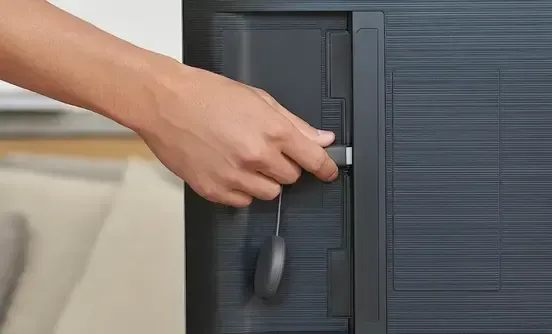
Step 2. Switch to the correct input.
Use the TV remote to change to the matching HDMI input. If the input button is locked, missing, or disabled, you may need help from hotel staff before Chromecast can work at all.
Step 3. Join the same hotel network on your phone.
Connect your phone to the hotel Wi-Fi first. Complete any browser-based login, room-number prompt, or terms page so your phone is fully online.
Step 4. Open Google Home and start setup。
Begin the normal Chromecast setup flow. If the hotel network behaves like a regular shared Wi-Fi network, your phone may be able to hand credentials to the Chromecast and finish setup.
Step 5. Test casting with a simple app.
After setup, try casting a basic video source before assuming the room is ready. This is the fastest way to see whether the network allows stable device discovery.
This best-case route is what most readers mean when they ask, "how to connect chromecast to hotel WiFi", but it is also the path most likely to fail when the hotel's login system is not Chromecast-friendly.
Why Direct Hotel Wi-Fi Setup Often Fails
The biggest issue is usually the captive portal. Many hotels require a web page login before internet access opens up. A Chromecast cannot always complete that browser-based step the way a phone or laptop can. The second issue is guest isolation, where the network lets every device reach the internet but prevents them from seeing each other locally. In that case, the Chromecast may connect, but your phone still cannot find it.
Chromecast Hotel Captive Portal Problems: What to Know
If direct setup fails, the hotel login page is often the real reason.
A chromecast hotel captive portal problem usually looks like one of these:
- your phone signs in, but Chromecast never gets online
- Chromecast appears connected, but apps cannot find it
- setup loops or stalls after Wi-Fi selection
- the hotel network works for browsing, but casting never starts
This is not necessarily a Chromecast defect. It usually means the hotel network was built for one-device-at-a-time browsing, not for app-based casting between devices on the same local segment.
Can You Bypass the Captive Portal Directly?
Sometimes, but not reliably enough to plan around. Some hotels have simple login flows that cooperate with travel devices better than others. Some let you register a device after authenticating another device first. Others do not. Because hotel networks vary so much, it is better to think in terms of fallback paths rather than one universal bypass trick.
Why a Chromecast Travel Router Is Often the Best Workaround
If you travel often, a Chromecast travel router setup is usually the most repeatable answer.
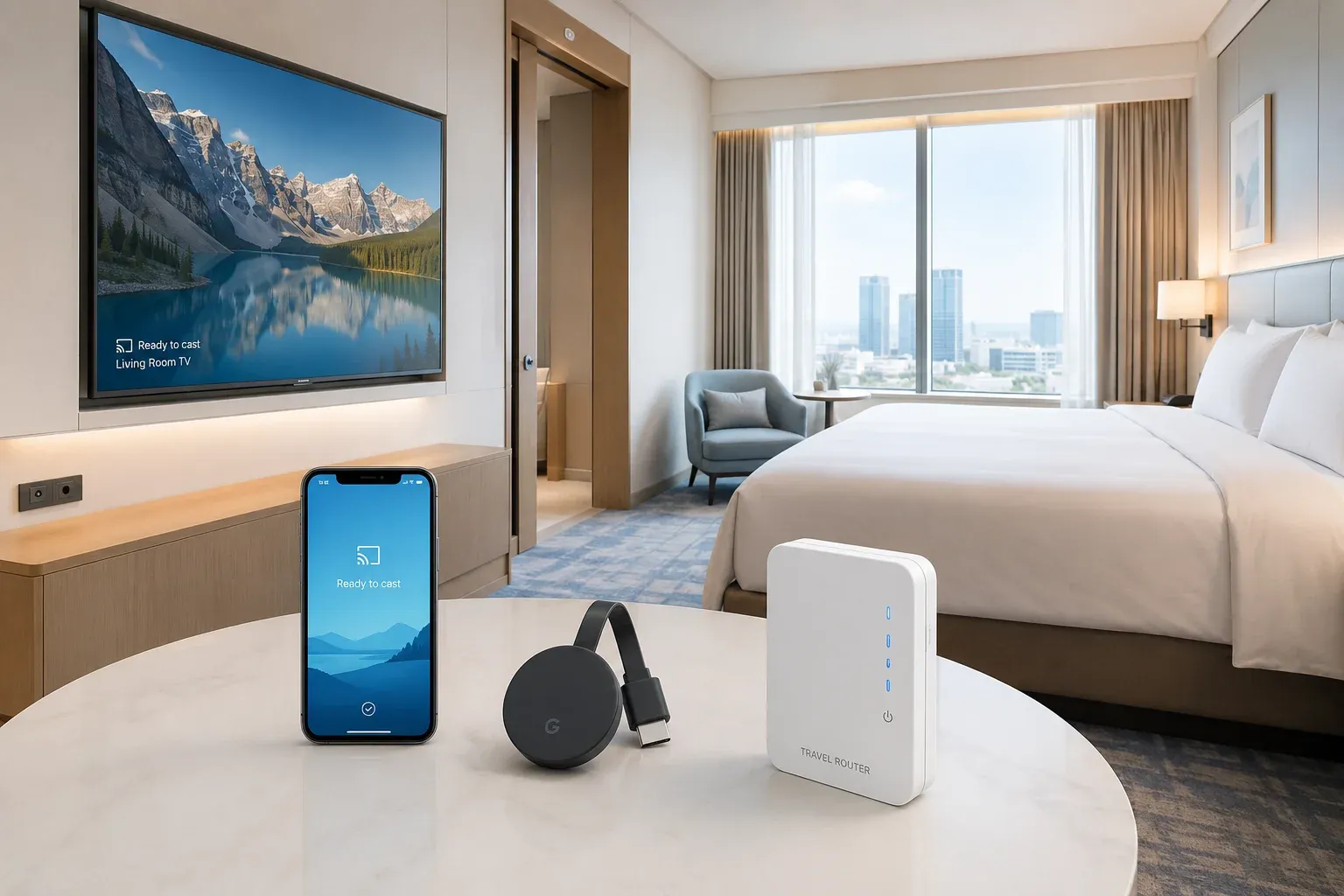
The idea is simple: instead of letting your phone and Chromecast depend entirely on the hotel's guest network behavior, you create your own small private network in the room. Your phone and Chromecast join that local network, and the travel router handles the hotel-facing connection.
How a Travel Router Helps
A travel router can reduce three common hotel problems:
- it gives your devices one stable local network name
- it can keep your phone and Chromecast visible to each other
- it lets you avoid reconfiguring everything every time the hotel Wi-Fi changes
How to Use a Travel Router in a Hotel Room
Step 1. Set up the travel router and connect it to power.
Step 2. Join the router from your phone and complete the router's hotel Wi-Fi connection flow.
Step 3. If required, finish the hotel browser login once through the travel router workflow.
Step 4. Connect your Chromecast to the travel router's local Wi-Fi instead of the hotel Wi-Fi directly.
Step 5. Connect your phone to that same router network and test casting again.
This does not guarantee success in every property, but it is often the cleanest answer when hotel guest Wi-Fi is the real obstacle.
Can You Use a Hotspot Instead?
Yes, but treat it as a fallback, not the default answer.
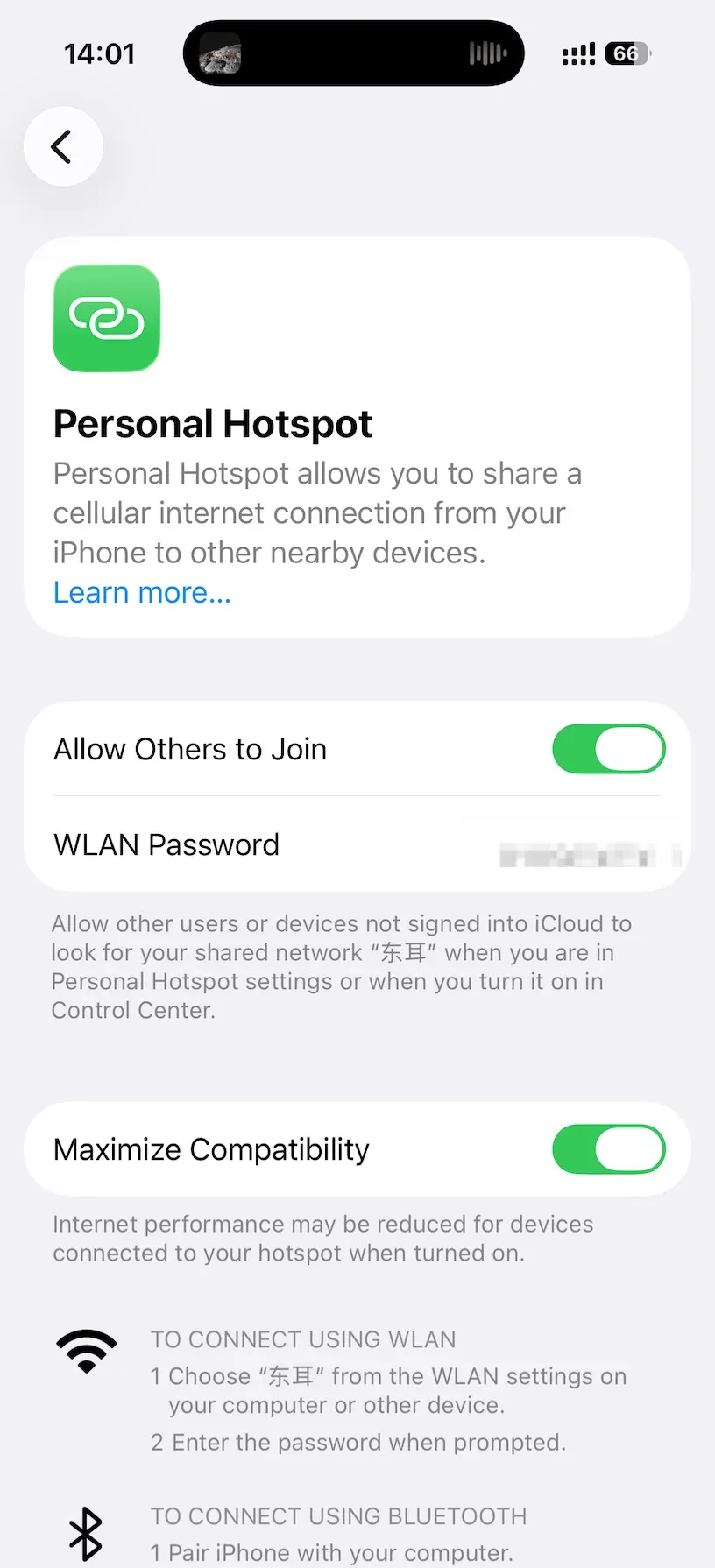
Many travelers ask whether a phone hotspot is easier than hotel Wi-Fi. Sometimes it is. But hotspot-based Chromecast use comes with limits:
- some phones handle hotspot plus setup better than others
- battery drain can be heavy
- mobile signal inside hotels may be weak
- unlimited data plans still may throttle streaming
- some device combinations are awkward when the same phone is trying to host the network and control the Chromecast
When Hotspot Setup Makes Sense
A hotspot can be worth testing when:
- hotel Wi-Fi is unusable
- you only need a short viewing session
- you have strong mobile signal
- your device pair can stay on the same local path without extra friction
When Hotspot Setup Is the Wrong Fight
If you are already seeing unstable mobile data, weak signal, or repeated discovery failures, hotspot troubleshooting can waste more time than it saves. In that situation, switch to a different viewing method sooner.
What to Do When Chromecast Is Blocked in a Hotel
If direct Chromecast setup keeps failing, stop treating it as the only way to use the room TV. Depending on the available ports, network restrictions, and your device, you may still be able to cast to a hotel TV through built-in screen mirroring, AirPlay, Miracast, a casting app, or an HDMI connection.
Screen mirroring from your phone to the TV is often the first fallback to try. It does not depend on every app providing a Cast button, so it may work better when hotel Wi-Fi blocks Chromecast discovery.
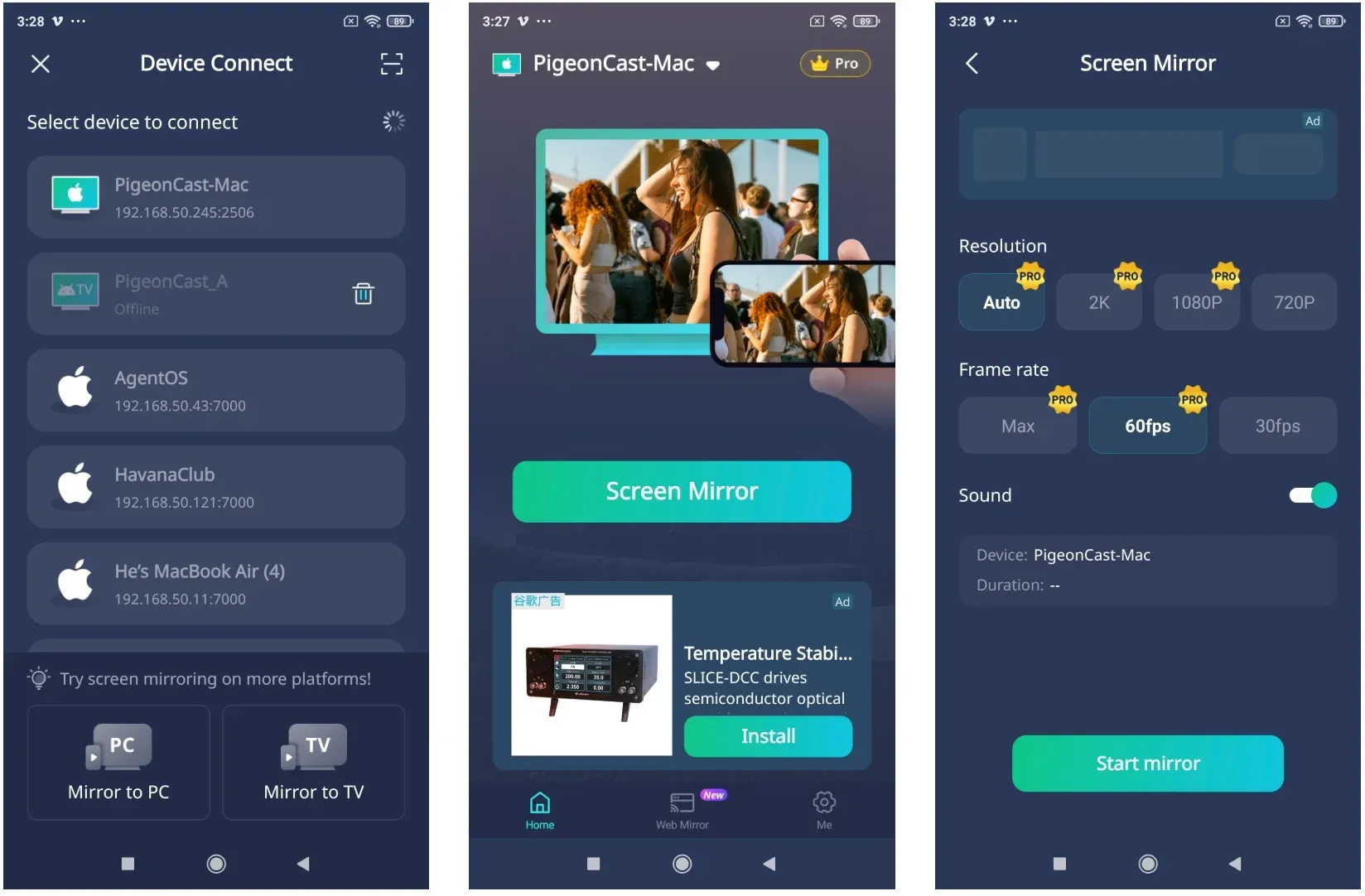
alt=mirror phone to TV via PigeonCast
A dedicated screen mirroring tool like PigeonCast can be easy to work with. Open the app on your phone, esnure your phone and TV connected to the same WiFi network, and you can watch your phone content on the big TV screen.


Overall Rating:



Opening a streaming app directly on the hotel TV can be even simpler when that app is already installed and the TV interface is not locked down. This avoids Chromecast setup completely. The downside is that hotel TVs do not always have the app you need, and signing in on a shared room TV may feel like too much friction for a short stay.
Using HDMI from a laptop is the most dependable fallback when wireless options keep failing. If you can reach the TV's HDMI port and switch inputs, a wired connection removes the hotel-network problem from the equation. It is less convenient than casting, but it is often the cleanest answer when network restrictions are the real blocker.
Chromecast Not Working in Hotel: Fix by Symptom
If Chromecast not working in hotel is your real problem, diagnose the failure by symptom instead of repeating the entire setup from the beginning.
Problem 1. Chromecast Powers On, But You Cannot Use the TV
This is a TV-access problem.
Try this first:
- confirm there is an open HDMI port
- switch inputs with the remote
- check whether the TV menu is locked
- ask hotel staff whether input switching is allowed
If you cannot access the correct input, no Wi-Fi fix will solve the issue.
Problem 2. Phone Joins Wi-Fi, But Chromecast Cannot Finish Setup
This is usually a captive-portal issue.
Try this first:
- reconnect your phone and confirm the hotel login page is fully completed
- restart setup from the beginning
- test whether the property allows another device to connect without extra prompts
If setup still stalls, move to a travel-router workaround instead of looping through the same hotel login flow.
Problem 3. Chromecast Connects, But Your Phone Cannot Find It
This is often a device-discovery problem.
Try this first:
- make sure the phone and Chromecast are on the same network
- disable VPN or private relay features during testing
- restart Wi-Fi on the phone
- restart the Chromecast
If discovery still fails, guest isolation is a strong possibility. That is common in hotels, dorms, and other shared networks.
Problem 4. Casting Starts, Then Buffers or Disconnects
This is usually a network stability problem.
Try this first:
- test a lower-bitrate stream
- move the phone closer to the TV area
- retest at a different time if the network seems overloaded
- switch to a local file or a simpler app to isolate the problem
If the hotel connection itself is weak, a hotspot or HDMI fallback may be faster than trying to perfect live streaming over crowded guest Wi-Fi.
Final Recommendation
The most practical answer to how to use Chromecast in hotel is not "always use hotel Wi-Fi" or "always bring a travel router." It is this:
- try direct setup first only if the TV and hotel Wi-Fi both look cooperative
- use a travel router when you want the most repeatable setup
- treat hotspot casting as a fallback, not a guarantee
- switch to mirroring or HDMI sooner when the room setup is clearly fighting you
That decision rule saves more time than memorizing one perfect trick, because hotel environments vary too much for a single universal method.
How to Use Chromecast in Hotel FAQ
Can I connect Chromecast to hotel Wi-Fi without a travel router?
Sometimes, yes. If the hotel network allows normal multi-device access and the login flow is simple enough, direct setup can work. But if the hotel uses a captive portal or isolates guest devices, the travel-router path is often more reliable.
Why does Chromecast not work on hotel Wi-Fi even when my phone does?
Because your phone and Chromecast do not use hotel Wi-Fi the same way. Your phone can complete browser logins and handle prompts directly, while Chromecast may fail on captive portals or local discovery restrictions.
Is a travel router the best way to use Chromecast in hotel rooms?
For frequent travelers, often yes. It is usually the most consistent way to give your phone and Chromecast a shared local network instead of depending entirely on hotel guest-network behavior.
Can I use Chromecast in a hotel room with my phone hotspot?
Sometimes, but it is less predictable than people expect. Signal quality, data limits, battery drain, and device-pairing behavior can all get in the way.
What if the hotel TV has no accessible HDMI port?
Then the physical TV setup is the main blocker. In that case, you may need hotel staff help, a different room setup, or another viewing method that does not depend on your own Chromecast.
Is screen mirroring better than Chromecast in hotels?
Not always, but it can be more practical when hotel networks block Cast discovery. It gives you a fallback when native Chromecast setup is technically possible in theory but frustrating in practice.
Mia Clarke is a technology editor specializing in screen mirroring and casting solutions across multiple platforms. Mia provides clear, practical guides and in-depth insights to help users seamlessly connect their devices. Passionate about enhancing digital experiences, Mia is dedicated to keeping readers updated on the latest trends and tools in cross-platform screen sharing. Whether you’re looking to mirror your smartphone, laptop, or smart TV, Mia’s content delivers reliable, user-friendly advice to simplify your tech setup.