
Few things are more frustrating than settling in to watch a movie only for your Chromecast to repeatedly disconnect, interrupting your show. Whether you're using a Chromecast dongle, a TV with Google TV, or casting from your phone or browser, constant disconnections usually point to an issue in your setup. This guide will walk you through 7 effective fixes for when Chromecast keeps disconnecting, from quick reboots to exploring more reliable alternatives, so you can get back to uninterrupted viewing.
Why Does My Chromecast Keep Disconnecting
There are several reasons why your Chromecast won't stay connected. It could be due to issues with your Wi-Fi network, power supply, or software. Chromecast relies on a steady Wi-Fi connection, and any interference or weak signal can cause disconnections. Other factors, like outdated software or network settings, might also contribute to this issue. Understanding the root cause is the first step in solving the problem.
How to Fix Google Chromecast Keeps Disconnecting
Now that we've pinpointed some possible causes, let's explore these seven solutions to fix the issue of Chromecast keeps losing connection. Each solution addresses a different potential problem, so make sure to reconnect your Chromecast after trying each one to see if the issue is resolved.
Way 1. Use PigeonCast
If you're tired of connectivity issues with Chromecast and your favorite apps, it might be time to try PigeonCast. This Chromcast alternative wireless screen mirroring solution offers a more stable connection and supports a wide range of devices, including Android, iOS, Windows, Mac, and smart TVs. Plus, it works with popular platforms like AirPlay, DLNA, and Google Cast, ensuring a smoother streaming experience.

Step 1. Ensure both your devices are covered by the same WiFi network.


Overall Rating:



Step 2. Install PigeonCast on both your devices from the App Store, Google Play Store, or Microsoft Store, and launch it.
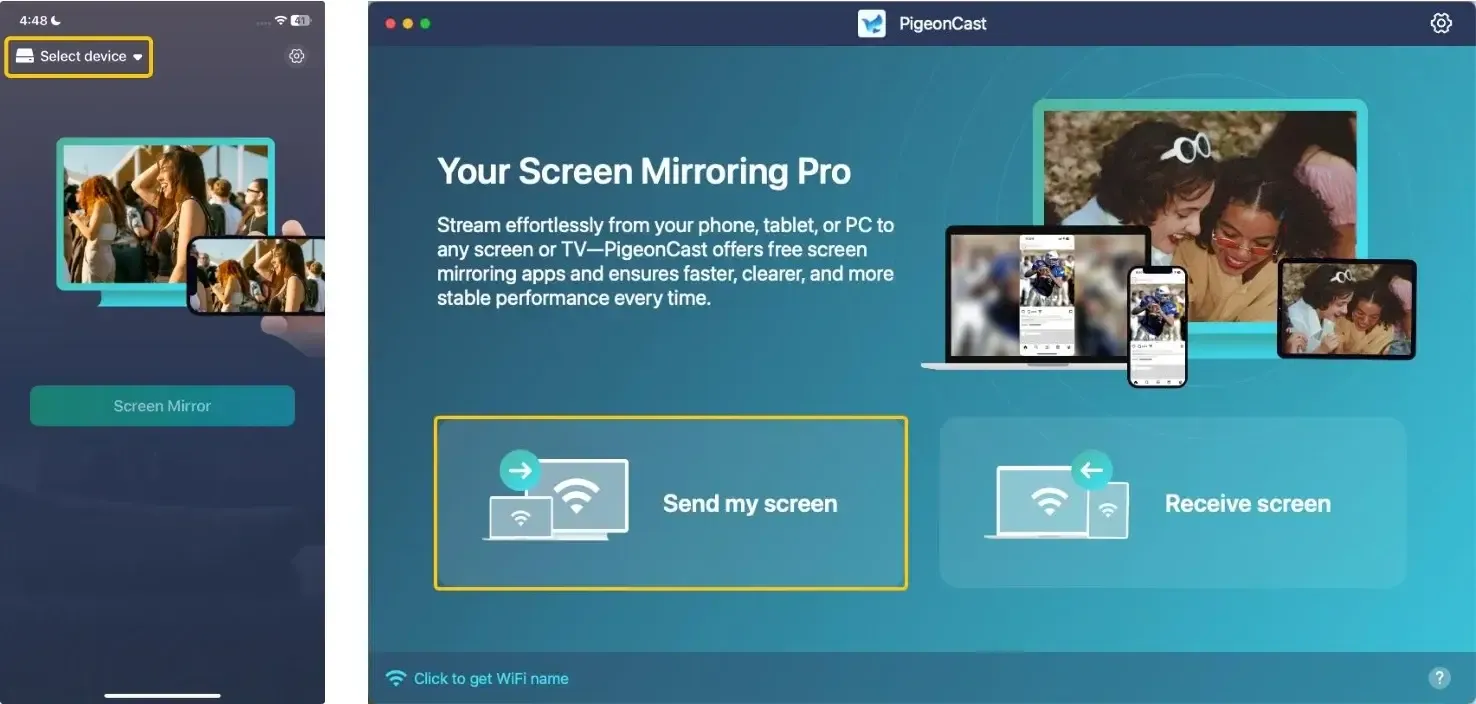
Step 3. On your resender device, tap Select device or Send my screen to choose your receiver device from the available list.
Step 4. Enter the onscreen code to confirm the pairing requisition.
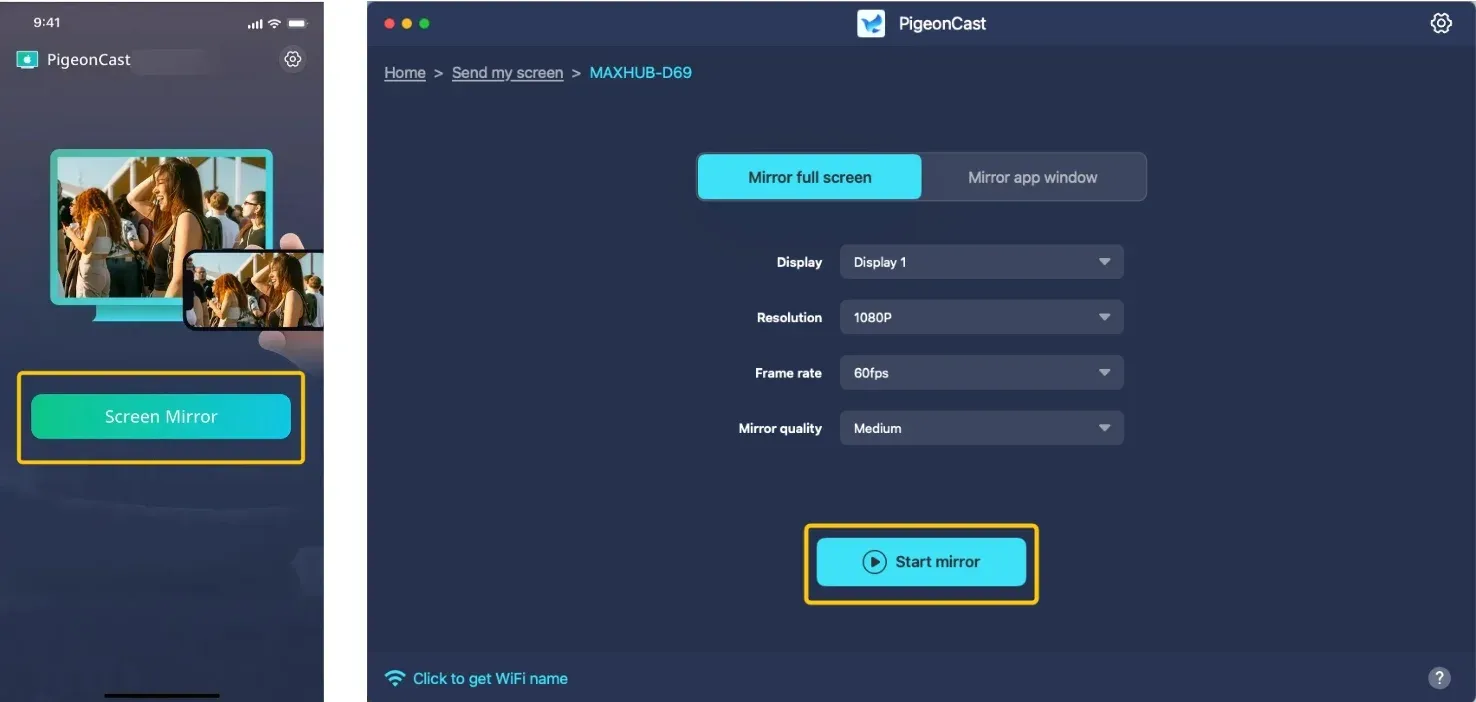
Step 5. Once your connection succeeds, click Screen Mirror or Start mirror to start the mirroring activities. If you have a laptop, you can choose to mirror the full screen or a single app window.
Way 2. Check the Power Issue
Why does Chromecast keep disconnecting? One of the most common causes of Chromecast disconnecting is insufficient power. If your Chromecast is not receiving the required power, it may not function properly and will drop the connection intermittently.
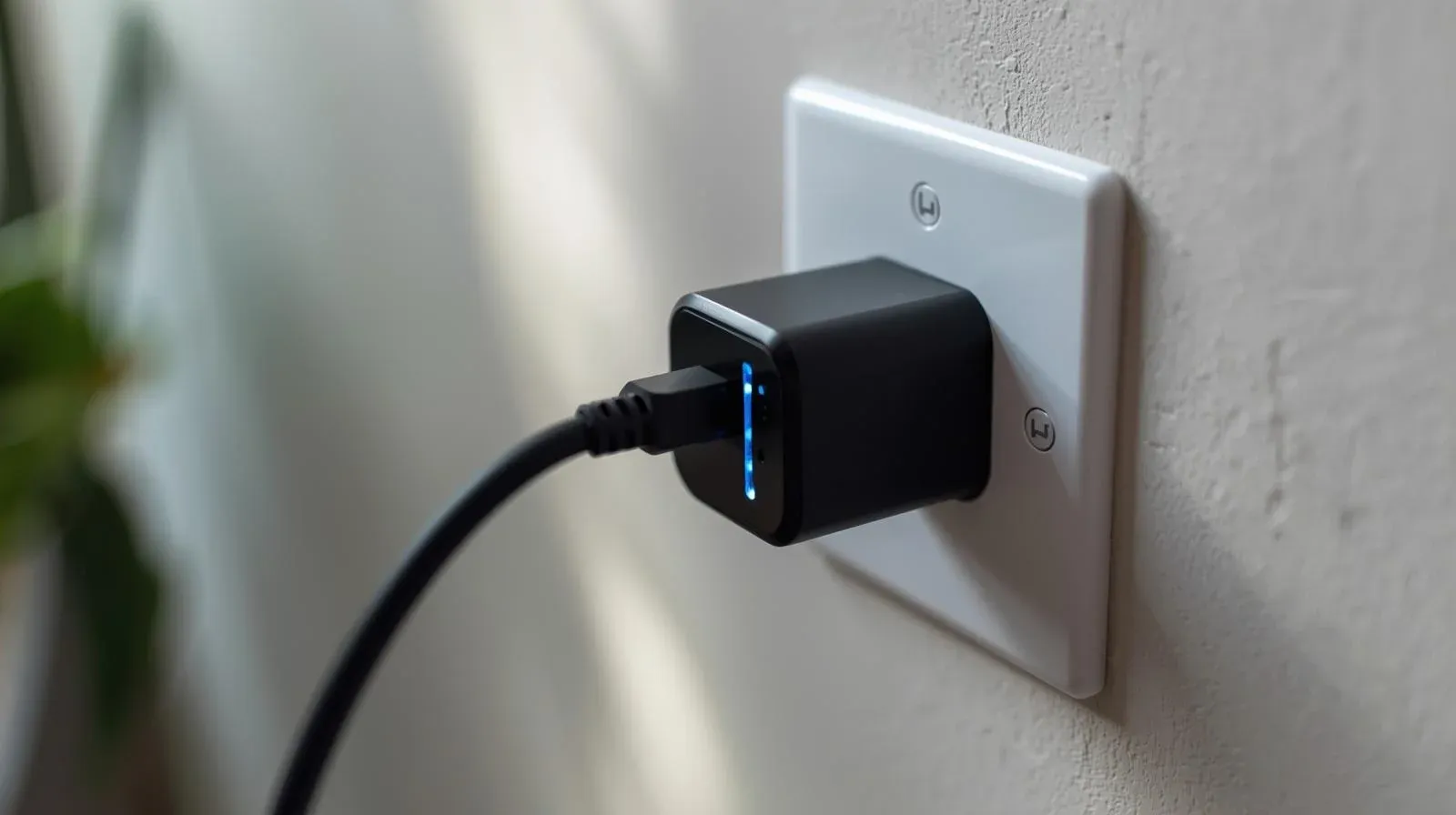
- Eliminate the TV USB Port: Immediately disconnect the Chromecast from your TV's USB port. These ports are often designed for low-power accessories and cannot sustain Chromecast's peak demands.
- Use the Official Adapter: Plug the Chromecast directly into the wall outlet using the original power adapter and cable that came in the box. If missing, purchase an official replacement or a certified high-quality alternative rated for at least 5V/1A (for older models) or 5V/1.5A+ (for 4K models).
- Inspect the Physical Connection: Examine the USB-C or micro-USB port on the Chromecast for lint or damage. Gently clean it with compressed air. Ensure the cable is fully seated, and try a different cable if possible to rule out a frayed internal wire.
- Test on a Different Circuit: Plug the adapter into a different wall outlet, preferably on a different electrical circuit, to rule out a faulty outlet or power strip.
Way 3. Check the Network
Why Chromecast keeps disconnecting? An unstable or weak Wi-Fi connection can be the root cause of the Chromecast loses connection. Chromecast relies heavily on a stable internet connection, so it's essential to ensure your network is working properly. Here's how to check and improve your Wi-Fi connection on Chromecast:
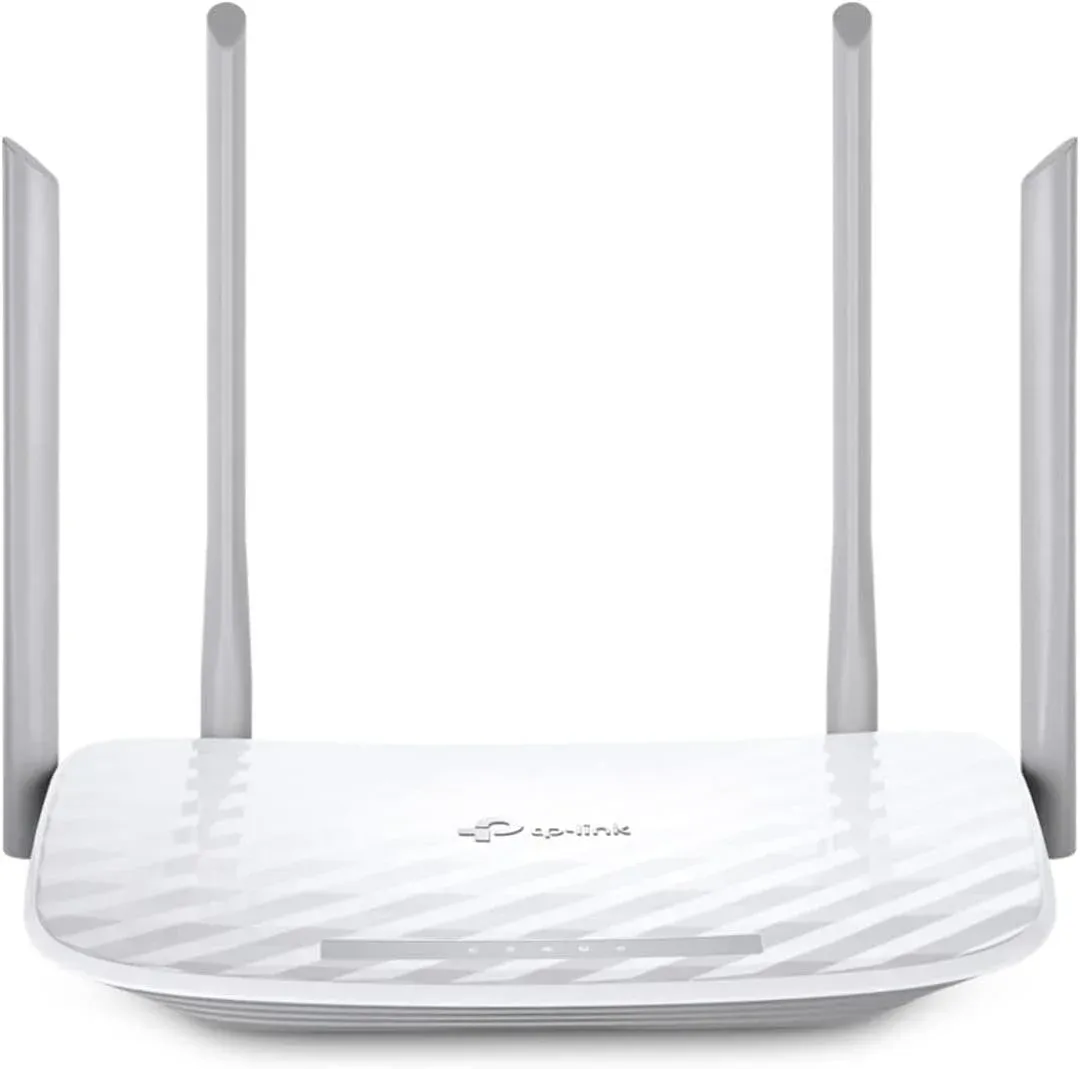
Step 1. Temporarily move your router and Chromecast within 10 feet of each other with a clear line of sight.
Step 2. Double-check that your casting phone and Chromecast connects to the same Wi-Fi network. Consider removing other devices from the network to reduce traffic.
Step 3. In your router's advanced wireless settings, disable IGMP Snooping.
Way 4. Restart Your Devices
Sometimes, a simple restart can fix the Chromecast cast screen keeps disconnecting issues. Restarting both your Chromecast and your router can refresh the connection and help resolve any temporary glitches causing disconnections. Here are the specific steps:
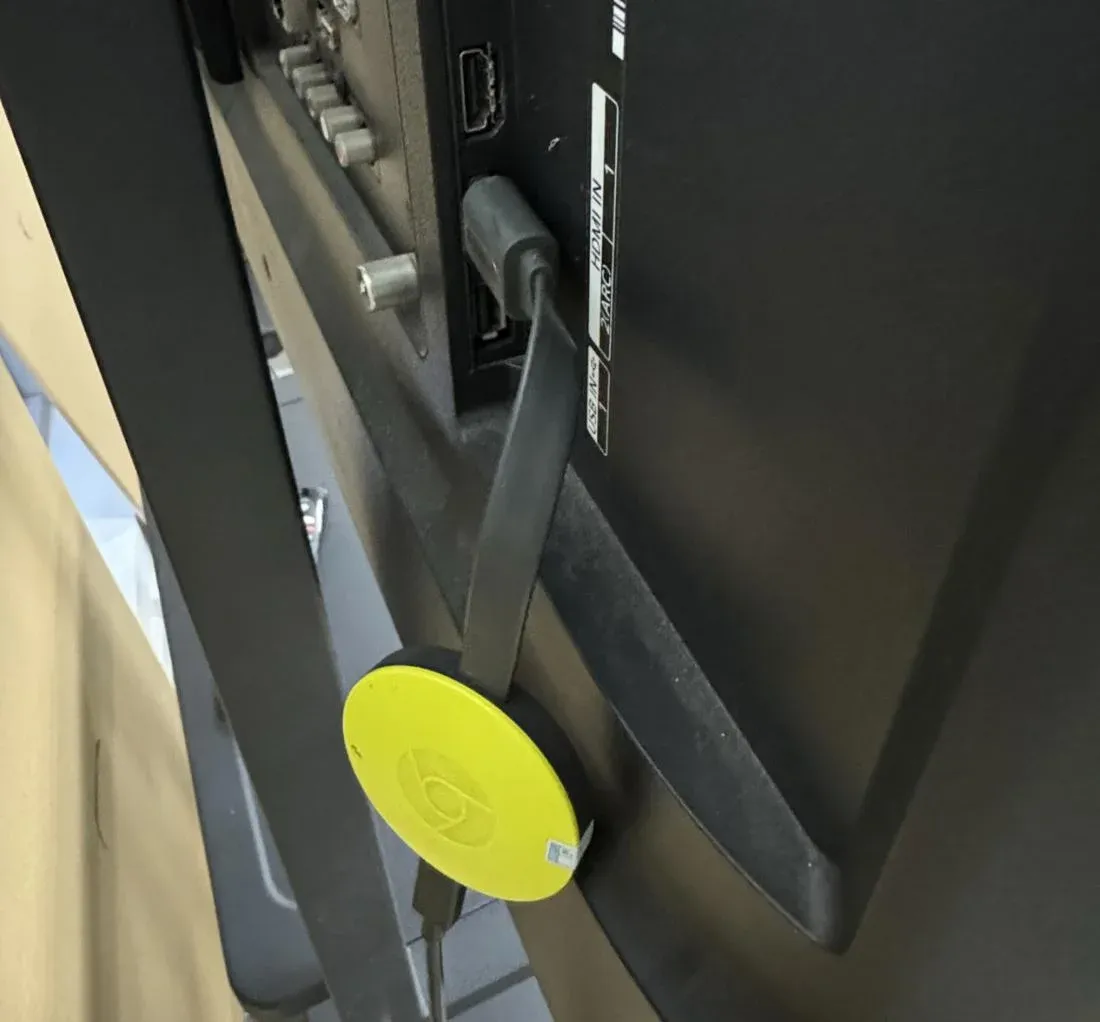
Step 1. Unplug the Chromecast from the power source for about 10 seconds, then plug it back in.
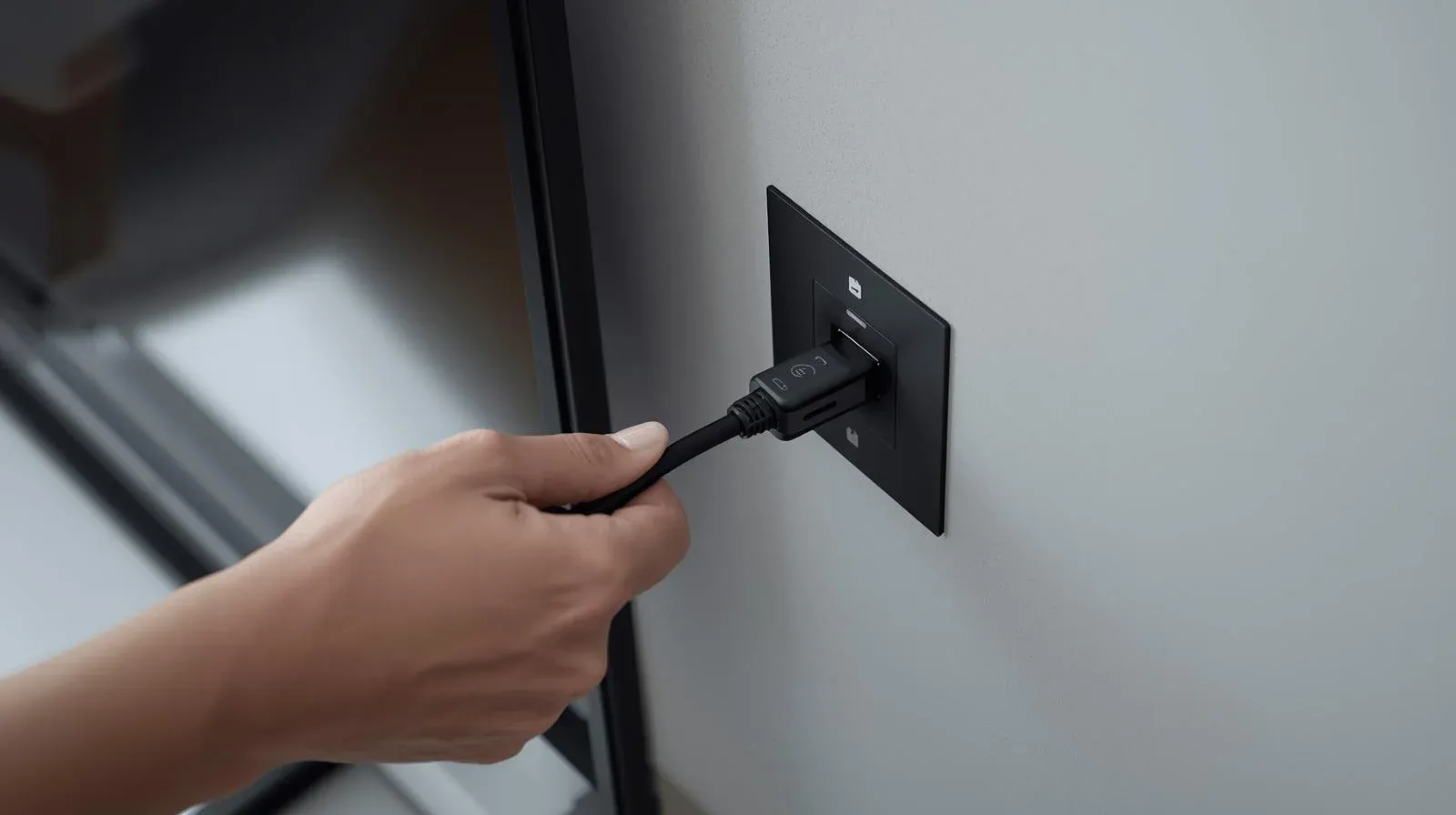
Step 2. Unplug the router for 10-15 seconds, then plug it back in. This will refresh the network connection and might solve any underlying network issues.
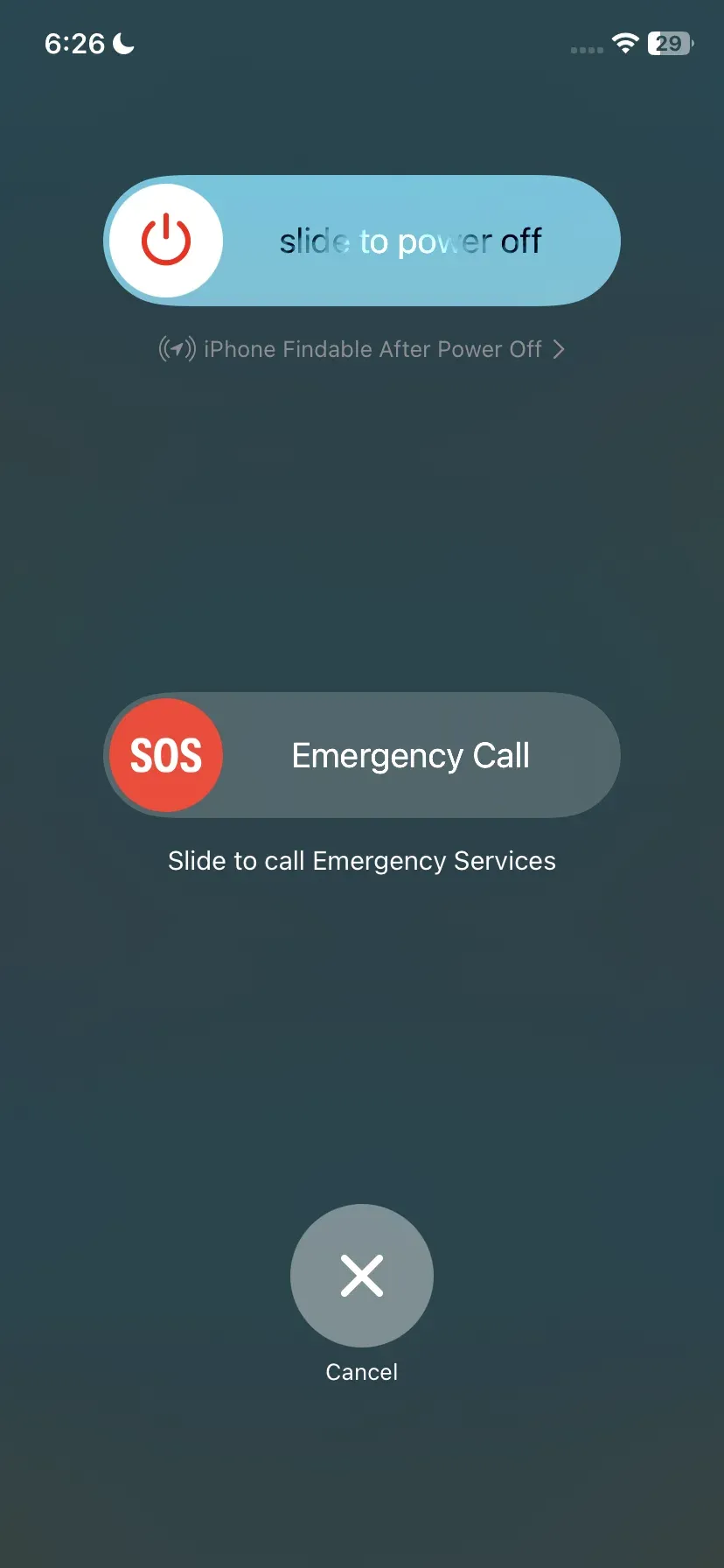
Step 3. If you're casting from a phone or computer, restart the device to ensure that any app or network issues are cleared up.
Way 5. Check for Update
If you're still wondering, Why does my Chromecast keeps disconnecting? The answer might lie in outdated software. An old firmware version or app update can cause connectivity problems, so it's important to ensure everything is up to date. Let's dive into how you can check for and install any updates for Chromecast.
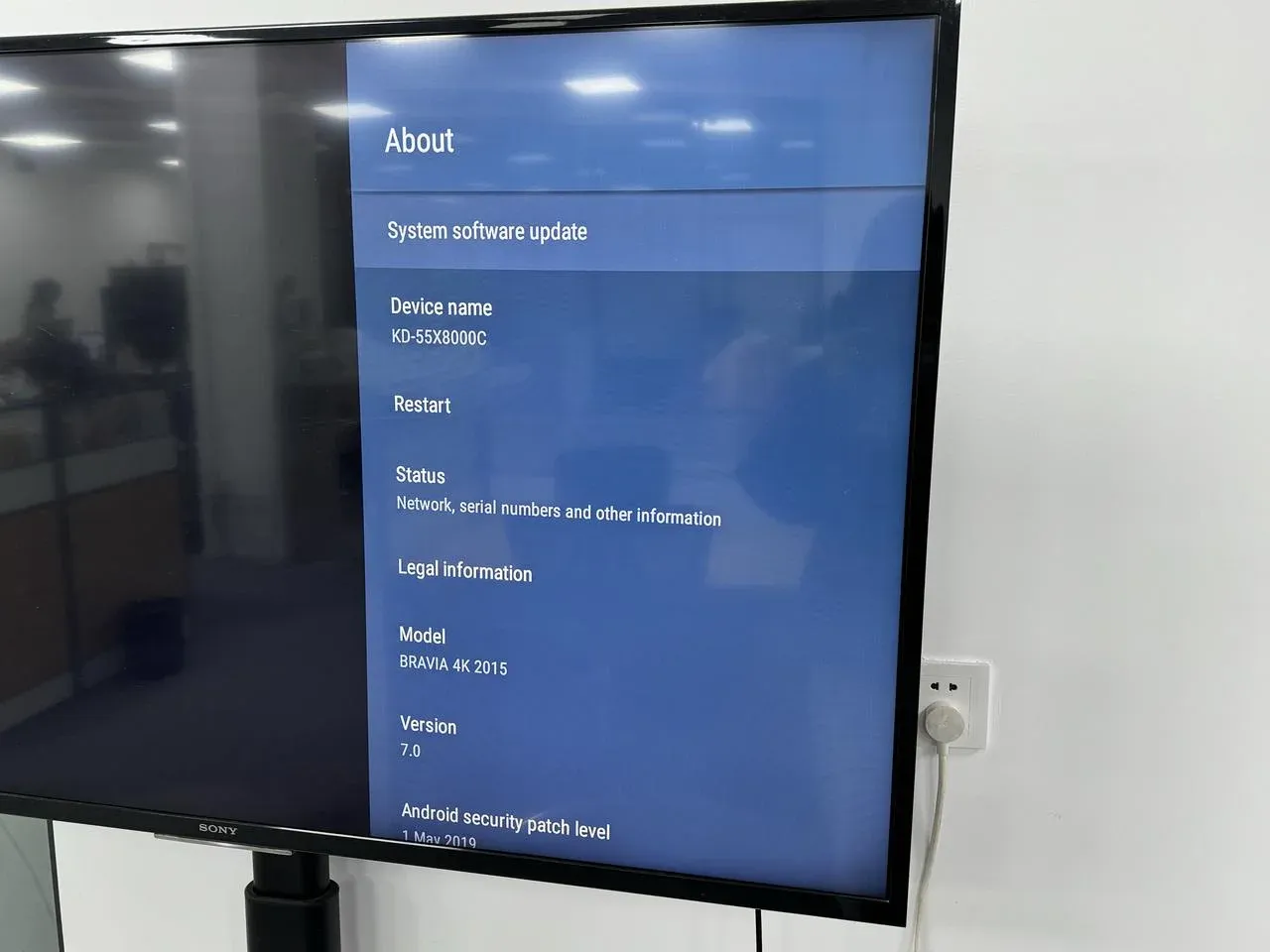
- For Chromecast with Google TV: Go to Settings > System > About > System update.
- For older Chromecast models: Updates are automatic when idle, but you can force a check by opening the Google Home app, selecting your device, tapping Settings (gear icon) > System > Check for system update.
- Update the Google Home App: Visit the Play Store or App Store and ensure it's updated.
- Update Streaming Apps: Ensure Netflix, YouTube, etc., are updated on your casting device.
Way 6. Turn Off Battery Optimizations
How to solve Chromecast keeps disconnecting from my phone? Many Android phones have battery optimization settings that may interfere with the casting process. These settings can cause apps like Google Home to be restricted or closed in the background, leading to disconnections. Here's how to disable battery optimization:
Step 1. Open the Settings app on your Android device.
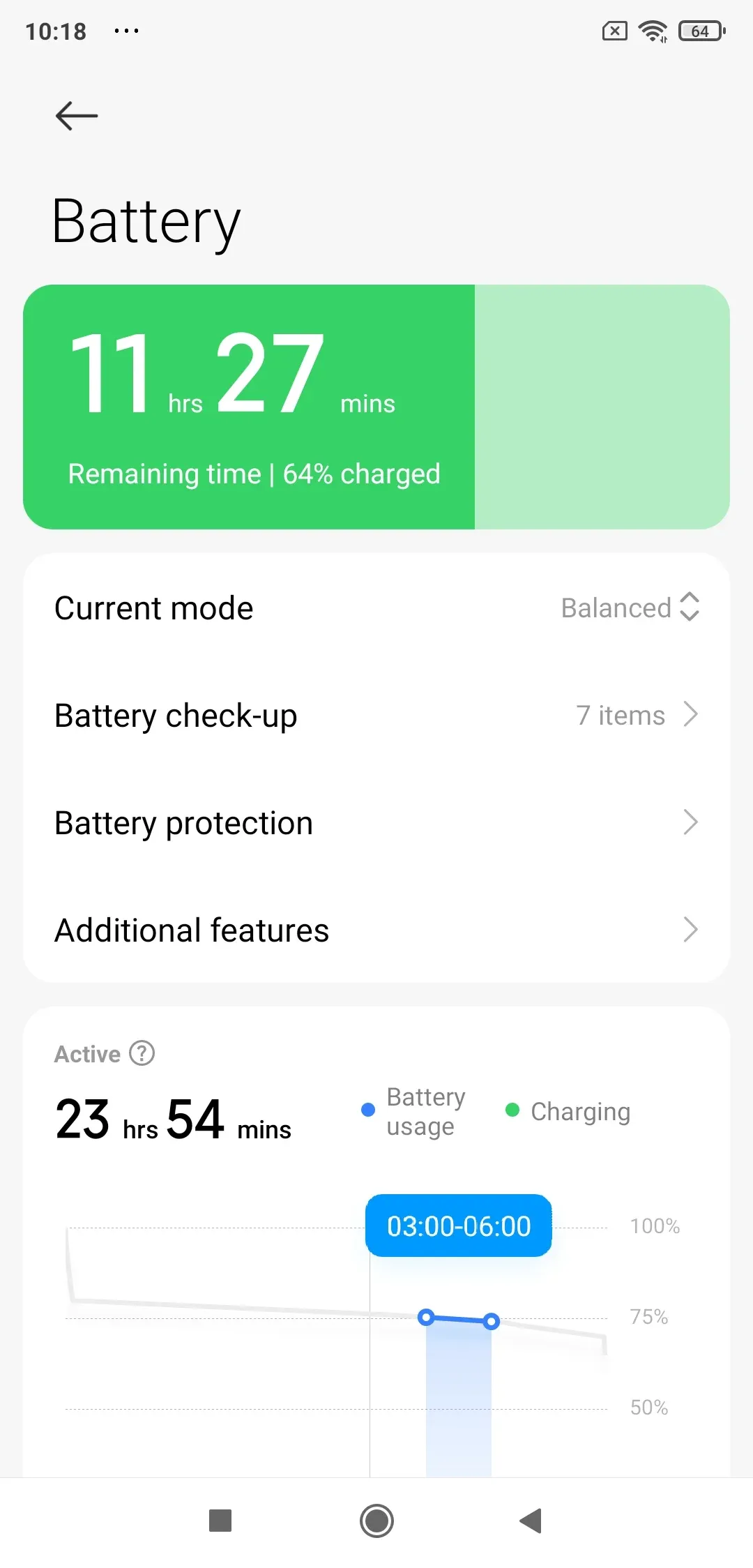
Step 2. Navigate to the Battery section and Battery Optimization.
Step 3. Find the Google Home app in the list and set it to Don't Optimize.
Step 4. If your phone has a power-saving mode, turn it off while casting to prevent any interruptions.
Way 7. Factory Reset Your Chromecast
If none of the previous solutions resolve the Chromecast randomly disconnects issue, a factory reset may be your last resort. This will erase all your settings and restore your Chromecast to its original state, potentially resolving any persistent problems. Here's how to reset your Chromecast:
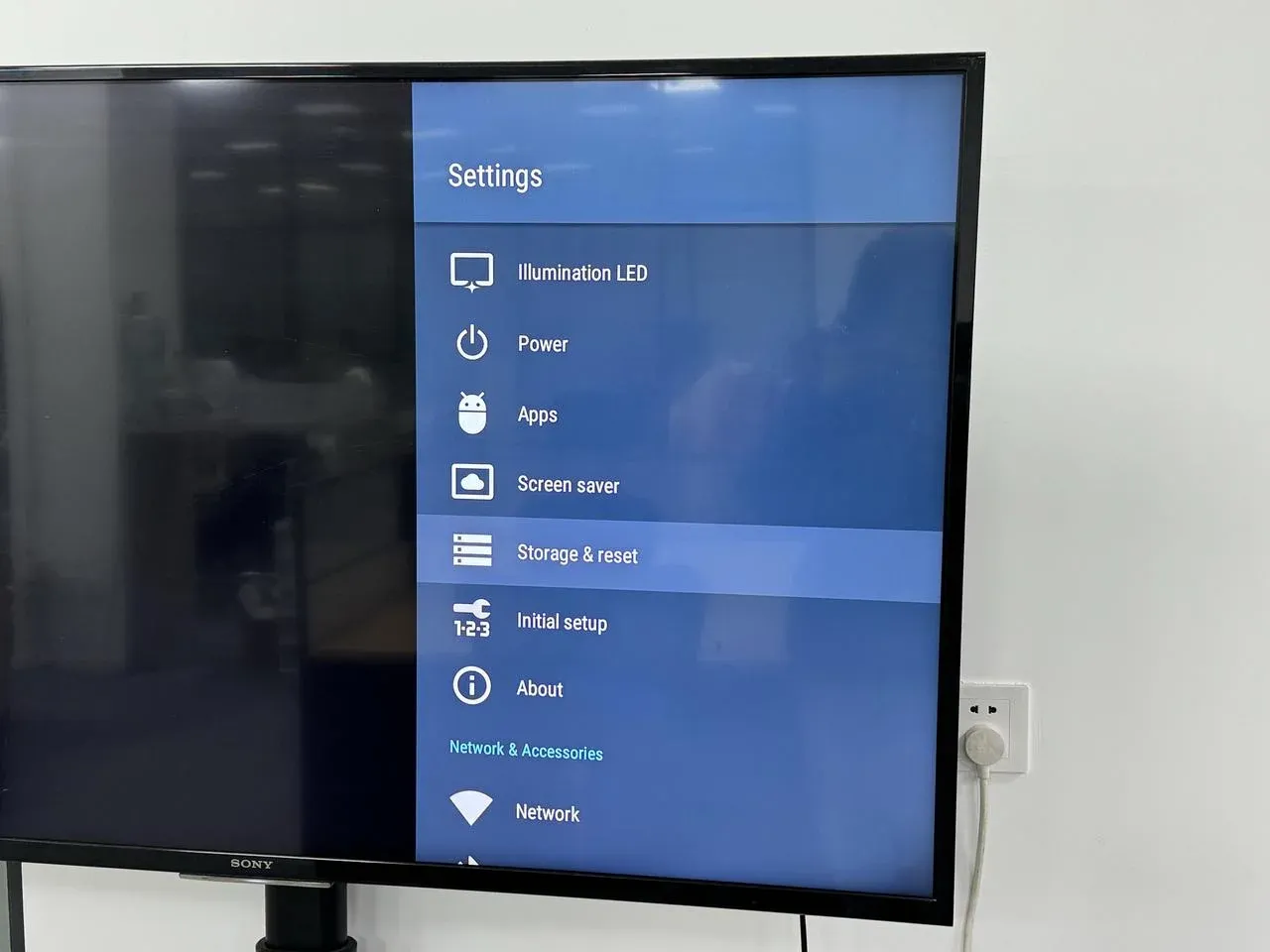
- For Chromecast with Google TV: Navigate to Settings > System > About > Factory reset.
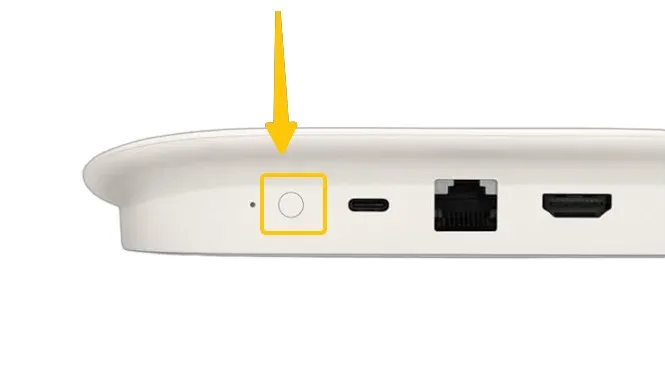
- For Chromecast (dongle): While powered on, press and hold the physical button on the device for at least 25 seconds until the solid LED light begins blinking orange, then turns solid white. Release the button.
Final Verdict
Dealing with Chromecast keeps disconnecting and reconnecting can be frustrating, but with the right approach, most issues can be resolved. By following these steps, ranging from basic troubleshooting like restarting your devices to exploring more reliable alternatives like PigeonCast, you can ensure a more stable streaming experience. If all else fails, a factory reset could be the fresh start your Chromecast needs.
Chromecast Keeps Disconnecting FAQ
Why does Android keeps disconnecting from Chromecast?
Android devices can keep disconnecting from Chromecast for several reasons, including:
- Weak Wi-Fi signal
- Power issues
- Outdated software
- Battery optimization
- Network interference
How to solve YouTube TV keeps disconnecting from Chromecast?
To solve the issue of YouTube TV disconnecting from Chromecast, you can try the following steps:
- Ensure both your Chromecast and casting device are connected to the same stable Wi-Fi network. A weak or intermittent connection can cause disconnections.
- Restart both your Chromecast and the device you're casting from. This can help resolve temporary glitches.
- Make sure both the YouTube TV app and your Chromecast firmware are up to date. Outdated software can lead to connectivity issues.
- Ensure your Chromecast is getting enough power. If you're using the TV's USB port, try plugging it directly into a wall outlet with the official power adapter.
- Clear the cache and data on the YouTube TV app on your phone or tablet. This can help resolve any app-related issues that might be causing disconnections.
- On your Android device, disable battery optimization for the YouTube TV app to ensure it's running smoothly in the background.
- Disconnect other devices from your Wi-Fi network to minimize congestion, which can affect streaming performance.
How to fix the Netflix app keeps disconnecting from Chromecast?
To fix the issue of Netflix disconnecting from Chromecast, try these steps:
- Ensure both your Chromecast and the device you're casting from are on the same stable Wi-Fi network. A weak or intermittent connection can cause disruptions.
- Restart both your Chromecast and the device you're casting from. This can resolve temporary glitches and refresh the connection.
- Make sure both the Netflix app and Chromecast firmware are up to date. Outdated apps or software can lead to instability.
- On your casting device, clear the cache and data of the Netflix app to eliminate any corrupted data that might be causing issues.
- Ensure your Chromecast is connected to a reliable power source. Use the official power adapter and avoid powering it through your TV's USB port, as it may not supply enough power.
- On Android devices, turn off battery optimization for the Netflix app to prevent it from being interrupted or closed in the background.
- Disconnect other devices from your Wi-Fi network to ensure there's enough bandwidth for streaming Netflix smoothly.
Why does VLC Chromecast keeps disconnecting?
VLC Chromecast disconnections can occur for several reasons:
- Weak Wi-Fi signal
- Outdated VLC or Chromecast software
- Insufficient power supply
- Network congestion
- Large or High-Bitrate files
- Interference from other devices
- VLC app or Chromecast bug
How to solve the phone keeps disconnecting from Chromecast?
To solve the issue of your phone disconnecting from Chromecast, follow these steps:
- Check Wi-Fi Connection: Ensure both your phone and Chromecast are connected to the same stable Wi-Fi network. A weak or intermittent connection can cause disconnections.
- Restart Devices: Restart both your phone and Chromecast. This can help refresh the connection and resolve temporary glitches.
- Update Software: Make sure both your phone's operating system and the Google Home app (or any app you're casting from) are up to date. Outdated software can lead to connectivity issues.
- Disable Battery Optimization: On Android phones, battery-saving settings can interfere with the casting process. Go to your phone's settings, find "Battery Optimization", and ensure apps like Google Home are set to "Don't Optimize".
- Check Power Supply: Make sure your Chromecast is properly powered. If you're using the TV's USB port for power, try switching to the official power adapter to avoid power-related disconnects.
- Reduce Network Traffic: Disconnect other devices from your Wi-Fi network to minimize congestion. A busy network can affect the stability of the connection.
- Clear App Cache/Data: If you're casting from a specific app, try clearing its cache or data to fix any app-specific issues.
- Reset Network Settings: If the issue persists, try resetting the network settings on your phone to ensure there are no network-related problems.
Why does Chromecast keeps disconnecting from Chrome?
Chromecast can keep disconnecting from Chrome for several reasons, including:
- Weak or unstable Wi-Fi connection
- Outdated Chrome browser
- Network congestion
- Power supply issues
- Chrome browser extensions
- Hardware or software conflicts
- Streaming Large Files or High-Resolution content
- Router settings
Clara Rossi is an experienced technology editor and a seasoned expert in screen mirroring and casting technologies. With a keen eye for detail and a deep understanding of how to seamlessly connect devices, Clara excels at optimizing user experiences for effortless sharing and streaming. Whether you're seeking quick fixes or advanced tips, her expertise and responsiveness ensure that every query is met with a well-informed and efficient solution.