
Few things are more frustrating than trying to stream your favorite show, only because your Chromecast keeps restarting. This common issue usually isn't a sign of hardware failure, but rather a fixable glitch in power, software, or network settings. Identifying the cause is the first step toward a smoother streaming experience.
Why Does My Chromecast Keep Restarting
A Chromecast stuck in a restart cycle is almost always indicating that it's not receiving something it critically needs. Typically, when the Chromecast keeps restarting, the LED light will flash white or orange in a pulsing or flashing pattern. This behavior can be linked to one of the following issues:
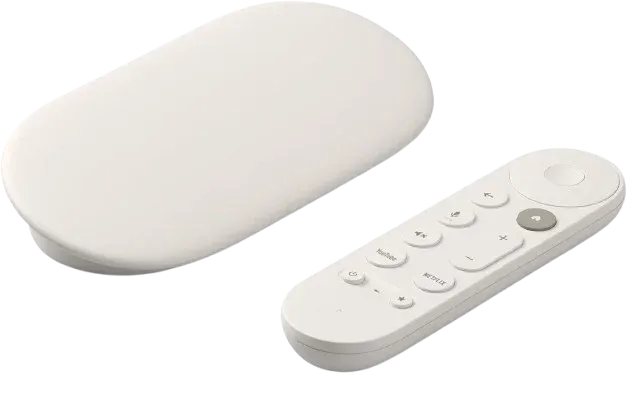
- Insufficient Power: The first and most common cause is a lack of stable power. Chromecast requires a steady, adequate power supply from its adapter and USB cable. If the power input is insufficient, it will continuously reboot, attempting to draw more energy than is available.
- Unstable Network Connection: Chromecast needs a strong and stable Wi-Fi connection to function properly. Frequent disconnections or weak signals can cause the device to crash and restart, as it struggles to maintain communication with the network.
- Software Glitches or Bugs: Outdated firmware, issues in the Google Home app, or conflicts with router settings (such as aggressive battery optimization on mobile devices) can also trigger instability and cause the device to restart.
If you're experiencing a Chromecast blinking white or Chromecast blinking orange, check out our detailed guides for troubleshooting steps.
8 Fixes: Google Chromecast Keeps Restarting
Now that you know some of the reasons behind your Chromecast randomly restarts, let's dive into practical solutions you can try to fix the issue. These steps will help troubleshoot and identify the root cause of the problem.
1. Check the Power Source
One of the most common causes of Chromecast restarting is an unstable or insufficient power supply. If your Chromecast isn't receiving enough power, it may shut down and restart repeatedly.
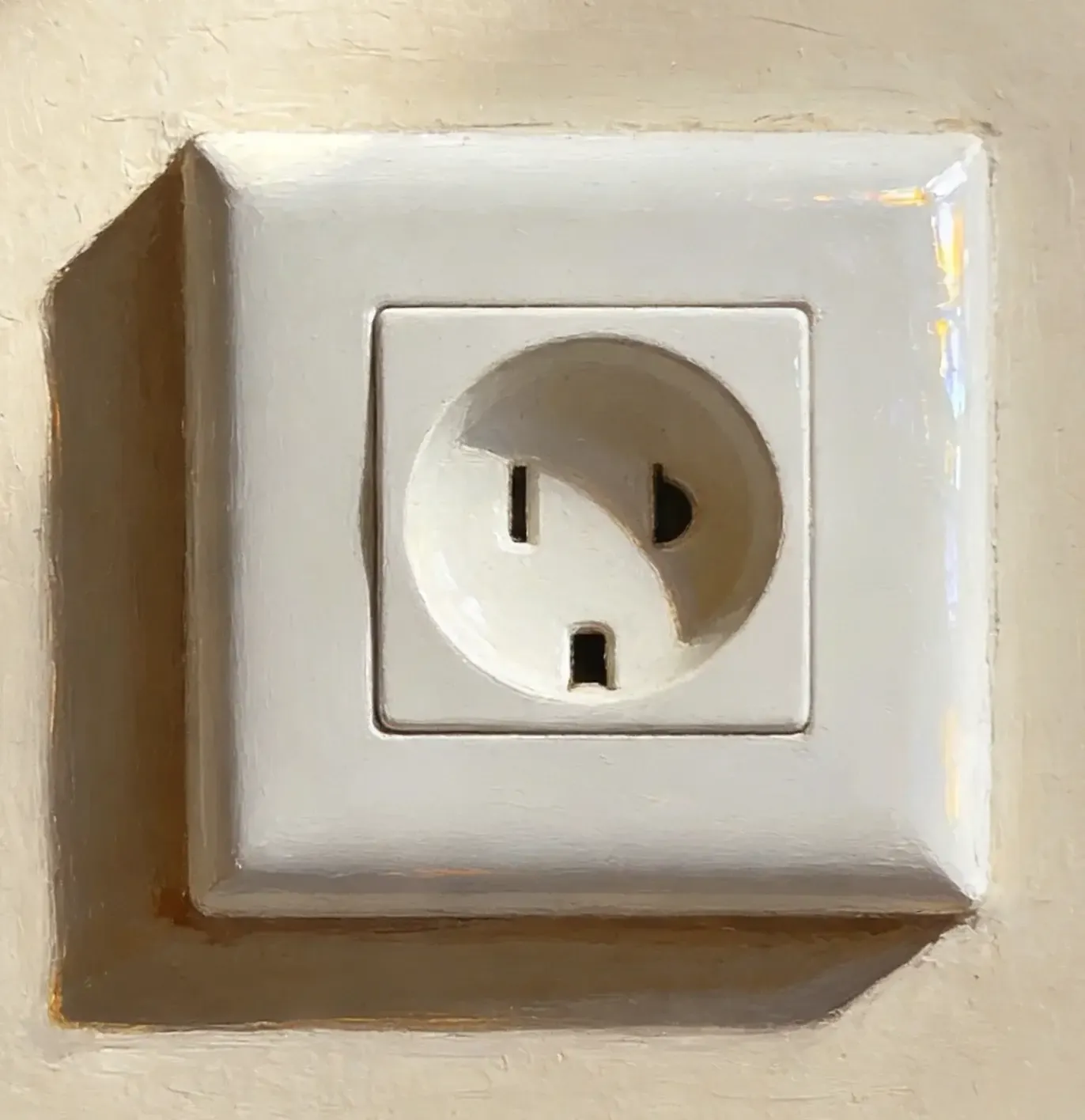
- Use the original power adapter: Always use the power adapter and cable that came with your Chromecast device. Third-party chargers may not provide enough power for your device.
- Avoid power strips: Plug your Chromecast directly into a wall outlet, as power strips or surge protectors can sometimes cause fluctuations. If the issue persists, try a different outlet to rule out a faulty socket.
- Check for loose connections: Ensure that the power cable is securely connected to both the Chromecast and the power source.
2. Check the Network Connection
An unstable or weak network connection is one of the most common reasons your Chromecast turns off by itself. Chromecast relies on a steady internet connection to stream content, so any issues with Wi-Fi or bandwidth can lead to frequent disconnections and restarts.
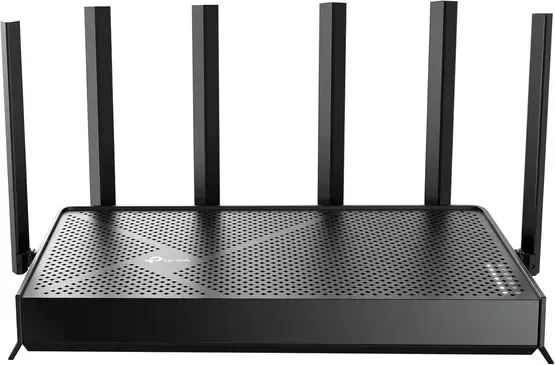
Step 1. Physically move the Chromecast and router closer to each other, ideally in the same room and away from obstructions like walls or metal objects that could block the signal.
Step 2. Locate the Power button on your router or unplug it from the wall. Wait 10-15 seconds, then plug it back in or turn it on.
Step 3. Identify devices using a lot of bandwidth (like streaming devices, video calls, etc.) and pause or stop those activities.
Step 4. If you're streaming content from a mobile device, stop any other data-heavy apps or downloads on that device.
Step 5. Go into your router's settings (usually accessible via the router's IP address, like 192.168.1.1) and see which devices are connected. Disconnect any devices you're not actively using.
Step 6. Back to the router's settings, look for the Wireless Settings or Advanced Settings section, locate the WMM Power Save Mode, and disable it.
3. Reboot Your Chromecast
A simple reboot of your Chromecast can often resolve minor bugs and glitches, causing the device to restart. This can be particularly helpful if the problem is software-related.
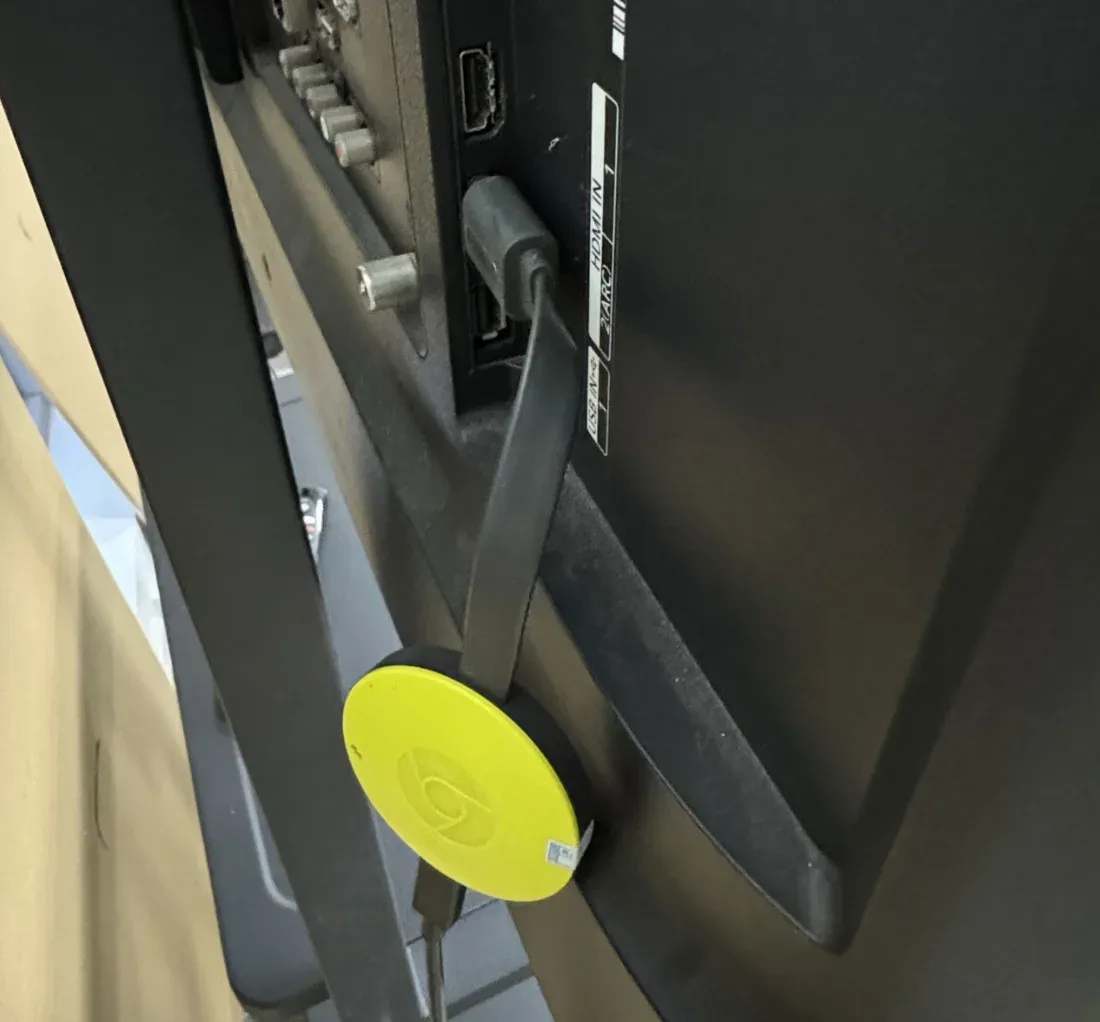
Step 1. Turn off your Chromecast, and unplug it from the TV and power source.
Step 2. Wait for about 30 seconds and plug it back in.
Step 3. Allow the device to reboot and check if it stops restarting.
4. Update App and Device
Outdated software on your Chromecast or the apps you're using to stream can cause crashes and restarts. Google frequently releases updates to fix bugs, improve performance, and address security vulnerabilities.
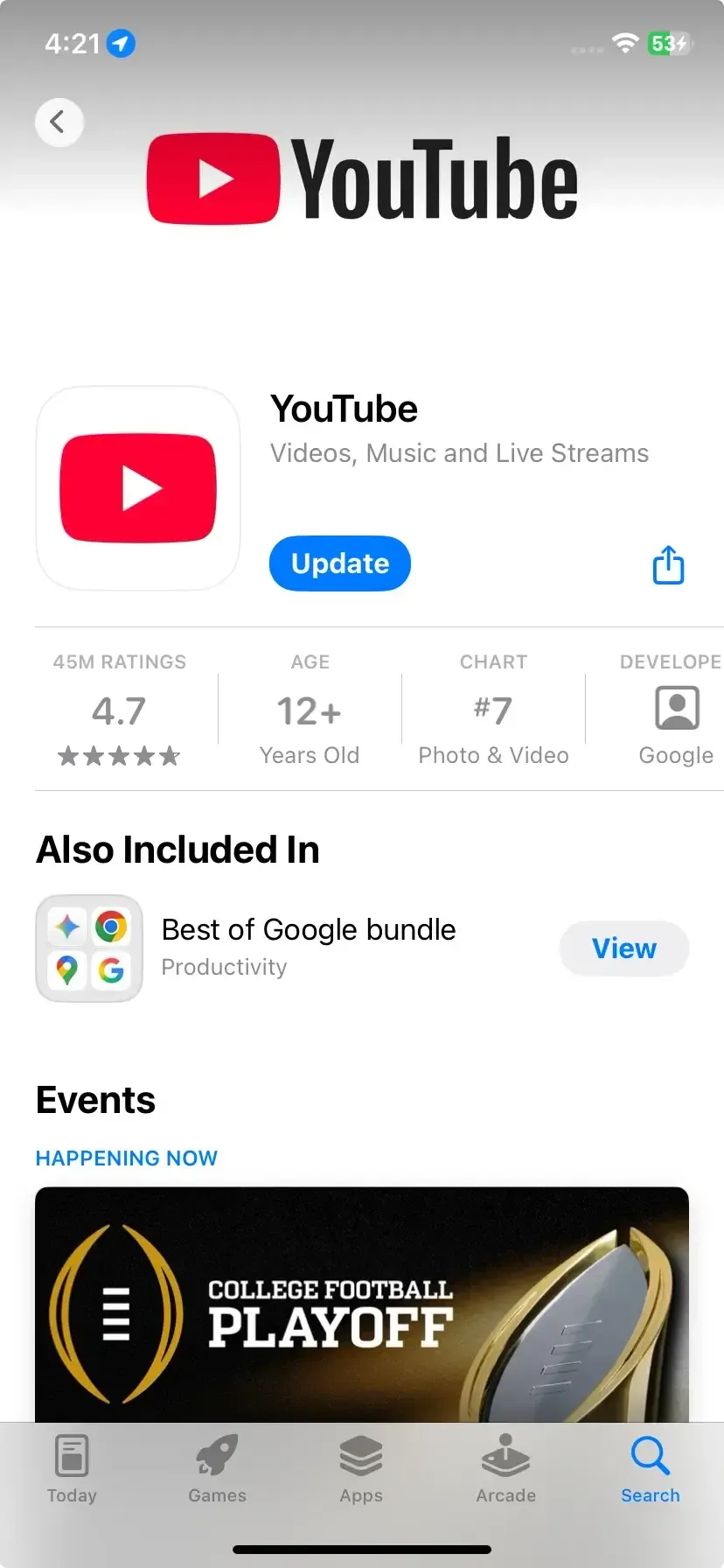
Condition 1. If you're experiencing Chromecast issues while using a specific Chromecast-enabled app (like YouTube or Netflix), updating the app from the app store can often resolve any bugs or connectivity problems.
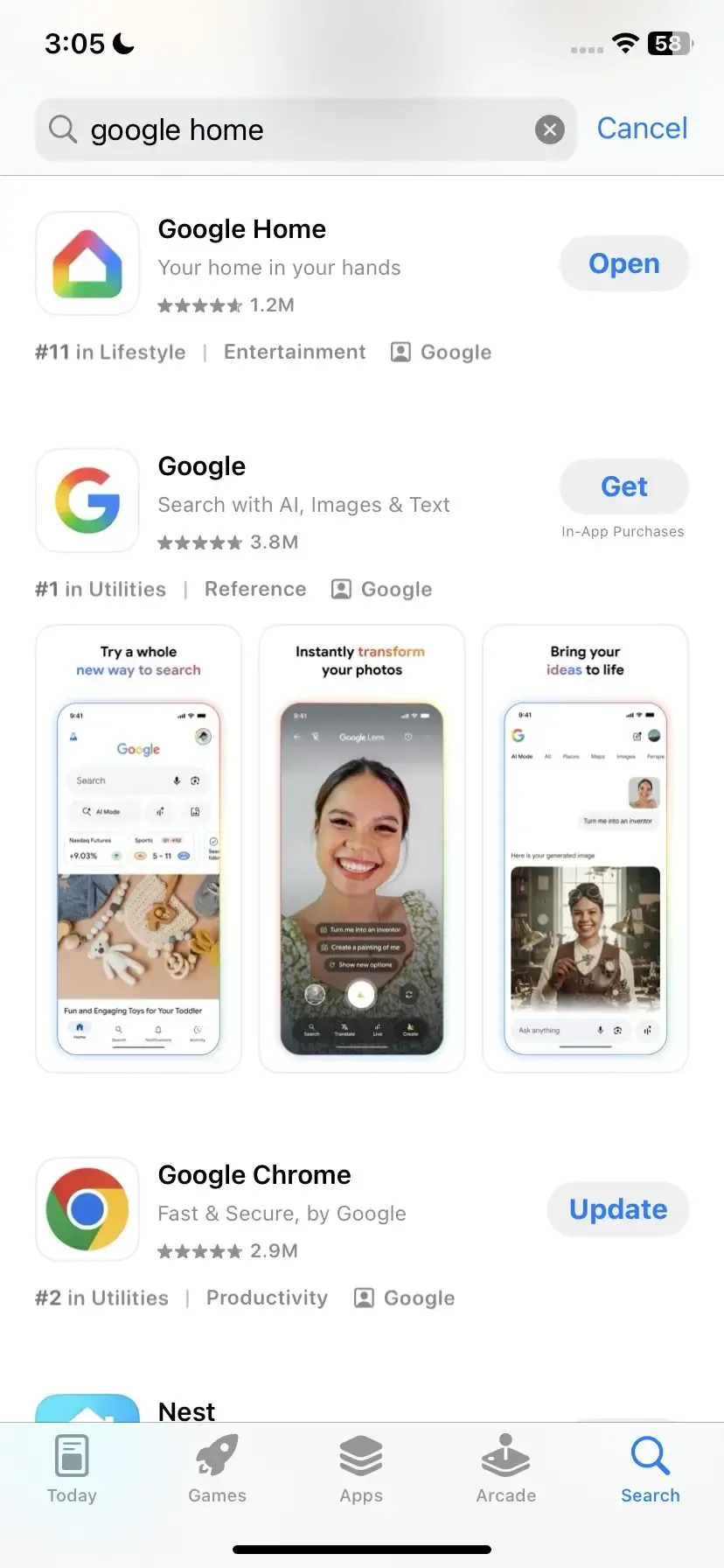
Condition 2. The Google Home app is essential for managing your Chromecast. Make sure it's updated to ensure smooth functionality.
Condition 3. If you're casting from a web browser (like Chrome) on your computer, outdated browser versions can cause issues.
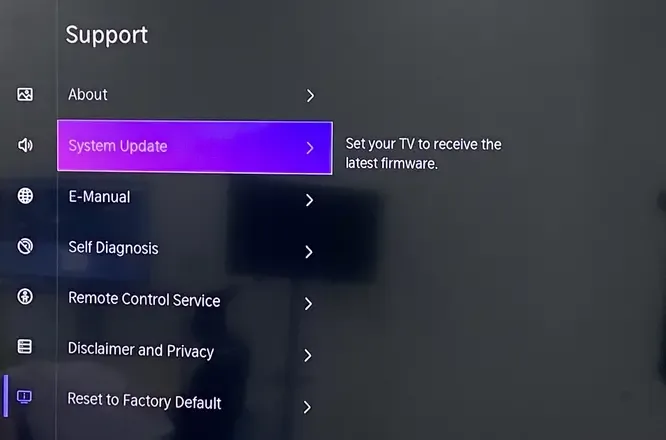
Condition 4. Outdated software on your device can affect its compatibility with Chromecast. Ensure your operating system is up-to-date.
5. Stop Battery Optimization Limitation
If your Chromecast keeps disconnecting, it could be due to battery optimization settings that restrict background activity for certain apps. To resolve this, follow these steps to ensure the app can run without interruptions:
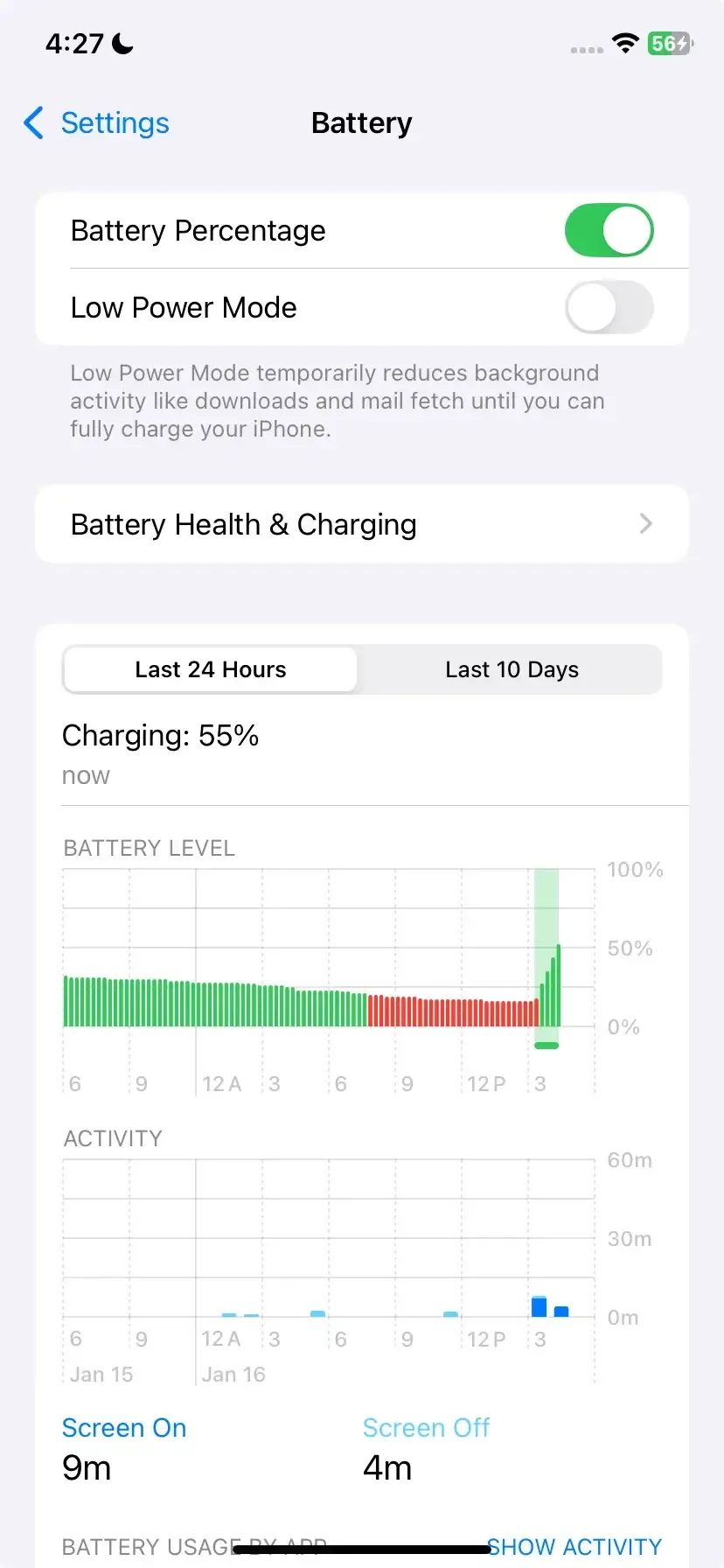
Step 1. Open your phone's Settings, then navigate to the Battery or Battery Usage section.
Step 2. Find the app that's causing the issue and tap on it.
Step 3. Look for the Battery Optimization or Background Activity option.
Step 4. Select Unrestricted or Disable Optimization (or similar options, depending on your device).
6. Reset the Chromecast
If your Chromecast keeps resetting, restoring it to its factory default settings can help. This will return the software to its original state and prompt an update to the latest firmware. Follow these steps to reset your Chromecast:
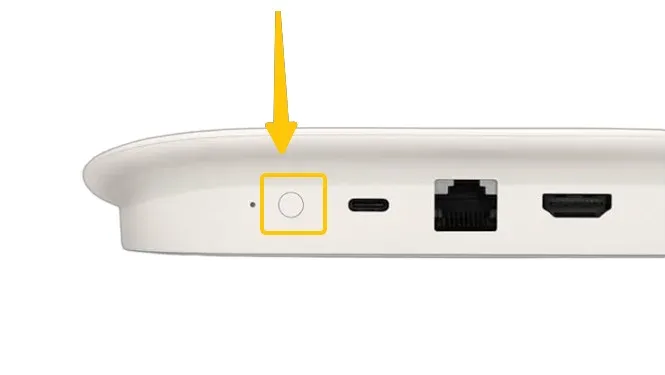
Step 1. Press and hold the Reset button on the Chromecast device for about 25 seconds.
Step 2. Wait until the LED light begins flashing and the TV screen goes blank.
Step 3. Once the reset is complete, the Chromecast will restart, and you'll be able to set it up again.
7. Contact Support
If none of the previous steps have resolved the issue and your Chromecast is still malfunctioning, it may be time to reach out for professional assistance. Contact Chromecast support to get help diagnosing the problem.
8. Use PigeonCast
If your Chromecast is still having issues or if professional assistance is taking too long, consider using the free PigeonCast as a temporary solution to bypass or troubleshoot connectivity problems. PigeonCast is an app that supports a wide range of devices, including Android, iOS, Windows, Mac, and TVs, and works across multiple platforms.
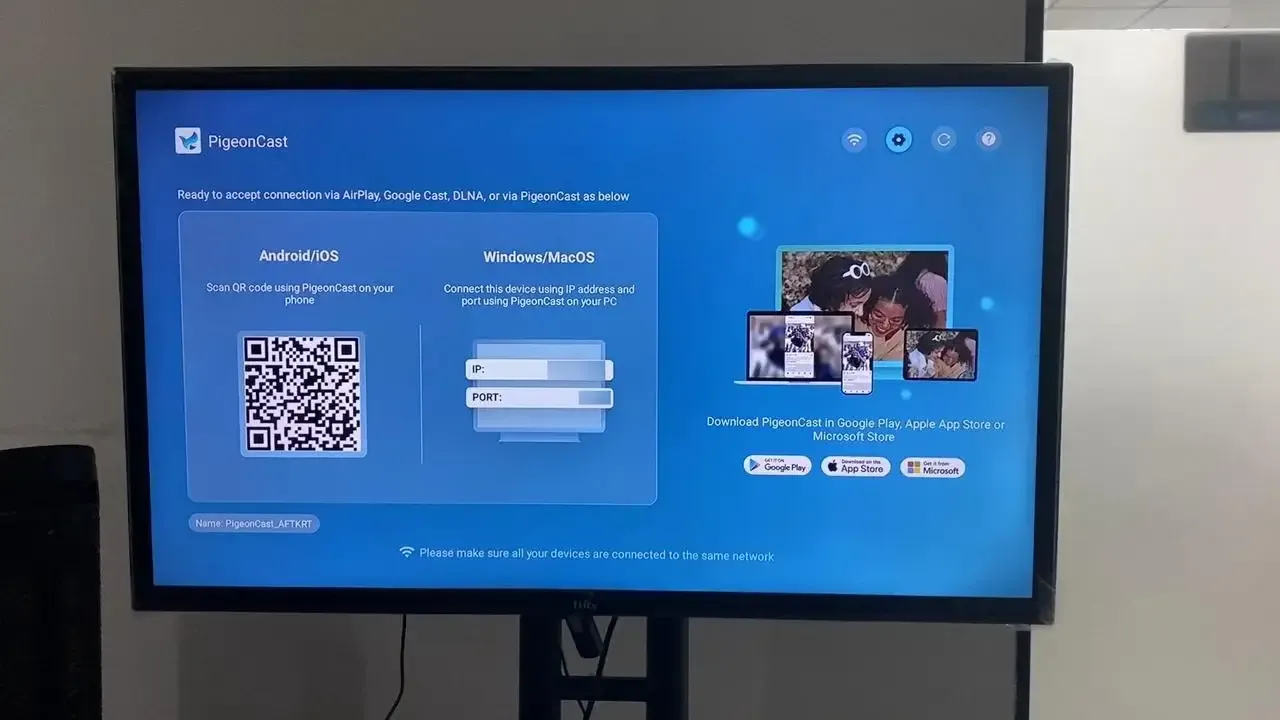
It also provides 4K resolution with minimal latency, ensuring a high-quality viewing experience while you resolve your Chromecast issues. This mirroring app is also simple to use:
Step 1. Ensure your mobile device and TV are connected to the same wireless network.


Overall Rating:



Step 2. Install PigeonCast on both your mobile device and TV from the app store. Then launch the app.
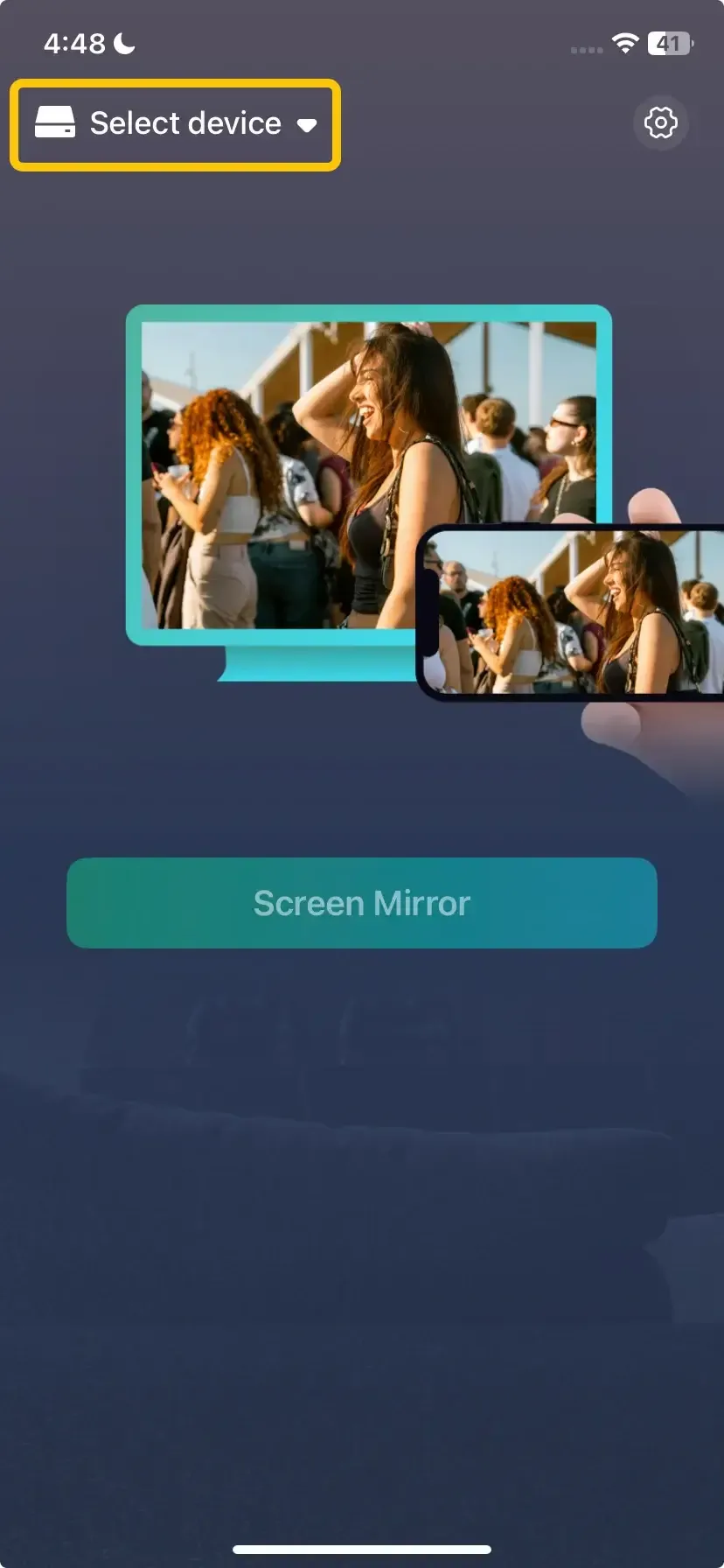
Step 3. On the mobile device, tap Select device to choose your TV from the available list. Or you can scan the QR code to build the connection.
Step 4. Enter the onscreen PIN code to finish the pairing process.
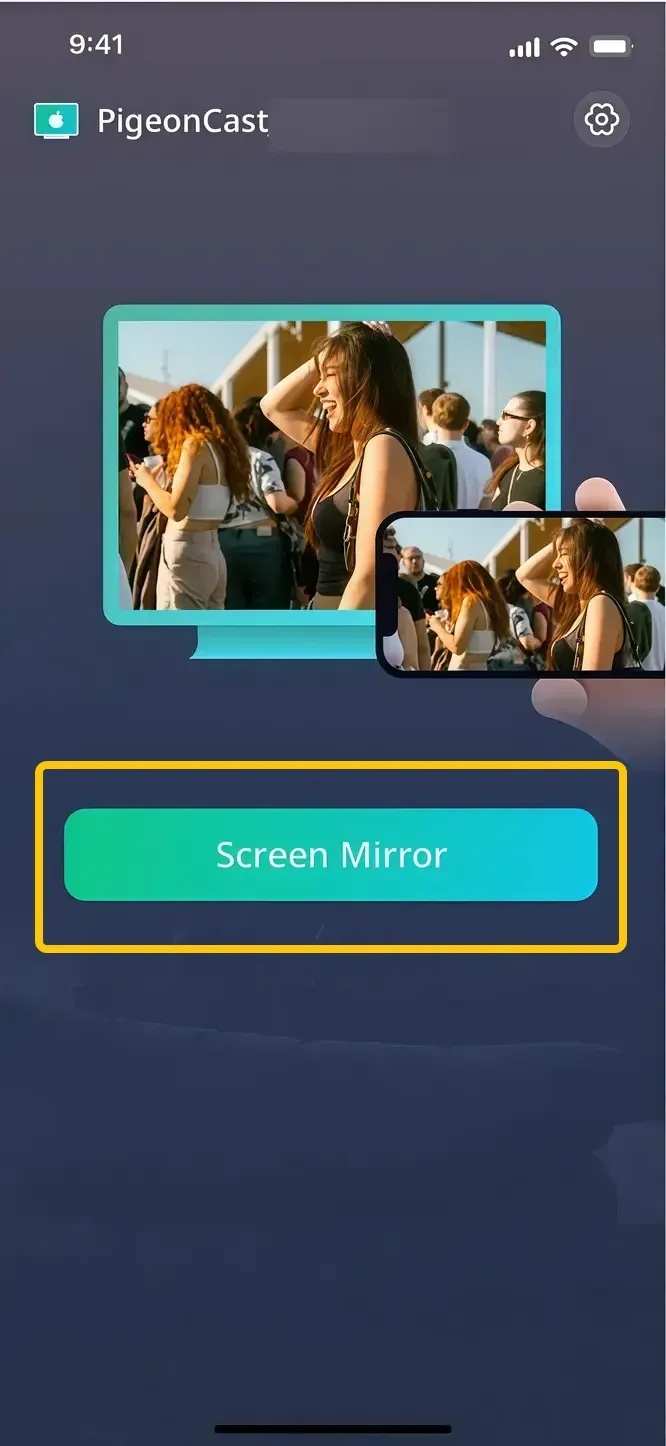
Step 5. When the connection succeeds, tap Screen Mirror to begin your mirroring activities on your smart television.
Closing Words
If your Chromecast keeps rebooting, it's usually due to power, network, or software issues. By following the steps above, like checking power, updating apps, or resetting the device, you can fix most problems. If the issue continues, try contacting support or using PigeonCast as a temporary solution. With these steps, you'll be back to streaming in no time.
Chromecast Keeps Restarting FAQ
Why does my Chromecast keep turning on and off?
Here are the reasons why your Chromecast might keep turning on and off:
- Insufficient power
- Weak Wi-Fi signal
- Outdated software
- Power supply issues
- Overheating
- Network congestion
- App conflicts
- Hardware cailure
Why does my Chromecast keep stopping?
If your Chromecast keeps stopping, here are some potential reasons:
- Unstable Wi-Fi Connection
- Insufficient Power
- App Issues
- Overheating
- Network Congestion
- Software Glitches
- Audio or Video Settings Conflict
How to solve Chromecast overheating and restarting?
If your Chromecast is overheating and restarting, here are the steps to help solve the issue:
- Improve ventilation
- Keep it cool
- Use a longer USB cable
- Use a powered USB Hub
- Keep the room cool
- Check for software updates
- Reset the Chromecast
- Limit continuous streaming
Why does Chromecast keep going back to the Home screen?
If your Chromecast keeps going back to the Home screen, it could be due to the following reasons:
- Weak Wi-Fi connection
- App or content issues
- Outdated coftware
- Power supply problems
- Network congestion
- App conflicts
- Overheating
- HDMI or TV compatibility issues
How to solve Chromecast keeps restarting after reset?
If your Chromecast keeps restarting after a reset, the issue could be related to several factors. Here are some potential solutions to resolve it:
- Check the Power Supply
- Use the original power adapter
- Avoid power strips
- Ensure a stable network connection
- Move the Chromecast closer to the router
- Reboot your router
- Update Chromecast and apps
- Avoid overheating
- Proper ventilation
- Cool the device
- Reset the Chromecast
- Disable background apps or power saving settings
- Test different HDMI ports
- Use a powered USB Hub
- Use a wall adapter instead of the TV USB port
- Check for router settings
- Disable WMM Power save
Clara Rossi is an experienced technology editor and a seasoned expert in screen mirroring and casting technologies. With a keen eye for detail and a deep understanding of how to seamlessly connect devices, Clara excels at optimizing user experiences for effortless sharing and streaming. Whether you're seeking quick fixes or advanced tips, her expertise and responsiveness ensure that every query is met with a well-informed and efficient solution.