
There are few things more frustrating than settling in to watch a movie or listen to music, only to find your Chromecast is playing a silent film. The Chromecast no sound issue is a common problem, but the good news is that it's almost always fixable. This guide will walk you through the reasons behind the silence and provide a step-by-step process to restore your audio, from the simplest checks to more advanced solutions.
Why Does My Chromecast Have No Sound
Understanding the potential causes is the first step to a quick fix. The audio signal from your Chromecast travels through a chain of connections, and a break in any one of them can result in Chromecast video no sound.
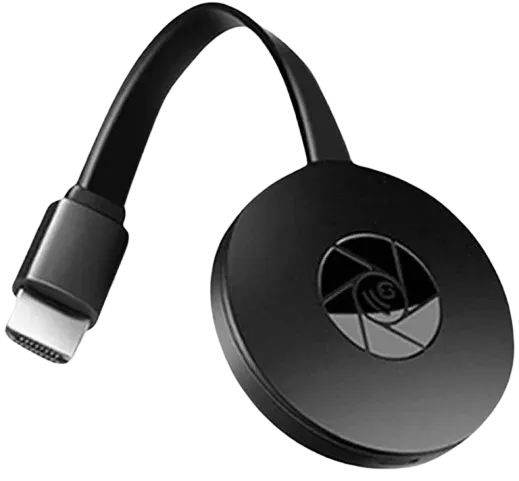
The problem can originate from several places: it could be a simple volume or mute issue on your TV or phone, a glitch in the specific app you're casting from, a loose HDMI connection, an incorrect audio setting on your TV, or a deeper software bug within the Chromecast itself. By systematically checking each part of this chain, you can isolate and resolve the culprit.
How to Fix No Sound on Chromecast
If no sound coming from Chromecast suddenly happens, don't worry. It's usually a small glitch that can be fixed quickly. Here are some reliable steps to help you get the audio working again in just a few minutes.
Way 1. Perform the Basic Audio Checks
It may seem obvious, but simple oversights are often the main reason your Chromecast has no sound. Issues like muted TVs, low device volume, or app-specific settings are common culprits. Always start with these basic checks before moving on to more advanced fixes.
- Check TV Volume: Ensure your TV is not on mute and the volume is turned up to an audible level.
- Check Phone/Tablet Volume: When you start casting, the volume on your mobile device can sometimes control the playback volume. Press the volume-up button on your phone.
- Unmute the video: The video you are playing might be muted within the app itself. Check the video player for a mute icon and click it.
- Try a Different App: Cast a video from a different app (e.g., if YouTube has no sound, try Netflix). If sound works in one app but not another, the problem is with the first app, not your Chromecast.
Way 2. Switch Input to Test TV's Audio
Before spending more time on the Chromecast, you must confirm that the TV's speakers and audio system are functioning properly. The rest of these steps will be pointless if the audio issue lies with your TV or another connected device.
Step 1. Use your TV remote's Input or Source button to switch away from the HDMI port your Chromecast is using.
Step 2. Switch to a different input with a device you know has audio, like a cable box, gaming console (Xbox, PlayStation), or another streaming device (Roku, FireStick). Play some content.
Step 3. If you don't have another device, switch to the TV's built-in tuner (live TV) or a built-in app like Netflix and play something.
Step 4. If you still have no sound from these other sources, the problem is with your TV's settings or speakers, not Chromecast. Check your TV's audio output settings and ensure internal speakers are enabled.
Step 5. If you do get sound from other sources, you've confirmed the issue is isolated to the Chromecast or its connection, and you can proceed with the following steps.
Way 3. Check Audio on the Casting Device
Why is there no sound when I Chromecast? After confirming that your TV's speakers work on other inputs, the next step is to verify that the device you're casting from has functioning audio. A problem on the source device will prevent sound from reaching Chromecast even if everything else is correct.
Step 1. Disconnect your devices from Chromecast entirely.
Step 2. Play a video or audio file without casting to ensure the video or music plays directly on the device to verify its speakers are working.
Step 3. Confirm that the volume is turned up and not muted on the device.
Step 4. Once you've verified the source device has audio, connect to Chromecast and test the sound again.
Way 4. Restart and Reconnect Your Devices
Now that you've confirmed both the sending device (phone, tablet, or computer) and the TV have working audio, the next step is to restart the app that's doing the casting. Then restart all three devices. Temporary glitches in the streaming app or browser are a common reason for no sound Chromecast issues.
Step 1. Force close the app you're casting, whether it's Netflix, YouTube, or Chrome on your computer. Wait a few seconds, then reopen the app and try casting again.
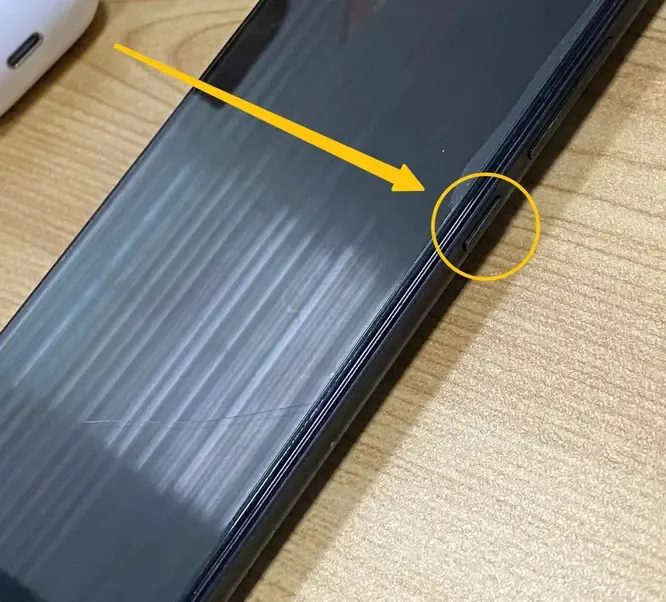
Step 2. Restart Phone/Tablet: Press the Power button until the power menu appears, select Restart (or Power Off, then turn it back on after 10–15 seconds.
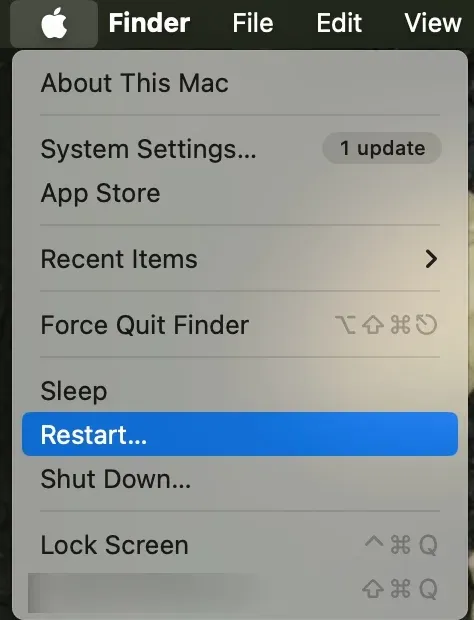
Step 3. Restart Computer: Close all applications. Click Start > Power > Restart (Windows) or Apple menu > Restart (Mac). Wait for the system to reboot fully.
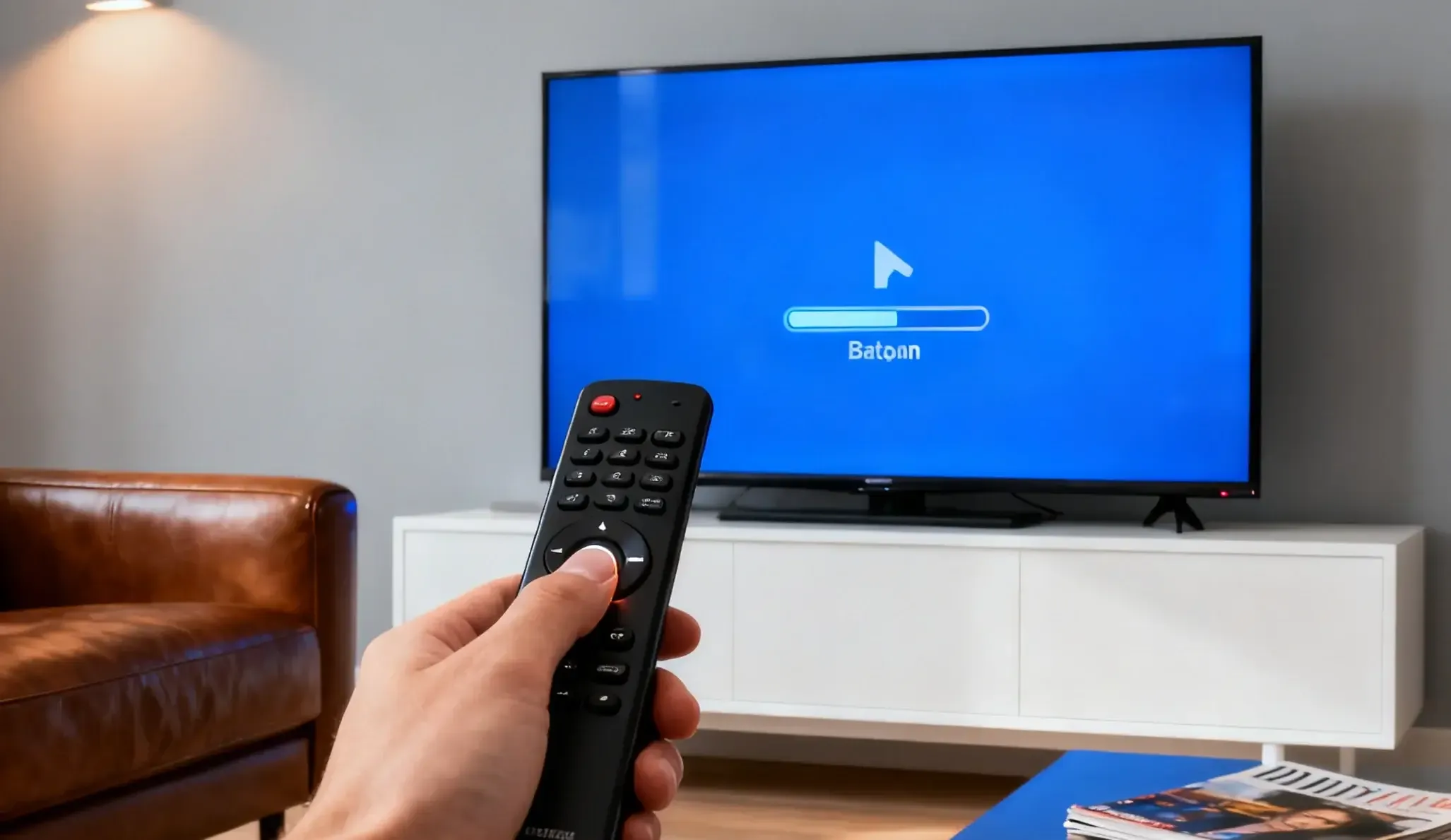
Step 4. Restart the TV or Projector: Using the TV remote, press the Power button to turn it off. If possible, unplug the TV from the wall outlet for 30 seconds to clear any residual charge. Plug it back in and turn it on.
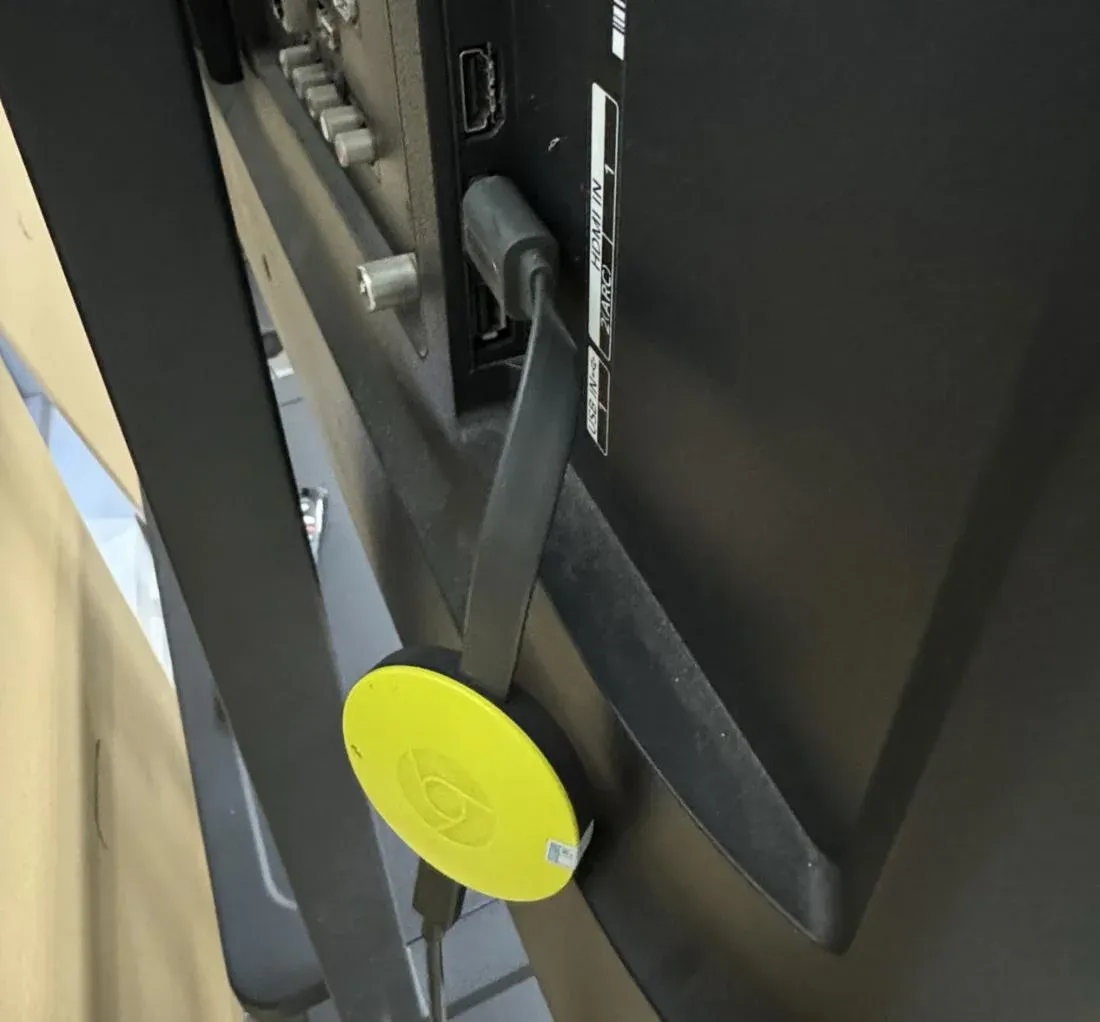
Step 5. Restart the Chromecast Device: Unplug Chromecast from the HDMI port and power source, then wait 30 seconds. Plug it back in and wait for the LED light to stabilize.
Way 5. Update Chromecast and Software
How to solve the no sound casting screen Chromecast when it persists? Outdated software is a common, often overlooked cause of audio issues. Keeping both your Chromecast's firmware and the apps you're casting from up to date ensures compatibility and optimal performance.
- Update Chromecast:
Step 1. Open the Google Home app on your phone or tablet, and select your Chromecast device from the list.
Step 2. Tap on Settings (the gear icon), scroll down, and select Device information. The app will automatically check for updates. If one is available, follow the on-screen prompts to install it. Your Chromecast will restart during this process.
- Update the casting app:
Step 1. Go to the Google Play Store (Android) or App Store (iPhone/iPad).
Step 2. Search for the app you're having trouble with (e.g., YouTube, Netflix, Spotify).
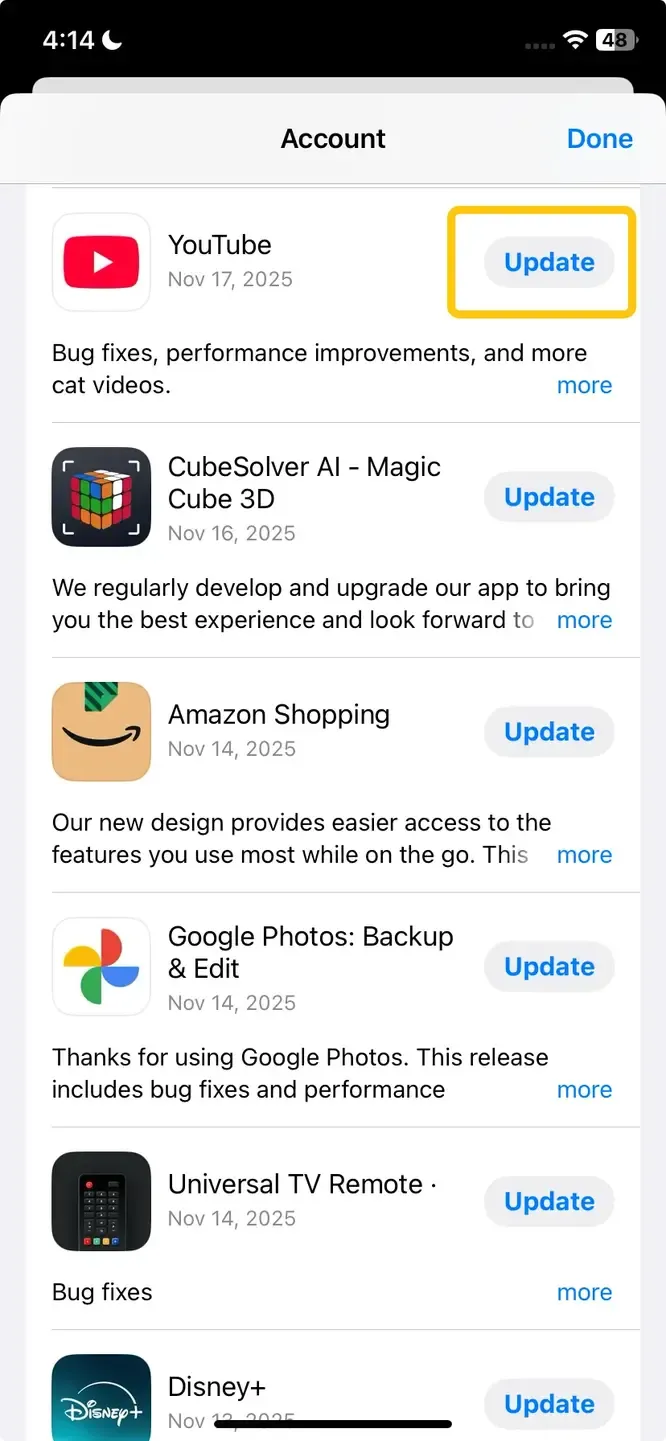
Step 3. If an update is available, you will see the Update button. Tap it to install the latest version.
Way 6. Try a Different HDMI Port
Sometimes the "no sound on TV Chromecast" issue isn't caused by the Chromecast itself, but by the specific HDMI port on your TV. Ports can become damaged, have loose connections, or include settings that conflict with the Chromecast's audio output.
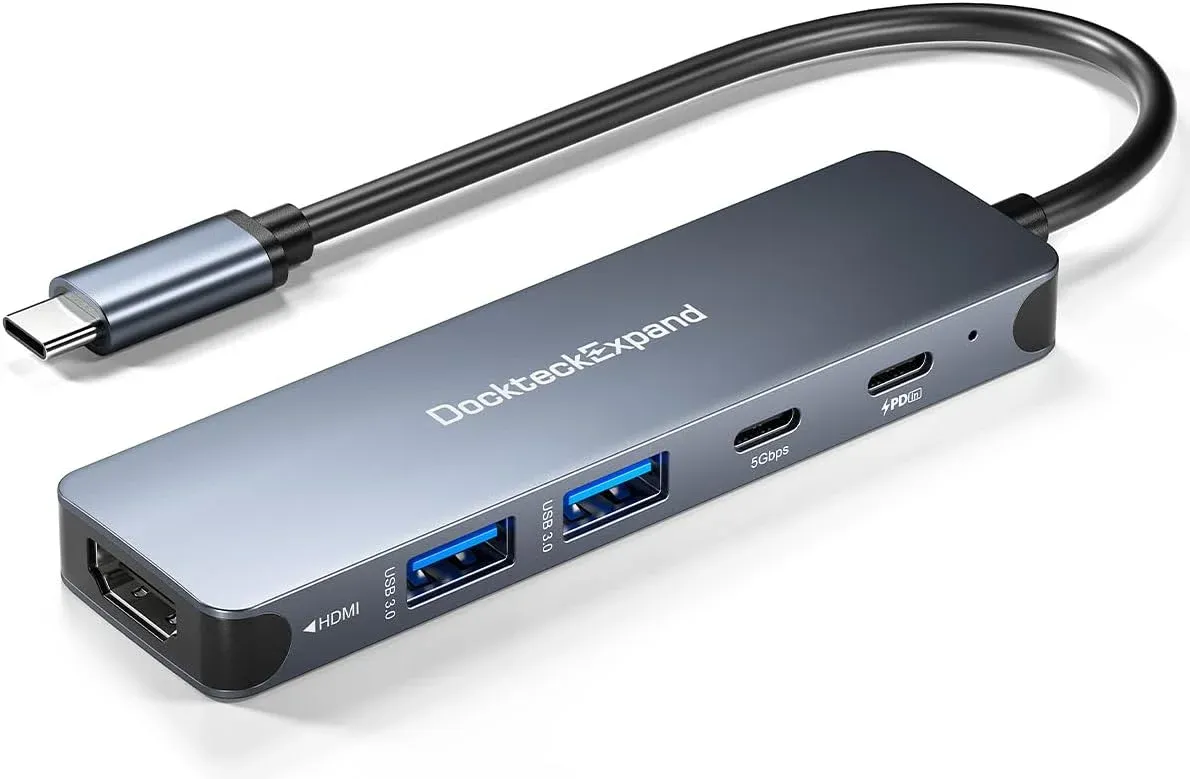
Step 1. Unplug your Chromecast from power. Carefully unplug the Chromecast from its current HDMI port and plug it into a different, unused HDMI port on your TV.
Step 2. Plug the Chromecast back into power. On your TV remote, press the Input or Source button and select the new HDMI port you just used.
Step 3. Try casting a video or music again to see if the sound has returned.
Way 7. Perform a Factory Reset
If none of the above methods work, performing a factory reset on Chromecast will return the device to its original state and remove any corrupt settings.
Step 1. Open the Google Home app on your phone.
Step 2. Tap your Chromecast device > Settings > More (⋮) > Factory Reset.
Step 3. Confirm and wait for the reset to complete, and set up Chromecast again and test sound playback.
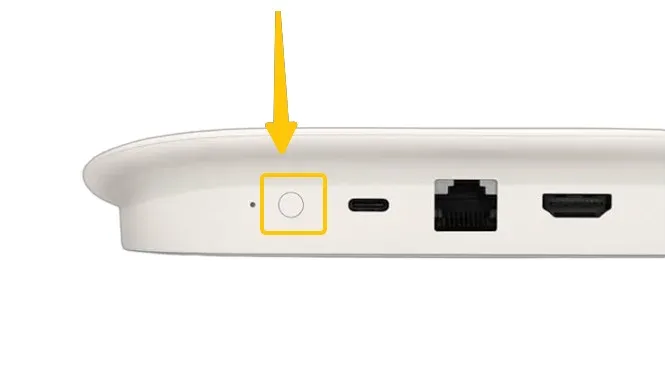
Plus, you can also press and hold the Reset button on the Chromecast device for about 25 seconds until the LED light blinks.
Way 8. Contact Google
If you have methodically worked through all previous troubleshooting steps and your Chromecast is still producing no sound, it's time to consider that the device itself may have a hardware fault. Google's support team is the final resource for diagnosing an unfixable software issue or arranging a repair or replacement if your device is still under warranty.
Chromecast Sound Not Working? Try PigeonCast
Alternatively, you can use PigeonCast as your casting hub. It works seamlessly with AirPlay, DLNA, and Google Cast, giving you maximum flexibility to stream content from your devices. Whether it's YouTube videos, photos, music, or apps, you can cast everything to any compatible screen. Plus, this free app supports both sound and silent modes.

PigeonCast Screen Mirroring

Official Download



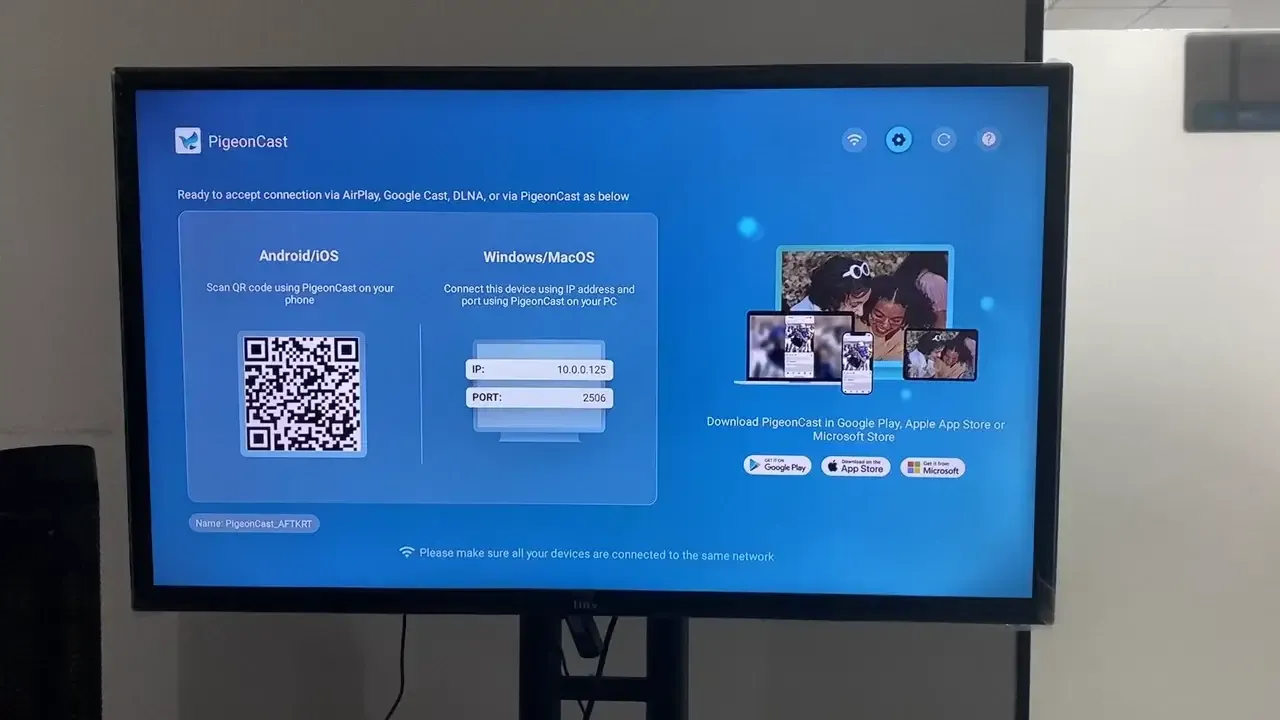
Step 1. Install PigeonCast on your mobile device and TV.
Step 2. Ensure your devices are covered by the same wireless network.
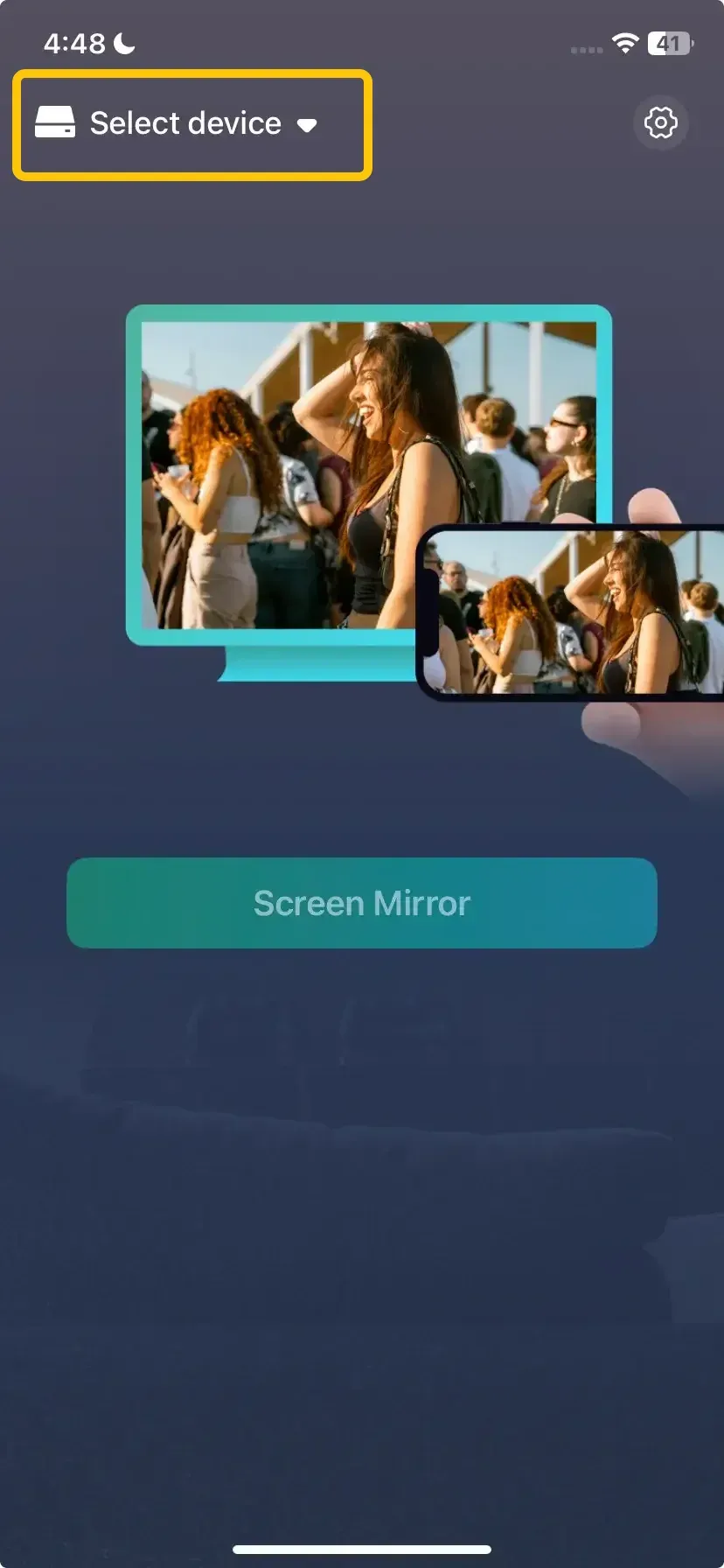
Step 3. Open the app and select your device from the available list. Enter the onscreen code to confirm the connection.
Step 4. When you pair successfully, you can tap Screen Mirror to start your mirroring and adjust the video sound settings.
Bottom Line
If your Chromecast sound is not working, it can be frustrating, but it's usually fixable. Checking your TV and device volume, restarting and updating devices, trying a different HDMI port, or performing a factory reset often restores the audio. If none of these steps work, Google support can help with hardware issues or replacements. Following these steps should get your Chromecast sound working again so you can enjoy your movies, music, and shows.
Chromecast No Sound FAQ
What should I do if Chromecast sound is out of sync with video?
If the sound on your Chromecast is out of sync with the video, try the following steps to resolve the issue:
- Restart Your Chromecast
- Check Your Internet Connection
- Adjust Audio Settings
- Update Your Chromecast
- Try Casting from a Different Device
- Reboot Your TV
How to fix no sound on Chromecast using Google Chrome?
If you're experiencing no sound on Chromecast while using Google Chrome, it can be caused by several factors, including browser settings, device issues, or Chromecast configuration. Here's a simple troubleshooting guide to help you resolve the issue:
- Check Your Audio Output Settings
- Restart Chromecast
- Check Audio Settings in Google Chrome
- Check the Volume Control on Chrome
- Update Google Chrome
- Check Your Wi-Fi Network
- Try Casting to a Different Device
- Reboot Your Computer and TV
- Check Audio Format Compatibility
- Perform a Factory Reset (Last Resort)
Why is my Chromecast audio delayed during streaming?
Here are the possible reasons for audio delay while streaming on Chromecast:
- Slow or Unstable Wi-Fi Connection
- Audio Settings on TV or Sound System
- Outdated Chromecast Firmware
- Incompatible Audio Format
- Casting from a Device with Low Processing Power
- Network Congestion
- Audio Sync Settings in Streaming App
- Chromecast Model Limitations
- External Devices or Soundbars
- Faulty HDMI Connection
Why is Chrome not outputting sound?
Chrome may not output sound due to:
- Muted tabs
- Incorrect system or browser audio settings
- Outdated Chrome version
- Conflicts with other apps or extensions
- Issues with audio drivers
What happened to Chromecast Audio?
Chromecast Audio was discontinued by Google in 2019. It is no longer sold or supported as a separate device, as Google shifted focus to Chromecast with Google TV and other smart speakers that include built-in casting and audio capabilities.
How do I reset my Chrome audio?
You can reset Chrome audio by:
- Checking that no tabs are muted
- Resetting site-specific sound permissions in Chrome settings
- Restarting Chrome to clear temporary glitches
- Updating Chrome to the latest version
Where are Chrome's sound settings?
Chrome's sound settings can be found here:
Click the three-dot menu (⋮) in the top-right corner of Chrome.
- Go to Settings > Privacy and security > Site Settings.
- Scroll down to Permissions and select Sound.
Clara Rossi is an experienced technology editor and a seasoned expert in screen mirroring and casting technologies. With a keen eye for detail and a deep understanding of how to seamlessly connect devices, Clara excels at optimizing user experiences for effortless sharing and streaming. Whether you're seeking quick fixes or advanced tips, her expertise and responsiveness ensure that every query is met with a well-informed and efficient solution.