
Chromecast blinking white is a common issue, and it doesn't always signal a serious problem. Understanding why your Chromecast LED flashing white is occurring can help you resolve it quickly and get back to streaming your favorite content. In this article, we'll walk you through the potential causes of a Chromecast white light, troubleshooting steps to fix the issue, and provide some alternative solutions like PigeonCast if your Chromecast continues to act up.
What Does the Blinking Whit Light on Chromecast Indicate
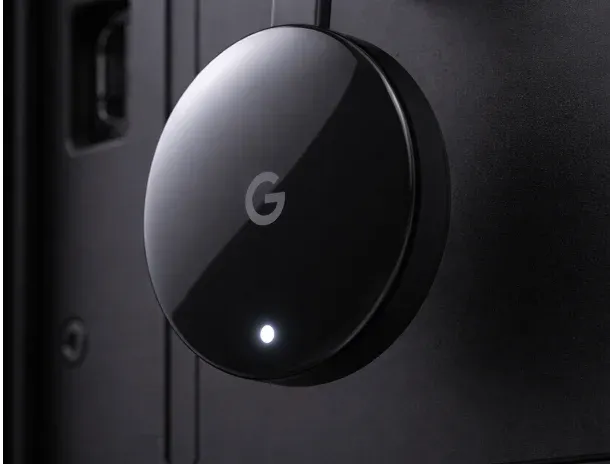 The Chromecast blinking white light is typically an indicator of the device undergoing a specific process or encountering an issue. Understanding the different LED states can help you determine whether your Chromecast is functioning normally or needs attention. Here's what each light pattern means:
| LED Status | Chromecast Device | LED Indicator Meaning | What You Should Do |
|---|---|---|---|
| Solid White | Chromecast 1st Gen, 2nd Gen, 3rd Gen, Ultra | Chromecast is connected to the network and is ready to begin casting content, or is already casting content. | No action is needed. |
| Solid Wite (dim) | Chromecast with Google TV (4K and HD) | Chromecast is in an idle state. | No action is needed. |
| Pulsing White | Chromecast 1st Gen, 2nd Gen, 3rd Gen, Ultra, Google TV, | Chromecast is disconnected or needs to be set up. | Requires action. You'll need to set up your Chromecast or reconnect Chromecast to Wi-Fi network. Follow the instructions in the Google Home app to complete the setup. |
| Alternating pulsing white and orange | Alternating pulsing white and orange | Chromecast is receiving an update and is not available for casting. | Requires action. The update process should finish automatically, but if the light persists longer than expected, you may need to check the Wi-Fi connection or restart the Chromecast. If the problem continues, consider a factory reset. |
| Blinking orange and then turning white after a few seconds | Alternating pulsing white and orange | Chromecast is being or has just been reset. | Requires action. The device is in the process of resetting. After this process, you'll need to set up your Chromecast again. If the blinking continues or doesn't change after reset, a full factory reset may be required. |
How to Stop Chromecast Blinking White Light
If your Chromecast is experiencing any of the blinking white light patterns that require action, here's what you can do:
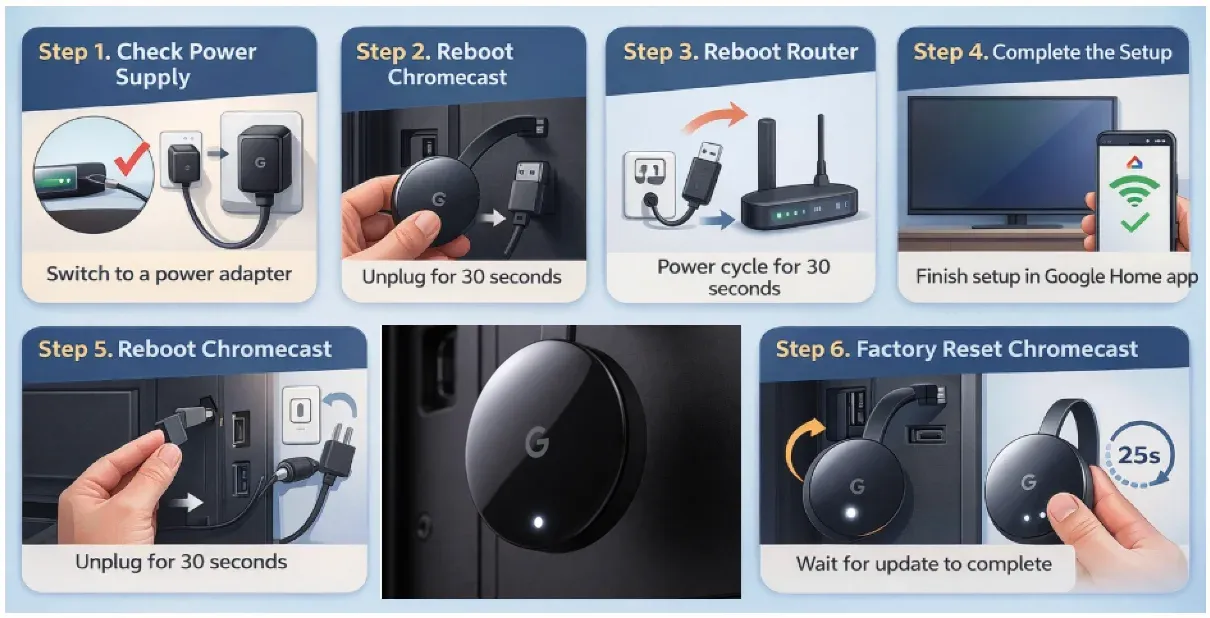
Step 1. Check your Chromecast power supply.
Make sure your Chromecast is connected to a stable power source. If you're using a USB port on your TV, consider switching to a dedicated power adapter to ensure your Chromecast gets enough power.
Step 2. Reboot your Chromecast.
Unplug the Chromecast from both the HDMI port and the power source for about 30 seconds. Plug it back in and see if the issue resolves. This can often fix minor glitches that cause the white blinking light.
Step 3. Reboot your router.
The pulsing white light often means connectivity issues. Power cycle your router by unplugging it for 30 seconds, then plug it back in. Check that other devices on your network are also working properly.
Step 4. Complete the setup process.
If your Chromecast is in setup mode, follow the instructions on the Google Home app to finish the setup. Ensure your Chromecast is connected to the correct Wi-Fi network.
Step 5. Update your Chromecast firmware.
If the light is alternating white and orange, the device may be updating. This process could take several minutes. If the update takes longer than expected, check your Wi-Fi connection or restart the Chromecast.
Step 6. Factory reset your Chromecast.
If your Chromecast is still blinking orange or white after attempting the above solutions, you may need to perform a factory reset. Hold the button on your Chromecast for at least 25 seconds until the light begins flashing. After resetting, you'll need to go through the setup process again via the Google Home app.
Additional Tips to Avoid Chromecast Blinking White Issues
To prevent the Chromecast blinking white light no signal from recurring, here are a few proactive steps you can take:
- Keep your Chromecast updated: Regularly check for software updates to ensure your Chromecast has the latest firmware. This helps prevent issues caused by outdated software.
- Optimize your Wi-Fi network: Ensure your Wi-Fi connection is strong and stable. Weak or fluctuating signals can lead to connectivity problems that may cause the pulsing white light.
- Use a dedicated power adapter: If you're powering the Chromecast through your TV's USB port, consider using a dedicated power adapter to ensure the device receives sufficient power for smooth operation.
- Reduce wireless interference: Keep your Chromecast and Wi-Fi router away from large metal objects, thick walls, or other electronics that may interfere with the Wi-Fi signal.
When to Use PigeonCast as an Alternative Solution
If the Chromecast flashing white issue persists, or if you're seeking a more reliable screen mirroring solution, consider switching to PigeonCast. This robust alternative offers seamless, high-quality screen mirroring across a variety of devices.
Unlike Chromecast, which relies on hardware, PigeonCast operates as a free software solution, allowing you to easily mirror your screen by simply downloading the app. Enjoy hassle-free connectivity and enhanced performance with PigeonCast.
Step 1. Download and install PigeonCast on your computer or TV and launch it.
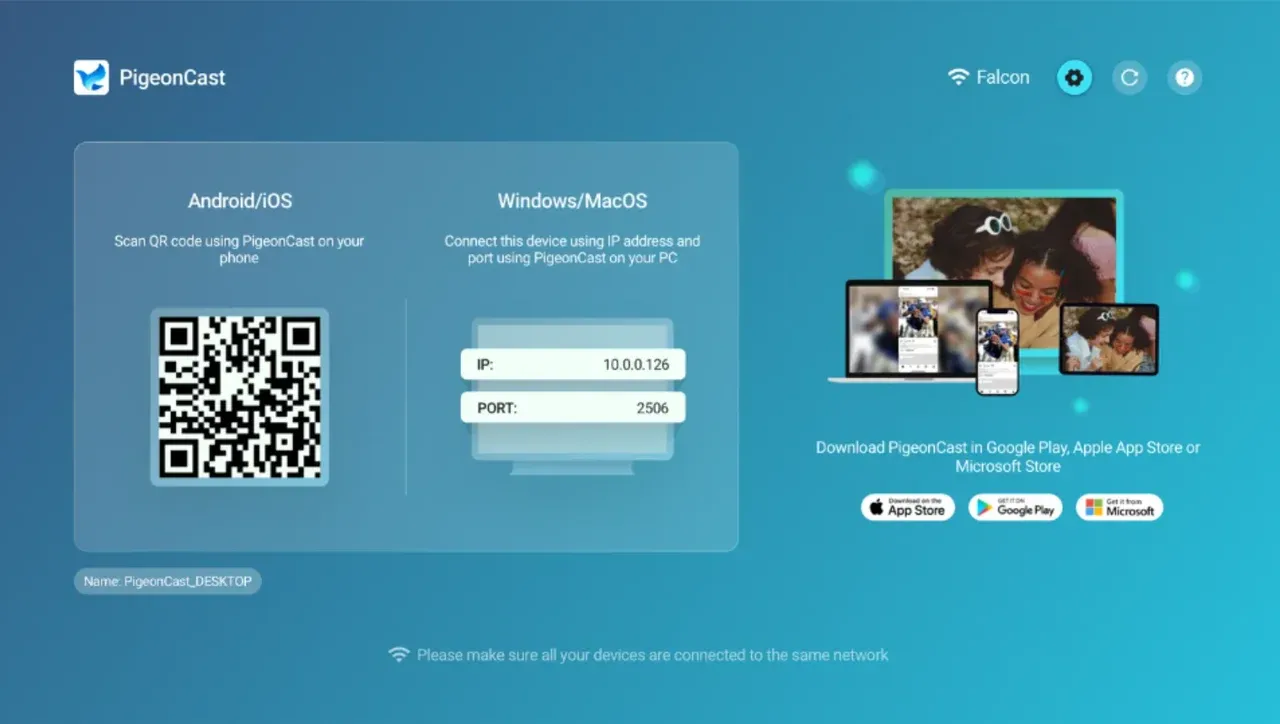
Step 2. On your sending device, choose Cast or AirPlay, and choose your computer or TV. Or set up PigeonCast on the device for fluid streaming.


Overall Rating:



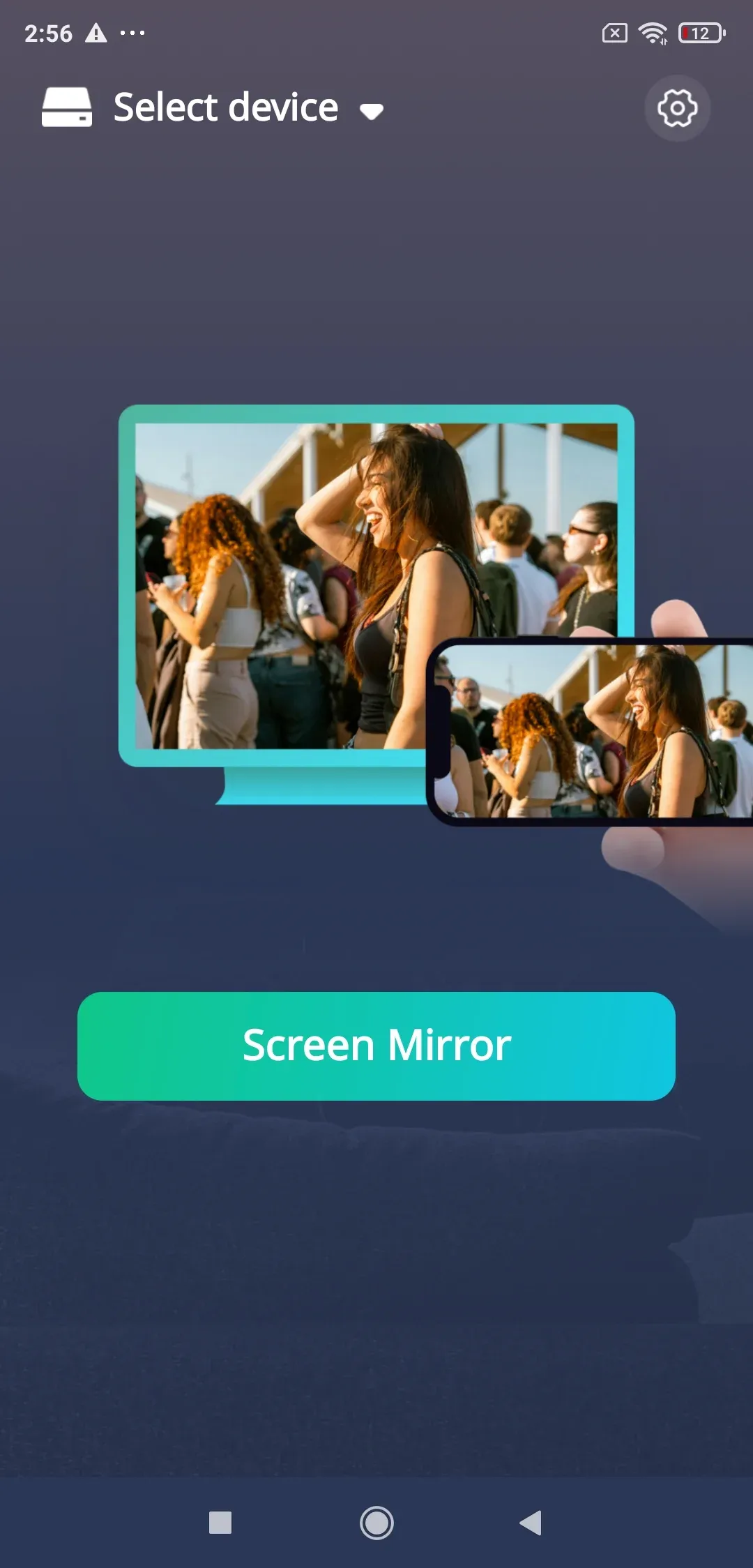
Step 3. You can view content on your large screen.
Conclusion
While the Chromecast white light can be concerning, most of the time it's a sign that the device is either waiting for setup or encountering mirror connectivity issues. By following the troubleshooting setups outlined in this post, you should be able to resolve the problem and get back to streaming content in no time. And if Chromecast continues to act up, PigeonCast provides a reliable alternative for screen mirroring without the hassle.
Chromecast Blinking White FAQs
Why is my Chromecast blinking white and not working?
The blinking white light usually means the device is either waiting to be set up or trying to connect to your Wi-Fi network. Follow the setup instructions in the Google Home app or check your Wi-Fi connection.
How do I stop the blinking white light on my Chromecast?
If the light is pulsing, try rebooting your Chromecast and Wi-Fi router. If it's alternating white and orange, the Chromecast might be updating or resetting, so give it some time.
Does the Chromecast blinking white light mean it's broken?
Not necessarily. In most cases, it's related to connectivity issues or a reset. Follow the troubleshooting steps to resolve it.
Can I fix Chromecast blinking white without factory resetting it?
Yes, in many cases, simply rebooting the Chromecast or reconnecting it to the Wi-Fi network will resolve the issue.
What should I do if Chromecast keeps blinking white after a reset?
If the blinking persists after a factory reset, try contacting Google Support for further assistance or consider using an alternative like PigeonCast.
Mia Clarke is a technology editor specializing in screen mirroring and casting solutions across multiple platforms. Mia provides clear, practical guides and in-depth insights to help users seamlessly connect their devices. Passionate about enhancing digital experiences, Mia is dedicated to keeping readers updated on the latest trends and tools in cross-platform screen sharing. Whether you’re looking to mirror your smartphone, laptop, or smart TV, Mia’s content delivers reliable, user-friendly advice to simplify your tech setup.