
Updating your Chromecast helps improve performance, strengthen security, and reduce casting issues. Many users never touch the update process because Chromecast normally updates itself. Still, there are times when you may want to check the firmware version, start a manual update, or force a new installation. This guide walks you through everything you need to know about how to update Chromecast, from automatic updates to advanced firmware refresh methods.
How to Update Chromecast Automatically
Chromecast updates itself automatically whenever it remains powered on and connected to Wi-Fi. The device quietly downloads new firmware in the background and installs it once the file is ready. You may see a loading animation on your TV during the installation process.
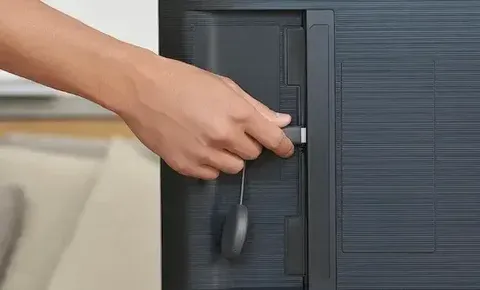
Keeping your Chromecast updated is important because many connection issues, including the untrusted device message, are often linked to outdated firmware. Leave your Chromecast device plugged in overnight and avoid turning it off frequently. This gives the device enough time to check for updates and complete the installation without interruption.
How to Update Chromecast Manually
You may prefer to take a more active role and start a manual check. Chromecast does not allow users to download firmware files directly, but you can trigger a new update attempt through the Google Home app. This method is helpful when your device appears to be stuck on an outdated version or when you encounter recurring streaming issues. Below is how to update Chromecast firmware manually.
Start Chromecast Update on Android or iPhone
Chromecast update firmware can be easily done through the Google Home app, and here's the step-by-step guide on how to update Google Chromecast:
Step 1. Go to Google's Chromecast support page and check the latest firmware version available for your Chromecast device.
Step 2. Make sure your Chromecast is powered on and connected to the same Wi-Fi network as your mobile device.
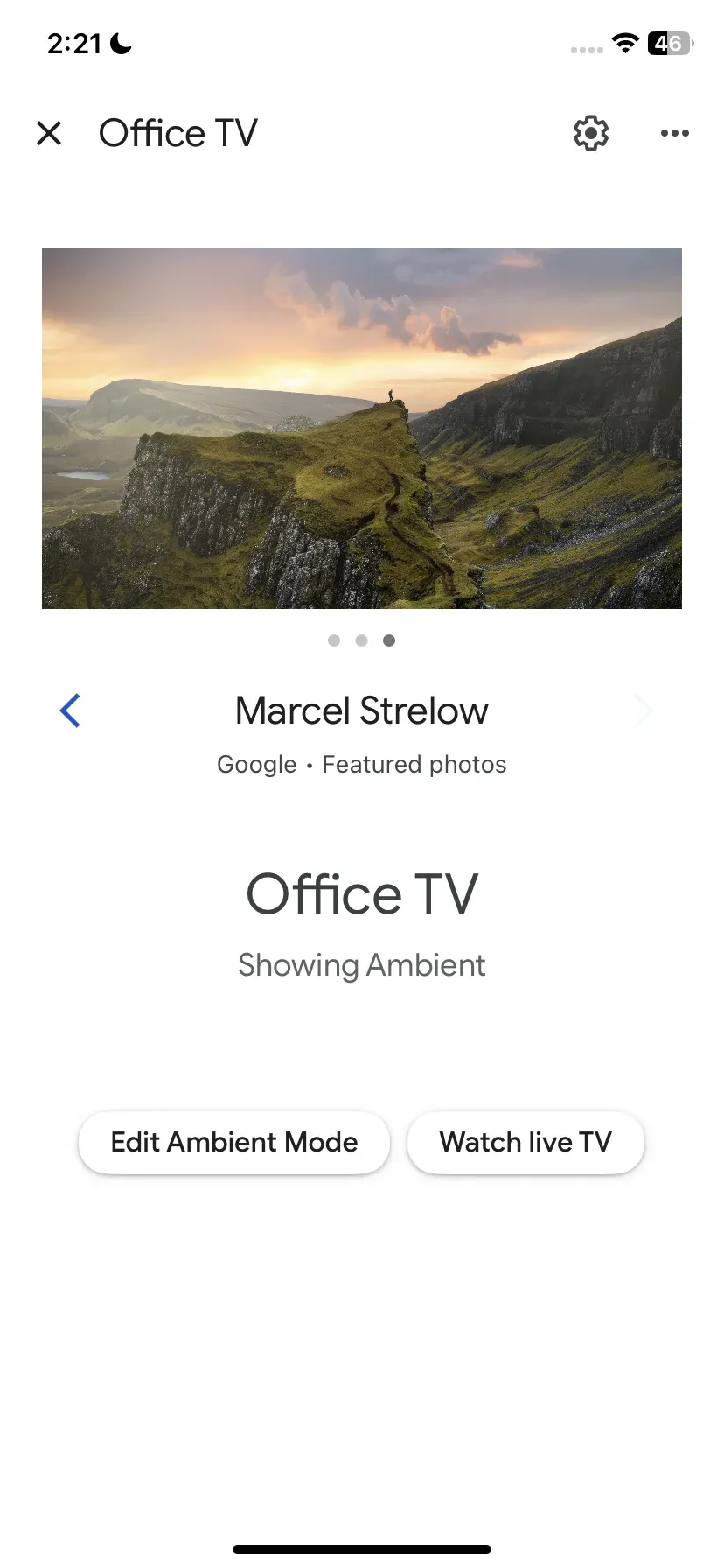
Step 3. Open the Google Home app on your Android or iPhone and tap your Chromecast device.
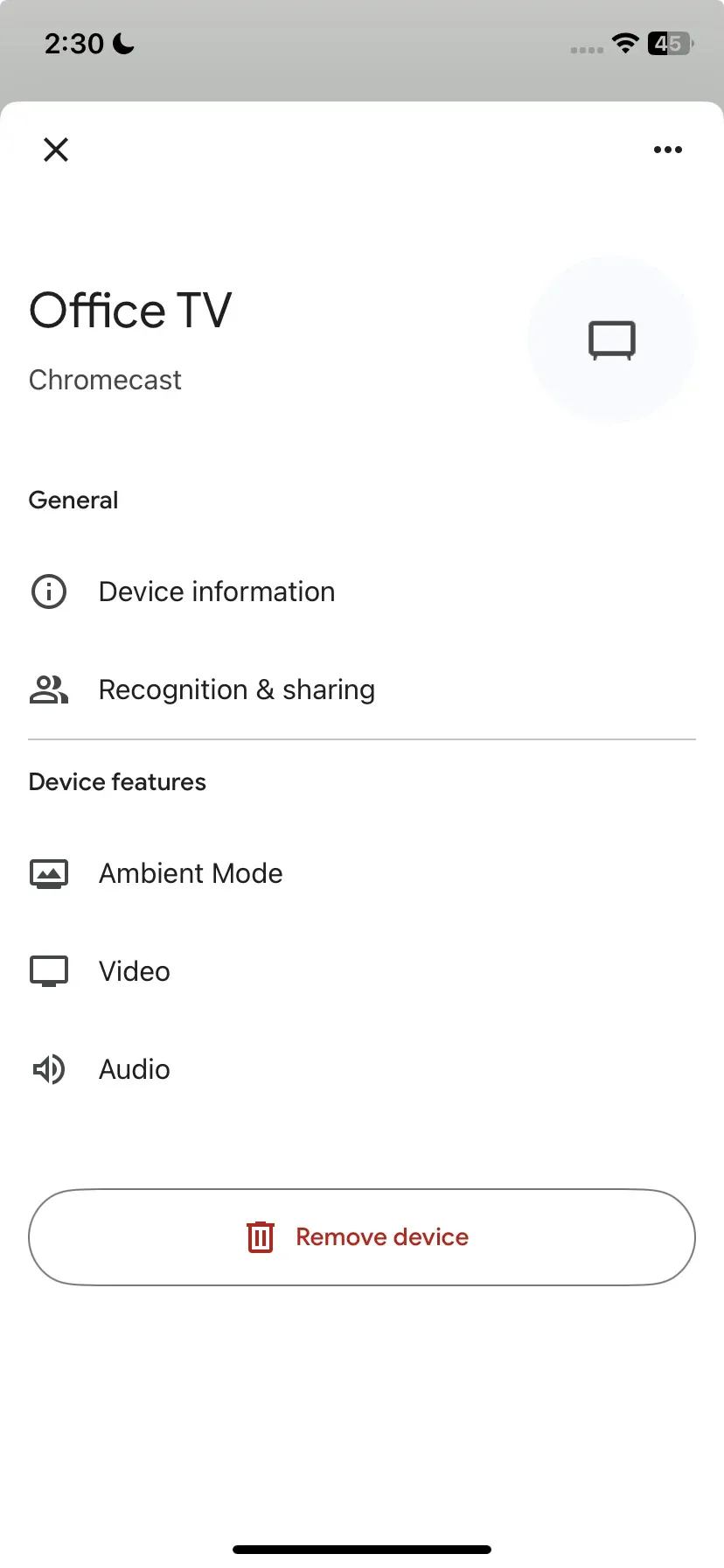
Step 4. Tap the gear icon to check your device's settings.
Step 5. Scroll down to check the Device information, which is the current firmware your Chromecast device is running.
Step 6. Compare your Chromecast firmware with the latest release listed on Google's Chromecast support page. If the number on the support page is higher than the version running on your device, you can prompt an automatic update through the Google Home app.
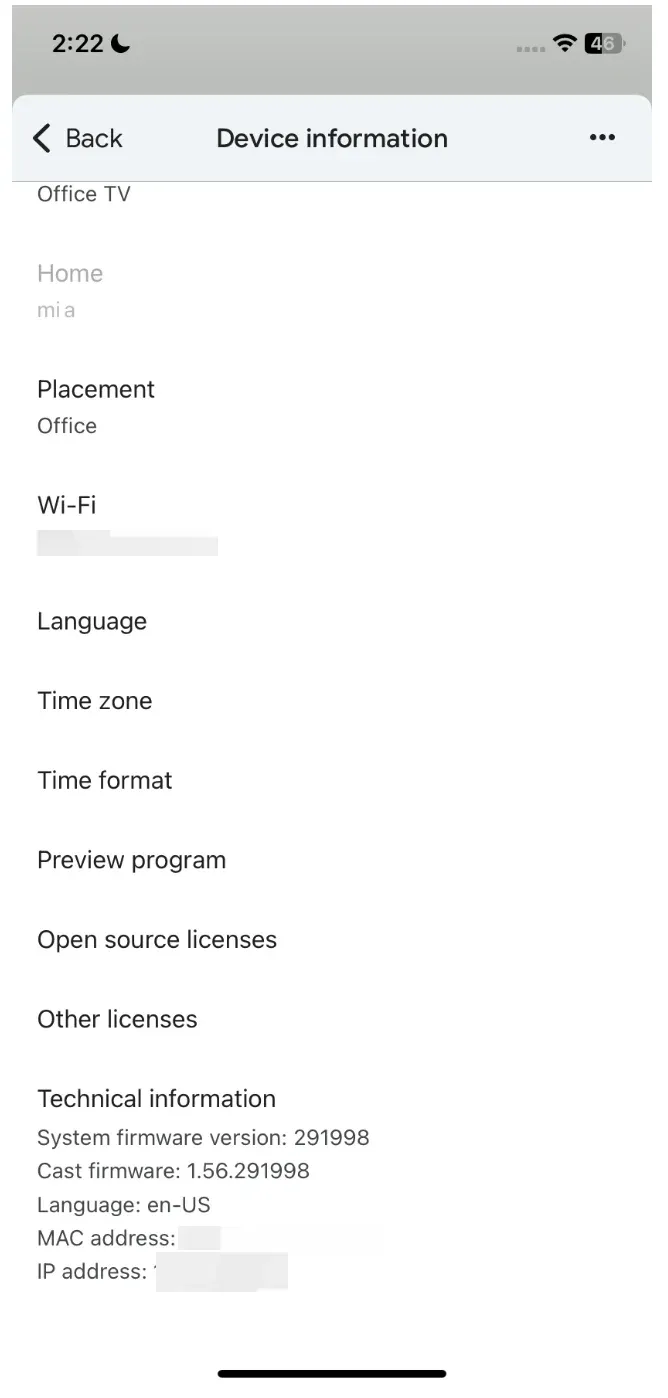
Note: If both versions match, your Chromecast is already up to date, and no further action is required.
Step 7. Go back to your device's settings page, tap the three horizontal dots icon, and tap Reboot on the pop-up window.
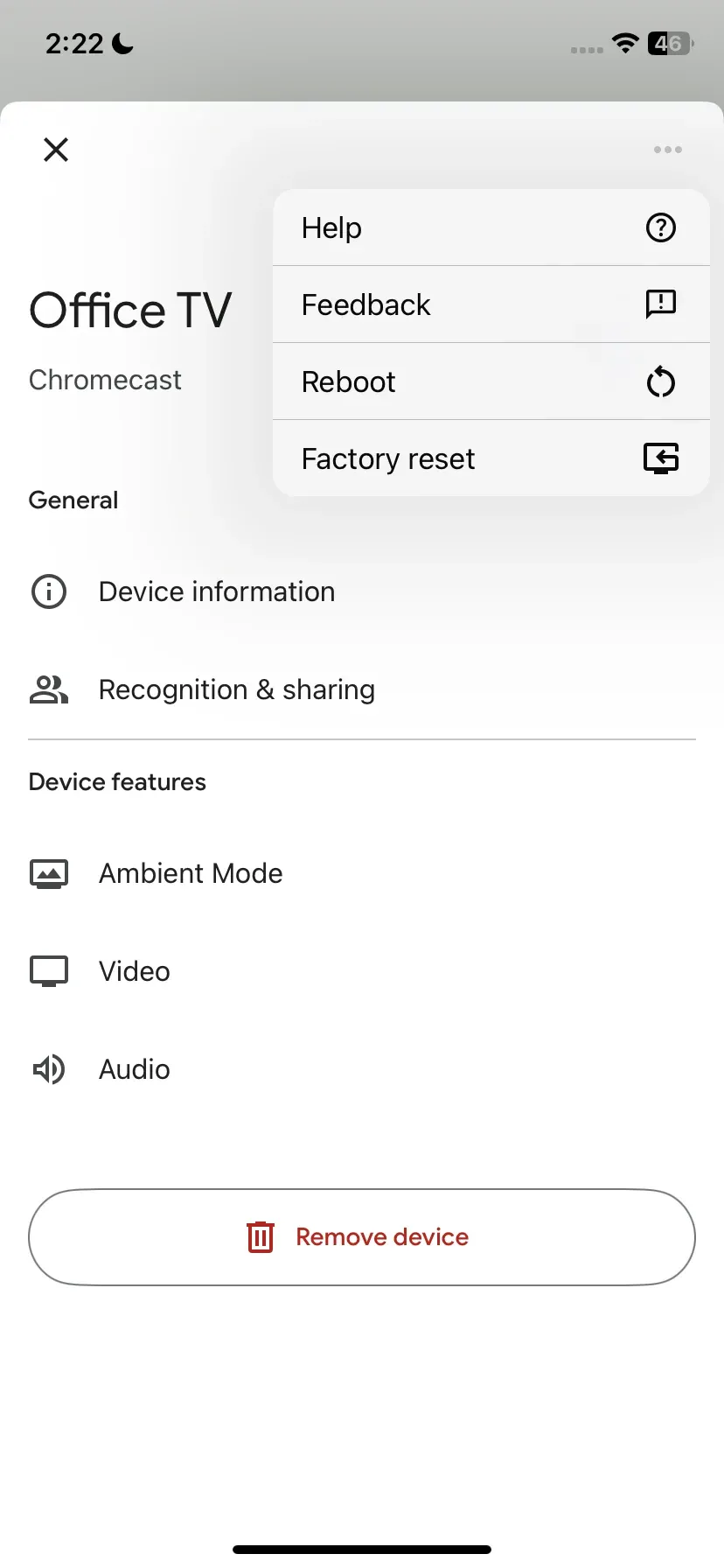
Step 8. Your Chromecast device will shut itself down and automatically restart. During this process, it will download and install the latest available firmware. So, wait for the process to end, then you can connect to Chromecast successfully.
Force Chromecast Update on Mac or Linux
How to update Chromecast firmware? If the above steps can't finish the Chromecast firmware update, you can force your Chromecast to update on a MacBook or Linux laptop.
Step 1. Go to Google's Chromecast support page and check the latest firmware version available for your Chromecast device.
Step 2. Make sure your Chromecast is powered on and connected to the same Wi-Fi network as your mobile device.
Step 3. Open the Google Home app on your mobile device and choose the Chromecast dongle you want to update.
Step 4. Tap the gear icon to check the device's settings.
Step 5. Scroll down the settings page and check the Chromecast firmware details and IP address.
Step 6. Compare your Chromecast firmware with the latest release listed on Google's Chromecast support page. If newer firmware is available, you can try to force a Chromecast update.
Step 7. Open your Mac or Linux laptop and ensure it is connected to the same Wi-Fi network as your Chromecast device.
Step 8. Launch the Terminal app on your laptop and type the following command, replacing [IP ADDRESS] with your Chromecast's IP address.
Command: curl **-X POST -H "Content-Type: application/json" -d '{“params": "ota foreground"}' http://[**IP ADDRESS]8008/setup/reboot -v
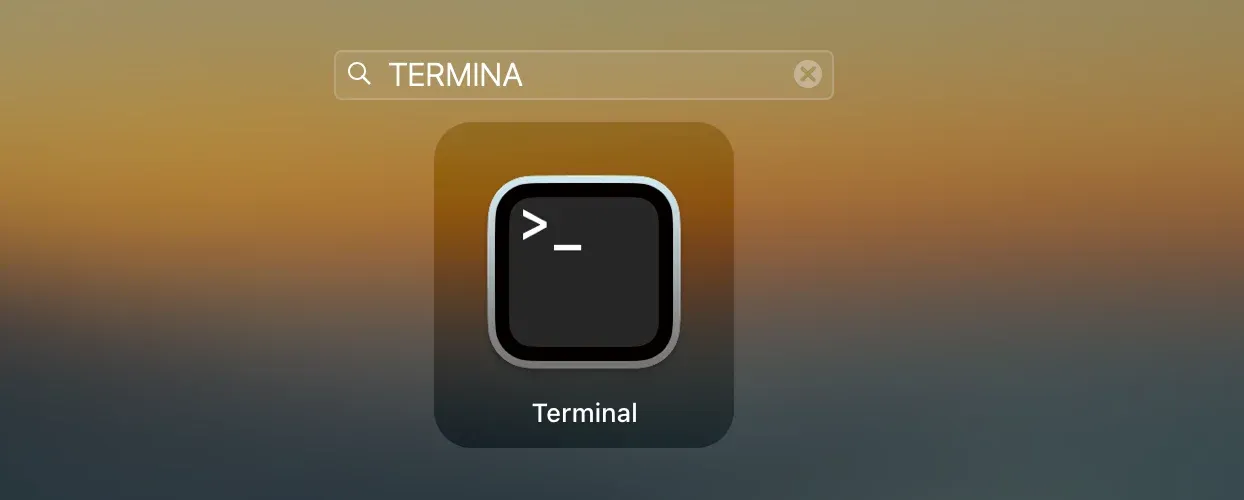
Step 9. Press the Enter key to run this command. Terminal will check whether a new Chromecast firmware is available. If it is, the app will instruct your device to download and install the new firmware.
Step 10. Wait patiently. This process may take some time. Once it finishes, you will see "Process Completed" at the bottom of the app window, and your Chromecast should now be running the latest firmware.
Force Chromecast Update on Windows PC
If you have a Windows PC, here's how to update firmware on Chromecast:
Step 1. Go to Google's Chromecast support page and check the latest firmware version available for your Chromecast device.
Step 2. Make sure your Chromecast is powered on and connected to the same Wi-Fi network as your mobile device.
Step 3. Open the Google Home app on your mobile device and choose the Chromecast dongle you want to update.
Step 4. Tap the gear icon to check the device's settings.
Step 5. Scroll down the settings page and check the Chromecast firmware details and IP address.
Step 6. Compare your Chromecast firmware with the latest release listed on Google's Chromecast support page. If newer firmware is available, you can try to force a Chromecast update.
Step 7. Open your Windows PC and ensure it is connected to the same Wi-Fi network as your Chromecast device.
Step 8. On your Windows PC, search for Windows PowerShell and open it.
Step 9. Run the following command (replace [IP ADDRESS] with your Chromecast's IP address.
**Command: Invoke-WebRequest -Method Post -ContentType "application / json" -Body '{"params": "ota foreground"}' -**Uri **"http: // [**IP ADDRESS]: 8008 / setup / reboot" -Verbose -UserAgent " curl "
Step 10. Once the Windows app finds new firmware available, it will instruct your Chromecast to install it.
Try a Free Chromecast Alternative: PigeonCast
If updating your Chromecast still does not resolve connection problems, you can try a wireless casting app that works across platforms.

PigeonCast is a free tool designed to help users cast from iPhone, Android, Windows PC, or MacBook to TV without stressing about firmware limits. Since it relies on its own wireless protocol, it avoids errors caused by outdated Chromecast firmware and reduces issues like random disconnects or Chromecast not showing up.
For users who need a stable casting setup without waiting for firmware updates, PigeonCast is an easy option to try:
Step 1. Download PigeonCast on your sending and receiving device.


Overall Rating:



Step 2. Keep your two devices on the same Wi-Fi network.
Step 3. Launch PigeonCast on both devices, and on your sending device, choose the other device.
Step 4. Start mirroring or casting.
The End
Updating your Chromecast ensures better performance, stronger security, and improved compatibility with casting apps. Most users rely on automatic updates, but manual checks and advanced firmware commands can be helpful when the device gets stuck on an older version.
If you're unsure how to update Chromecast device, following the right steps can make a difference. If updates do not solve the issue, switching to a device-independent solution like PigeonCast can give you more flexible casting options. No matter which method you choose, staying updated is the key to smooth wireless streaming.
How to Update Chromecast FAQs
Are older Chromecasts no longer supported?
Older models receive updates for many years, but support eventually slows as hardware ages. The device will still function, but new features may stop arriving. Google maintains security fixes longer than feature updates.
How do you check if your Chromecast is up to date?
Open the Google Home app and view Device Information for the firmware version. If the number matches the latest version listed in Google's support documents, your device is up to date.
Does a Chromecast need updating?
Yes. Firmware updates improve stability, add compatibility with new apps, and fix bugs. If streaming performance feels inconsistent, updating can often restore normal behavior.
How many years does a Chromecast last?
Many Chromecasts remain functional for more than five years. The lifespan depends on hardware generation, usage patterns, and ongoing software support. Regular updates help extend its usefulness.
Is there a free Chromecast alternative?
Yes. Some smart TVs offer built-in casting, and apps such as PigeonCast provide cross-platform streaming without additional hardware. These options work well when you need a simple wireless solution.
Mia Clarke is a technology editor specializing in screen mirroring and casting solutions across multiple platforms. Mia provides clear, practical guides and in-depth insights to help users seamlessly connect their devices. Passionate about enhancing digital experiences, Mia is dedicated to keeping readers updated on the latest trends and tools in cross-platform screen sharing. Whether you’re looking to mirror your smartphone, laptop, or smart TV, Mia’s content delivers reliable, user-friendly advice to simplify your tech setup.