
When casting to your TV, nothing is more frustrating than a sudden Google Chromecast untrusted device warning. This message signals that your Chromecast does not trust the device attempting to connect. In 2025, this became a widespread problem due to an expired security certificate affecting older Chromecast models. In this guide, you'll learn what caused the issue, how to solve it, and whether third-party tools like PigeonCast might be a better choice.
What Is "Google Chromecast Untrusted Device" Error
On March 9, 2025, many users started seeing an "untrusted device" error with their Chromecast devices. The problem was due to an expired security certificate, which is used to validate the streaming source. Devices most impacted were older models like the Chromecast 2nd Gen and Chromecast Audio.
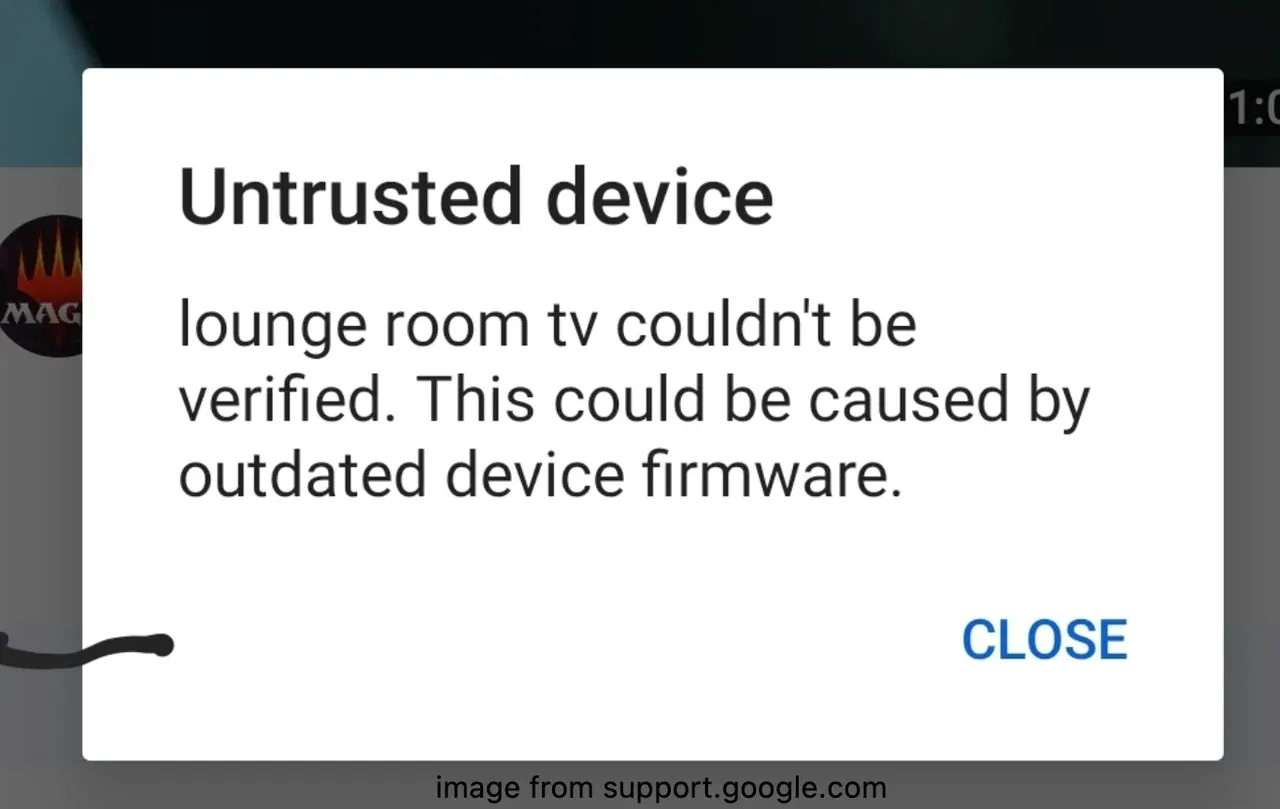
Google deployed a server-side fix, but if your Chromecast device was factory reset before the fix was fully applied, you may need to take extra steps to resolve it.
If you did not factory reset your Chromecast:
- Reboot the device to apply any pending updates.
- Ensure your Google Home app is up to date.
- Wait for the fix to propagate, which may take time depending on your location.
If you factory reset it early:
- Temporarily adjust your phone's system date to any time before March 9, 2025.
- Re-enable the date to automatic settings after completing setup.
- Update your Google Home app to prevent recurrence.
Outside of the 2025 accident, untrusted errors may also appear due to:
- Using a different Wi-Fi network between devices.
- VPN or proxy services hiding your IP.
- Corrupted cache or outdated firmware.
These may sound complicated, but don't worry; most issues can be fixed with proper updates or reconfiguration.
How to Fix "Google Chromecast Untrusted Device" Error
If your Chromecast shows an untrusted device message, here's how you can fix it and get back to casting smoothly:
Step 1. Make sure both devices are on the same Wi-Fi. Check that your phone, tablet, or computer is using the same Wi-Fi network as your Chromecast. If you use a dual-band router, ensure both devices are on the same band (for example, both on 2.4GHz or both on 5GHz).
Step 2. Restart both your devices. A simple restart often does the trick. Turn your Chromecast off and back on by unplugging it for a few seconds. Then restart the device you're trying to cast from.
Step 2. Update your software. Open your app store and check for updates to the Google Home app. Keeping the app and your device software current helps avoid compatibility issues. Also, ensure your Chromecast firmware is updated.
Step 3. Turn off VPNs and firewalls temporarily. VPNs and advanced network filters can interfere with local device discovery. If you use a VPN or firewall, disable it, then try casting again.
Step 4. Reconnect using Google Home. Sometimes re-adding your Chromecast can help. Open the Google Home app, remove the device if it's already listed, and then tap the "+" icon to set it up again.
Step 5. Consider a factory reset if necessary.
If nothing works, a factory reset might help. Hold the reset button on your Chromecast until the light starts flashing. Be mindful that older models affected by the March 2025 certificate issue may require additional steps during setup (like modifying your phone's date).
Try PigeonCast If Casting Still Fails
If your Chromecast keeps showing "untrusted device" errors or you're using a wide range of devices (iPhone, Mac, Android, Windows), PigeonCast is a free Chromecast alternative, offering a universal solution.

Why PigeonCast is a great Chromecast alternative:
- Works with Chromecast, Firestick, Roku, and most smart TVs.
- Supports casting and screen mirroring from iOS, Android, Mac, and Windows.
- Bypasses Chromecast's strict certificate checks.
- Completely free to get started.
How to use PigeonCast:
Step 1. Download PigeonCast on your phone, tablet, or computer, and TV.
Step 2. Connect your devices to the same network.
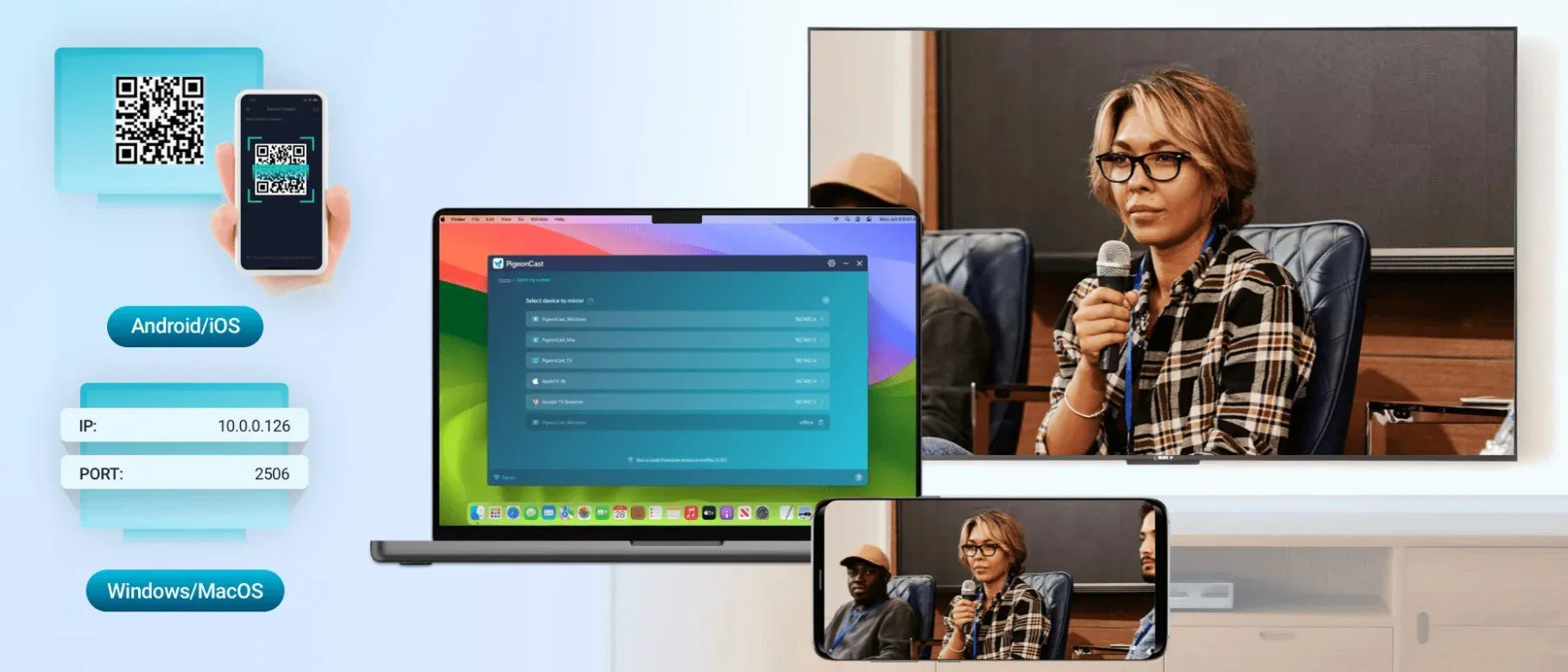
Step 3. Start casting or mirroring directly from the app by following the onscreen prompts.
Unlike native Google Cast, you won't have to worry about expired certificates or service outages.
Conclusion
The Chromecast untrusted device issue in 2025 was a rare but disruptive error caused by an outdated security certificate. Google has since addressed the problem, but some devices still require manual troubleshooting. If casting still doesn't work smoothly, switching to PigeonCast lets you mirror or cast from any device with ease.
Google Chromecast Untrusted Device FAQs
Why does my Chromecast say untrusted device?
It means your device failed the security validation. Causes include outdated firmware, different networks, or certificate issues like the March 2025 event.
How do I fix an untrusted Chromecast connection?
Reboot, update Google Home, verify your network, disable VPNs, or adjust your phone's date if your device was reset during the 2025 bug.
Why is my TV not letting me Chromecast?
This usually happens when your devices aren't communicating on the same network. Make sure both your TV (or Chromecast) and the device you're casting from are connected to the same Wi-Fi. Also, check that the Google Home app and your streaming apps are up to date. If none of that works, try restarting all your devices, including your router.
How do I reset Chromecast on my TV?
To reset your Chromecast, locate the physical button on the device. Hold it down for about 10 seconds until you see the LED light begin to flash and then turn solid. This restores your Chromecast to factory settings. After that, set it up again using the Google Home app on your phone or tablet.
Is PigeonCast an alternative to Google Cast?
Yes, PigeonCast works across most platforms and devices and bypasses trust-related issues by using its own connection protocols.
Is PigeonCast free to use?
Yes, PigeonCast offers a free version with cross-platform mirroring and casting features.
Mia Clarke is a technology editor specializing in screen mirroring and casting solutions across multiple platforms. Mia provides clear, practical guides and in-depth insights to help users seamlessly connect their devices. Passionate about enhancing digital experiences, Mia is dedicated to keeping readers updated on the latest trends and tools in cross-platform screen sharing. Whether you’re looking to mirror your smartphone, laptop, or smart TV, Mia’s content delivers reliable, user-friendly advice to simplify your tech setup.