
Streaming has quickly become the preferred way to enjoy entertainment, whether it's movies, TV shows, or gaming. As more people look for ways to enjoy their favorite content on the big screen, Chromecast offers a convenient solution for playing Chromecast games. By connecting your device to the TV, you can effortlessly mirror mobile games, console games, and even PC games onto a larger display. This seamless setup enhances the gaming experience, allowing you to immerse yourself in your games like never before.
With a wide range of Chromecast games available, this guide will explore some of the best options, how to set up Chromecast for gaming, and how an alternative can offer an even better experience for those looking to take their gaming to the next level.
What Are Chromecast Games
Chromecast games are games that you can play by casting from your mobile device or computer to your TV using Google Chromecast. The process is simple: connect your device to Chromecast, tap the cast icon, and voila, the game appears on your TV screen.
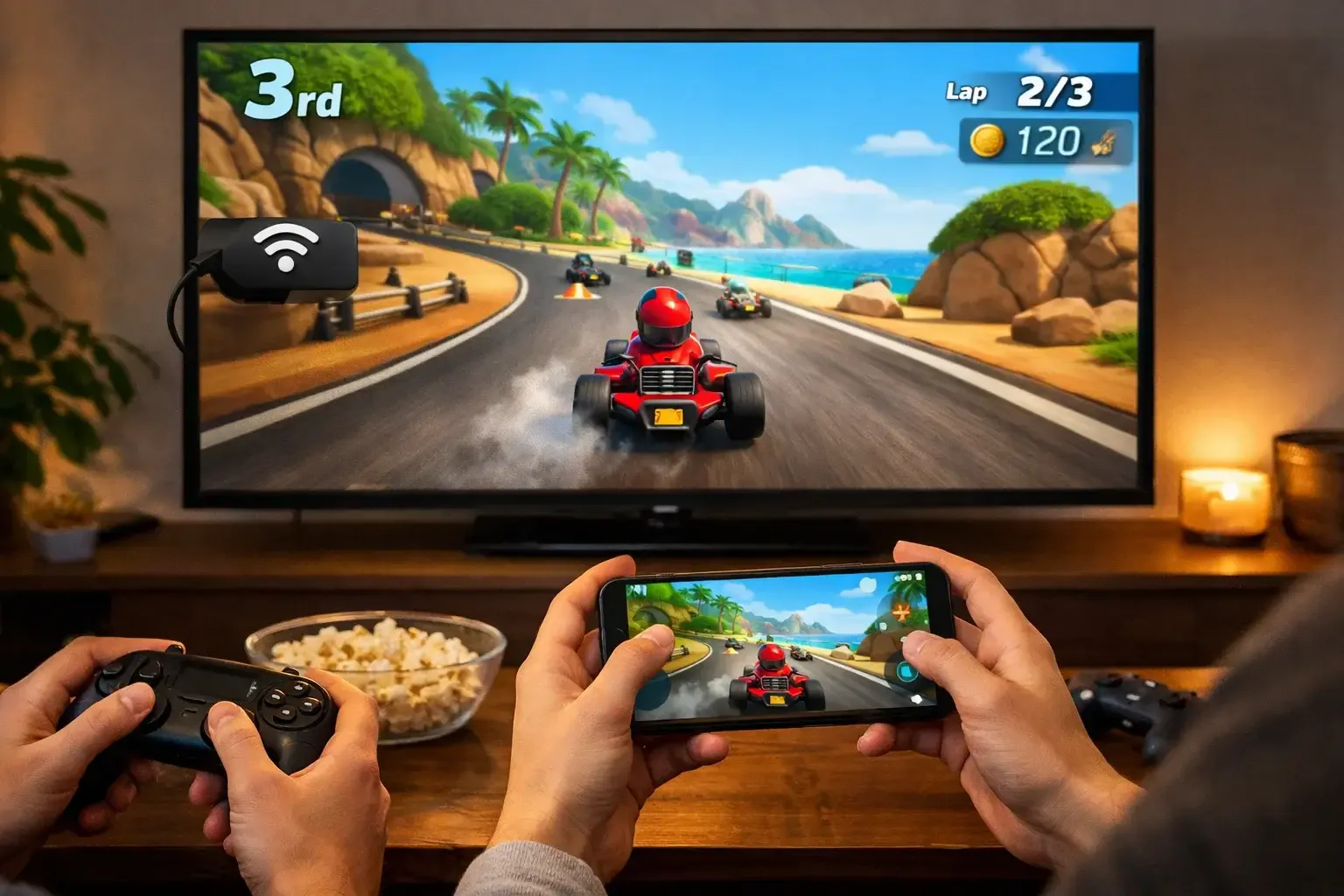
While Chromecast excels in streaming videos and photos, it's also a great tool for playing games on Chromecast. Whether you're looking for casual mobile games or more complex multiplayer experiences, Chromecast supports a wide variety of games that make use of your TV's large screen. Many games are optimized for casting, offering improved visuals and controls that make the experience even better.
5 Popular Chromecast-Compatible Games
There is no shortage of games for Chromecast that work well on a TV, especially party-style and casual titles designed for shared screens. Below are some best Chromecast games that are easy to start, fun to watch, and even better to play with others.
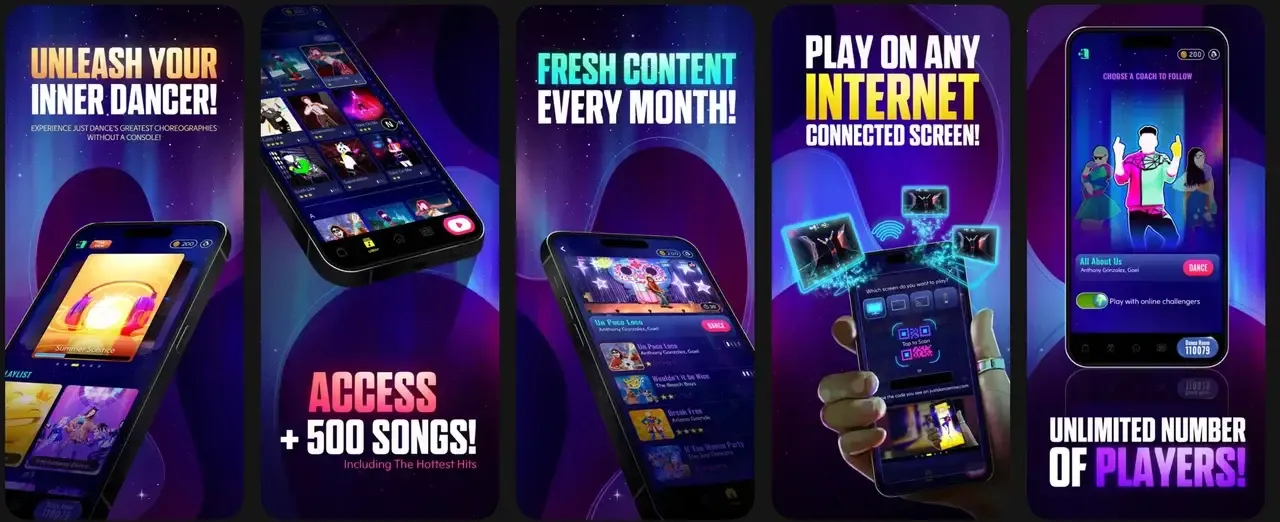
- Just Dance Now
This is one of the most recognizable Google Chromecast games. The TV displays the choreography, while your phone tracks movements. No console needed, just space to move and a group ready to dance. It's perfect for a game night with friends or family.
- Tricky Titans
Tricky Titans focuses on timing and reactions. The TV becomes the main arena, and players use their phones to trigger actions at the right moment. It is a great example of how games for Chromecast can feel social rather than solo.

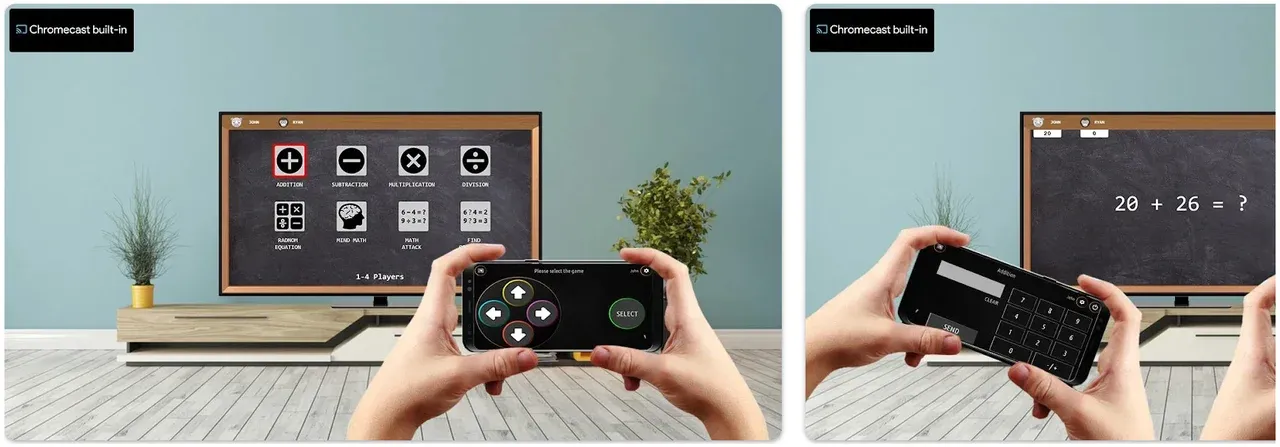
- Math Arcade Chromecast Games
Designed with learning in mind, these Chromecast games turn math challenges into fast arcade-style rounds. The TV shows the questions, while phones act as answer pads. Useful for classrooms, families, or anyone who likes learning disguised as play.
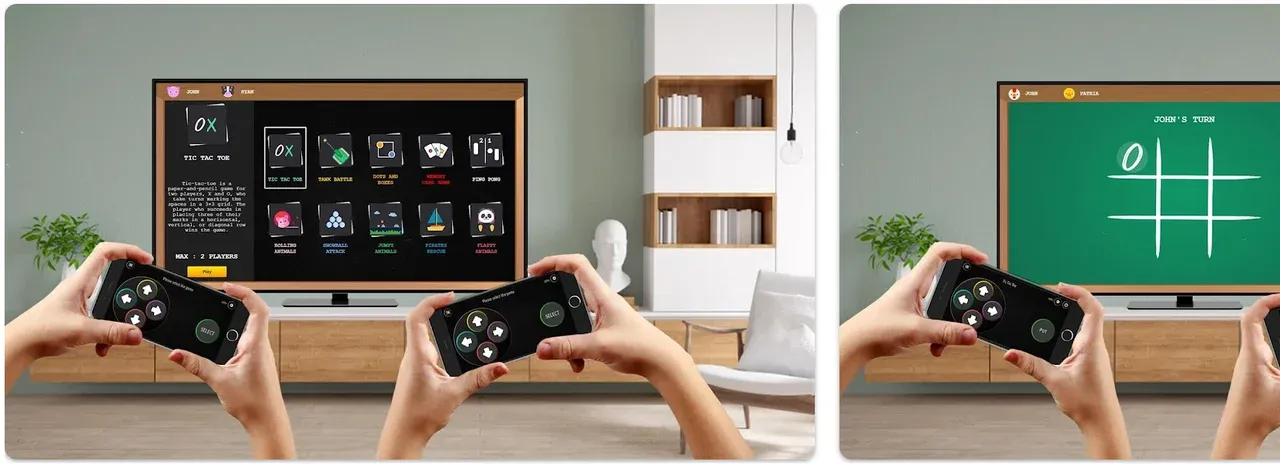
- Arcade Family Chromecast Games
Arcade Family offers a range of classic arcade games, from classic puzzles to action-packed challenges. Cast to your TV for family-friendly fun that takes you back to the golden age of arcade gaming, all while keeping things simple and engaging.
- Chess
A timeless game of strategy, Chess on Chromecast allows players to enjoy a virtual chessboard on their TV while controlling their moves via their mobile devices. Perfect for lovers of strategy, it offers a classic yet modern way to enjoy the game.
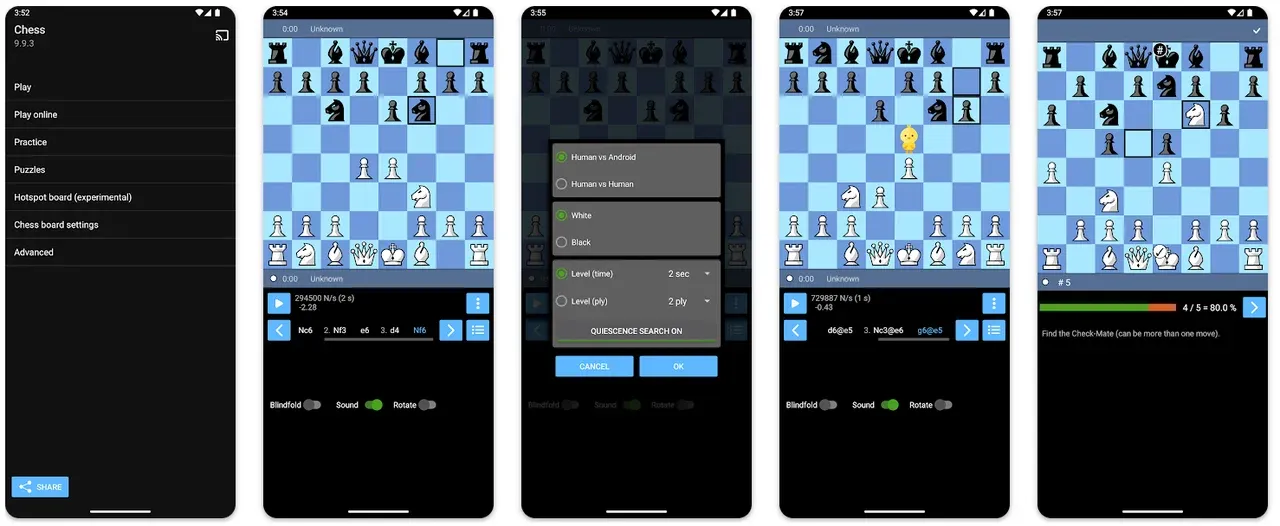
Each of these Chromecast games offers an interactive and visually appealing experience, ideal for group play or solo gaming.
How to Set Up Chromecast for Gaming
Setting up Chromecast for gaming is a simple process. Here's a step-by-step guide to help you get started:
Step 1. Plug your Chromecast into the TV and ensure it is powered on.
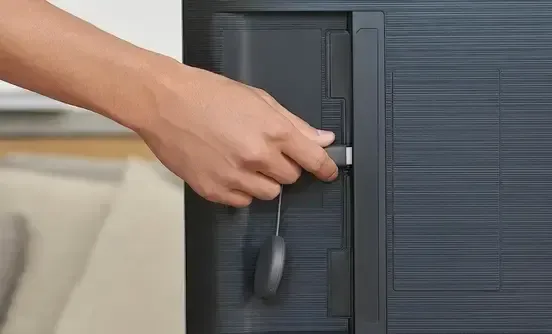
Step 2. Make sure your device (smartphone, tablet, or computer) is connected to the same Wi-Fi network as the Chromecast.
Step 3. Launch the game you want to play on your device. For games with built-in Cast icons, simply tap the icon to begin casting. If the game doesn't have a Cast button, you can cast your screen via Google Chrome or Google Home.
Step 4. Once connected, your game will appear on the TV screen. You can now play with a larger display, making for a more immersive experience.
While setting up is easy, sometimes you may encounter issues like lag, poor resolution, or connection drops. If you're facing such issues with Chromecast games, don't worry; there are ways to troubleshoot them effectively:
- Check your Wi-Fi connection: Ensure that both your device and Chromecast are connected to a stable, high-speed Wi-Fi network. Poor connection can lead to lag and buffering issues.
- Reduce interference: If you have multiple devices connected to your Wi-Fi network, try disconnecting others to free up bandwidth for a smoother gaming experience.
- Adjust the display settings: If the resolution is poor, try lowering the game's graphic settings or adjusting the display settings within the Chromecast app to improve quality.
- Restart your Chromecast: Sometimes simply unplugging and plugging it back in can resolve connection drops or glitches.
- Update your Chromecast and device: Make sure that your device, game, and Chromecast are all up to date. Updates can often fix bugs that cause performance issues.
If you continue to experience issues, PigeonCast can be a better alternative for Chromecast games.
Why PigeonCast Is a Better Option for Chromecast Gaming
While Chromecast is an excellent tool for streaming games, it does have its limitations. From potential lag issues to compatibility concerns, sometimes Google Chromecast games just don't cut it when it comes to performance. This is where PigeonCast shines.
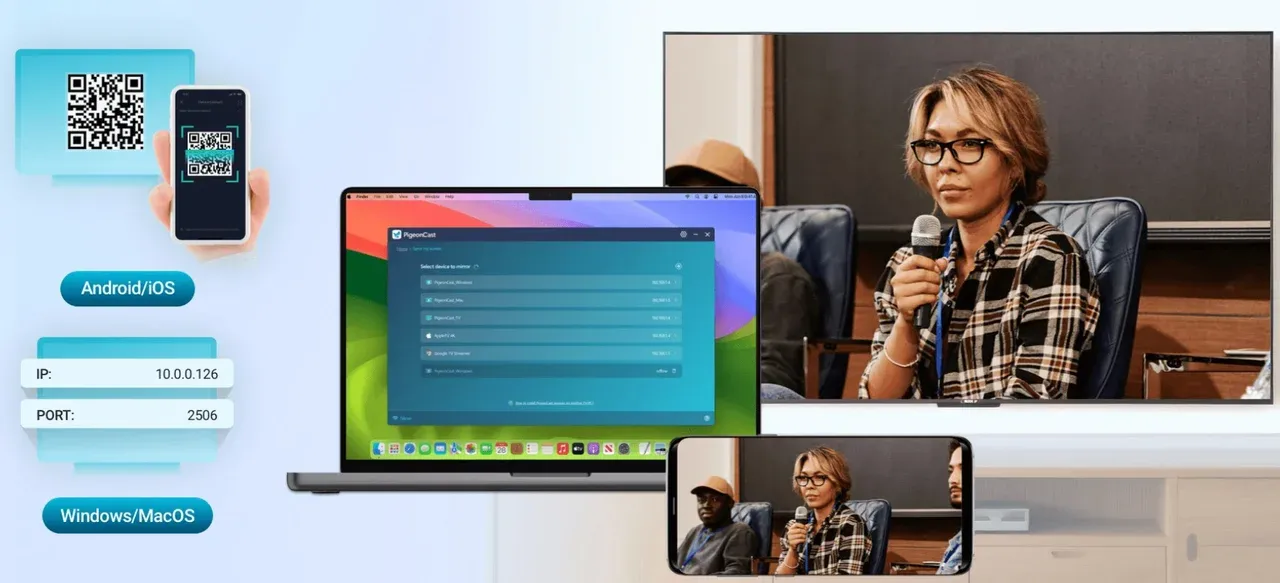
PigeonCast offers several advantages that make it a superior choice for Chromecast racing games and other high-action titles:
- High-quality streaming: With support for up to 4K resolution, PigeonCast delivers stunning visuals that Chromecast sometimes struggles to match. Whether you're playing fast-paced racing games or immersive adventure titles, the free screen mirroring app ensures smoother, more detailed gameplay.
- Lower latency: One of the key drawbacks of using Chromecast for gaming is the latency. This can affect the gaming experience, especially in fast-paced genres like racing. PigeonCast offers a more stable and faster connection, minimizing lag and providing a better experience, especially with Chromecast racing games.
- Wider device compatibility: PigeonCast is compatible with a broader range of devices, including Android TV, Fire TV, Apple TV, Android phone, iPhone, Windows PC, and Mac, offering more flexibility in how and where you play your games.
- No ads and simple interface: Unlike many Chromecast games that may have interruptions or ads, PigeonCast offers an ad-free experience with a user-friendly interface, allowing you to dive straight into your games without distractions.
By using PigeonCast, you can ensure that your gaming experience on Chromecast is optimized for performance and enjoyment. Whether it's for Google Chromecast games or more complex mobile games, PigeonCast is a fantastic Chromecast alternative.
How to stream games from phone or laptop to TV using PigeonCast:
Step 1. Download and install PigeonCast on your phone or laptop and TV.


Overall Rating:



Step 2. Ensure your devices connect to the same Wi-Fi network.
Step 3. Launch PigeonCast on your devices.
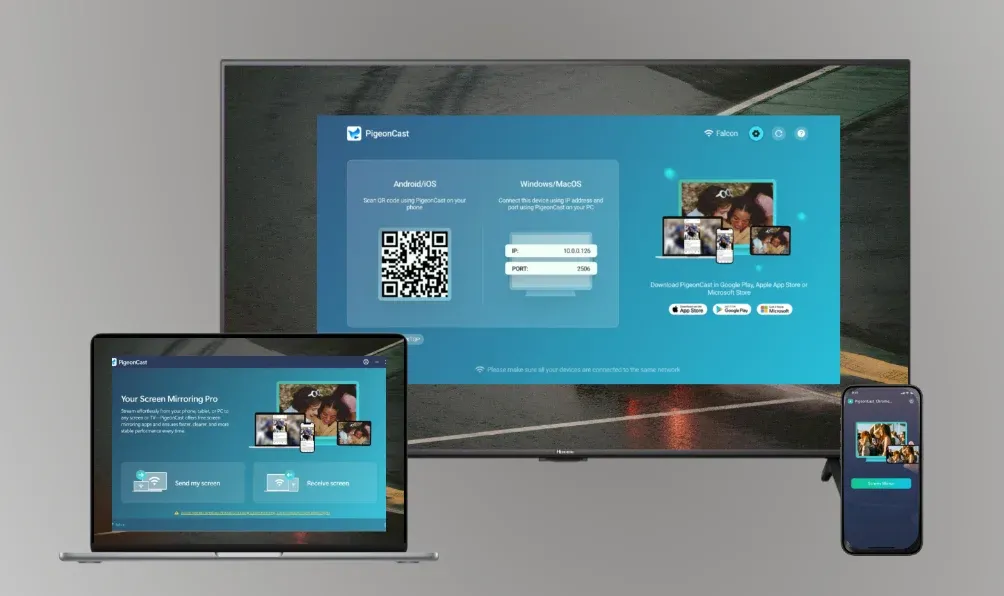
Step 4. On your phone or laptop, choose your TV, then start mirroring with onscreen instructions.
Conclusion
Chromecast games offer a convenient and fun way to bring your gaming experience to your TV. From casual titles like Just Dance Now to more intense Chromecast racing games, the variety of compatible games ensures that there's something for everyone.
However, if you want to elevate your experience and overcome some of the limitations of Chromecast, PigeonCast is an excellent choice. With its superior streaming quality, faster connection, and wider device compatibility, PigeonCast makes gaming on the big screen smoother and more enjoyable.
Chromecast Games FAQs
Can you Chromecast Steam games?
Yes, you can play Steam games on your TV via Chromecast, but it requires a bit more setup. You can use Steam Link or Google Chrome to cast your PC screen, which will display your Steam library on your TV. Keep in mind, some Steam games may experience lag or reduced performance due to the limitations of streaming.
Can I play games through Chromecast?
Absolutely! Chromecast games are designed to be played by casting games from your mobile device, tablet, or PC to your TV. Many popular mobile games come with built-in Cast icons, and you can also cast your entire device screen to play games that don't have native Chromecast support.
Can I play all mobile games on Chromecast?
Not all mobile games are optimized for Chromecast, but many popular games support casting. Look for the Cast icon in the game or use Google Home or PigeonCast to mirror your screen.
What is the difference between Chromecast and PigeonCast for gaming?
PigeonCast offers superior streaming quality, faster connections, and supports more devices than Chromecast, making it a better choice for gaming.
Do I need a specific app to play games via Chromecast?
Not necessarily. Many Chromecast games have built-in casting features, but for those that don't, you can use Google Home or Google Chrome to mirror your device's screen to your TV. Some games, like Just Dance Now or WordCast, come with a Cast icon that makes the process simple.
Can I play multiplayer games on Chromecast?
Yes, multiplayer games for Chromecast are a lot of fun! Many games, like CardCast, DoodleCast, and Just Dance Now, support multiple players. Players can use their phones or tablets as controllers while the game runs on the TV, making for a great social gaming experience.
Is there any lag when playing Chromecast games?
Lag can occasionally occur depending on your Wi-Fi connection and the game you're playing. Games that require fast reactions, such as Chromecast racing games, may experience more noticeable latency. To reduce lag, ensure you have a stable and fast Wi-Fi connection and consider using PigeonCast for a smoother, more responsive experience.
Can I play Steam games on Chromecast with my phone?
Yes, you can play Steam games on Chromecast using the Steam Link app. You'll need to install the Steam Link app on your phone and ensure both your phone and Chromecast are on the same Wi-Fi network. You can then cast your phone's screen to the TV, allowing you to play Steam games with the phone as your controller.
Why are some games not compatible with Chromecast?
Not all games are optimized for Chromecast, especially those that require more complex inputs or faster reaction times. If a game doesn't have a built-in Cast icon, you can still try to cast the entire screen using Google Home or Google Chrome, but the experience might not be as smooth as games designed for Chromecast.
What's the best way to play racing games on Chromecast?
For the best experience playing Chromecast racing games, choose games like Tricky Titans that are designed for quick action. To minimize lag, ensure your Wi-Fi connection is strong, or consider using PigeonCast for a more stable connection and better performance.
Mia Clarke is a technology editor specializing in screen mirroring and casting solutions across multiple platforms. Mia provides clear, practical guides and in-depth insights to help users seamlessly connect their devices. Passionate about enhancing digital experiences, Mia is dedicated to keeping readers updated on the latest trends and tools in cross-platform screen sharing. Whether you’re looking to mirror your smartphone, laptop, or smart TV, Mia’s content delivers reliable, user-friendly advice to simplify your tech setup.