
Playing PC games on a large TV screen is no longer niche setup. Many games now search for Chromecast Steam Link because they want a simple, wireless way to enjoy Steam games in the living room. Yet the term itself often confuses. Is Chromecast required? Can Steam Link run directly on a TV? And what actually delivers the best gaming experience?
This guide answers those questions in a step-by-step manner. You will learn what Chromecast Steam Link really means, when Chromecast is necessary, how to set it up correctly, and which alternatives offer better image quality and lower latency for gaming.
What Is Chromecast Steam Link?
Chromecast Steam Link or Steam Link Chromecast is not an official product name. It is a user-created phrase that combines two separate technologies with one clear goal: streaming Steam games from a PC to a TV.
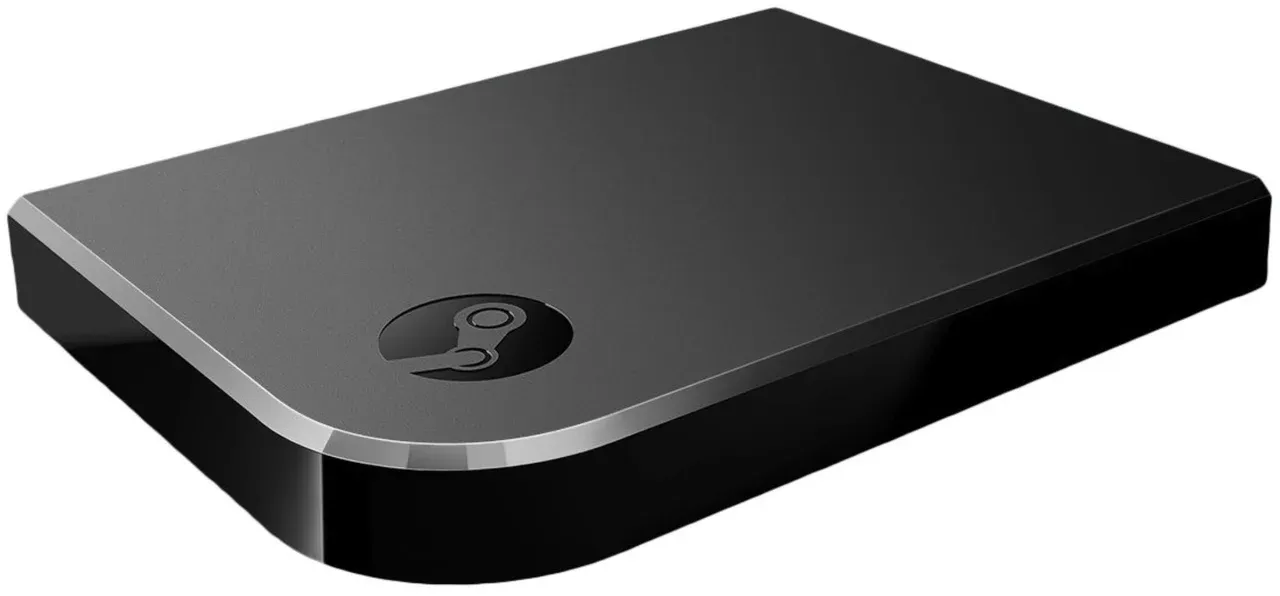
Steam Link is Valve's official game streaming solution. Your games run on your computer, while video, audio, and controller input are transmitted over your local network to another screen. The TV acts as a remote display rather than a gaming console.
Chromecast refers to Google's TV streaming ecosystem. Standard Chromecast devices only receive video streams, but Chromecast with Google TV runs a full Android TV system. This difference explains why Steam Link on Chromecast usually means installing the Steam Link app on Chromecast with Google TV, not casting gameplay video from a browser.
Do You Need Chromecast to Cast Steam Games?
The short answer is no, not always. Chromecast is often mentioned because many TVs cannot run Steam Link on their own.
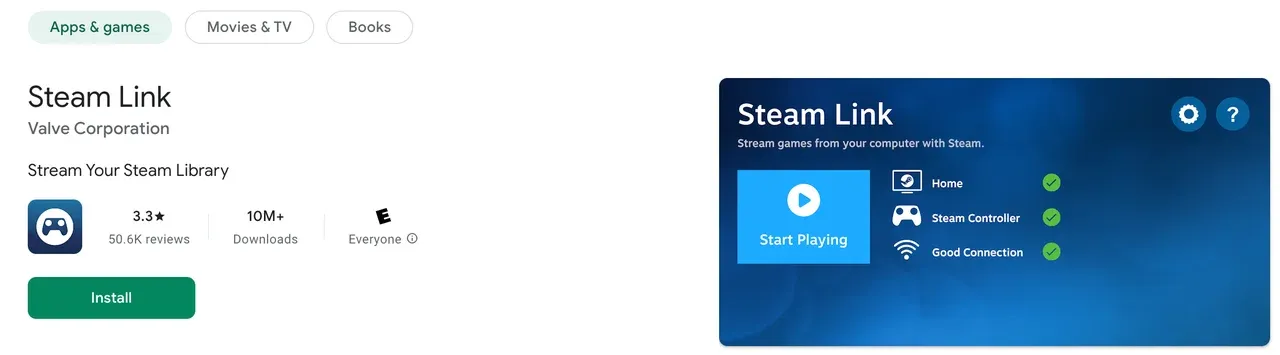
If your TV supports Android TV or Google TV, you can usually install Steam Link directly and stream games without any extra hardware. In that case, Chromecast adds no real benefit.
Chromecast becomes relevant when your TV system is limited. Some smart TVs use custom operating systems, lack access to the Play Store, or are simply too old to support Steam Link. In those situations, Chromecast with Google TV acts as a bridge by turning your TV into an Android TV device that can run the Steam Link app.
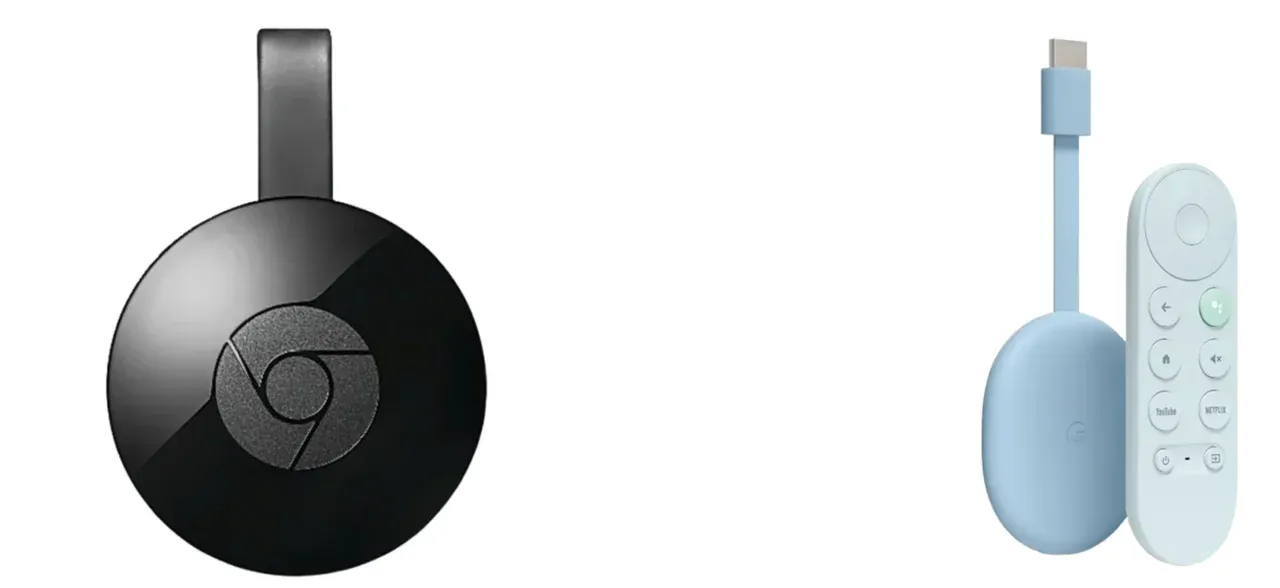
This is why many people ask does Chromecast have Steam Link. The answer depends on the model. Only Chromecast with Google TV supports installing the app. Regular Chromecast does not.
How to Use Chromecast Steam Link Correctly
If your setup requires Chromecast, this method delivers the most reliable results. What you need for this includes
- A gaming PC with Steam installed
- A TV with Chromecast with Google TV
- A stale Wi-Fi network, ideally 5GHz
- A Bluetooth controller or keyboard and mouse
Here is how to Chromecast Steam Link:
Step 1. Turn on your TV and open the Play Store on Chromecast with Google TV.
Step 2. Search for and install the Steam Link app Chromecast with Google TV users rely on.
Step 3. Launch Steam on your computer and keep it running.
Step 4. Open Steam Link on the TV and pair it with your PC.
Step 5. Connect your controller to the TV via Bluetooth.
Step 6. Start streaming and play your Steam library on the big screen.
This approach avoids browser casting (e.g., casting from Google Chrome) and delivers smoother gameplay with lower input delay.
A Powerful Alternative for Game Screen Mirroring: PigeonCast
Steam Link works best inside the Steam ecosystem, but it is not always the most flexible solution. Some players want to mirror non-Steam games ot stream content from different devices.
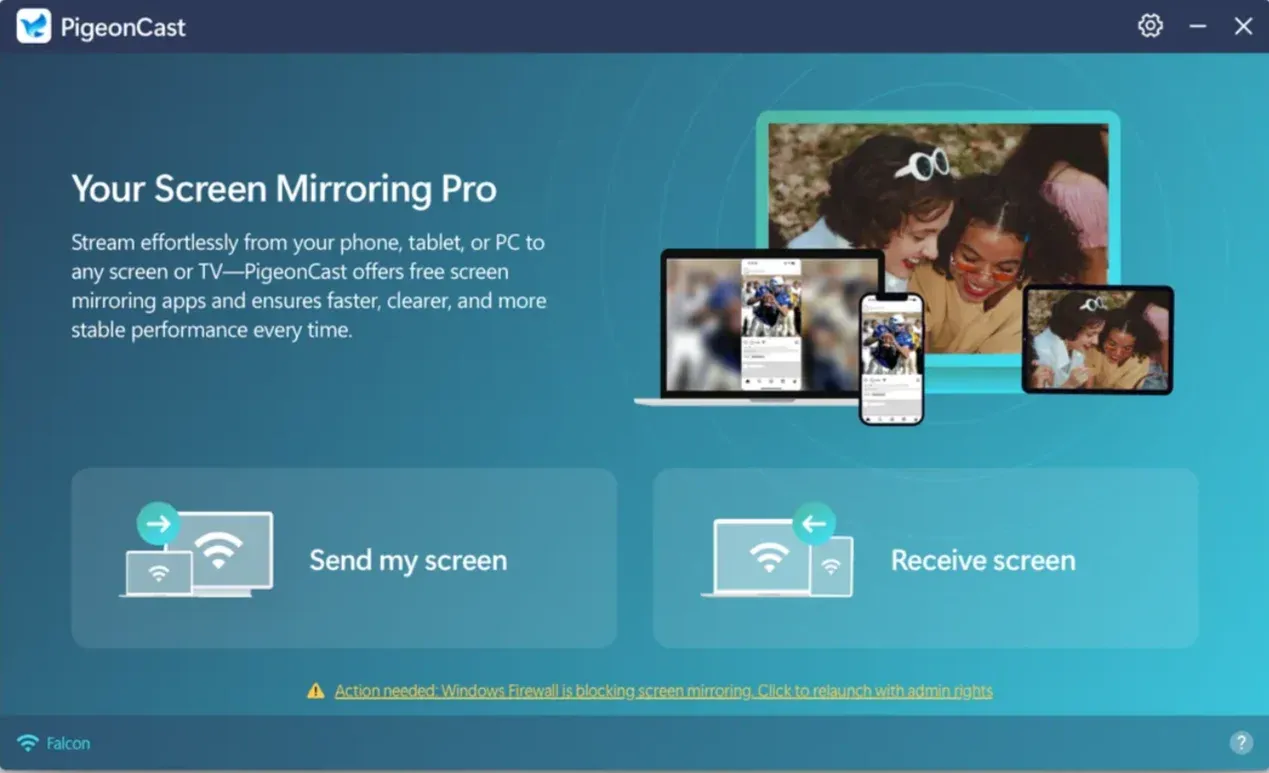
The free PigeonCast app is designed for high-quality, real-time screen mirroring. It supports HD and up to 4K resolution when the network is stable, making it well-suited for gaming on large TVs. More importantly, it prioritizes low latency, which means faster response and smoother control.


Overall Rating:



For gamers who value image clarity and responsiveness across multiple platforms, PigeonCast offers a practical alternative to Steam Link Chromecast setups, especially when you want more than just Steam game streaming.
How to use PigeonCast to connect your laptop to a TV for gameplay:
Step 1. Download and install PigeonCast on your Windows PC or MacBook.
Note: If you have an Android TV (or Google TV) or Apple TV, you can go to the Google Play Store or the App Store, download and launch the app for a smoother connection.
Step 2. Ensure your computer and TV are connected to the same Wi-Fi network.
Step 3. Launch the PigeonCast app on your computer, and click Send my screen.
Step 4. Choose your TV from the list of available TVs.
Step 5. Once connected, click Start mirror, and your PC screen will appear on your TV.
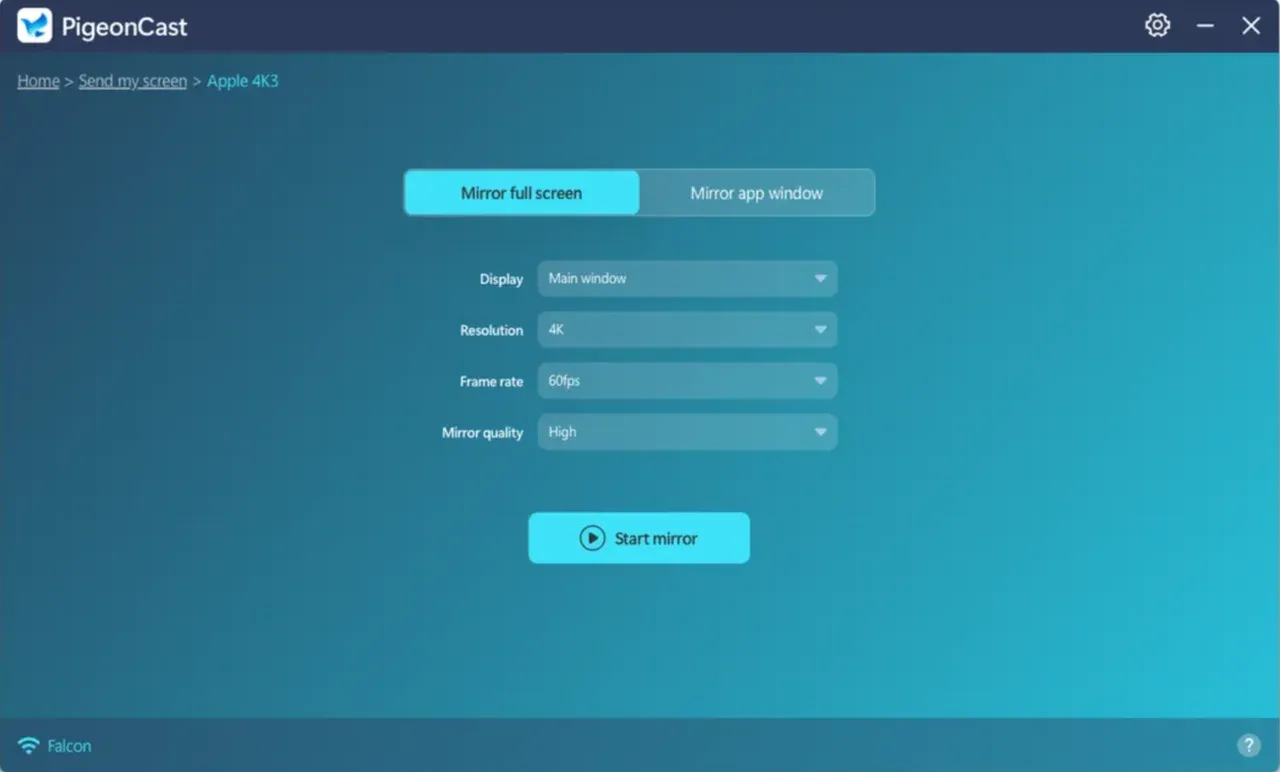
Step 6. Launch your game on the computer and enjoy it on the big TV screen.
The End
Chromecast Steam Link describes a use case rather than a single tool. If your TV can already run Steam Link, you can stream games directly with minimal setup. If it cannot, Chromecast with Google TV provides an easy upgrade path.
For players who want broader compatibility, higher resolution options, and consistently low latency, a dedicated screen mirroring solution like PigeonCast may be the better long-term choice. The best option depends on your TV, your network, and how you like to play.
Chromecast Steam Link FAQs
How to stream PC games to Chromecast?
To stream PC games properly, you need a Chromecast with Google TV rather than a standard Chromecast. Install the Steam Link app on the TV, make sure your PC and TV are on the same local network, then pair them through Steam Link. For best results, use a 5GHz Wi-Fi network or a wired Ethernet connection for the PC.
How do I connect Steam Link to my TV?
Steam Link can connect to your TV in several ways. On Android TV or Google TV, you can install the app directly from the Play Store. If your TV does not support it, Chromecast with Google TV allows you to run Steam Link without replacing the TV. HDMI is also an option if you prefer a wired setup.
Why was the Steam Link discontinued?
Valve discontinued the original Steam Link hardware to focus on software-based solutions. The Steam Link app replaced the physical device and now supports more platforms, including smart TVs, streaming boxes, and mobile devices. Functionally, the app offers the same core streaming experience.
Can you cast a Steam Link from phone to TV?
Technically, you can mirror a phone screen to a TV, but this method is not suitable for gaming. Screen casting adds extra latency and compression, which negatively affects responsiveness. Installing Steam Link directly on the TV provides far better performance and stability.
How to use Steam Link with Chromecast?
Steam Link works with Chromecast only when using Chromecast with Google TV. Install the Steam Link app on the device, launch Steam on your PC, and complete the pairing process. Avoid browser-based casting, as it results in noticeable input lag and lower image quality.
Can I hook my gaming PC up to my TV?
Yes, and there are multiple ways to do it. HDMI offers the lowest latency and is ideal for competitive gaming. Steam Link enables wireless streaming for convenience. Screen mirroring solutions like PigeonCast provide a flexible option when you want high-resolution output and low latency without relying solely on Steam.
Mia Clarke is a technology editor specializing in screen mirroring and casting solutions across multiple platforms. Mia provides clear, practical guides and in-depth insights to help users seamlessly connect their devices. Passionate about enhancing digital experiences, Mia is dedicated to keeping readers updated on the latest trends and tools in cross-platform screen sharing. Whether you’re looking to mirror your smartphone, laptop, or smart TV, Mia’s content delivers reliable, user-friendly advice to simplify your tech setup.