
Encountering a Chromecast black screen can be frustrating, especially when you're eager to watch content or present something. While the device is typically reliable, this issue can stem from various causes, including faulty cables or more intricate software glitches. Fortunately, with a methodical approach, you can usually pinpoint the source of the problem and resolve it. Let's read on to explore the most effective solutions below.
8 Solutions to Chromecast Black Screen When Casting
Before diving into complex troubleshooting, it's wise to start with the basics. Often, the root cause of a black screen is a simple physical or input error. Ruling these out first can save you considerable time and effort.
#1. Check Connections
A loose or faulty connection is one of the most common causes of a black screen of Chromecast. This can involve both the physical cables and the input settings on your TV.
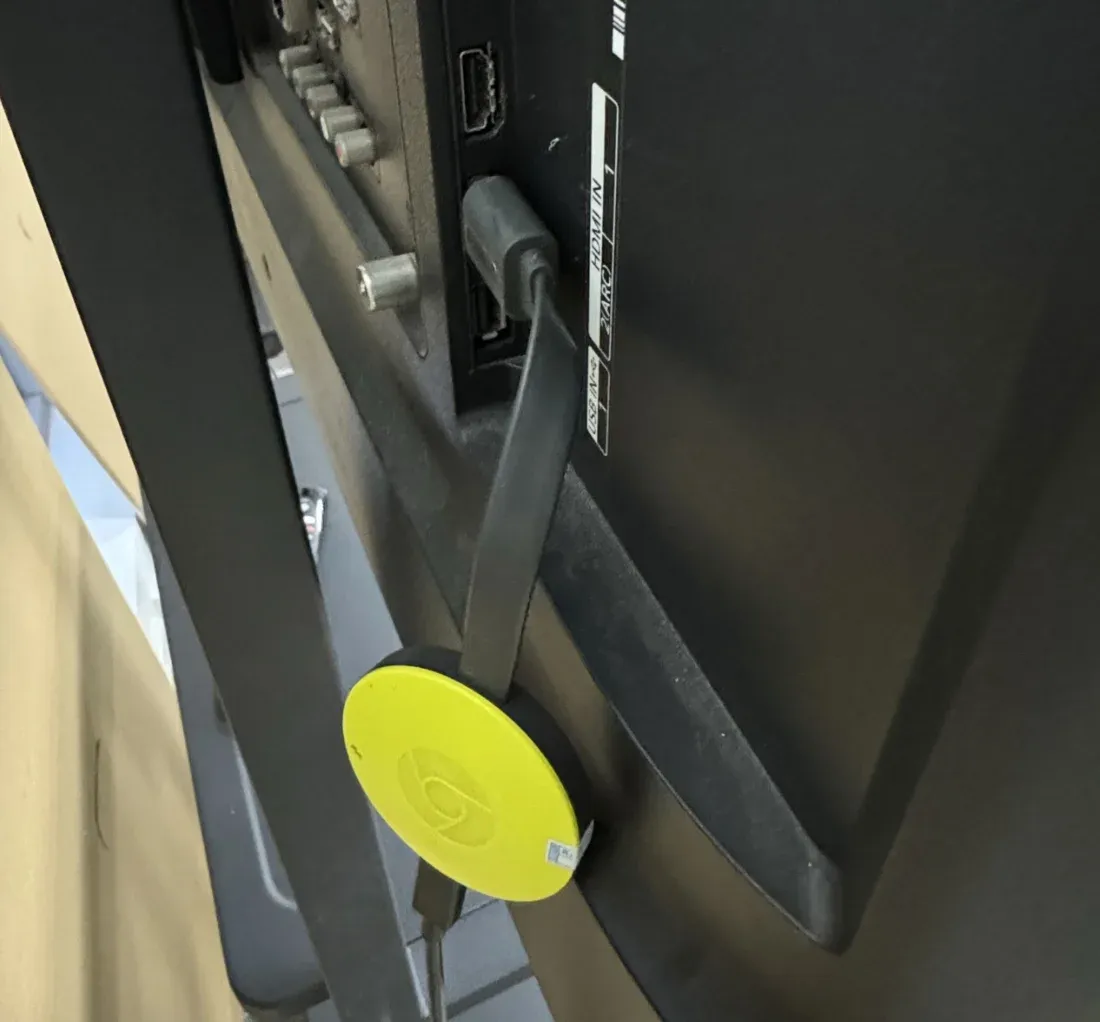
- Wiring Solutions Securely: Ensure your Chromecast is firmly plugged into the HDMI port. If you're using an HDMI extender cable, try plugging the Chromecast directly into the port instead. Also, check that the USB power cable is securely connected both to the Chromecast and to the power adapter (plugged into a wall outlet, not a TV USB port for optimal power).
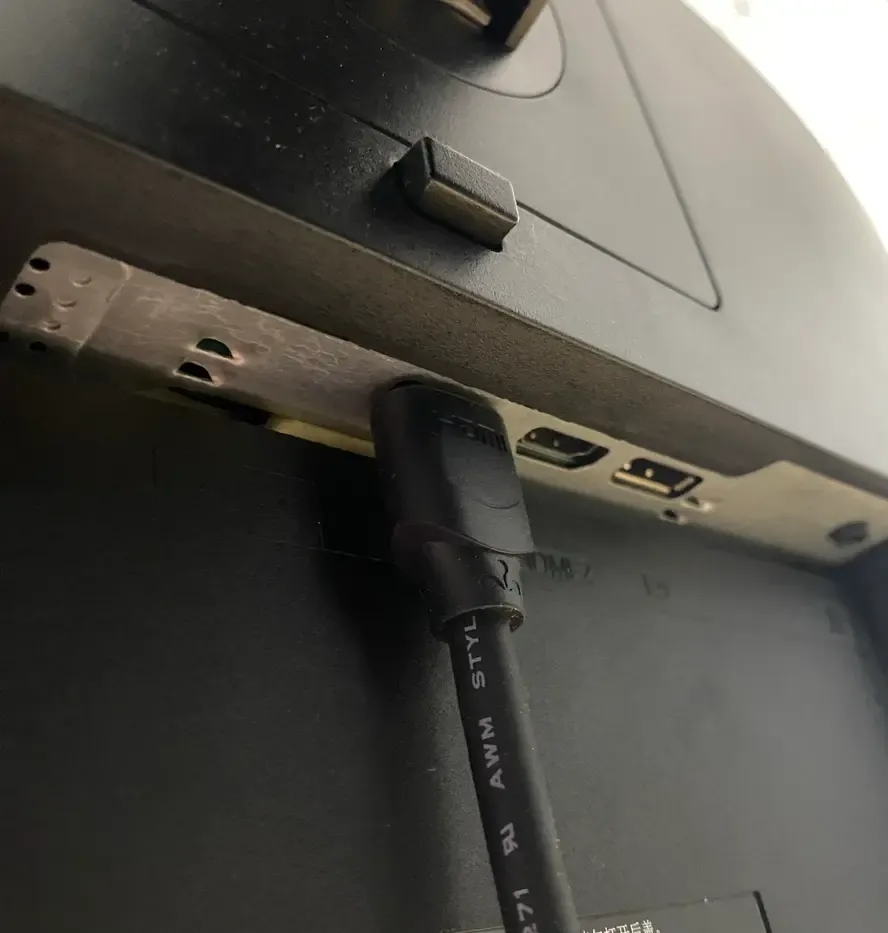
- Correct HDMI Input: Use your TV remote to cycle through HDMI inputs. Your TV might be on HDMI 1 while your Chromecast is plugged into HDMI 2 or 3.
#2. Restart Your Devices
If your connections are solid and the correct input is selected, yet the Chromecast screen goes black, the issue may lie with the devices themselves. A simple refresh can often work wonders.
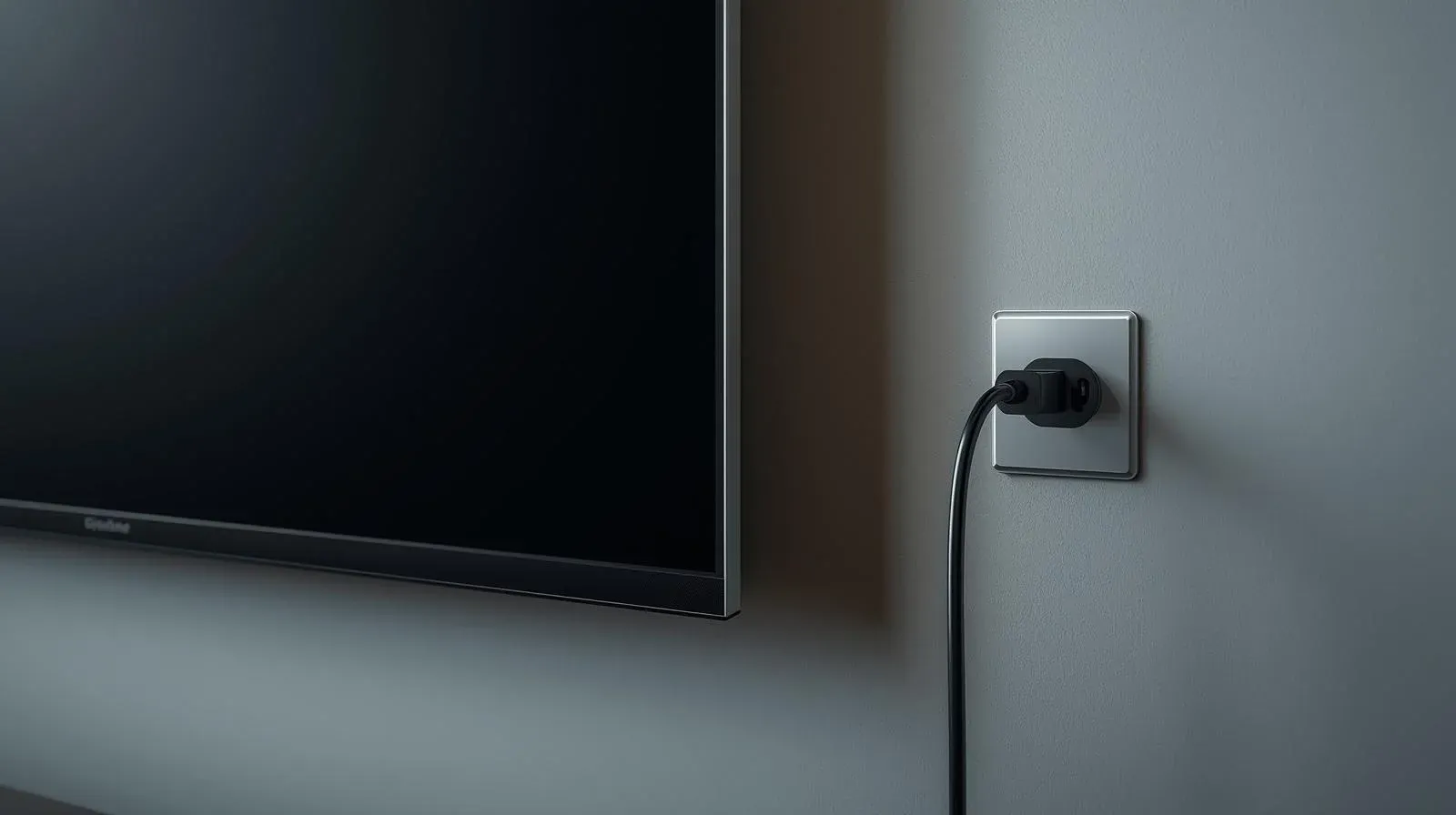
Step 1. Turn off your TV completely by powering it down and unplugging the power cord from the outlet.
Step 2. Disconnect the Chromecast from the HDMI port and unplug it from the power source.
Step 3. Power the TV back on, then reconnect the Chromecast to its power source, but do not plug it into the HDMI port just yet.
Step 4. Wait 30 seconds. Afterward, plug the Chromecast into an HDMI port on the TV.
Step 5. Switch your TV to the correct HDMI input for Chromecast. If you have multiple HDMI ports, try repeating steps 1-5 with a different HDMI port.
#3. Check the Network
A weak or unstable Wi-Fi connection can also contribute to streaming issues, including a Chromecast black screen after logo. Your Chromecast relies on a strong internet connection to cast content to your TV.
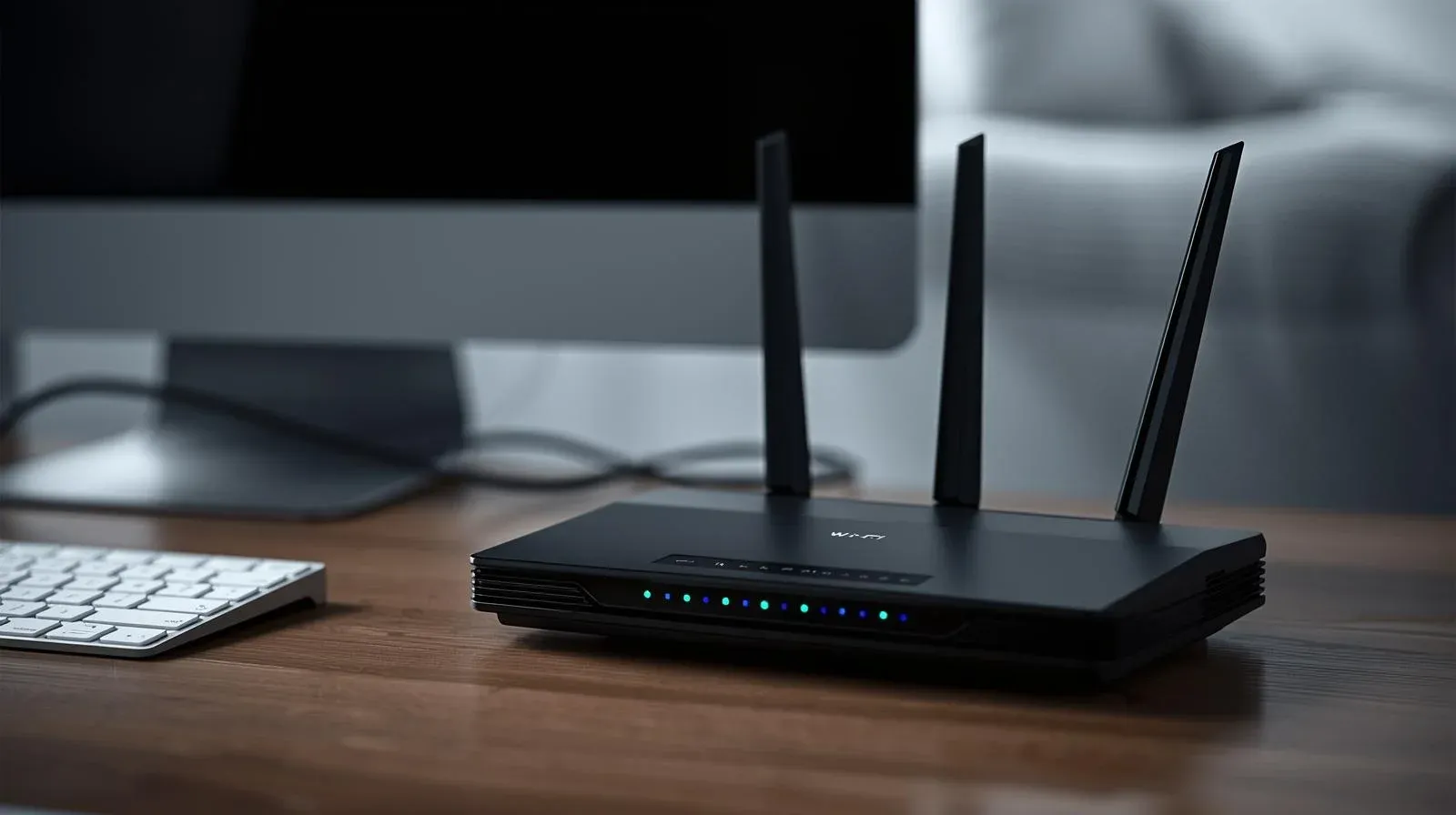
Step 1. Ensure both your casting device and Chromecast are on the same Wi-Fi network. Devices on a guest network or a different band (2.4GHz vs. 5GHz) often cannot communicate.
Step 2. Unplug your router, wait 30 seconds, and plug it back in.
Step 3. Move your router closer to the Chromecast or temporarily remove obstacles blocking your Wi-Fi signal.
#4. Update Your Devices
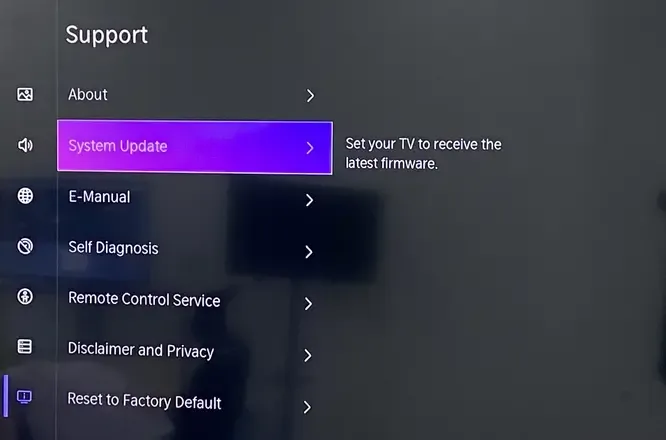
With a stable network confirmed, we should consider whether your devices are running the latest software, as outdated firmware can lead to compatibility issues. Here's the step:
- Update Your TV's Firmware: Navigate to Settings > System or About > Software Update or Firmware Update.
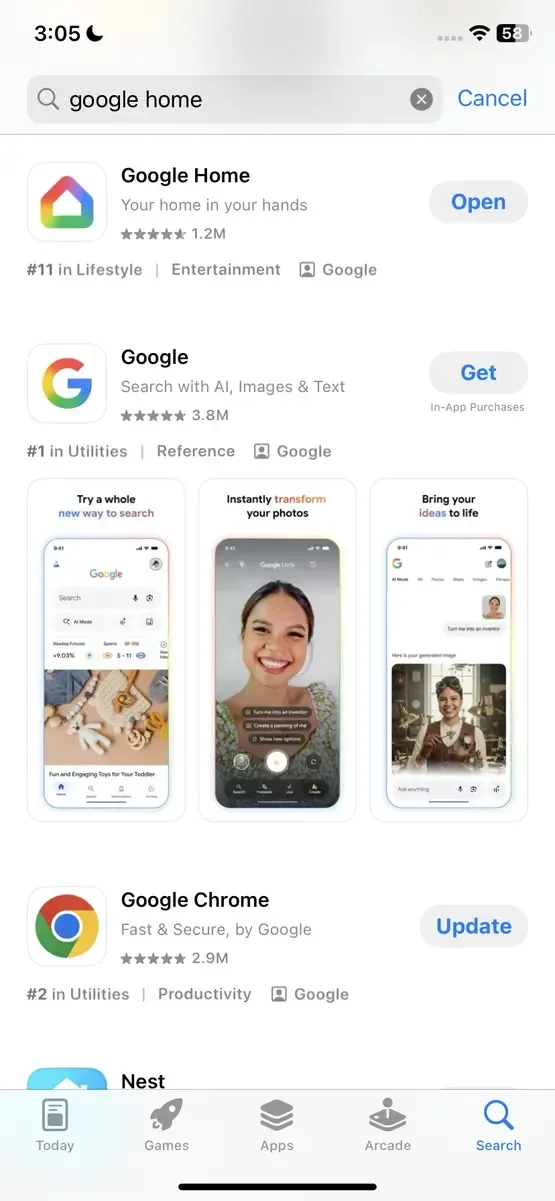
Step 1. Launch the Google Home app on your phone.
Step 2. Select your Chromecast from the list of devices.
Step 3. Open the Settings, tap on the More options (three vertical dots at the top right), and select Reboot from the menu.
#5. Remove Other HDMI Devices
If your TV has multiple HDMI devices connected, they could interfere with the Chromecast signal, possibly causing a Chromecast black screen on TV. To troubleshoot, disconnect any unnecessary HDMI devices and test the Chromecast again to see if that resolves the issue.
#6. Try Another Device
If you're still encountering the black screen issue, the problem might not lie with the Chromecast itself, but with the device you're using to cast. However, it's also worth testing the Chromecast on another device to ensure it's functioning properly.
Step 1. Connect the Chromecast to a different TV. If it works on the new TV, the issue may be with the original TV's HDMI port or settings.
Step 2. Try casting from another device (phone, tablet, laptop). For example, if you're casting from your phone, try using a different phone or laptop to see if the issue is with the casting device.
#7. Factory Reset Chromecast
If none of the above steps work, performing a factory reset on your Chromecast may be necessary. This will erase all settings and return the device to its original state, eliminating any settings or software conflicts. Here are two methods:
- Use Google Home app:
Step 1. Launch the Google Home app and select your Chromecast.
Step 2. Tap the gear icon (Settings) in the top right corner, three dots (More) > Factory reset > Factory reset.
Step 3. Follow the prompts to confirm the reset; your TV will show the restart process.
- Use the Reset button
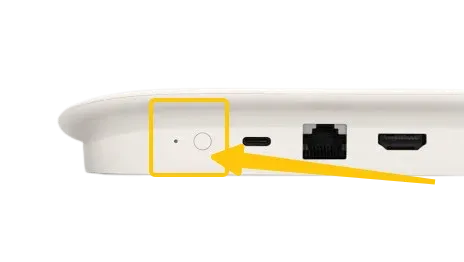
While the Chromecast is powered on, press and hold the physical Reset button on the device for at least 25 seconds until the solid light begins flashing.
#8. Use PigeonCast
If you've tried everything and your Chromecast just showing black screen persistently, consider using a Chromecast alternative app like PigeonCast to cast content to your TV. This free, ad-free app allows you to mirror content to your TV without the need for cables or adapters, helping you avoid many common connection issues. PigeonCast is compatible with Android, iOS, Windows, Mac, and TVs, offering a smooth streaming experience.
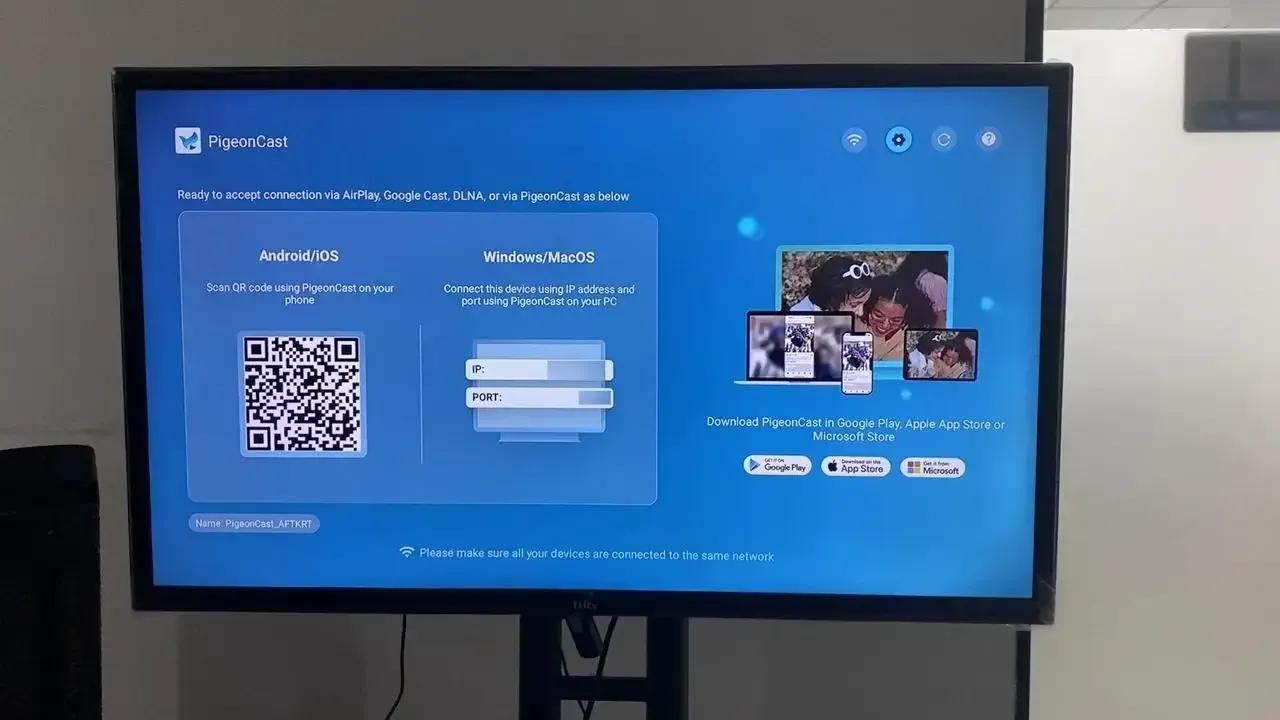
Step 1. Ensure your mobile deivce is connected to the same wireless network as your TV.


Overall Rating:



Step 2. Install PigeonCast on both your mobile device and smart television, then launch it.
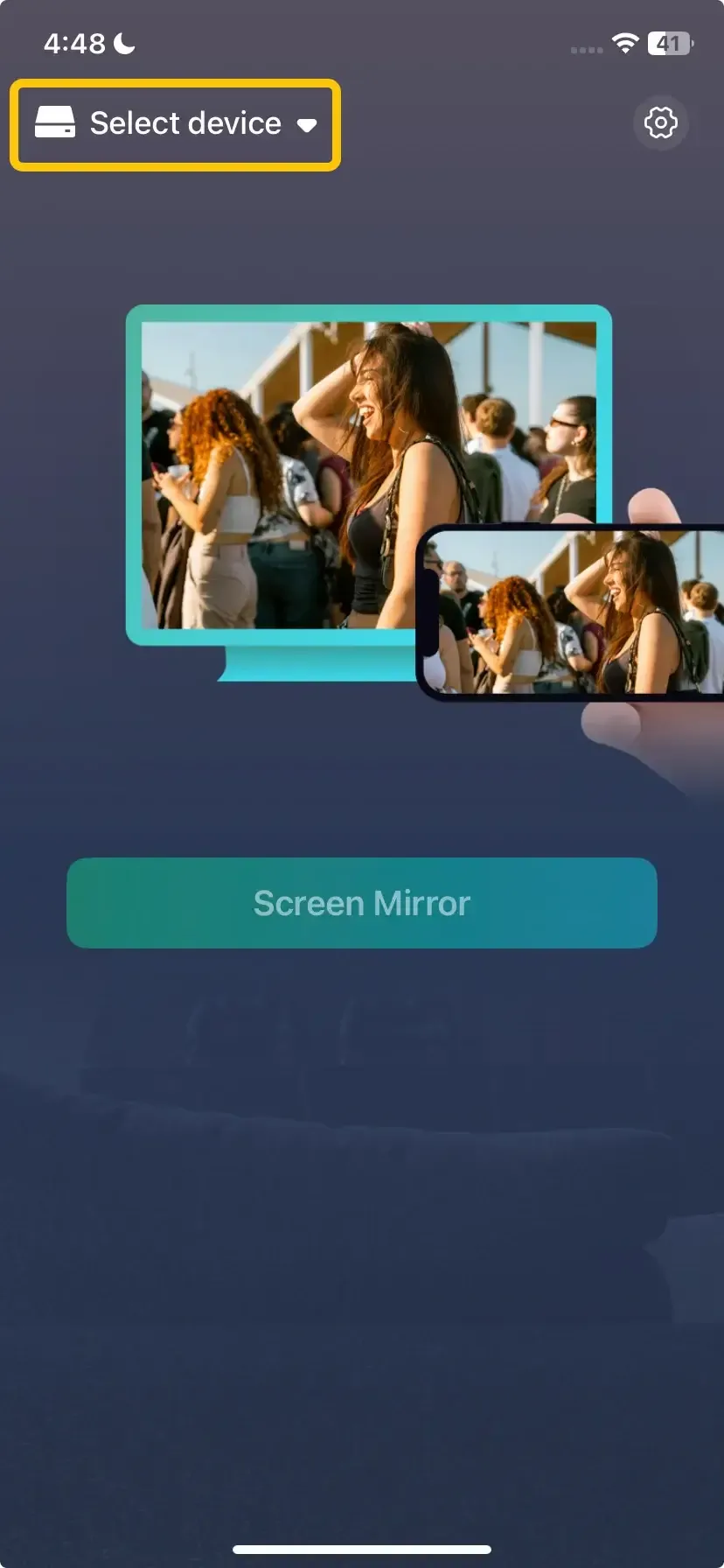
Step 3. On the mobile device, tap Select device to choose your TV from the available list. Or you can scan the onscreen QR code shown on the TV to create a connection.
Step 4. Enter the onscreen code to finish the connection.
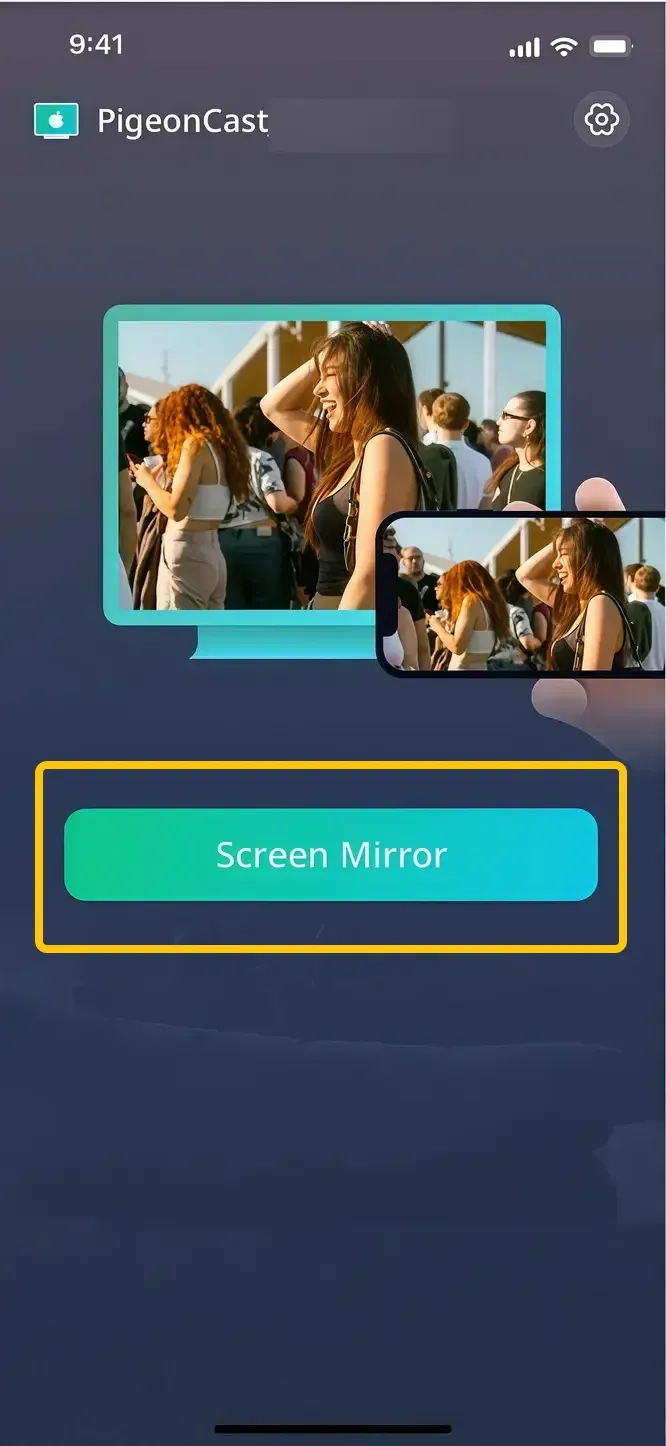
Step 5. Tap the Screen Mirror button to start mirroring activities on your smart television.
Wrapping Up
Encountering a Google Chromecast black screen can be frustrating, but most issues can be resolved with a few simple troubleshooting steps. For those who continue to face problems, using an alternative casting app like PigeonCast offers a reliable solution. With these steps, you can easily identify and fix the issue, ensuring a smoother streaming experience.
Chromecast Black Screen FAQ
Why is Chrome showing a black screen?
A black screen in Google Chrome can be caused by several factors:
- Hardware acceleration issues
- Outdated graphics drivers
- Corrupted browser files
- Conflicting extensions
- Software conflicts
- High system resource usage
How to solve Chromecast black screen with sound?
If your Chromecast is displaying a black screen with sound, it typically indicates that the video signal isn't being transmitted correctly, but the audio is still working. Here are a few solutions to resolve the issue:
- Check HDMI connections
- Check TV Input
- Restart Chromecast and TV
- Check the network connection
- Update your devices
- Try another device
- Disable hardware acceleration
- Factory reset Chromecast
How do I get Chrome out of black mode?
To get Chrome out of dark mode and return to the default light mode, follow these steps:
- Turn Off Dark Mode via Chrome Settings
- Disable Dark Mode from System Settings (Windows/Mac)
- Disable Chrome's Dark Mode Flag (for Windows/Linux)
- Check for Theme Extensions
How to fix the Google Home black screen?
If you're encountering a black screen on Google Home (e.g., on the Google Home app or a Google Nest Hub display), here are a few troubleshooting steps you can try to resolve the issue:
- Check the power connection
- Restart your Google Home device
- Check Display Brightness
- Verify Wi-Fi and network connection
- Update device firmware
- Factory reset the device
- Try casting the device (PigeonCast)
How to solve the Chromecast Netflix black screen?
If you're encountering a black screen while streaming Netflix on Chromecast, but the audio is working fine, the issue could be caused by a number of factors, such as network problems, HDMI or power issues, or software conflicts. Here are a few solutions to resolve the Chromecast Netflix black screen:
- Check the HDMI and power connections
- Switch HDMI ports
- Restart Chromecast and TV
- Check the network connection
- Update Chromecast and the Netflix app
- Disable hardware acceleration
- Clear cache and data for Netflix
- Test with another device
- Factory reset Chromecast
Clara Rossi is an experienced technology editor and a seasoned expert in screen mirroring and casting technologies. With a keen eye for detail and a deep understanding of how to seamlessly connect devices, Clara excels at optimizing user experiences for effortless sharing and streaming. Whether you're seeking quick fixes or advanced tips, her expertise and responsiveness ensure that every query is met with a well-informed and efficient solution.