
Chromecast has made streaming easier for millions of users worldwide, allowing them to cast content from their phones, tablets, and computers to their TVs. However, as convenient as it is, Chromecast users often face issues that can make streaming frustrating. Whether it's WiFi connectivity issues, device compatibility problems, these issues significantly disrupt your viewing experience.
If you've ever encountered a blinking orange light or a failed connection, you're not alone. In this detailed guide, we'll walk you through the 10 most common Chromecast issues, their causes, and practical solutions that can help you get back to streaming. We'll also introduce PigeonCast, an alternative solution that could resolve many of these problems for good.
Issue 1: Chromecast Not Connecting to WiFi
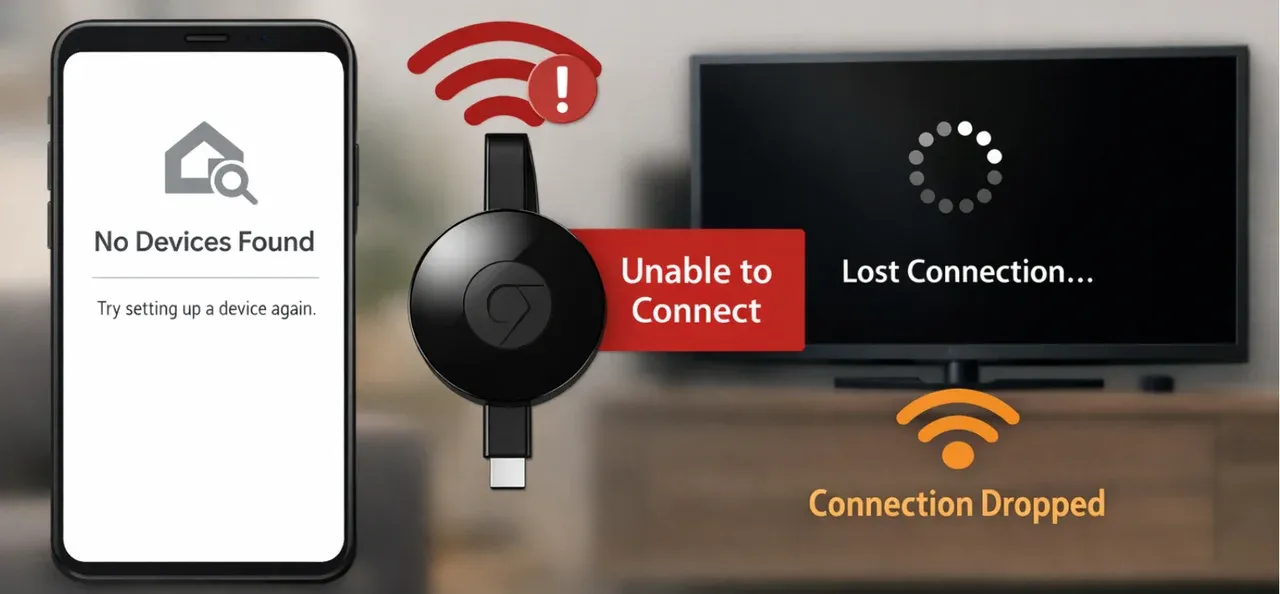
When Chromecast fails to connect to WiFi, users may experience a variety of frustrating symptoms. For instance, the Chromecast might not show up at all in the Google Home app during setup. In other cases, users find that their device connects for a while but then randomly disconnects or struggles to maintain a stable connection.
Error messages like "unable to connect" or "no internet connection" are commonly displayed. These issues with Chromecast can be especially aggravating when you're in the middle of setting up your device or trying to stream your favorite shows.
Why do Chromecast WiFi issues happen?
WiFi connectivity problems with Chromecast often occur due to weak WiFi signals, interference from other devices, or incorrect network configurations. This can be especially troublesome after a firmware update, or if the Chromecast is too far from the router. Users may also face issues when using a 2.4GHz network instead of a more reliable 5GHz network, which offers better speeds and less interference (check 2.4GHz vs 5GHz).
How to fix Chromecast WiFi issues?
- Ensure your Chromecast is close to your router: A strong WiFi signal is essential for Chromecast to function correctly. If it's too far from your router, it may not connect.
- Restart both the router and Chromecast: Unplug the router and Chromecast for 10 to 15 seconds, then plug them back in. This can resolve many temporary network issues.
- Forget and reconnect Chromecast to WiFi in the Google Home app: Open the Google Home app, select your Chromecast, forget the current WiFi network, and reconnect it to the correct one.
- Use a 5GHz network: Chromecast works better on a 5GHz network if your router supports it. The 5GHz frequency is faster and less likely to suffer from interference compared to the 2.4GHz band.
- Check for interference: Devices like microwaves, baby monitors, and other electronics can interfere with WiFi signals. Move such devices away from the router to minimize interference.
Reddit users have shared that disabling "band steering" on routers (which automatically switches devices between 2.4GHz and 5GHz) can help resolve connectivity issues, especially during the setup process.
If these steps don't resolve the issue, consider switching to PigeonCast, a free screen mirroring app, as an alternative. Go to the app store on your device, search for the app, and download it. Once your devices are on the same WiFi network, PigeonCast offers seamless cross-platform streaming.



Overall Rating:



Issue 2: Chromecast Not Showing Up in Google Home
When Google Home can't find Chromecast, it often leaves users stuck at the setup phase. Instead of being able to pair their Chromecast with the app, users see error messages like "device not found" or "unable to connect". The Chromecast startup issue may appear even after multiple attempts to restart the Chromecast, reinstall the Google Home app, or reset the network connection.
Why does the Chromecast startup issue happen?
This problem is frequently caused by either network-related issues (e.g., the Chromecast and the device you're casting from are on different devices) or app misconfigurations. Sometimes, the Google Home app itself may be malfunctioning or not updating properly, preventing the Chromecast from being recognized.
How to troubleshoot Google Chromecast issues?
- Confirm both devices are on the same WiFi network: This is the most common cause of connection issues. Make sure your phone/tablet and Chromecast are connected to the same WiFi network.
- Resinstall the Google Home app: Sometimes, the app itself can have bugs. Uninstalling and reinstalling the app can often solve these issues.
- Restart Chromecast: Power cycle the Chromecast by unplugging it for about 10 seconds and then plugging it back in.
- Factory reset the Chromecast: Hold down the Chromecast button for 25 seconds until the device resets. After it reboots, try setting it up again.
Several users on tech forums like Google's support pages suggest disabling any "band steering" settings on routers, as these can sometimes prevent Chromecast from connecting properly.
Issue 3: Chromecast Flashing Orange Light
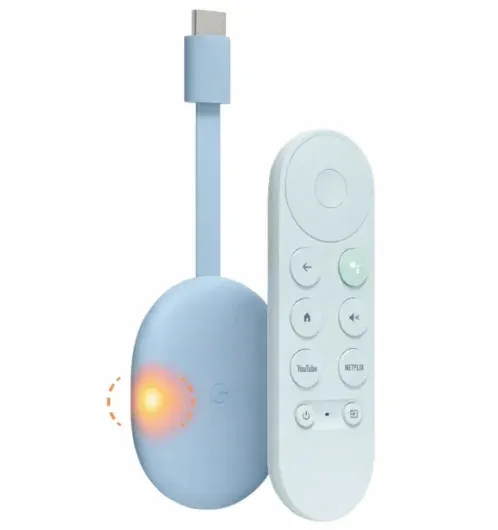
If you see the Chromecast LED blinking orange, it typically indicates a problem with either the device's startup or the WiFi connection. Users report this symptom when the device fails to boot up correctly or when it can't connect to the network. The TV screen may remain blank, or users may see the "connecting" message that never goes away.
Why does Chromecast blink an orange light?
The orange blinking light is usually a sign that the Chromecast is either experiencing power issues or is unable to connect to the WiFi network. It could also be caused by a firmware bug, insufficient power supply, or a network issue like a weak signal ot incorrect configuration.
How to fix Chromecast flashing orange light?
- Check the power supply: Make sure you're using the proper power adapter and cable. Some users have found that when plugged into the TV's USB port, Chromecast doesn't receive enough power. Try using a well adapter instead.
- Reconnect Chromecast to WiFi: Open the Google Home app, forget the current network, and reconnect your Chromecast to the correct WiFi network.
- Factory reset Chromecast: Hold down the button on the Chromecast for 25 seconds until the LED starts blinking. After it resets, try the setup again.
- Check for software updates: If possible, update your Chromecast firmware and the Google Home app to the latest version.
Many users have found that changing the USB power source (from the TV USB port to a wall adapter) resolves the blinking orange light issue, especially if the Chromecast is not receiving sufficient power.
Issue 4: Chromecast Not Working with Streaming Apps
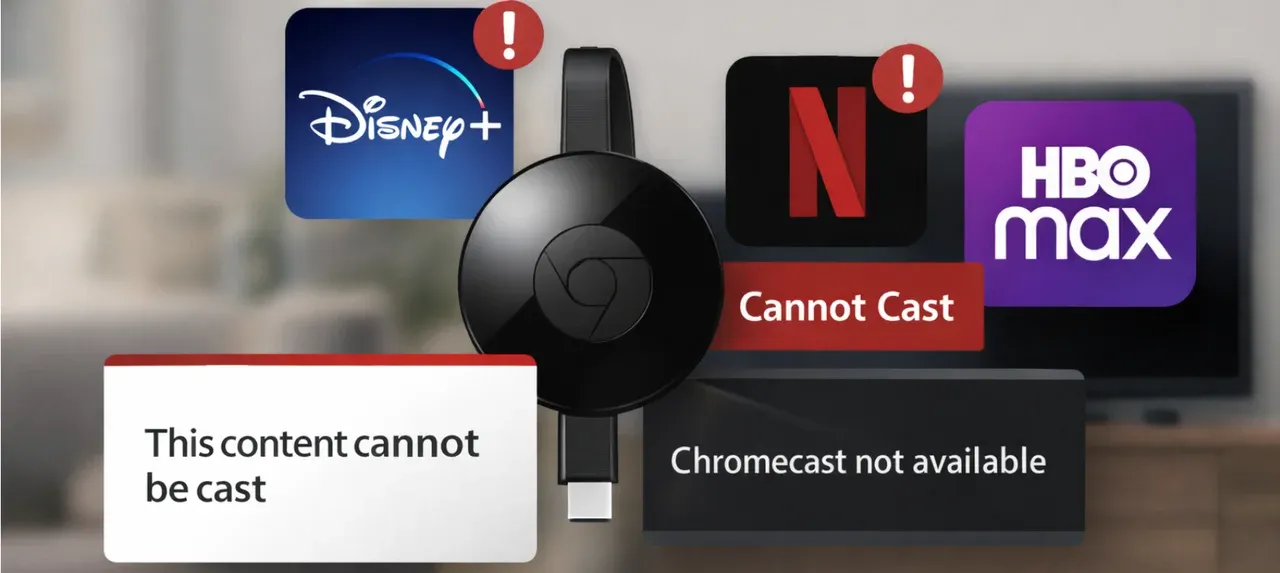
Many users run into casting problems with specific streaming apps, such as Disney+ Chromecast not working or Prime Video not working with Chromecast. Similar issues can also affect Netflix, HBO Max, and other streaming services. You may see an error message such as "this content cannot be cast" or "Chromecast is not available for this app," or the app may fail to detect Chromecast altogether.
Why does Chromecast not work with streaming apps?
App-specific bugs, outdated Chromecast firmware, or compatibility conflicts between the app and Chromecast are common causes. Some services may also limit casting on certain devices or in specific regions, while older firmware may not support newer app features properly.
How to solve various Google Chromecast issues with your streaming app?
- Update both Chromecast firmware and the app: Make sure your Chromecast and the affected streaming app are running the latest versions.
- Clear the app cache: On Android, go to Settings > Apps > your streaming app > Storage > Clear Cache.
- Reboot the devices: Restart both your Chromecast and the phone, tablet, or computer you're casting from.
- Check for regional restrictions: Some streaming services apply region-based limits that can affect casting availability.
Logging out of the streaming app and signing back in can also resolve temporary account or session issues that interfere with casting.
If streaming apps still refuse to cast reliably, PigeonCast offers another way to mirror content across multiple platforms without depending on each app's built-in casting support.
Issue 5: Chromecast Device Unavailable Error
When trying to cast to your Chromecast, you might encounter an error message that says "Device Unavailable". This typically happens when the device is disconnected or fails to establish a connection. Users report seeing this error when attempting to stream content, and the Chromecast fails to stay connected during streaming.
Why does the Chromecast "Device Unavailable" error happen?
This issue can be caused by several factors: network instability, a corrupted connection between the Chromecast and your router, or an issue with the Google Home app itself. It can also occur if the Chromecast is powered off or if there is a significant delay in the connection process.
How to fix the Chromecast "Device Unavailable" error?
- Ensure the Chromecast is powered on: Check if the Chromecast is receiving power and the LED light is solid white. If the light is blinking or off, try a different power outlet or USB cable.
- Reboot your router and Chromecast: Unplug both the router and Chromecast for at least 10 seconds. Plug them back in and wait for them to reboot before trying again.
- Reconnect Chromecast to WiFi: In the Google Home app, forget the current network and reconnect your Chromecast to the correct WiFi network.
- Update firmware and Google Home app: Ensure both the Chromecast and Google Home app are running the latest versions to prevent any bugs that may cause connection issues.
Issue 6: Chromecast Not Connecting to TV
When you plug in your Chromecast, the TV screen may remain blank, or you might see a "No Signal" message. The Chromecast could fail to establish a connection to the TV, leaving users unable to cast content.
Why doesn't Chromecast connect to TV?
This issue typically occurs due to problems with the HDMI port, TV settings, or an insufficient power supply. Some TVs are more selective about the HDMI ports they use for external devices, while others may require additional settings to support Chromecast.
How to fix Chromecast connection issues?
- Check the HDMI connection: Ensure that the Chromecast is properly plugged into an HDMI port on your TV. If possible, try using a different HDMI port.
- Use the included power adapter: Avoid powering your Chromecast via your TV's USB port, as it may not provide sufficient power. Use the wall adapter that came with the device.
- Enable HDMI-CEC on your TV: Some TVs need HDMI-CEC enabled to detect external devices like Chromecast. Go to your TV's settings and turn on HDMI-CEC if it's disabled.
- Restart Chromecast and TV: Turn both the Chromecast and your TV off, wait for a few seconds, and then turn them back on. This often resolves connection issues.
If HDMI compatibility issues persist, you can use PigeonCast as an alternative to connect your phone to TV wirelessly, bypassing the need for HDMI altogether.
Issue 7: Chromecast Audio Issues
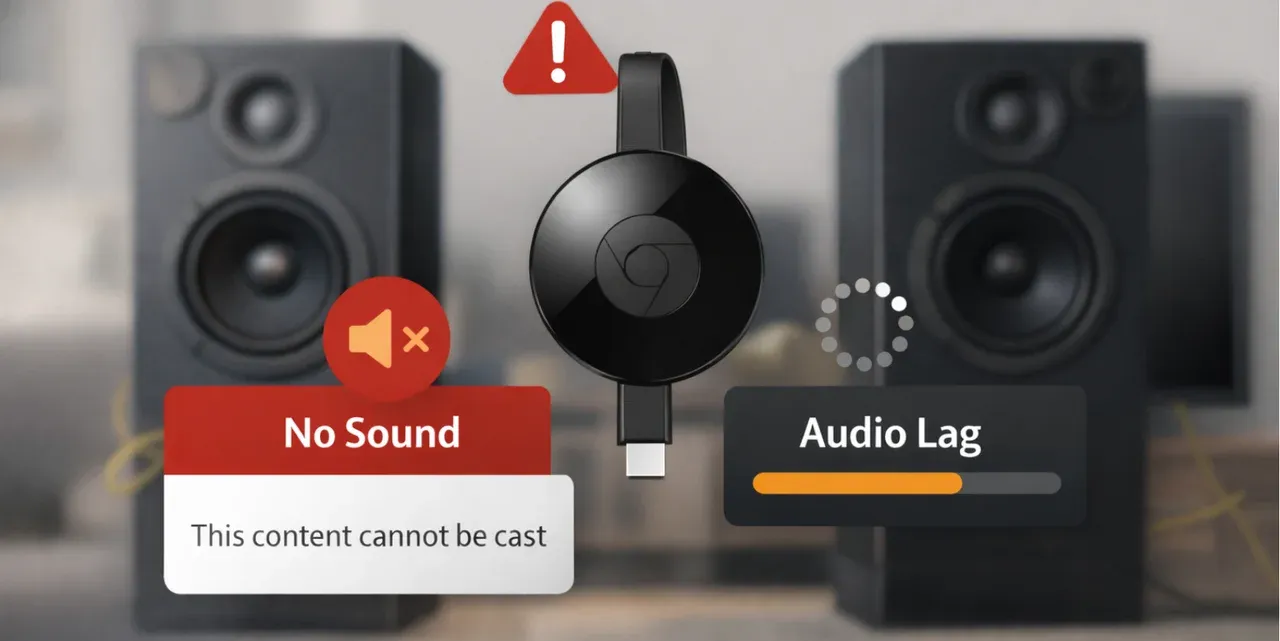
Audio problems during casting, such as Chromecast no sound, distorted sound, or lag, are common issues that Chromecast users face. Chromecast audio issues often occur when streaming through external speakers or sound systems, leading to an inconsistent or poor audio experience.
Why do Chromecast audio issues happen?
Audio problems can arise due to network instability, incorrect device settings, or compatibility issues between the Chromecast and external audio equipment. It may also happen when there's a bug in the Chromecast firmware or the audio settings on the device you're casting from.
How to fix Chromecast audio issues?
- Check the audio output settings: Make sure your phone, tablet, or computer is set to the correct audio output device. Check the sound settings on your casting device to ensure it's sending audio to the Chromecast.
- Check external speakers: If you're using a soundbar or external speakers, ensure they're connected properly to the Chromecast and set to the correct input source.
- Restart Chromecast and external audio device: Power cycle both the Chromecast and your external speakers or sound system to refresh the connection.
- Clear cache on the app you're using: Sometimes, clearing the cache of streaming apps like Disney Plus or YouTube can resolve audio sync issues.
If these steps don't solve the problem, PigeonCast offers a reliable alternative that can help resolve some audio issues by providing a direct connection to your TV.
Issue 8: Chromecast Cannot Update Firmware
When attempting to update the firmware on your Chromecast, the process may fail, leaving you stuck with an outdated version. In some cases, users report that the device no longer works correctly, or that new features and bug fixes aren't available. A firmware update failure can prevent the Chromecast from streaming smoothly, affecting your overall experience.
Why does Chromecast firmware update fail?
Firmware update failures often occur due to network issues, a poor connection between the Chromecast and your router, or a problem with the Google Home app itself. Sometimes, if the Chromecast is in the middle of streaming, the update might be interrupted, or it could fail to download properly due to server-side issues. Additionally, an interrupted power supply can also result in a failed firmware update.
How to fix Chromecast firmware update failure?
- Check network connection: Ensure your Chromecast is connected to a stable WiFi network. A weak or intermittent connection can prevent updates from completing successfully.
- Restart Chromecast and router: Unplug both the Chromecast and the router for 10-15 seconds and reconnect them. This often resolves temporary network issues that may prevent updates.
- Check for Google Home app updates: Ensure that the Google Home app on your phone or tablet is up to date. Outdated apps may cause problems during the update process.
- Use a wired connection (if available): If your router supports Ethernet, use an Ethernet adapter to connect the Chromecast directly to the router. This can provide a more stable connection and ensure the firmware update goes smoothly.
- Factory reset Chromecast: If the update fails repeatedly, performing a factory reset can help. Hold the button on the Chromecast for 25 seconds to reset it to factory settings. After the reset, try the update process again.
Issue 9: Chromecast Keeps Disconnecting
Users often report that their Chromecast randomly disconnects while streaming. This can happen during movies, live streams, or even during setup. The device may drop the connection unexpectedly, interrupting your viewing experience.
Why does Chromecast keep disconnecting?
This issue is typically caused by WiFi instability, interference from other devices, or issues with the router itself. It could also be due to network congestion or the Chromecast being too far from the router.
How to troubleshoot Chromecast connection issues?
- Move Chromecast closer to the router: A stronger WiFi signal improves stability. Try to reduce the distance between the Chromecast and the router to prevent dropouts.
- Power cycle the router and Chromecast: Unplug both devices for 10 seconds, then plug them back in to reset the connection.
- Check for WiFi interference: Devices like microwaves, baby monitors, or cordless phones can interfere with WiFi signals. Move these devices away from the router and Chromecast.
- Use a 5GHz WiFi network: If your router supports it, connect your Chromecast and other devices to a 5GHz WiFi network for better performance and less interference.
If the disconnections continue, try using PigeonCast as an alternative to avoid these connectivity issues.
Issue 10: Chromecast Bluetooth Connectivity Issues
Bluetooth connectivity problems are common when trying to pair Chromecast with other devices like speakers, headphones, or Bluetooth-enabled sound systems. Users often experience difficulty establishing a connection, or once connected, the sound may drop out, or there may be delays.
Why does Chromecast Bluetooth connectivity fail? Bluetooth pairing issues can be caused by several factors, including outdated software on the Chromecast or the paired device, interference from other wireless signals, or issues with the Bluetooth drivers on the devices being paired. The Chromecast might also struggle with maintaining a stable connection if it's too far from the paired device or if the Bluetooth device is already connected to multiple other devices.
How to fix Chromecast Bluetooth connectivity issues?
- Update Chromecast and the paired device: Ensure both your Chromecast and Bluetooth devices (like speakers or headphones) are running the latest firmware or software updates.
- Re-pair the devices: Go to the Bluetooth settings on both the Chromecast and your paired device, forget the pairing, and try connecting again. This can resolve any temporary connection issues.
- Move devices closer together: If the Chromecast and Bluetooth device are too far apart, it can lead to connection drops. Move the devices closer to ensure a stable Bluetooth connection.
- Minimize wireless interference: Other wireless devices (WiFi routers, microwaves, etc.) can interfere with Bluetooth signals. Try to move such devices away from your Chromecast and Bluetooth devices to reduce interference.
- Reset Bluetooth settings: If the problem persists, try resetting the Chromecast's Bluetooth settings. This can be done by performing a factory reset on the Chromecast, but be aware that this will erase all settings and require you to set up the device again.
If Bluetooth issues persist, PigeonCast could offer a solution that bypasses Bluetooth pairing altogether, providing a more stable and reliable casting experience.
The End
As convenient as Chromecast is for streaming, it can occasionally run into problems like firmware update failures or Bluetooth connectivity issues. By following the solutions above, you can troubleshoot and resolve these problems and get back to enjoying your content. If issues continue to occur, PigeonCast offers an alternative that provides a hassle-free streaming experience.
Chromecast Issues FAQs
Why has Chromecast stopped working?
Chromecast may stop working due to issues like poor WiFi connection, outdated firmware, or conflicts with apps. Check your network settings and update your Chromecast to resolve this.
How to fix glitchy Chromecast?
Glitchy performance is often caused by network instability, outdated firmware, or resource-heavy apps. Try rebooting your Chromecast, clearing the app cache, or ensuring a stronger WiFi connection.
Why is my Chromecast cutting in and out?
Intermittent disconnections are typically caused by weak WiFi signals, interference from other devices, or router configuration issues. Move your Chromecast closer to the router or use a 5GHz network for better stability.
Can Chromecast wear out?
While rare, older Chromecasts may experience performance degradation over time due to wear and tear, especially if used extensively. Regular updates and resets can help maintain performance.
Why is my Chromecast so laggy?
Laggy performance can be due to low WiFi speeds, a high number of devices on the network, or network congestion. Try optimizing your WiFi network, or use Ethernet for a more stable connection.
How do I reboot my Chromecast?
To reboot your Chromecast, simply unplug it from the HDMI port and power source, wait for about 10-15 seconds, and plug it back in.
How do I reboot my Chromecast?
Unplugging Chromecast does not perform a factory reset but can help reboot the device, resolving minor issues. For a full reset, you'll need to perform a manual reset by holding the button on the device.
Does unplugging Chromecast reset it?
Unplugging Chromecast does not perform a factory reset but can help reboot the device, resolving minor issues. For a full reset, you'll need to perform a manual reset by holding the button on the device.
Are old Chromecasts still good?
Older Chromecasts can still work well, but they may not support the latest features or streaming capabilities, especially for newer apps or high-definition content. If you're facing performance issues, it may be time to upgrade.
Does factory resetting Chromecast fix issues?
Factory resetting Chromecast can resolve persistent software or network issues, as it restores the device to its default settings. However, it will erase all preferences and require you to set it up again.
Is Google fixing the Chromecast issue?
Google frequently releases updates to fix bugs and improve Chromecast performance. Check for software updates through the Google Home app to ensure you have the latest fixes.
Why does my Chromecast randomly stop working?
Chromecast may stop working unexpectedly due to issues like WiFi interference, power supply problems, or app crashes. Ensure that your network is stable, your Chromecast is properly powered, and your apps are up to date.
Mia Clarke is a technology editor specializing in screen mirroring and casting solutions across multiple platforms. Mia provides clear, practical guides and in-depth insights to help users seamlessly connect their devices. Passionate about enhancing digital experiences, Mia is dedicated to keeping readers updated on the latest trends and tools in cross-platform screen sharing. Whether you’re looking to mirror your smartphone, laptop, or smart TV, Mia’s content delivers reliable, user-friendly advice to simplify your tech setup.